

Summer ’26 has landed, and as always, Salesforce delivers a mix of genuinely useful enhancements, a few “finally!” moments, and a healthy dose of “right, better add that to the migration backlog.”
From smarter pipeline visibility and more flexible planning to Agentforce getting increasingly opinionated about your data model, there’s plenty here to improve day-to-day usability. But if you feel like half this release is also a reminder to move off older functionality… you’re not wrong. Let’s dig in!
1. Gauge Relationship Health Quickly in Pipeline Inspection
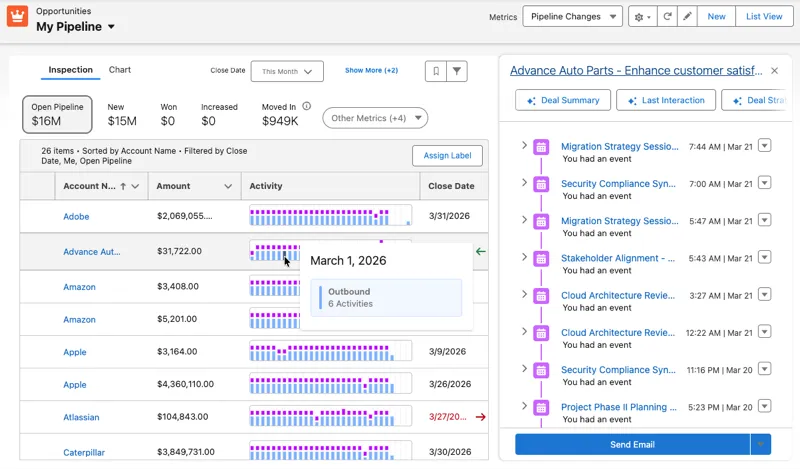
Pipeline Inspection now includes a new Activity column with a heatmap view. Instead of scrolling through rows of emails, calls, events, and meetings, sellers can quickly see engagement levels at a glance over a rolling 30-day period. This covers both inbound and outbound activity, including voice calls, video calls, events, and emails.
There are a couple of prerequisites to be aware of. Users need Einstein Conversation Insights and Einstein Activity Capture, and the data must be stored natively on the Salesforce Platform for the column to be available.
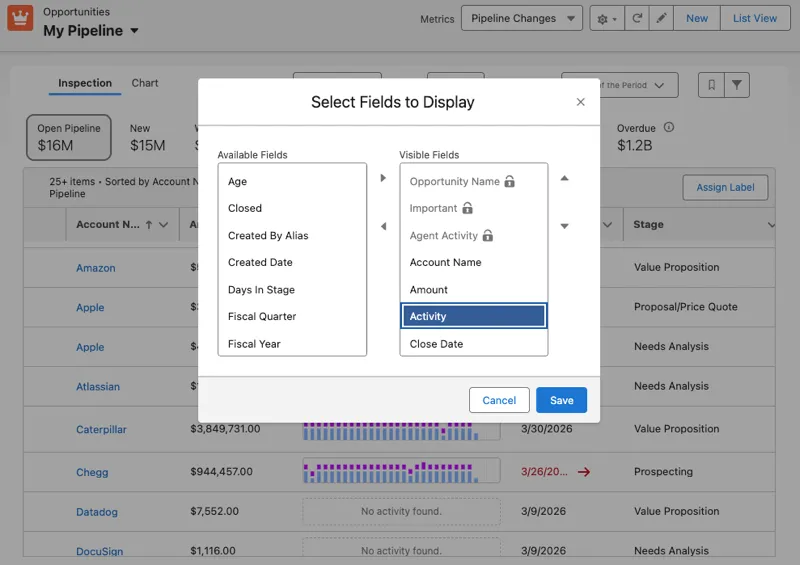
To add it, go to Pipeline Inspection, click the Gear icon, and click on “Select Fields to Display”. From there, move Activity into the visible fields list and save your changes.
Once it’s added, sellers can hover over any segment of the heatmap to see a quick summary of activity, or drill into the full details in the side panel.
Overall, it’s a nice quality-of-life improvement. Less hunting through timelines, more instant understanding of engagement, which is exactly what pipeline visibility should feel like.
2. Differentiate Sales Goals With Currency and Quantity Targets
Planning just got more flexible and more precise.
You can now define whether your goals are currency-based or quantity-based, depending on what you want to measure – whether that’s revenue growth in your default currency or simple unit counts like new logos or product sales.
It’s a small change, but it helps ensure your targets reflect the right metric and are displayed clearly and consistently across all Sales Planning views.
To set it up, head to Plan Home and either create a new goal or edit an existing one. In the Manage Goals modal, you’ll see a toggle for “Show metrics as currency”. If you enable it, Salesforce will automatically apply your org’s default currency settings.
If you leave it turned off, the goal will simply be treated as a numeric quantity.
3. Qualify Contacts and Person Accounts With Agentforce
With Agentforce for Sales, you can now seamlessly qualify Contacts and Person Accounts – not just Leads. This helps strengthen your pipeline by allowing the agent to assess how strong a prospect is based on the conversation and how closely they match your Ideal Customer Profile (ICP).
In practice, this means your agent can help surface the right opportunities earlier, so sales reps spend less time sifting and more time focusing on high-potential deals. The result is better targeting, improved efficiency, and ultimately better conversion rates.
Previously, qualification was limited to Lead records. This update expands that capability so you can also qualify Contacts and Person Accounts, which is particularly useful for organizations running more mature pipelines or working heavily with account-based selling. It also means Lead Generation and Lead Nurturing Agents can now work across a broader set of records.
To configure it, go to Salesforce Go, open the relevant agent setup for Inbound Lead Generation or Lead Nurturing, and head to the Qualification section. From there, you can select which objects the agent should be able to qualify.
4. Control Which Fields Receive Autonomous Updates
Salesforce is giving you more control over how the Sales Management agent interacts with your data. Specifically, you can now define exactly which fields the agent is allowed to update on a seller’s behalf by modifying the Process Field Update Suggestions Flow.
In practice, this means you can strike a balance between automation and control. The agent can automatically update certain fields, while still generating suggestions for others where human review makes more sense.
This gives you a more tailored approach rather than an all-or-nothing automation model.
To configure it, go into the Process Field Update Suggestions Flow and specify the fields you want the agent to update automatically. You do this in the Field API Names for Custom Autonomous Updates parameter on the Get or Execute Field Update Suggestion action element.
It’s a fairly technical setup, but the concept is simple: you’re deciding where the agent can act independently and where it should stay in suggestion mode.
5. Prepare for the Lightning Sync Retirement and Migrate to Einstein Activity Capture
Back in Winter ’21, Salesforce announced that Lightning Sync is no longer available for new orgs. Now, we’re firmly in migration territory.
If you’re currently using Lightning Sync, you’ll need to move to Einstein Activity Capture to continue syncing contacts and events between Salesforce and Microsoft or Google applications.
There’s also a specific deadline to be aware of. If you’re using Lightning Sync with Microsoft Office 365 and Exchange Web Service as your authentication method, you’ll need to upgrade by August 2026 to avoid disruption. For all other configurations, migration is required before Lightning Sync is retired in a future release.
So what does migration actually look like? Salesforce provides a multi-step process to help you through it:
- First, use the Lightning Sync migration tool in Setup to move to Einstein Activity Capture.
- Next, assign users the appropriate Einstein Activity Capture permission set license.
- Then, make sure users are included in an active Einstein Activity Capture configuration, or add them if needed.
- Finally, once everything is running smoothly, you can switch off Lightning Sync.
It’s not a flip-the-switch moment, but it is a structured path forward.
Overall, this is another step in Salesforce’s continued move toward Einstein Activity Capture as the standard for email and calendar sync. If Lightning Sync is still part of your architecture, now’s a good time to start planning that transition rather than leaving it until the last minute.
6. Salesforce for Outlook Is Being Retired in December 2027
The Summer ‘26 release included yet another reminder that Salesforce is retiring Salesforce for Outlook in December 2027.
Once Salesforce for Outlook is retired in 2027:
- It won’t work anymore. Users won’t be able to sync contacts, calendar events, or tasks between Salesforce and Outlook.
- The side panel in Outlook used to access Salesforce features will disappear.
- Admins won’t be able to configure or update any settings related to this tool.
- Users won’t be able to download it or see their configurations in Salesforce.
- Any unmatched or unsynced items that used to show up in the “Unresolved Items” section won’t show up anymore from this tool (though other tools like Einstein Activity Capture will still show unresolved items).
Salesforce recommends you switch to new tools:
7. Salesforce to Salesforce Is Being Retired (Release Update)
Salesforce to Salesforce is being retired in Spring ’27 as part of a broader shift toward more modern and integrated connectivity options. In its place, Salesforce is encouraging customers to move to more robust solutions like Partner Cloud, Data Cloud One, MuleSoft Anypoint, or MuleSoft for Flow, depending on your use case.
The key message here is simple: start planning your migration now to avoid disruption when the feature is fully retired.
The retirement is happening in phases, so it’s worth understanding the timeline:
- Spring ’26: You can no longer enable Salesforce to Salesforce in new orgs, but existing configurations continue to work
- Summer ’26: Official support is discontinued.
- Spring ’27: Full retirement – the feature stops working entirely across all orgs.
So this isn’t an immediate change, but it is a firm endpoint.
If you want to check your instance’s upgrade timing, you can go to Trust Status, search for your My Domain or instance, and review the maintenance tab.
Summary
This release is a bit of a mixed bag. On one hand, we’ve got genuinely helpful usability improvements like Pipeline Inspection heatmaps, more flexible goal setting, and tighter control over Agentforce behavior.
On the other hand, the retirement countdown continues: Lightning Sync, Salesforce for Outlook, Salesforce to Salesforce, and now even more gentle nudges to modernize integrations. At this point, you have to wonder – was this a release, or a feature retirement party with a few new announcements on the side?
Either way, the direction of travel is clear. Salesforce is streamlining older tools, pushing toward more unified data and AI-driven workflows, and giving admins more control where it actually matters.
Just make sure your roadmap includes both “try this new feature” and “migrate this before 2027,” because apparently, we’re doing both now.
Read More
- 10 New Salesforce Flow Features in Summer ‘26
- Top 8 Salesforce Summer ’26 Features for Developers
- Top 11 Salesforce Summer ‘26 Features for Admins
- Service Cloud: Top Salesforce Summer ’26 Features
- Top 9 Summer ‘26 Updates for Salesforce Marketers