

Salesforce’s Winter ’27 release is now live, so most orgs have made it through their deployment weekends, and your users are already starting to see some of the changes. This release doesn’t have one single headline feature that dominates everything else. Instead, Winter ’27 brings a broad mix of updates across Sales Cloud, Service Cloud, and the core platform, with plenty of practical changes that can have a noticeable impact on how people work.
There is one theme that runs throughout the release, though: AI. Agentforce continues to move into more parts of the Salesforce experience, with new capabilities appearing everywhere from sales forecasting and prospecting to case management and customer conversations. At the same time, plenty of more traditional platform improvements are making familiar tasks faster and easier.
So, if you want to give your users a quick overview of the Winter ’27 changes that are actually relevant to their day-to-day work, here are 10 features worth knowing about.
1. AI-Suggested Actions After Calls
If you’ve ever finished a sales call and thought, “Right, what did we actually agree to do next?”, this one should be welcome news. Once a sales call has been transcribed in the Salesforce mobile app, Salesforce can now generate a meeting summary, pull out the key decisions, and suggest concrete next steps, such as sending a proposal, bringing another stakeholder into the conversation, or booking a follow-up call.
Previously, reps had to work back through their notes or rely on their memory to figure out what needed to happen next. Now, those suggested actions are surfaced directly against the record and use the same Einstein Conversation Insights data that reps already have for analyzing calls. For sales managers, that also provides a more consistent way to see what happens after a conversation, rather than relying entirely on each rep to remember and record their own follow-up.
2. Post-Meeting Voice Notes
There is often plenty of useful context around a sales call that never makes it into Salesforce. Maybe the customer sounded particularly enthusiastic, an objection came up that was difficult to capture in the moment, or the rep simply has a strong feeling about where the deal is heading. Winter ’27 gives reps a quick way to capture that context with a voice note straight after the call in the Salesforce mobile app.
Salesforce transcribes the note automatically and stores it alongside the call data in Einstein Conversation Insights, so that additional context becomes part of the deal history rather than disappearing into a notes app.
3. Pipeline Forecasting Intelligence
Forecasting is getting a much richer view of what is happening inside the pipeline. Salesforce’s updated forecasting views bring together deal risk indicators, methodology scores, contact-level insights, agent activity, and an activity heatmap alongside the pipeline figures themselves.
For sales managers, that means they can see which opportunities have genuine engagement behind them and which ones may be starting to lose momentum without opening every opportunity individually. Reps can use the same information to spot potential problems earlier, allowing them to take action while a deal is still in the pipeline rather than discovering the problem when the forecast has already changed.
4. Preview Records From Lightning Reports Without Losing Your Place (Beta)
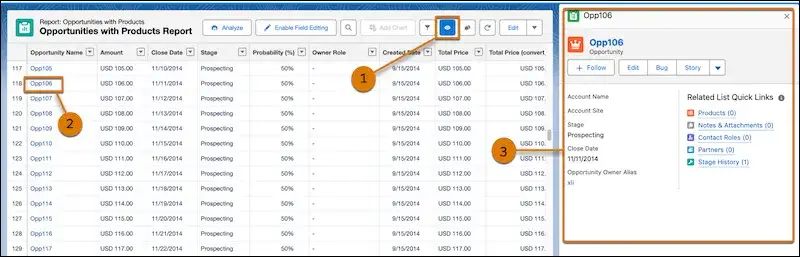
If you spend a lot of your day working in reports, being able to check a record without leaving the report can make a real difference to how quickly you can work through information. This beta feature adds a slide-out sidebar to Lightning reports, allowing users to preview key record details without navigating away from the report.
Previously, checking an account or case referenced in a report meant opening another tab or leaving your place in a long report. Now, that information can be pulled up alongside the report itself. For sales managers reviewing pipeline or support leads working through case volumes, it means they can investigate individual records while keeping the wider picture in view.
To use, you’ll need to click the eye icon (1), click the record you wish to preview (2), and then you’ll see the preview record in the sidebar (3).
5. A Follow Button on the Dynamic Highlights Panel
The Follow feature has been around for a while, but it hasn’t always been particularly easy to find. Winter ’27 puts a native Follow button directly into the Dynamic Highlights Panel, the strip of important fields at the top of a record page, so users can follow a record without having to dig through the record’s actions menu.
Once followed, users receive updates about the record, including field changes, new posts, and comments, through their Chatter feed and notifications. Putting the button where users are already looking should make the feature much more discoverable, particularly for teams that rely on updates from particular accounts, opportunities, or cases.
6. View Original Case Attachments Inline
When a customer opens a case with an attachment, support agents can now see those files directly on the case record. Screenshots, log files, photos, and other customer-submitted files appear as tiles beneath the Case Description field, rather than requiring agents to scroll down to the Files related list.
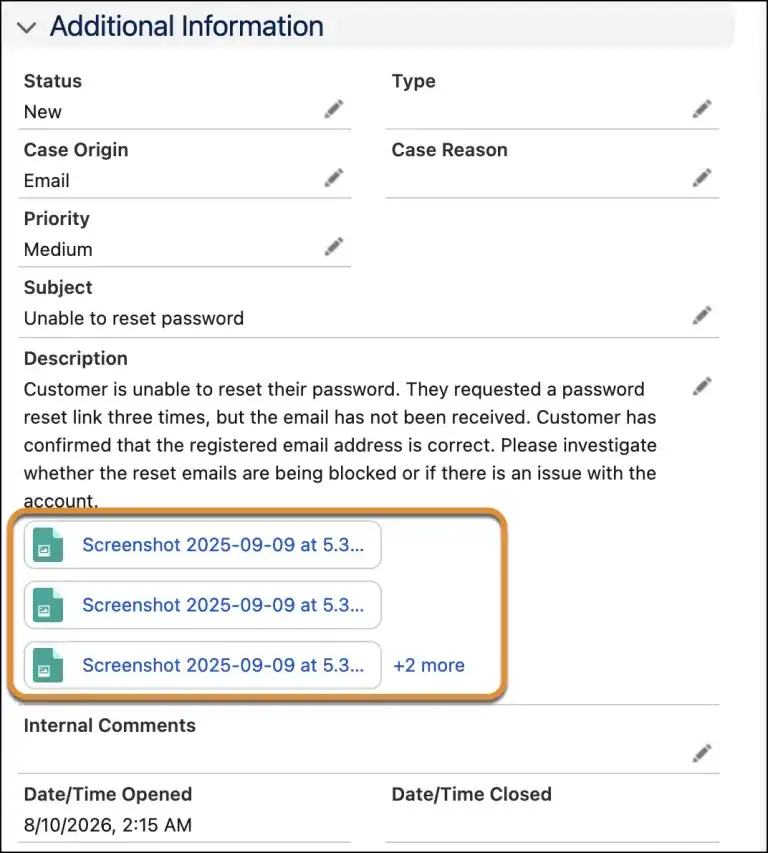
Up to three attachments are displayed inline by default, with a link through to the complete file history when there are more. For agents working through a queue of new cases, having the customer’s supporting information immediately alongside the description means they can start investigating the issue without having to go looking for the files first.
7. AI-Powered Writing Tools for Case Comments
Support reps can now use Salesforce’s AI writing tools when composing case comments, whether they are writing an internal note for a colleague or an update for the customer. Salesforce can polish the tone, expand a rough draft, or summarize a long conversation, with custom instructions available to help guide the output.
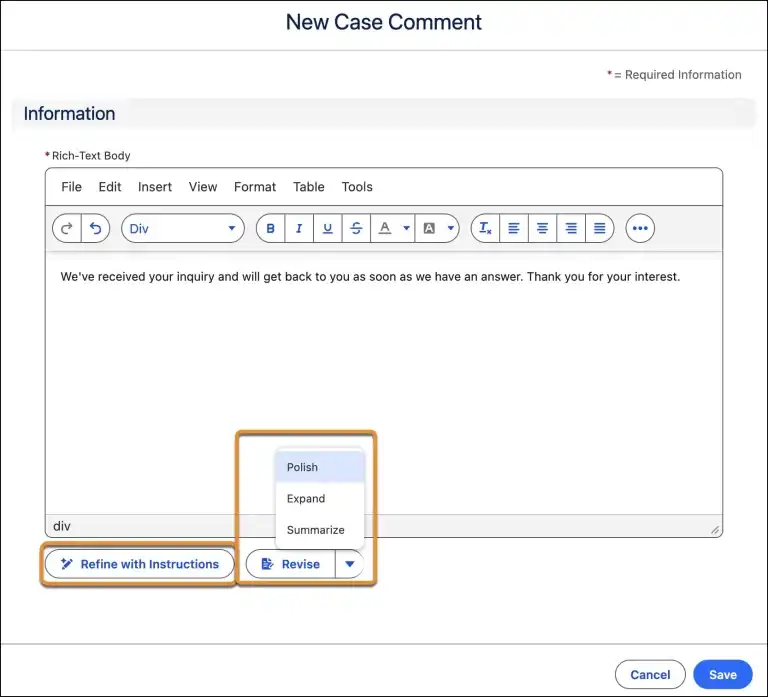
The agent remains in control of what is actually sent, but they no longer have to start every response from a blank text box. For teams handling a high volume of cases, that can make it much quicker to turn a rough collection of notes into a clear, customer-friendly response while leaving the agent to focus on the actual problem they are solving.
8. Automatic Work Summaries for Messaging and Voice
The work doesn’t necessarily stop when a customer conversation ends. Agents have traditionally had to spend time documenting what was discussed, what was resolved, and what still needs attention before moving on to the next interaction. Winter ’27 can now take care of that first draft.
When a messaging session or voice call ends, Salesforce can automatically generate a summary and, optionally, save it to the case. That gives the next agent, manager, or anyone reviewing the record a useful account of the interaction without relying on the original agent to manually write everything up after the fact.
9. Inform Customers When Their Chat Is Rerouted
When a support rep loses connectivity during a live chat, and Salesforce routes the conversation to another agent, the customer can now receive a customised message explaining what is happening.
Instead of suddenly being left waiting, the customer gets an explanation that the conversation is being handed over. Admins can control the wording of the message, giving support teams the opportunity to set expectations and reassure the customer while the new agent picks up the conversation.
10. Bulk Screen Flows From List Views
Of the 17 Flow changes arriving in Winter ’27, this is the one that will make a noticeable difference to users who regularly work with records in bulk. Screen flows launched as quick actions can now run against multiple selected records from a list view, rather than forcing users to open each record and repeat the same process individually.
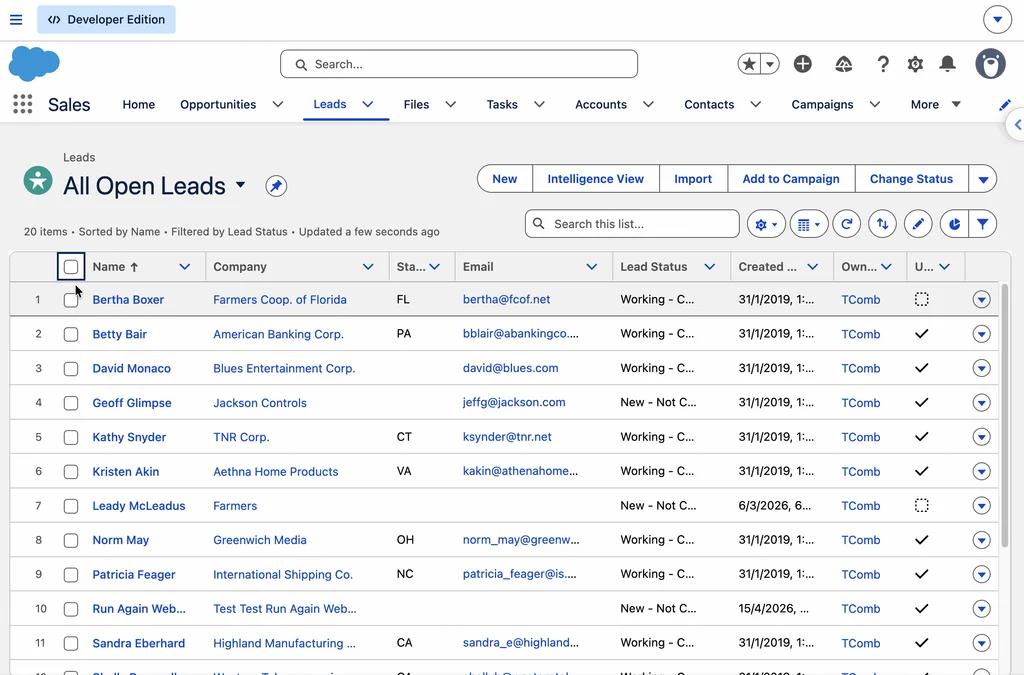
That opens up a much more efficient way of handling repetitive tasks. Whether users are updating a batch of records, applying the same values to several cases, or working through a group of related records, they can select what they need from the list view and run the flow once. For admins who have already built useful screen flows, this gives those automations a much broader role in everyday Salesforce work.
Summary
Salesforce’s Winter ’27 release brings plenty of changes that your users will actually notice, from AI-powered sales and service features to improvements that make everyday tasks a little easier. I’ve picked out 10 features worth knowing about this time around, covering Sales Cloud, Service Cloud, Agentforce, reports, cases, and Flow.
That’s also three more features than I picked out in my Summer ’26 release roundup, which tells you something about the breadth of changes making their way into the platform this time around. If you’re looking for the Winter ’27 updates that are most relevant to the people actually using Salesforce every day, these are the ones to know.
Read More
- 10 Winter ’27 Updates Salesforce Marketers Need to Know
- 17 New Salesforce Flow Features in Winter ‘27
- Top 10 Salesforce Winter ’27 Features for Developers
- Top 12 Salesforce Winter ’27 Features for Admins
- Service Cloud: Top 8 Salesforce Winter ’27 Features