









Highlights
- Salesforce has announced Quick Pages, in beta, which allows end users to build their own custom views. Users will describe what they want to see in Agentforce Coworker (or the agent in the Quick Pages tab), and watch the magic happen before their eyes.
- Users who hold the “Create and View Quick Pages (Beta)” permission can create Quick Pages and share them out as required to users, public groups, or the entire org.
- Salesforce Admins control who has access to Quick Pages using two permission sets: “Create and View Quick Pages (Beta)”, which allows users to manage Quick Pages, and “View Quick Pages (Beta)”, which allows users to view Quick Pages. Users without one of these two permission sets will not be able to access Quick Pages at all.
- The Salesforce Platform Security Model underpins Quick Pages, so admins don’t need to worry about additional data or functionality being exposed through use of Quick Pages (assuming they’ve built their permissions out correctly).
- The tool is free to use during the beta period, but Salesforce will meter usage prior to general availability.
As an admin, can you say you can build a page that pleases everyone? Admins wear a lot of hats in this era, and as the “page designer” for every team in the company, it’s difficult to satisfy everyone’s requests. Everyone wants just a quick view of their own data, and we all know you can’t just build a single view to rule them all. There’s no time to build a custom view for everyone that asks, especially when admins are busy juggling everything else!
Salesforce’s new Quick Pages (beta) is built to break that cycle by handing that job to the users themselves. In this article, we’ll look at what Quick Pages are, how they work, and where admin control comes in.
What are Quick Pages?
Quick Pages are interactive single pages that can contain dynamic content like charts and tables, tabs, and actions. The idea is that users describe what they want in plain language, and the page is built according to their preference, while also grounded in your org’s metadata.
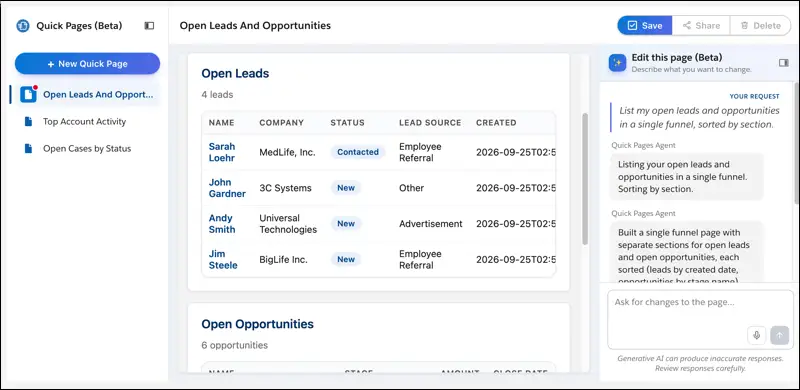
Salesforce’s own examples are an interactive quarterly forecast (for sales teams) and an overview of open cases by account (for support teams). The release note also mentioned presentations, meeting prep, and pipeline reviews. What’s great about this is that a page can pull from multiple objects and fields at once.
It must be a dream for every user to be able to simply describe what a page needs and watch a live preview take shape before their eyes! The finished pages can be shared with other users, public groups, or even the whole org.
Setting Up Quick Pages
Enabling it is as easy as going into Setup and searching for Quick Pages (Beta). Toggle the switch on.
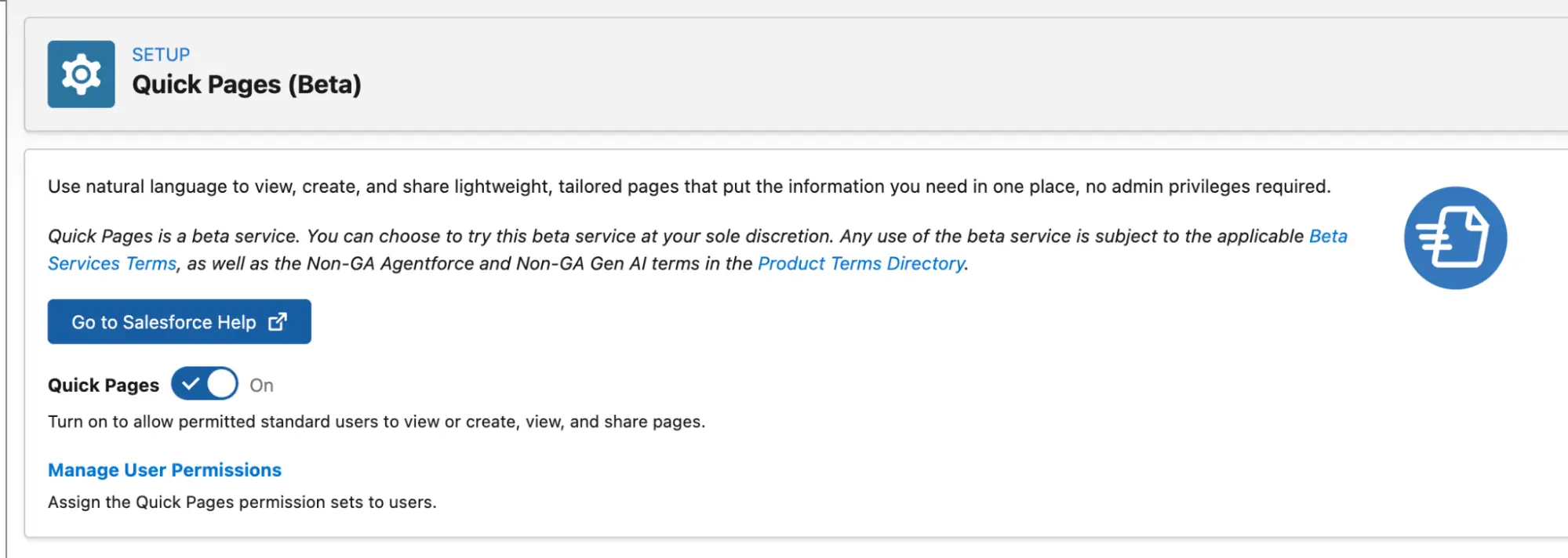
Next is to identify which users you want to grant this capability to. Users who need access to them can be granted the View Quick Pages (Beta) permission set in Setup. As for the users who may need to create their own Quick Pages (with great power comes great responsibility!), you can assign them the Create and View Quick Pages permission set instead.
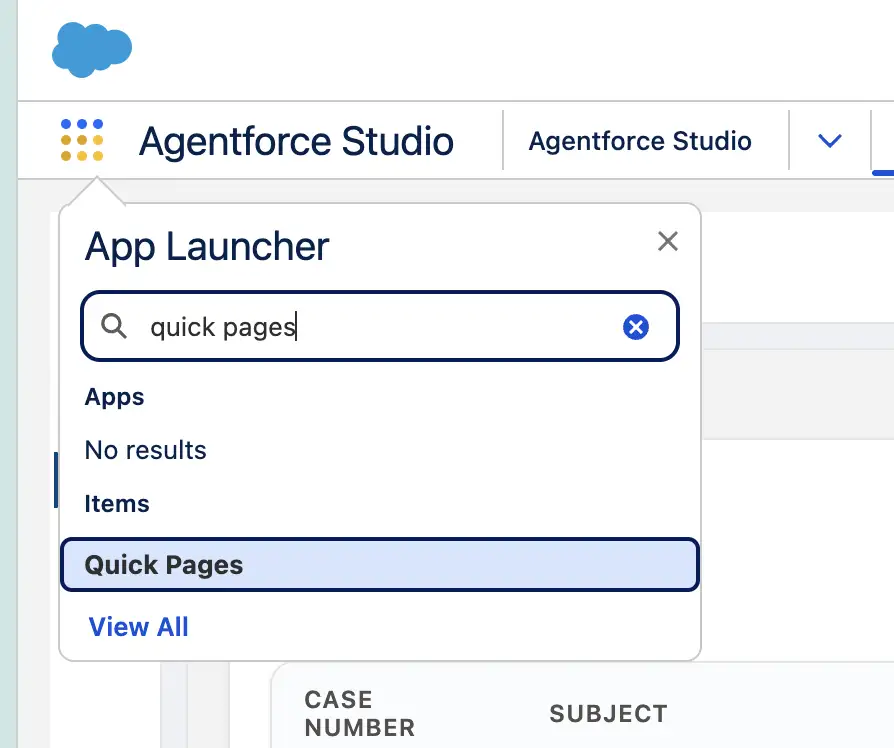
The tab should then be available from App Launcher.


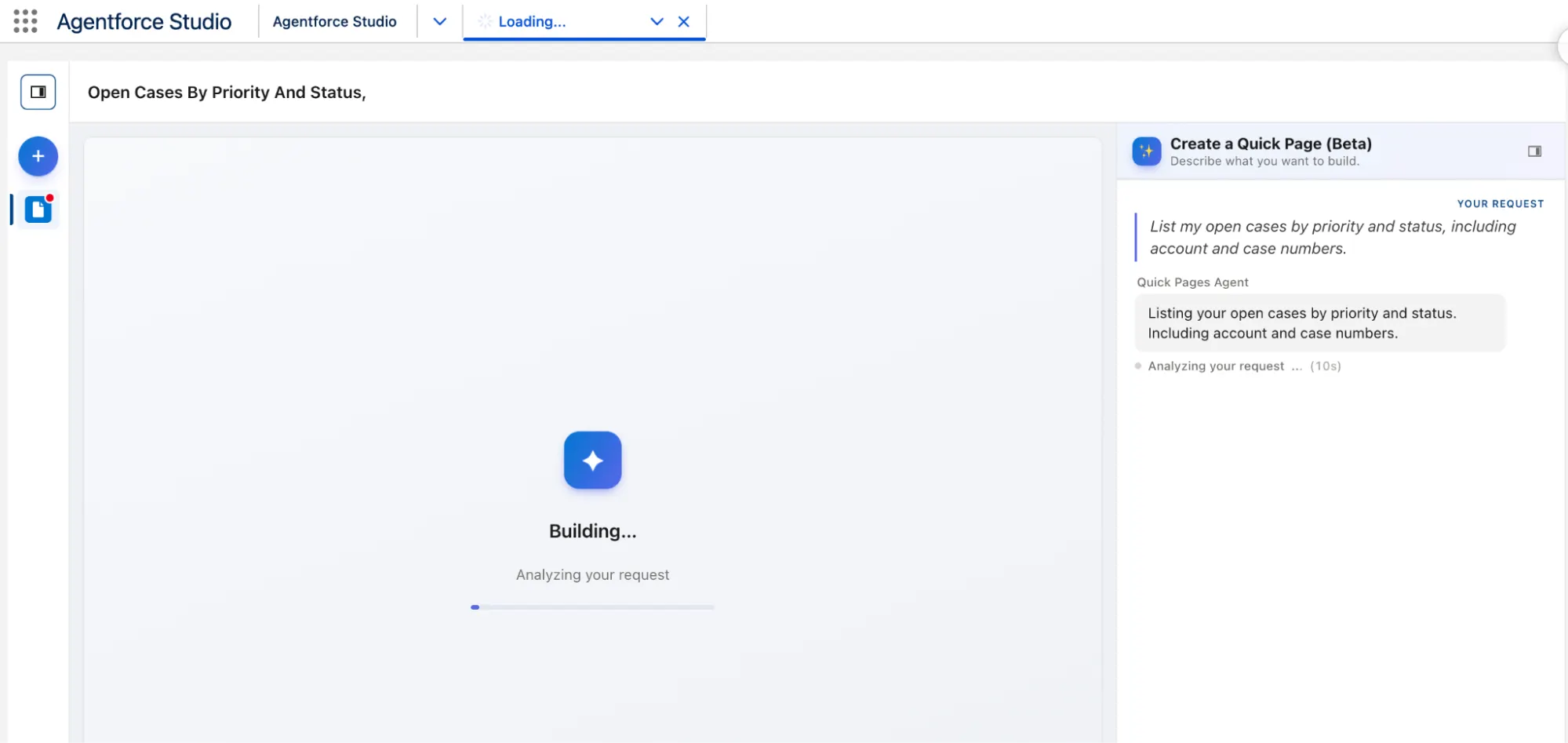
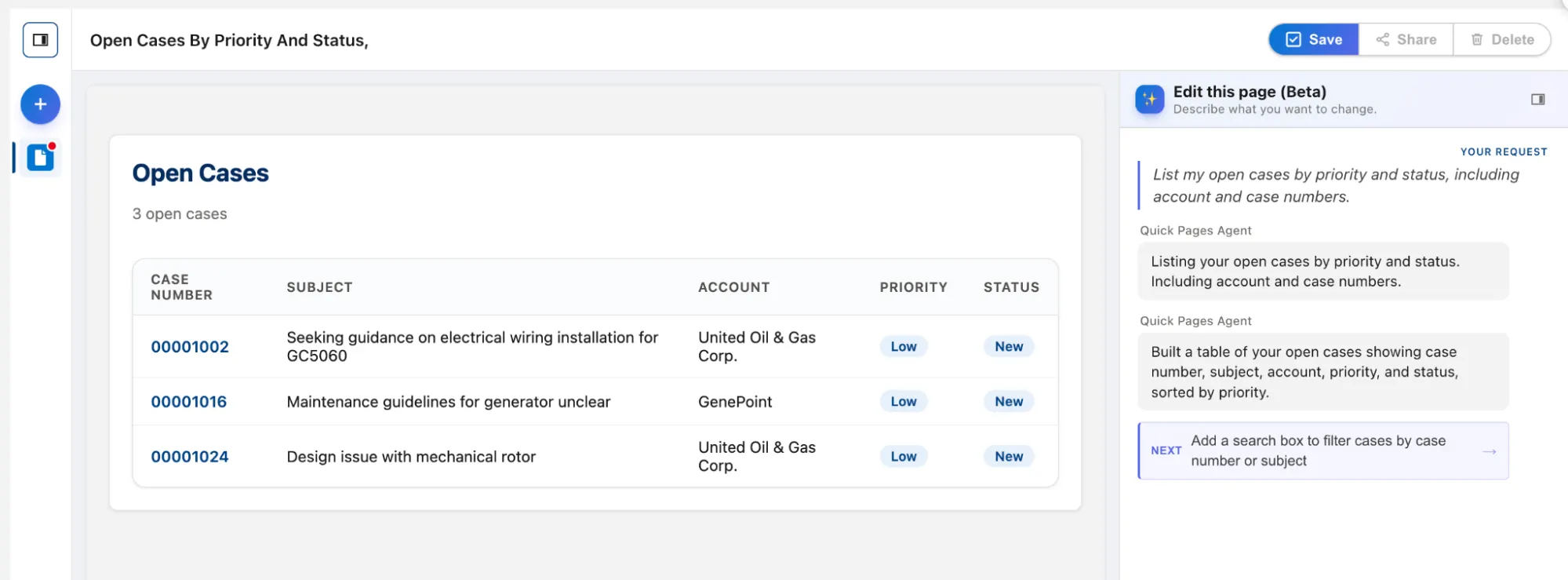
To create a Quick Page, simply describe what you want to see on the right sidebar. In the example below, we asked for a view of open cases by priority and status, including their account and case numbers.
The org I’m using to test this does not have a lot of records to pull in, but you can view a preview of the page on the left.
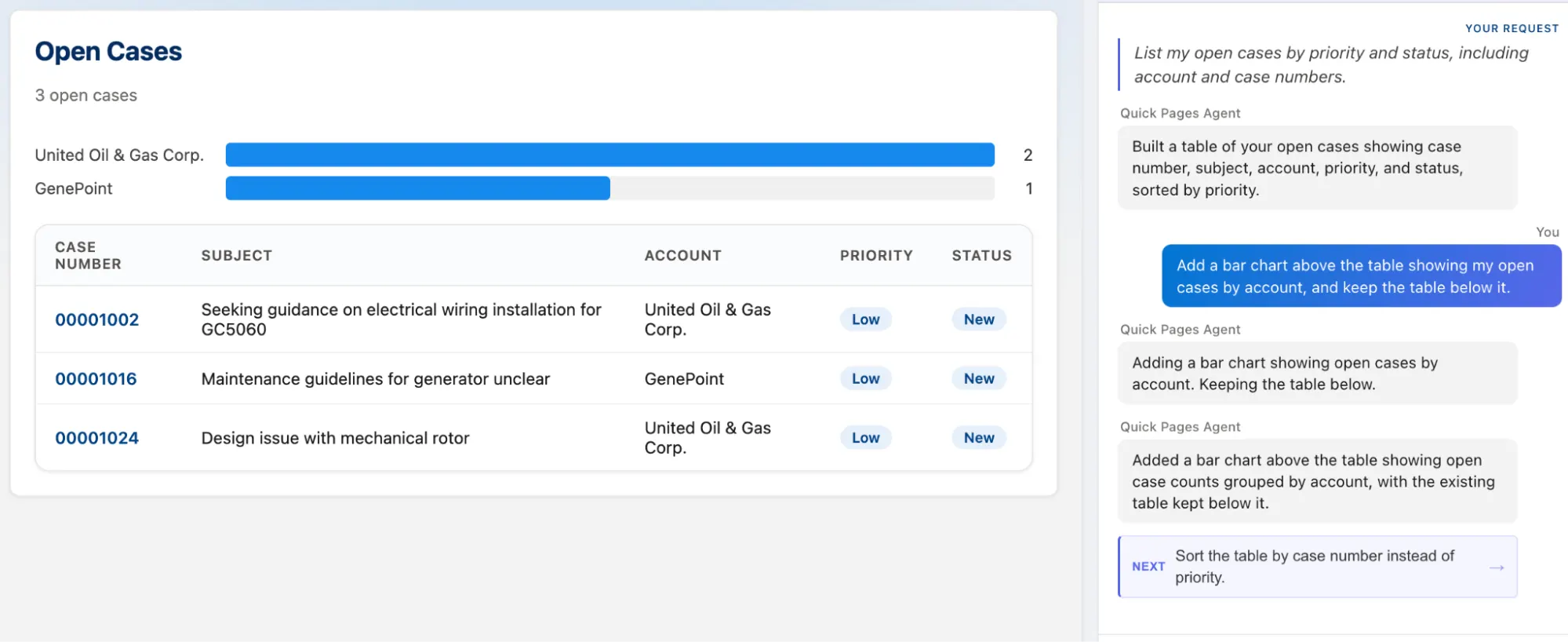
Hit Save to name and finalize the page! You can also edit the page again and add more requests when needed. In my case, I asked for a bar chart above the existing table.
Admin Control
I can hear the concerns flooding in: The ability for end users to create their own custom pages is going to become a governance nightmare for Salesforce Admins, right?
Well, Salesforce has already thought of that and addressed it with specific access controls, enforcement of the Salesforce Platform Security Model, and the ability for admins to have oversight over the entire process.
Org admins will decide who can use Quick Pages by assigning the “Create and View Quick Pages (Beta)” permission set as required. This means that it’s not a simple org-wide binary toggle, where you either have the feature or you don’t.
Admins will have granular control over which users (or groups of users through the use of Permission Set Groups) can access the tool. For users who only need to view the Quick Pages, and not create or manage them, Salesforce Admins can grant the “View Quick Pages (Beta)” permission set as required.
This provides even more control over the feature – specific users can be given the ability to view the pages only, while others can create and manage them, and yet others will have no access at all.
Quick Pages adhere to the Salesforce Platform Security Model, meaning that your users won’t be able to do or see anything that they don’t already have the permission for today. Think of Quick Pages as a new interface over what they already have the ability to see and do, and nothing more.
This takes away another concern of Salesforce Admins, where users may be able to perform functions that they otherwise wouldn’t be able to. Salesforce has made sure that their design of Quick Pages aligns with the rest of the benefits of the metadata-driven platform.
Finally, admins have the final oversight over everything created in their Salesforce orgs. This includes Quick Pages. Notably, when a user builds a Quick Page, it doesn’t have the ability to modify any other metadata in an org. This matters significantly for change management. Users are not creating Lightning Pages, LWCs, components, or anything else that could impact the rest of the org – just a custom interface that sits over the top of these things, in a totally separate domain (not a Lightning Page).
Prerequisites, Considerations, and Limitations
With Quick Pages being a totally new tool, and particularly one that is launching in beta, there are a few things to keep in mind if you’re planning on using it in your org.
Prerequisites
Quick Pages works in Lightning Experience for Enterprise, Performance, Unlimited, and Developer editions with Foundations and hosted on Hyperforce. If you’re hosted on Alibaba Cloud or Salesforce Government Cloud, you’re unfortunately out of luck as Quick Pages is not available in those environments.
Quick Pages uses Salesforce Multi-Framework to render the pages, which for most orgs means that the Salesforce App Domain is enabled automatically. If it has not been enabled in your org (you can check by going to the Multi-Framework Apps page in Setup), then you’ll need to enable it.
Quick Pages also requires that the Salesforce Edge Network is enabled. You can check this in the My Domain page, under Routing and Policies. If it’s not enabled already, enable it before trying to use Quick Pages.
Finally, you’ll need to ensure that Einstein Generative AI is enabled in your org. Open the Einstein Setup page and ensure it’s enabled before trying to use Quick Pages.
Of course, the final prerequisite for individual users is to ensure they have one of the two permission sets enabled for their user – either “Create and View Quick Pages (Beta)” or “View Quick Pages (Beta)”, depending on whether they’ll be managing Quick Pages or just viewing them.
Considerations and Limitations
A positive is that Salesforce will not be charging for AI usage in Quick Pages while the tool is in beta. This means you can try it out at no cost for now, but please keep in mind that Salesforce will be metering usage when it becomes generally available. We’ve seen this before with Agentforce Vibes.
Quick Pages are designed to be a way to surface data, not manipulate it. As such, Quick Pages are read-only. This means that your users can’t create, edit, or delete records from a Quick Page. Notable as well is the fact that after you’ve saved a Quick Page, you cannot change the page’s name.
While Salesforce is encouraging the use of Data 360 for data unification and harmonization, Quick Pages unfortunately cannot leverage Data 360. Similarly, Quick Pages cannot access assets from Salesforce Files or CMS, nor use APIs to query external data.
Prompts should be kept brief and to the point, as longer prompts will time out after two minutes.
Finally, and possibly the most important thing to keep in mind, is that Quick Pages is still in beta. Salesforce reserves the right to make changes to the product at any time, and even pull it before it’s made generally available (they’ve recently pulled a major expected change already).
Feedback
Since this feature is still in beta, Salesforce is open to feedback. Quick Pages is great, but there’s a lot of room to grow. If you want to have a say in what comes next, you can share what’s working and what isn’t by joining the #beta-quick-pages-engagement Slack channel.
As of now, Salesforce is looking at possible additions like updating records from a page (the most useful one, if you ask me), Apex and Connect REST API support, Data 360 support, and Claude integration.
Final Thoughts
Salesforce end users are given more power than ever before with the ability to quickly create their own custom pages using the new Quick Pages feature. This is bound to be a game changer for many organizations, and even more so for those with solo admins who are already struggling to keep up with the rapid pace of change.
Salesforce has ensured that the tool adheres to the Salesforce Platform Security Model, so you can rest assured that governance will not be a significant problem.
Where can you see Quick Pages being beneficial for your organization? Is this something that you think will save you time, or add another governance task to your plate? What changes do you hope to see before this goes generally available?