

If there’s one thing that makes winter feel particularly strange, it’s writing about it in August. While the rest of us are still enjoying (or desperately trying to find) some summer sunshine, Salesforce is already getting us ready for colder days, darker evenings and… a whole new set of features to learn. Yes, Salesforce Winter ’27 is here, and apparently we’re skipping straight from summer to winter without stopping for fall (autumn).
But before you start digging out your jumpers, there are plenty of new features worth getting excited about. From improvements to reports and list views to new security controls, SOQL enhancements, and even more Agentforce in Setup, I’ve picked out some of my favourite Winter ’27 features that I think Salesforce Admins will want to know about.
1. Preview Records from Lightning Reports Without Losing Context (Beta)
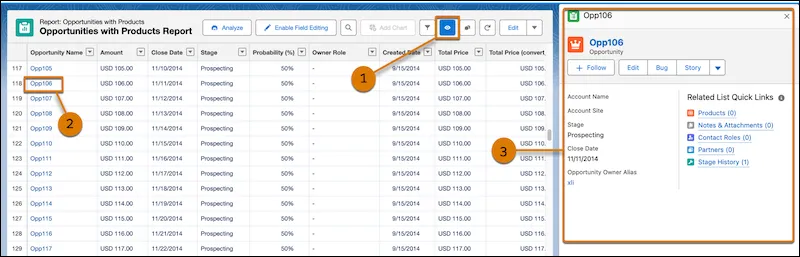
A nice new feature in beta for admins and users alike. Previewing a record without leaving your report will enable you to more easily view a record without leaving the report page or having multiple tabs. If you’re anything like me, you probably have 50 tabs and multiple tab groups open at the same time, so this is a nice way to reduce the load on your poor computer!
To use, you’ll need to click the eye icon (1), click the record you wish to preview (2), and then you’ll see the preview record in the sidebar (3).
2. Embed Lightning Reports in Your Lightning Web Runtime Experience Cloud Sites (Beta)
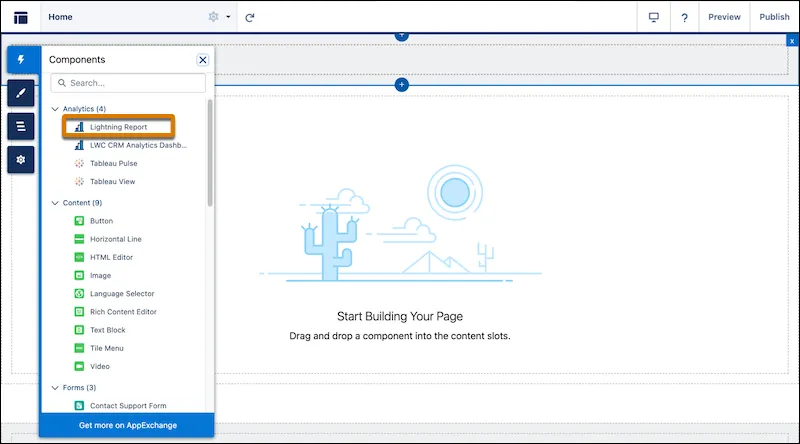
Initially, this update had me a bit confused: surely this feature was already available?! But then I continued to read the release notes, and it explained that previously embedded reports were only available in Aura-enabled Experience Cloud sites, not Lightning Web Runtime (LWR)-enabled Experience Cloud sites.
Once you enable it in Setup, simply drag a Lightning Report component from the Components section to an LWR page and add the report Id.
3. Embed Lightning Dashboards in Your Lightning Web Runtime Experience Cloud Sites (Beta)
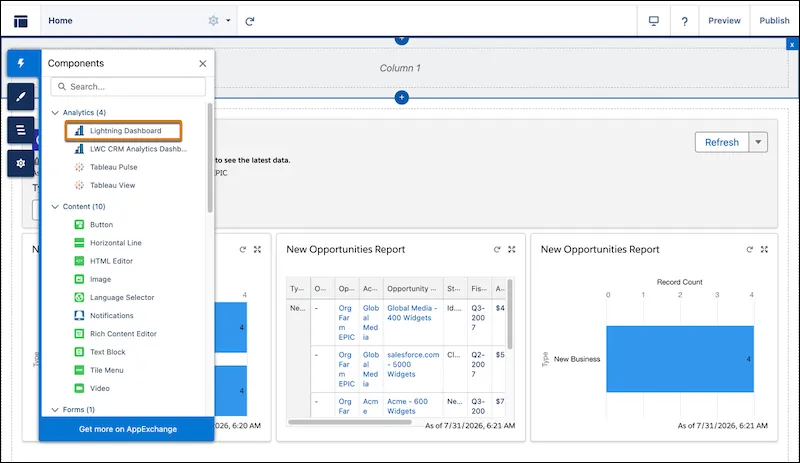
Surprise, surprise, this is essentially the same as the last one! But this time, it means you can display dashboards in your Lightning Web Runtime-enabled Experience Cloud sites. Previously, this was only available for Aura-enabled Experience Cloud sites.
Once you enable this feature in Setup, you’ll see the option to drag a Lightning Dashboard component from the Components section to an LWR page and add the dashboard Id.
4. Show Only Matching Records Across Blocks in Joined Reports (Beta)
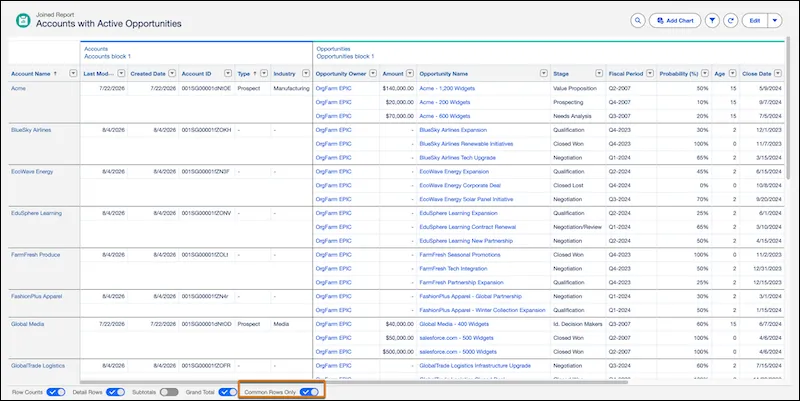
This new feature, still in beta, must be switched on by Salesforce Customer Support. Once enabled, you’ll see a new option in the report editor to turn on Common Rows Only. This means that a joined report will only show records that appear in all blocks, creating a more streamlined view.
For example, if your blocks showed Accounts and Cases, you would only see Accounts that have Cases. Or, in the Salesforce example, if you had a Joined report that showed Accounts and Active Opportunities, you would only see Accounts that have active Opportunities. Before, joined reports would have shown records, even if they only appeared in one block.
5. Add the Follow Button to the Dynamic Highlights Panel
This change means that you can add the native Follow button to your Dynamic Highlights Panel. The Follow button allows a user to subscribe to receive important updates about key records. When they follow a record, they’ll see updates in their feed, such as field changes, posts, tasks, and comments.
In the properties pane of your Dynamic Highlights panel, select or deselect the Hide Follow/Unfollow button to control whether the button is visible to your users.
I’m curious to know if this is useful – is anyone actually using the Follow function? I don’t feel like we’ve spoken about this feature since the days of Chatter hype!
6. Keep Manual Shares When Transferring Records
I like this update, and I think you’re going to like it too! Previously, when a record changed ownership, any manual shares were removed. With this update, you can now choose to retain these manual shares, even when the owner is changed. But emphasis on you. This is a setting you can enable in Sharing Setting in Setup – select Keep Manual Shares When Transferring Records.
The setting is off by default to preserve the previous behavior, but if you turn it on, it applies to all records. This feature is being released off the back of an idea on the IdeaExchange, but I feel like it hasn’t gone far enough. I’d want to be able to choose to keep shares (or not) on a record-by-record basis. What do you think? Is this update too broad and not granular enough? Or am I overcomplicating things?
7. Enable Profile Filtering (Release Update)
Profile filtering means that users can only see their own profile, and no one else’s, unless they have the View All Profiles permission. This change was first added in the Summer ‘26 release, but is being enforced in the Winter ‘27 release to improve security. Great news admins – you don’t need to do anything, unless you need users to see other profiles!
8. View Setup Audit Trail Permission to Access Setup Audit Trail (Release Update)
Continuing with improvements to security posture, access to the Setup Audit Trail will now be controlled by a dedicated View Setup Audit Trail permission. This means admins can grant users access to the Setup Audit Trail without also giving them the broader View Setup permission.
Avoiding unnecessarily broad permissions is a key part of the Principle of Least Privilege, helping ensure users have only the access they actually need.
Existing access is preserved automatically. For new users who need access to the Setup Audit Trail, assign the View Setup Audit Trail permission through a profile or permission set.
9. Make Inline Editing in List Views More Flexible
Salesforce has introduced two new User Interface Settings that give admins more control over inline editing in list views. You can now allow users to edit any field they have edit access to, even if it isn’t included on the page layout, and enable inline editing in list views containing multiple record types. Both settings are optional and switched off by default, and can be enabled from Setup → User Interface Settings.
- Remove list view inline edit dependencies on page layout: Enables users to edit any field they have access to, even if it’s not on the page layout.
- Make inline edits in list views with multiple record types: Enables inline editing in a list view that contains records from multiple different record types.
I particularly love the second option because not being able to inline edit when there were records of more than one record type was pretty annoying!
10. Enable Field History Tracking for Users (Generally Available)
We first told you about this beta feature a year ago – a whole year! It’s still amazing to think that historically, you couldn’t track fields on the User object. The ability to enable field history tracking for the User object is now generally available, but it does need to be enabled in Setup → User Management Settings → enable User Field History Tracking (Beta). And no, that’s not a typo – it really does still say “beta”!
Once enabled, you’ll also need to configure which fields (up to 20) that you want to track.
11. Compare Values Between Fields in SOQL (Beta)
SOQL is getting a handy new trick with the FORMULA() function, which lets you perform calculations directly in a WHERE clause. This means you can compare values from different fields without first creating a formula field or doing the calculations elsewhere in your code. The result? More flexible, expressive queries with a little less Salesforce plumbing getting in the way. The feature is currently in beta and is available in sandboxes, Developer Editions, and scratch orgs using API version 68.0 or later, but not yet in production.
12. Setup With Agentforce
There are three key updates to Setup With Agentforce in this release. First, you can now use natural language to enable/disable Dynamic Actions on mobile.
Next, instead of navigating through Setup and working out which DMO and lookup field you need, you can simply describe the related list you want to add. The agent will ask any questions it needs to fill in the gaps, then create the related list and add it to the record page for you. So, rather than hunting through Setup trying to remember where everything lives, you can just tell Agentforce what you want and let it handle the configuration.
And last but not least, your Org Health and Usage dashboard is getting a little easier to tailor to what actually matters to you. You can now mark metrics as Favorite or Hidden, so the metrics you care about most are easy to find while the ones you don’t need to keep an eye on can be tucked away. All metrics are also ordered by severity, helping you quickly spot the areas that need attention rather than wading through a long list and wondering where to start.
Summary
Salesforce Winter ’27 brings a mix of practical improvements for admins, from more flexible reporting and list views to enhanced security controls and easier record management. There are also some useful updates to SOQL and Setup With Agentforce, giving admins more ways to work efficiently and manage their Salesforce orgs.
What features are your favourite? Let me know in the comments!
Read More
- 10 Winter ’27 Updates Salesforce Marketers Need to Know
- 17 New Salesforce Flow Features in Winter ‘27
- Top 10 Salesforce Winter ’27 Features for Developers
- Sales Cloud: Top 7 Salesforce Winter ’27 Features
- Service Cloud: Top 8 Salesforce Winter ’27 Features