

Every time the Salesforce release notes are published, I jump straight to the Salesforce Flow section – there’s always so much great content there that will make the lives of Salesforce Admins a lot easier. The Winter ‘27 update has introduced some wonderful new features as well as the usual quality-of-life improvements that come with each release – all of which are worth shouting about!
This is a notably big release for all things Salesforce, so strap in! There’s lots to go through, and there’s still so much that I couldn’t cover in this article that you should check out for yourself. Without further ado, let’s dive in and check out some of the great new features and enhancements to everyone’s favourite declarative automation tool, Salesforce Flow.
1. Classify and Discover Flows With Flow Tags
Anything that makes flows easier to find and manage is a win in my book! Now, you can choose to add one or more tags to your flows. This can be done either when you save the flow, or you can add them after the fact in the main application (typically via the Automation app).
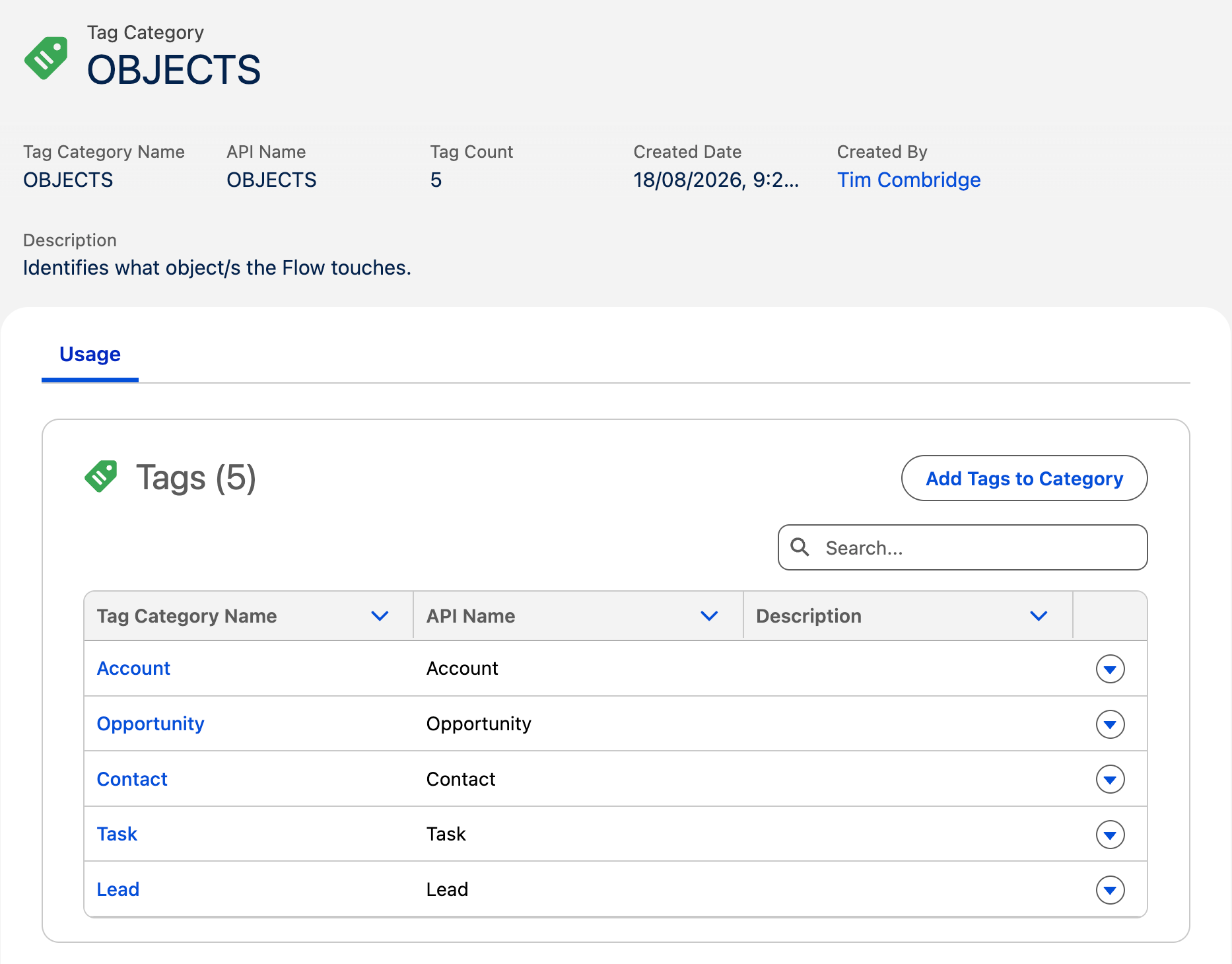
Tags are grouped into Tag Categories, which you can use to keep your tags organized. One of the first things I did was create a category called “Subflows”, and tags for a handful of objects and actions that my subflows tend to do. Super handy!
2. Test Flows in a Dedicated Test Mode (Beta)
This is genuinely one of my favourite new features in a long time. Starting in Winter ‘27, we have a brand new way to test flows in Flow Builder. This new Test Mode replaces the old Debug and testing modes, and allows you to perform repeatable tests quickly, expanding on the debug’s ability to save values between runs.
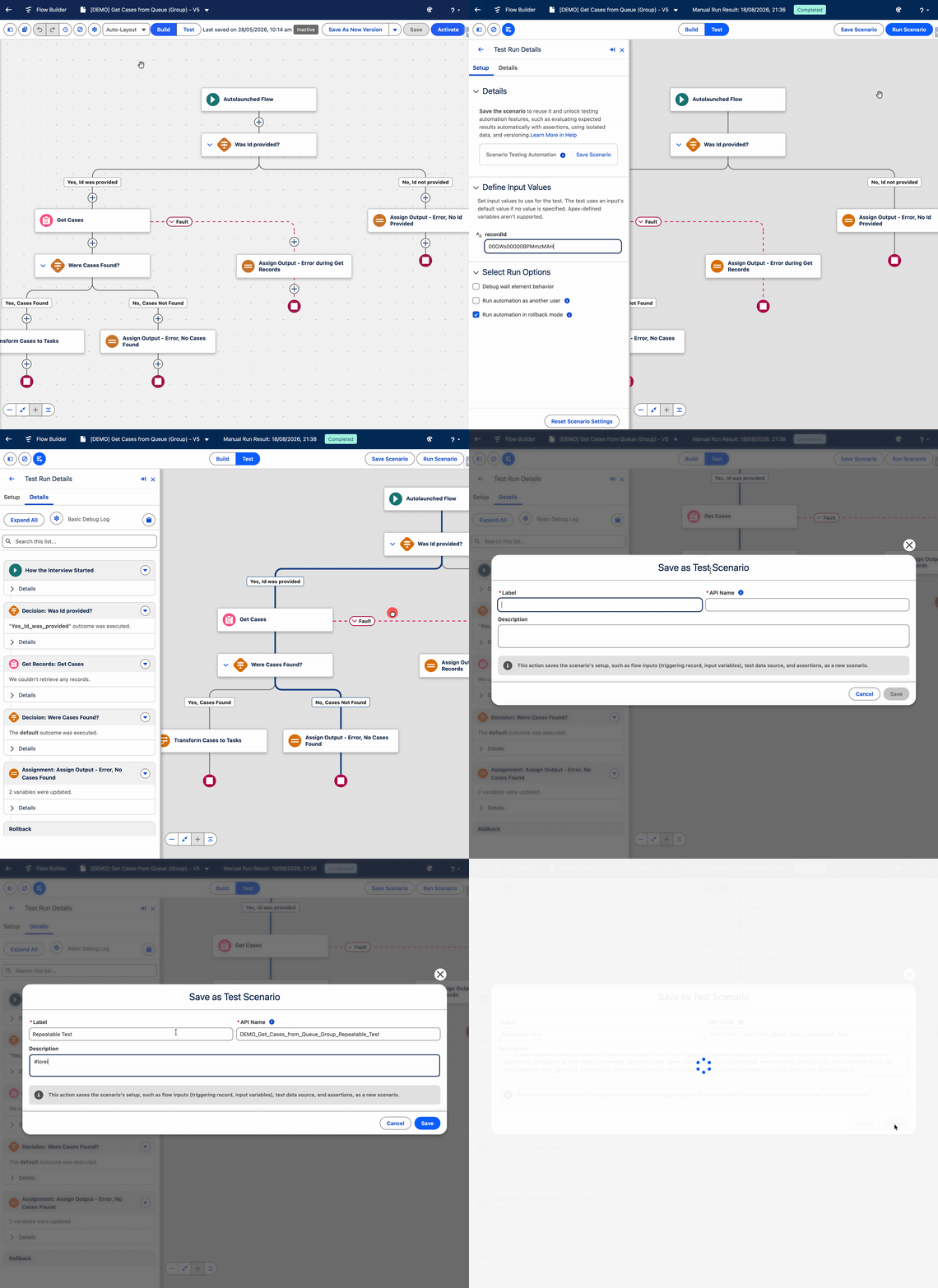
To oversimplify, Test Mode for Flow Builder allows you to perform both debugs and proper tests in a single UI, and save them to be repeated in the future. Super powerful stuff. As I said, that’s an oversimplification; I highly recommend you read the release notes in detail to learn more about Test Mode for Flow Builder.
3. Trigger Flows Faster on Order Events With a REST API (Marketing Cloud Flow Builder)
Inside of Flow Builder for Marketing Cloud, you can now fire a flow on Order Return, Order Shipment, and Order Status Change events and have them processed in roughly three seconds, as opposed to having to wait the 7-10 minutes it used to take.
This applies to Flow Builder in Marketing Cloud Growth and Marketing Cloud Advanced editions.
4. Copy an Audience Flow Without Disrupting Live Campaigns (Marketing Cloud Flow Builder)
Another one for the Marketing Cloud Flow enthusiasts out there! Starting in Winter ‘27, you can now copy an audience flow and choose whether you want to copy the emails, SMS, WhatsApp, and RCS messages as well, or just link to the original ones. In addition, you can copy the segments and list trigger definitions so that each copy of the flow will have its own starting point.
This is a big deal because historically, when you cloned an audience flow, it would reference the original assets and could have impacted the live campaigns. Now you’ve got full control over how the flow is copied.
5. Process Multiple Records With Screen Flows from List Views and Related Lists
Winter ‘27 introduces the ability to run bulk operations on multiple records without needing to process them one by one or build unnecessarily complex workarounds. You can simply pass in the Ids of the records you want to work with (as a text collection called “ids”), and handle them in bulk.
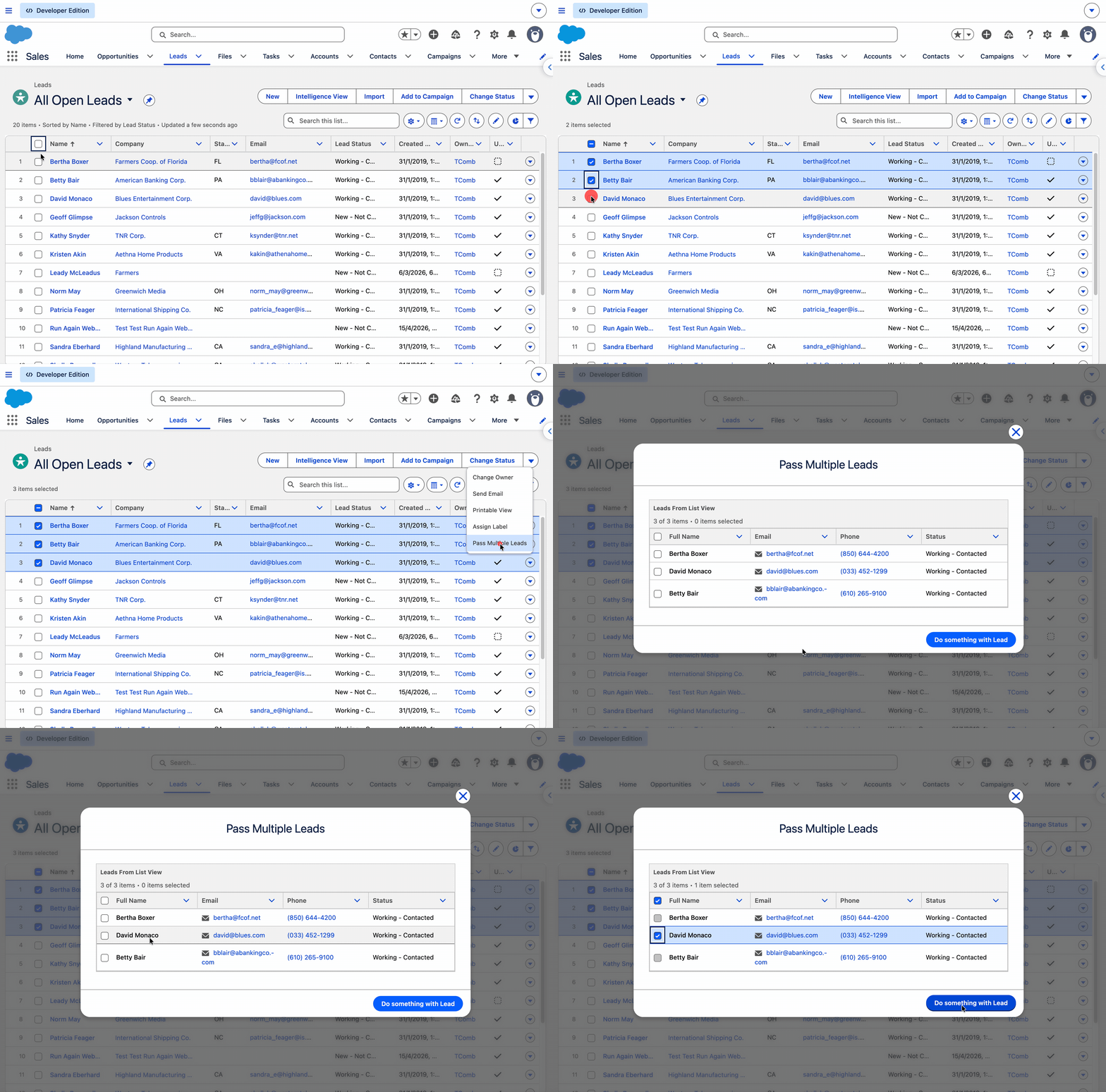
This can be done by creating a Flow Quick Action and adding it either to a List View or to a Related List on the primary object.
6. Set the Window Size for a Screen Flow Quick Action
If you’re a fan of calling screen flows from a quick action, then you’ll be ecstatic to learn that you can now choose what size you want the popup modal to be when calling it. Winter ‘27 is solving an issue that’s been causing grief for a long time, and I couldn’t be happier about it!
Unfortunately, my org doesn’t seem to have this feature enabled just yet. Quite honestly, though, this is one of my top handful of features coming in this release.
7. Evaluate Conditional Visibility Rules With Reactive Formulas
This one has caught me out personally many times over the last few years – the conditional visibility rules for screen flows don’t work when the formula references something that is currently on the page. Well, at least, they didn’t prior to the Winter ‘27 release!
Reactive formulas that reference components that are in the current screen will now be evaluated correctly. This one will have a genuinely big impact on the way you build screen flows.
8. Catch Missing Required Fields When You Save a Flow
Nothing is more frustrating than attempting to execute a flow, only to have it fail because a required field is not being populated. Luckily, those headaches are going to become a thing of the past in this release.
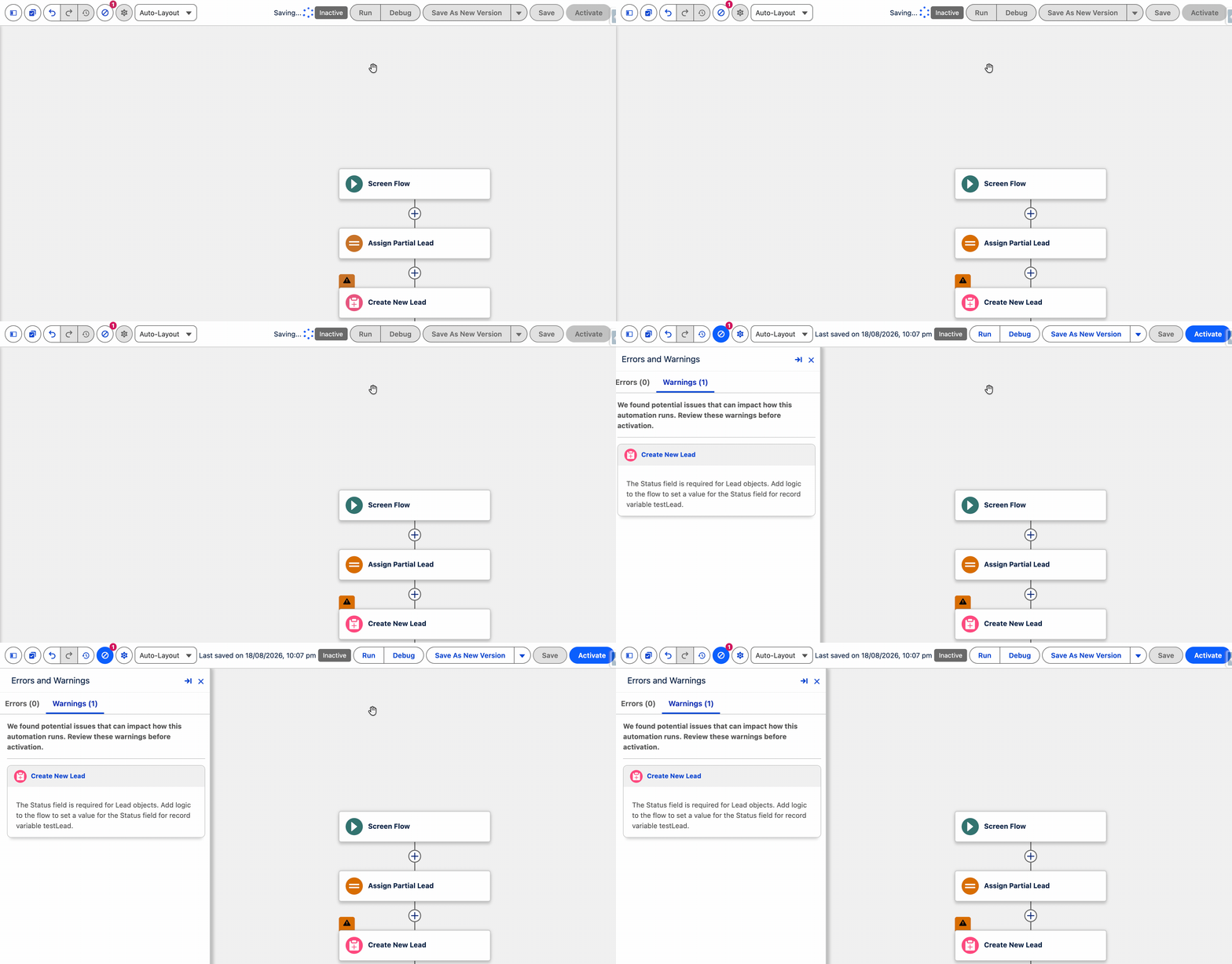
Starting in Winter ‘27, Flow Builder will now warn you when a Create Records element that uses a record variable doesn’t include an assignment for a required field. All they need to add now is the ability to flag a list of the flows that use a Create Element when someone tries to save a field as required!
9. Catch Field Length Violations When You Save a Flow
In the above point, when I said there’s nothing worse than a flow failing because of a missing field… I may have spoken too soon. Nothing is worse than a flow failing only sometimes because the field is occasionally being populated with a value that is too long for the field itself. Winter ‘27 solves this as well, further reducing those aforementioned headaches!
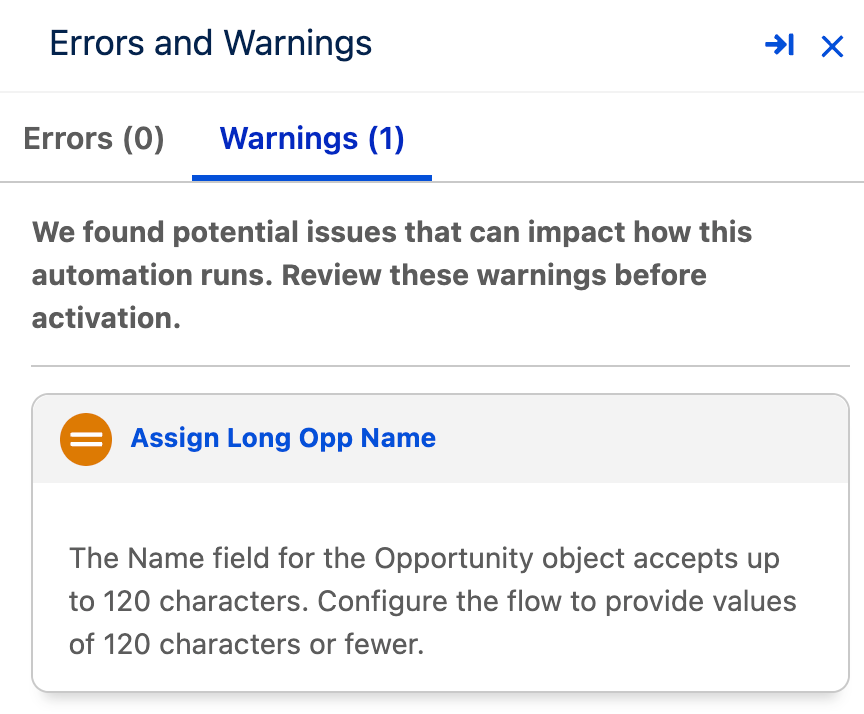
It’s these smaller quality-of-life improvements that show how much Salesforce cares about the Flow Builder tool. Genuinely, this is a great sign for the future of Salesforce Flow.
10. Enforce User Permissions No Matter How a Flow Runs
There’s a new run context option in Flow Builder that ensures your flow will fire in the running user’s context, regardless of how it is called. In other words, the flow will only be able to access the data that the running user has access to and perform actions on the data that the running user has the ability to perform.
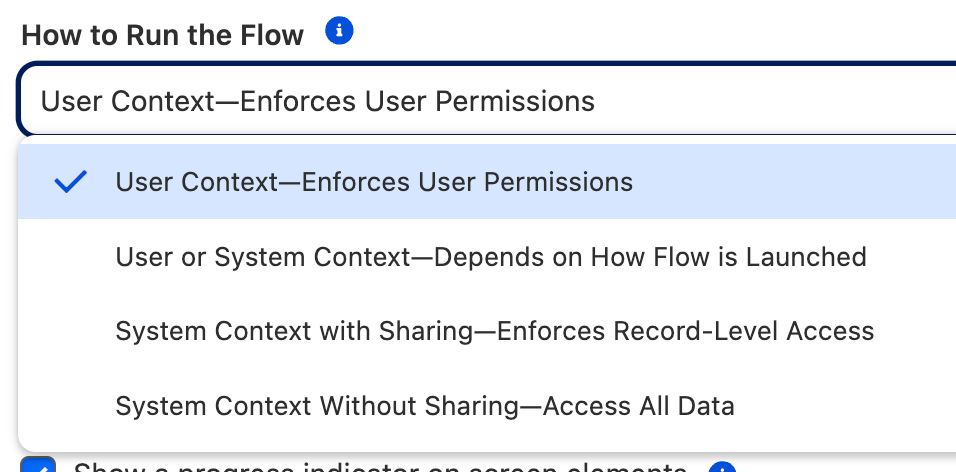
To apply this, make sure you select “User Context-Enforces User Permissions” in the How to Run the Flow menu in autolaunched or screen flows.
11. Keep End Elements Right Where You Placed Them
Did you know that the end element was generated inside of Flow Builder, and not actually saved to the flow’s XML file? Well, now you know! And that information is already out of date, because Winter ‘27 saves end elements to the XML file.
This is particularly helpful for when a flow is being edited outside of Flow Builder. Now those sorts of tools will be able to see exactly what you see in the canvas in terms of where a branch ends. I’m looking at you, Claude Code.
12. Navigate Flow Builder More Efficiently With Keyboard Shortcuts
A small quality-of-life improvement for Flow Builder, Winter ‘27 now allows you to traverse the canvas using the keyboard. The new keyboard shortcuts allow you to move from element to element, including across different branched paths.
In addition, you can copy and paste using standard keyboard shortcuts now, too!
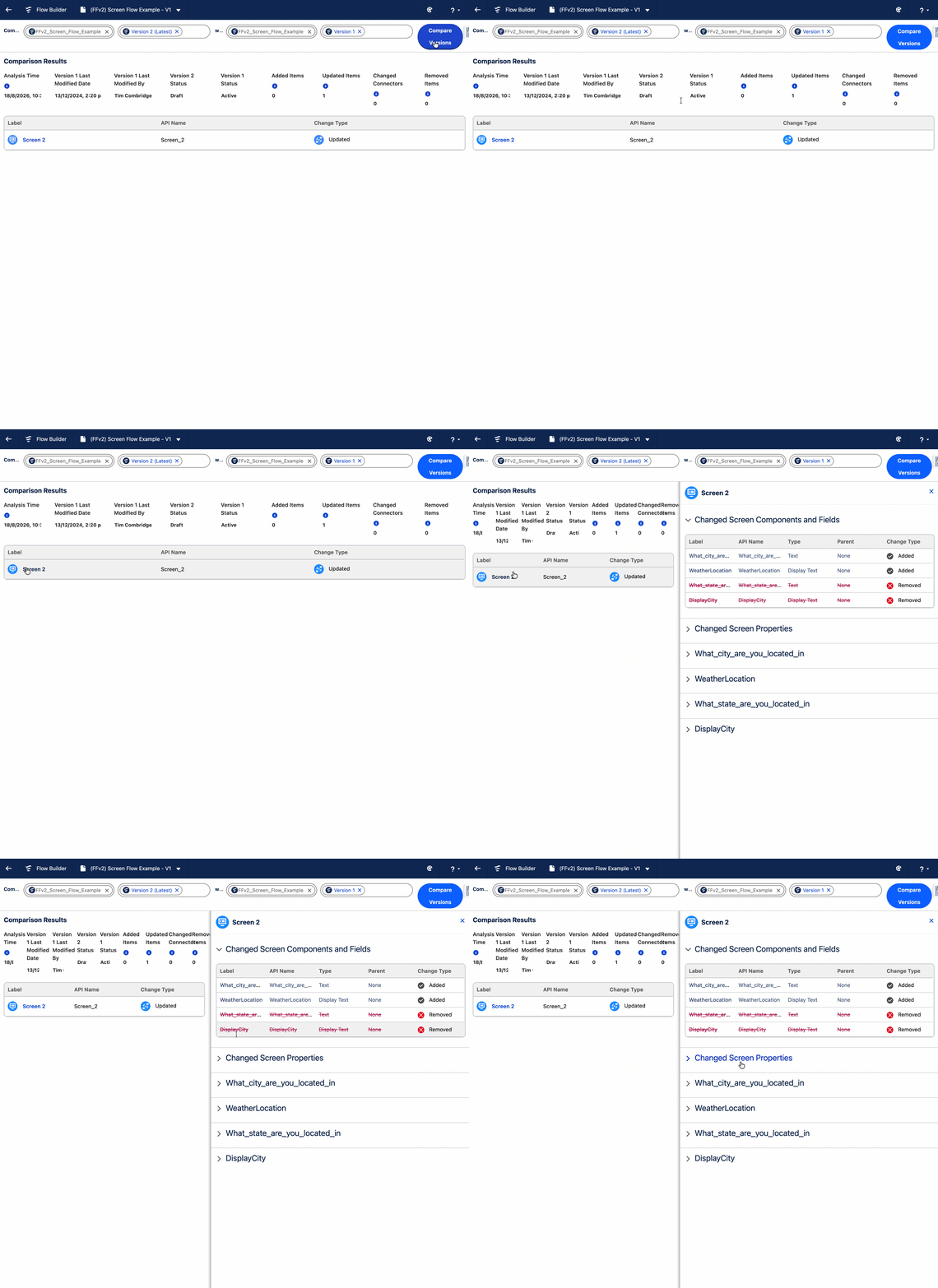
13. Navigate Flow Comparison Results More Easily
Winter ‘27 introduces the ability to click through the changes made between different flow versions, adding a whole new layer of detail to the comparison results. This is particularly handy because the Change Details column has also been removed to reduce clutter, so being able to click and see more detail for each line is critical.
14. Clean Up Flows Faster With the Unused Resources Filter
Minimalists, rejoice! Winter ‘27 brings a brand new filter that allows you to see which resources in a flow are no longer used or are missing descriptions.
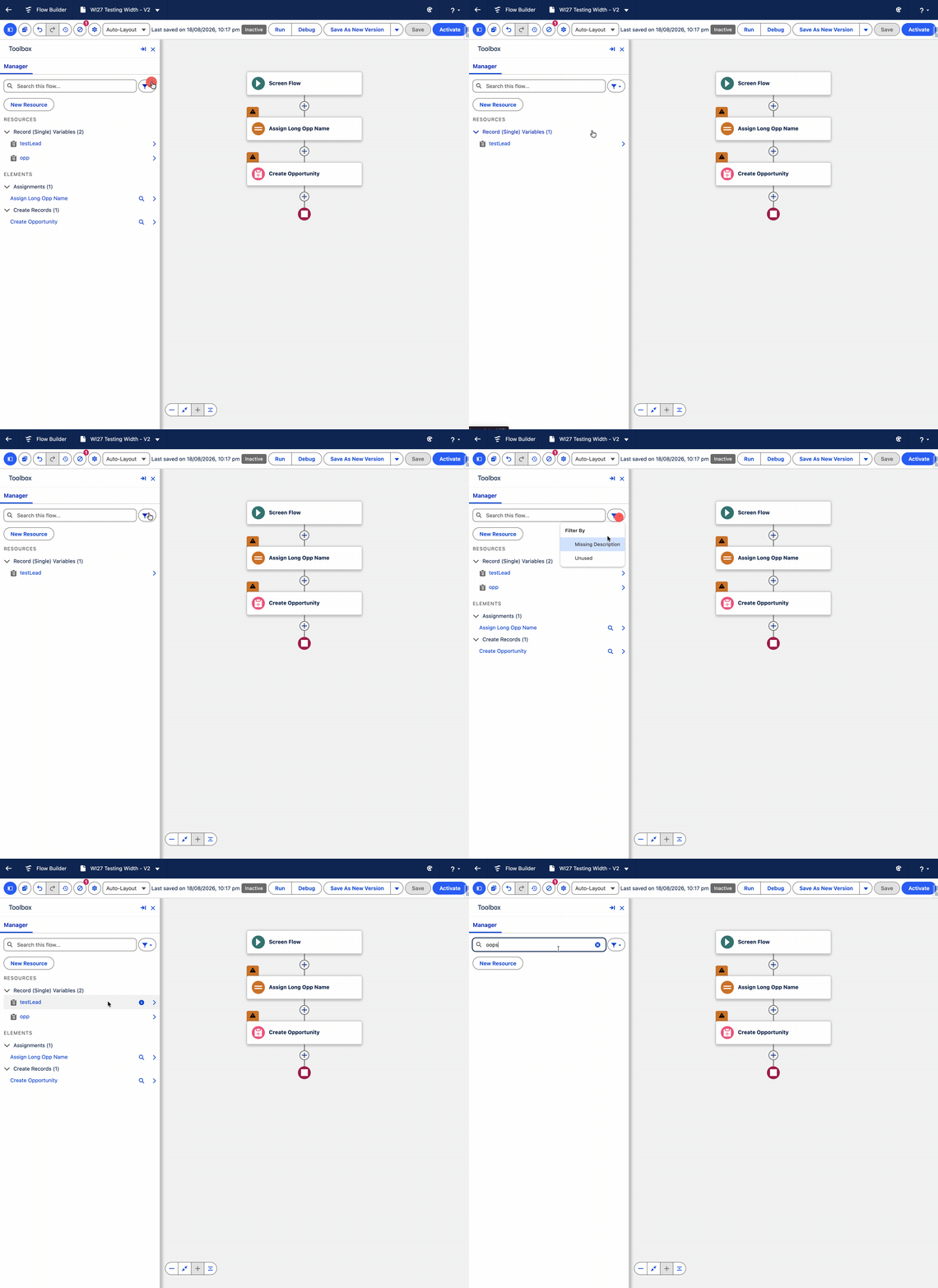
Gone are the days of a colleague asking “what does this variable do?” during a handover, and your only answer being “Oh, I forgot that was still there!”. (Note: this may be based on a true story… or many true stories. Oops.)
15. Group Elements to Organize and Simplify Flows
Not quite a subflow, but now you can highlight sections of your flow and give them labels and descriptions of their own. Groups can also be collapsed and expanded, making it much easier to focus on just the relevant parts of your flow at any one time.
Unfortunately, this is yet to show up in my org, so I’ve had to borrow Salesforce’s own screenshots to demonstrate the power of this tool.
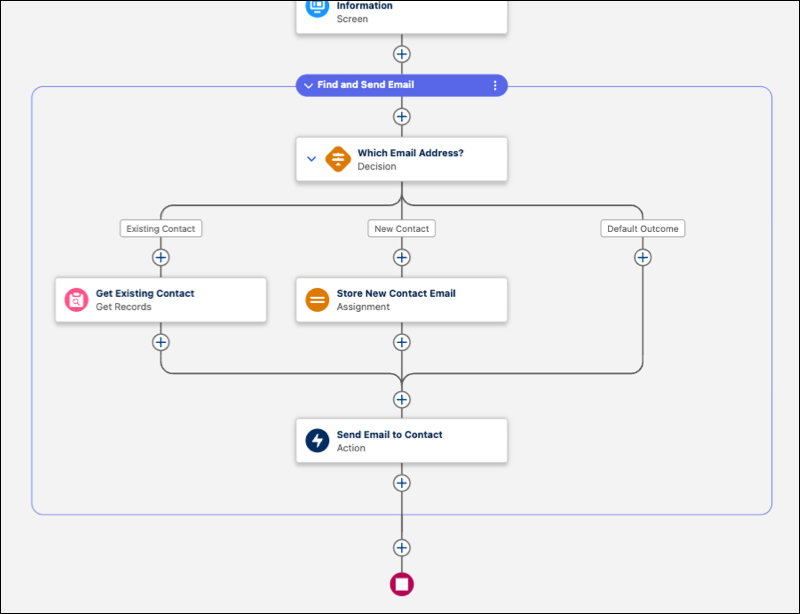
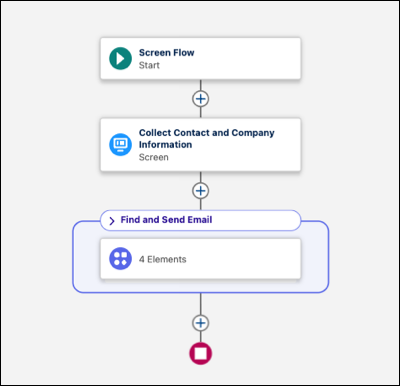
This genuinely makes me happy. I can think of so many times this would’ve been useful for me when I was consulting. I can also see this being a massive game-changer for agents that will be working with or using flows.
16. Track Flow Changes Over Time With Edit History
There’s a new way to see what’s changed between each version of your flow as well in Winter ‘27. You can see a timeline of each save, restore historic versions, and click to drill into details of individual element changes. This is all accessible through the new Edit history panel, which my org unfortunately doesn’t have access to just yet.
17. Experience Flow Builder in the Modern Salesforce Cosmos Theme
Leaving the best to last, Flow Builder has been given a brand new lick of paint in Winter ‘27! We’re FINALLY seeing an SLDS 2 update to Flow Builder in the form of the Salesforce Cosmos Theme support.
This is visible throughout the Flow Builder UI, and is a welcome addition for those of us who love what SLDS 2 brings to the table.
Summary
Winter ‘27 includes a symphony of substantial enhancements to our favorite tool – Salesforce Flow – as well as some brilliant quality-of-life changes. This release brings numerous high-impact features along with improvements to smaller features and functionality.
These new features are bound to make your job as an admin, developer, or business user much easier and streamlined once they’ve been implemented throughout your org.
Don’t forget to sign up for a pre-release org to take these new features for a spin!
Read More
- 10 Winter ’27 Updates Salesforce Marketers Need to Know
- Top 10 Salesforce Winter ’27 Features for Developers
- Top 12 Salesforce Winter ’27 Features for Admins
- Sales Cloud: Top 7 Salesforce Winter ’27 Features
- Service Cloud: Top 8 Salesforce Winter ’27 Features