








Highlights
- Salesforce Winter ‘27 is a massive release, particularly for Flow Builder.
- Reading about the changes provides a surface-level understanding, but seeing them in action allows you to visualize how you can use them in your own org.
- There are many features that change the way your flows are built (like the new Split by Field Value and Split by Date elements), and those that help you tidy and organize your flows (like Filter by Unused Elements, Flow Tags).
It’s one thing to read about the new features coming to Flow Builder in Winter ‘27, but it’s a whole other thing to see them in action. Join me as I walk through an example flow that I’ve inherited in my org, and how I use Winter ‘27 flow features to improve it.
Remember, this is nowhere near ALL of the new features in Flow Builder in this release. Winter ‘27 is a genuinely big release, and I didn’t have a chance to go through everything in a single video/article. If you want to learn more about what’s new in Flow Builder in Winter ‘27, check out my other article.
The Inherited Flow
Throughout this article, I’ll be working through a flow that I’ve inherited in my org. It needs some tidying up, and I’ll be exclusively using Winter ‘27 flow features to achieve this. The flow begins when a Contract is created or updated, with no other entry conditions.
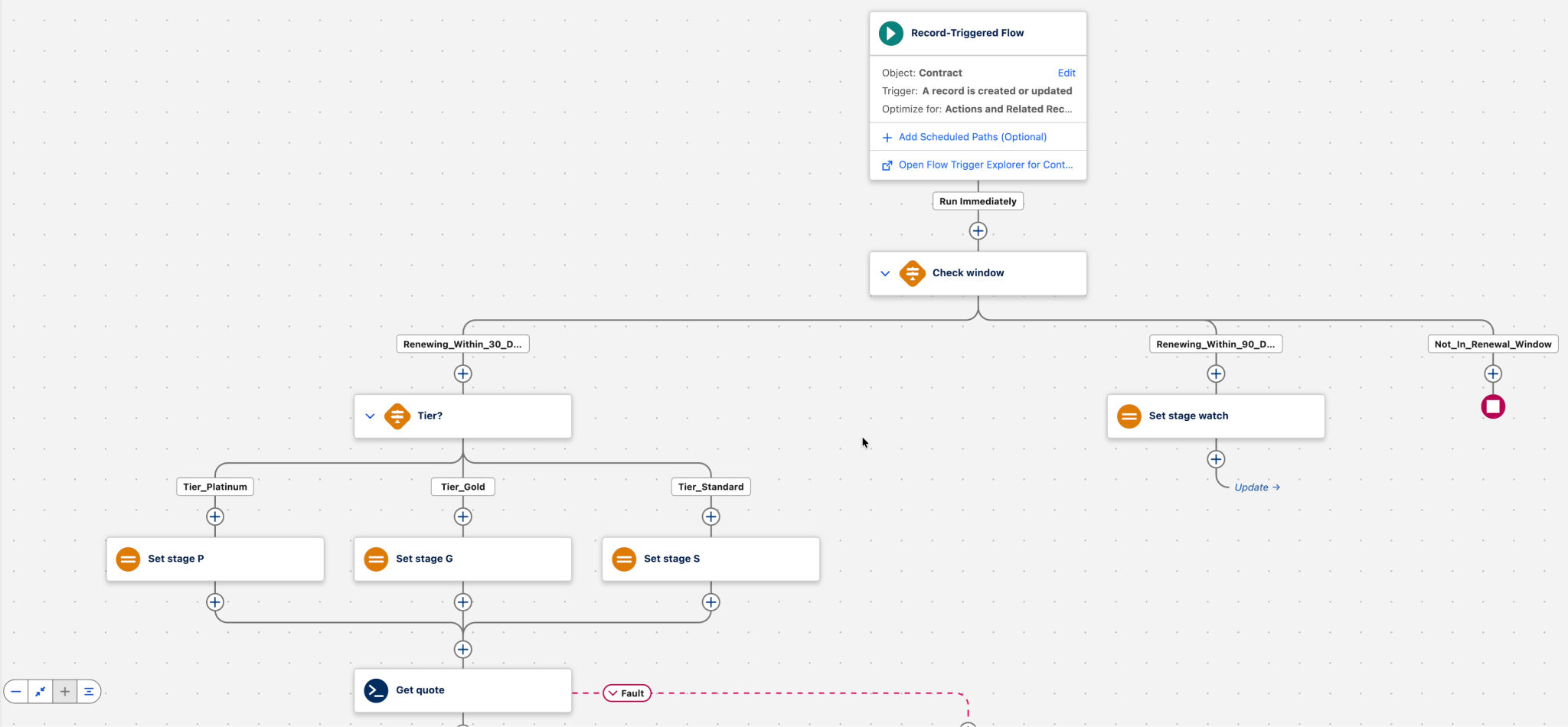
The very first thing that it does is check to see how long until the Contract is due to end. This uses a traditional Decision element. If the renewal is within 30-90 days, it sets the Stage and moves on. However, if it’s within 30 days, complexity arises.
There’s another Decision element that checks the Tier field to see if it is Platinum, Gold, or another value. It sets the Stage according to each value. All three of these outcomes converge at the Get Quote action, which doesn’t fire because there is no endpoint configured currently. There is a fault path in place, followed by an update that applies the Stage and Amount values (Amount comes from Get Quote).
Tidying It Up
Before I continue with the tidy up, I wanted to take a moment to point out that the entire Flow Builder now supports SLDS 2.0! Rounded buttons that bounce up when you mouse over them, a more modern look, just like you’re used to in the regular Salesforce UI. The only thing that is not currently supported is Dark Mode, but this is still a fantastic change!
Now comes the fun part. We’re tasked with bringing this flow into the modern era using Winter ‘27 components. Below, you’ll see some of the issues that I’ve inherited and how they can be cleaned up using just some of the new features in Flow Builder in this release.
Clean Up Unused Elements
I’m sure you’ve faced a Flow that’s gone through multiple iterations and has a bunch of leftover pieces that are no longer required. This flow is no exception. Luckily, Winter ‘27 makes it easy to identify your unused elements and elements without a Description.
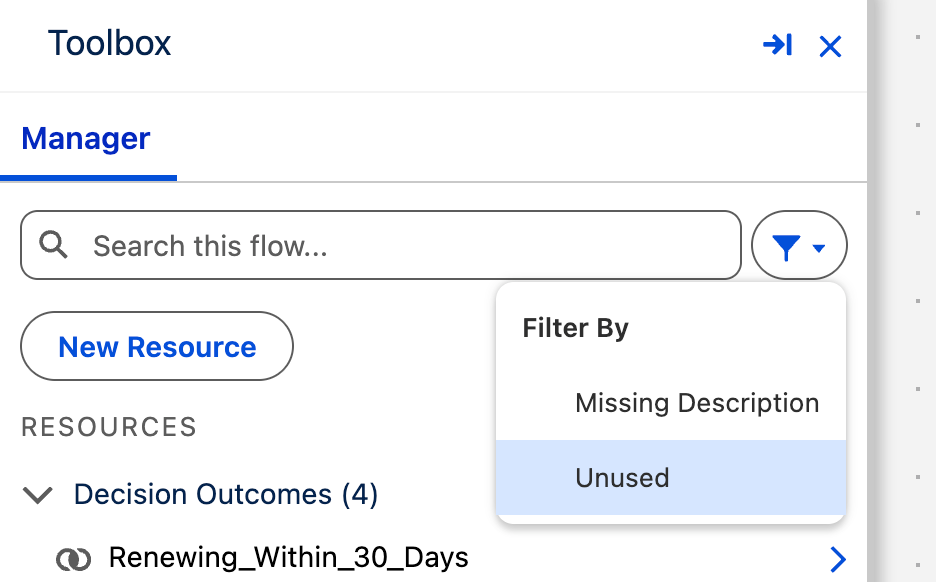
Using this, I was able to quickly identify and delete elements that had been used in the past but weren’t required for the current functionality of the Flow. It also gave me an opportunity to clean up the missing Description fields on the elements. This is the quickest and easiest way to begin documenting your flows.
Testing It Still Works
After deleting those unused elements, it was important for me to ensure the flow still worked as expected. To do this, I didn’t use Flow Debug Mode, as it’s now been rolled into a new Flow Test Mode! To do this, I switched the toggle at the top-center of my Flow Canvas to Test mode, and was presented with a very familiar interface that echoes the former debug mode.
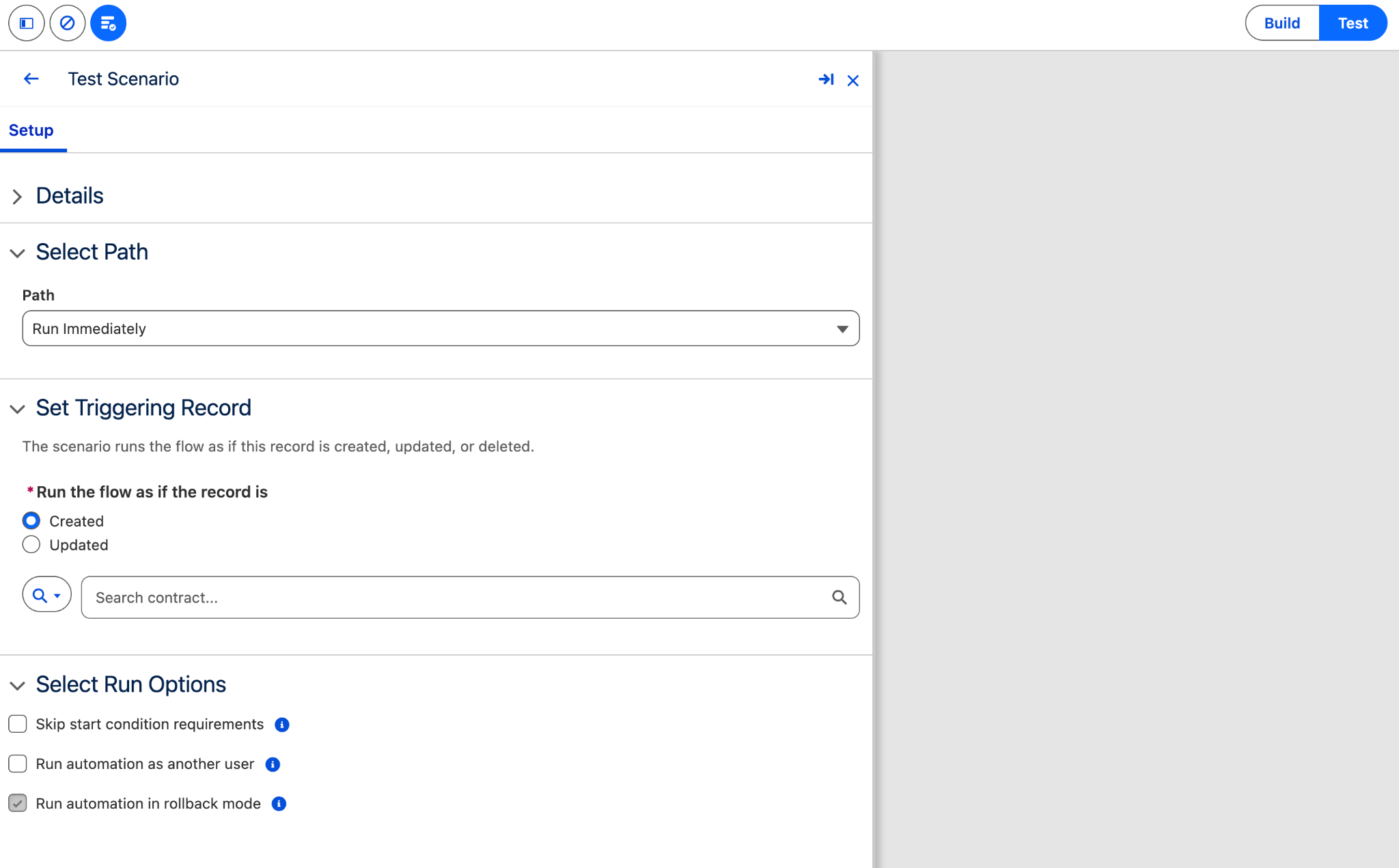
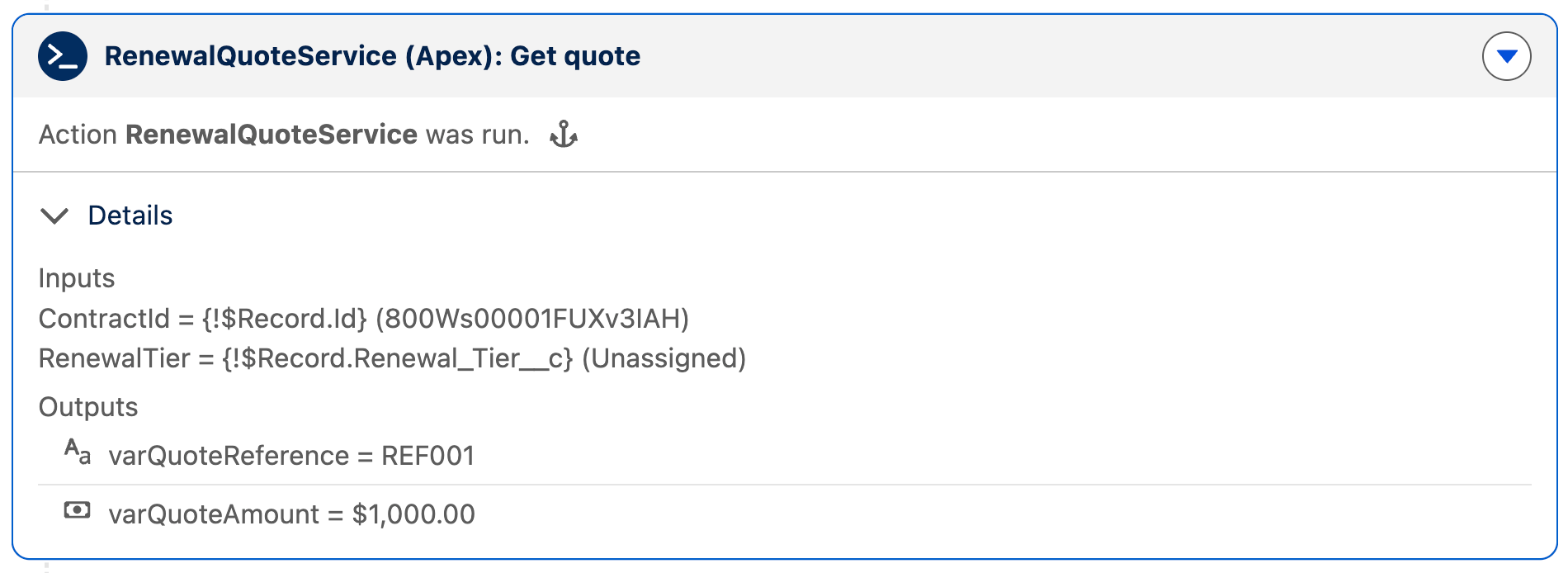
Here, I specified the Contract record that I wished to test with and ensured that there were no unexpected errors from the deleted elements. I specifically say “unexpected errors” because we did come across one that WAS expected, due to a missing endpoint configuration. This leads to my next fix!
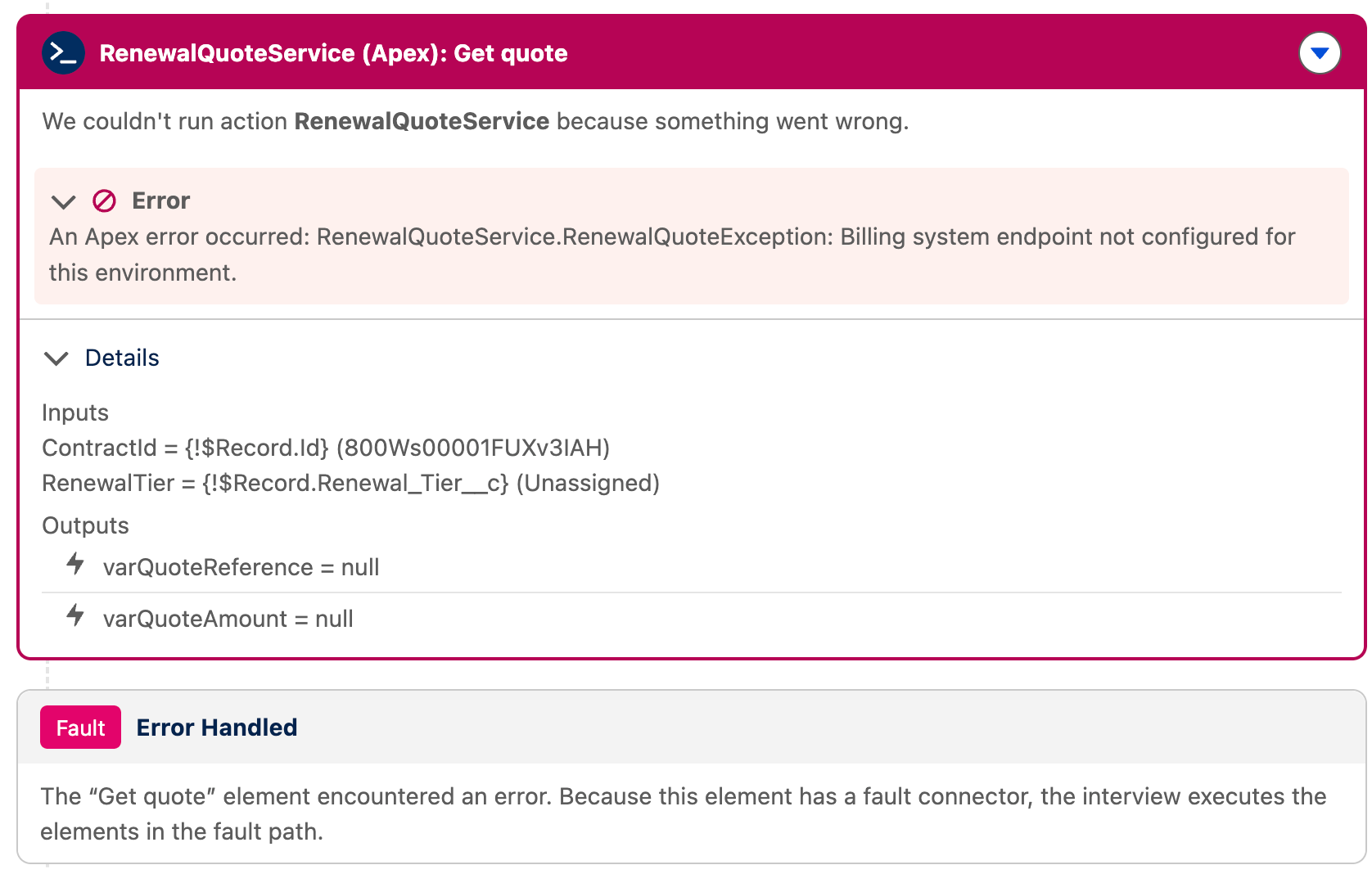
Mocking Up Callout Outputs
To help speed up testing of my flow, I decided to mock up the callout outputs using a new feature in the Test Mode. To do this, I clicked to open the Get Quote element while still in Test Mode, then opened the new Scenario Output section, and provided a mock output to use while enabling Use Mock Output.
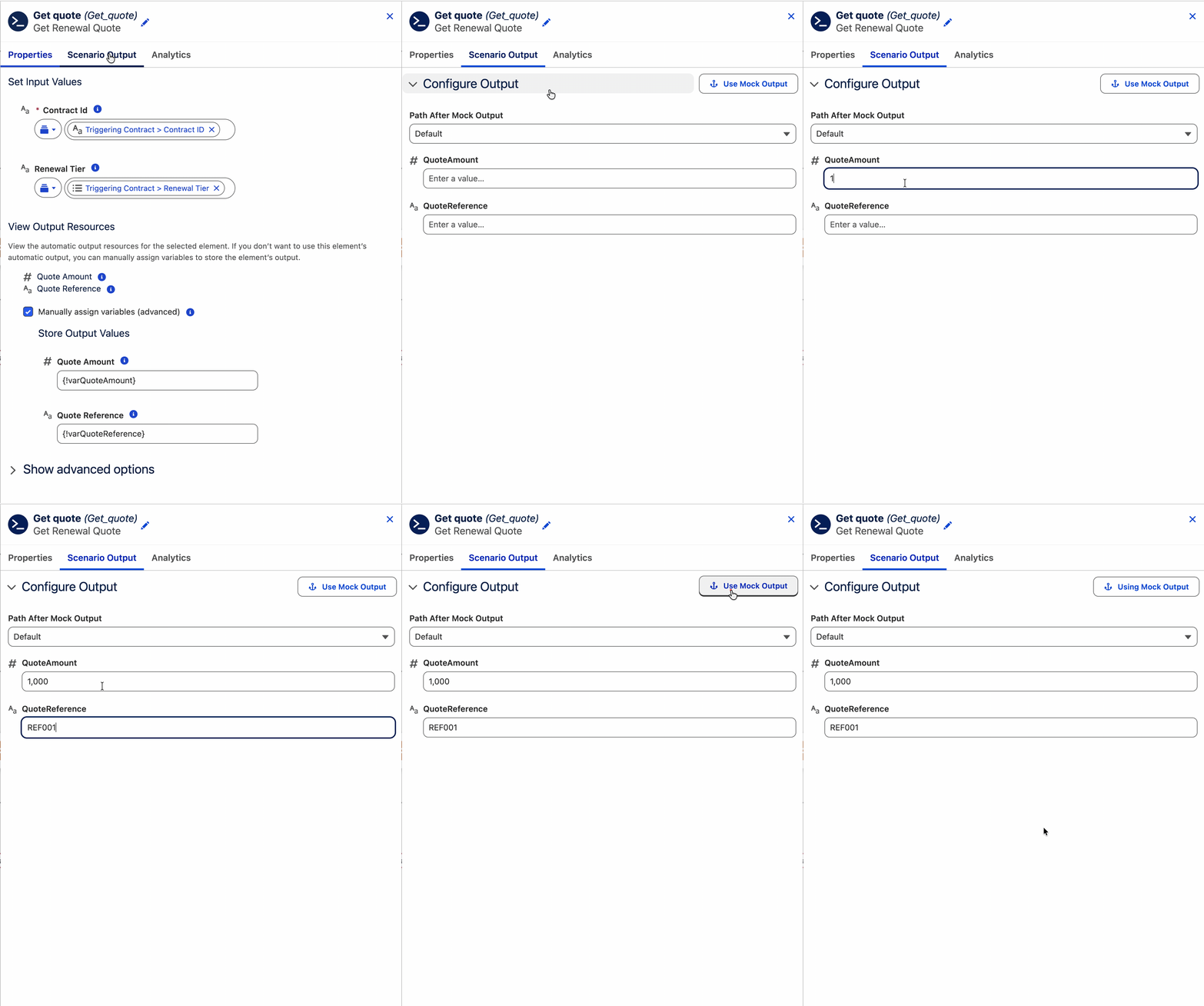
This allowed me to move forward in my testing while giving me total control over the output of the callout during scenario testing.
Saving Test Scenarios
Once my test passed as expected, I decided to save it as a test scenario that I could use on repeat in the future. To do this, I clicked the Save Scenario button at the top-right of Flow Builder.
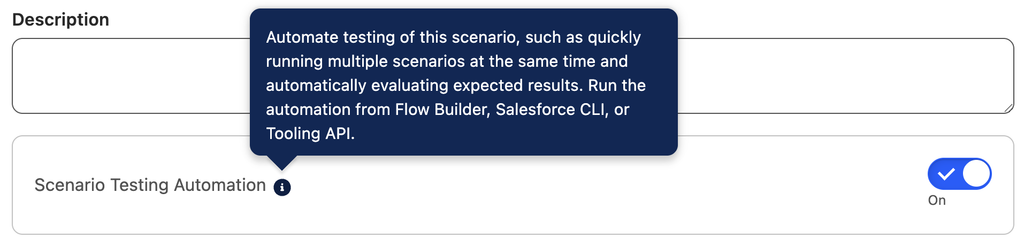
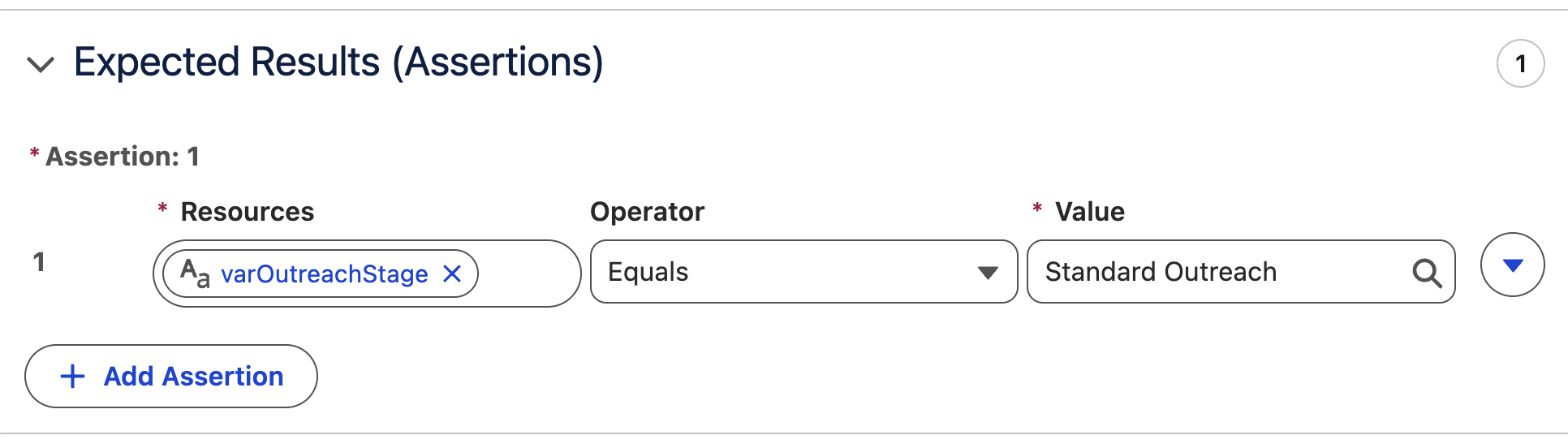
After giving it a Label and API Name, I decided to also enable Scenario Testing Automation. This allows me to configure one or more assertions that will be checked automatically when the scenario is run.
It means I can speed up my testing by ensuring that certain expected values are received for a scenario each time it runs, giving a simple pass/fail result. If you’re someone who works with Apex and test classes, this will sound very familiar to you as well.
Organizing with Tags
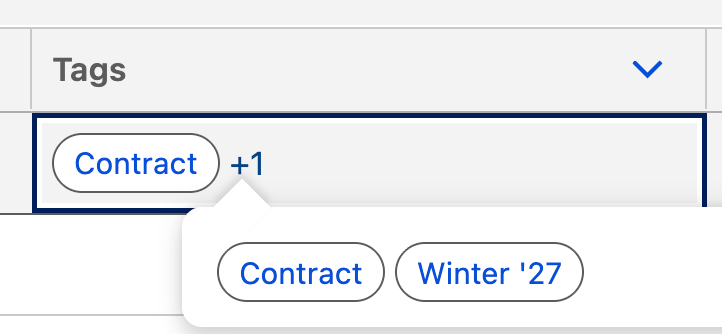
At this point, I saved the Flow. When I did, I decided to add one of the new Flow Tags to help organize our many flows in our org. I gave it the “Winter ‘27” tag, which identifies when the flow was last reviewed and updated. I also gave it the “Contract” tag, which identifies the object that the flow makes changes to.
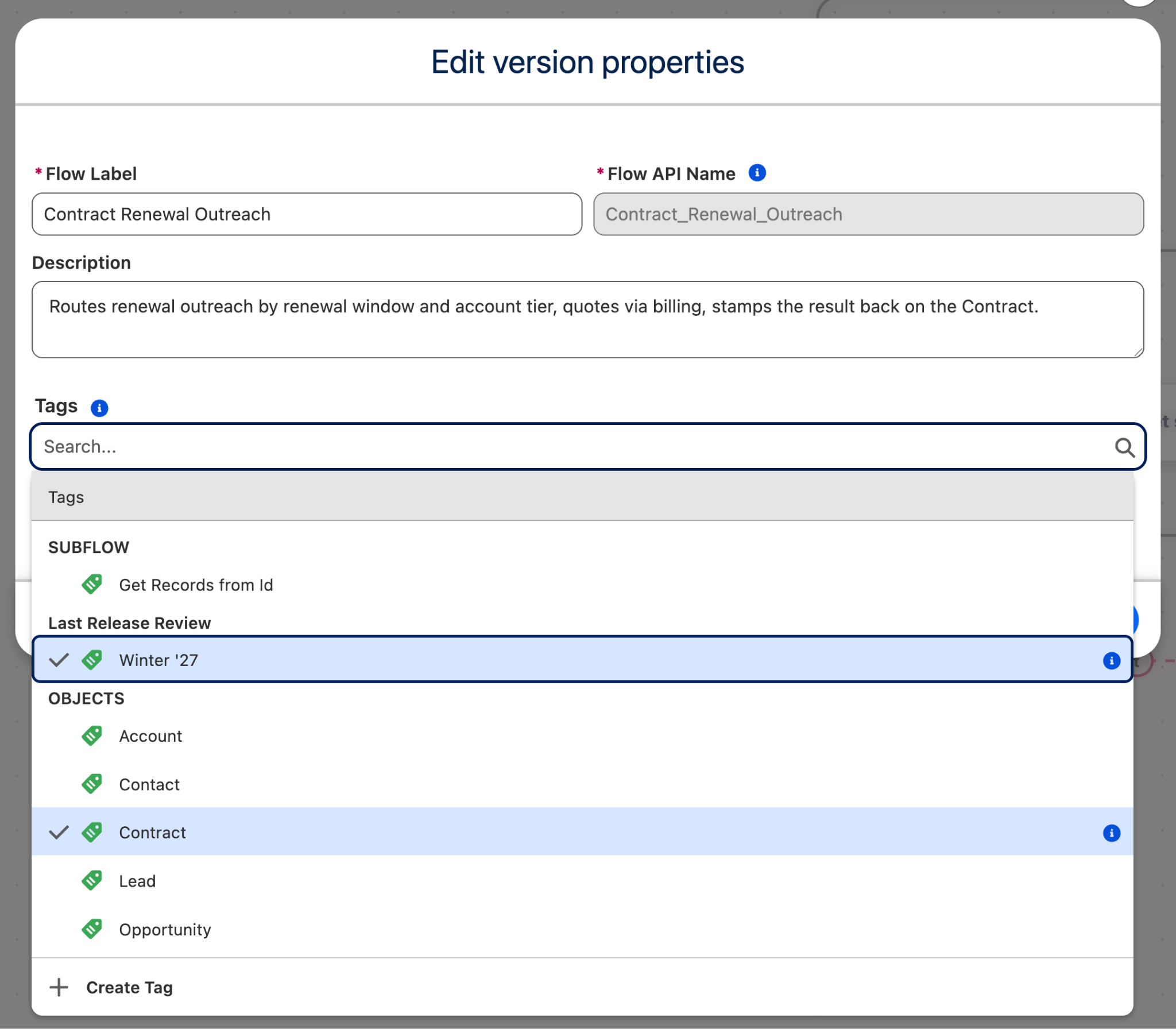
Flow Tags are a relatively simple feature that allow for quick and easy organization of your many flows in Salesforce. From the Automation App in Salesforce, I can quickly see the Tags that apply to a Flow. I can also filter on them and search by them within the List View.
Splitting by Picklist Values
There was one last change I decided to make in this flow, and that was to take advantage of the new branching elements in Winter ‘27. The simplest place that I could think of to do this was in the Tier branching, as this was all being done on a single picklist field.
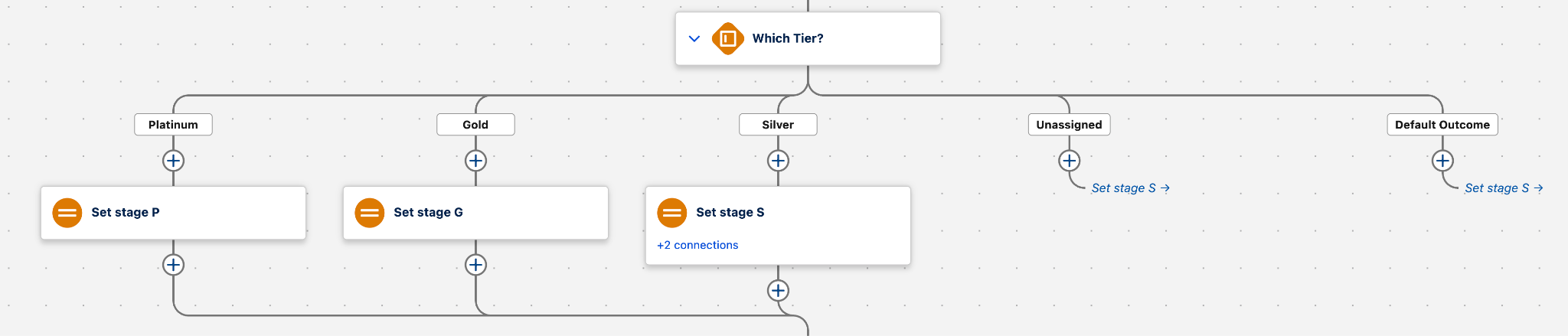
I added the Split by Field Value element to the flow and added a new branch for each of the values that could be selected in the picklist field, to ensure each was handled correctly. Notably, when I was creating each new branch, Flow Builder automatically named it using the value of the picklist value.
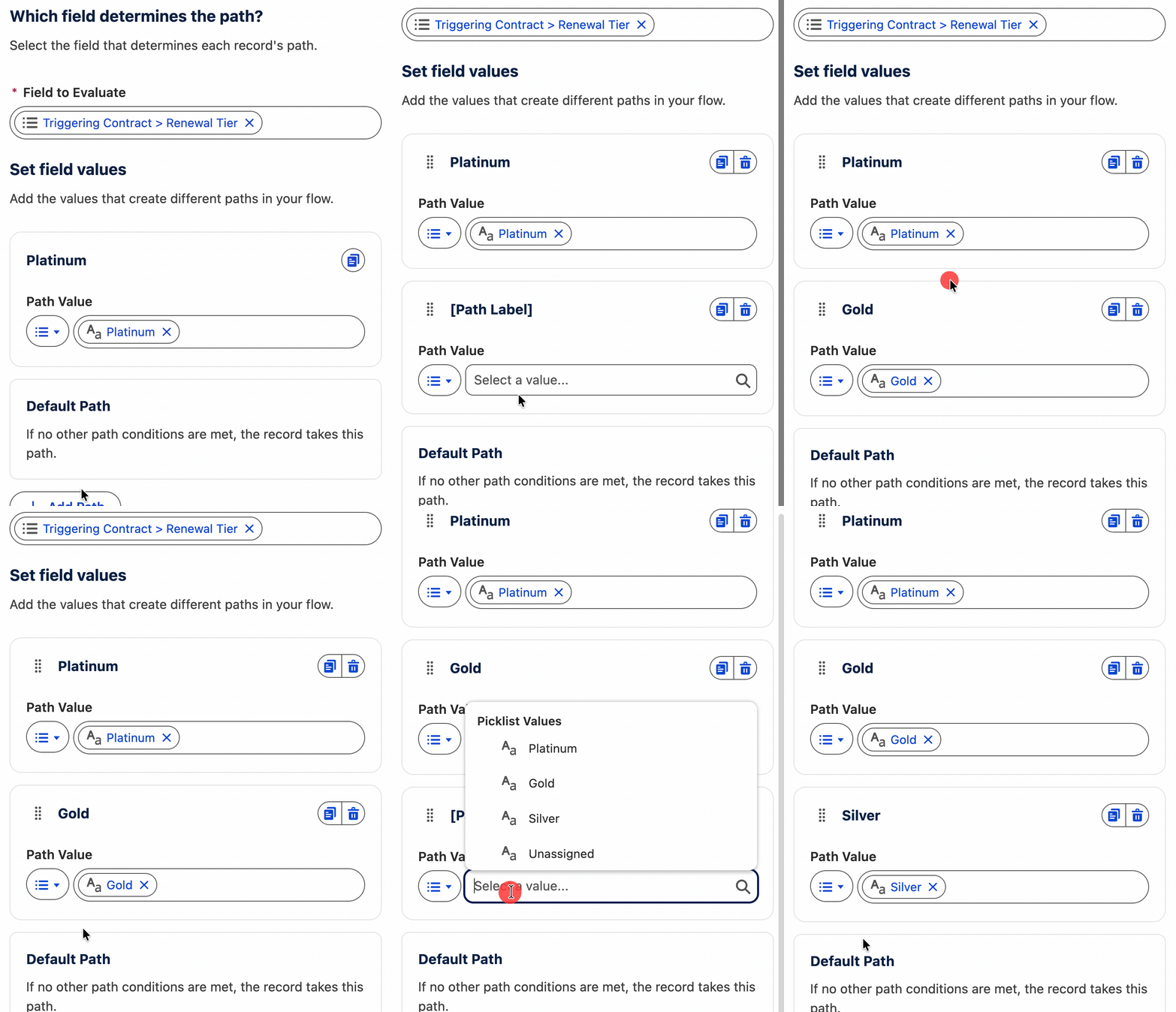
Once done, I cut each of the Assignment elements from the old Tier Decision and pasted them where they belonged in the new Split by Field Value element. I connected Unassigned and Default Outcome to the Silver Assignment, as the intent here was that anything that wasn’t Gold or Platinum would be treated as Silver.
Where to Learn More
That’s just SOME of the new features in Flow Builder in this release. There really wasn’t a chance to go through every single one of them. I have highlighted my favorite new features in Winter ‘27, as well as done a deeper dive into Flow Tags and the new Split Elements. You can jump in there and see how they work in detail.
Summary
There you go! Hopefully, after seeing some of these features in action, you can think of some ways that they can be useful in your org. I can’t stress enough how big of a release Winter ‘27 is. I’d highly recommend that you dig deeper into the release notes to see what else could be valuable to you.
What is your favorite new feature for Flow Builder in Winter ‘27? Now that you’ve seen some of them in use, can you visualize how they can be useful in your org?





Comments: