

In early 2025, Salesforce introduced Flow Approval Processes – the out-of-the-box mechanism to support all of your company’s approval needs at scale. For the longest time, declarative automation options in Salesforce were Workflows Rules, Process Builder, Approval Process, and Salesforce Flow, but that has significantly changed over the past few years, with Salesforce Flow taking the main role across the board.
In this article, we’ll dive into how to prevent your Flow Approvals from going sideways and, more specifically, how you can debug and troubleshoot them within your org.
What Are Flow Approval Processes?
As mentioned above, Flow Approval Processes are still a fairly new way to accommodate approval-related requirements, from simple to more complex multi-layer scenarios. Ever since they were introduced back in February 2025, a burning question has most likely surfaced in the minds of all Salesforce professionals: Will the OG Approval Processes be deprecated?
While Salesforce hasn’t formally announced anything in this regard (or at least not yet!), the new banner on the Approval Processes page couldn’t go unnoticed – admins are encouraged to give the new Flow Approval Processes a go!
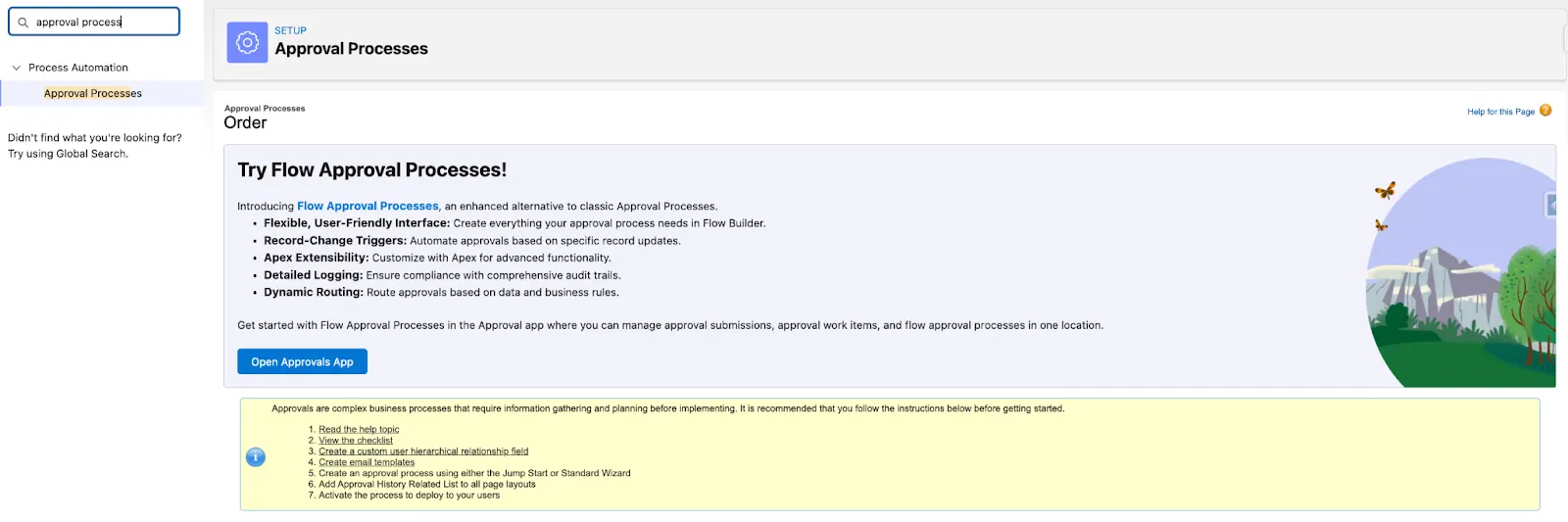

Before diving into the debug and troubleshooting options, let’s take a look at an example. Flow Approval Processes leverage a few components, and more specifically:
- Flow Orchestration, which is where the entire magic will happen and be “orchestrated”. Unlike other flow orchestrations, these approval ones are free and do not consume your orchestration runs.
- Screen Flow(s), which will allow users to conduct the process and input the required information. Within the orchestration, these will be approval steps.
- Autolaunched Flow(s), which empower you to customize the process and decide what happens next based on input from the orchestration. These will be background steps.
In this example, the approval Process is on the Product object in an org that sells baked goods. In this instance, required ingredients are key, so for more complex products that require more than 10 ingredients, a second approval is needed, on top of that of the bakery manager.
As mentioned above, the approvals themselves are conducted within screen flows. However, the updates and additional data operations are tackled with background steps. Within these approval orchestrations, Decision Elements will become your best friend!
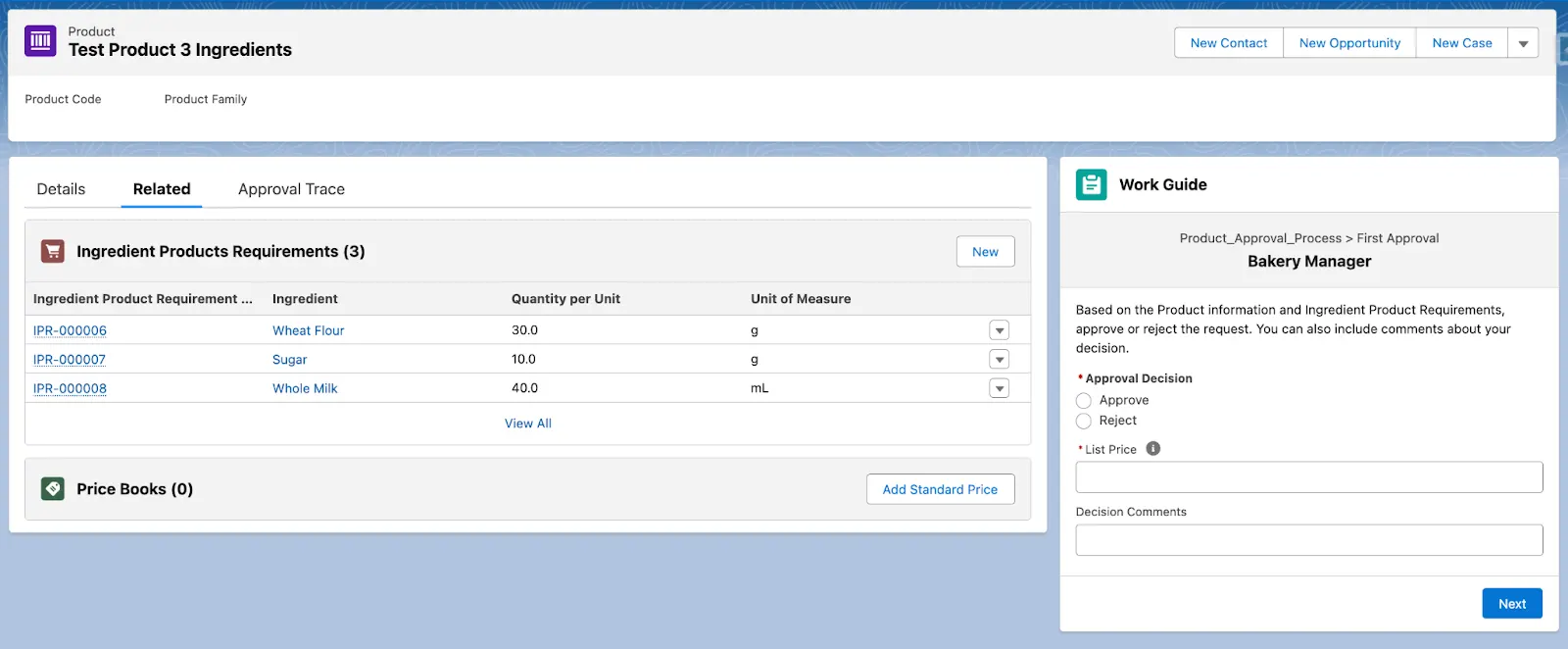
Within the user interface, the experience is quite different from what people are currently familiar with, but it is a change for the better. The approval screen can be embedded on the Record Page as it’s leveraging the Work Guide component, and the approver will see what they need to at a glance.
Additionally, the approval history can be seen in the Approval Trace component if added to the page as well. Want to learn more about Flow Approval Processes? Check out our deep dive article.
Prepare for the Unexpected
Similar to any other Flow, these approval processes created within Flow Builder should follow the same best practices, which include preventing any errors, but also mitigating them in case they happen. Additionally, all possible scenarios should be covered while building in a sandbox, and of course, testing should be conducted.
As a Salesforce Admin getting started with Flow approval processes, you can employ two readily available mechanisms in this regard:
- For each Stage of the Flow orchestration, you could add a corresponding Fault Path.
- Use the built-in Debug functionality to test your orchestration, available in the Winter ‘26 release.
While the error prevention and handling options may (and should) already sound familiar, there are a few specific behaviors which you should keep in mind – let’s dive in!
Fault Paths for Stages
Chances are that you have heard this time and time again, but all the flows you create should always consider error handling. What happens when a validation rule kicks in? What happens if things go south?
In most cases, the answer to that question could be fault paths. The underlying flows you’re using should also be built with this in mind. However, fault paths can actually be added within the orchestration as well.
The main difference is that the fault path is not added at the Step level, but rather at the Stage level instead. In our bakery’s example, the Flow approval process contains a fault path that all Stages point to, and, as you can see, even the fault path actions have to be contained within a Stage. In this case, a background step runs a reusable autolaunched flow that logs an error record, but more on that in a different article!
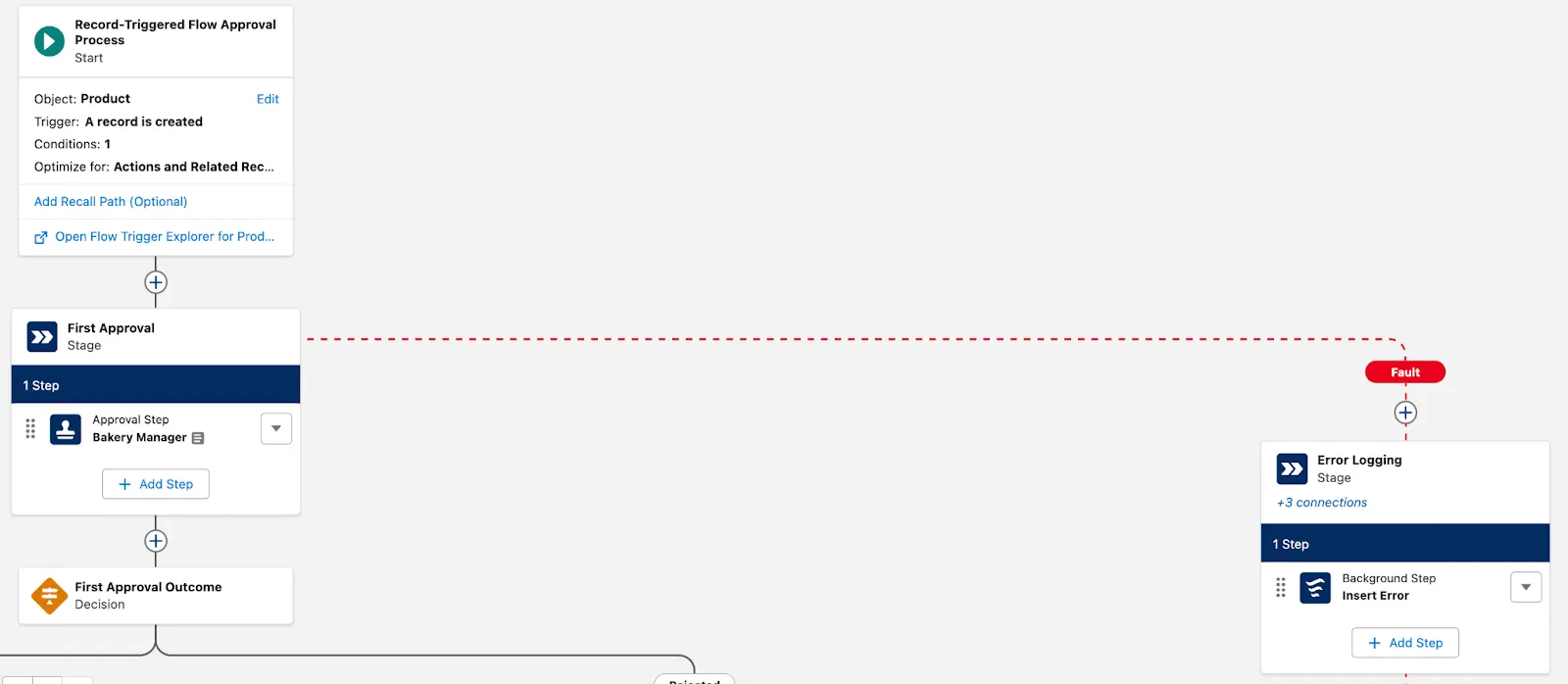
The trick with fault paths within these approval orchestrations is that they shouldn’t be added to all Stages, as you have to make sure that a previous one actually contains an approval step. If the Stage does contain an approval step and you choose to add a fault path, you should also check if any approval items have been completed – if not, you can add another stage with an approval step.
It ultimately depends on your implementation, however, make sure to keep the following scenarios and outcomes in mind as you make these decisions in order to prevent auto-approvals:
| Error Scenario | Final Approval Submission Status |
|---|---|
| The stage where the error occurred has no configured fault path. | Error |
| The stage where the error occurred has a configured fault path that runs without error. All completed approval work items are approved. | Approved |
| The stage where the error occurred has a configured fault path that runs without error. At least one completed approval work item is rejected. | Rejected |
| The stage where the error occurred has a configured fault path that runs without error. There are no completed approval work items. | Approved |
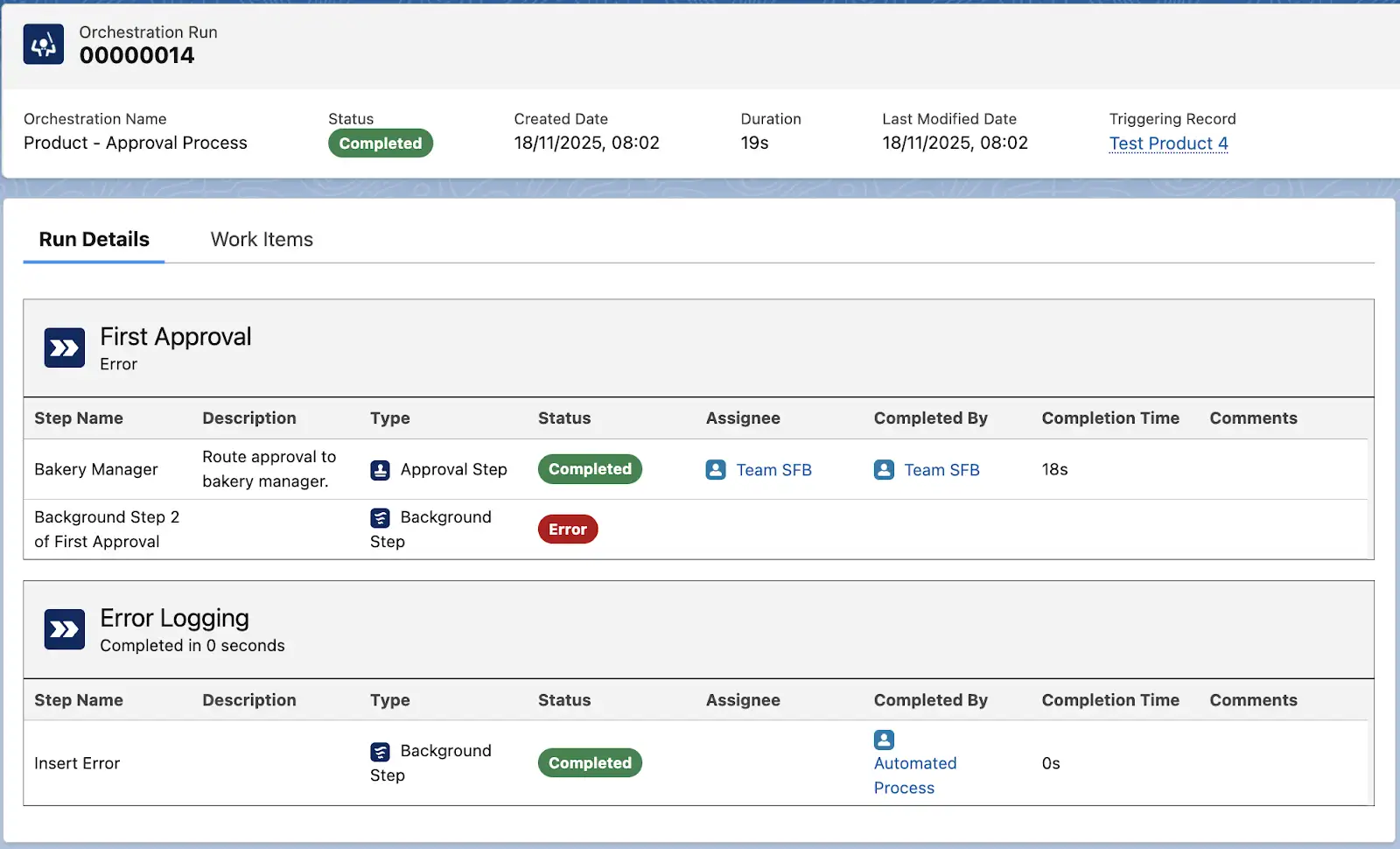
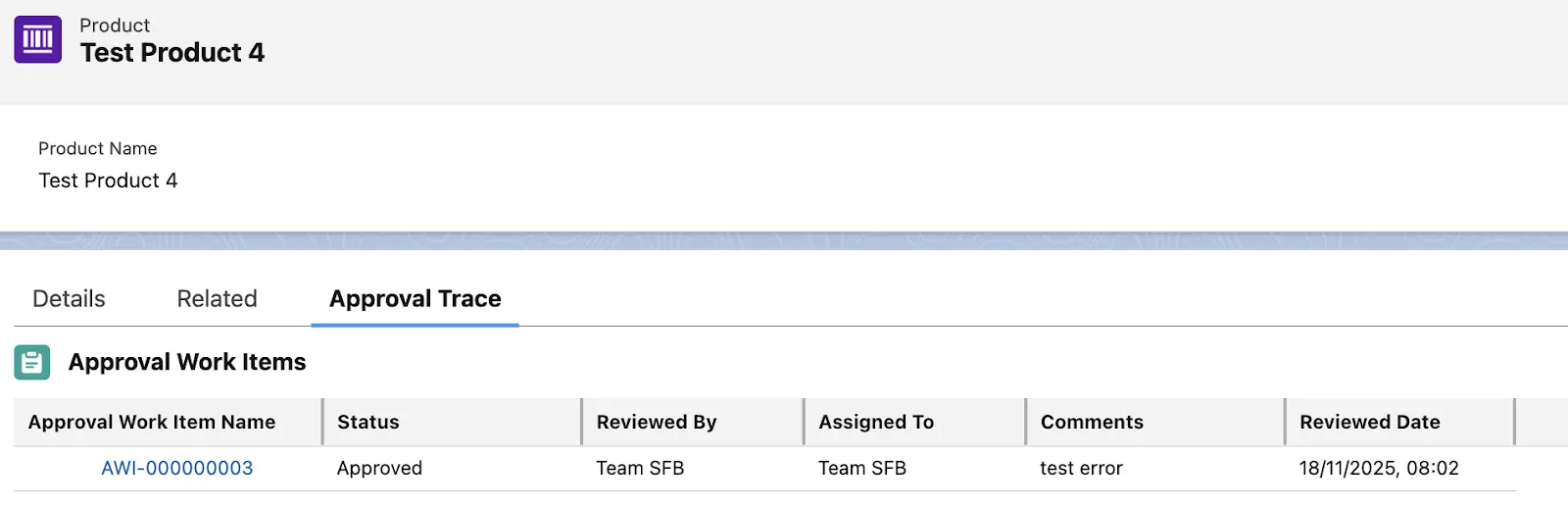
In our example flow, we do have both an approval step and a fault path configured for the very first Stage, so what would happen if an additional step in the same stage fails after the approval step is completed in the interface?
We can see that within the orchestration run, but also the outcome on the Approval Work Item and related Approval Submission. The background step failed, which triggered the fault path, the corresponding autolaunched flow ran, and, as expected, the Status for the Approval Item was set to Approved.
Debug Mode in Flow Approval Orchestrations
While fault paths can also be seen as prevention mechanisms as well as a way for you to plan for the unexpected when the future you will have to troubleshoot, Debug Mode is something that you should absolutely make use of.
Available as of Winter ‘26, clicking the Debug button once you have created your flow approval can ensure that your deployment will be a success, and that both you and your users won’t be in for an unpleasant surprise in the form of an error. Sounds intriguing, doesn’t it?

Similar to other types of flows, once the Debug button is clicked, Debug Mode will surface, and you can select the record, as well as whether the flow will run in rollback mode or not.
Long story short, using Debug Mode within your approval orchestration should be a breeze, and actually help you cover all scenarios you need to test out without having to create additional records or modify the flow for each of them. This is possible thanks to the manually set output, which allows you to set values for your variables within a new Debug Configuration tab on each Stage.
So in our case, if we need to test how the approval process behaves for products with 5, 10, or 50 ingredients – that’s no problem!

Once the values are set, make sure to save the flow version. These will remain available to debug even after the flow is activated, but a new version will have to be created if you need to change them.
After this step, it’s only a matter of running the orchestration, and looking into the debug log details and behavior – was it what you expected? If not, you can make changes in the flow, and then go again.
Final Thoughts
Whether or not you decide to start migrating your legacy Approval Processes into Flow Approval Processes, this new use for Flow Orchestrations is here to stay. Having the option to leverage Flow Builder to achieve even the most complex approval scenarios with dedicated functionality and Flow Types is certainly a long-awaited change, which will empower admins and Salesforce professionals in general for requirements to come
Have you already used Flow Approval Processes? Let us know about your experience in the comments below!