






Following on from our previous article on How to Prepare for Salesforce’s Mandatory MFA Changes in 2026, this is a step-by-step guide for smaller organizations to meet the latest security requirements by July 1, 2026.
Before we dive in, however, it’s worth noting that users who only use the Salesforce mobile app aren’t affected by this change and don’t need to take any action, although they may need to manually opt for the (Salesforce) Authenticator login option if they also have a passkey registered.
In this runthrough, we’ll cover:
- Background
- Deadline
- Who’s Affected
- Recap: Choice Time
- Implementation
- How to Enable Passkeys
- Rollout Considerations
Background
Did you recently notice a warning banner about some security activation at the top of your Salesforce screens? Due to customer feedback, they’ve been removed, as they couldn’t be clicked and dismissed even when the issue had been dealt with. However, the message is still vital – Salesforce and all cloud-based providers need to constantly evolve to face and deal with the latest security threats. This sometimes means a change at short notice.

The risk of the current system is that it may fall foul of “push bombing” attacks, or worse, where multiple login requests are sent to a phone in the hope that the phone’s owner eventually gives in and clicks “ok” just to make the message go away.
Instead, we now have passkeys – requiring proof that the user is physically at the device logging into Salesforce using Touch ID or Windows Hello – or a hardware token/physical security key (such as a YubiKey), which is a unique USB stick that you carry around with you.
These guarantee that the user/person is there and not just remotely saying “yes, it’s ok to log in”.
Deadline
The rollout for Production happens from July 1 and will last 30 days, but there is currently no way to know whether your Salesforce instance will be at the start of the 30 days or the end – probably best not to find out!
On the other hand, the rollout for sandboxes happens from June 22 and will take seven days.
Who’s Affected
Salesforce is making this a requirement for anyone with admin-level access. The full list also includes anyone with permissions such as Modify All Data, View All Data, Customize Application, or Author Apex, so some non-administrators are likely to be impacted, too.
For example, the View All Data permission is definitely one to watch out for! There are many a setup, particularly for smaller organizations, where the pre-GDPR best practice was often that all users should be able to see all data. Time to start inspecting your Profiles and Permissions Sets!
Luckily, there’s a shortcut. Using Data Loader (and similar), you can run the following SOQL query on the PermissionSetAssignment object:
SELECT Assignee.Id,
       Assignee.Name,
       Assignee.Email,
       Assignee.Username,
       Assignee.IsActive,
       PermissionSet.Name,
       PermissionSet.Profile.Name,
       PermissionSet.PermissionsModifyAllData,
       PermissionSet.PermissionsViewAllData,
       PermissionSet.PermissionsCustomizeApplication,
       PermissionSet.PermissionsAuthorApex
FROM PermissionSetAssignment
WHERE Assignee.IsActive = TRUE
AND (
     PermissionSet.PermissionsModifyAllData = TRUE
     OR PermissionSet.PermissionsViewAllData = TRUE
     OR PermissionSet.PermissionsCustomizeApplication = TRUE
     OR PermissionSet.PermissionsAuthorApex = TRUE
)
This will return all active affected users regardless of whether the View All Data permission is in a Profile or buried in a Permission Set.
Recap: Choice Time
Whilst the increased security is unavoidable, you will need to consider whether you want to use passkeys, hardware tokens, or both. Here are the differences:
- Passkeys: Tied to your device (PC, Mac, or Salesforce app on your mobile). This will use Face ID or your fingerprint sensor.
- Advantage: it’s free.
- Disadvantage: You really need to enable a cloud backup for your passkey (e.g., connecting your Windows account to Microsoft’s free cloud backup/synchronization service) – otherwise, the risk is that if your PC is not available, you will not be able to log in anywhere else.
- Security Key (also known as a Hardware Token): These are physical items.
- Advantages: It doesn’t matter which device you use, so it’s great if you don’t want to lug a laptop around with you.
- Disadvantages: it’s something else to carry around and awful for many people with ADHD and others who frequently misplace small items. There is also a cost per user/item of around £30 in the UK and $35 in the US.
- Both: Useful for those with multiple devices, those who prefer having emergency options, or those who travel occasionally and usually can use passkeys, but will want a security key for their holiday travels.
How to Enable Passkeys
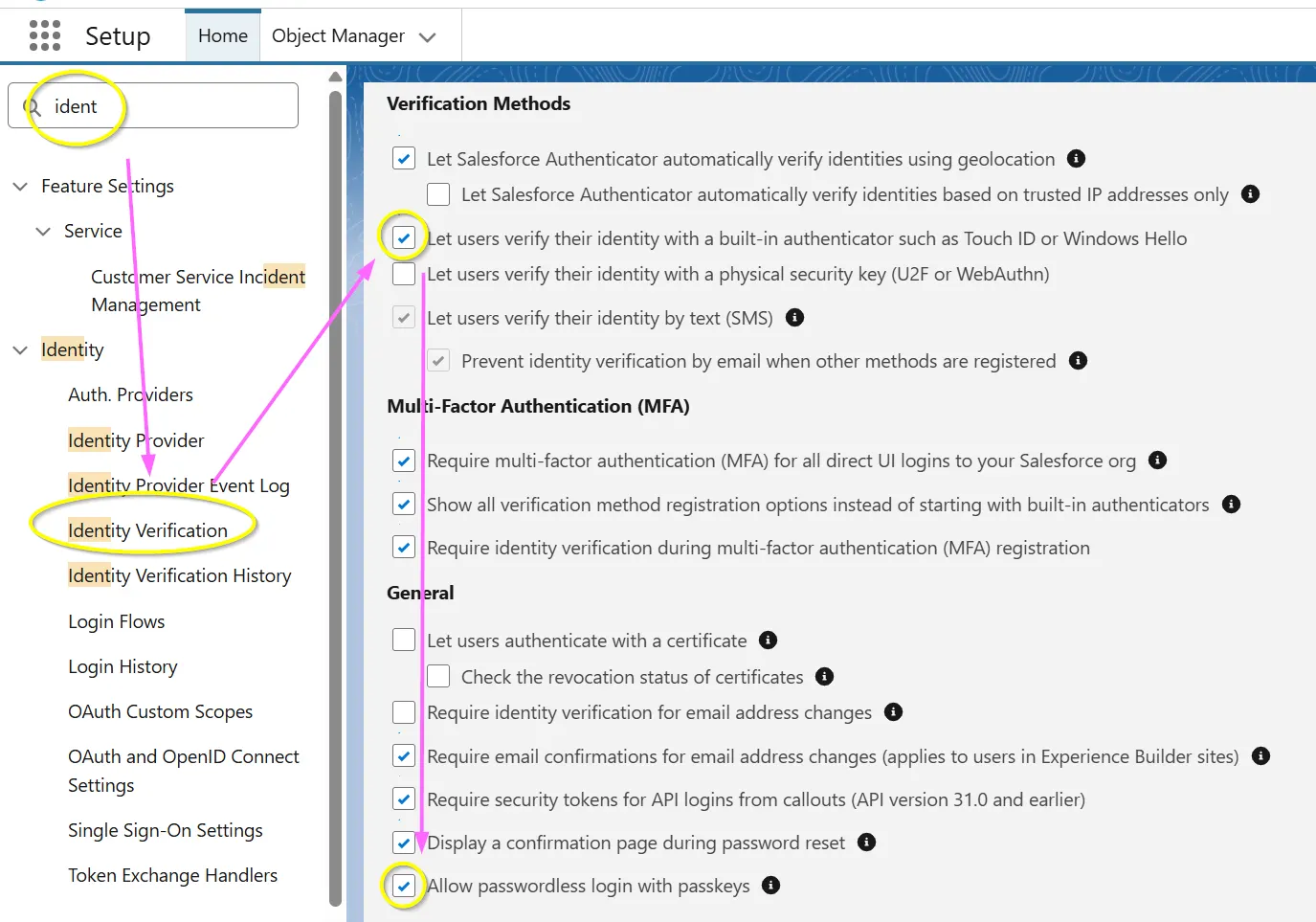
- Go to Setup → Identity → Identity Verification.
- Tick either, or both, of the following as appropriate and press “Save.”
- “Let users verify their identity with a built-in authenticator such as Touch ID or Windows Hello.”
- “Let users verify their identity with a physical security key (U2F or WebAuthn)”.
- You can also tick “Allow passwordless login with passkeys”. This skips the multifactor code entry screen, rather than the password itself.
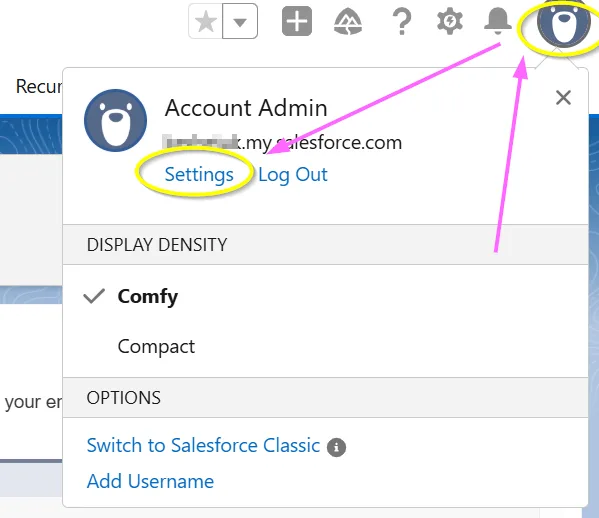
- Next, you need to ask each affected user to go to (their) Settings.
- Then navigate to “Advanced User Details.”
- If you scroll down, you will see a related list called “Built-in Authenticators.”
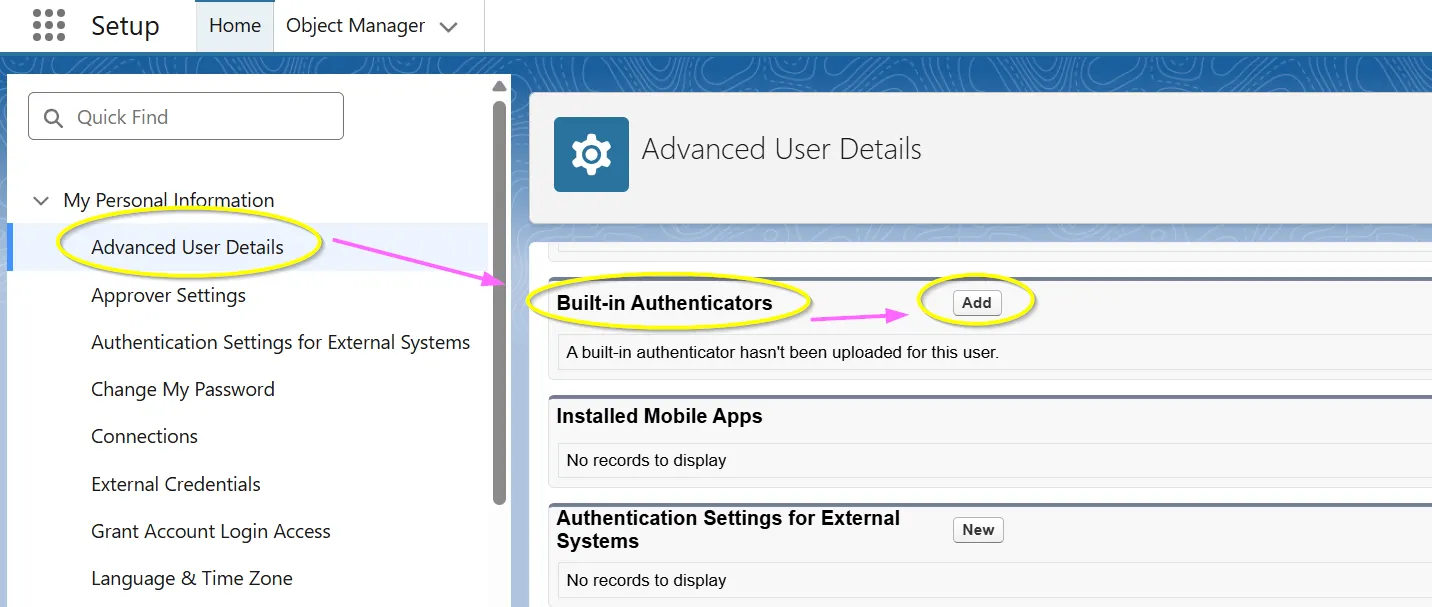
- Follow the prompts, click “Register,” and continue following the prompts. The name to give is purely for your internal reference, e.g., mine was “Dell Latitude 5455” as that was the device I used.
- Salesforce updated its guidance in June 2026 to state that cloud-synced tools such as 1Password, Bitwarden, and iCloud Keychain can also be used to store passkeys. Other password providers were not mentioned, so you may want to reach out to Salesforce Help to confirm if you use a password keeper that is not mentioned in their FAQ. The criteria are that they are FIDO2/WebAuthn-compliant.
- To add the second authentication method, I returned to the Built-in Authenticators screen and added the second device.
- All done! Just use another browser to log in to check that it all works, and that you are prompted for the passkey.
You should always have at least a second Salesforce Administrator who can unlock your account for you. That said, it’s unlikely to be a problem as I know of many orgs where having just one or two administrators would be a nice problem to have!
I did check with Salesforce Help to find out what happens if I get locked out. Their response is that you can contact Salesforce and ask them to let you log in with a one-time code. So there is a workaround, but there is no guarantee it will be quick, and it could even be painful.
Additional Devices
First, the good news. As mentioned earlier, for the normal Salesforce mobile app, the login process does not change. But if you are an administrator wanting to use the “Login As” feature, then you do need to go through this process.
However, if you want to use two separate PCs that do not share passkey information, and if you don’t want to use a hardware token, the alternative method is to return to the Add Built-In Authenticator screen, Add, click “Register”, login (with existing passkey), at which point you will see the following screen:
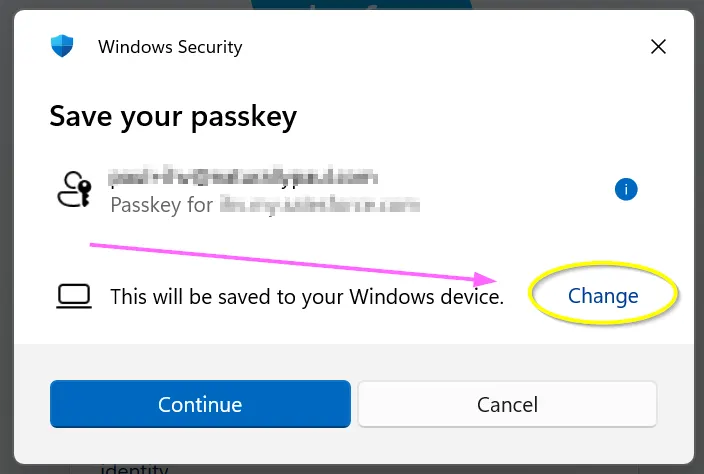
You can then click “Change” and select “iPhone, iPad, or Android device”. You will then be presented with a QR code you can scan on the appropriate device (and similar if going from Mac to Android or Windows devices).
Rollout Considerations
You will have multiple users who need to set up this access, so this will take planning. Inevitably, some people won’t read their emails, so you might want to implement checks to see if they have added that vital Built-In Authenticator to their account.
Summary
This is a short-notice deadline, with potentially a huge impact on your org. It may be that you have to re- and de-prioritize other work, explaining to your business colleagues the impact that would otherwise occur if you ignore Salesforce, making their product even more secure.
With thanks to a number of people who have contributed to the article, but don’t like taking credit!





Comments: