








Summer ‘26 is upon us, and yet the team at Salesforce is still cooking! That’s right, we’re still getting new features added to the release just as it’s due to release to Production environments.
Today, Aleksandra Radovanovic, Director of Product Management at Salesforce, announced that the Visual Comparison tool for Salesforce Flow is going to be included in the Summer ‘26 release. Not only that, but the Transform element is also included in version comparison. We really do get multiple Christmases a year with Salesforce releases!
Visual Flow Comparison Tool
It’s important to know what has changed within a Flow from version to version, especially if you’re facing new problems. The Flow version comparison tool was introduced back in Winter ‘26 and eliminated the need to open multiple browser tabs to compare two Flow versions. We’ve seen ongoing enhancements since its release, and Summer ‘26 brings the biggest step so far – the Visual Comparison mode.
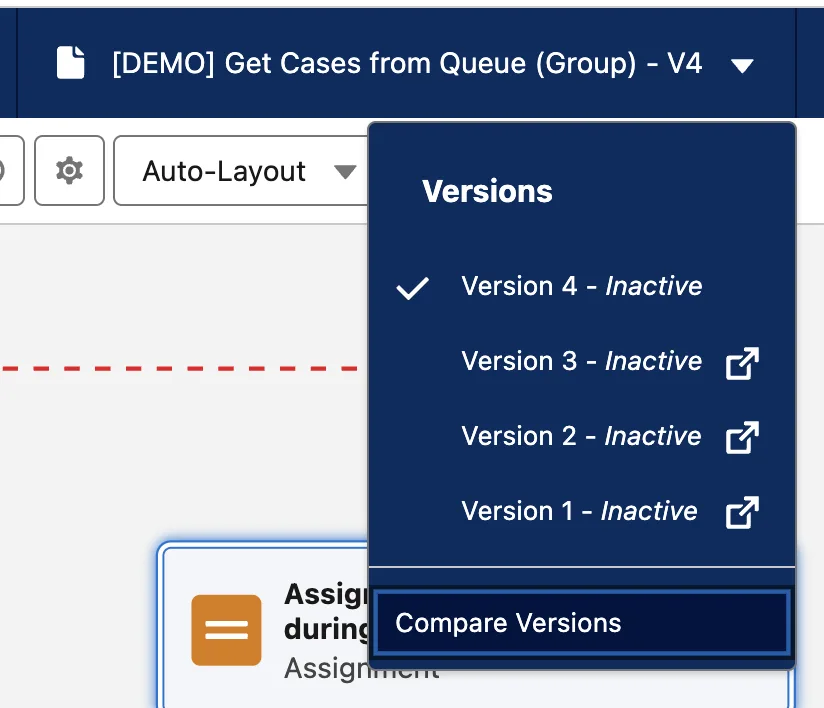
Let’s jump straight in and see it in action. In an org with Summer ‘26 or beyond, open a Flow that has multiple versions. Click on the Flow version in the top bar of Flow Builder, scroll down to the bottom of the versions list, and click Compare Versions.

Next, select another version of the Flow to compare to. You’ll need to make sure that you’re comparing two different versions of a Flow to see what has changed between them.


Here’s where the magic happens – once you’ve selected both versions of the Flow, head over to the right side of the menu bar and click the new Visual Comparison button. This switches to the canvas view instead of just displaying changes in a tabular view.
Click the Compare Versions button to see the magic happen. After the comparison process runs, you’ll see your Flow load in the canvas with a few icons at the top-left of some elements.
The blue tab represents where the element was updated. You can then click on the element to see the changes in detail.
The green tab represents where an element was created – in other words, it is new in this version and was not present at all in the prior version.
The red tab represents where an element was deleted – in other words, it was present in the earlier version but not in the later version.
Finally, the pink tab represents a changed connector between two elements. In other words, where the connection between those two elements is broken. You can see in this example that I’ve added a new element between two elements from the prior version, so it’s showing two pink tabs on the elements that were previously connected.
Bonus: Transform Contents Comparison
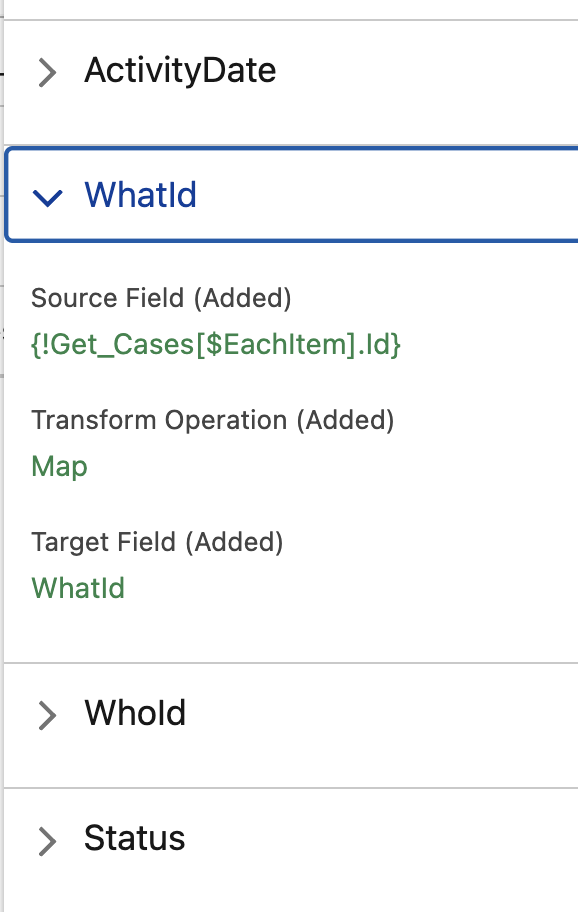
In addition to the Visual Comparison mode, you can now also compare the changes that have occurred to a Transform element. This includes the mappings, joins, and formulas that occur within the Transform element as well. This is supported in both the Visual Comparison mode and the older tabular view mode.
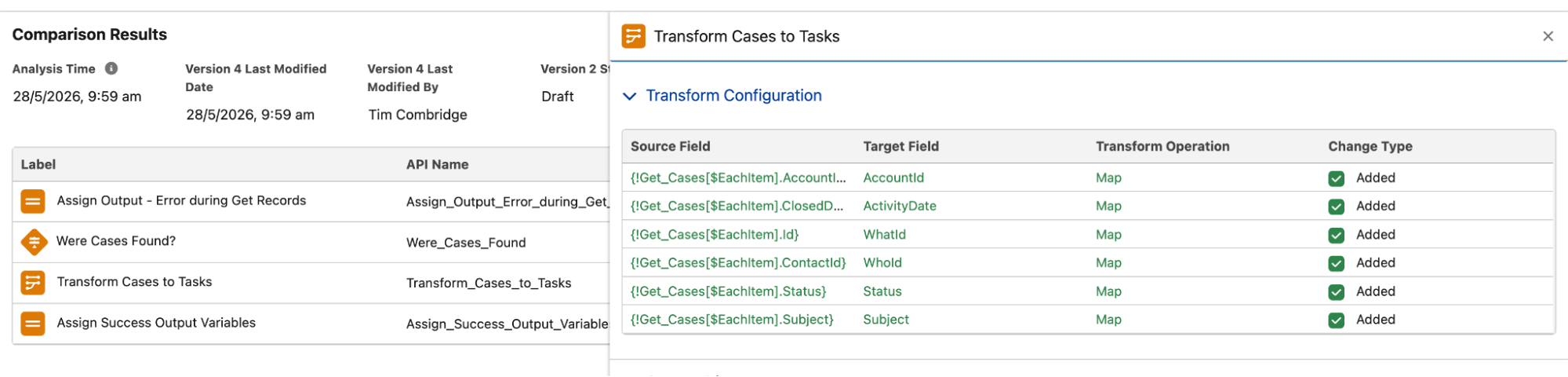
When viewing a Transform element’s changes, you can also choose to click into the individual field mappings and see how they were set. If a formula has changed or a new join has been created, you will see the added details marked in green and anything that was removed marked in red.
What’s The Big Deal?
If you’re still not convinced that this is a huge deal, consider a scenario where multiple changes occurred across a large Flow. While the tabular view does surface these changes (including Transform now, which is handy), the Visual Comparison tool allows the Flow configurer to visually see where the changes occurred directly on the canvas.
Rather than seeing the change that occurred in a list and struggling to quickly find where that particular change occurred, you are now able to see the change exactly where it actually lives – in the canvas.
Particularly with larger Flows, which are more prone to problems than smaller ones, the ability to use Visual Comparison to identify where the changes occurred makes it much easier to fix problems that the Flow is facing.
Summary
This is a two-in-one gift from Salesforce – the ability to visually see where changes have occurred between Flow versions using Visual Comparison, as well as the ability to see what has changed with Transform elements. As always, Salesforce Flow is the gift that keeps on giving!
Tell me about some of the ways this will save headaches in your workflows. Does having the ability to visually see the changes on your Flow canvas make diagnosing issues a lot easier? What about the ability to see changes to Transform elements in version comparison? I’d love to hear how this impacts the way you work!