

It’s time to forget about manually transferring data from documents into Salesforce, thanks to this Salesforce-native, AI-powered document processing app.
Highlights
- Easily transform documents into Salesforce records.
- Predefine templates for all your team’s document intake use cases.
- Automate complex parsing scenarios with template and field-level AI instructions.
- Choose between three parsing channels, based on how your team works best.
The reality for many Salesforce customers is that sometimes data that should live in the CRM comes in the form of documents. Between numerous Microsoft Word docs, PDFs, and even images, processing them manually is not only a hassle, but also prone to errors, delays, and high file storage consumption. What if document processing could become effortless and accessible?
This is exactly where Appiphony’s new product, Parse Connect, comes to the rescue. This new intelligent document processing uses AI to turn PDFs, DOCX files, and images into Salesforce data, giving your team all that time spent reconciling files with CRM data back right from the get-go.
This in-depth review will showcase the main Parse Connect features, ideal use cases, and setup effort, as well as how fast your users are sure to adopt this new integration.
Features
Retrieving data from documents doesn’t have to be a headache, and neither is setting up a tool to resolve this pain point. Let’s dive into how exactly Parse Connect can transform this tedious process into a seamless experience.
Everything Is in the Template
If you and your team have been handling data within various files for a while, you surely know how they are structured and have a few examples at hand. To kickstart the parsing process, that’s exactly what you need – a Word document, PDF, or image. These can be up to 50MB, and when it comes to documents, the maximum is 1,000 pages.
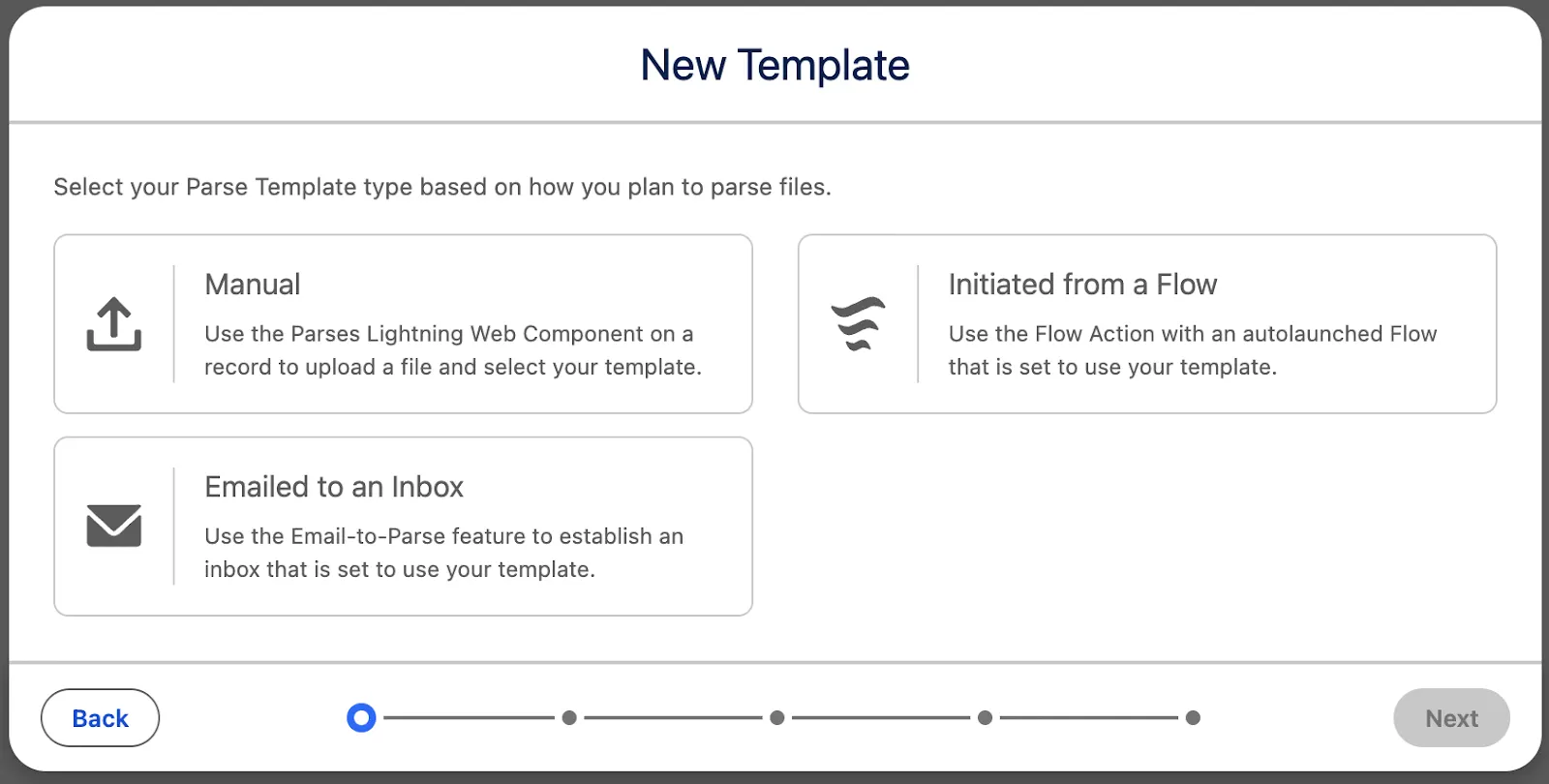

When creating a new template, you’ll also have to choose how the parsing will be done. We’ll dive into the options later, but for now, let’s choose “manual”.
Template Configuration
As with creating custom Salesforce Report Types, you will have to choose the main object the template is intended for. In this case, given that my example is an NDA, I’ll choose the Contract. Note that you can select most standard objects, and of course, all custom objects for this.
The templates can be used to either create or update Salesforce records, and you will have to upload an example document before proceeding. As you can see in the example, the document doesn’t have to be perfectly completed or have all the dates, but ideally, you will share exactly what a final document looks like for your cases for the best results.
Once the document is processed, it’s time we move into the built-in template builder for further customizations!
Field Selection and Lookup Record Matching
Once the example file you input is processed, you can start customizing the template! While you might have expected fields and related records to come into play, what Parse Connect will surely surprise you with are the template-level and field-by-field AI instructions.
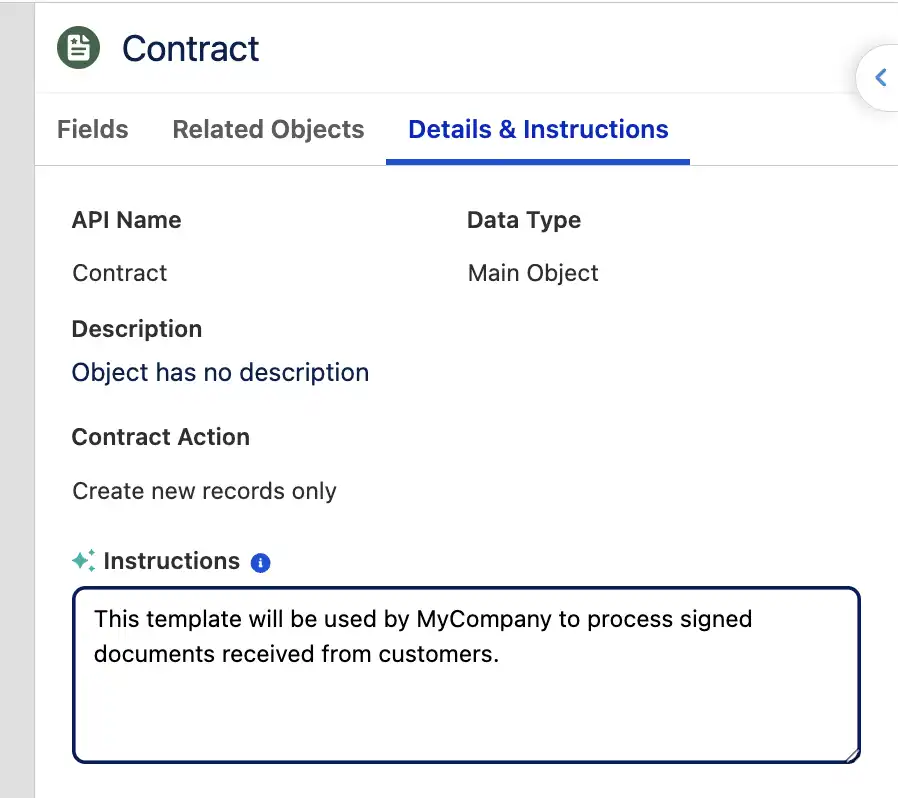
Practically, you will not only select the fields you expect to be parsed from the document, but also let the LLM know exactly how you expect them to be processed – and you can be as specific as you’d like. For example, it is a best practice with lookup fields to always specify where the data is expected to come from or what the data represents, so it can make better choices.
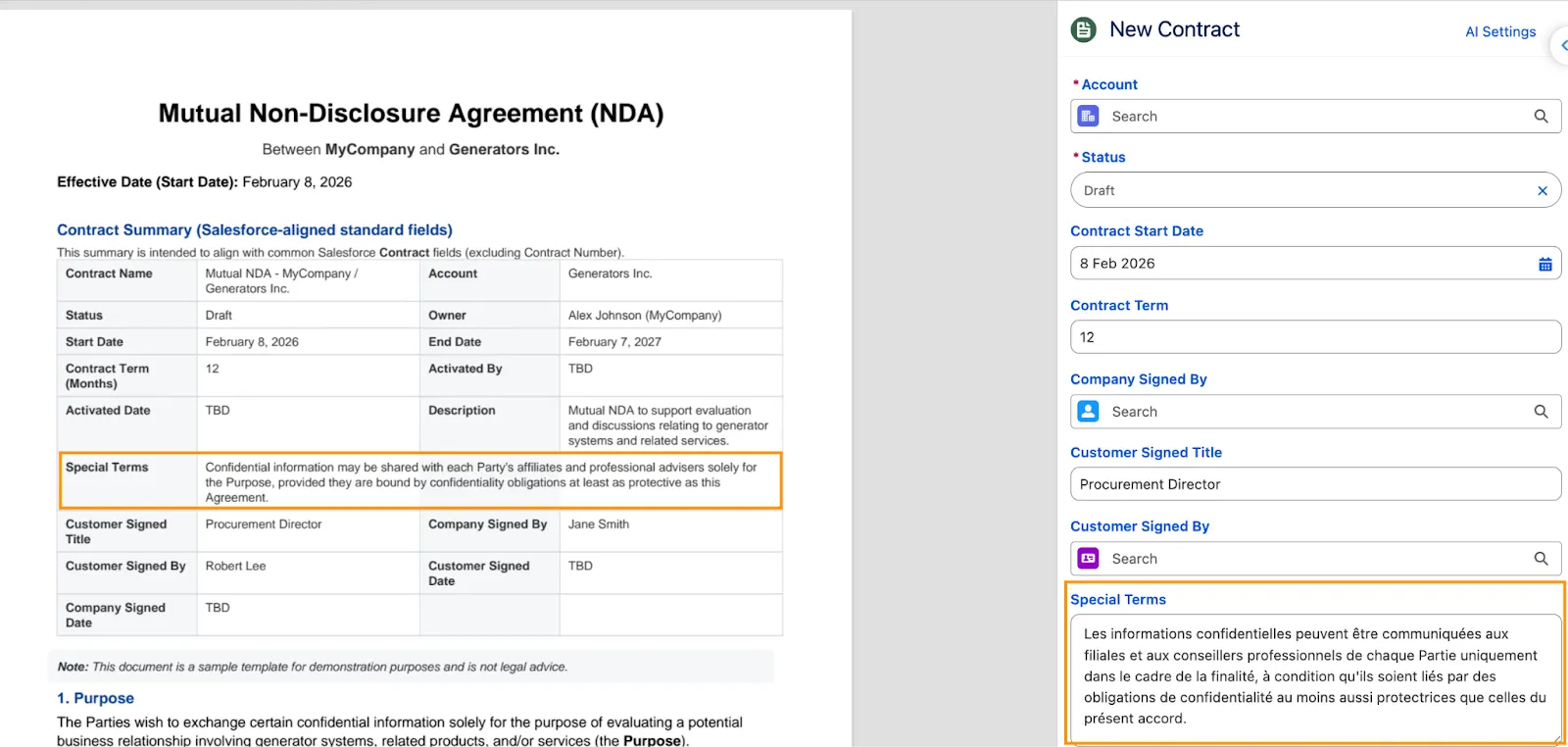
You can determine the formatting directly at this step. In my example, I asked for the Special Terms to always be translated into French, but you can be even more granular with formatting and summarization.
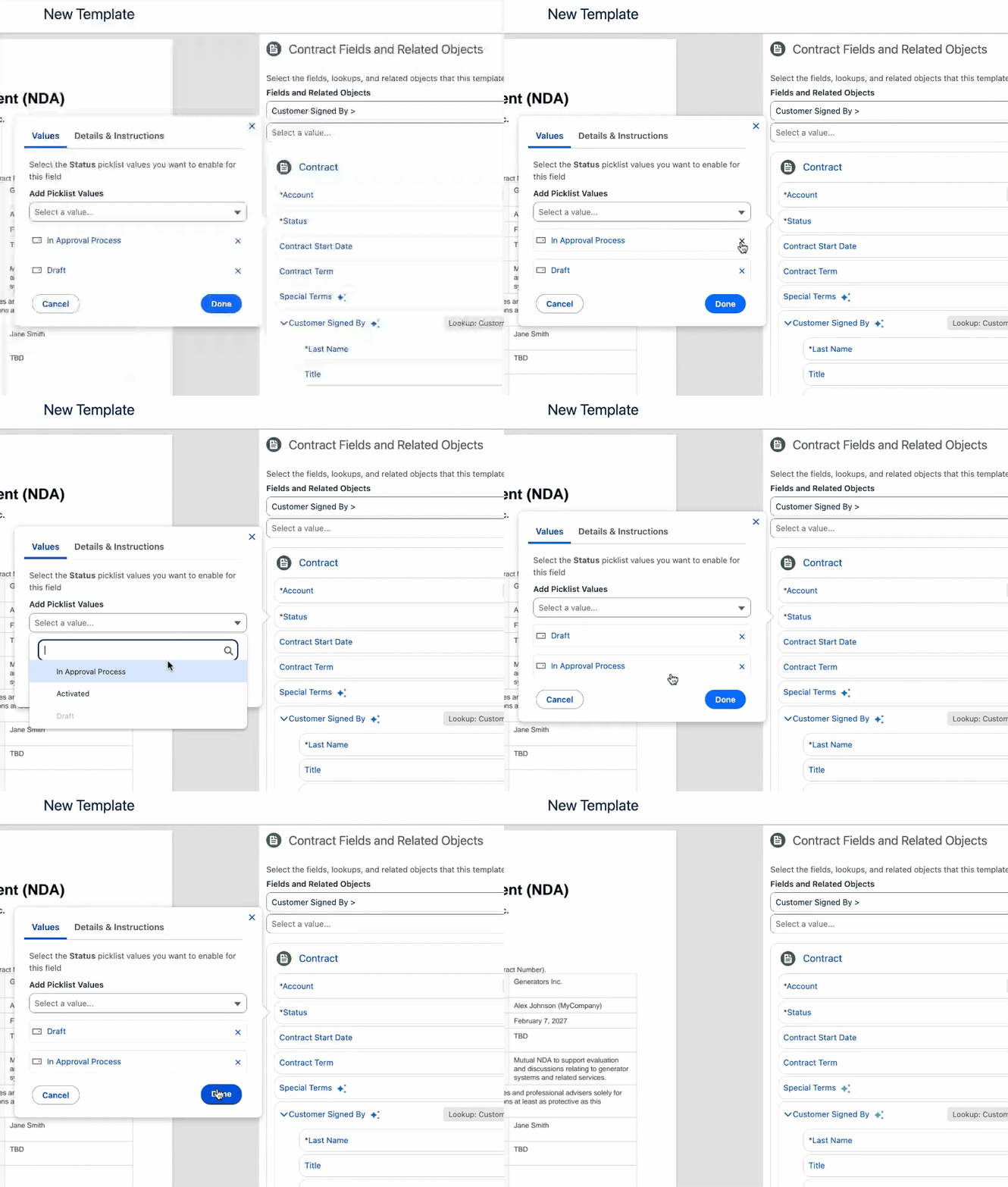
When it comes to picklist fields, keep in mind that you can pick and choose which values will be available in the template. For example, if you will only keep two and add instructions on when each of them will be used, there’s no need for the others. Given the non-deterministic nature of AI, it’s best to only give it the information that it will need.
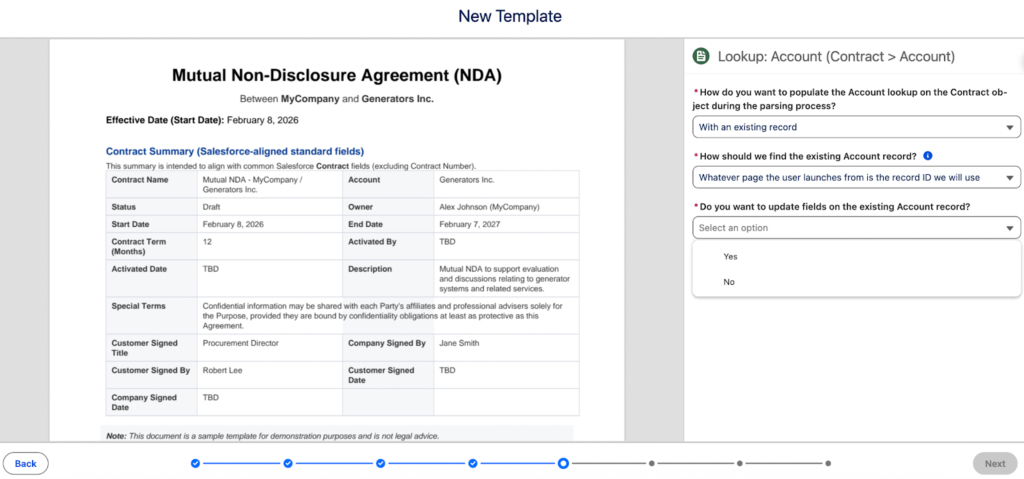
Before saving the template, you will also need to specify how the lookup fields will be handled. This means deciding whether to create a new record or use an existing one as the starting point. For new records, you will have to at least determine the mandatory fields, while for existing records you will have to decide how the matching will be done – in this case, I chose the record Id as it is a manual template, but matching can also be done based on up to five criteria fields, and you can also choose one static value for all records.
As you might have already noticed above, fields from related records can also be updated. While from an NDA you likely won’t update Account fields, chances are that you might want to update the Contact fields with the information the signer provides, such as phone number and title. This way, Parse Connect not only ensures that the documents are transformed into Salesforce records, but also that data from related records is updated with the latest information your customers provided. Isn’t that handy?
Test and Review
After all fields and instructions are ready within the template, let’s test it out! The template builder has a built-in testing mechanism, where you can select the records and verify the parsed values as you wish. Note that the record(s) will be rolled back, so that your database will not be polluted, and you won’t have to spend time cleaning them up.
Based on the file at hand, it’s a good idea to also review the AI Performance settings now – choose between Fast or Smarter. If you have a simple document, Fast or Balanced should do the trick, but for more complex ones with multiple instructions and scenarios, Smarter is a much better choice.
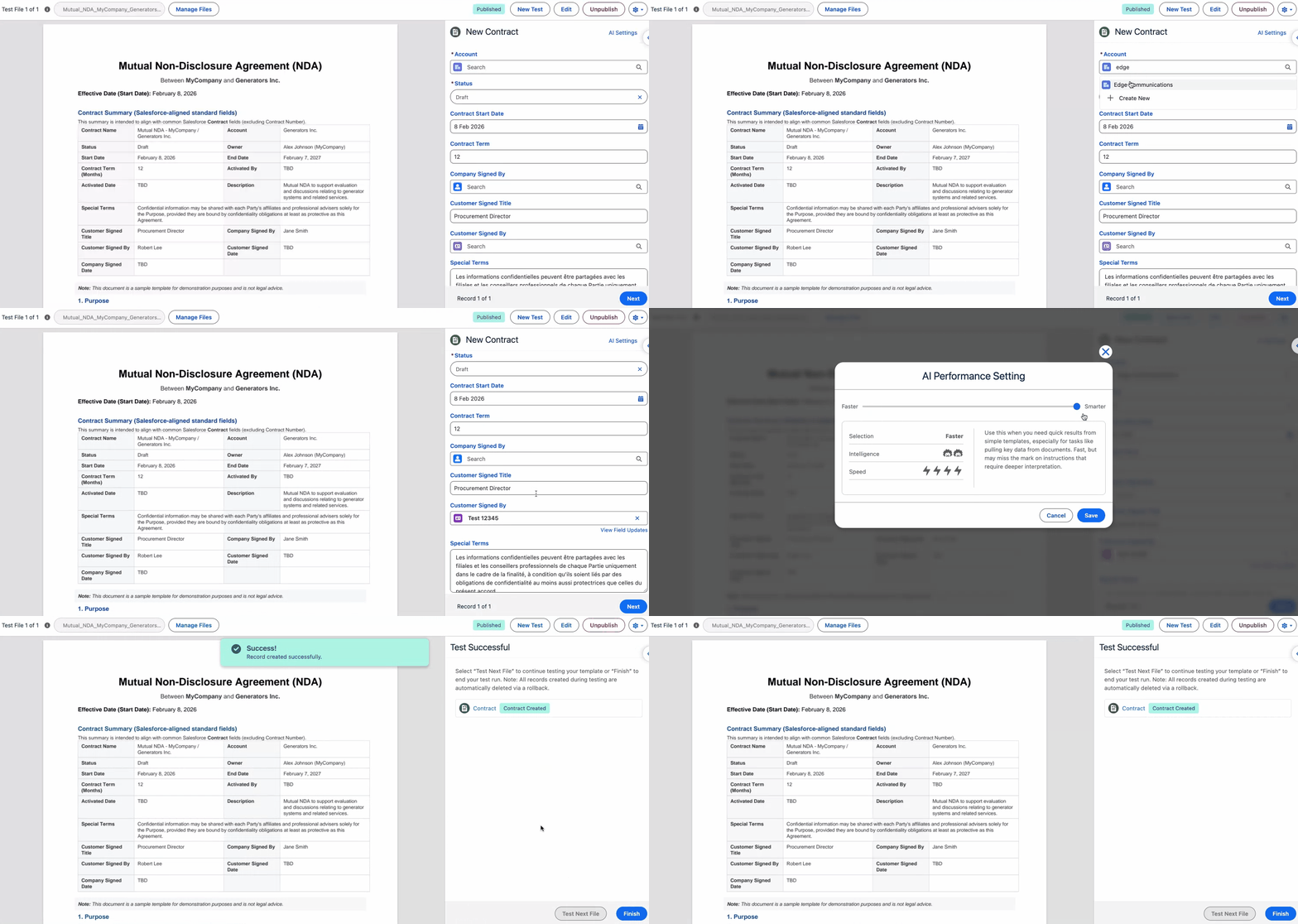
If you choose to add any text fields and also format them, these will also appear in the side panel when testing. Especially for fields with multiple instructions, it’s paramount to test with multiple records and review outputs before either publishing the template or going back to tweak the instructions.
Construct Your Ideal User Experience
Finally, with at least one template published, it’s time to determine the experience your users will now have when parsing.
Manual Parses through the Lightning Web Component
Since the chosen example above is a manual template, it can make a good starting point for you to test out in a sandbox. It’s a matter of only a couple of minutes to set it up, as the only change involved is adding a component on the Record Page.

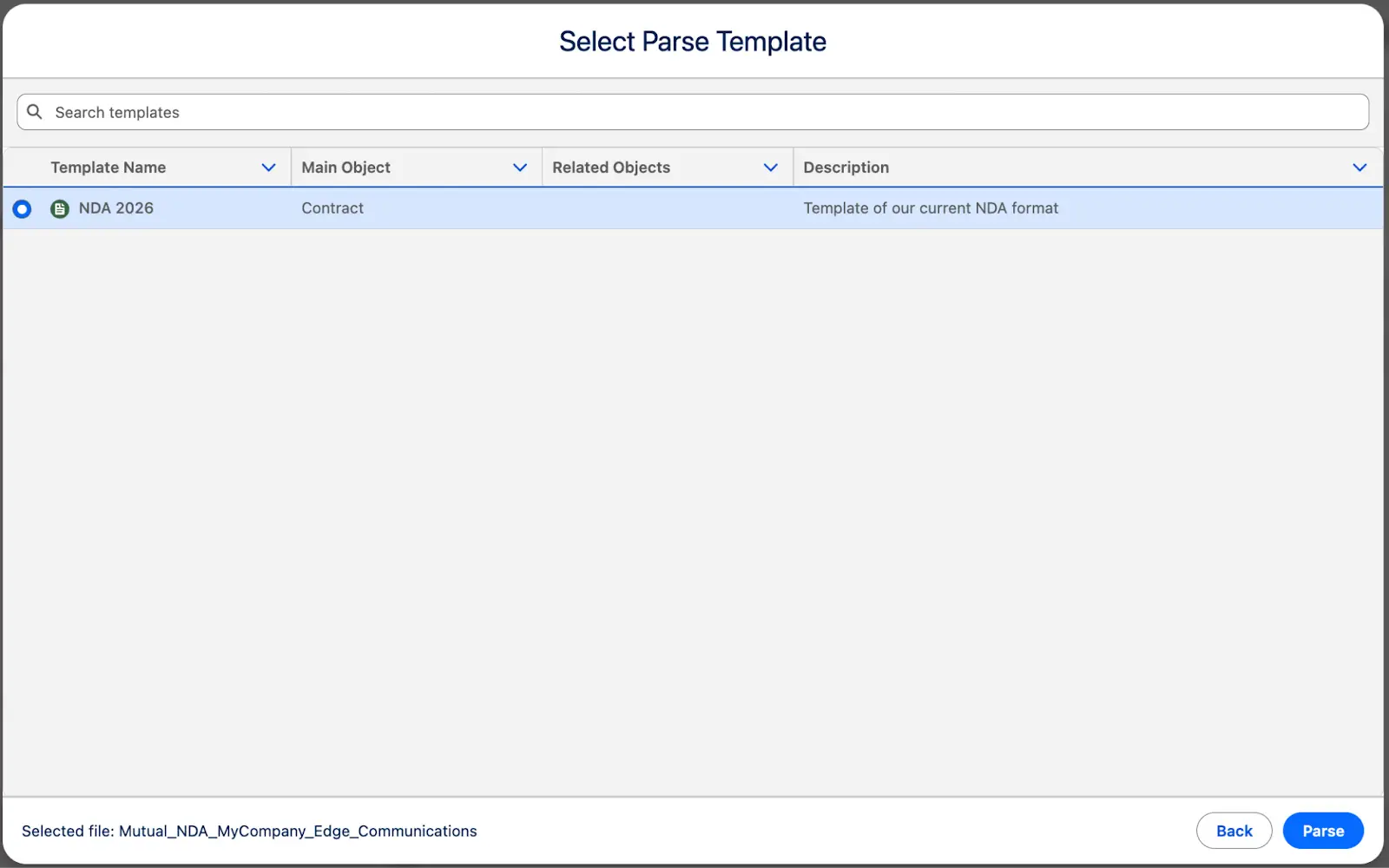

The manual channel allows users to quickly parse any document on a case-by-case basis without interrupting their flow of work. After the file is uploaded, the template needs to be selected – in this example, there’s only one available to be triggered from the Account record, but if you have multiple of them, it’s always a good idea to have a naming convention and a description.
Depending on the document or image size, parsing may be very quick or take a few moments. Once ready, the user will be presented with the parsed values. In case they were not found, though, the user can input the right values.
Note that even if the uploaded document wasn’t exactly as the template we used initially, it did contain the same information, so Parse Connect could still execute the parse correctly.
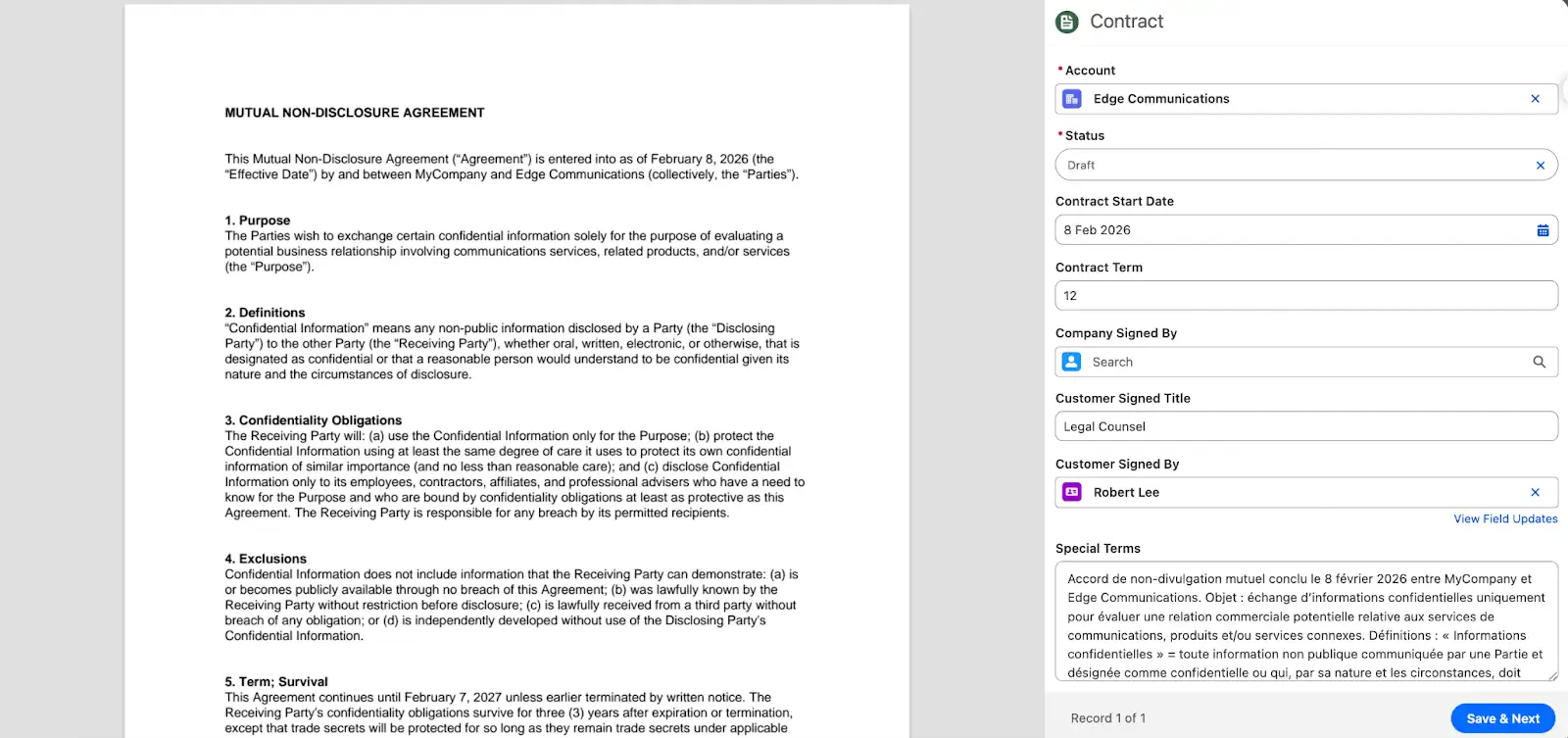
By clicking “Save & Next”, the parsing is completed, and the records are created or updated based on the template settings.
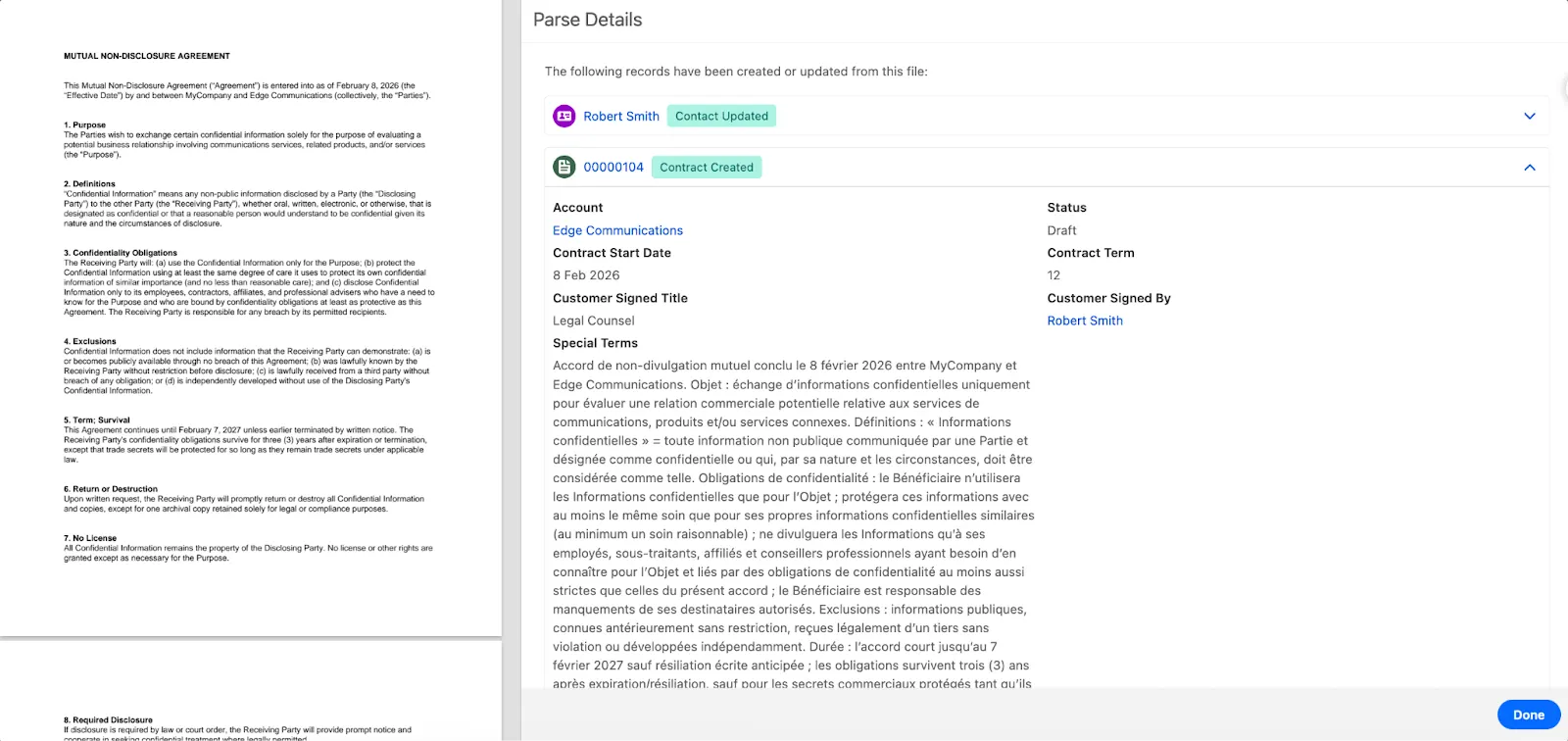
Users can always review the parse history on the related list, and see the status at a glance. Additionally, the parsed document alongside the values that were used to alter Salesforce data will be available. If needed, the parsing can be repeated using the “Reparse” button.
Allow Users To Forward Documents via Email

What are the odds that your team is already receiving the files they are processing via email? Probably quite high. That’s why Parse Connect has this scenario covered as well, with the email parsing functionality.
This is not a lengthy setup by any means, and it can be up and running in mere seconds. It is recommended that you define the “Accept Email From” field when configuring this functionality, to ensure that only your internal users can make use of it, for example.
Remember the template type selection above? Only templates intended to be emailed to an inbox will appear on the list on this page.
Supercharge the Experience With Salesforce Flow
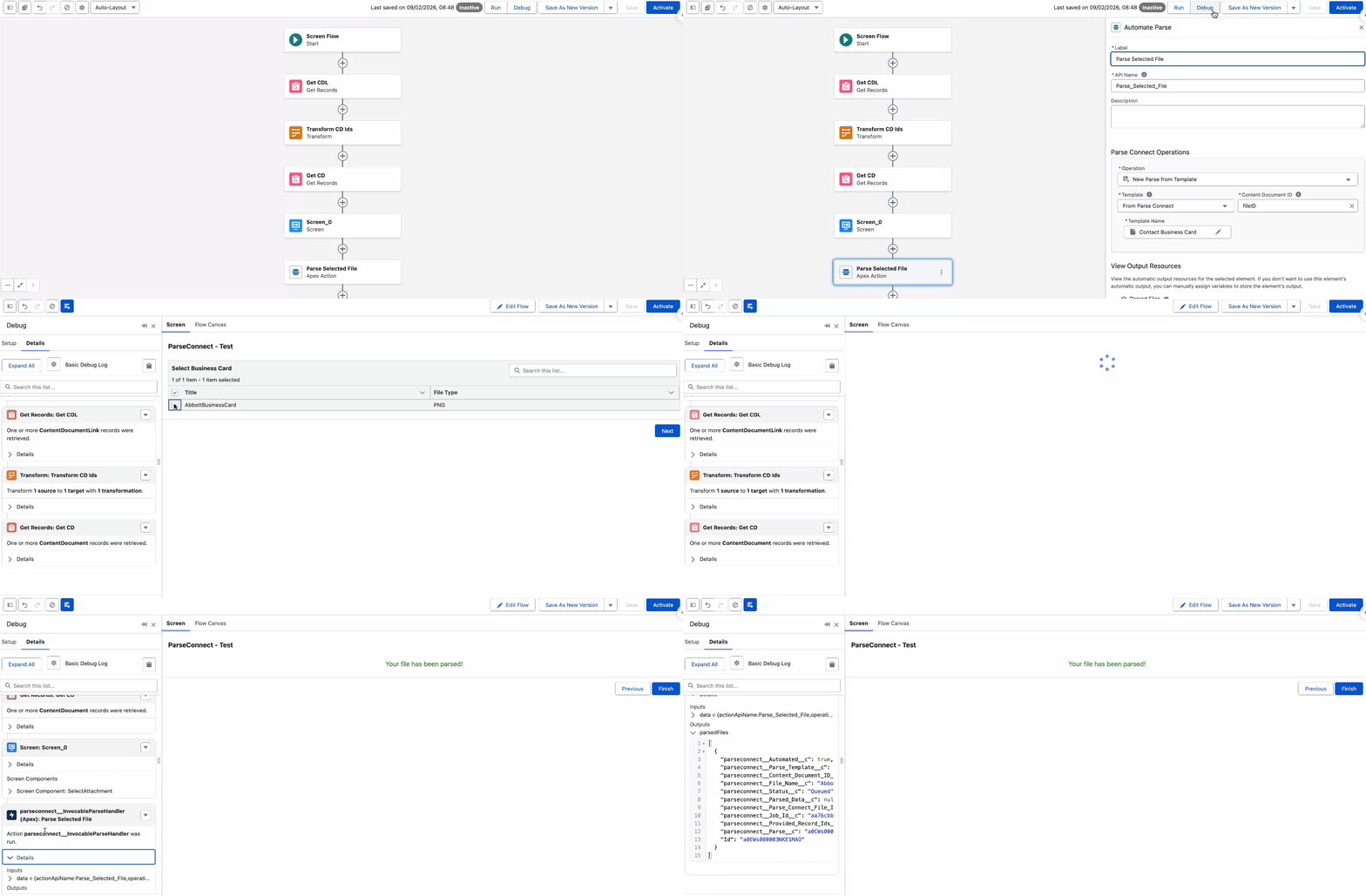
As you might have expected, no tailored experience can be complete without a dedicated Flow action. Parse Connect provides the Automate Parse action for you to use in either Screen Flows or the new Event-Triggered Flows.
You can either amend existing flows if needed or create new ones from scratch, given the new parsing capabilities your users can tap into. For example, some regions and industries still rely on business cards, so why not ensure that Salesforce data is also kept up to date?
The sales team can easily upload files as needed, then select the one they wish to convert into a Contact from a list. Based on how the flow-specific template was configured, this action will either create a new Contact or update an existing one.
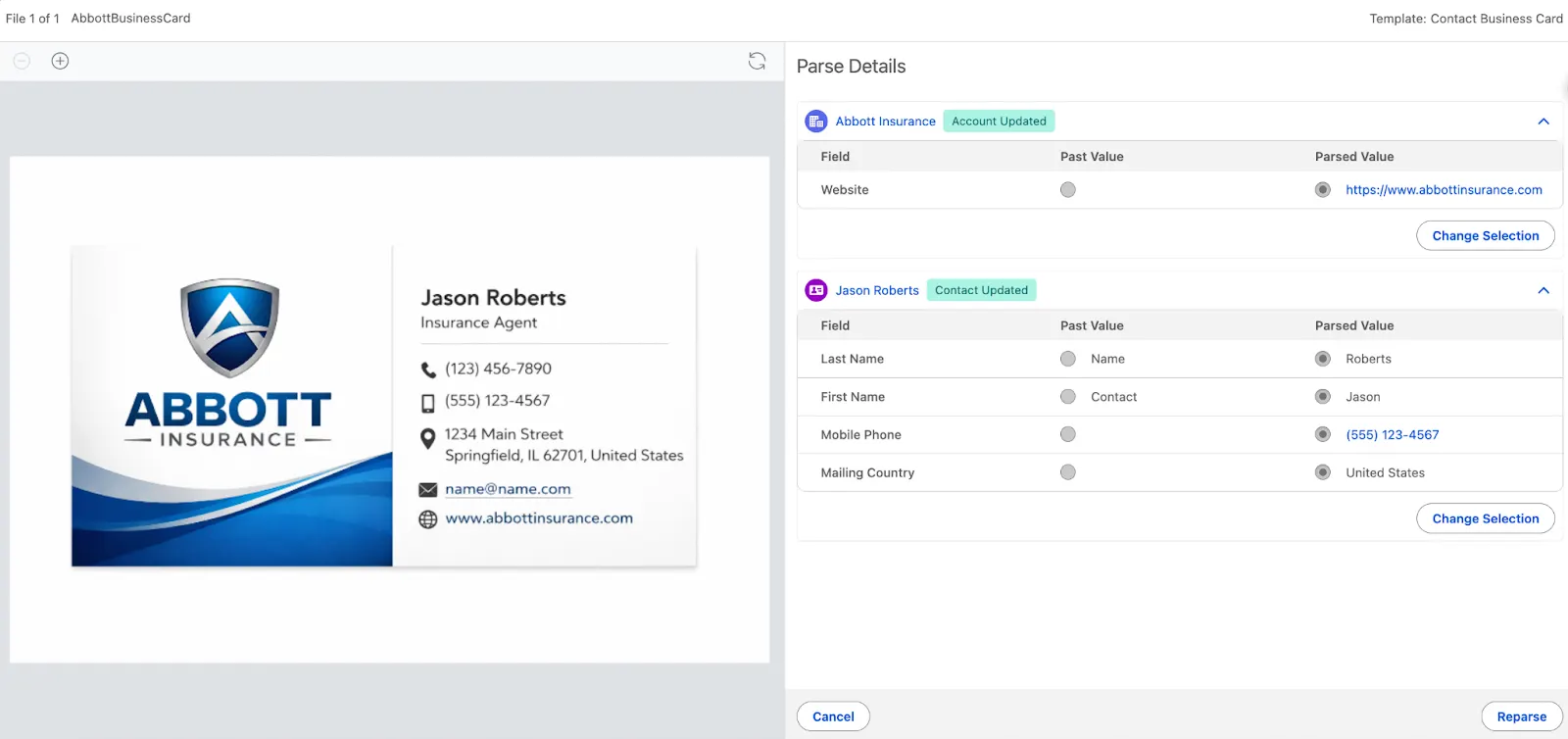
Similar to the other two parsing channels, the Parse record will be available to review, and so will the values that were modified. If needed, users can go back and change the value selection.
Use Cases
Chances are that most, if not all, of your teams store critical data within documents. Be it for collaboration, be it for external sharing, there surely is at least one PDF in their inbox that should have been a Salesforce record instead.
Since no one should spend time switching apps to fill in Salesforce data, Parse Connect can be the tool your entire organization has been looking for.
Customer submissions sent as PDFs? No problem. Manually created SOWs, which should be Quotes? A walk in the park. Marketing documents concerning event organization that need to be reportable at the Campaign level? Of course. All in all, if the data is in a document or image, and it can be mapped to Salesforce objects and fields, Parse Connect can do it.
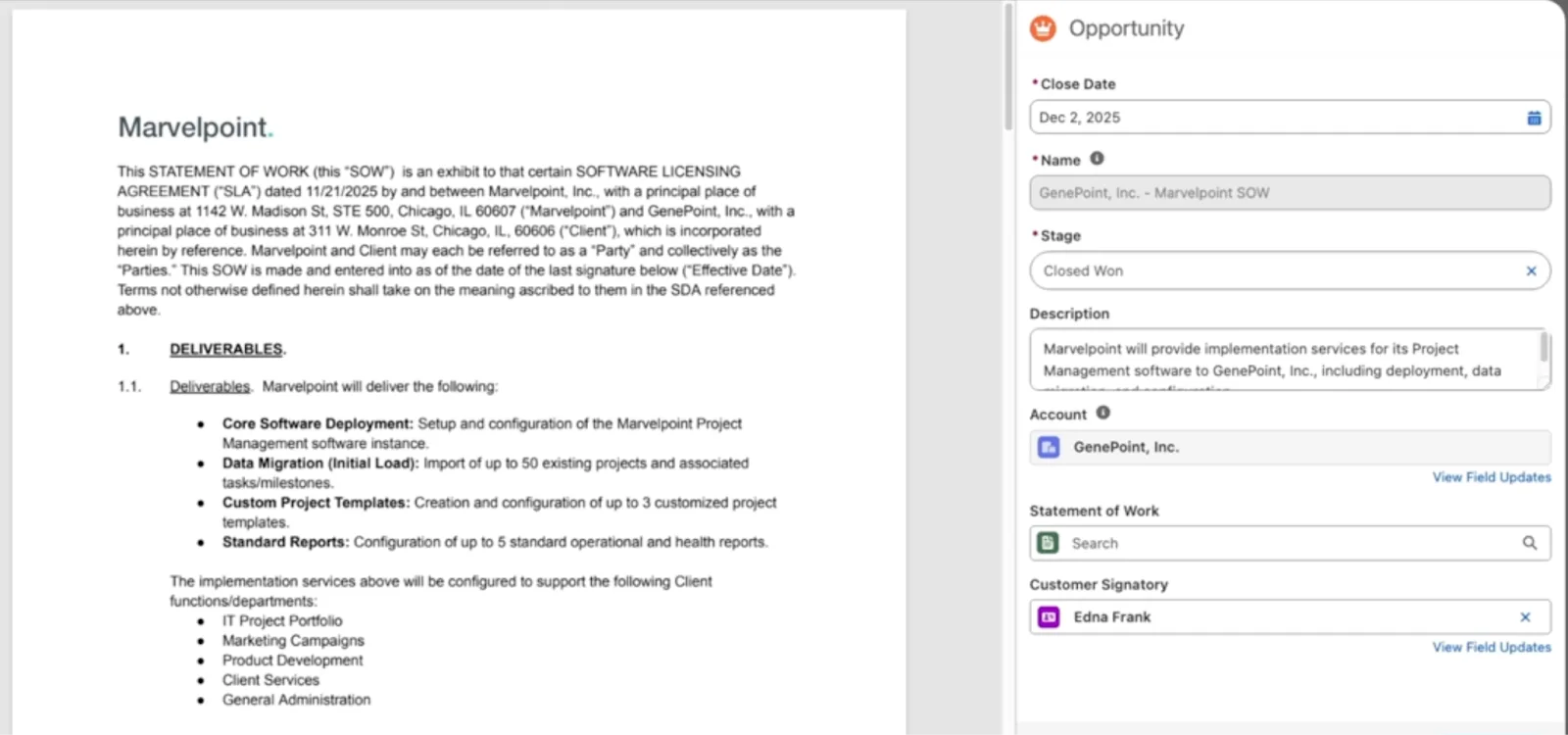
Parse Connect is part of Appiphony’s complete file-related offering alongside Share Connect, Drive Connect, Merge Connect, and eSign Connect, as well as the upcoming Experience Connect product. So no matter if you’re a Microsoft or Google customer, if you’d like to generate files from Salesforce records, or complete the signature process through a native DocuSign integration, Appiphony has you covered. Parse Connect is now completing the missing piece of generating Salesforce records from documents.
For a glimpse into how these products work together to optimize your processes end-to-end, consider the following scenario: You are a Google Workspaces customer and would like your team to automatically trigger Invoice creation in Salesforce by forwarding an attachment.
- With Parse Connect, this can easily be achieved by setting up email parsing and creating the corresponding template.
- With Drive Connect, you can save on storage costs by moving the file into a dedicated folder in Google Drive before deleting it from Salesforce.
Roadmap
Parse Connect already supports email attachment parsing via the Email-to-Parse functionality, but the team is planning on extending this to support the parsing of the email body/thread itself. That way, if people are sending information into the system in unstructured messages (e.g., notes, lead information, etc.), you’ll be able to leverage this feature to create or update records in your Salesforce org.
When Parse Connect is installed alongside Drive Connect or Share Connect, users can parse documents stored in Google Drive or SharePoint without needing the file to be stored in Salesforce. This will translate into quick document parsing alongside low Salesforce storage costs – stay tuned!
Setup
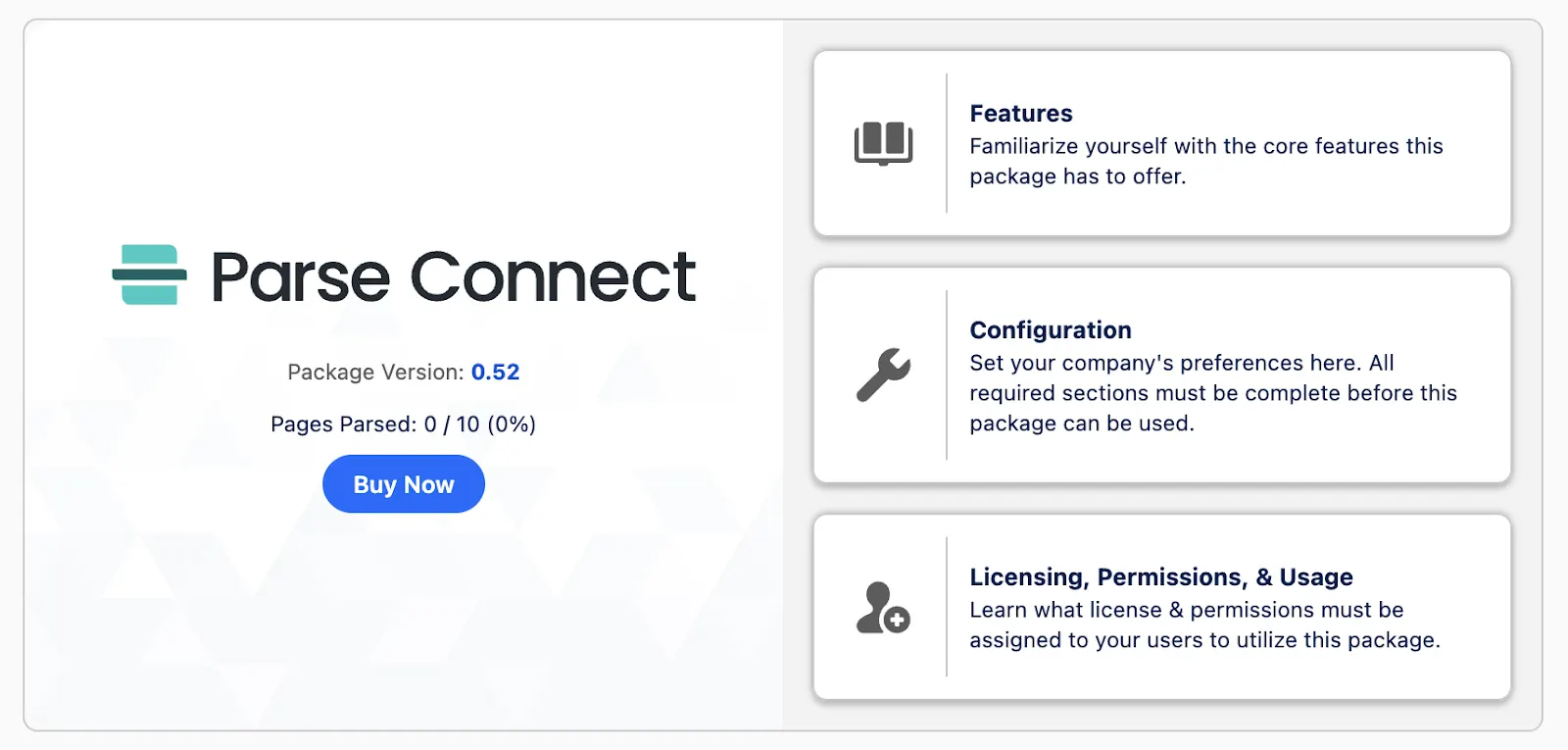
Similar to other Appiphony products, getting Parse Connect up and running can be a matter of minutes. While it all depends on the complexity and number of templates you will start with, everything can be done in a matter of minutes for simple use cases, including the installation of the managed package.
Additionally, there is in-app guidance built into the setup experience. Even when using the product for the very first time, the intuitive experience will make a significant difference in the setup time.
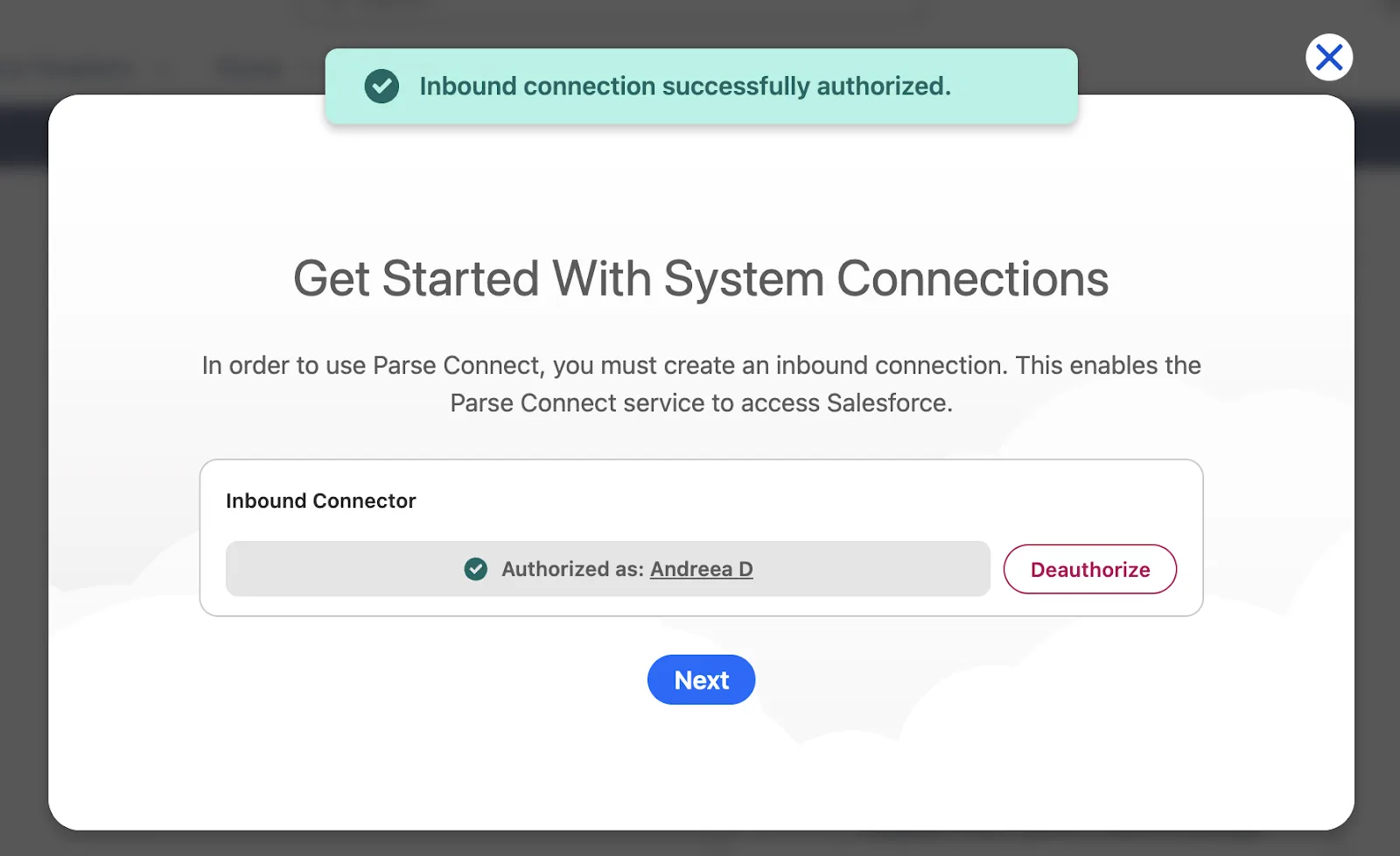
If you expected to have to navigate through the setup to enable your users, think again! The Parse Connect app comes with a dedicated setup page, where you can tweak the settings for all features, and also handle both the licensing and permission sets.
Support
Appiphony put together comprehensive documentation for Parse Connect, covering all setup steps as well as potential customizations. If your question is more specific and not covered in the documentation, you can also reach out to their support team by filling in this form.
Pricing

If you were expecting any credits-based pricing, you’re in for a surprise! Parse Connect pricing is based on the number of pages processed, not on credits the LLMs consume, which you can configure based on your needs and use cases.
A page literally means one PDF or DOCX page, whether it has images or not. For images in particular, one image constitutes one page. This way, pricing remains simple, regardless of the scenario at hand.
Appiphony does provide a free 14-day trial for Parse Connect, which includes 25 pages so that you can test out at least a couple of use cases in your org. The best news is that if you’re ready to make a purchasing decision, there’s no need to reach out – everything can be completed right through the Parse Connect app, be it for a year or a monthly commitment!
Summary
If document processing is a pain point in your organization, and you’re missing out on key data as it never reaches Salesforce, then Parse Connect can be the tool you were looking for. Be it manually, via email, or automated with Salesforce Flow, your documents and images can quickly become Salesforce records. Even more so, thanks to the built-in AI functionality and the possibility to cover all scenarios through instructions, every template can cater to your requirements and exceptions!
If you’d like to turn your very own unstructured data from documents into Salesforce records, take Parse Connect for a spin for free!