

Forget about countless hours spent on understanding Salesforce implementations – reclaim your time with an all-in-one discovery, dependency analysis, and change intelligence platform.
Highlights
- Understand the status quo of all your Salesforce processes.
- Discover implementation hotspots with Analytics 360.
- Fast-track Salesforce change management from the dependency explorer.
- Pricing that scales alongside your org’s complexity.
How much time have you spent within Salesforce setup, Setup Audit Trail, IDEs, or source control, figuring out the potential impact of a change, or what someone else changed? Chances are, a whole lot. There’s a high chance that during this investigation, something was missed – a validation rule, an automation, or a simple permission – to either make your deployment fail or have you troubleshoot after the fact. Wouldn’t it be nice to prevent all of these?
Elements.cloud’s new pay-as-you-go offering can help you forget about the tedious work and high costs associated with impact analysis, downstream effect identification, and constant monitoring of your Salesforce instance’s metadata changes. This suite of tools helps you keep human error at a minimum, all while ensuring that every role involved in a Salesforce project has the information they need. Furthermore, all metadata details and dependencies can easily be accounted for.
This article will showcase the main Elements.cloud features, ideal use cases, and setup effort, as well as how fast you and your team can adopt this new way of working.
Features
When looking at a Salesforce org, be it for the first time as a consultant or your own in-house implementation, it all comes down to figuring out what is going on, how not to break anything, and how to improve it in a way that considers all existing processes. Sounds very familiar, doesn’t it?
This is why Elements.cloud is focused on helping you and your team answer a few key questions:
- How does my org work?
- How does my org change?
- What’s the impact of making changes?
Let’s see how exactly the platform can surface all of these answers, and more, in a fraction of the time it would have taken to uncover these manually.
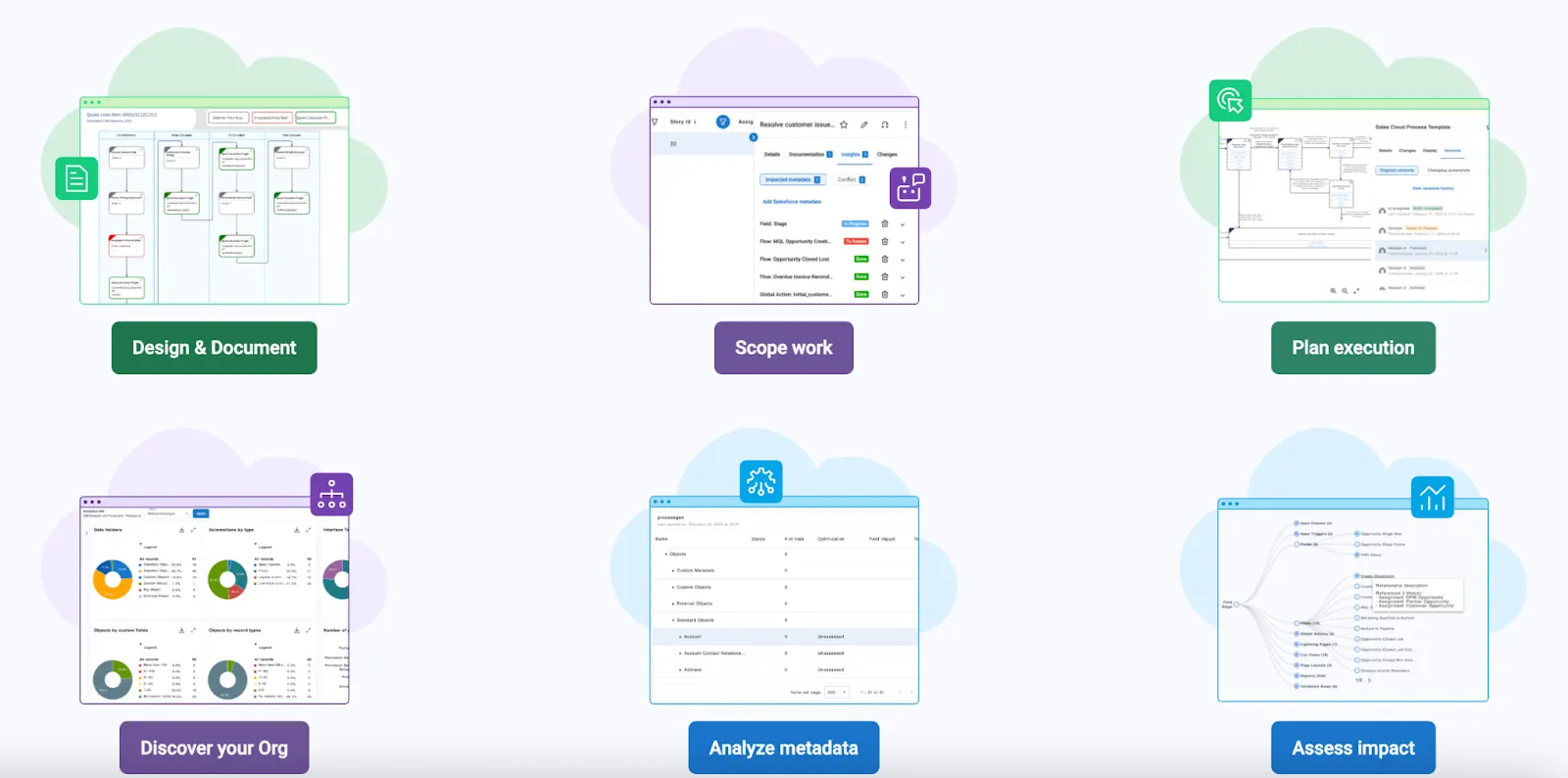
Do You Know How Your Salesforce Org Works?
Over the years, the Elements.cloud product development team has spent a significant amount of time and resources developing their product in such a way that any new customer can have the answer to this question from day one. This includes both a high-level overview, and a below-the-surface type of information you might have spent hours gathering, such as automation dependencies and overall object complexity.
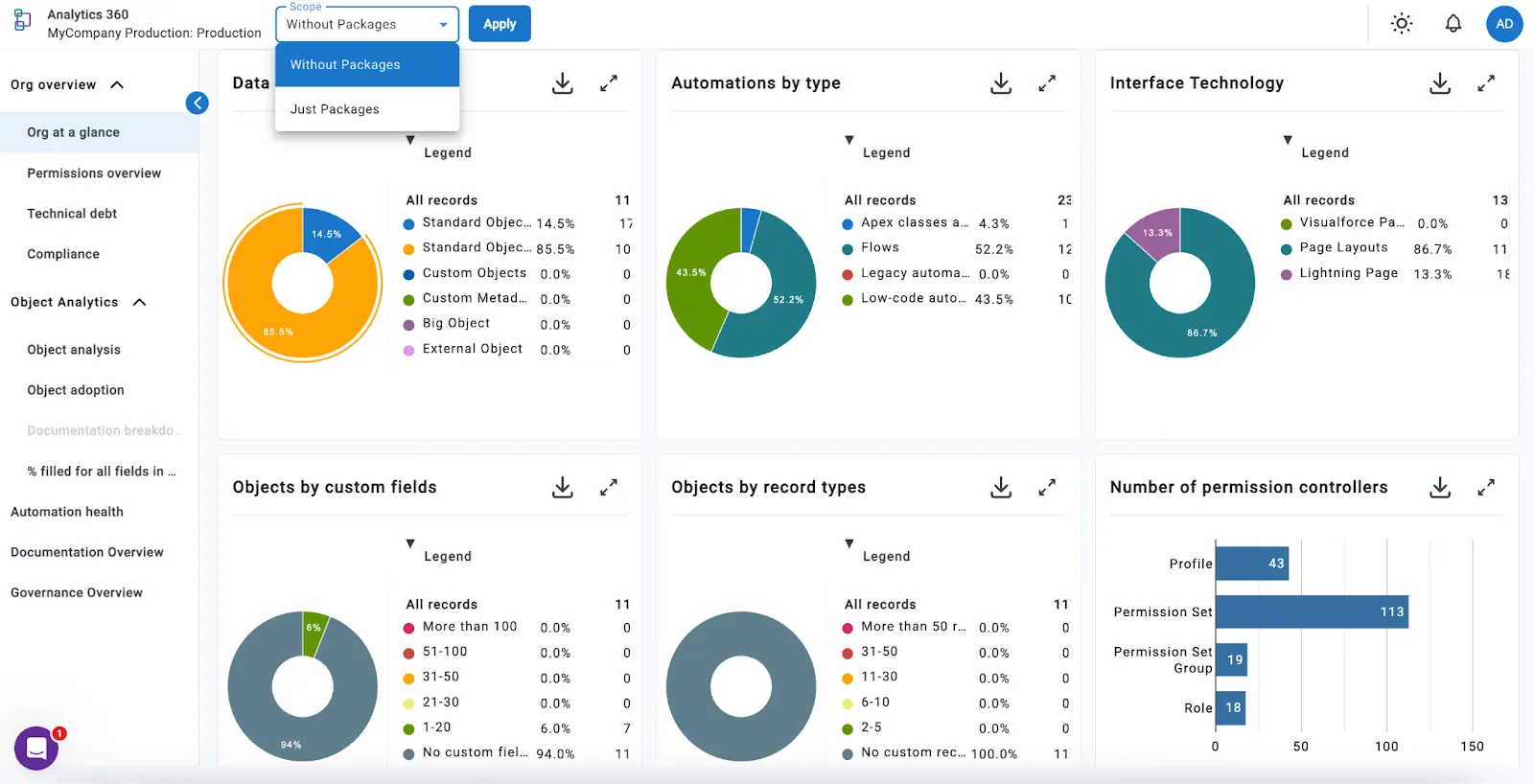
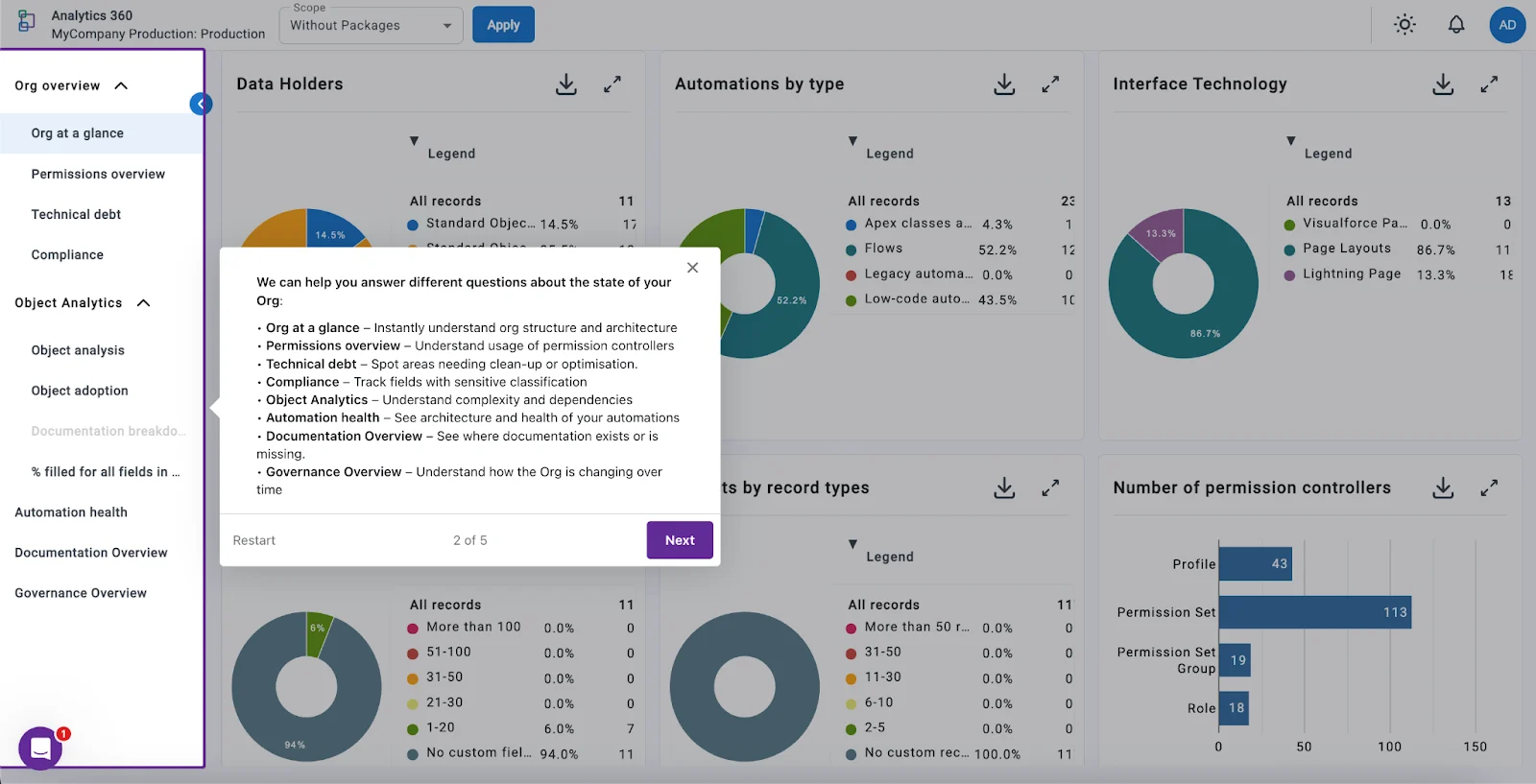

The Analytics 360 Dashboard might look familiar if you have tried Elements.cloud before, but it is much more than a simple analytics mechanism. While on the main tab you can change the scope as needed, drill into the charts or even export to CSVs, it’s the side panel which can surface even more useful insights – let’s take a closer look!
Object Analysis
A great starting point is the Object Analytics tab, and more specifically, the Object analysis option. This is where an initial analysis is already waiting for you to review, as it was automatically completed in the background as soon as your Salesforce instance was connected.
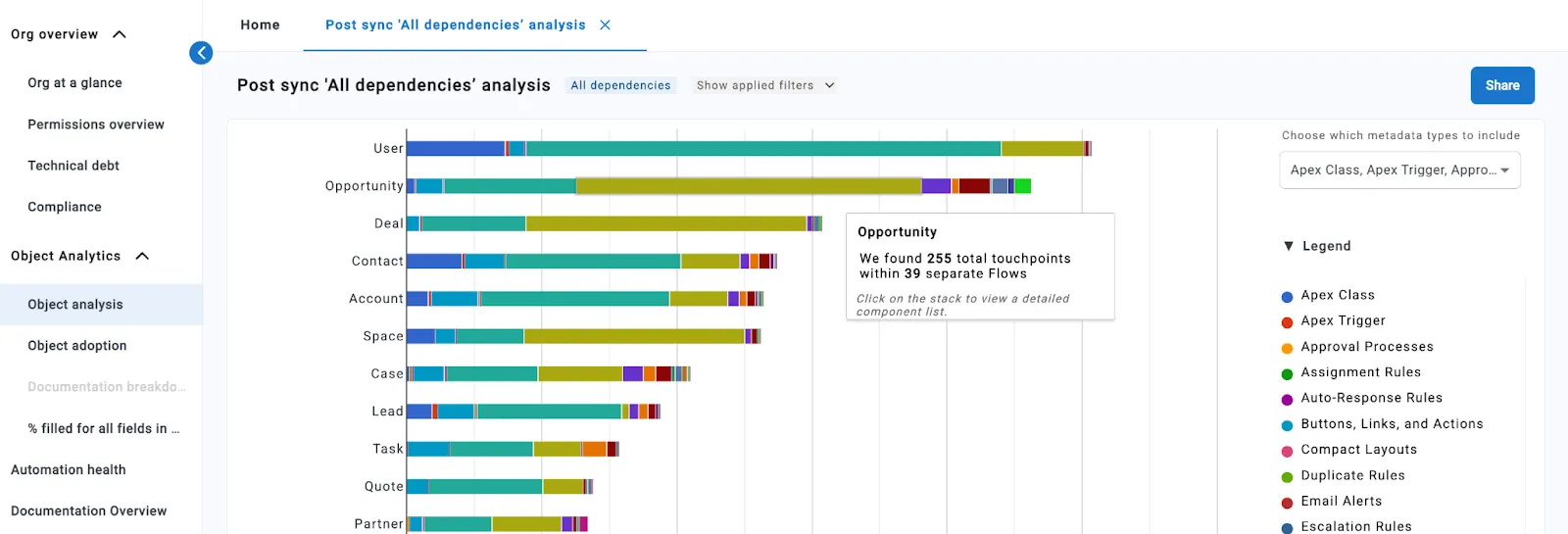
This is where every dependency from every object in your org can come to light in just a couple of clicks. By hovering over each of the bars in the chart, you can find out exactly the number of fields, validation rules, and layouts, for example, and much detailed information about the object’s use across Apex Triggers, Apex Classes, and Flows.
Within this list, the objects are ordered based on complexity, and you can filter the metadata you’d like to zoom into as needed. Additionally, you can create your own analysis, in case a specific set of objects and metadata is of interest.
In the above example, the Opportunity object didn’t make it to the top in terms of complexity. Let’s take a different example where it’s up there as it should be, given that it sits at the core of the Sales process within Salesforce. This time, the Opportunity object was found in 39 Flows, with over 200 touchpoints. These touchpoints count every instance of the Opportunity object being modified or retrieved within the flow within a Get, Create, Update, or Delete Element.
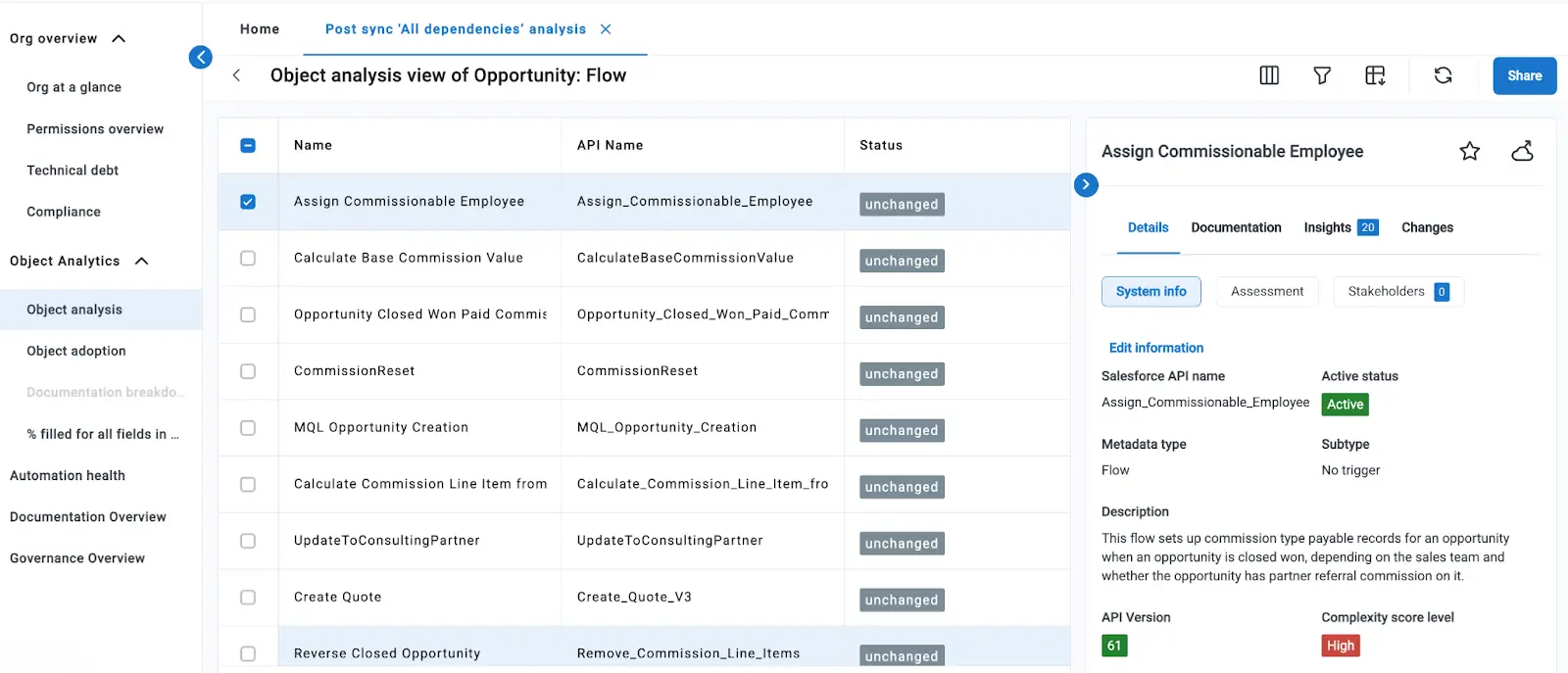
Especially when discovering a new Salesforce org, having the Flow and touchpoint count is not sufficient. From the same view, you can dive deeper into the actual list of flows and review each of them. A handy side panel will come up with additional information, including the Description, API version, and a calculated complexity level for the flow itself.
Technical Debt

All Salesforce professionals have most likely heard about technical debt, and that it’s never a good idea to have it and not address it. The implications of not taking action can be quite dire, from core processes not working as intended, to entire implementations being severely impacted by one small change.
If you’re wondering where to start, the answer is right on the Analytics 360 page in Elements.cloud, within the Technical debt tab. Every chart on the Dashboard is interactive and can be clicked to expose the complete list of metadata. So if you’re ready to take action on updating API versions for your Apex Classes, for example, the list is one click away.
Automation Health
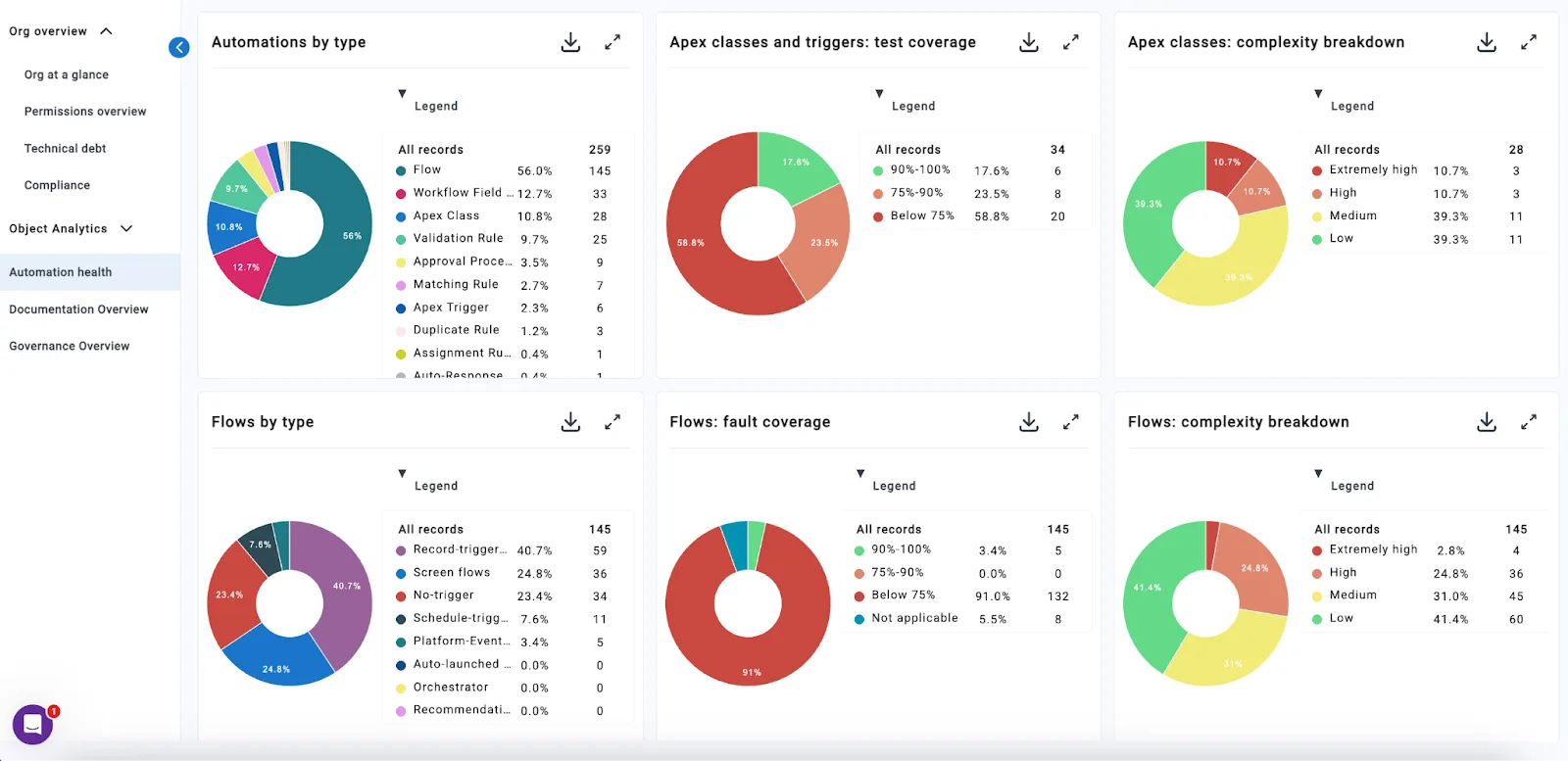
Speaking of Flows and Apex, there’s one more place in the Analytics 360 view dedicated to them and all other automations you may have within your connected Salesforce instance. The Automation health tab exposes key data points about your automations, for a comprehensive high-level overview of how they are doing.
You can peruse through each automation type, review any classes and triggers with sub-par test coverage, and identify those Salesforce Flows that don’t have any fault coverage just yet. Similar to all the other tabs, everything with Analytics 360 is not only informational, but truly actionable.
Configuration Mining

Knowing how your org works is not only about metadata, but also about how the metadata is being used as part of an end-to-end process. That’s where configuration mining can help uncover not only the step-by-step process, but also the roles and Salesforce functionality involved.
As soon as the diagram is generated, you and your team can benefit from further insights in the sidebar – these include both UPN best practice recommendations when needed, alongside automation and agentification suggestions for certain steps in the process. This way, discovery can be fast-tracked, stakeholders remain involved throughout the process, and initial enhancement opportunities are noted.
Foresee the True Impact of a Change
Certain types of changes in Salesforce may seem like a walk in the park at first, but then prove to be much more than you bargain for once the dependencies come into play. Sound familiar?

Elements.cloud has a built-in dependency explorer, which can easily be accessed while exploring the metadata in your org. Alternatively, you can reach the explorer even from a story within the platform if you created one and added the corresponding metadata based on the requirement.
This explorer has two different experiences, each with its own benefits:
- The dependency tree, which offers a high-level visualization of the potential downstream impact and can easily be understood by anyone on your team.

- A grid view meant for Salesforce professionals to take immediate action and customize the table to pinpoint the exact dependency to foresee the actual impact at a glance.
Similar to how Flow touchpoints were highlighted in the Analytics 360 view, the dependency explorer lets you dive in and find out more details about other metadata types as well, such as Reports.
Zooming into the dependency grid, which is found under the “How is it used?” tab, we can find out more about the 300+ report dependencies that surfaced within the dependency tree.
Filters can be applied for each column in the grid, and they can be further customized with additional attributes as needed. For reports in particular, that could be the last run date to identify which ones are still in use.
In this example, Elements.cloud not only provides the number of reports and their name, but also how the field is used in every single one of them. You can immediately see if the field is present in reports as a grouping, a column, or even a filter. No matter how small the change, the dependency explorer can equip you with insights from both an automation and a user experience, depending on the metadata you’re looking at.
Keep Up to Date With Every Change
Unless you’re the only Salesforce Admin within your organization, chances are that you don’t know exactly what is being changed by the rest of your team, and where. Elements.cloud supports connections to multiple instances at once, so that both your production and sandbox metadata are accounted for.
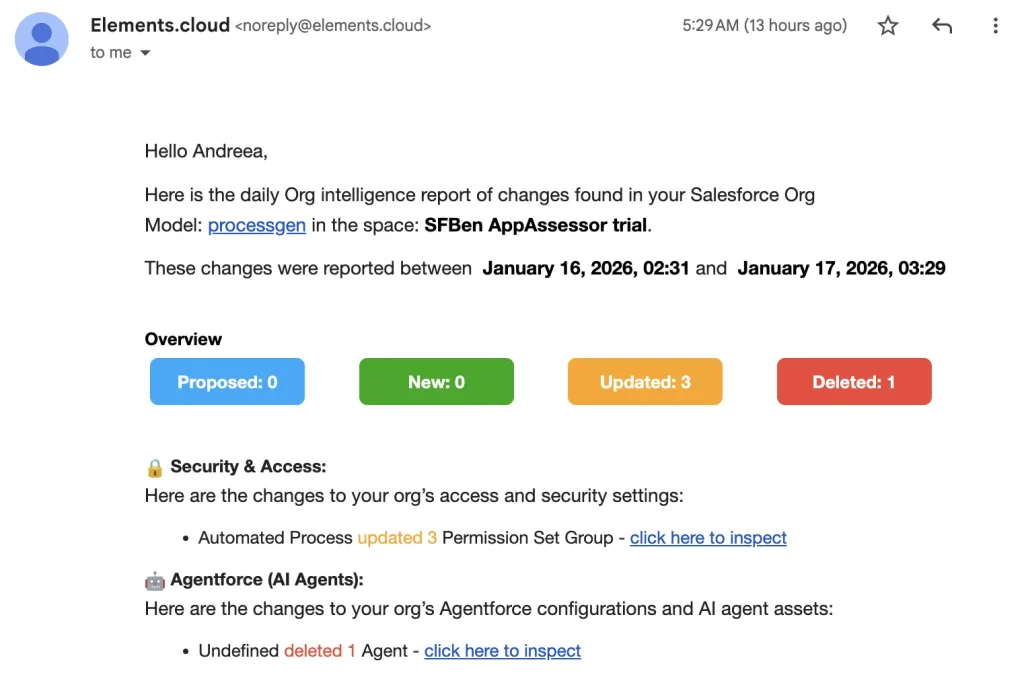
Your team is not the only one making changes – Salesforce is as well, especially during the release windows. When it comes to monitoring these changes, and keeping up with everything that’s going on, Elements.cloud will make sure to deliver all of these updates right within your inbox – or even a Slack channel if you choose to!

The email notifications contain metadata that was changed, proposed to be changed, created, or deleted. Users can choose whether or not they receive these notifications, and the metadata types that are included. The email contains a link to the log files, which is valid for a week after the email is sent.
Roadmap
Elements.cloud has some powerful new capabilities on the roadmap for this year, designed to reduce the effort it takes to identify and tackle some of the most painful risks in Salesforce.
One of these introduces a new way for Salesforce professionals to understand change before it happens. By asking a question in plain language, users can see their org analyzed in real time, with dependencies uncovered and impacts explained clearly as the work unfolds. The goal is to turn uncertainty into clarity and translate complex org changes into actionable requirements.
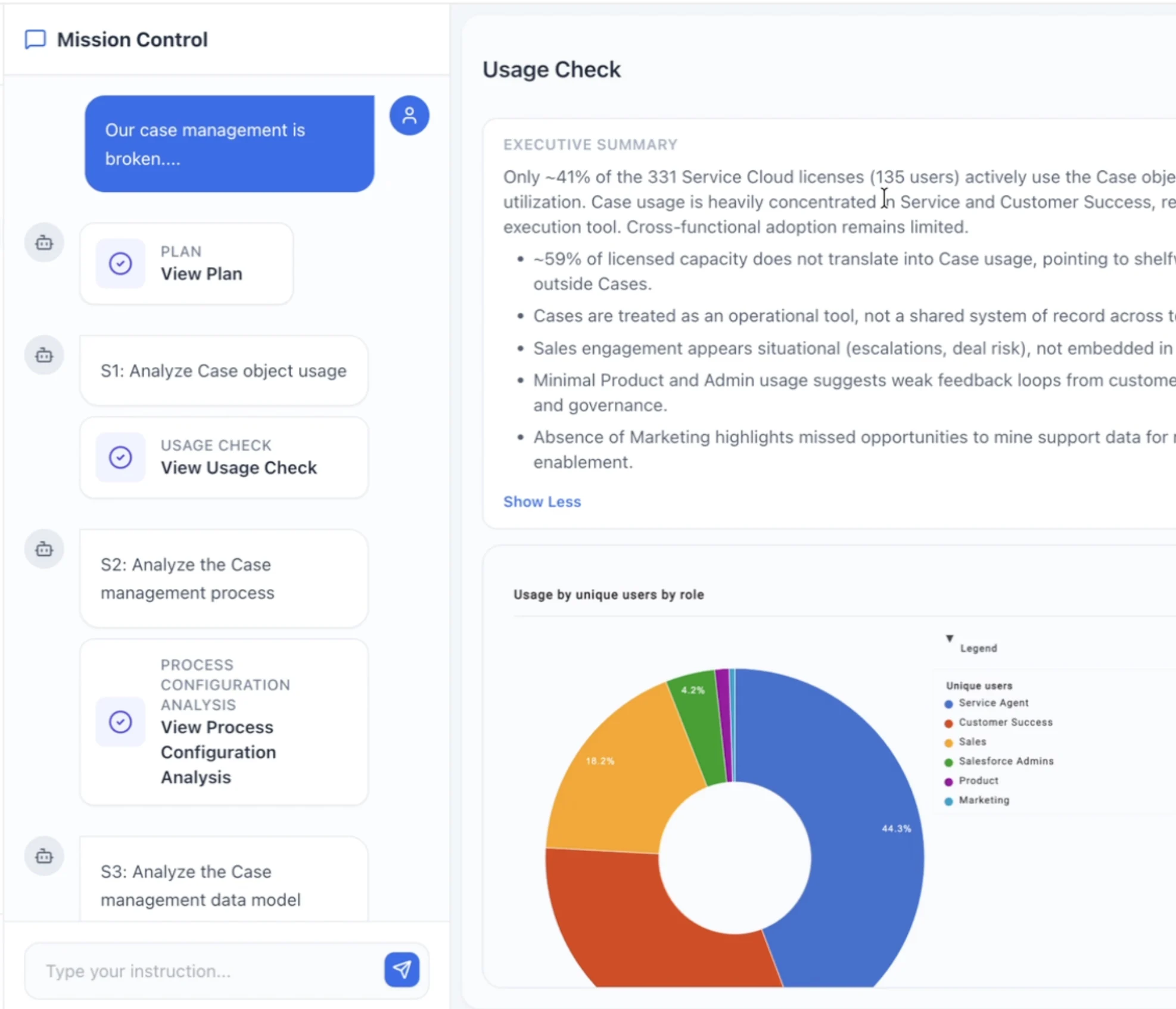
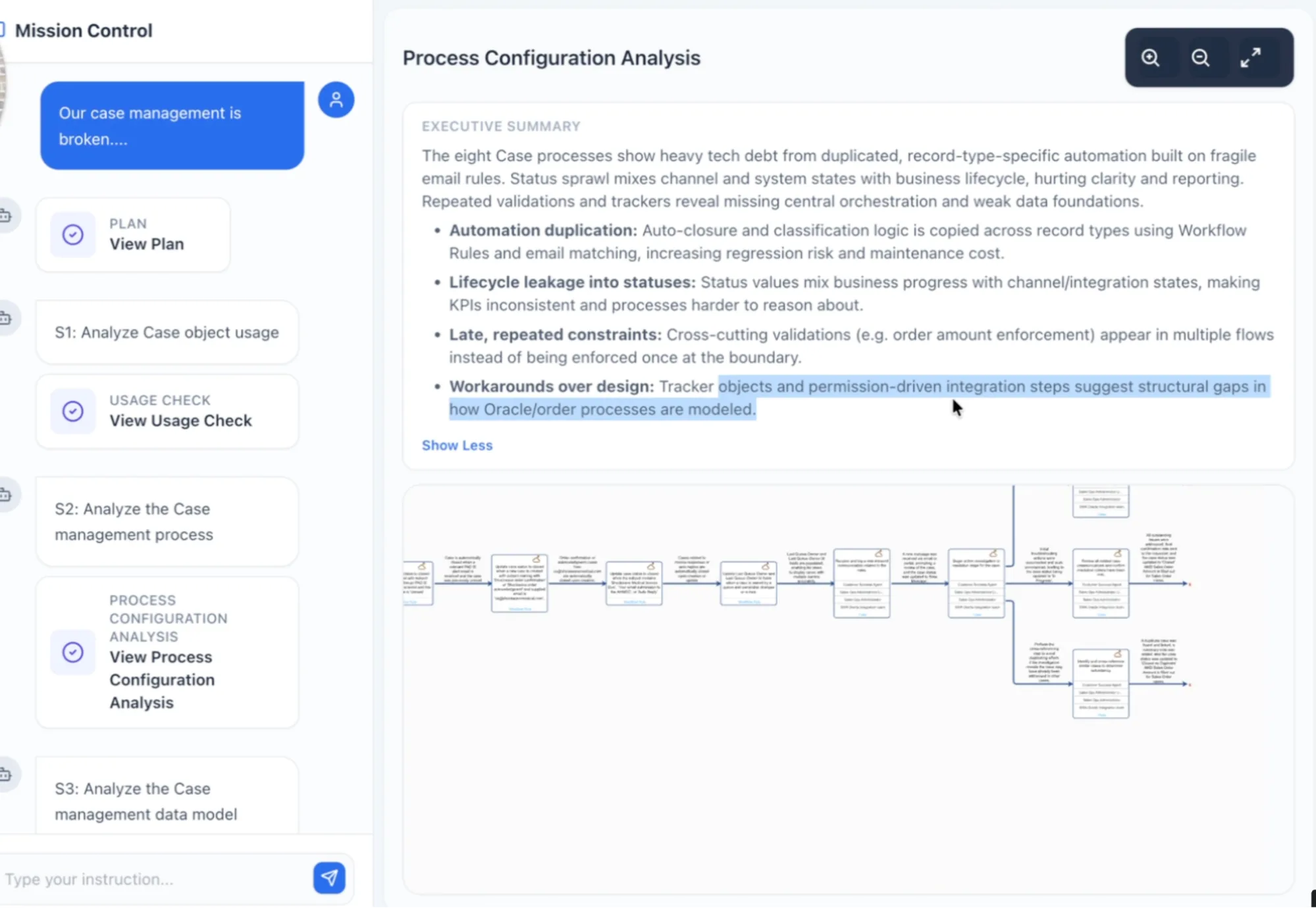
Alongside this, Elements.cloud is introducing real-time change monitoring for Salesforce, acting like an insurance policy for your org. The first phase focuses on reporting on and explaining unexpected permission changes, helping teams quickly understand what changed and why.
Over the coming months, this will expand to highlight unexpected and high-risk changes across the org, with clear recommendations and measurable ROI, helping teams catch issues early and move forward with confidence.
Use Cases
There are as many use cases for Elements.cloud as there are Salesforce professionals and implementations.
The one use case that surely resonates with all of us is the ability to find out what you didn’t know about your org metadata, and have a way to immediately do something about it. While the platform has too many features to count and discover, it all comes down to the immediate benefit it can bring to any Salesforce org.
Especially for Salesforce instances that have seen plenty of customizations over the years, having a mechanism to help any role know exactly what is going on and what downstream impact any small changes have becomes paramount to the success of any initiative.
Elements.cloud can ensure that any role – from executive leadership to operations and actual Salesforce implementation teams – delivers fast, removes friction, and ultimately gains the confidence they need to execute:
- Internal teams: streamline their way of working, save time, and better understand legacy processes, alongside their dependencies, before making new changes.
- External consultants: get started from day one, and provide value to customers at record speed without skipping any checks or details.
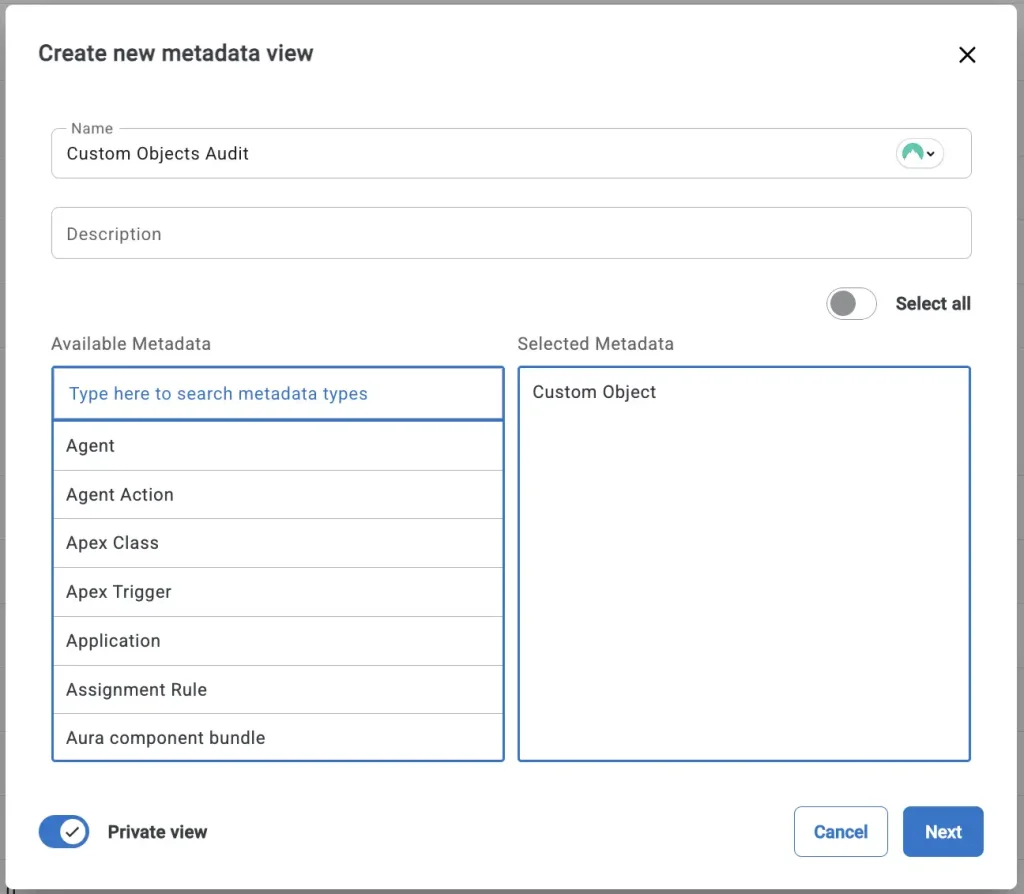
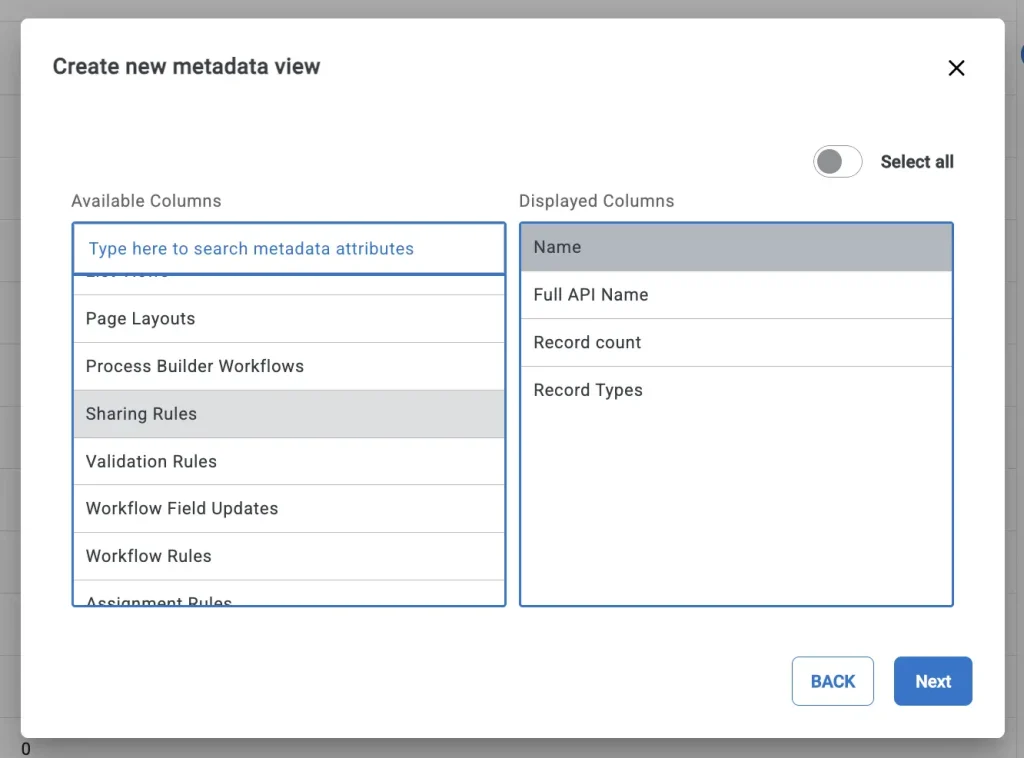
For all Elements.cloud users conducting discovery exercises, especially on projects that focus only on certain objects and functionalities, there’s one more way to find out what they need: their own metadata view. While the readily available charts and underlying metadata lists from Analytics 360 are predefined, users can choose to create custom metadata views and use a combination of Salesforce and Elements.cloud-specific attributes to see much more than is available in Salesforce setup without a few dozen clicks.
Setup
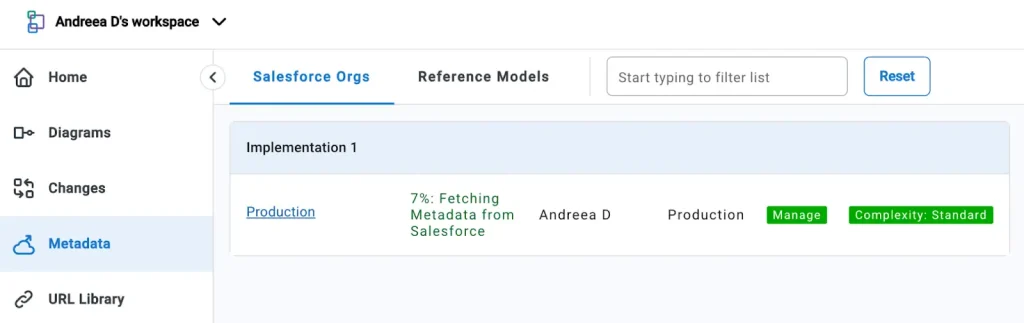
Getting started with Elements.cloud takes just a few minutes, including the initial sync and dependency analysis, which is automatically performed. Synced orgs can be production instances or sandboxes to ensure that your team benefits from the tailored insights wherever they are working.

Upon syncing, the Salesforce org is classified based on its complexity, so that Elements.cloud can estimate which of the pay-as-you-go options is most suitable for you to get the most out of the platform for a standard, moderate, or highly complex implementation.
Those few minutes of waiting for the sync to be completed will culminate in a tailored recommendation email to get you going right away and start seeing the benefits immediately. The email includes tips on how to get started, how your org compares to others, and most importantly, a few quick wins you can take action on.
Pricing
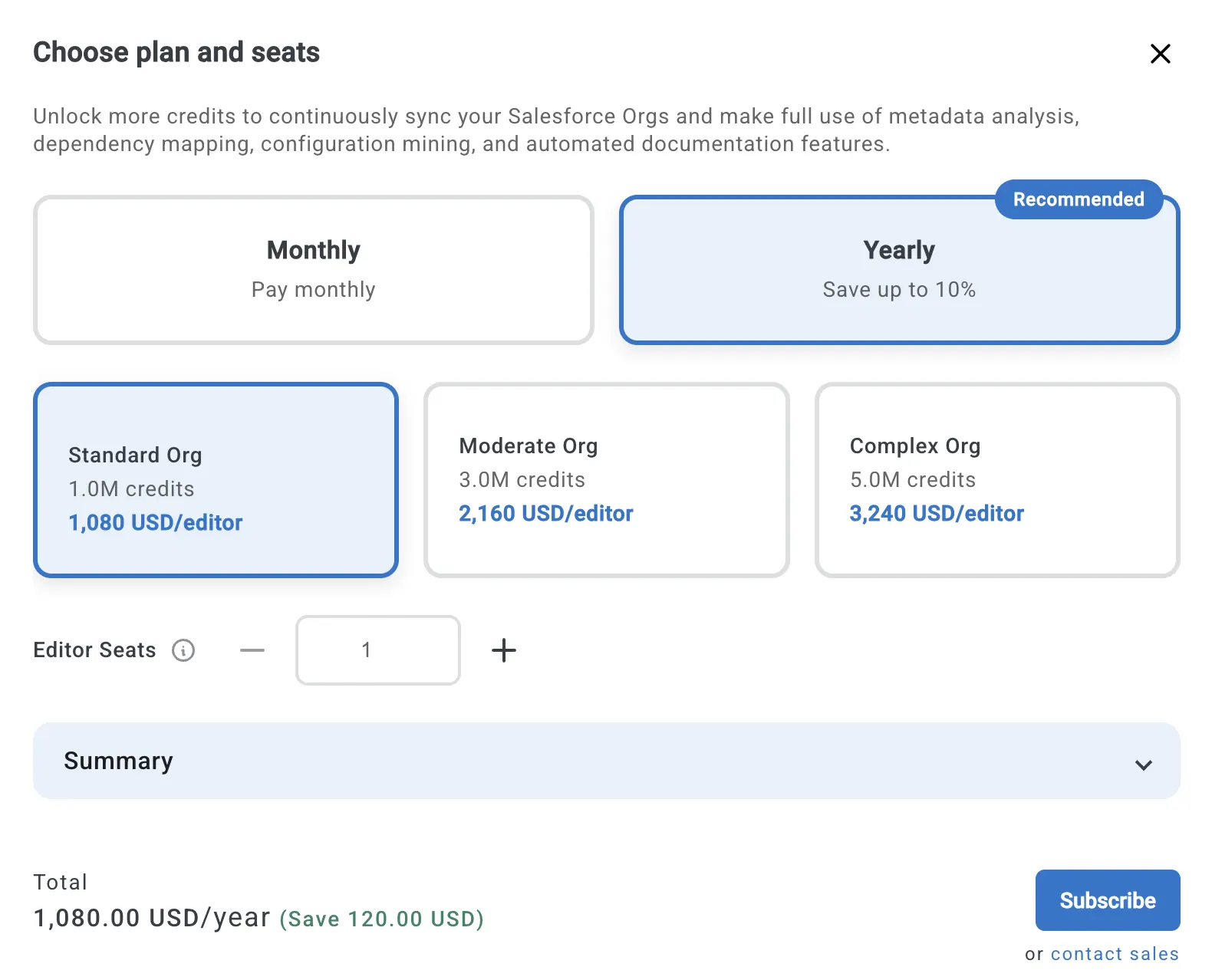
Element.cloud’s new pricing model has one goal for its customers: immediate value for money. It works equally well for small teams who want flexibility and larger teams who want predictable pricing.
Based on the org classification, the pricing starts at USD $100/month per editor, to unlock the platform functionalities. This means teams can achieve meaningful value on pay as you go alone, not just as an entry point. Much like a mobile phone plan, when you choose the right plan for your org, you don’t find yourself worrying about hitting limits or running out.
Customers can choose to pay per month or get a better deal on a yearly agreement, without rigid commitments in place. The upgrade option is available within the platform, so the person administering the Elements.cloud space can take action as needed.
The best part is that metadata analysis, configuration mining, process mapping, and agent-related features are included in all paid plans – how you spend your credits is totally up to you.
For customers who prefer not to manage credits or variable spend, Enterprise plans are also available and are based on your Salesforce footprint. The crossover to Enterprise is typically just a few editors.
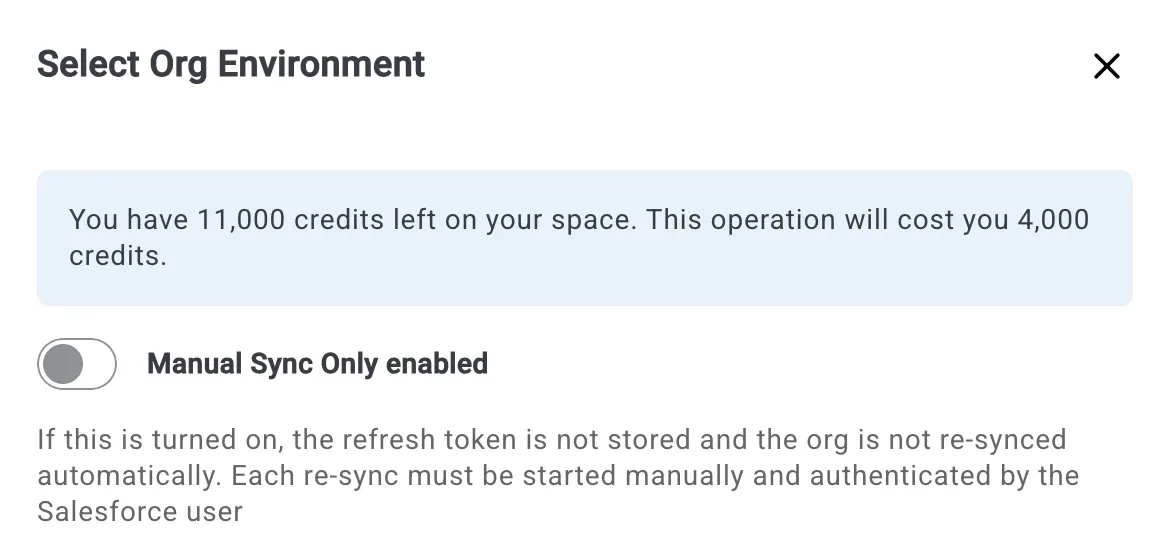
True to their effort of ensuring all Salesforce professionals have the tools they need to get started, even the Elements.cloud free tier has a significant amount of credits included. This ensures anyone can connect one or two instances and have them scanned, as well as make use of the 5,000 generative and analysis features credits. My free instance started with a total of 15,000 credits, out of which 4,000 were used to connect a Salesforce org to generate the initial analytics and insights. Note that the org sync can be set to manual as well.
Summary
If completely understanding your Salesforce instance and keeping up to speed with every single change to your metadata are top of mind this year, then look no further than Elements.cloud! From process configuration mining to dependency analysis and insightful analytics, there’s something within the platform that every Salesforce professional needs to optimize their way of working and fast-track even the most complex implementations.
Looking forward to seeing your Salesforce org in a whole new light? Today is the day you can get started with Elements.cloud, for free.