






Forget about the hassle of manually adding your CRM data to Word or PowerPoint documents with a Salesforce-native approach that makes document generation with dynamic data a breeze!
Highlights
- Empower users to generate customer ready documents with up to date information, in a matter of seconds.
- Enhance Word and PowerPoint documents with dynamic Salesforce data using mail merge syntax.
- Leverage the out of the box template builder to customize and preview all of your templates with real Salesforce records.
- Avoid having to build and maintain multiple separate templates with built in conditional logic.
- Automate the entire document generation process with Salesforce Flow
- Easily manage and review templates with Salesforce Reports.
All businesses, regardless of size or industry, rely on various types of documents for agreements, plans, and virtually anything that needs to be kept for reference or shared internally and externally. Document standardization is often seen as a bottleneck, and when the need arises for CRM data to be added as well, an already manual process can turn into a significant painpoint. Wouldn’t it be nice for these situations to be a thing of the past?
Merge Connect aims to not only solve the manual effort and repetitive tasks that go into document generation in general, but also offers a user-friendly and intuitive interface, right within Salesforce. With a responsive template builder and support for Word, PDF, and even PowerPoint, creating, maintaining, and making templates available for everyone to use can be easier than ever before.
This in-depth review will showcase Merge Connect’s main features, ideal use cases, and setup effort, as well as how fast your users can (and will) start enjoying this new tool.
Features
Following the installation of the managed package, you can get straight to creating the templates. If you already have a template that you would like to adapt, note that Merge Connect supports .doc, .docx, .ppt, and .pptx as inputs for you to upload directly.
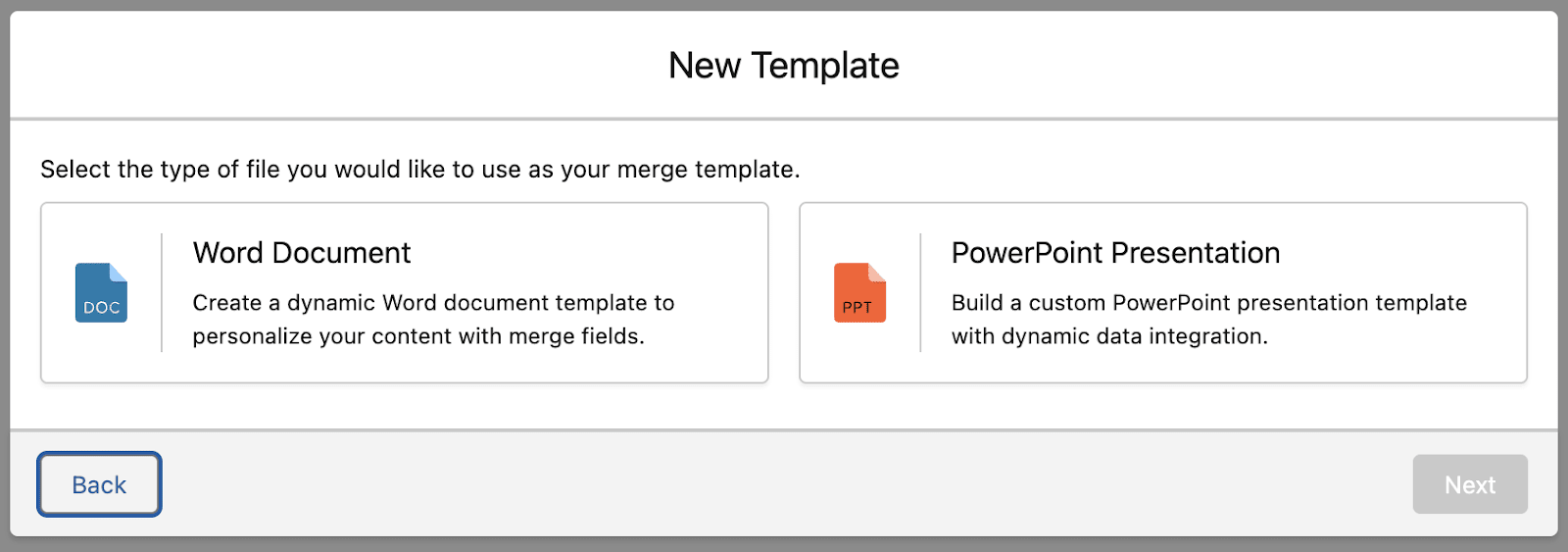
Merge Connect Template Builder
With a familiar interface (built using SLDS1 for a consistent Salesforce Lightning look and feel), the out-of-the-box Merge Connect template builder enables you and your team to create and manage intricate templates in just a few easy steps.
Starting with a Word Document as an example, there are a few options to choose from. Upload a file, start from scratch, use a pre-built template, or copy an existing one.

When creating your first template, you can opt to use a pre-built one to get a feel for how mail merge syntax is used, or just start building from scratch.

If you choose to upload a Word template rather than creating one from scratch or using a pre-built one, note that the template builder also accounts for custom fonts within the uploaded document. If the font is not a readily available, you will be prompted to choose an alternative instead.

Create and Edit Your Templates
Creating a new Word template from scratch can be the best way to discover the available functionality, including both the actual editor as well as the Merge Field Generator. Regardless of whether you are a pro at creating templates and using mail merge syntax or just getting started, the built-in features aim to make it easy while also offering ways to support even the more complex scenarios.


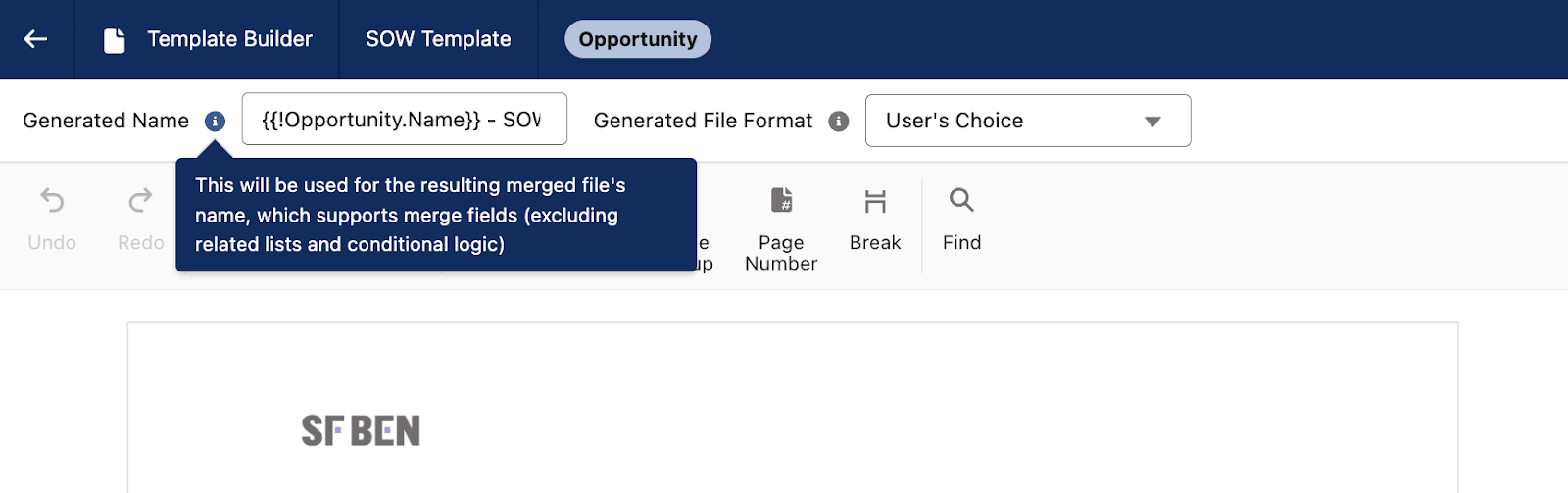
First things first, the main canvas behaves just like a Word document would, and you will recognize a lot of the document management functionality right from the get-go. One thing that is specific to the template is the fact that you can set the name and format of the generated file; after that, it’s all about the tools you will be using to create documents in Salesforce.
Just like you would find in any Word document when working locally, everything you may need is at your fingertips. In addition to writing and formatting text, you can insert images or tables, manage the header and footer, insert page numbers, and even use find and replace to help with any future changes. For the content itself, you can select fonts, format, define paragraphs, indentation, and so on.
Merge Field Generator

During or after the text is added to the document, it’s time to start including information from the Salesforce record. In this case, we are using the Opportunity, as well as related records and objects. With Merge Connect, it’s all about selecting what you would like to be dynamically included, and the Merge Field Generator will do exactly that. Generate all fields you need, in the right format, ready for you to simply copy and paste within the document.
When starting to generate the syntax, there are a few types to choose from, but Fields & Related Objects is probably the one you will be interested in first. This is the option that will allow you to choose fields from the current object or related objects, and as long as a relationship exists between them, you will see both standard and custom objects related to the object the template is for.

Related objects, however, don’t only refer to traversing the relationship from the Opportunity to the Account like the example above. It can also mean dynamically displaying child records, regardless of the number of records. Continuing with the Opportunity example, what if we were to go in the opposite direction, and onto the Opportunity Products?
Within a table, you can quickly organize which fields from the Opportunity Products will be displayed by copying and pasting each one in its respective cell. Since the value will be displayed directly upon document generation, make sure to also add Table headers with the user-friendly or customer-facing names that the columns should have. An added benefit of leveraging the option to include related records within the Merge Template is the possibility to use filters. This way, you can pick and choose exactly which records will appear within the table once the document is generated.
The functionality, however, doesn’t stop here. When it comes to related records, you can go even further, and as manu levels deep as required to reach the record you need. For example, if a template were on the Account object instead of the Opportunity, you could go down to the Opportunities, and then continue to the Opportunity Products, all in the same template!
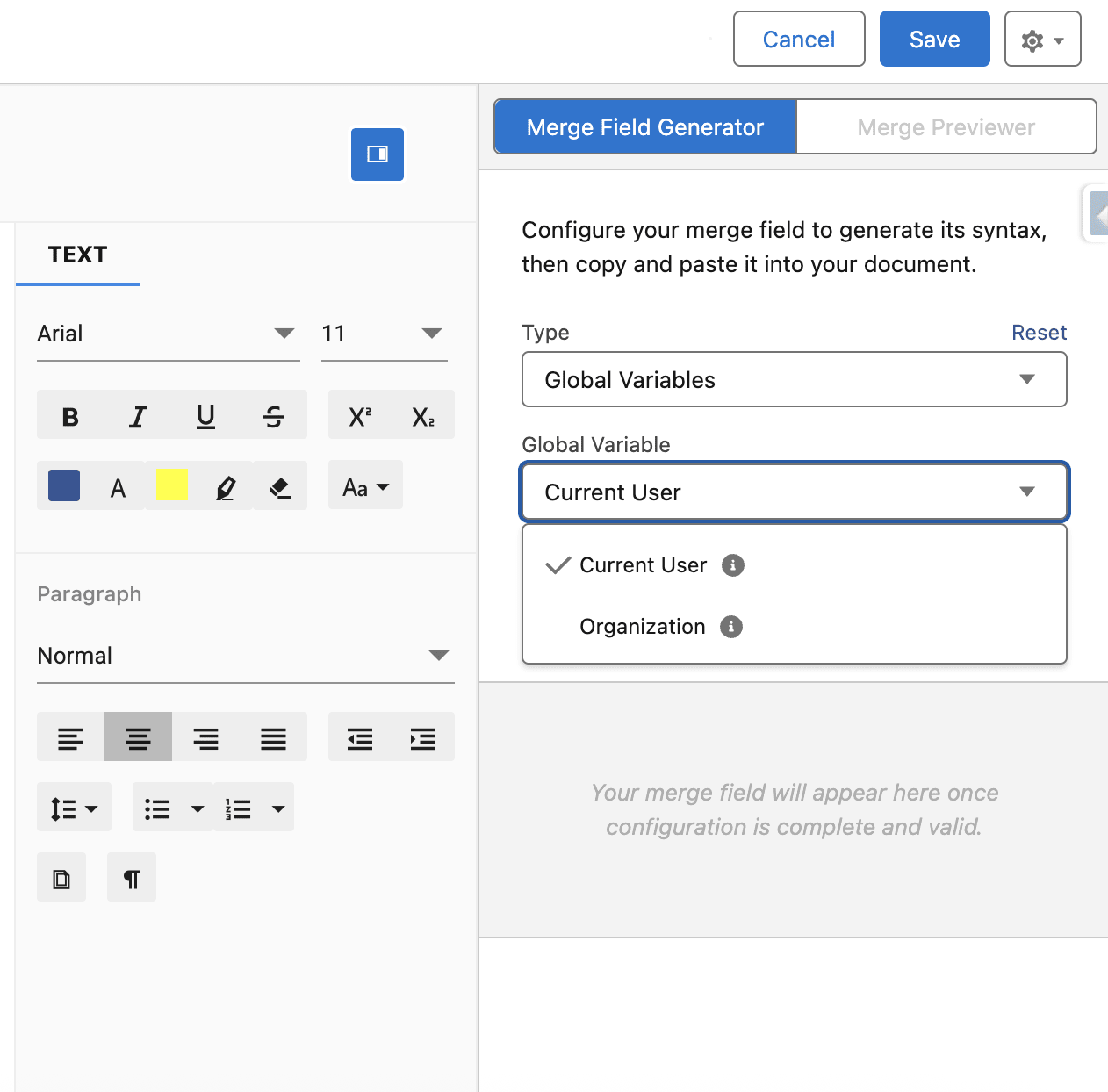
Another handy option within the Merge Field Generator is Global Variables, which allows you to display information from either the current user or the organization. If you would like to include who the document was generated by, this is how you would get to the User’s Name with just a couple of clicks.
On top of these, you could opt to use the Image type to dynamically include visuals, or start exploring the available Functions, such as the Merge Date, Date/Time, as well as conditional logic for the more intricate use cases. Keep in mind that, when using Date functions, there is an offset option for you to control what will be displayed in case more time is needed between when the document is generated and when it will be presented to the customer.
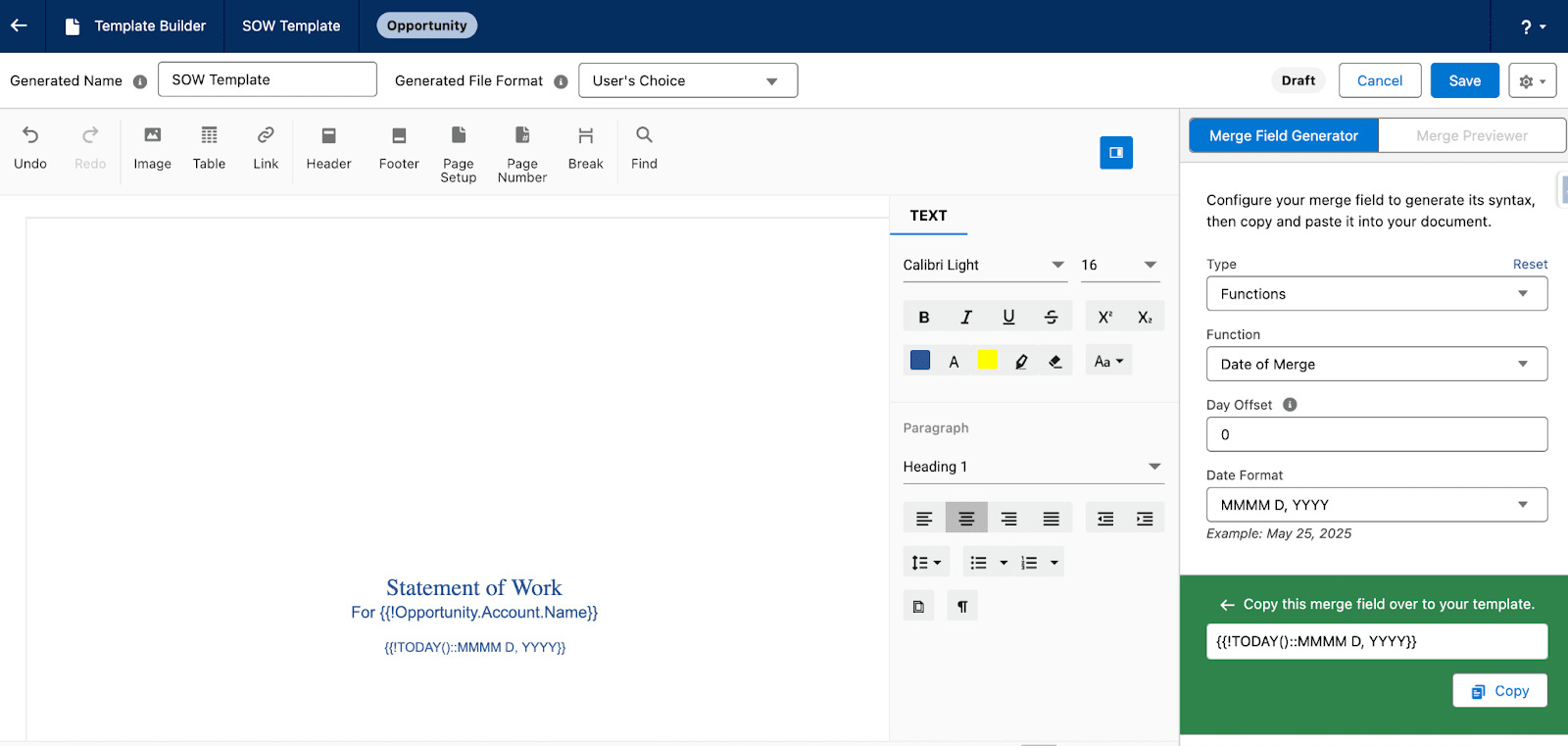
Make use of Conditional Logic
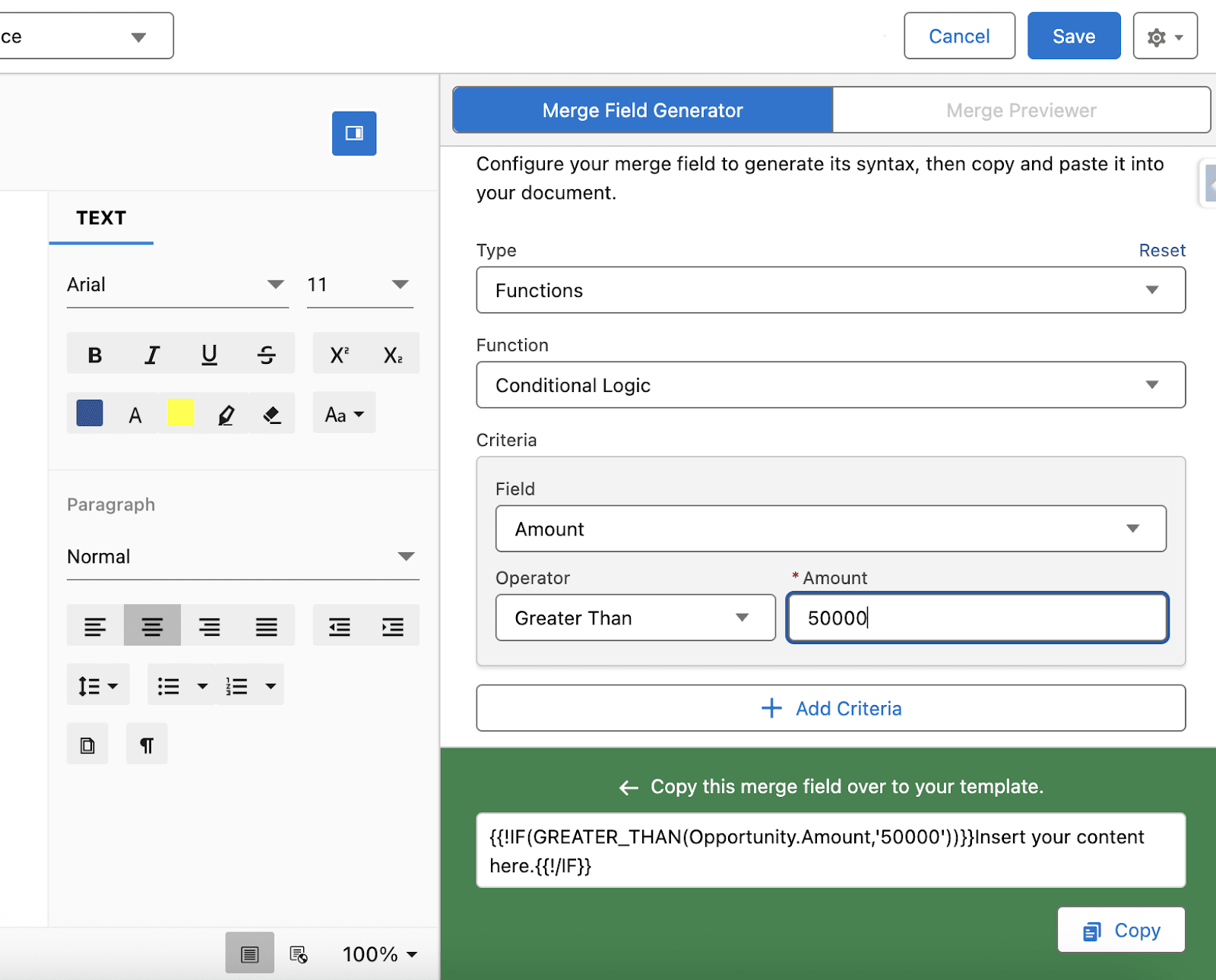
Conditional Logic is an option amongst the Functions that can truly empower both you and any team members managing templates to control the behavior or different data without having to create different templates. Continuing with the Opportunity example, you could easily set the template to only display certain content if the Amount is greater than a desired value, or based on a picklist value.
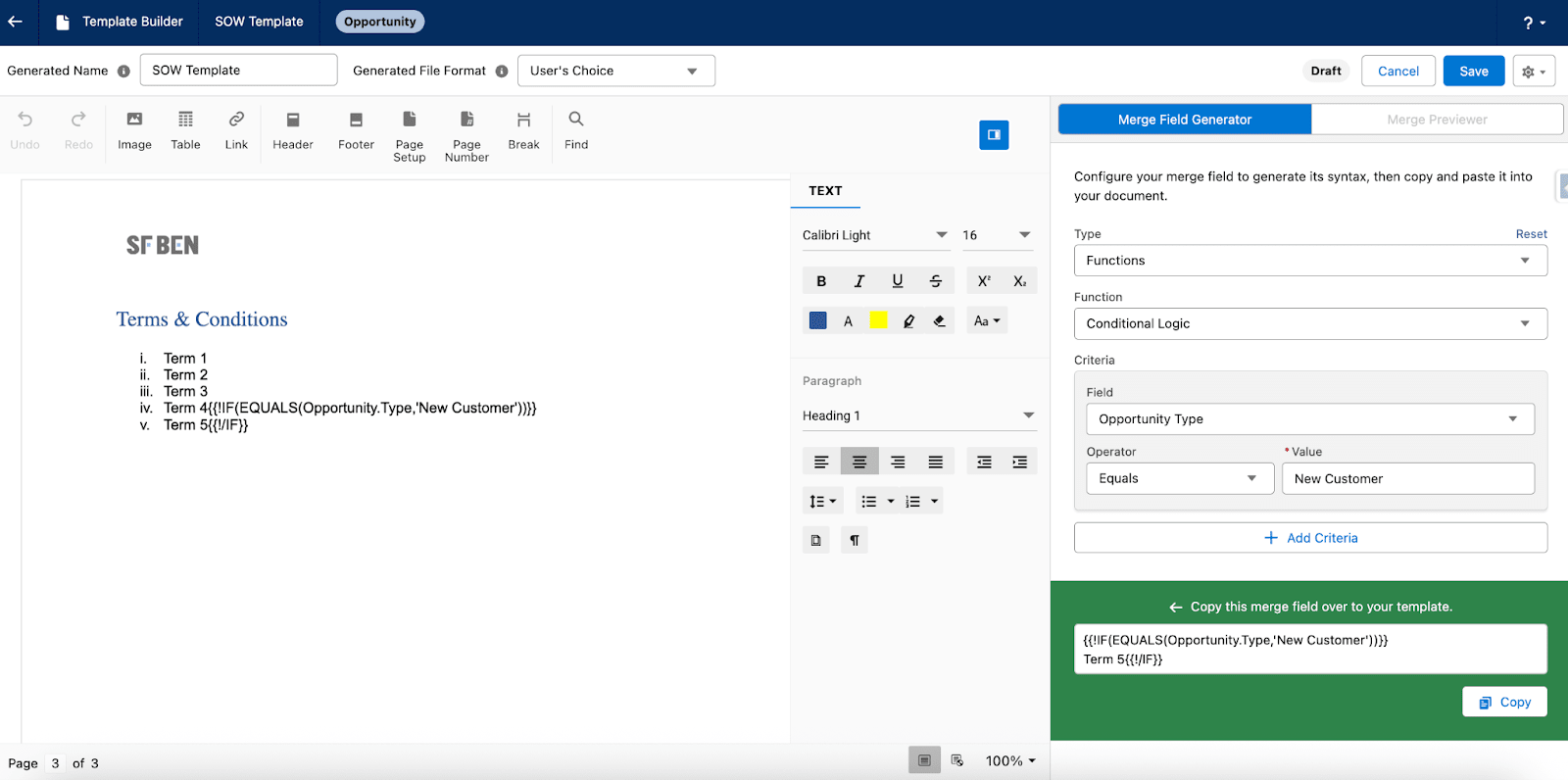

You are also not limited to using just one condition, or to using only fields from the main object. Even within the conditions, you can still navigate away from the Opportunity, leverage information from the Account, or tap into custom relationships if you have any, and of course, determine the logical operator. Regardless of how complex the conditions get, the content wrapped within the IF statement will be displayed accordingly.
PowerPoint Templates
Word can be a great choice for a lot of use cases, but at times, an engaging presentation is exactly what teams need prior to hopping on a customer call in order to share meaningful updates in an easy-to-digest format. This is where allowing users the option to generate PowerPoint templates comes to the rescue!
In comparison with the Word option, PowerPoint templates cannot be built from scratch within the builder, but the other options are still available – uploading a PowerPoint, using a pre-built one, or copying an existing one.


While PowerPoint templates cannot be edited directly in the builder at this time, everything you need to have before editing the PowerPoint locally, online, or in Google Slides is still in one place. You can easily toggle between the Merge Field Generator and Merge Previewer. After obtaining the mail merge syntax, you can copy and paste in your document, then quickly upload it before previewing as many times as needed. Anyone who has access will have the option to download and upload as needed, ensuring smooth collaboration can be achieved.
One differentiator for PowerPoint slides is the possibility to use a Repeat Slide, which can be found under the Functions. This way, each record can have its own dedicated slide with information, fields, and even images in a dynamic fashion, without any additional manual input. It also doesn’t matter where the repeater syntax is placed on the slide, as it will be picked up and processed accordingly when generating the presentation.

Preview Templates With Record Data
Once the latest changes are saved, it’s time to preview the template with data! And no, this doesn’t entail going outside of the builder or having to generate any document – the Merge Previewer button, which was previously greyed out, is now ready to use.
Merge Connect leverages Salesforce’s previewer functionality, meaning you can easily switch between the editor and the Merge Previewer as many times as needed until the template looks and behaves exactly as you want. Having everything you need in one place to create the template and test out your work in real time is ultimately the main advantage of Merge Connect’s Template Builder, which your team will definitely appreciate.
Keep in mind that either when editing the Word template or also during preview, you can customize the Generated Name with merge fields as well, as well as switch the Generated File Format if, for example, it should always be PDF.
Previewing PowerPoint templates works exactly the same as when previewing a Word template – by, respectively, choosing a record and reviewing the output of the merge fields!
Prompt Agentforce Agents within Merge Fields
With Agentforce being front and center in the Salesforce ecosystem nowadays, how does using generative AI prompt right within your template sound? Merge Connect will make this a possibility as of Q3 2025, allowing both you and your team to make use of already existing Agentforce Agents by prompting them when documents are generated, with no user interaction.
This will simply translate into using the new Agentforce option when constructing the Word template within Template Builder, or why not copy and pasting it within the PowerPoint template as well. The generated mail merge syntax will highlight exactly where the prompt should be written, and within the prompt, you will be allowed to reference other record fields as well as related records, to ensure that the information is complete and ready to be included in the document.
Of course, when previewing any of the templates containing a prompt, the output will be fully previewed – stay tuned!

Make Templates Available on Records
Now the template is created, published, and tested, the next step is to make it available to users.

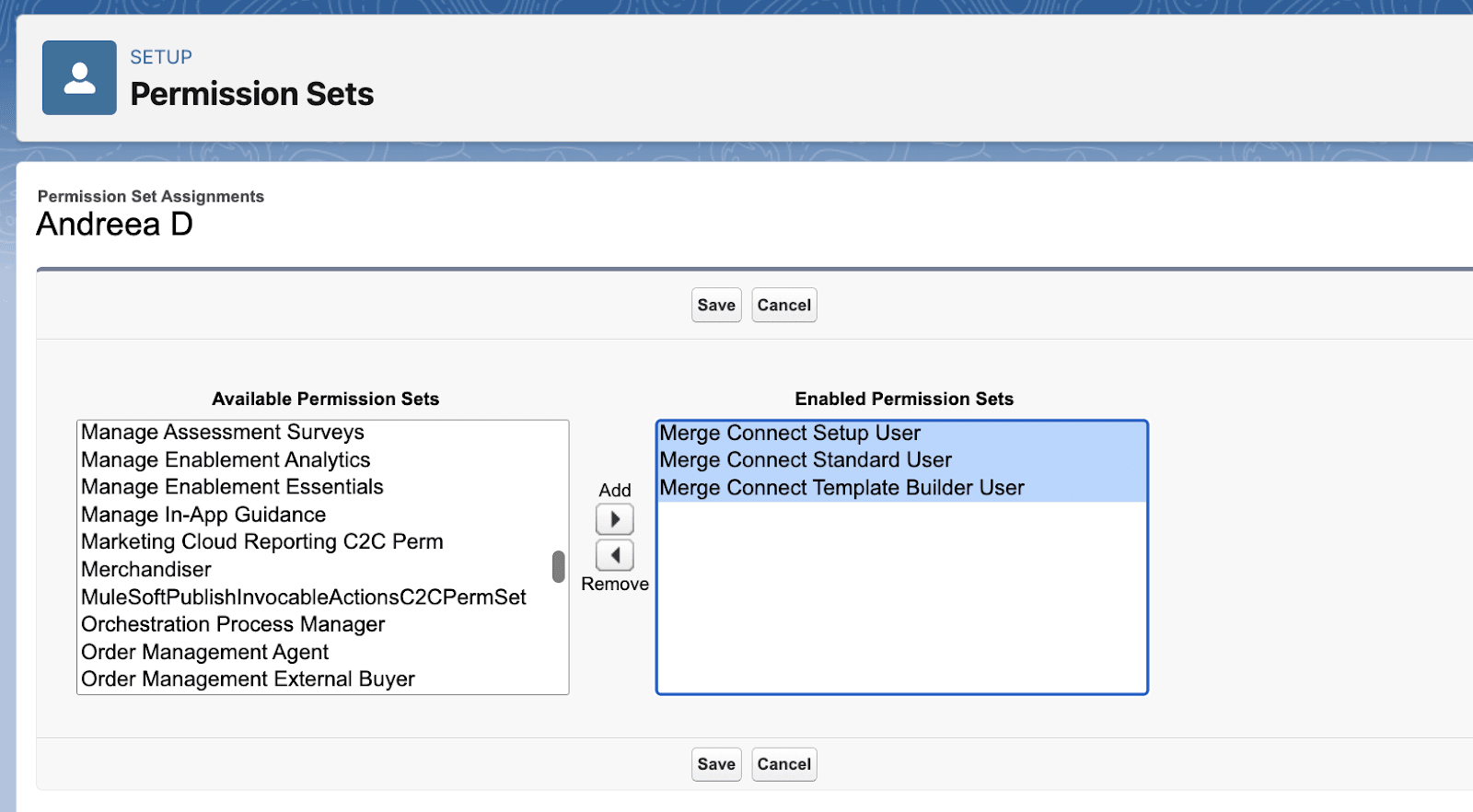
This means ensuring that users have the permissions assigned, then simply adding the Lightning Component on the Record Page of the objects you would like your users to manually generate documents from. Just how easy was that?
Stay Organized With Salesforce Reports
While it may not seem so when working within the Template Builder, Merge Templates are Salesforce records. This means that you can create Salesforce Reports to monitor them from day one, thanks to all the information being available as a field.

Another advantage of leveraging both Salesforce Reports or List Views is the option to in-line edit just like you would any other Salesforce record. Should templates be renamed or unpublished? No problem!

Automate With Salesforce Flows
Allowing users the option to select the template and generate the documents they need from the Salesforce records they work on is already a significant time-saver and will most likely be the most used approach. But what if the process could be fully automated?

The readily available Automate Merge Flow action makes it possible to generate a PDF, Word, or even PowerPoint file from a Merge Template of your choice or from a Text Template flow resource. Plus, you can even proceed with updating record fields at the same time, as a child operation.
It doesn’t have to be only one file that is generated, you could configure the action to trigger the creation of multiple files of different types by simply adding more Merge Operations within the same action.
With Merge Connect supporting both standard and custom objects, the record-triggered automation possibilities are endless, meaning your users can have the documents they need at their fingertips, with no deviation from their current process.
Some scenarios may be ideal for background processing or having the related documents generated from the related list, but with Screen Flows becoming more powerful with each Salesforce release, it’s no wonder that there is also a screen component available with Merge Connect. This way, customers can introduce the document generation option in any custom guided processes they might already be using or are planning to create for their teams.
The component requires a few attributes set up, such as the Object and the source of the template, but also a recordId text variable, which should be available for input outside of the Flow.

Roadmap
The future already holds a few more enhancements to Merge Connect, which are bound to make the overall experience even better!
Standardizing documents is the main advantage, but what if you could also standardize the way they are sent out to customers and prospects? Soon, Merge Connect will allow the option to leverage Salesforce Email Templates alongside a fully dedicated UI which users will access to send emails from. Additionally, there will be an option to automate the recipients (including CC and BCC) as well as dedicated Flow actions to not only generate the documents but also send them out via email.
Even more so, when it comes to Salesforce Flow, using Scheduled ones will become an option as well alongside the already existing Record Triggered and Autolaunched to fully automate the document generation process as needed.
Use Cases
Document generation can evoke as many use cases as a company can dream of, and Merge Connect helps support both the simple and multi-step, automated complex ones.
Since Merge Connect already provides customers with an out-of-the-box Flow action to handle document generation automatically based on user changes, there’s no stopping here! In the era of Agentforce, where streamlining both customer and internal processes with agents opens up a new realm of possibilities, document generation can also be included in the mix.
The Automate Merge action is also available within Autolaunched Flows, which can be used as agent Actions to either enhance an existing agent with a new skill or create a specialized agent that can help with everything related to document generation. For example, if your organization is already using Agentforce for Service to help customers with booking accommodation on the website, Merge Connect can come in at the end of a successful booking to generate an invoice, which can then be sent to the customer as well. Keep in mind that for this context, the recordId still has to be a text variable and should hold the Id of the record the template is for.

Beyond the functionality available in Salesforce, Merge Connect’s reach can be extended with other products from the Appiphony product suite to create a fully customizable and integrated end-to-end experience. For example, if your organization is already using Microsoft SharePoint or DocuSign for signature, you’re in for a treat – documents can be generated with Merge Connect from the templates, automatically stored in SharePoint instead of Salesforce Files with Share Connect, and of course sent out for signature in just a few moments and collected back in either OneDrive or Salesforce files if preferred with eSign Connect.
This means that you can not only automate your entire process, but also start saving on Salesforce storage costs!

Additionally, when using Share Connect and Merge Connect together, there will be a direct option to generate documents from Merge Connect templates via the SharePoint Link component as well, thus offering users one single place to conduct their document actions on each record.

Setup
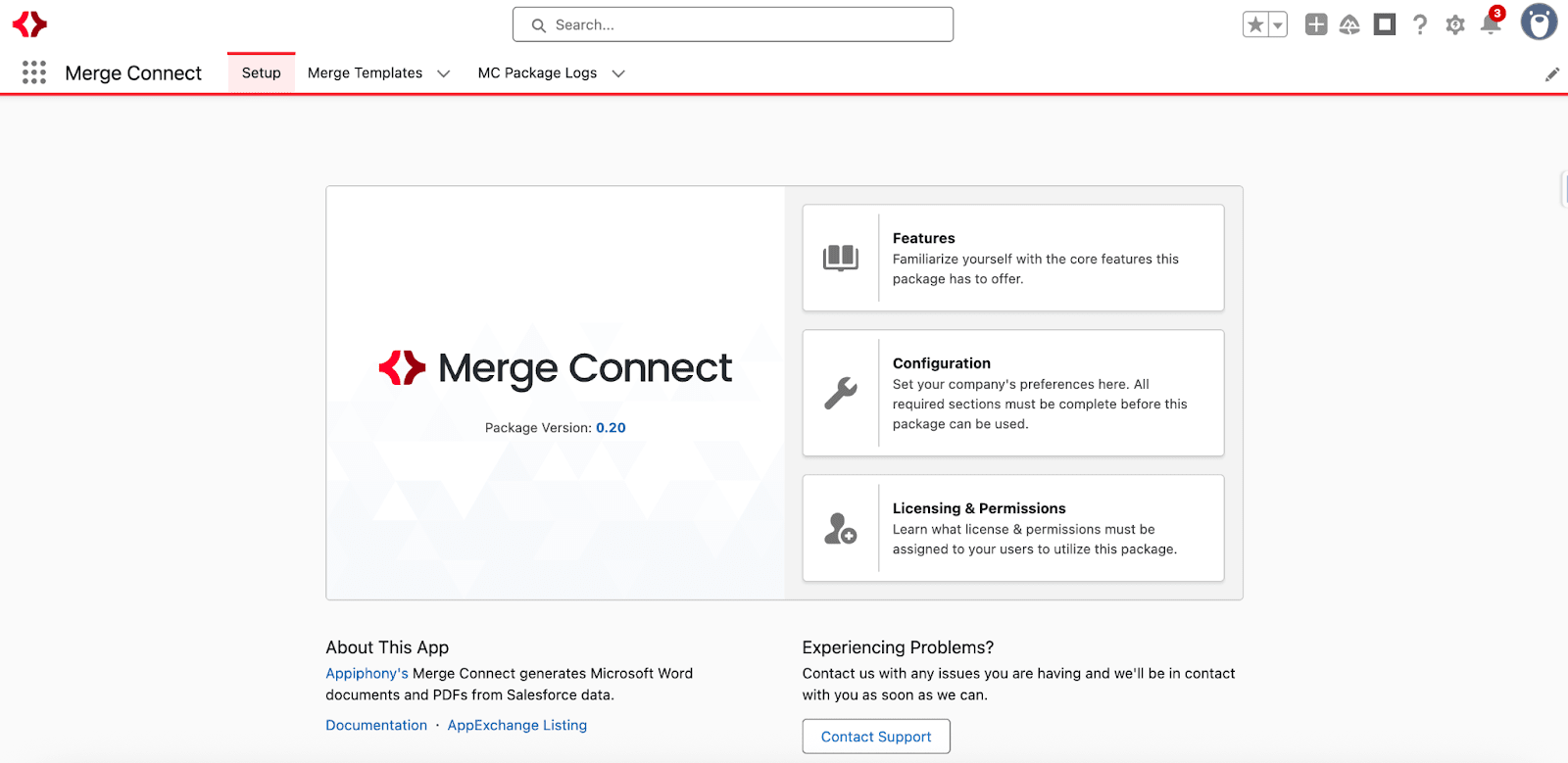
Getting up and running with Merge Connect in a sandbox takes only a matter of minutes. All you need to do is install the AppExchange managed package, assign permissions, and create your first template.
Following these initial steps, it’s all about the complexity and length of your specific templates, which records the component should be embedded on, and of course, if any automations are needed.
Documentation and Support
If you have used any of the other products from Appiphony’s suite, then you know that you’re in for a treat when it comes to documentation! There is a comprehensive getting started guide available, as well as feature-by-feature details and considerations. Also, if you have a specific question about your use case, you can open a support case without having to leave Salesforce.

Pricing

Following the free 14-day trial, purchasing Merge Connect is easy and can be done directly from Salesforce if you’re ready to continue streamlining your document generation processes. Both a monthly and yearly plan are available for you to choose from.
Summary
Generating documents with Salesforce data doesn’t have to be either time-consuming or confusing, and Merge Connect can easily become your team’s one-stop shop for template standardization, insightful PowerPoint presentations, and customer-facing documents with the latest data.
Want to try it out for yourself? Get started with the free 14-day trial today in your own environment to see your documents come to life in no time!





Comments: