
Every time the Salesforce release notes are published, I jump straight to the Salesforce Flow section – there’s always so much great content there that will make the lives of Salesforce Admins a lot easier. The Winter ‘26 update has introduced some wonderful new features as well as the usual quality-of-life improvements that come with each release – all of which are worth shouting about!
This update comes with some great new features and enhancements to everyone’s favourite declarative automation tool, Salesforce Flow.
1. Compare Versions Across Flows
New in Winter ‘26, you can now compare multiple different versions of the same Flow and see the changes that were made.
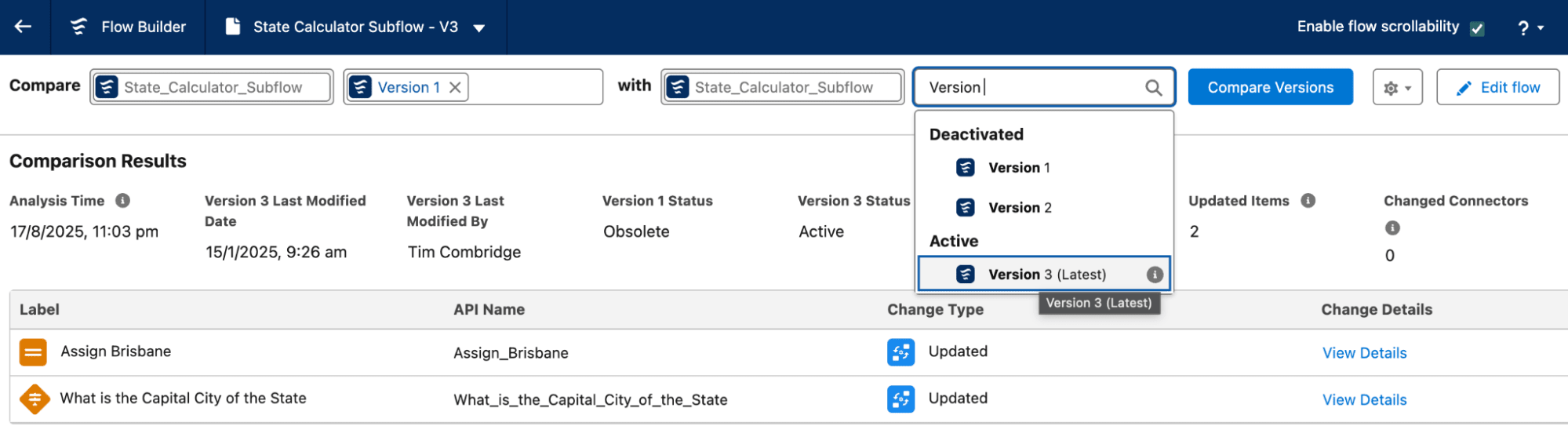
This is handy if you’re experiencing different behaviour that could have been caused by recent Flow changes and you want to see exactly what was changed between versions.
We’re one step closer to the Spatial Flows future I envisioned!
2. Screen Flows Get New Debug Experience
Summer ‘25 acquainted us with the new Debug Experience, but left us with the legacy version for Screen Flows. That changes with Winter ‘26!

We’ve got access to the side-by-side Debug-Canvas combo and a new Debug-Screen view that is unique to Screen Flow. This is a really nice implementation of such a powerful tool.
3. Action Hub in Automation App
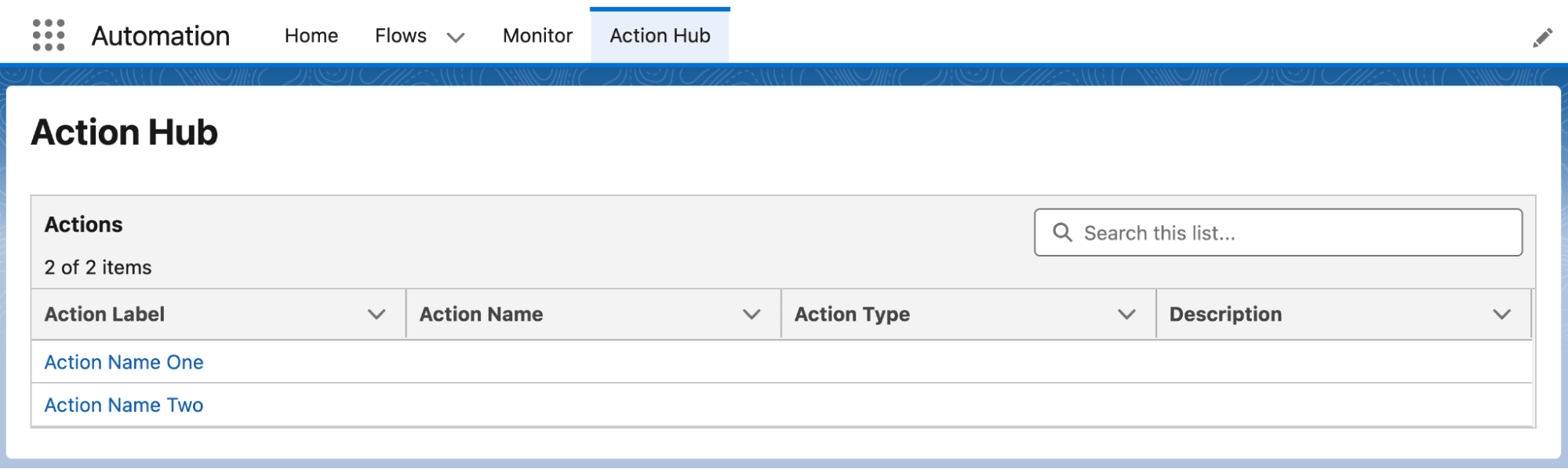
There’s a new tab in the Automation App in Winter ‘26, but from what I can see, it doesn’t really do anything just yet.
It’s worth noting that Salesforce tends to seed more and more into the preview orgs prior to the release notes coming out, so we may see more functionality added here in the near future. Watch this space!
Update on the above: When I originally wrote this piece, the Action Hub had not been fully deployed in my Preview Org. Now that it has and the Release Notes have dropped, I will revisit the Action Hub.
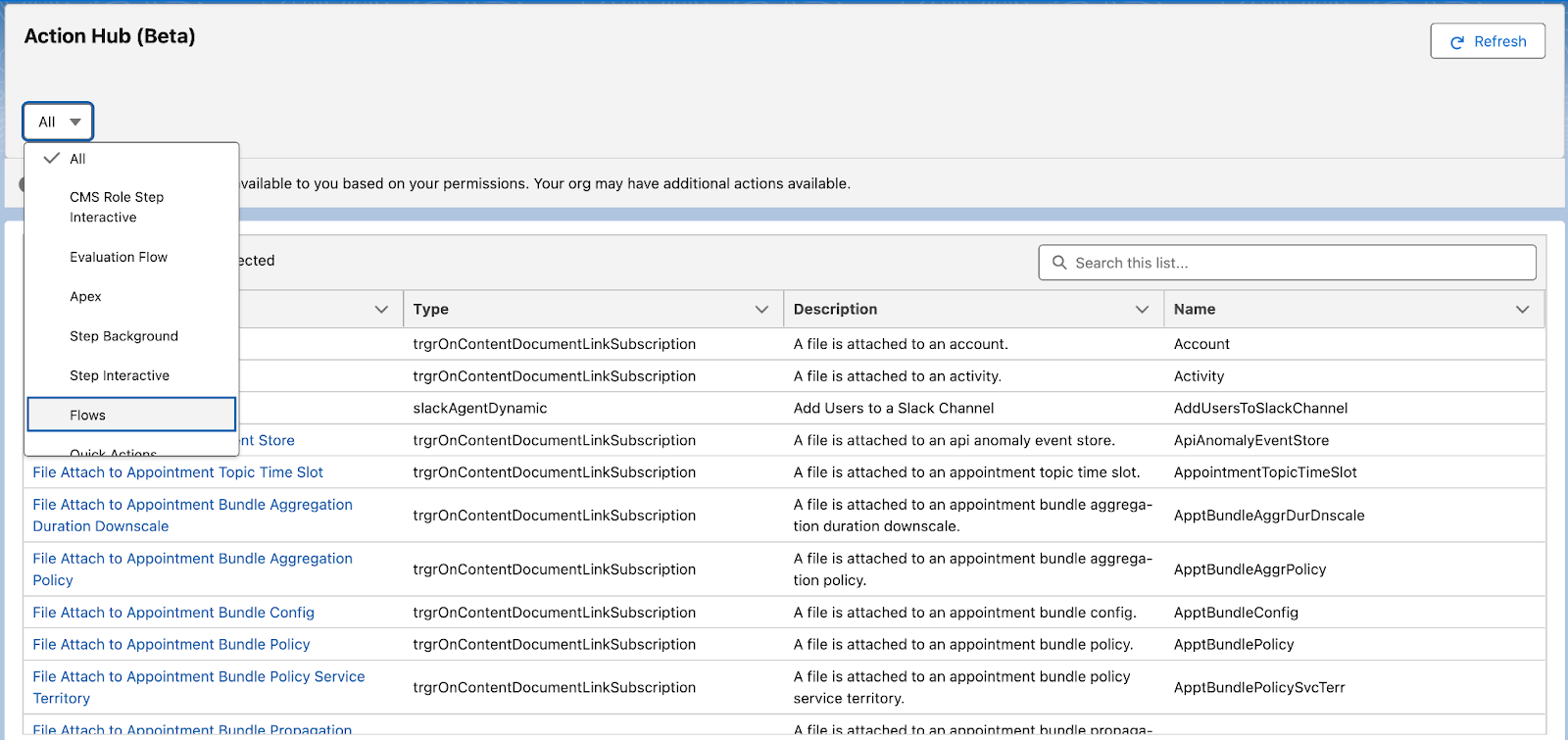
Action Hub is a new tab in the Automation App that pulls together all the invocable actions that you have access to in one neat table. You can use the search function to find a specific action, or filter by Action Type by clicking on the dropdown. Clicking into that action allows you to see where it is used in your org.
4. Enhanced Debug Experience Across Flow Builder
The first time you click the Debug button on a Flow in Winter ‘26, you’ll feel like you’ve entered a mirror dimension. Debug now opens on the left-hand side of the page instead of the right. According to Adam White’s post, the key reason for this is so that you can have the Debug Panel open at the same time as the element configuration. He also alluded to “some pretty cool stuff” planned for future releases.
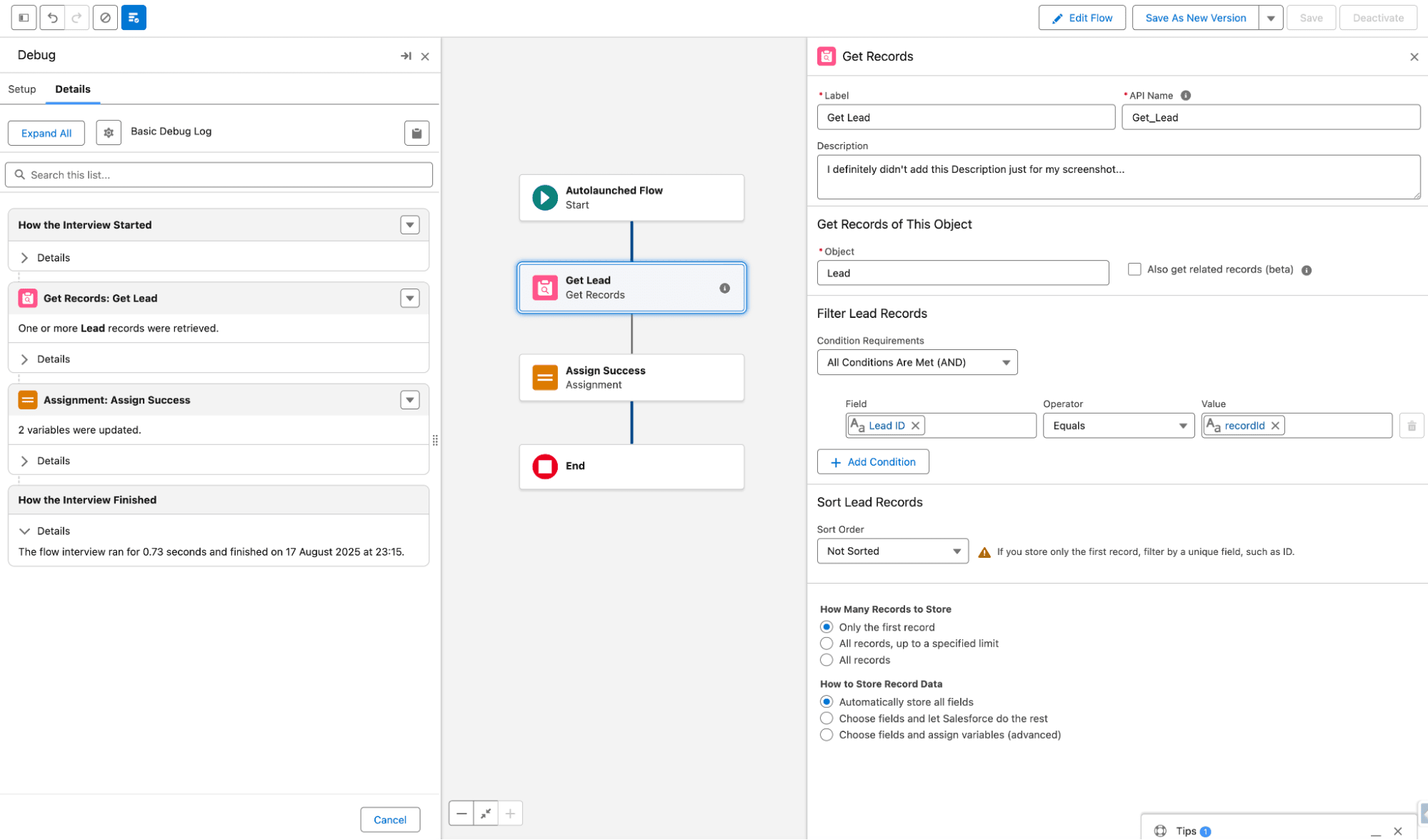
Winter ‘26 also tidies up the formatting of collection data in the Debug view – a welcome change for Flow.
5. Preview Style in Screen Flow
If you’re not using the standard Lightning theme in your Salesforce environment, Winter ‘26 lets you see what your Screen Flows will look like with the Preview Style feature.
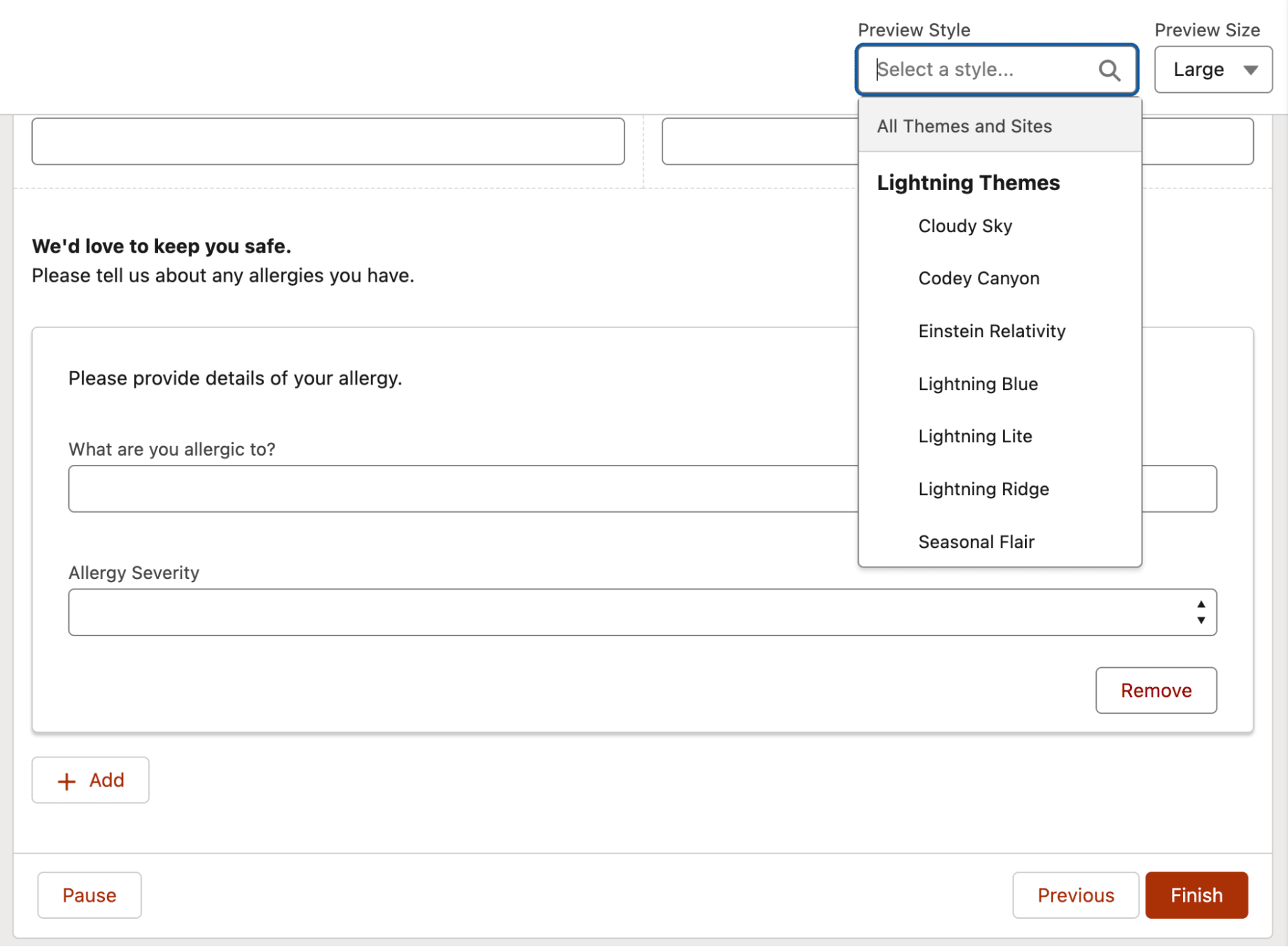
Notably missing from this new feature is the ability to preview SLDS2 themes. I’m sure they’re cooking up something interesting in their Salesforce ‘kitchen’ here!
6. AI-Driven Decision Element Criteria
Winter ‘26 introduces a new AI feature for us: provide instructions and allow AI to dynamically assess data to determine an outcome rather than a set of decision criteria.
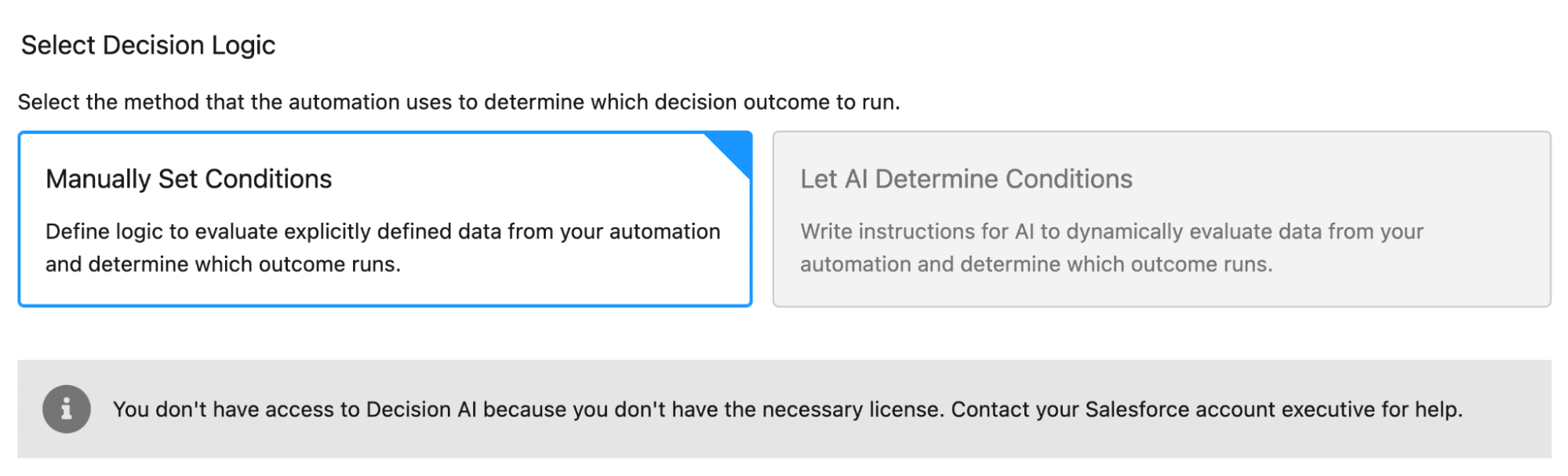
I’m honestly just excited to see a new AI feature without “Agentforce” or “Einstein” in its name!
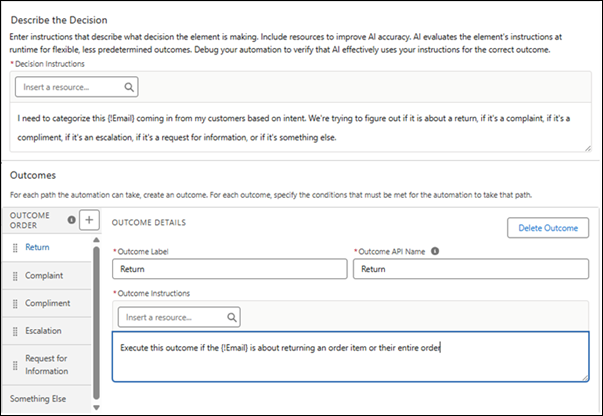
Update: Since the Release Notes have dropped, I can now share the above screenshot and provide some more information about how this works. Essentially, you add a simple instruction that explains when the outcome should be executed. The Release Notes say that it’s not important which order the outcomes are in when building them, and that the automation combines the decision and outcome instructions for the AI to then determine which path to take.
7. Warning/Error Indicators on Canvas Elements
If you’ve not yet finished building an element before moving on to something else, Winter ‘26 will make it very clear by adding a red alert to the element in the Flow Canvas.
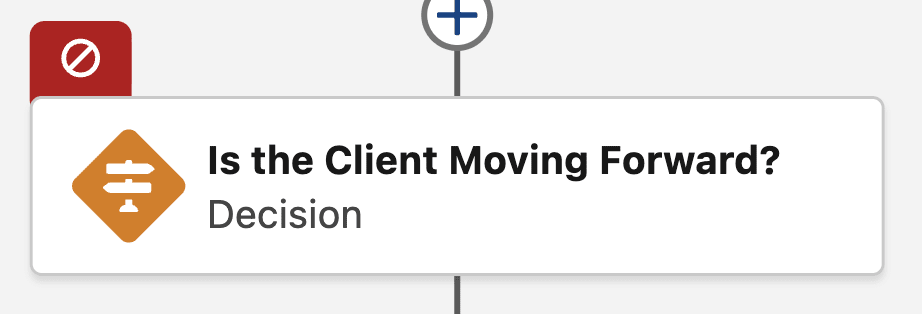
This makes it much easier to see what requires your attention at a glance.
8. Send Email New Recipient Manager
The Send Email Action gets even more love in the Winter ‘26 release. Although the Help Text says that it receives a comma-delimited list or a collection of email addresses, you can now specify individual email addresses from different variables in your Flow without the need to add them to a collection.
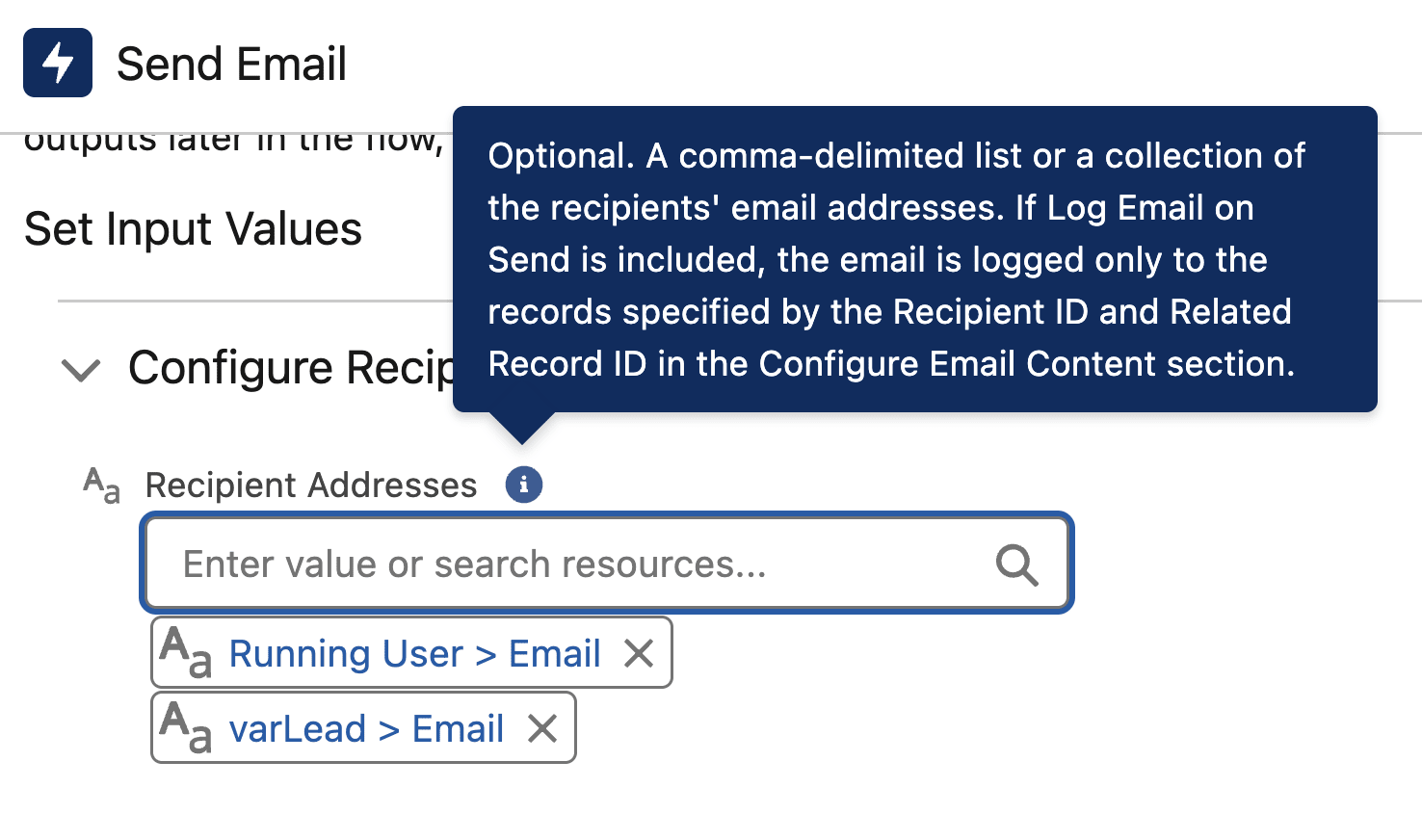
Send Email truly is becoming more and more powerful with every release, and changes like these just make it that much easier to use.
9. Resizable Toolbox and Errors Panels
The trusty Toolbox that we’ve all fallen in love with over the years has received a great new ability in Winter ‘26 – it can now be resized! The same goes for the Errors and Warnings panel.

I’m really loving the ability to take control of Flow Builder and make each piece as big as I need it at the time.
10. Data Table Supports Apex-Defined Variables
The native Data Table solution has been given a new Winter ‘26 feature – the ability to display Apex-Defined Collection Variables. Simply specify the variable in the Source Collection field, and make sure you select a Unique Identifier in the Configure Rows section.
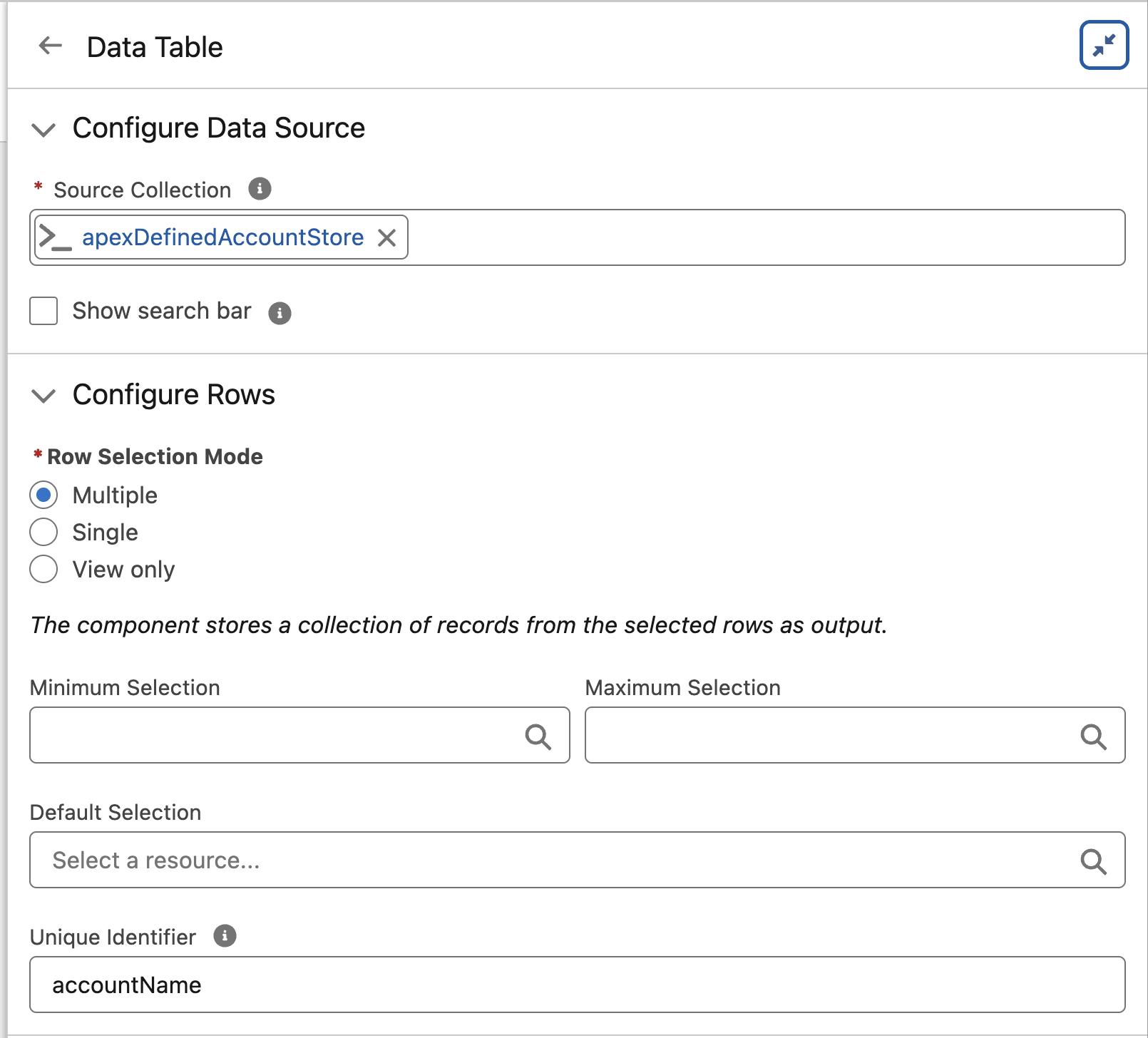
Even with this new addition, Salesforce has not yet given us the ability to edit data within a Data Table. Regardless, this is a welcome addition.
BONUS: Automation Home (Beta) Removed from Setup
For a long time, Salesforce was trying to give Flow and other automation tools a new home. Previous releases had an entry in the Setup menu called Automation Home (Beta).
It is with a heavy heart that I share the news: Winter ‘26 has removed the Beta status from Automation Home, and also the ‘still here’ status.
Automation Home in the Setup Menu is gone, but we have the Automation and Approvals apps in the main application to serve the same purpose.
BONUS: Copy Elements Button
Winter ‘26 has made the copying and pasting process in Flow Builder smoother by making the Select Elements button in the top menu bar a bit smaller, tidying up the interface substantially.

Salesforce really knows how to make a great quality-of-life change. Less clutter, more Flowy goodness!
Final Thoughts
Winter ‘26 includes a symphony of substantial enhancements to our favorite tool – Salesforce Flow – as well as some brilliant quality-of-life changes. This release brings numerous high-impact features along with improvements to smaller features and functionality.
These new features are bound to make your job as an admin, developer, or business user much easier and streamlined once they’ve been implemented throughout your org.
Don’t forget to sign up for a pre-release org to take these new features for a spin!
Read More:
- Top 10 Salesforce Winter ’26 Features for Admins
- Top 8 Salesforce Winter ’26 Features for Developers
- 12 Winter ’26 Updates Salesforce Marketers Need to Know
- Sales Cloud: Top Salesforce Winter ’26 Features
- Service Cloud: Top 10 Salesforce Winter ’26 Features