

We’re in the final days of 2025, and Salesforce is already setting the tone for the year ahead with the Spring ’26 release notes. If you’re no longer in work mode or mentally checked out for the holidays, don’t worry – we’ve done the digging so you don’t have to.
Below are the top features in Spring ’26 that admins should know about as they plan for the months ahead.
1. Salesforce My Trust Center (Beta)
Kicking this list off with a rename – because of course Salesforce couldn’t resist.
If you haven’t been using Personalized Trust yet (I don’t blame you, it isn’t in the docs), then now’s the time to jump into it because it’s being renamed to Salesforce My Trust Center. Over the years, I’ve used trust.salesforce.com to quickly check platform status and incidents. Adding “my” to that URL – my.trust.salesforce.com – makes it easier to view information about all your Salesforce products in one place.

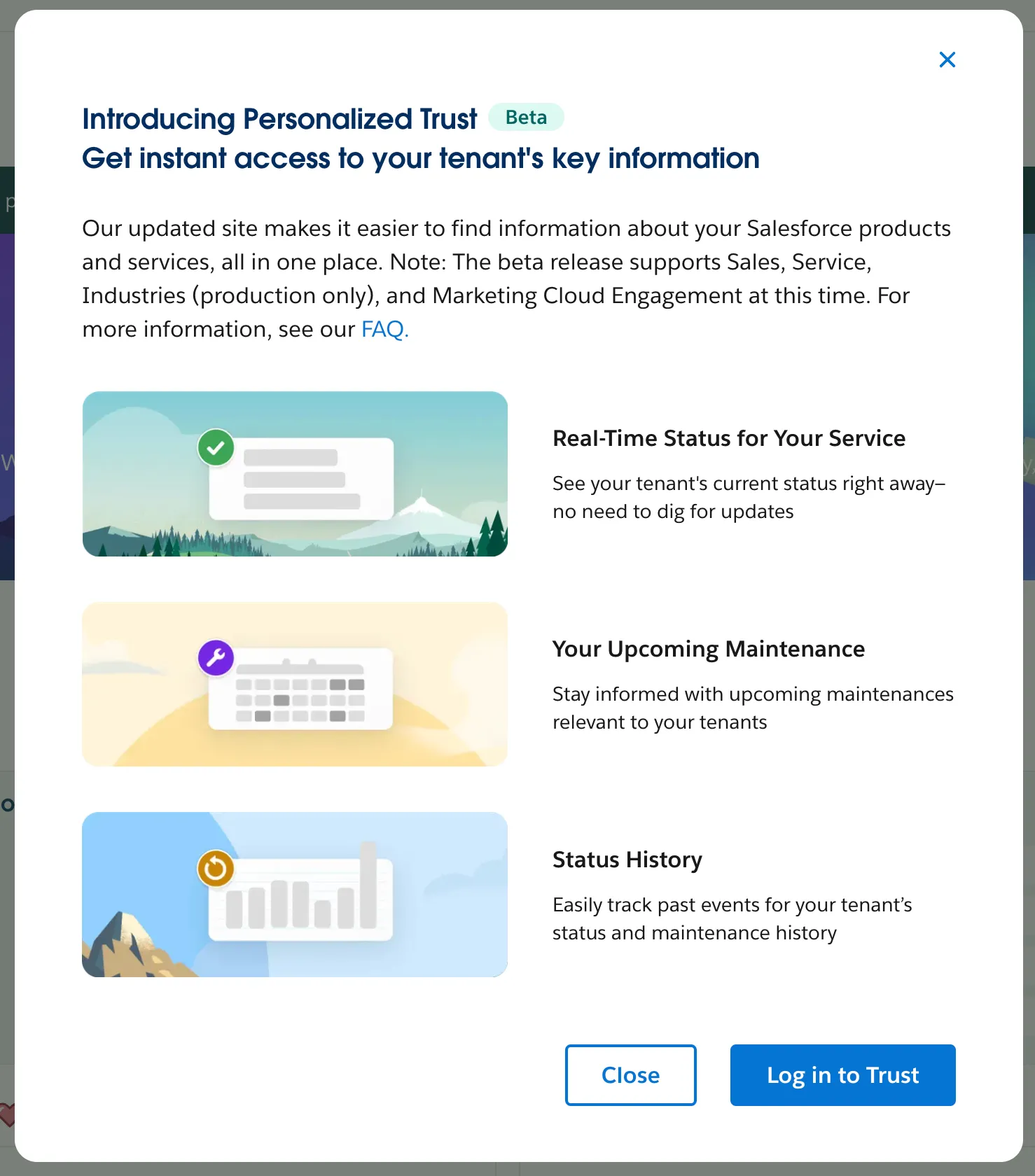
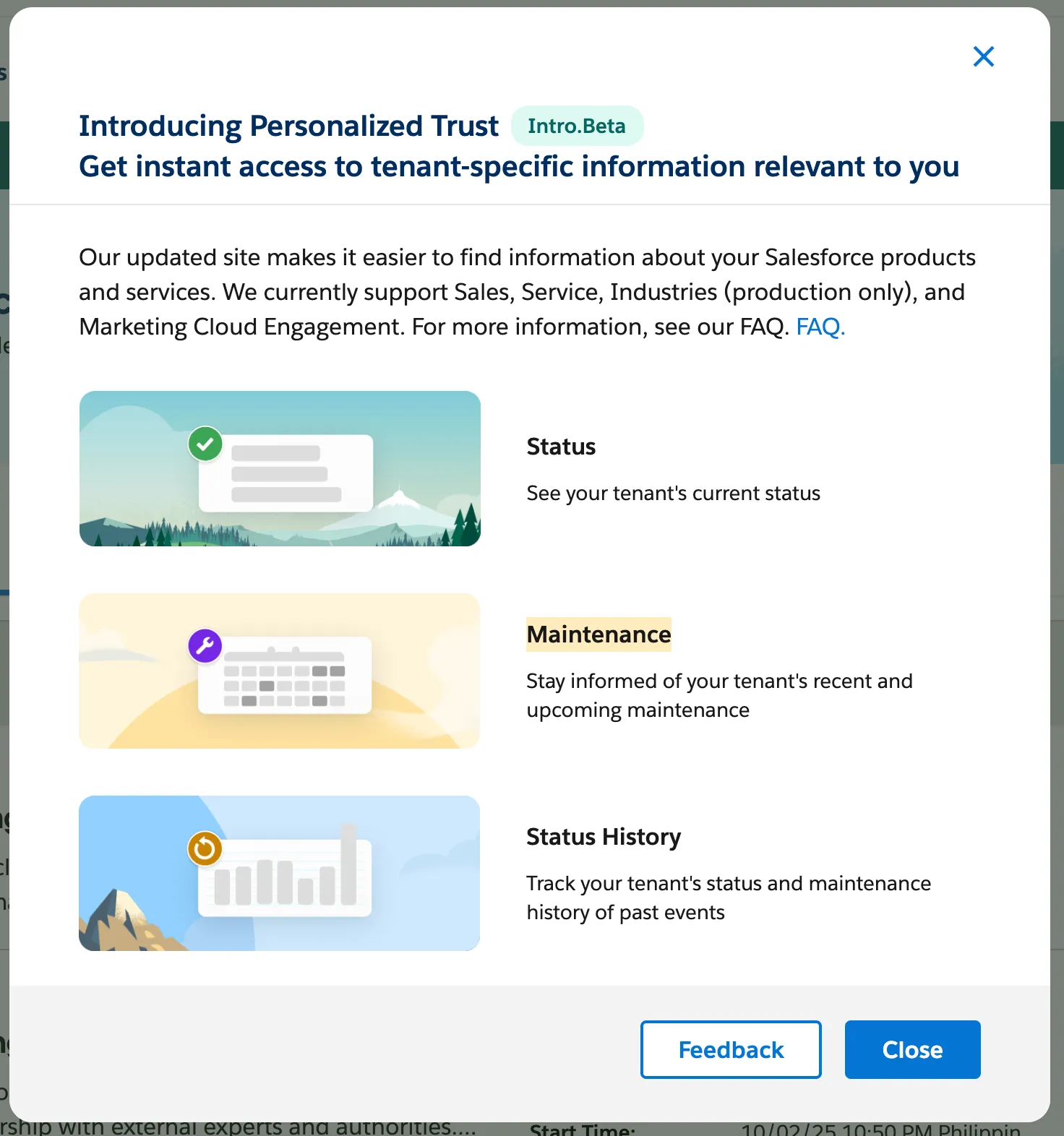
While authenticated, org-specific access to service health information, incident history, upcoming maintenance, and tenant details like org location and My Domain are already useful, the updated Spring ’26 experience goes beyond just a rename:
- Subscribe to notifications for events on your tenants
- View up to one year of incident and maintenance history access
- See org location and MyDomain information for Sales, Service, and Industries on tenant detail pages
- Improved navigation and accessibility
- Salesforce My Trust Center (beta) documentation to be added on the Help site
2. Setup With Agentforce (Beta)
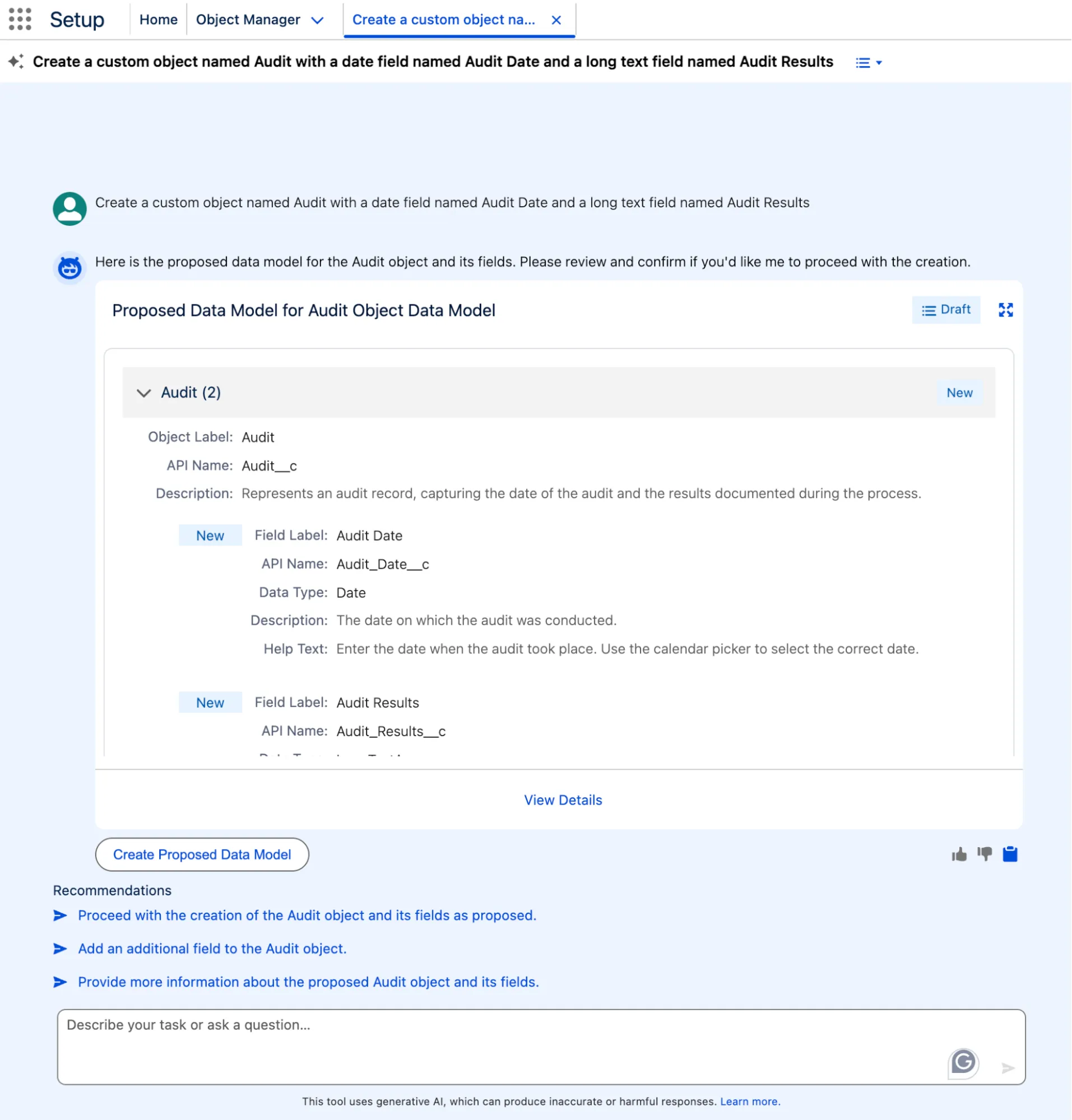
Salesforce continues its push to make admin life easier and setup less overwhelming with Setup with Agentforce. This AI-powered assistant is designed to help admins complete setup tasks more efficiently. If you’ve ever experienced the pain of jumping between documentation and Setup pages while doing configuration tasks, this would be a great tool to get guided help directly within Setup.
In Spring ’26, Setup with Agentforce focuses on helping admins move faster through common configuration steps by providing contextual guidance and suggestions as you work. It’s as easy as chatting with the agent to issue commands or ask questions using natural language!
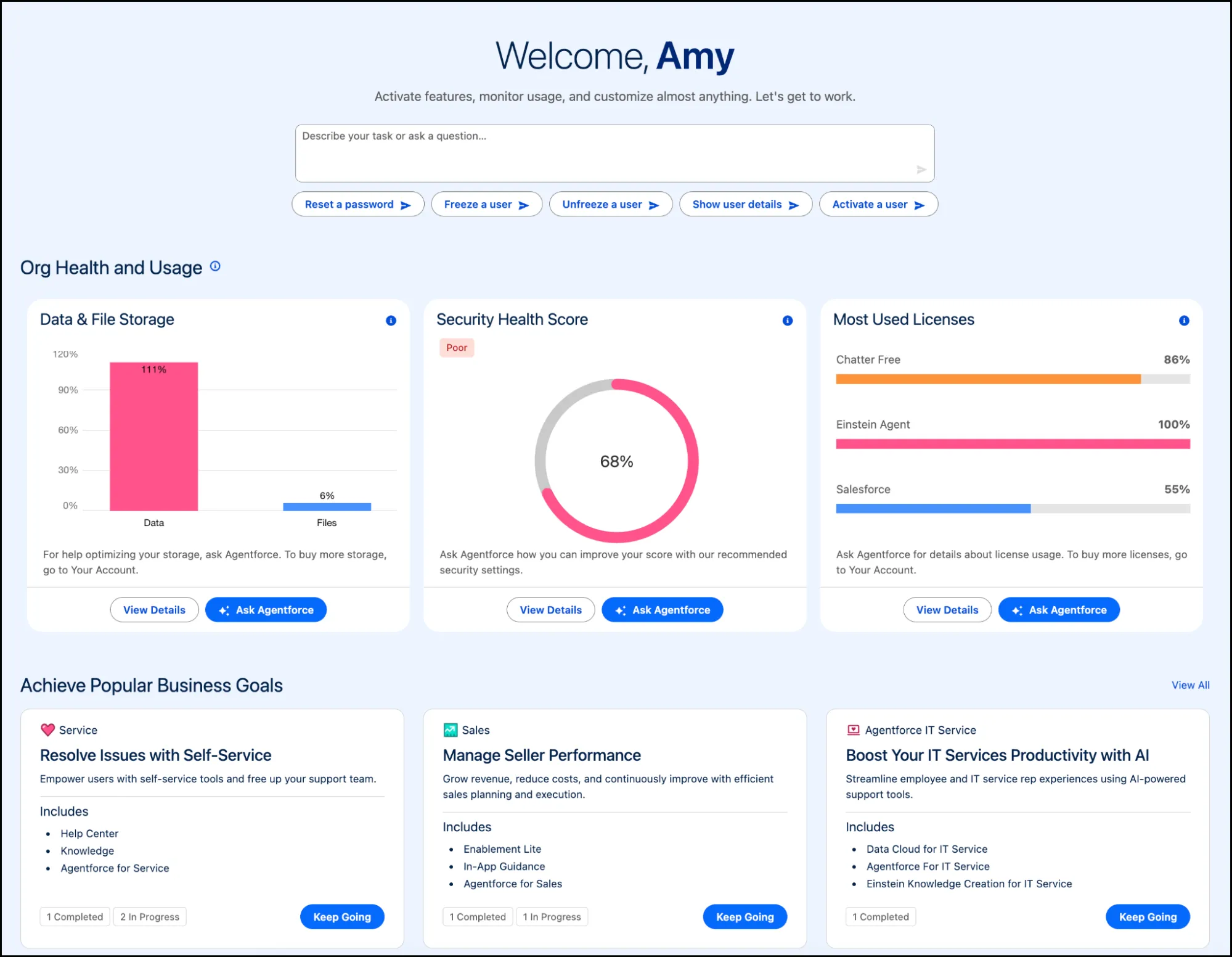
Your new Setup Home page now even has a prompt bar to emphasize working on configuration with Agentforce from the get-go:
3. The New Error Console
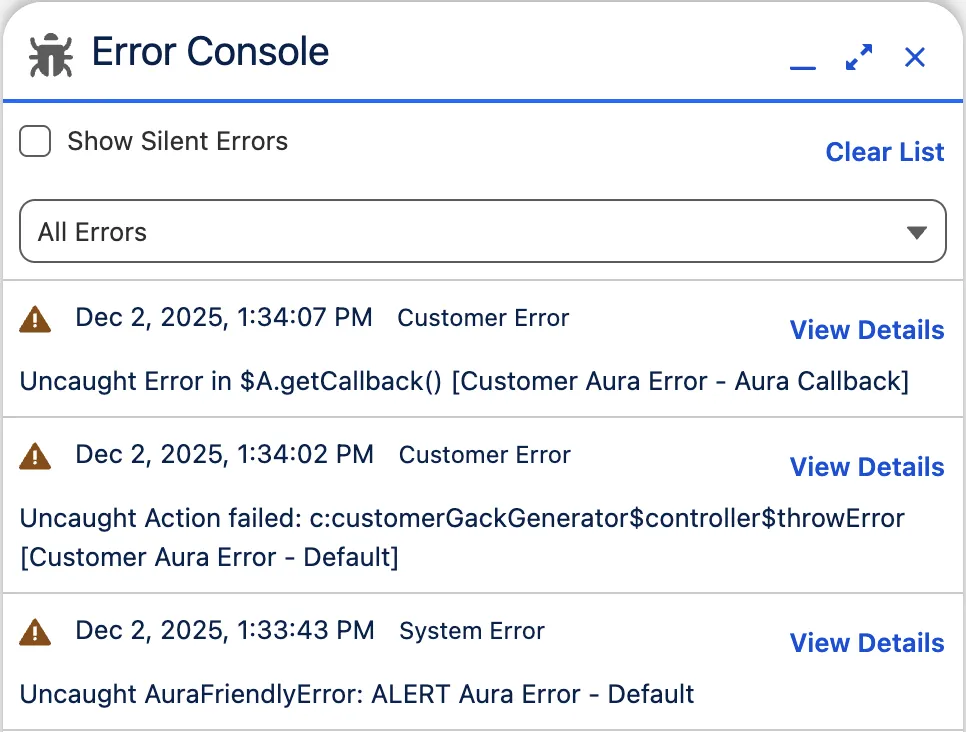
Non-fatal errors can be easy to miss, or even scattered across different contexts. Because they don’t require interaction, they’re also easy to forget about. Spring ’26 introduces the Error Console, a centralized place to view and manage page-level errors across Lightning Experience. Admins now have a single console where these issues are surfaced more clearly (yes, even the silent errors). This makes it easier to identify recurring problems, understand where they’re happening, and take action before users start reporting broken pages or unexpected behavior.
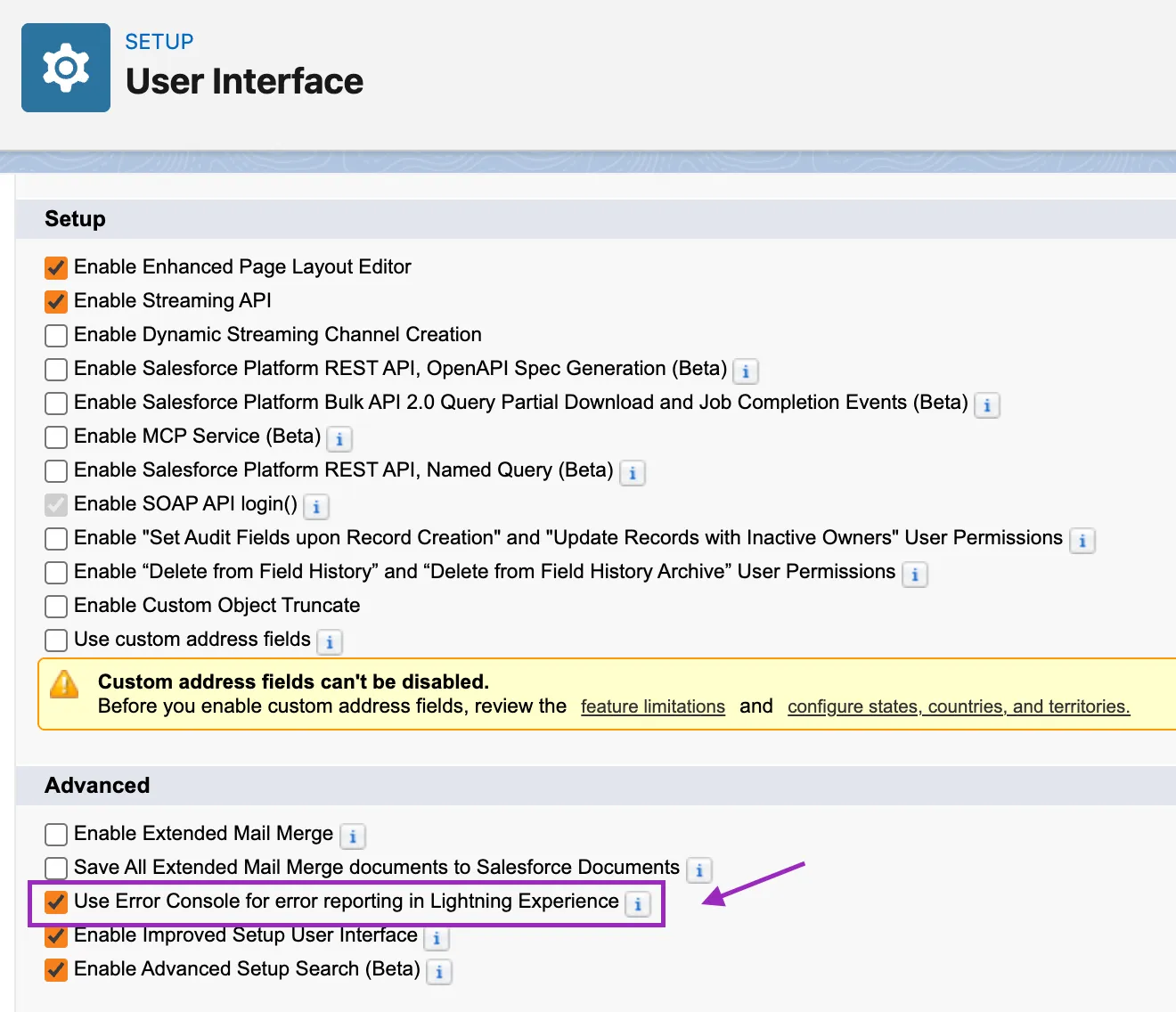
To enable this, go to Setup → User Interface and tick the box for “Use Error Console for reporting in Lightning Experience”.
4. New Permission: Delete Salesforce Files
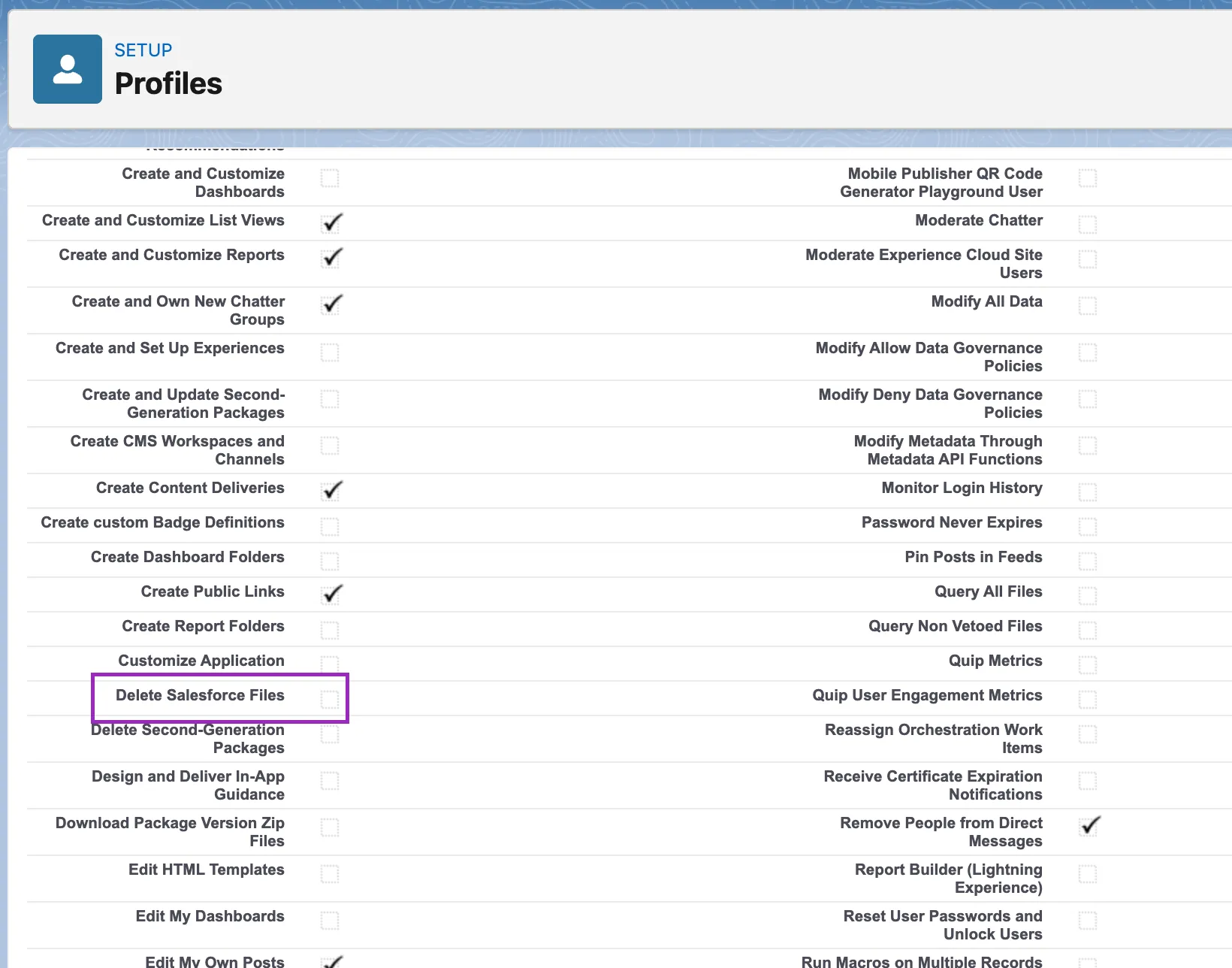
Spring ’26 gives admins more flexibility when it comes to who can delete files in Salesforce. Generally, file deletion is considered tightly restricted to either the file owner or an admin. If you’d like to give this kind of access to anyone who isn’t either, you’d have to give them the Modify All Data permission, which is obviously way more powerful than needed (and goes against the Principle of Least Privilege!).
Admins can now allow a broader set of users to remove files without granting overly powerful permissions with the new Delete Salesforce Files permission. With this, a user can delete any file that they have access to view – just enable Delete Salesforce Files for a profile or permission set. This also proves that Salesforce listens to the community, as this feature was born from an IdeaExchange request.
5. Retain Report Table Settings in Dashboards (Generally Available)
This feature was in beta last release, and now we’re glad it’s generally available! When adding a report table to a dashboard, Salesforce will automatically respect the existing report settings with this enabled.
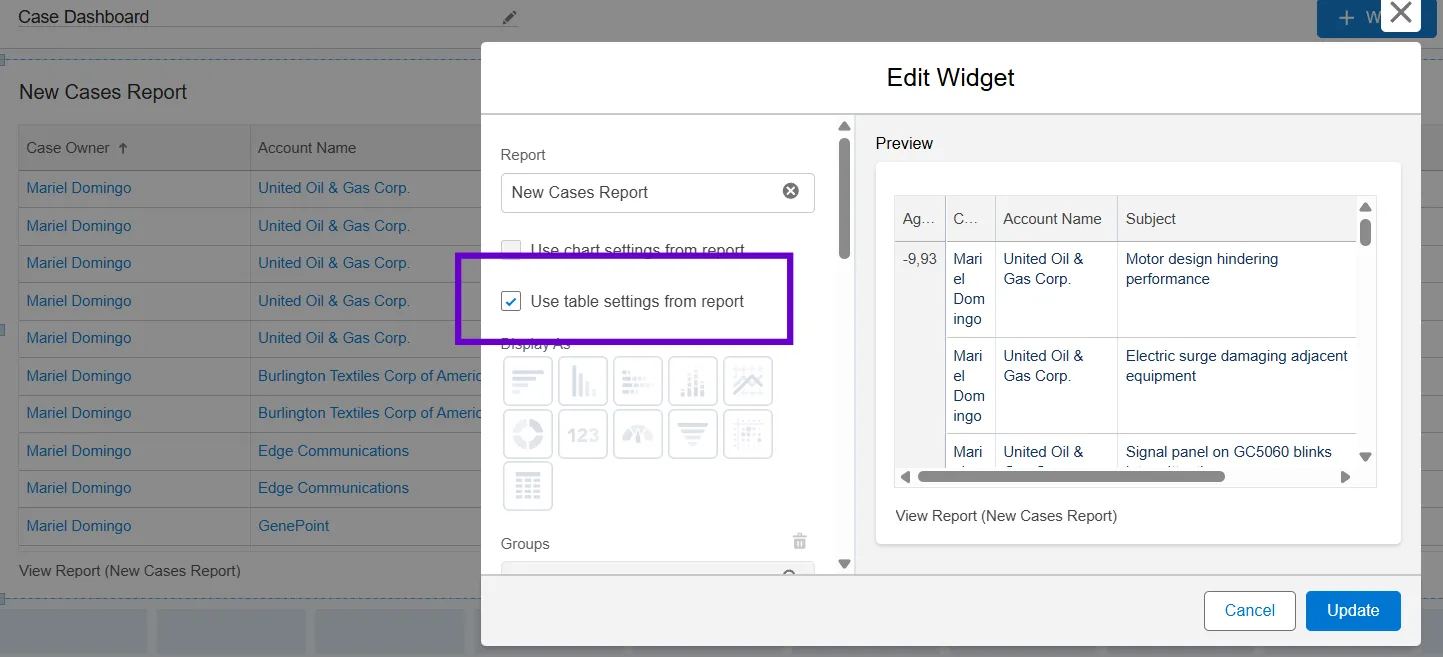
This simple yet welcome improvement keeps dashboards aligned with the reports they’re based on, especially when reports have already been carefully configured for specific audiences.
6. Report Sharing and Custom Disclaimers on Exported Reports
While we’re on the topic of reports, another small but useful update is the ability to share report and dashboard folders using precise usernames. Previously, searching for a user only displayed their names, so two instances of “Jane Doe”, for example, would make you guess which of them is the accurate one. Now, you can differentiate because the username is displayed.
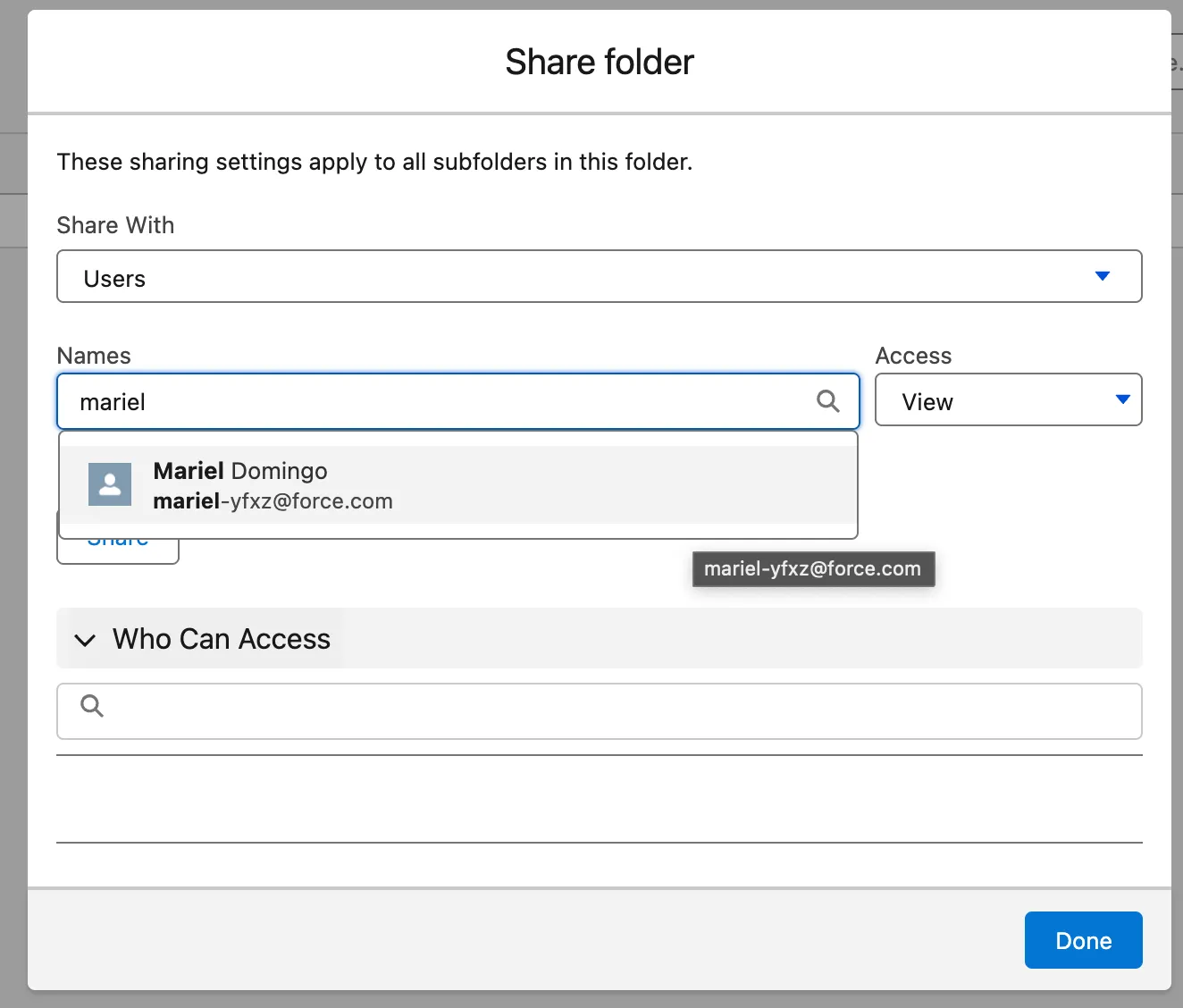
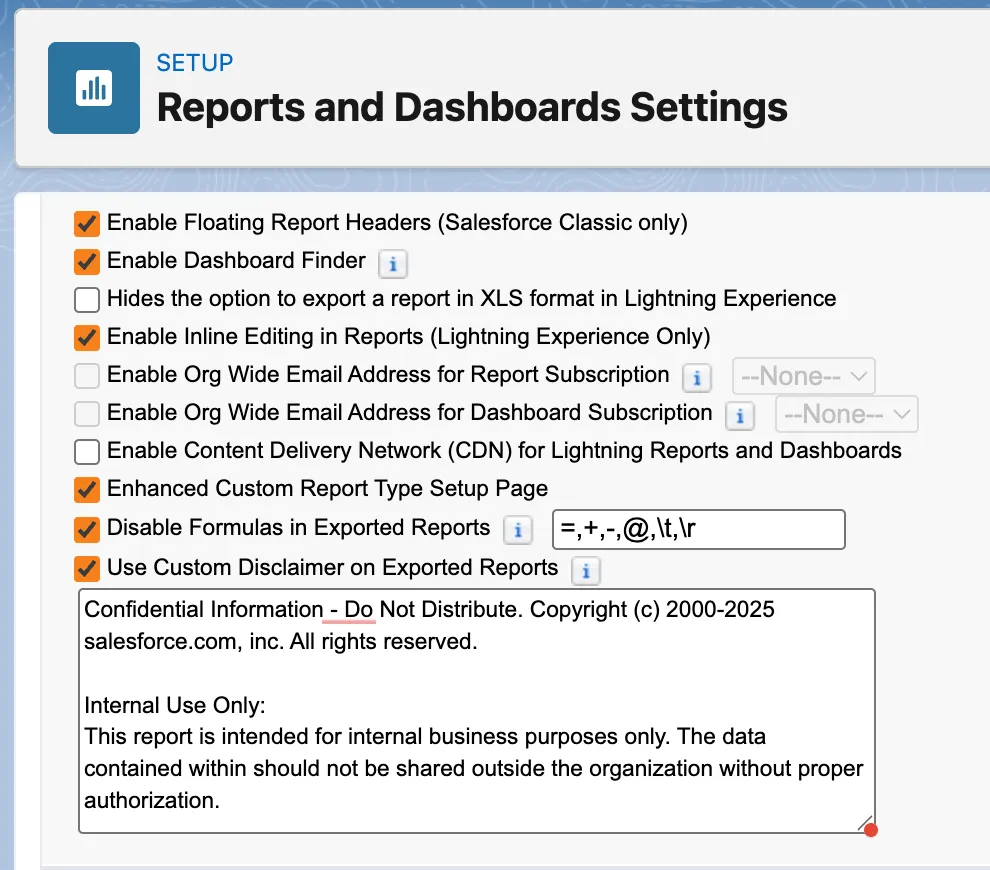
You can now also set up custom disclaimers for exported reports. This allows you to add to Salesforce’s disclaimer rather than replace it. The box below will give you an error if you attempt to change the existing “Confidential Information” message, so make sure to add your custom one after it, like so:
7. List View Updates
Salesforce has made a couple of small but meaningful improvements to list views in Spring ’26, especially around inline editing and sorting behavior.
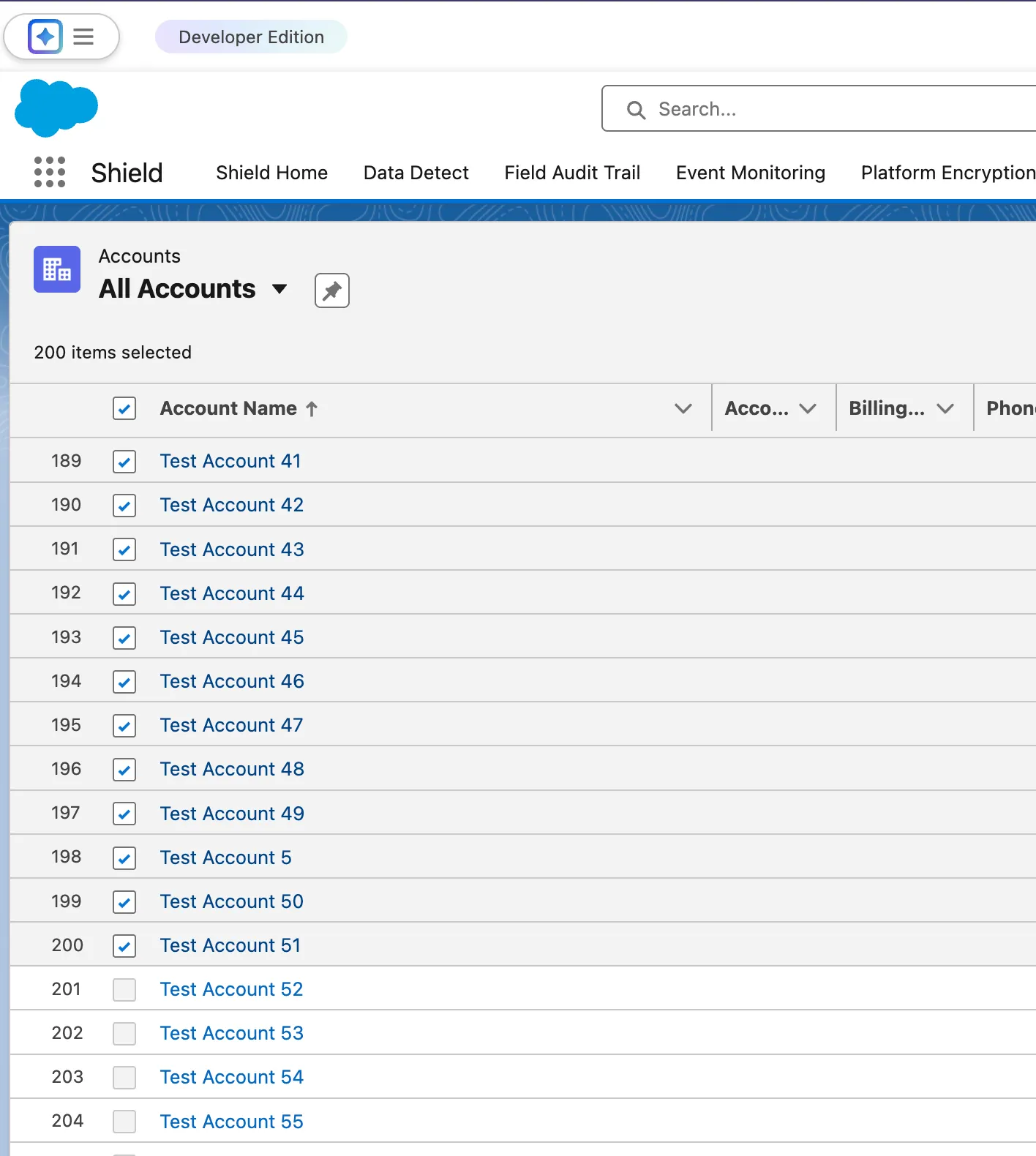
First, list views rendered with Lightning Web Components (LWC) now enforce the 200-record edit limit earlier in the process. Instead of letting you select and edit more records only to hit an error when saving, it now prevents you from editing more than 200 records upfront.
Second, blank or null values now sort differently in list views. When sorting in descending order, empty fields are treated as the highest value and appear at the top of the list. After all, when most people sort a column in ascending order, they’re mentally expecting to see the smallest values at the top. Seeing blanks jump to the top of a sorted list can be unintuitive.
8. Request Approval Component
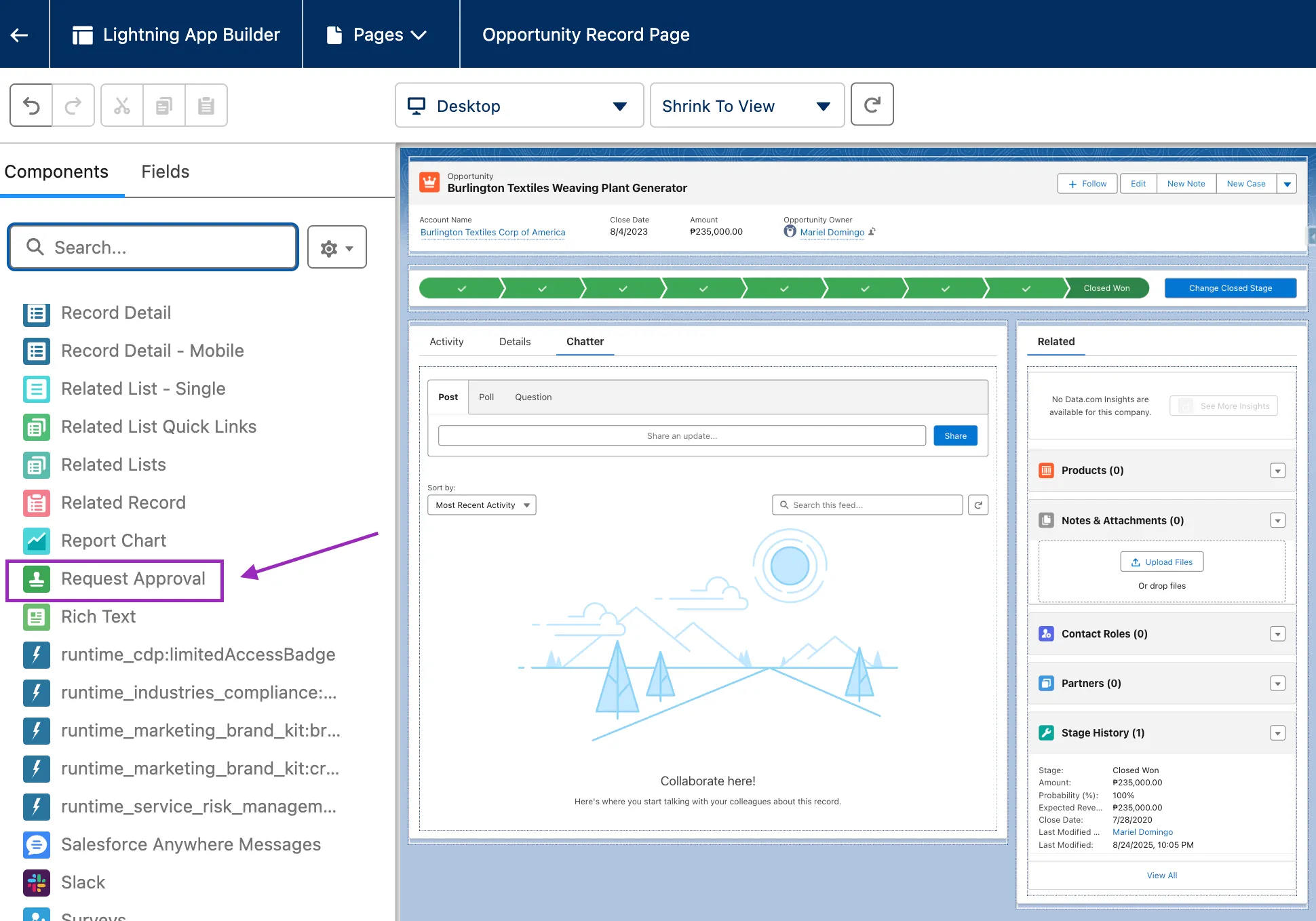
The new Request Approval Lightning component allows users to submit records for approval directly from a record page. Admins can configure the component to require submitters to select the first approver and add comments as part of the request.
Note that this component works only with Flow-based approval processes. While legacy Approval Processes are still supported in Salesforce today, this addition is a clear nudge toward adopting Flow Approvals going forward.
9. Health Check’s New Adjustments
With the steady stream of security incidents and breaches throughout the year, it’s no surprise that security has stayed top of mind for many Salesforce teams. Likely in response to this, Health Check now provides deeper visibility by tracking additional configurable security settings – including MFA status, SAML enablement, and session management controls.
When I compared the Health Check baseline standard XMLs between Winter ’26 and Spring ’26, these are the new additions:
<booleanSetting name="Identity.mfaEnabled" compliant="true" nonCompliant="critical"/>
<booleanSetting name="ExternalClientApps.metadataApiAccess" compliant="false" nonCompliant="critical"/>
<numericRangeSetting name="OutboundMessages.sysadminUsersSendingSessionIds" compliant="0.0" warning="0.01"/>
This only shows how MFA is now explicitly enforced as high risk. Metadata API access for External Client Apps is now treated as a critical risk.
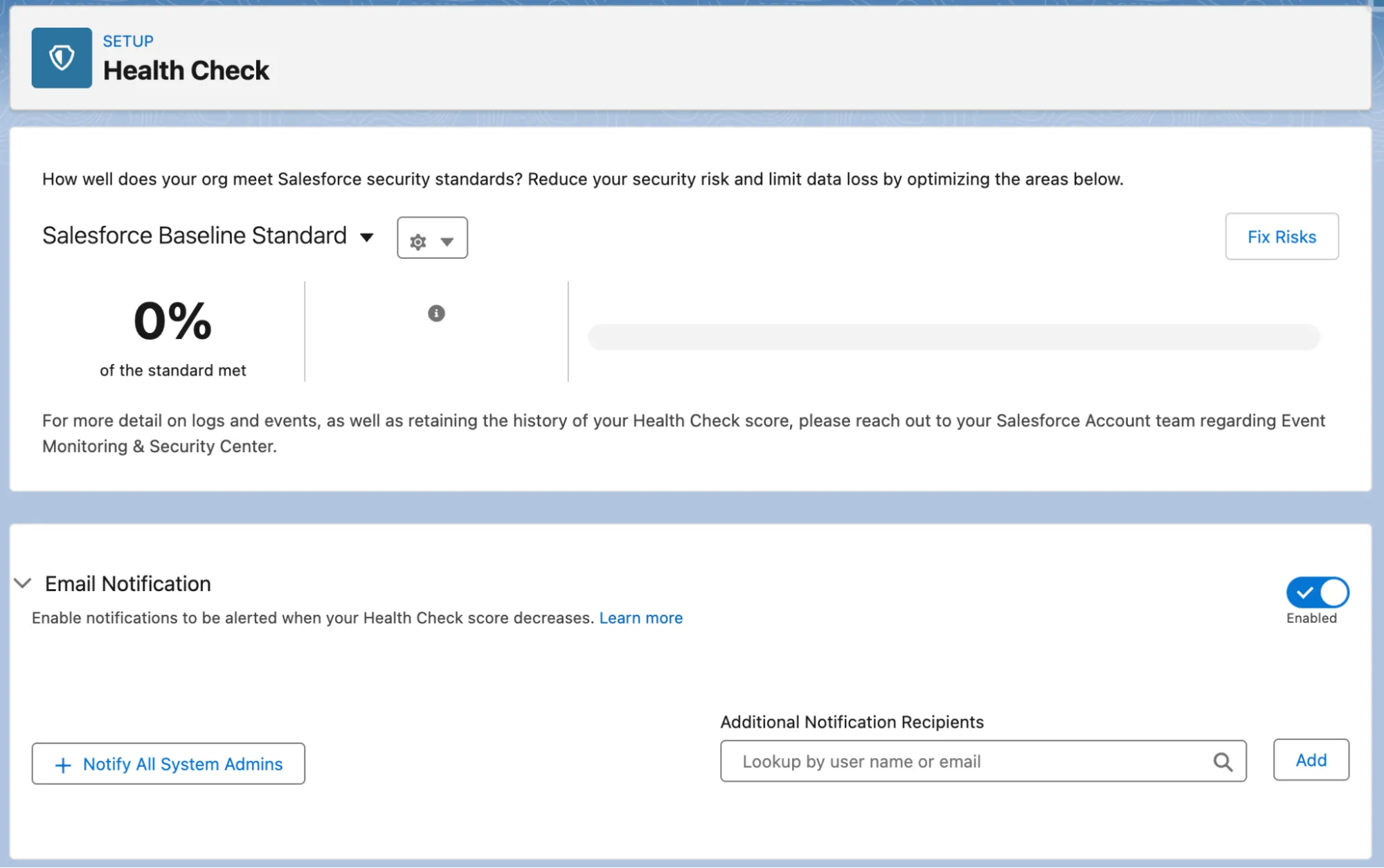
There’s also a new Email Notification section when viewing Health Check from Setup, where you can set up who gets notified whenever your org’s Health Check score changes. You have the option to set up email addresses or notify all admins. Neat!
10. The New Shield Experience
Spring ‘26 comes with a dedicated Shield app, where you can access all Shield products and features, including Data Detect, Field Audit Trail, Platform Encryption, and Event Monitoring.
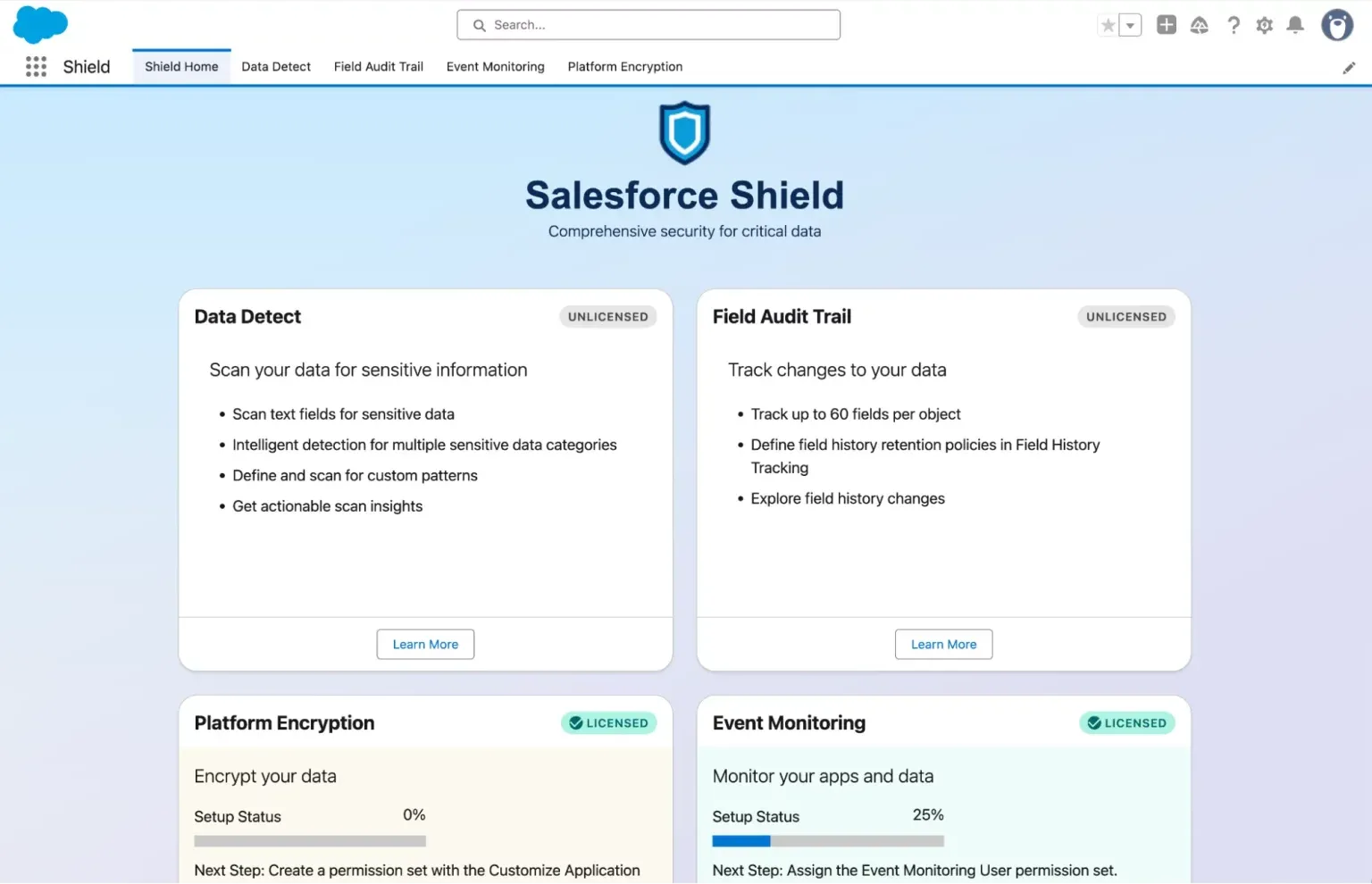
Security has never felt more important or relevant than it does right now, and Salesforce knows it. Through this app, it’s easier to manage Shield-related settings without going through Setup.
11. Creation of New Connected Apps Is Disabled by Default
Connected Apps are powerful, but they can also become a security risk if created without proper oversight. Later this year, Salesforce announced restrictions for Connected App usage due to recent security events. They have officially tightened security in this release by disabling the creation of new Connected Apps by default. This means users can no longer create Connected Apps unless an admin explicitly allows it. It’s good to know, though, that this update does not affect any existing Connected Apps, which will continue to function normally.
Summary
Spring ’26 may not come with one single headline feature, but taken together, these updates clearly point in one direction: safer defaults and better visibility for admins. This release is all about making day-to-day admin work more predictable, secure, and manageable.
As always, the best next step is to test these changes in a sandbox (when available), decide what’s worth enabling early, and plan how they’ll affect your users before they hit production.
Which feature are you most excited about? Leave your thoughts in the comments below!
Read More
- Sales Cloud: Top 8 Salesforce Spring ’26 Features
- 9 Features for Salesforce Developers in the Spring ’26 Release
- 10 New Salesforce Flow Features in Spring ‘26
- Service Cloud: Top 10 Salesforce Spring ’26 Features
- Top 10 Spring ‘26 Updates for Salesforce Marketers