

Standardize all of your team’s documents with AI-powered template building, mapping, and seamless merging right within Salesforce.
Highlights
- Migrate from Word documents to ready-to-use templates with a built-in AI wizard.
- Transform the way your users create Word, PowerPoint, Excel, and PDF documents with dynamic Salesforce data.
- Extend beyond simple use cases by using nested Queries, Expressions, and JavaScript within your templates.
- Create a fully governed document generation engine with version control, debugging, monitoring, and automation capabilities.
How many times have you heard of Account Managers, or any other Salesforce users for that matter, enjoying manually creating documents by copying and pasting information? Probably never. In the era of automation and artificial intelligence, exposing critical business documents to user error has no place, and neither does wasting precious time on manually ensuring each file is up to par.
Document generation doesn’t have to be a pain for either business users or Salesforce admins, and UpSource Solutions seeks to alleviate each step of the process through a seamless yet quick-to-set-up tool, MergeUp. As a Salesforce-native solution, MergeUp can support all document generation needs, in virtually no time, thanks to the built-in MergeUp AI, and various other features to ensure the success of even the most complex requirements. Sounds like magic, doesn’t it?
This in-depth review will showcase the main MergeUp features, ideal use cases, and setup effort, as well as how fast your users can (and will) start using this tool.
Features
Most, if not all, Salesforce users will need to create a document or PowerPoint deck containing Salesforce data at some point. From template building to making them available to users and closely monitoring merging adoption, let’s dive into how MergeUp can help in all these areas. Note that MergeUp leverages Microsoft Suite files, respectively Word (.docx), PowerPoint (.pptx), and Excel (.xlsx), as well as PDF ones, as the basis of the templates.
MergeUp AI
Gone are the days when you had to manually create templates from scratch! Chances are that when embarking on a Salesforce document generation journey, your team has already created the same documents they need and sent them to customers. This means that you, as a Salesforce Admin, have an example to start adding merge fields to. What if you didn’t have to do it anymore?
MergeUp now comes equipped with a built-in template creation agent, which can work alongside you to breeze through the template creation. While the LLM is doing the heavy lifting, your input will be paramount to producing a correct template. Due to the non-deterministic nature of the process, the output should always be confirmed.


First, you need to upload an existing document, which should not include real data, so make sure to check this prior to uploading. In this example, the document is a Word file. The wizard will work its magic, identify the potential objects needed, and produce a summary of the document. You can overwrite its selections and manually add or remove objects.
Once happy with the objects, it’s all about replacing the information in the example document with the merge syntax. This is also where you can check the exact output and note any formatting changes you may need to make. The merge fields will be highlighted for you to know exactly where to check.
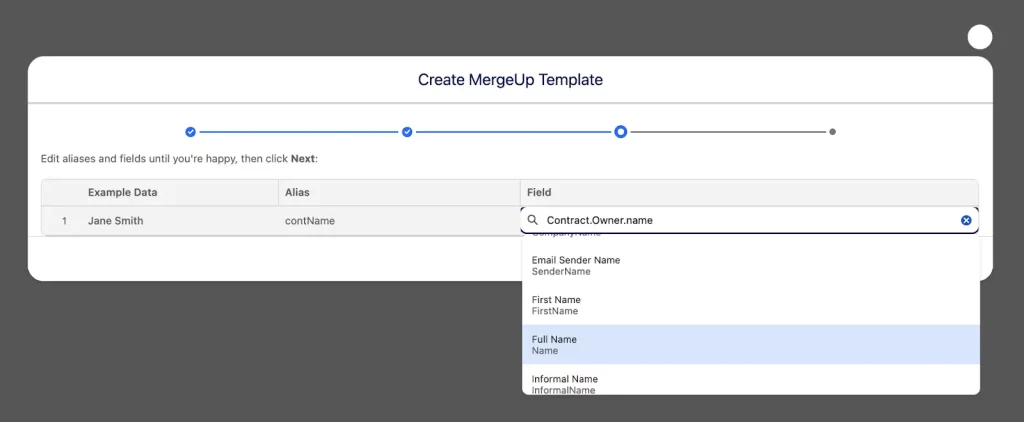
If a field hasn’t been correctly identified, you don’t need to start over! While reviewing, you can opt to start making changes, and remap the field accordingly with a field from the main object, or choose to traverse relationships if needed.
Following this last check, the record will be created, and the template is ready to be used!
Managing MergeUp Templates
Using the AI-powered wizard to create the MergeUp Template is recommended – however, you can still choose to create the template manually if you prefer. This is something you should definitely try, as the step-by-step process will give you a better understanding of the product, the options, and what exactly goes on behind the scenes when the AI agent is doing it.

When choosing the standard option during the MergeUp Template creation, you will be presented with a familiar screen – just like creating a new Salesforce record. Only the Template Name, Template File Type, and Merged File Type are mandatory fields, but make sure to check out all other optional fields.
For example, Dynamic File Name is something everyone will expect, since it allows you to use merge field syntax directly, and it is a mechanism to ensure that naming conventions are followed.
Queries and Fields
The Template Data tab, which will appear when opening a newly created template, will serve as your hub for managing the template and monitoring the objects and fields being used. You can quickly add or remove fields from the list, and copy the syntax for each of them to paste within your Word, PowerPoint, or Excel template.

Queries can be general or per record, and you can also make use of child queries, especially when multiple related records should be displayed in the template. This will come in handy when looking forward to including Opportunity Products or Quote Line Items, for example. In this case, it will be used to retrieve the Economic Buyer, which is set to be only one per Opportunity, but more on that later.
Clicking into each query will surface the option to add or remove fields, which you can search through and even navigate relationships to get information from related records if need be. When copying the syntax for individual fields, MergeUp offers more or fewer options depending on the type of field. For example, when it comes to Opportunity Amount, being a currency field, there could be four variations on how the syntax will be copied:
{# c(Opportunity.Amount) #}: currency formatted, which is best to be used in this instance to ensure the Opportunity currency will be displayed.{# c(Opportunity.Amount, 'en-GB', 'USD') #}: custom with set locale and currency (which may pose a problem if using multi currency and enforcing this at template level).{# n(Opportunity.Amount) #}: number formatting.{# Opportunity.Amount #}: simple copy.
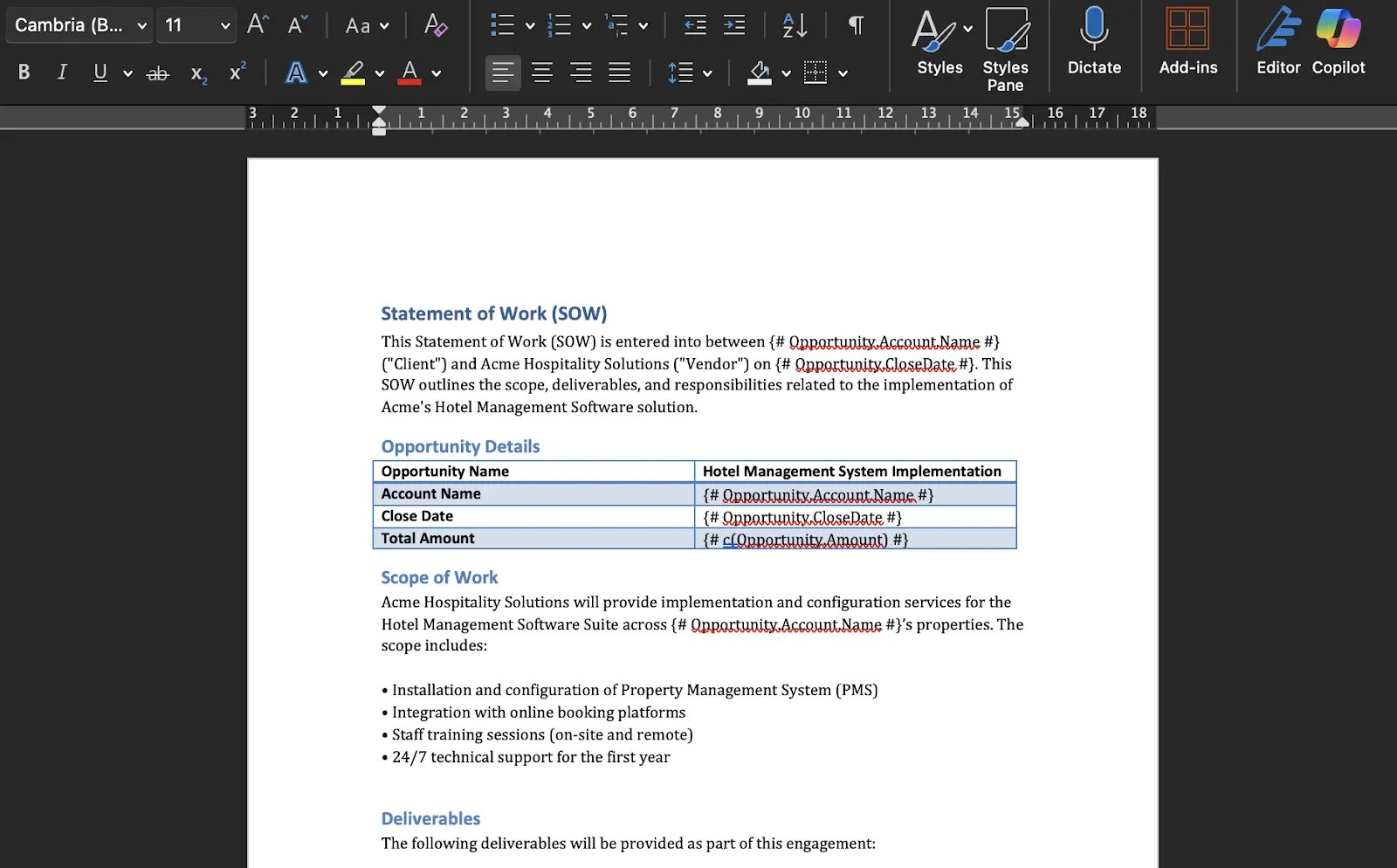
MergeUp handles the syntax generation for you – however, the formatting is fully controlled within your document. Except for the actual data, nothing else will be altered following the document generation – this means that paragraphs, fonts, colors, headers and footers, and so on will be preserved.
Debug Template Documents

A ‘broken’ template preventing users from generating documents promptly can cause frustration and delay processes, deals, and so on. This is why MergeUp’s template experience also includes a debug option, available for each version. Just like you would debug a Salesforce Flow before activating it, that’s exactly what you can do with every single version of your template.
For general templates, the test simply needs to be run. For record templates, on the other hand, you also need to select the record that will be used for the test. Clicking the download button doesn’t directly download the file – instead, you can preview it first, then download it if needed.
After testing is conducted and the template is ready to go, make sure to use the available button to delete all test runs. The output document following the test is created as a file in Salesforce and related to the Template record, thus counting towards your file storage.
Take Your Templates Further with Commands
Manipulating data within templates and performing various operations can be one of the bigger headaches of a document generation process. MergeUp ensures this won’t be the case, by offering the possibility to extend your templates with JavaScript for added flexibility.
From a Salesforce perspective, this also means that you will not have to perform complex calculations via Salesforce Flow or Apex and create new fields to pull into the template. As long as your team has JavaScript skills available, everything could happen in the template directly. The EXEC command is what will allow you to leverage the code within the template, for example, to obtain date information. Within an SOW (statement of work) or proposal, this will most likely be needed, especially if you want to share different pricing options if a customer signs today instead of later.
{# EXEC
    today = new Date();
    todayPlus30Days = new Date(today.getTime() + 30 * 24 * 60 * 60 * 1000);
 #}
Where needed in the template, you can then have {# d(today) #} and {# d(todayPlus30Days) #} respectively available for use.
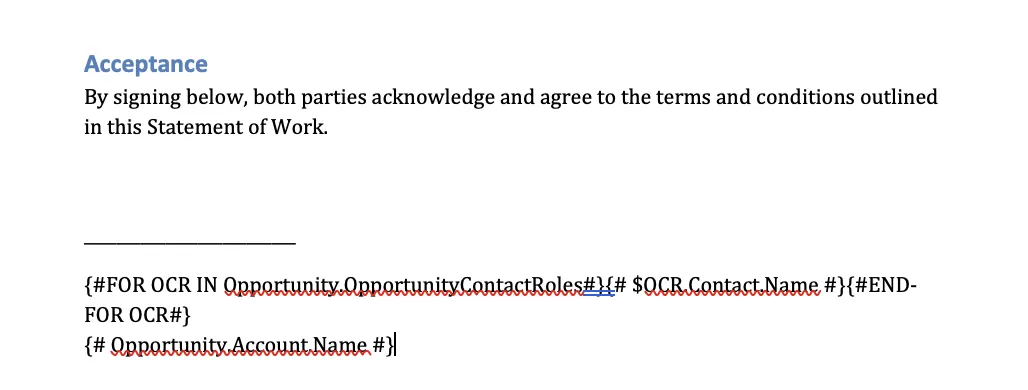
Remember the Opportunity Contact Roles query above? Since an Opportunity may actually have multiple Contact Roles, using the information within the template required the FOR command to loop through the records. This command is perhaps the most widely used one, as it can display records on different lines, even within tables. Filtering is also supported within the for loop.
In this example, however, since within the Salesforce instance the template is for, there can only be one Economic Buyer for the Opportunity, there will always be just one result. The for loop is used to bring in the Contact Name for the person who will be signing the SOW. While in this scenario the filtering is in the WHERE clause of the child query, that query could have remained general, then filters applied to each for loop within the template – in case you’d have liked to display all Opportunity Contact Roles in the SOW, let’s say.
There are other commands available, such as IF for conditional logic and LINK to add hyperlinks to the template. Make sure to take a look over all of them and try them out for your use case.
Template Expressions
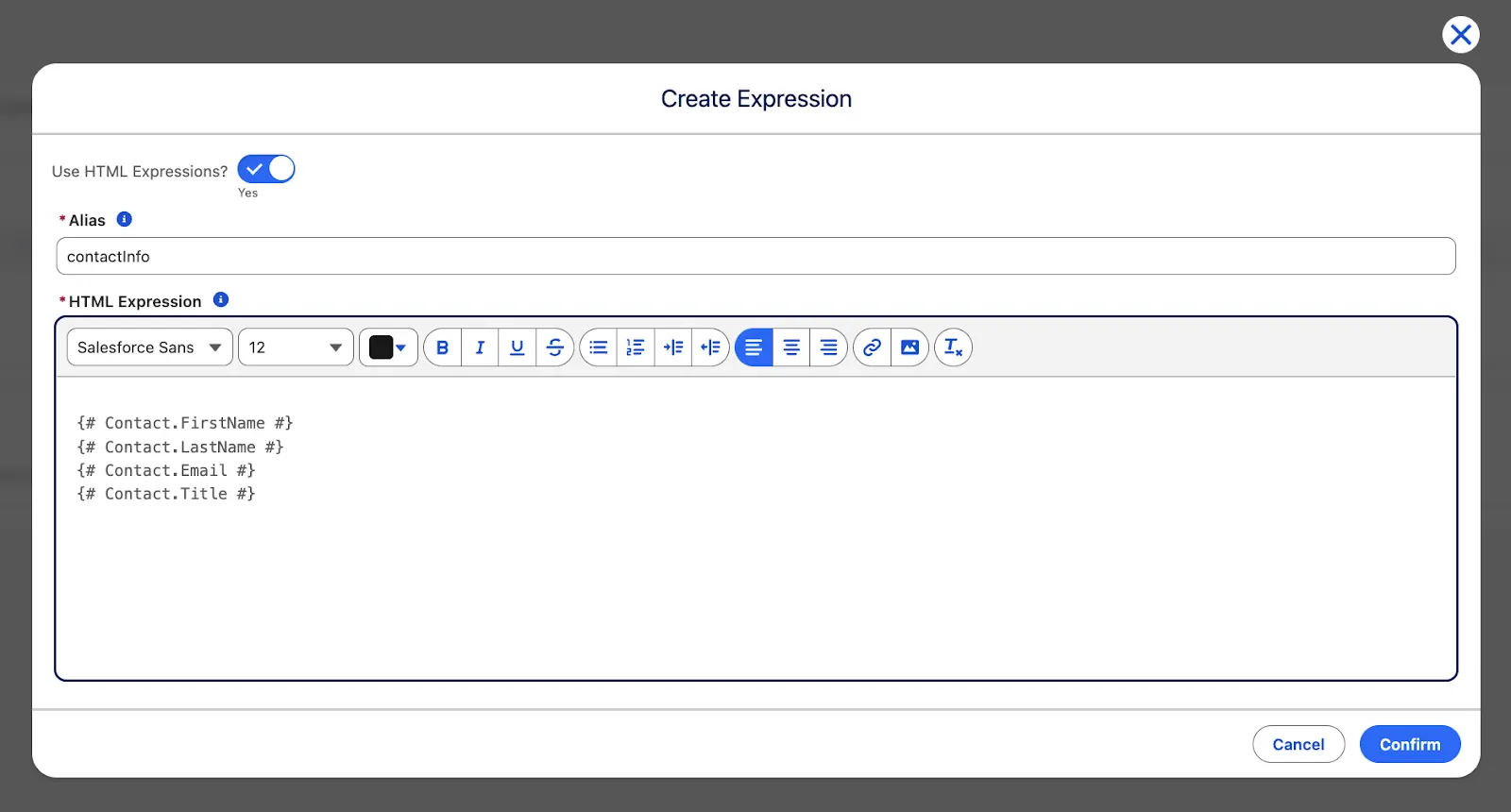
MergeUp Expressions are meant to simplify your template and increase readability. Practically, instead of including large blocks of code within the template directly, you can save these as individual expressions, give them a name, and just reference them. An even more common example is groups of fields that should be displayed together. If you’d like to have a quick way to ensure that Contact First Name, Last Name, Title, and Email are included with one line, expressions can help you achieve this. So, instead of copying multiple fields across multiple templates, in this example {# @@contactInfo #} can be used instead.
This also opens up the possibility of editing the expression, instead of editing the template and creating a new version. Additionally, it makes the different blocks you decide to create as expressions reusable and much easier to maintain.
The Merging Experience
In addition to ensuring that users have the necessary permissions and that the template is active and ready to use, the Merge Single Document Lightning Web Component should be added to relevant Record pages. As you can do with other components, this can be filtered as well based on criteria.
When using the component, it will be mandatory to select a Template Group, so make sure all templates have their group assigned and have a Template File attached, with one active version prior to this step. Even if on the template, as you saw above, a file type has to be selected, you can also pick it here, and also allow users to select the type when merging instead.
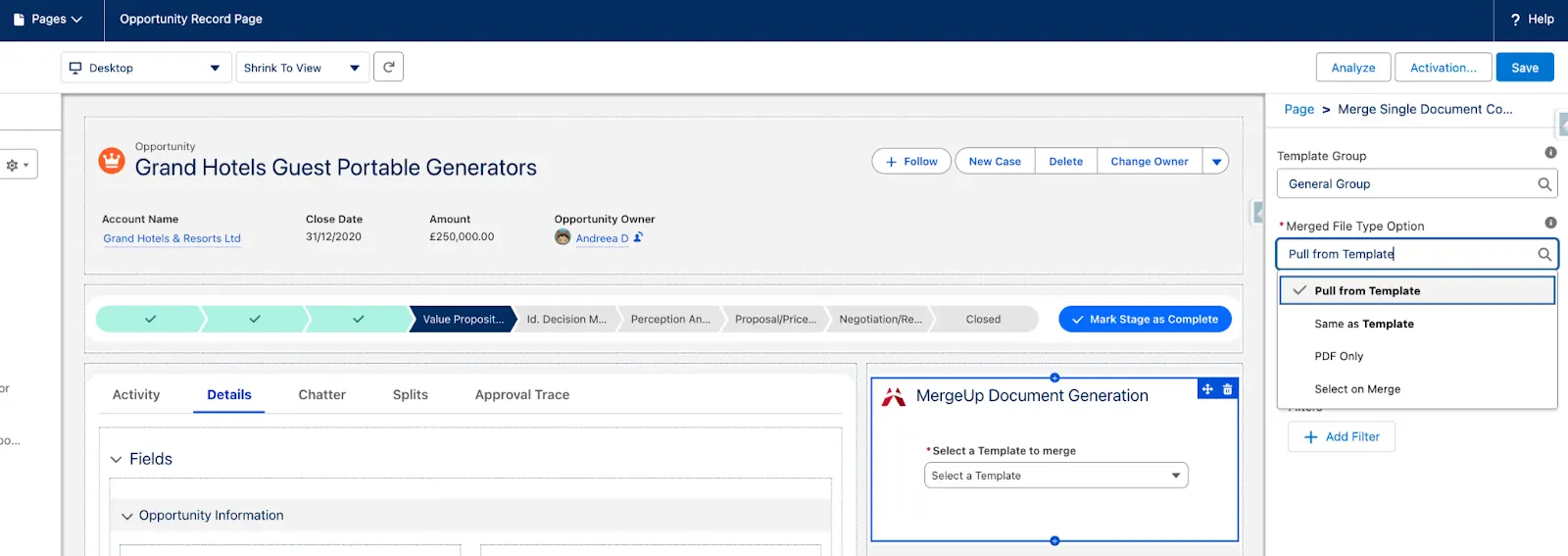

With the component in place on the Record Page, your users are ready to start merging! If you set a default file type, then it will take just two clicks – selecting the template and merging the document. If the merge is successful, the document will be automatically attached to the Salesforce record as a file, but it can also be downloaded from the component.
To ensure the merged document looks as intended, let’s take a look! Even though it’s a simple example, the formatting was preserved, and the information is correctly populated based on the Opportunity.
Merge Logs
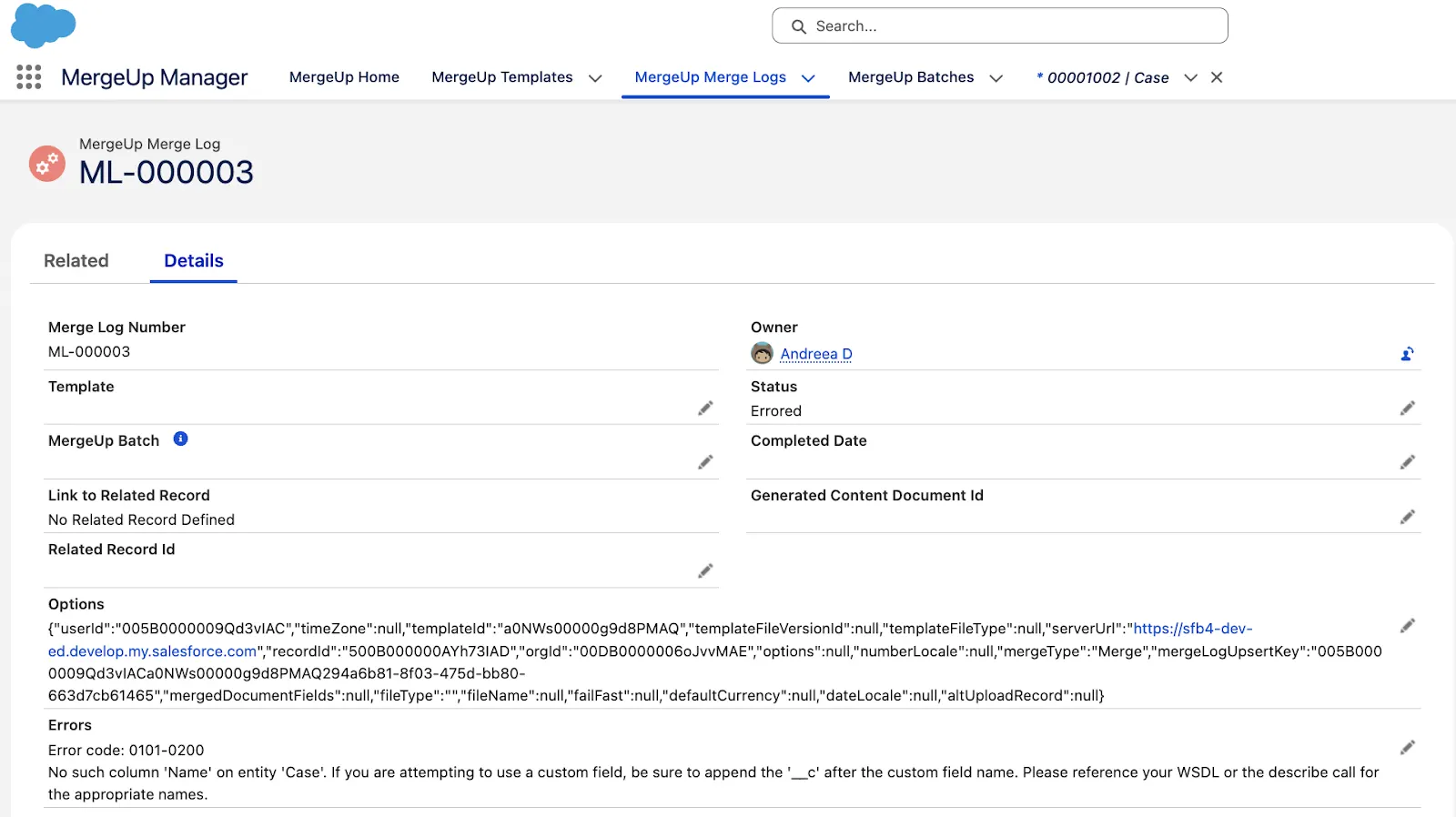
Knowing that the tool is being used and measuring adoption is something that you can easily do with MergeUp, from the very first document generated. MergeUp Merge Logs will be automatically created as soon as the process is finalized, be it a success or an error.
If the merge was successfully completed, then the log will have a Completed Status, as well as a Completed Date and the Document Id.
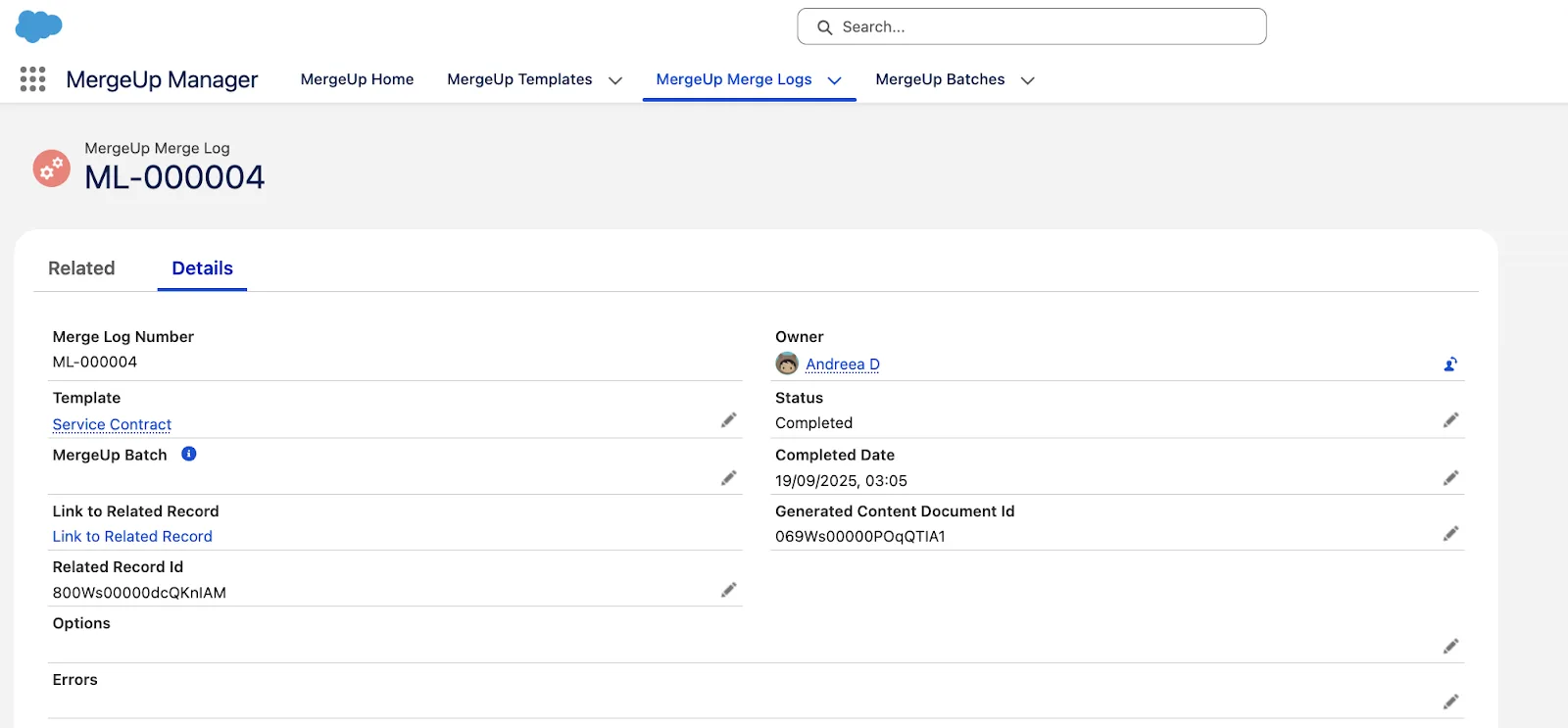
More often than not, everything should work as intended, but sometimes it might not. That’s where the Merge Log records will help you pinpoint exactly what happened and present an error status. By opening the log record, you will see the detailed error message, pinpointing what went wrong to help you get it up and running in no time. In reporting, monitoring these is a breeze, as the Status field will show either Errored or Completed.
Roadmap
- MergeUp will soon support PDF Templates for fillable PDFs.
- To facilitate template creation, MergeUp will be bringing the admin tool to word, through a new MergeUp Word Plugin.
- A Deployment Tool is on the roadmap as well, to easily migrate from Sandbox to PROD environment.
- And finally, an AI Expression editor will soon be made available to assist non developers to write JavaScript.
Use Cases
As a robust document generation solution, MergeUp is suitable for a wide range of use cases, from sales proposals to contracts and marketing collateral. On top of the above features, let’s go further in terms of what can be achieved.
Manually generating documents can be the preference in most scenarios, but there may be instances where you would like to fully automate a merge process. This is not only possible, but fully customizable to your organization’s needs, be it through either Salesforce Flow or Apex. Depending on the implementation at hand, you should choose the automation mechanism best suited for your specific process.
Prior to automating these operations, make sure that the template exists and that you properly retrieve it rather than hardcoding the Id. Similar to the Lightning Web Component, you can choose to set the file type or default it to the one on the template.

Additionally, if you already have existing Screen Flows in place that need a merge document step, this is an option as well, allowing you to enhance the existing implementation rather than having to change it.

Following the document generation, regardless of how it was performed, the output files are attached to the Salesforce record they were generated from. What if you could also save on Salesforce storage? UpSource solutions has you covered on this front as well, with their flagship product, sFiles. MergeUp and sFiles can work together to ensure a seamless end-to-end process, from template creation to document generation, and transferring the files to SharePoint instead of Salesforce to save on the extra storage.
As you might have guessed, documents will continue to be accessible from Salesforce, even if they’re no longer stored as Salesforce Files.
Setup
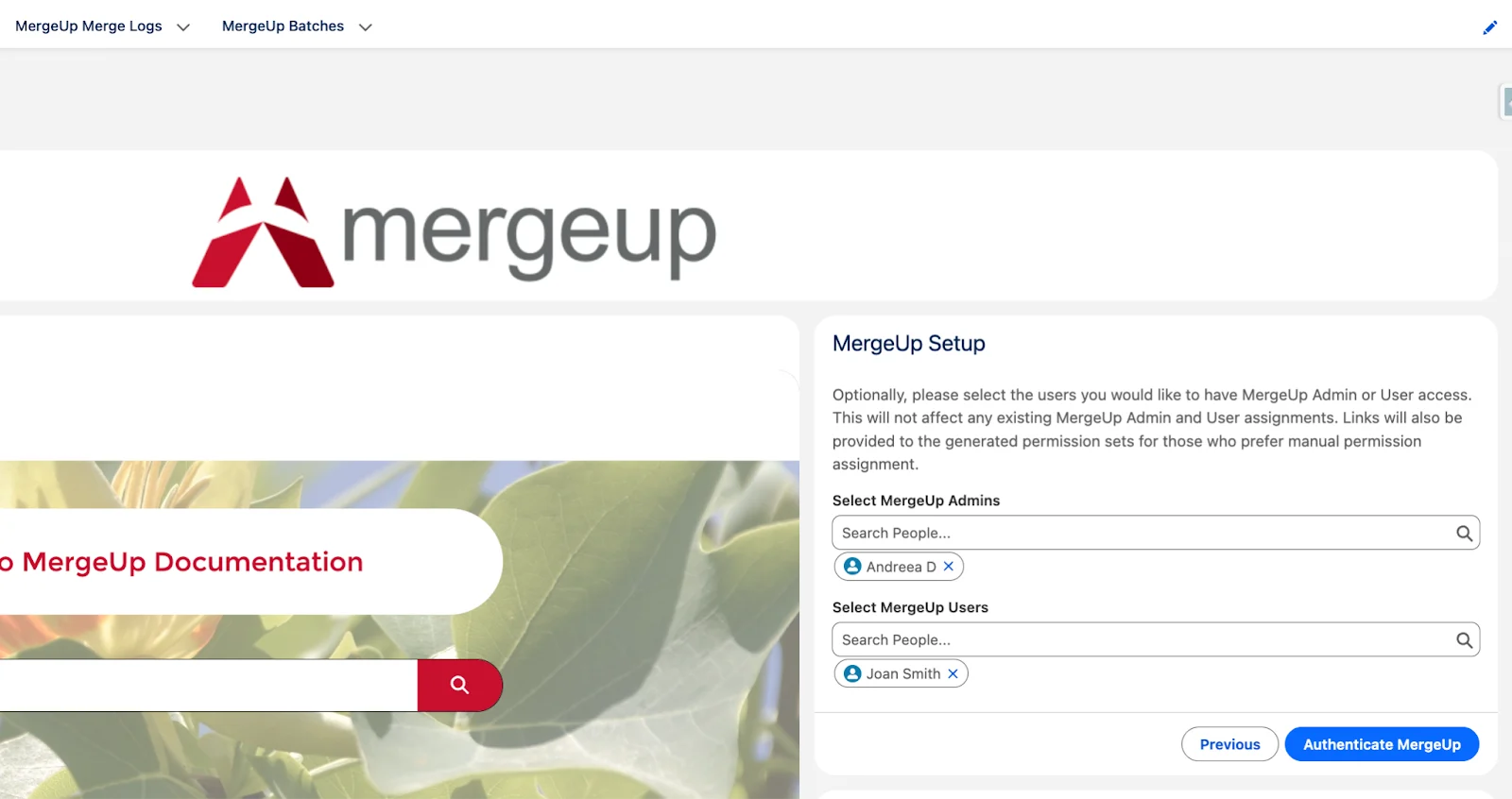
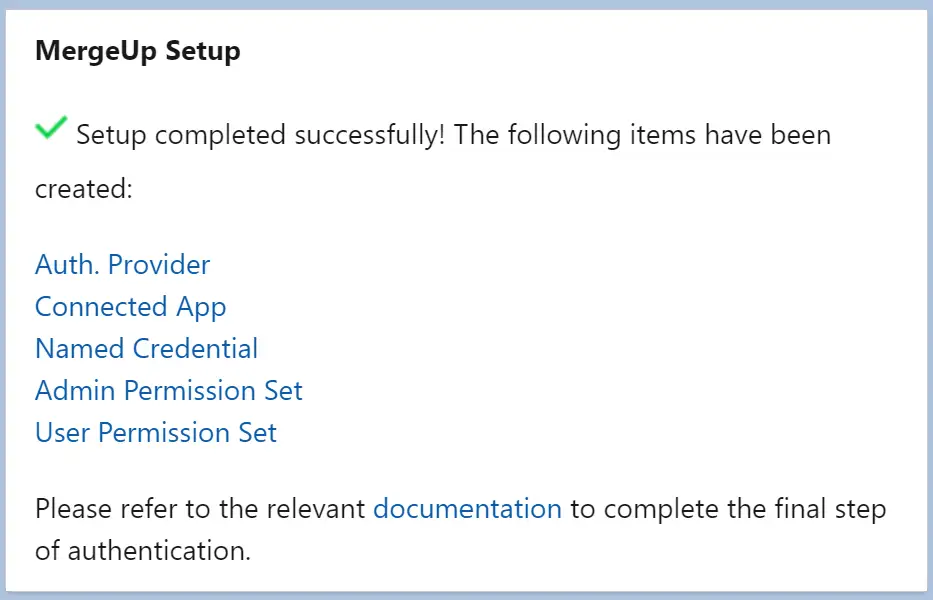
Setting up this tool entails only a few simple steps, and that is because most of the work is automatically done for you, thanks to a helpful wizard within the dedicated MergeUp Manager app. Following the package installation, you only need to have admin access and:
- Assign yourself the MergeUp Setup permission set.
- Start the setup wizard, and choose the contact email for the Connected App.
- Select who the MergeUp Admins and Users will be.
- Click one link to toggle the available for callout switch on the Named Credential.
In just a few seconds, everything is finalized, including the creation of the new permission sets as well as being assigned to users!
When it comes to templates and actual documents, it depends on how much you’d like to customize them as expected, but it can also be no time at all. If your template is straightforward and you already know exactly what should be included, MergeUp lives up to the promise of generating your first document in less than 15 minutes.
Support
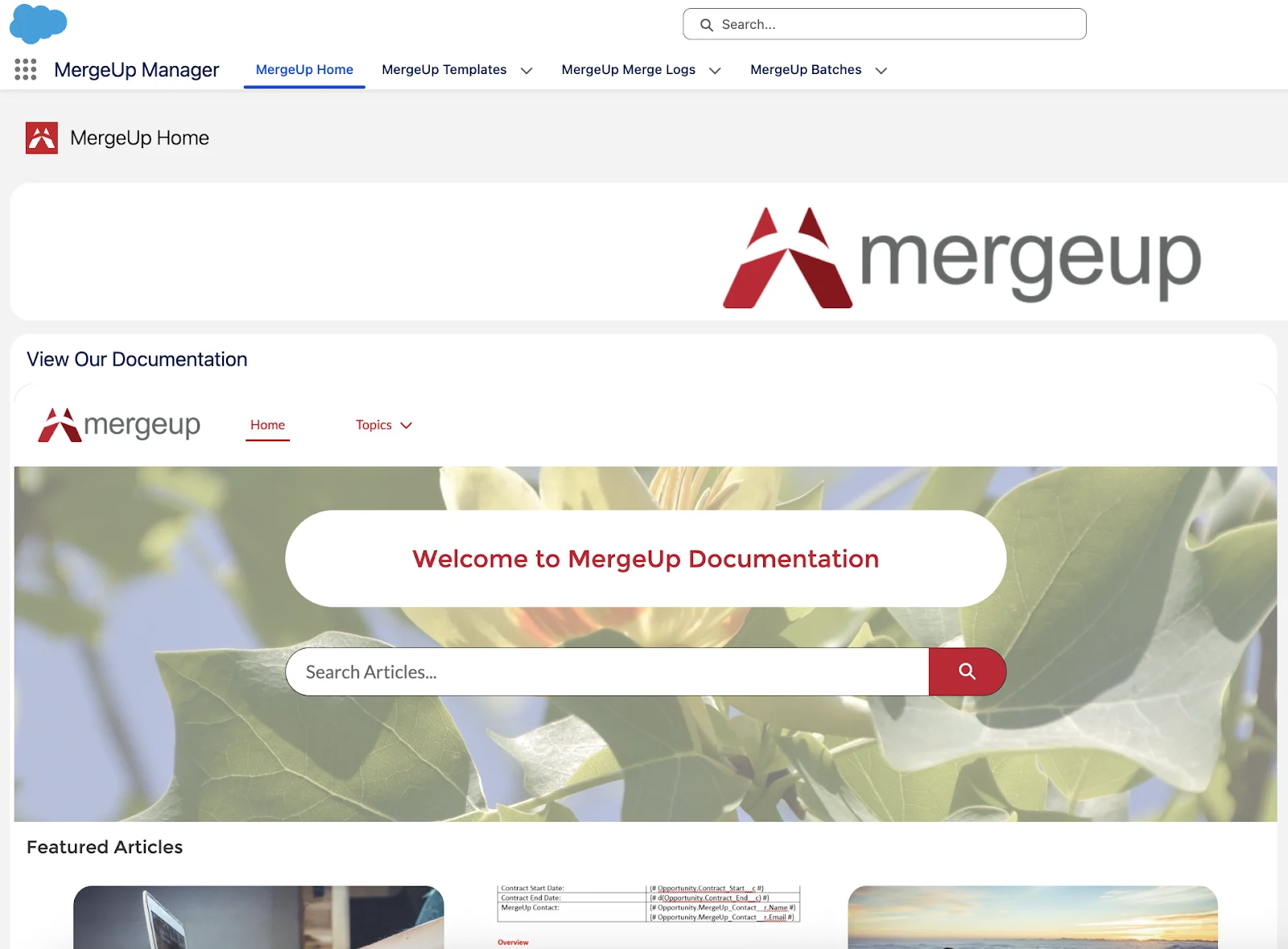
The readily available documentation includes answers to most questions you may have about MergeUp functionality, from how to get started to FAQs and release notes. All these resources can easily be accessed from the MergeUp Manager App in Salesforce, so there’s no need to navigate away.
If you have a specific question or use case that cannot be found in the documentation, you can always reach out to the support team as well by submitting a case.
Pricing
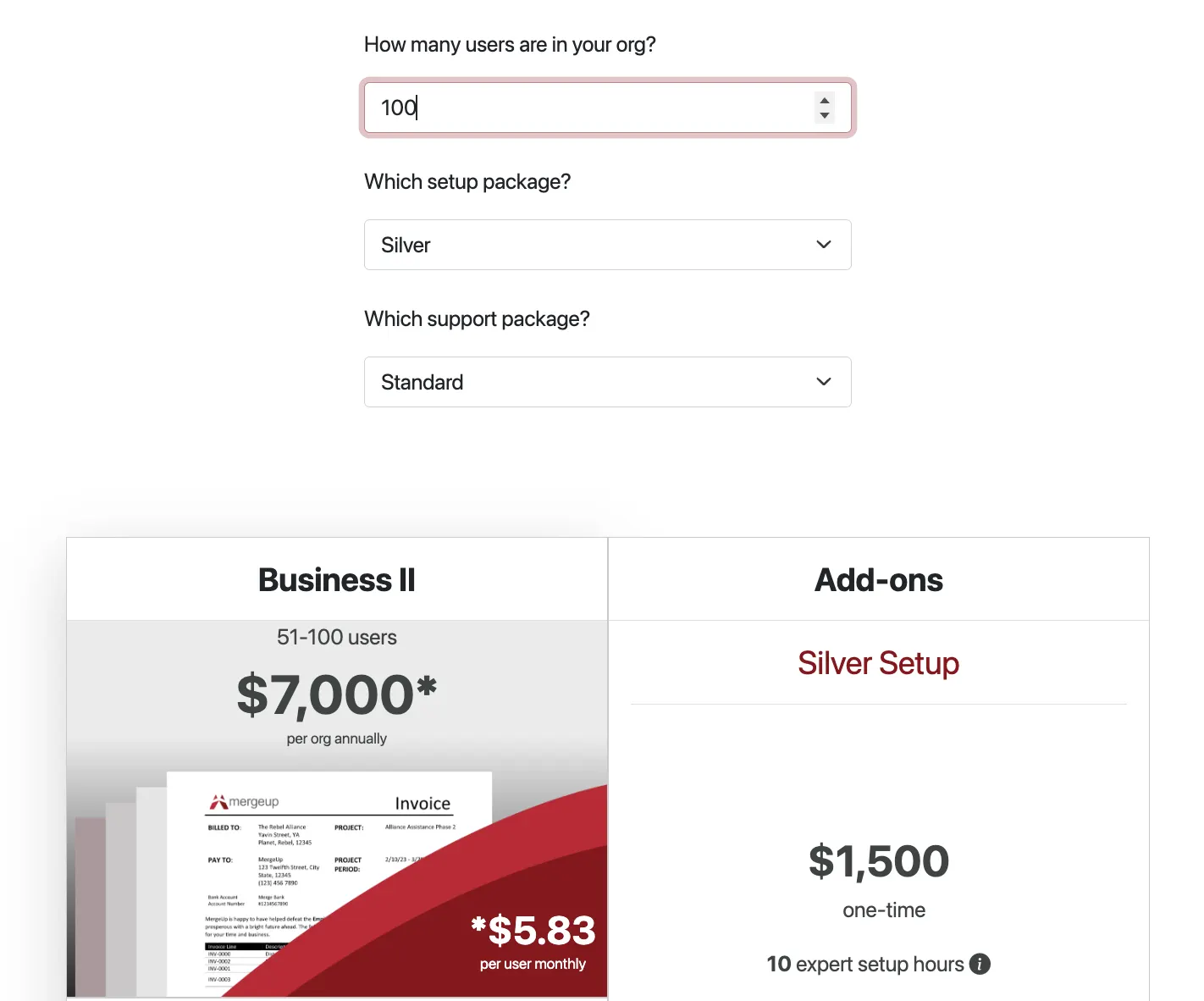
All price details are available on the MergeUp website, ensuring transparency and visibility into each of the available offerings. Based on the number of users within the company, the starting price is currently $2.5K for a team of a maximum of 10 users.
The pricing page offers an actual configurator experience, where you can input the number of users, but also check out the available setup and support packages the team offers to enhance your experience.
Summary
Finally, no matter the size of a business or the industry it operates in, chances are that documents with data from your CRM are being used by multiple teams across various processes. With MergeUp, document generation can be easy, flexible, and a way to completely forget about time-consuming template building with MergeUp AI.
If you’d like to take MergeUp for a spin yourself and check out how it adapts to your processes, you can book a fully tailored demo call here.