






One of the amazing features of the Lightning Experience is the ability to customize almost anything. Salesforce built Lightning from the ground up and designed it to be componentized, making it easy to redesign the experience to suit the way your team works. The best bit? It can be done with all clicks and no code, unlike Salesforce Classic.
Modifying a Lightning Page in Salesforce is not only a breeze, but with all the available components and new additions, such as Dynamic Forms or Conditional Formatting, the page can truly become your own. In this article, we will explore a few of the available templates to modify Lightning Record Pages.
Lightning Page Templates
First things first, what exactly are Lightning Pages? Salesforce defines them as occupying “a middle ground between Page Layouts and Visualforce pages”, with an added flexibility offered by the modular components you can mix and match to create bespoke layouts for Salesforce Lightning or the Salesforce mobile app. So in short, they are the next level from the Page Layouts, and specifically tailored for the Salesforce Lightning Experience.
Following the new additions mentioned above, and more specifically, Dynamic Forms, Salesforce professionals have started using Lightning Pages more and more, as they can now fill a gap which was only a dream for Page Layouts: filtering every single component based on criteria, down to the individual field level.
Whenever you choose to create a new Lightning Page, you will be prompted to choose the type of page, as well as which template you would like to start with. There are a few types of pages that can be created, each with its own particularities:
- App Page: Salesforce allows you to create multiple custom apps for different use cases, and this type of Lightning Page will help you create a dedicated homepage for your app. This can also be useful for single-page functions, like a method of managing custom app-specific settings from directly within the app, rather than having to go into Setup to change custom metadata or custom settings.
- Home Page: This type of Lightning Page is meant to help you customize the Lightning Experience Home tab. Available templates include the well-known Standard Home Page, but also the newer Seller Home, which you can use as is.
- Forecasts page: When Salesforce Forecasting is enabled, you can leverage the Forecasts Page option to tailor the forecasting experience for your sales leaders.
- Record Page: Maybe the most used out of the types of pages available in Lightning App Builder, Record Pages represent the Lightning “layout” for individual Salesforce records. You can create multiple Record Pages per object, thus ensuring that every team has exactly what they need when opening records in Salesforce.

Lightning Record Pages are what you and your users will see when accessing an individual record of your object. If you click into a Lead, Account, or Opportunity record, the screen you are presented with is the Record Page. This will be the Lightning Page type and the available templates that we will zoom into in this article.

When you navigate to create a new Record Page, you are asked to select the object you wish to create one for and are then presented with a number of standard templates to choose from. Once you’ve selected a template, you can modify it to your heart’s content with a variety of standard Lightning components. Creating custom templates is an option as well, but it will require a developer to do so.
Instead of choosing a template, you can simply clone one of the default pages. Make sure to pay attention to the available form factor for each – while most templates are compatible with both Desktop and Mobile, some of them are Desktop only.
Let’s check out a few of the out-of-the-box Record Page templates.
Header and Right Sidebar
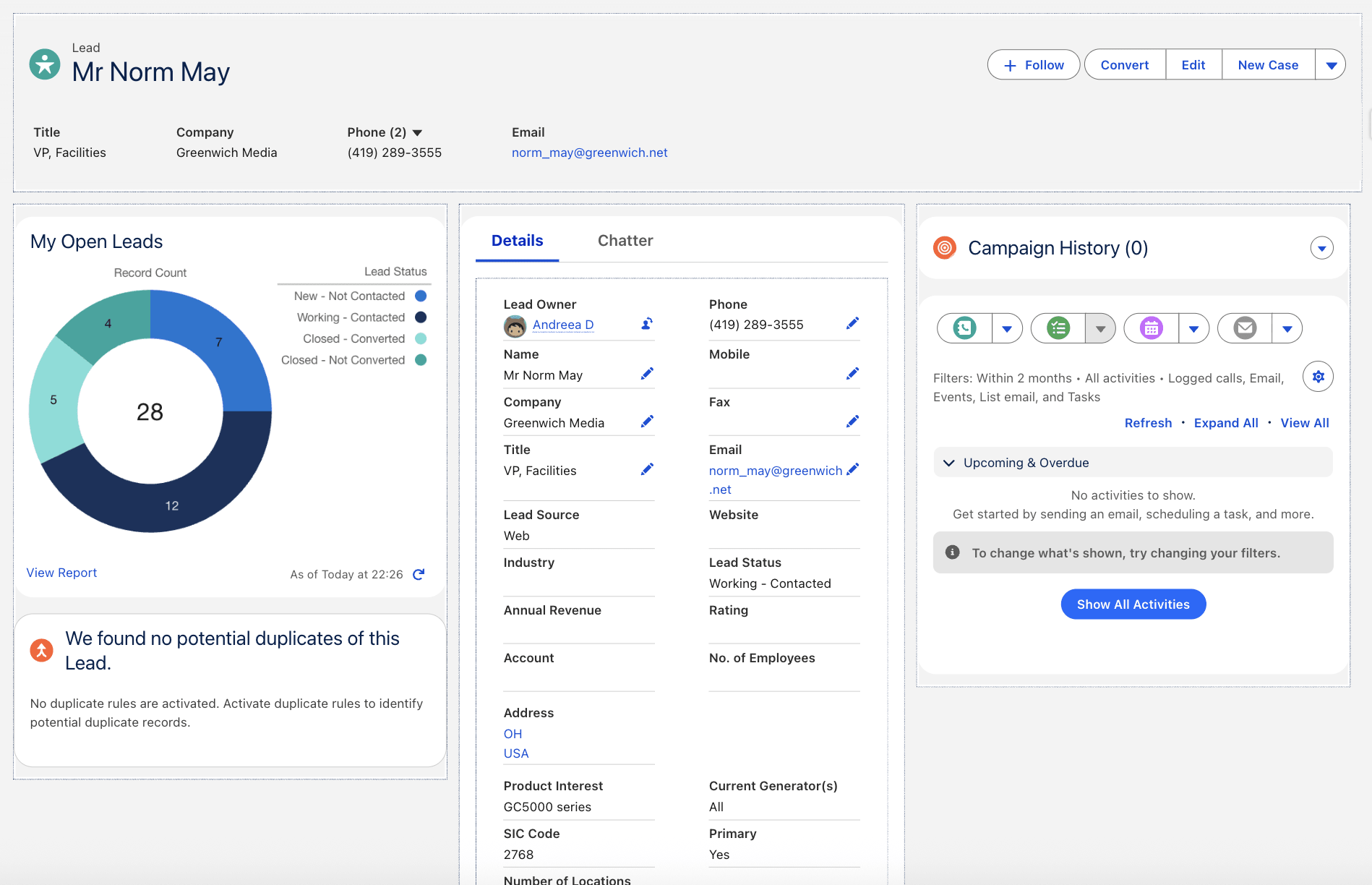
One of the default Lightning Record Pages is up first. This page has been slightly modified from the default, but the template remains the same. This template is using the Highlights panel in the top section, with a tabs component on the left showing record fields and Chatter across the tabs, and the related list and other components on the right column.
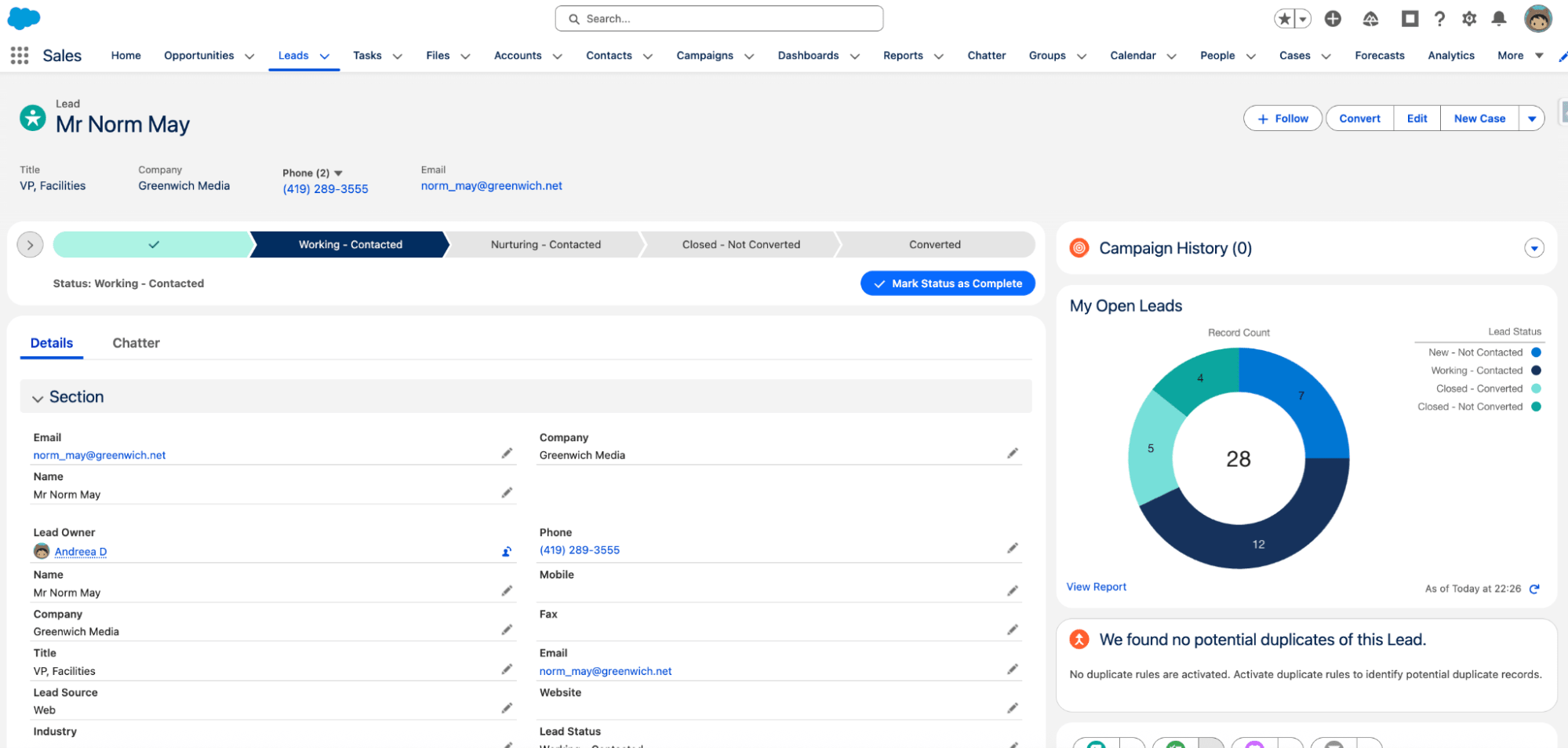
Since most of your users are probably already familiar with this look and feel, it is still a safe template to choose when creating other pages, but you can start making changes to introduce newer features into the mix. For example, make sure to explore the new Dynamic Highlights Panel, rather than leveraging the Compact Layouts and the default Highlights Panel for added flexibility.
Header and Three Regions
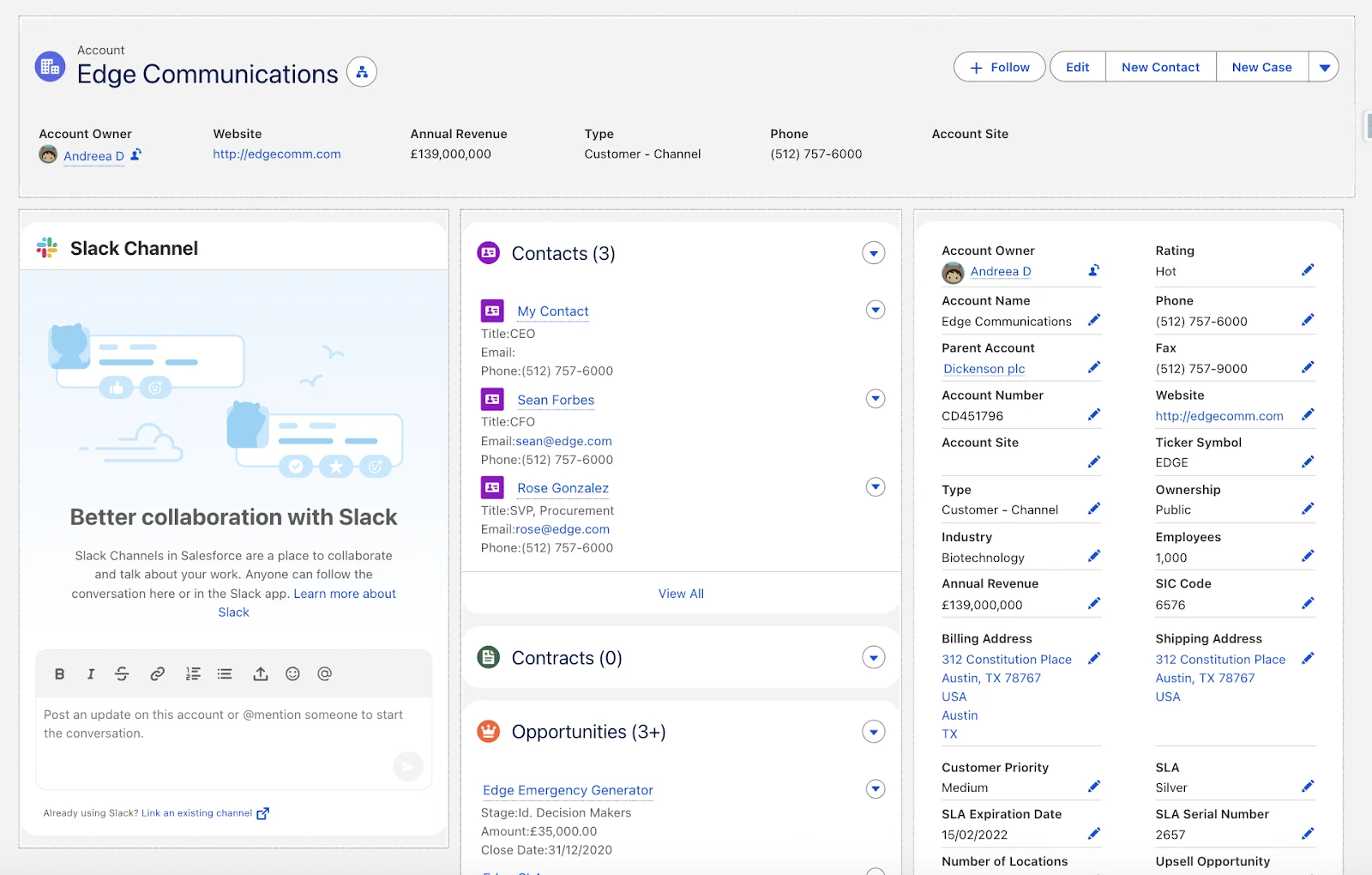
Next up, we have the Header and Three Regions Lightning Page. Similar to the above, but with an extra column sitting in the middle and evening out the widths. This template is great for a team that wants to see more on the same page at once and isn’t concerned with information overload. Here we have Chatter on the left, a tabs component in the middle, and the details component on the right.
With the new Salesforce Channels in Slack being available nowadays, the template can remain the same, but once again, it’s all about replacing some components with the newer feature if warranted. In this case, let’s switch Chatter with the new Slack component.
Header, Sub-Header, and Right Sidebar
A slightly different template this time is one with a header, but also a sub-header at the top to display various summary information, and two regions below. Here, the Tab component works well at the top and can be set to show the most relevant related list first as the default one. Below this sits the Details and Activity component.
Based on your needs, make sure to review exactly how much page space this approach takes and that the most important information is immediately visible. Ultimately, if the Tabs component is not ideal, you can switch it with another one that supports your ideal experience.

Header and One Region
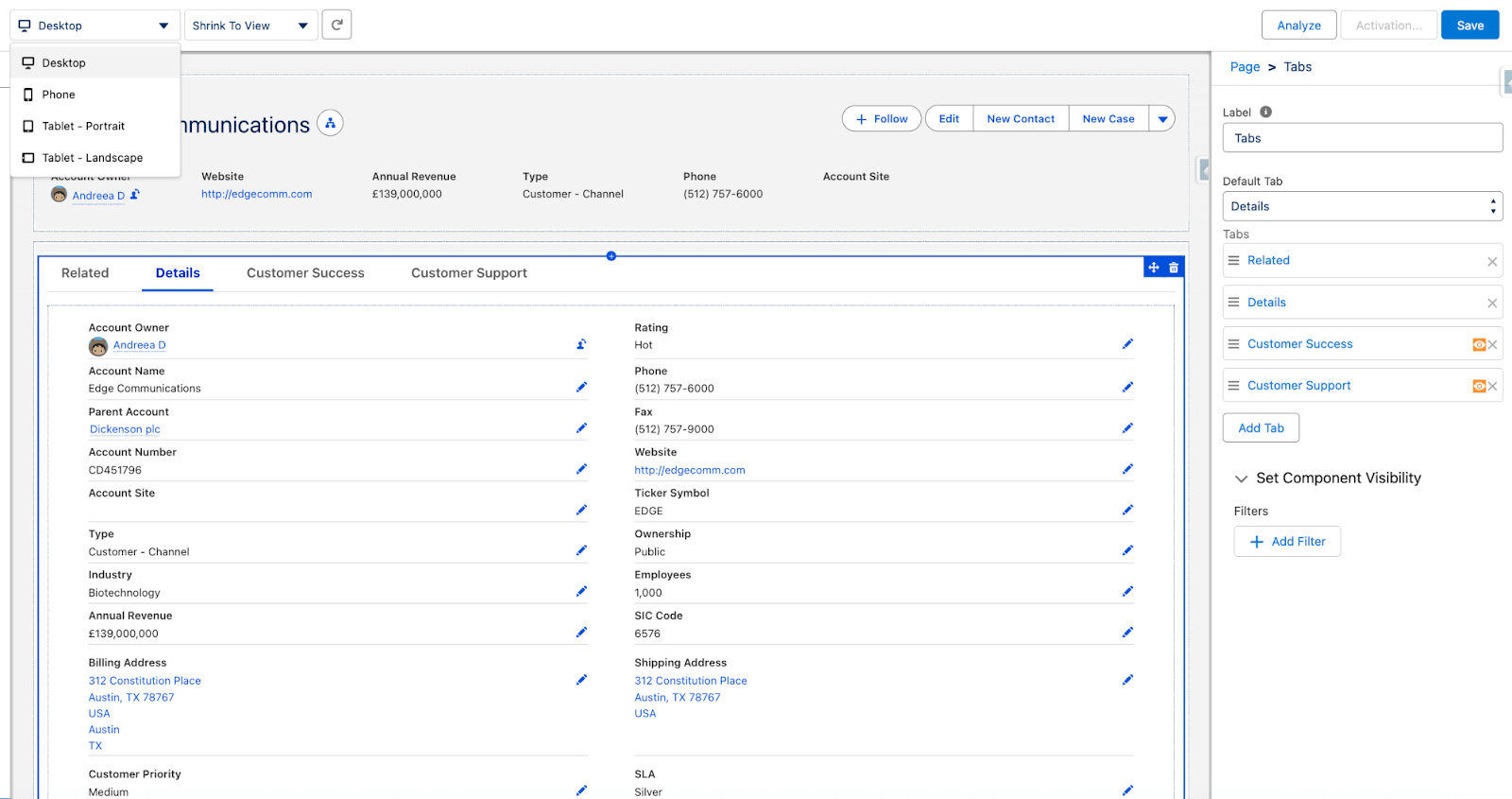
Another slightly different template that only contains the highlights panel and one column is the Header and One Region. This simply contains the highlights panel with a large Tabs component, perfect if you have a lot of information that needs to be shown within one component.
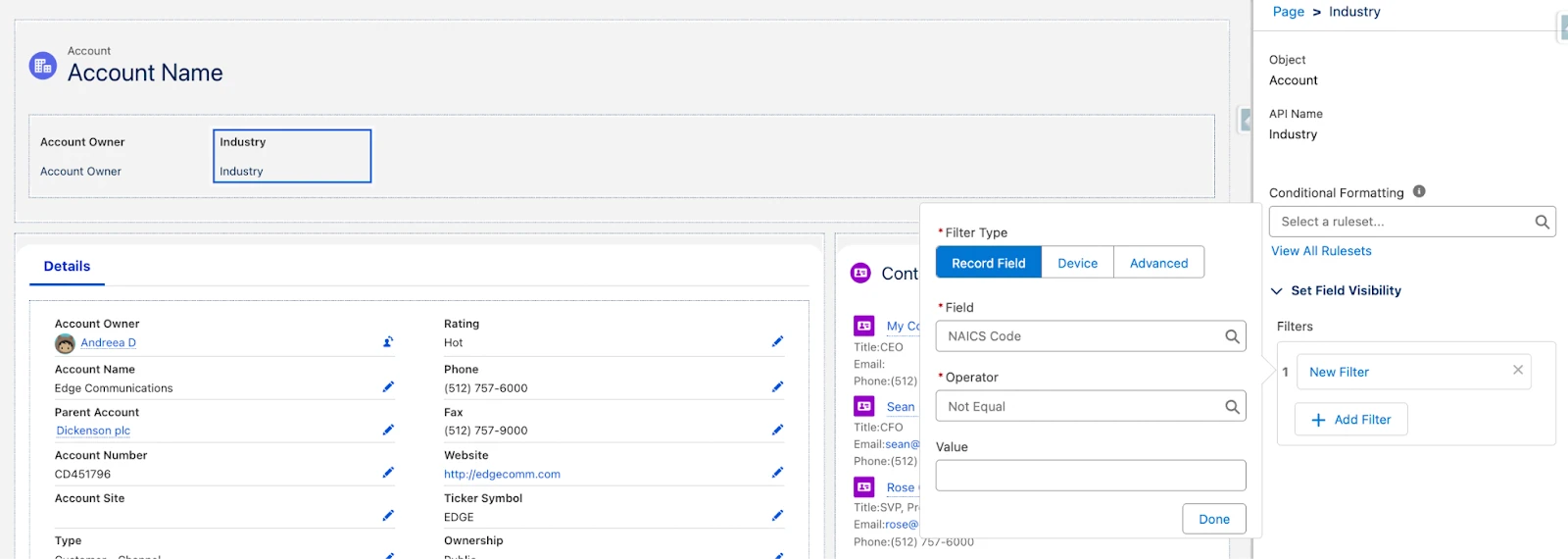
With the still fairly new option to filter individual tabs, this template might become a new favourite to achieve an experience that ensures the initial focus on the default tab, while everything else is thoughtfully placed under the other tabs. For example, resources meant for Customer Success and Customer Support can be organized and filtered based on the user to avoid clutter and have a dedicated space that each team can use.
Pinned Left Sidebar

If your team enjoys Console Apps, there are a few available templates you can peruse before choosing the right one for the desired experience. One of them is the Pinned Left Sidebar (two regions), which, alongside all the other pinned region templates, are specifically designed for Console Apps navigation and is only available for the Desktop form factor.
Building Lightning Pages
Building Lightning Pages couldn’t be simpler, yet tailoring them for your users will surely make an impact. With a few customizations and even filters, you can get going in a sandbox in under 10 minutes:
- Navigate to Lightning App Builder in Setup, and click “New”.
- This will bring you into the nifty-looking Lightning App Builder and first ask you which page you wish to create. For the purposes of this tutorial, hit “Record Page”.
- Next, give your Lightning Page a name, and select an object. If this is your first time building with the Lightning App Builder, I recommend starting with Leads, Accounts, or Opportunities since they are the most common standard objects used in orgs.
- After you click “Next”, you will then have the option to select a template or clone an existing one. I recommend starting fresh to get the creative juices flowing! Also, be sure to avoid the pinned templates unless this is what you are after and you are using a Console App.
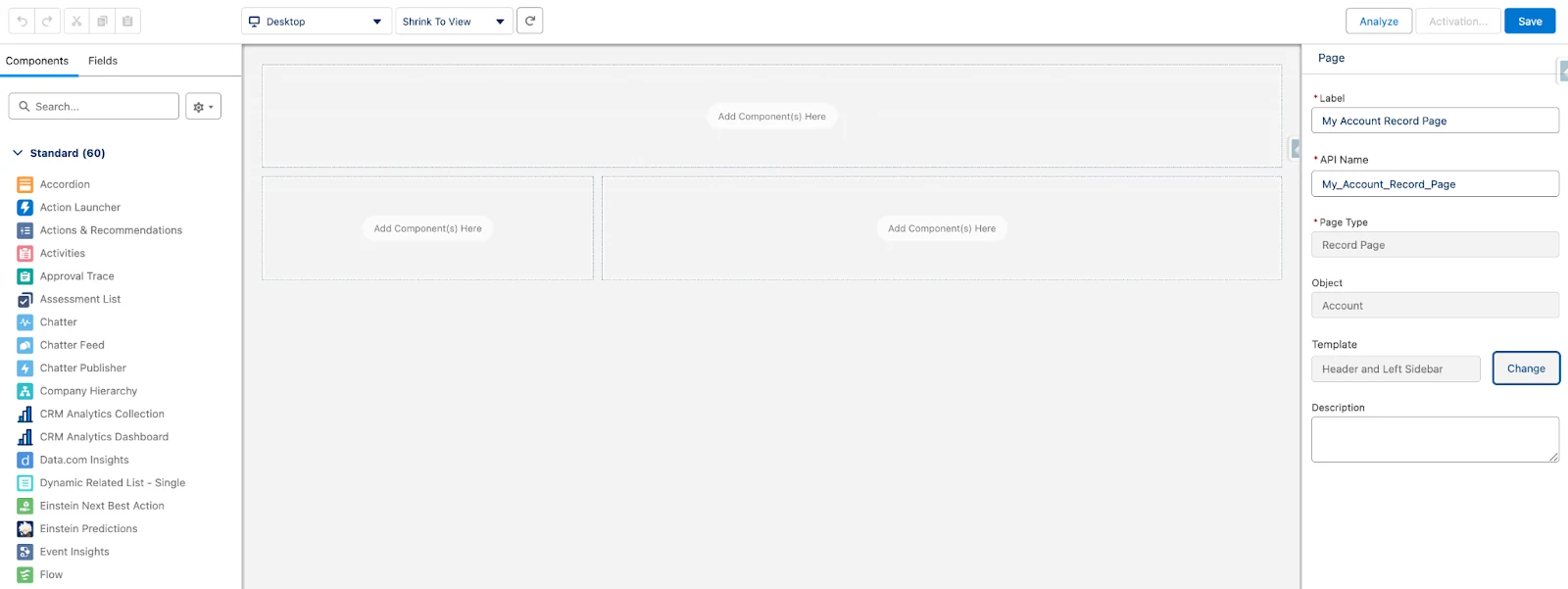
- After hitting “Finish”, you are now ready to drag and drop standard or custom Lightning Components to create your perfect page.
- If the look and feel of the template is not what you expected, you can also change the template and start over.
- Don’t forget about additional features to try out, such as Dynamic Forms, Dynamic Actions, or even embedding a Screen Flow on the page! While you might not need to use everything, experimenting with each of them will help you select the best ones for your use case.
Final Thoughts
Lightning Pages, and especially Lightning Record Pages, have come a long way! With the attention shifting from Page Layouts to Record Pages recently, chances are that you will start seeing the available templates more and more, as you tailor your pages based on app or role.
How often are you creating Lightning Pages? What is your go-to template? Let us know in the comments section below!





Comments: