








Last Activity on Contact is a date field that sales, marketing, and ops teams rely on regularly. It drives re-engagement campaigns, lead scoring, pipeline reviews, and more. But if your org has Shared Activities enabled, this field only captures activity for the primary contact on a Task or Event. Secondary contacts do not get updated, which means the data that a lot of teams are reporting on is incomplete.
This article explains why this happens and how to fix it using Rollup Helper and a formula field.
Why Last Activity Date Fails With Shared Activities
Shared Activities is an org-wide setting that lets one Task or Event relate to multiple contacts at the same time. To check if it is enabled in your org, go to Setup → Quick Find → Activity Settings and look for the checkbox “Allow Users to Relate Multiple Contacts to Tasks and Events”.
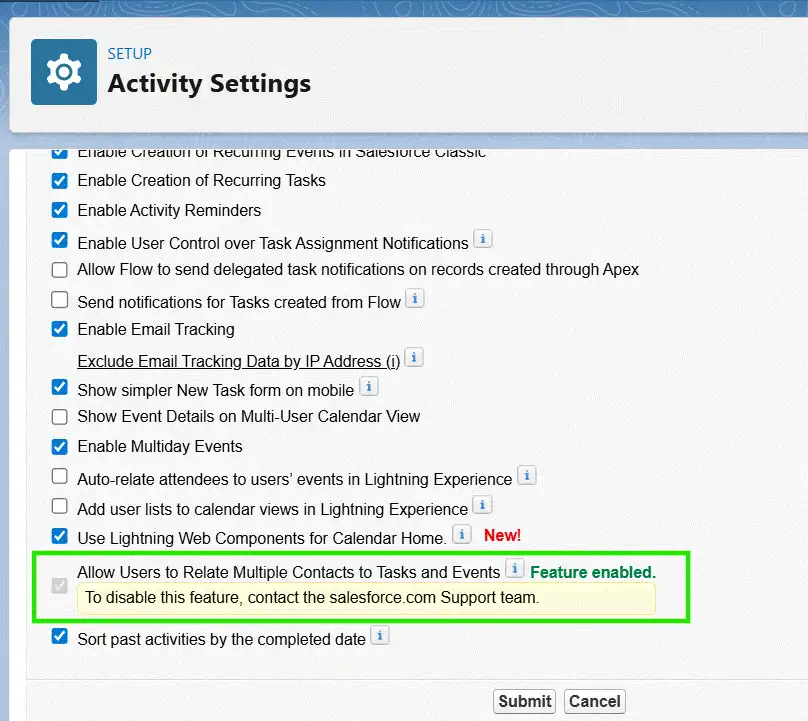
When Shared Activities is enabled, Salesforce stores those contact relationships through two junction objects: TaskRelation for Tasks and EventRelation for Events. One contact is set as primary through the WhoId field. The rest are stored as secondary relations.
The issue is that Salesforce only updates the Last Activity date for the primary contact. Secondary contacts are ignored. So if your rep had a meeting with three contacts and one is set as primary, the other two keep whatever date was there before, even though they attended the same meeting. Salesforce has documented this as a known limitation.
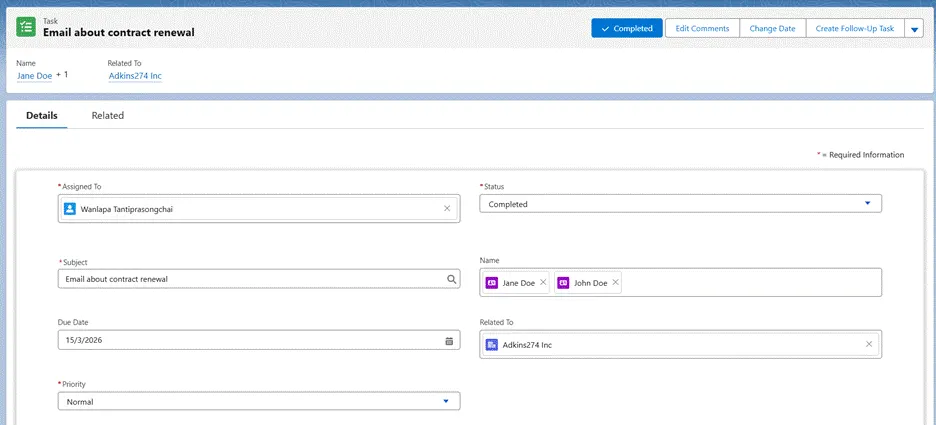
Take this task as an example. It was completed on 15 March 2026 and is related to two contacts: Jane Doe as the primary contact and John Doe as a secondary contact.
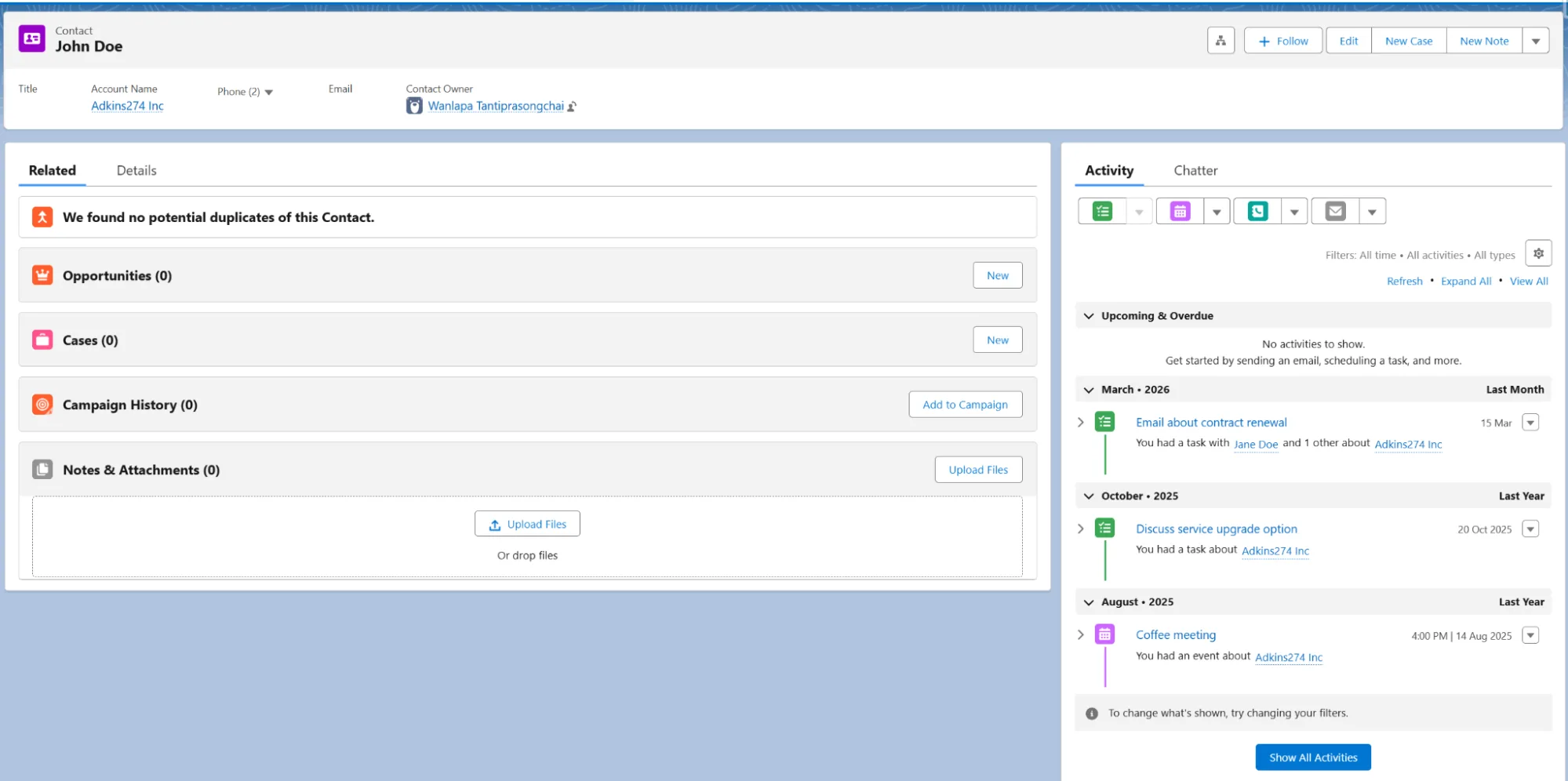
If you open John Doe’s contact record, you can see this task appearing in his activity timeline under March 2026.
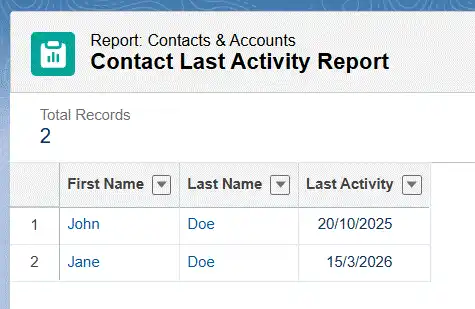
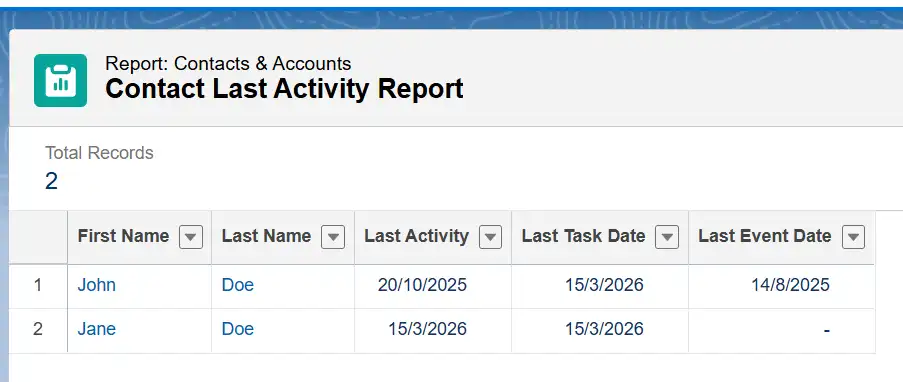
But when you pull a report on Contact’s Last Activity Date, John Doe still shows 20/10/2025. Because he was not the primary contact on that task, his Last Activity Date was never updated. Jane Doe, who was primary, shows the correct date of 15/3/2026.
“If your team regularly logs activities against multiple contacts at once, it is worth checking whether Last Activity Date is actually showing what you think it is.”
The Business Impact on Reporting
This affects any process that relies on the Last Activity Date being accurate:
- Re-engagement campaigns: Marketing pulls a list of contacts with no recent activity. Some of those contacts were in a meeting last week as a secondary relation and should not be on that list.
- Sales follow-up timing: A rep filters contacts by Last Activity Date to decide who to reach out to next. Secondary contacts show an old date and get skipped.
- Lead scoring: A contact drops in score because their Last Activity Date looks old, even though they were recently engaged.
- Account activity tracking: A rep checks when the account was last touched. The date is wrong because the contacts were secondary relations on the most recent activities.
Creating Task and Event Rollup Fields
The workaround is to create two rollup fields on a Contact that calculate the maximum activity date from TaskRelation and EventRelation directly. This captures activity for all related contacts, not just the primary one.
There are several rollup tools on AppExchange that can handle this. For this article, I will be using Rollup Helper.
Task Rollup: Last Task Date
Start by creating a new Date field on Contact called Last_Task_Date__c. This is where Rollup Helper will store the result.
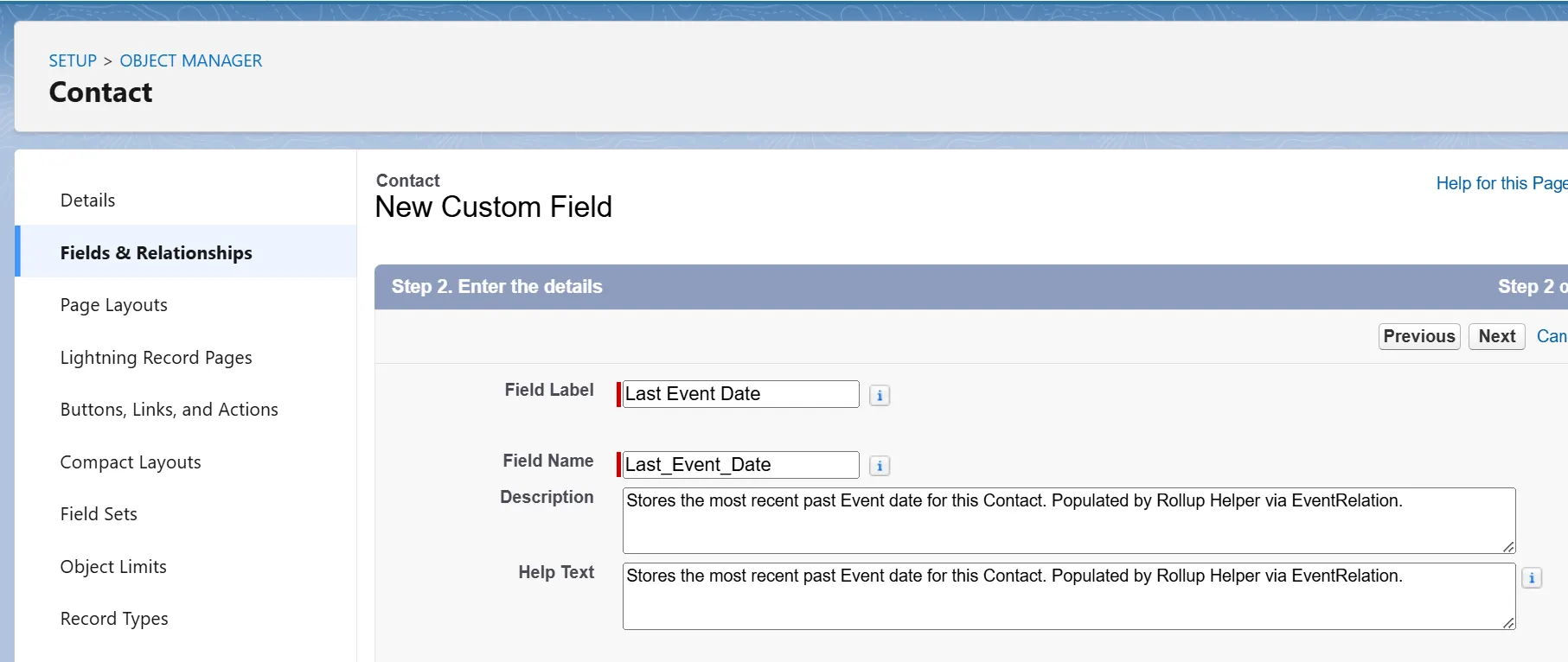
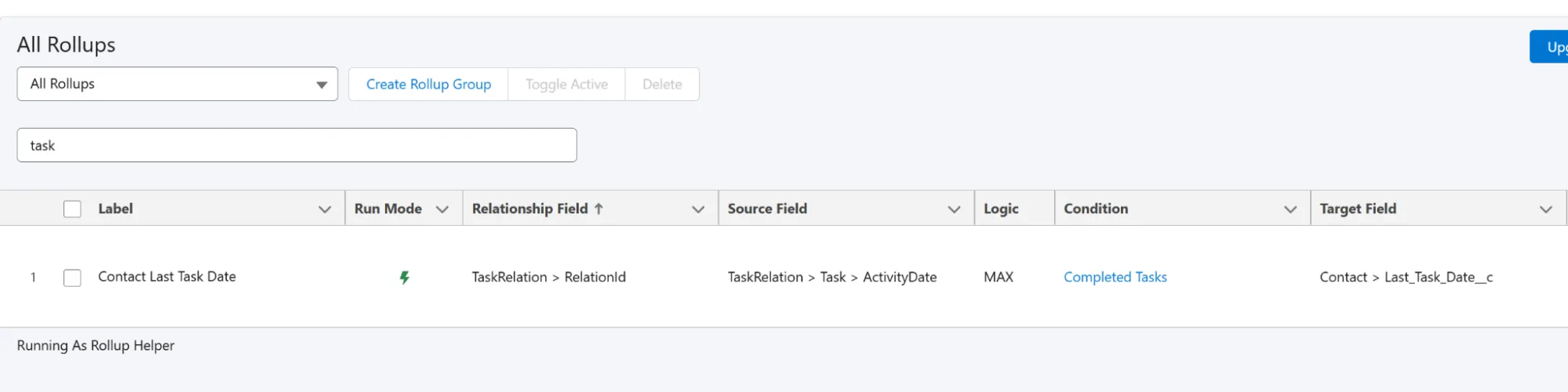
Then configure the rollup with these settings:
| Setting | Value | Notes |
|---|---|---|
| Rollup Object (Parent) | Contact | The object being rolled up to. |
| Source Object (Child) | TaskRelation | Include all related contacts. |
| Rollup Type | MAX | Returns the most recent date. |
| Field to Aggregate | Task: ActivityDate | Date field on the related Task. |
| Filter Criteria | IsWhat = false AND Task: Status = Completed | Contacts only, completed tasks only. |
| Result Field | Last_Task_Date__c | New Date field on Contact. |
Here is a screenshot of the Rollup Helper setting for Last Task Date:
Event Rollup: Last Event Date
Create another Date field on Contact called Last_Event_Date__c.
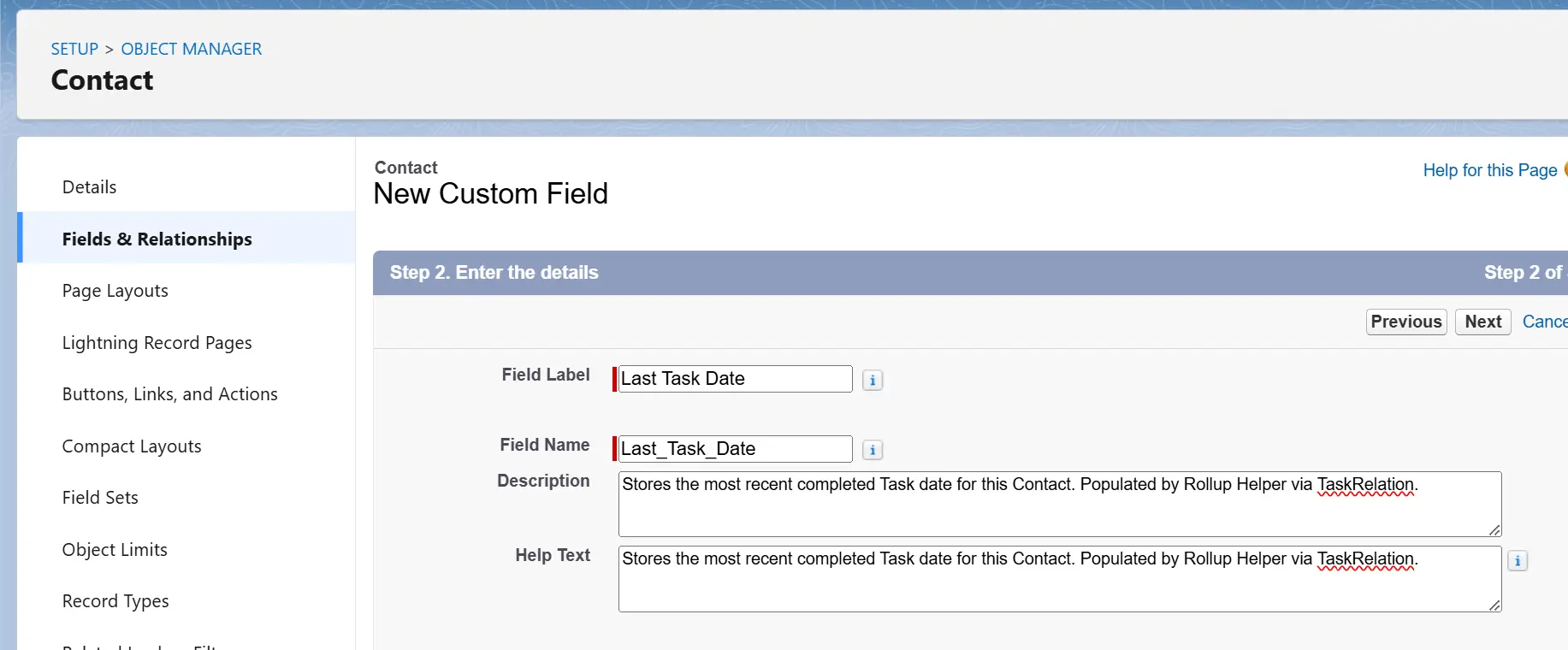
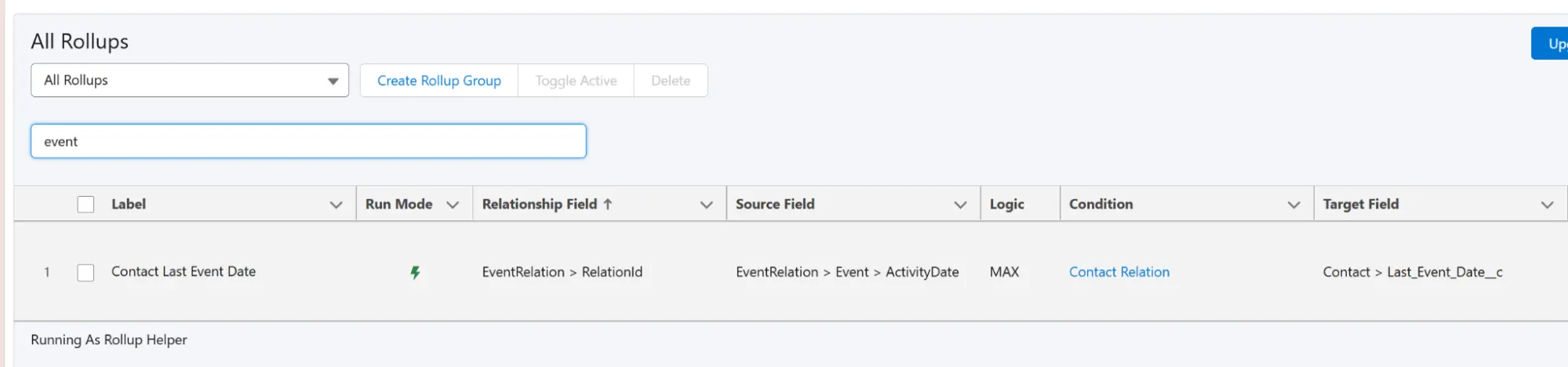
Then set up a second rollup for Events:
| Setting | Value | Notes |
|---|---|---|
| Rollup Object (Parent) | Contact | The object being rolled up to |
| Source Object (Child) | EventRelation | Include all related contacts |
| Rollup Type | MAX | Returns most recent date |
| Field to Aggregate | Event: ActivityDate | Date field on the related Event |
| Filter Criteria | IsWhat = false AND Event: EndDateTime <= TODAY | Contacts only, past events only |
| Result Field | Last_Event_Date__c | New Date field on Contact |
Here is a screenshot of the Rollup Helper setting for Last Event Date:
A few things worth knowing:
- By default, Rollup Helper recalculates rollups on Task and Event objects in real-time. No scheduled job needed.
- Run a manual recalculation in Rollup Helper after your initial setup to backfill existing Contact records. After that, Rollup Helper will handle updates automatically.
- Test in a sandbox first. It’s always good practice before pushing any configuration to production.
- Make sure the new fields are visible to the right profiles and permission sets, otherwise the updated dates will not show up for the people who need them.
Once both rollups are saved and the initial manual recalculation is done, you can verify the results by checking your report. In the report below, you can see that John Doe’s Last Task Date and Last Event Date are now correct, which matches the task that was completed on that date. However, his standard Last Activity Date still shows 20/10/2025 because he was a secondary contact on that task. This confirms the rollups are working correctly.
Building a Consolidated Formula Field
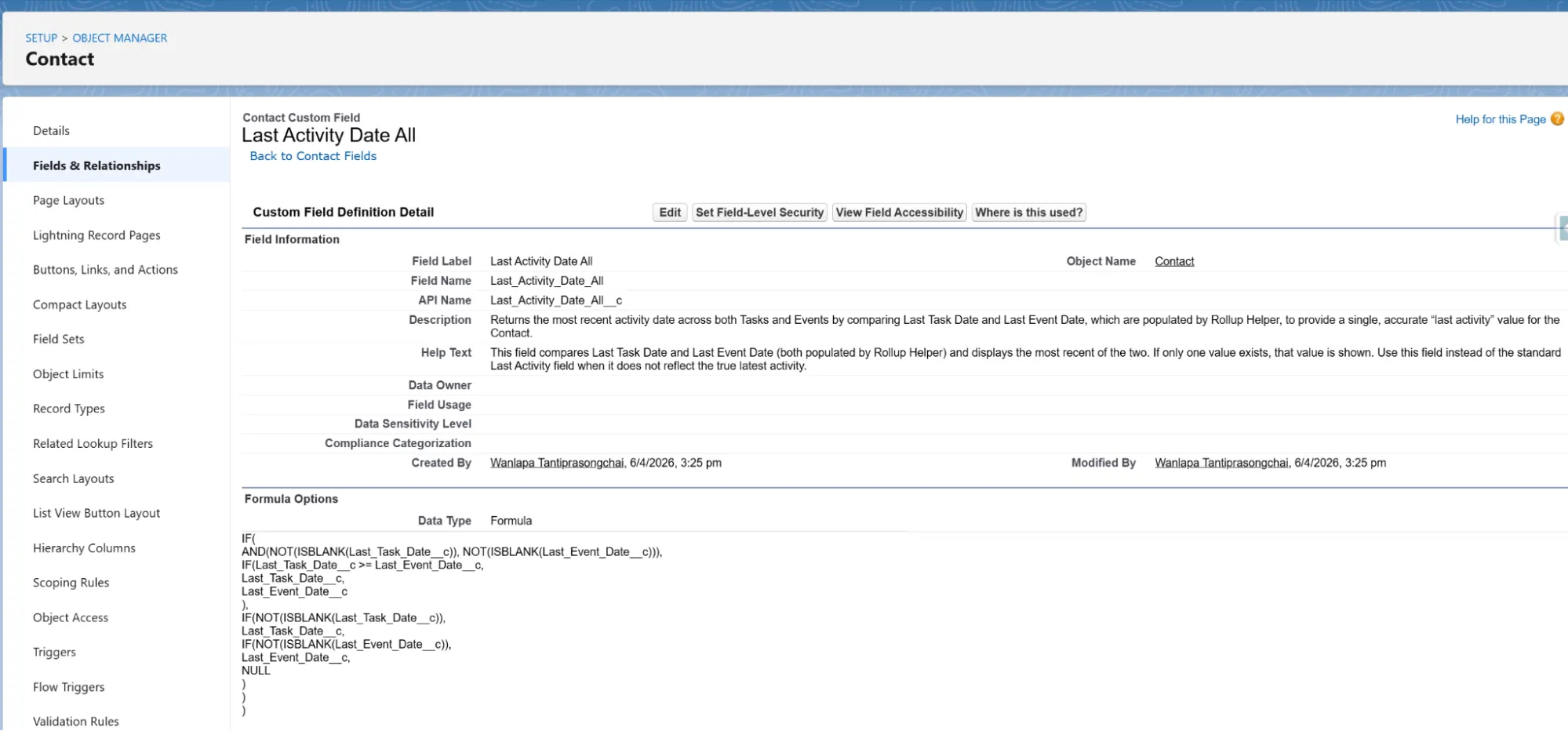
Now you have two rollup fields, one for Tasks and one for Events. The next step is to combine them into a single field that returns whichever date is more recent. Create a Formula field of type Date on Contact called Last_Activity_Date_All__c and paste in this formula
IF(
    AND(NOT(ISBLANK(Last_Task_Date__c)), NOT(ISBLANK(Last_Event_Date__c))),
    IF(Last_Task_Date__c >= Last_Event_Date__c,
        Last_Task_Date__c,
        Last_Event_Date__c
    ),
    IF(NOT(ISBLANK(Last_Task_Date__c)),
        Last_Task_Date__c,
        IF(NOT(ISBLANK(Last_Event_Date__c)),
            Last_Event_Date__c,
            NULL
        )
    )
)
If both fields have a date, it returns the more recent one. If only one has a date, it returns that one. If neither has a date, it returns null, so contacts with no activity do not show a zero date.
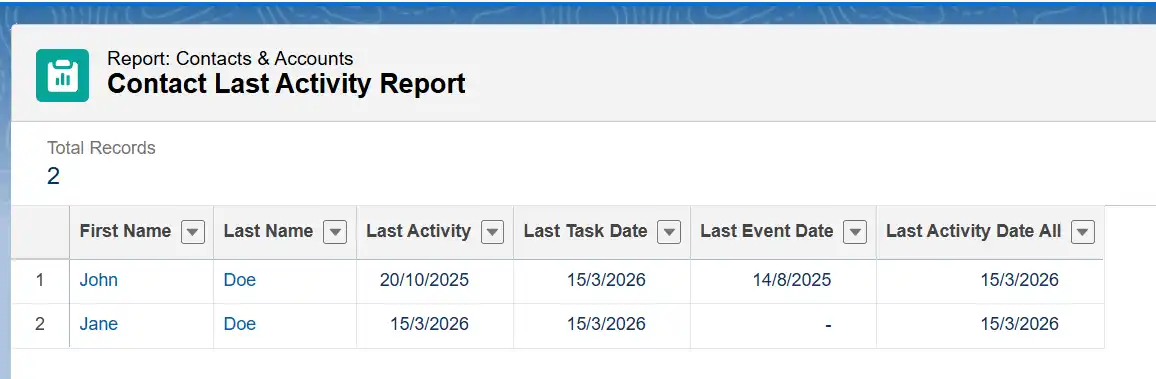
Once saved, use Last_Activity_Date_All__c in your reports and list views instead of the standard Last Activity Date.
Reporting on True Engagement Data
With Last_Activity_Date_All__c in place, here are a few useful reports to start with.
- Contacts Without Recent Activity: Filter a Contact report where
Last_Activity_Date_All__cis older than 30, 60, or 90 days. This gives marketing a much more accurate list for re-engagement compared to using the standard Last Activity Date. - Activity Recency by Owner: Group by Contact Owner and add
Last_Activity_Date_All__cwith a MAX aggregation. Useful for managers who want to see how recently each rep has been in contact with their accounts. - Account Engagement Overview: Filter contacts by Account and sort by
Last_Activity_Date_All__cdescending. This gives a quick view of which contacts within an account have been recently touched and which have not. - Contacts Never Contacted: Filter where
Last_Activity_Date_All__cis blank. These are contacts with no completed Task or Event on record at all.
Final Thoughts
Last Activity on Contact only tracks the primary contact on a Task or Event. When Shared Activities is enabled, secondary contacts are not included, which makes the field unreliable for reporting or any automation that depends on engagement recency.
The workaround:
- Use a rollup app (in this article, we used Rollup Helper) to roll up the maximum activity date from
TaskRelationandEventRelationon Contact, filtering for completed Tasks and past Events only. - Store the results in
Last_Task_Date__candLast_Event_Date__c. - Combine them into
Last_Activity_Date_All__cusing a formula field. - Replace Last Activity Date with
Last_Activity_Date_All__cin your reports and list views.
If you are already using Last Activity Date for re-engagement or scoring, it is worth running both fields side by side for a while to see how much the data differs. Drop a comment below if you have questions or found a different approach.