

There’s no doubt that the future is agentic, and we’ve well and truly established that Flow has its place in that future. Just like for us, Flow serves as a tool to help agents gain access to data and perform functions within Salesforce.
Flow is still a critical part of your Salesforce mastery journey in the agentic era, and in this article, we’re going to learn how to build Flows that agents and humans alike can benefit from within your business.
The Rise of Triggerless Flows
A majority of Flows that I’ve built in the past have been either Triggered Flows (Record-Triggered, Schedule-Triggered, etc) or Screen Flows (having a user interface used to gather information from end users). This worked well when a majority of the use cases that I was building for were when business users made changes to records, or I needed to capture information from them.
In the Agentforce era, things are drastically different! Agents operate more directly – they call Flows directly, not requiring changes to records to trigger them. Similarly, they interface with Flows differently to humans. While we require buttons and input fields, they simply require variables that are available for input and output.

A simple way of looking at this is comparing it to the Tesla Cybercab – the upcoming autonomous vehicle announced back in 2024. One thing that took many people by surprise was the lack of a steering wheel.
This is because Tesla’s Autopilot and FSD software doesn’t require a physical steering wheel to operate the vehicle, and the intent was to remove the driving task from the human passengers.
The same goes for Flows and Agents. Agents don’t need a user interface to work with Flows – they can simply operate them by being given access and given context about what needs to go into an input field to receive an outcome. Just like how Flow or Apex can call Autolaunched Flows in a Subflow fashion, Agents can call Autolaunched Flows directly as well.
Importance of Description Fields
Context is critical when it comes to agentic workflows. This is true when an agent is asked to perform a task (they need to know what the task is, and what the record is that they’re working with), but also when they’re given the tools to perform a job. If it isn’t clear how an agent is to use the tools that it has been given, it will become a lot more difficult for it to complete its task.
An analogy to keep in mind is using a new vacuum cleaner to clean your house. The context around the task is that you need to do a job – such as vacuum specific rooms in your house. There’s one more piece of context required, and that is how to use the new vacuum cleaner. This context can be provided to you by means of an instruction manual.
This is something that I go into more detail about in another article, but to sum it all up: your descriptions are the most rudimentary form of documentation that you can use to communicate to an agent and provide it with some built-in context.
Your goal should be to make sure that every description field in your Flow (including the Flow Description) is populated with valuable, useful information that clearly explains what the purpose of a Flow is, where it will be used, what is required for each of the input fields, and what can be expected from the outputs.
Building an Agent-Ready Flow
If you’re totally new to building Flows, you may want to start by reading The Complete Guide to Salesforce Flow or How to Create a Salesforce Screen Flow, but if you’re more familiar with Flow and just wanting to learn about building in the agentic era, welcome to the guide portion of this article!
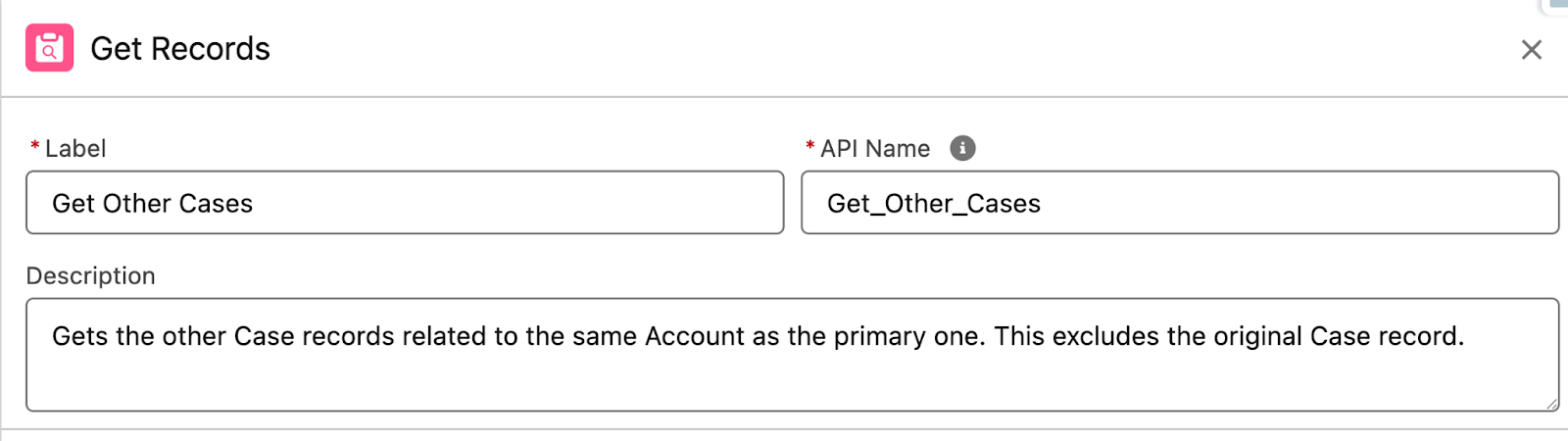
In this instance, the use case is simple – I’m building out a Flow to get the other Cases related to the same Account as the original Case. There’s an agent that will check these other Cases to see if there are any potential relationships between the primary Case and any other Cases under that Account.
Building the Flow is super simple. We’re going to start by creating a new Autolaunched Flow and building all the input/output variables that we’ll need. We need to create two input variables and one output variable.
API Name: inputAccountId
Description: The Id of the Account that this Case is related to.
Data Type: Text
Multiple values: False
Default value: Blank
Available for input: True
Available for output: False
API Name: inputCaseId
Description: The Id of the primary Case record.
Data Type: Text
Multiple values: False
Default value: Blank
Available for input: True
Available for output: False
API Name: outputCases
Description: The Cases that are being sent back to the Agent.
Data Type: Record
Object: Case
Multiple values: True
Available for input: False
Available for output: True
Next, we’ll add a Get Records element onto the canvas. This will be used to get the Case records and store them in the output variables.
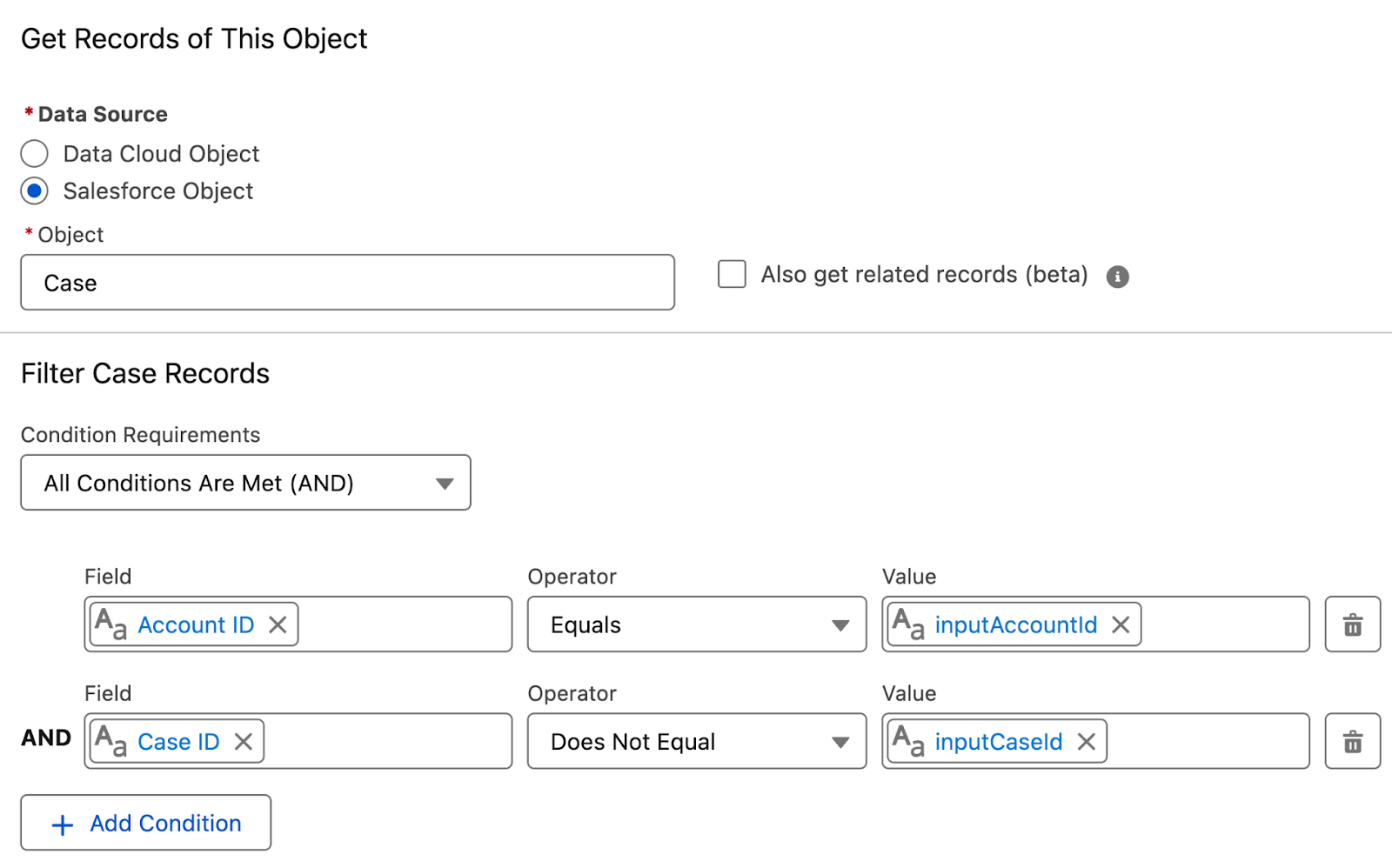
We’ll gather Salesforce Object: Case records that have an AccountId equal to the inputAccountId and do not share the same Id as the original Case record. In other words, all the OTHER Cases related to the same Account record.
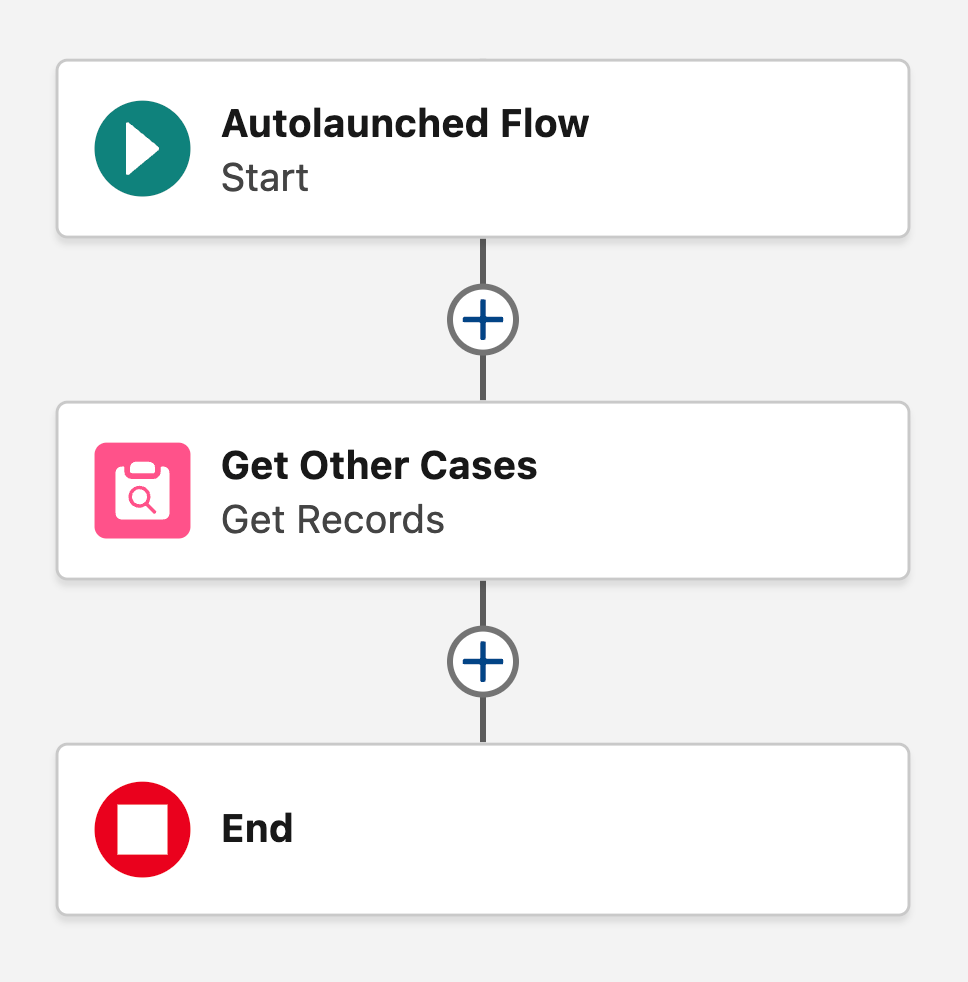
This is where we get a bit clever and build the Get Records Element in such a way that it’s the only element required in the whole Flow. We’re going to store All Records, but instead of leaving the Get Records element to Automatically store all fields, we’re going to change it to Choose fields and assign variables (advanced) so that we can assign directly to the outputCases variable.
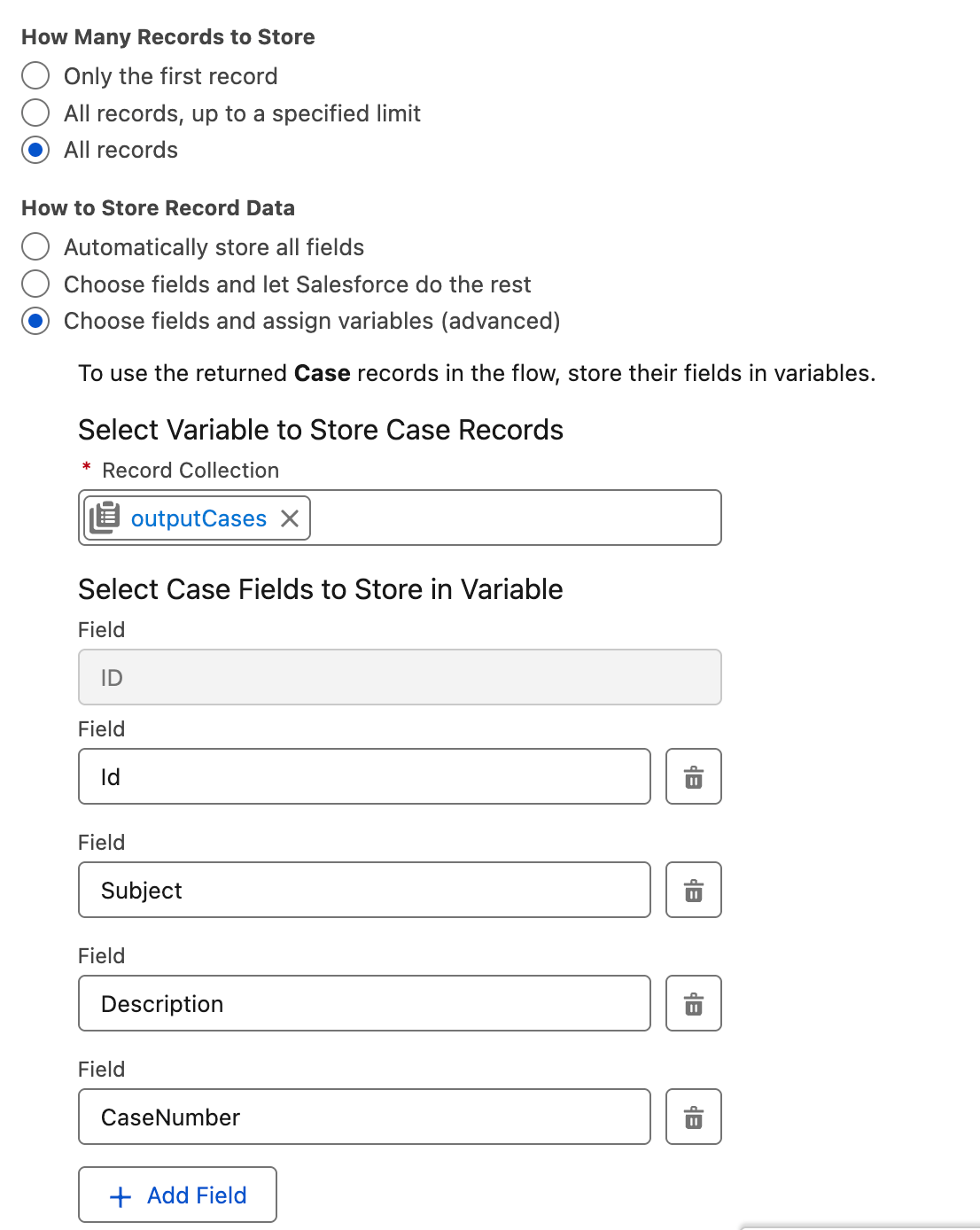
For the purpose of the scope of the agent, we only need to capture the Case Number, Subject, and Description of the Case record, which makes this possible. If we needed all fields, or a large number, it may be easier to use an Assign element after the Get to assign the queried records to the output variable.
That’s it! As you can see, building Flows that agents can use is nothing fancy, but there are some considerations and habits to build that you may have been neglecting for a little while (I’m looking at you, description fields).
Testing the Flow
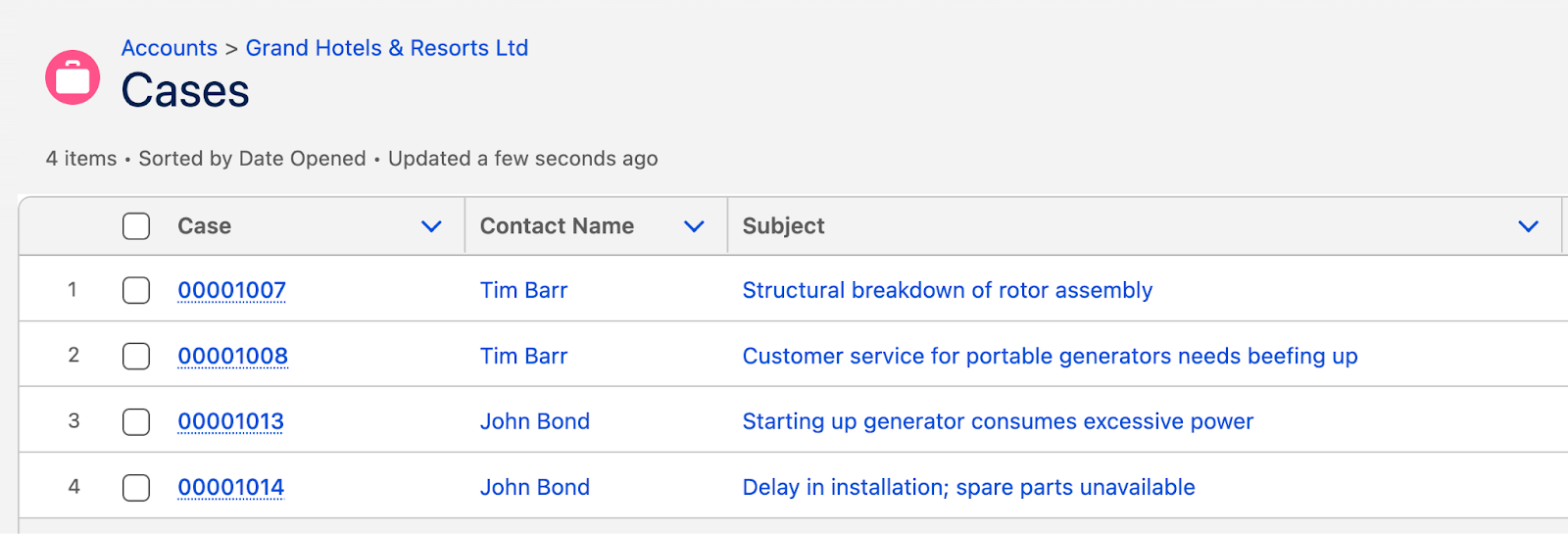
To test this Flow, we’re going to use an Account that has multiple Case records underneath it. Here in this developer org, I have the Grand Hotels & Resorts Ltd Account, which has four Cases. I’m going to open the first one (00001007) and use this to test the Flow.
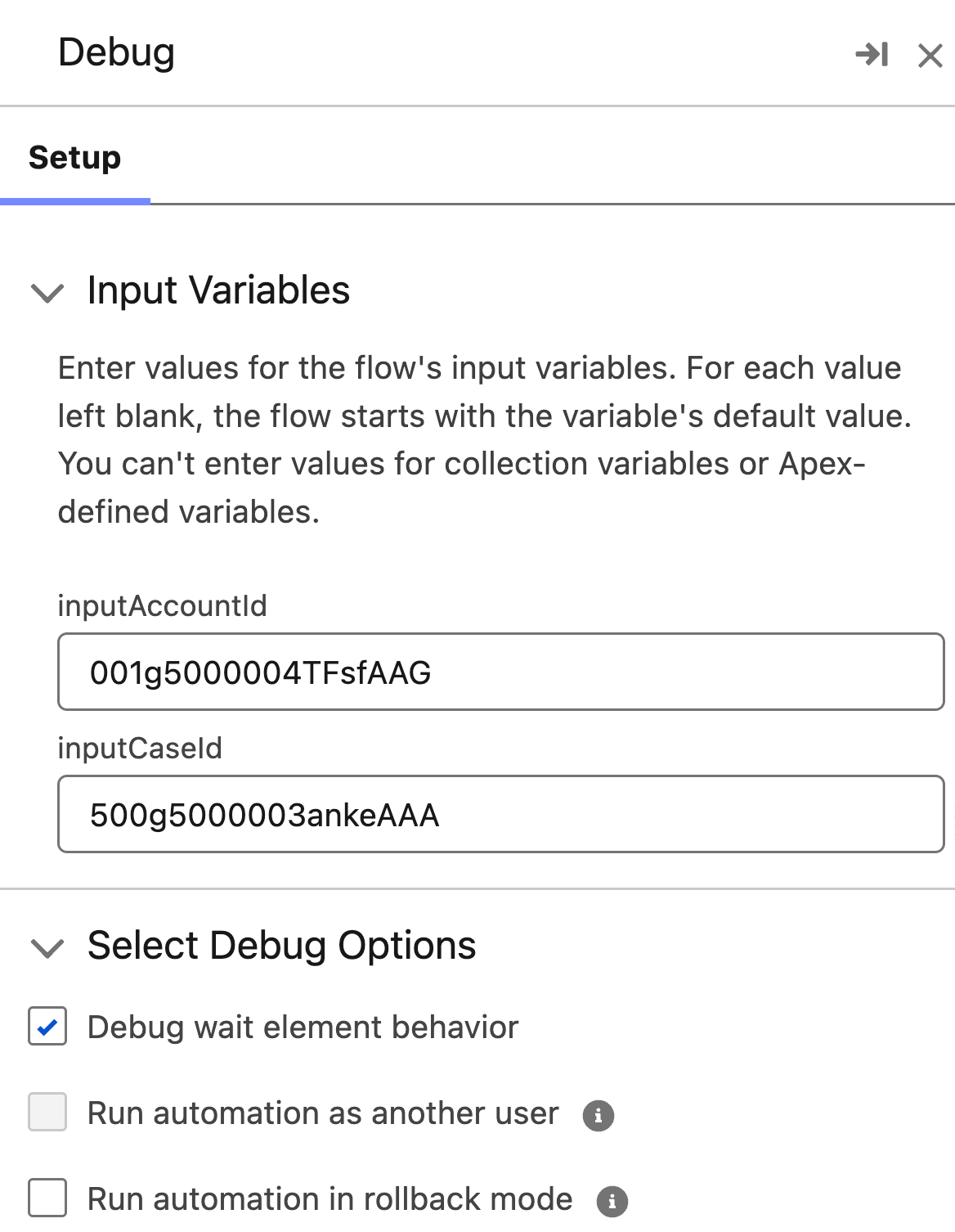
Opening Debug in the Flow Builder, I provided the Case’s Id and also the Grand Hotels Account Id in the Setup tab.
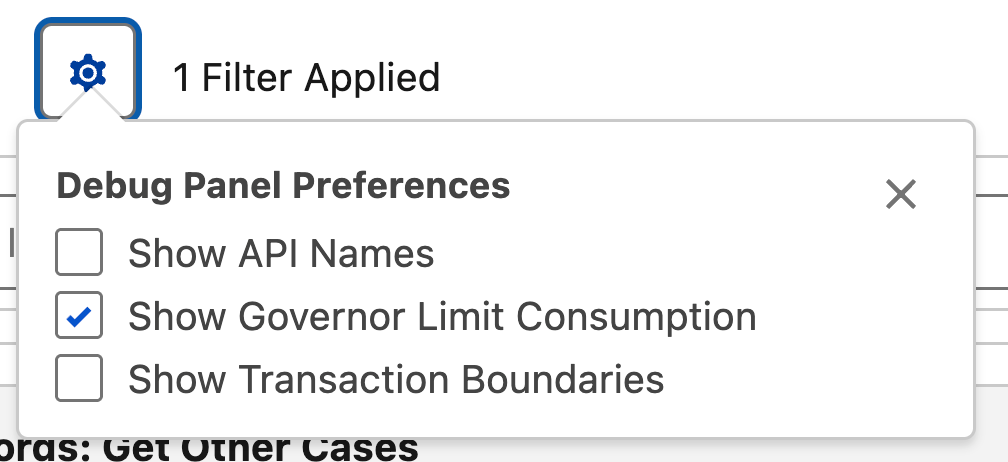
Running the Debug, we’ll need to turn on Show Governor Limit Consumption so we can see if the Flow gathered any records, and how many (remember, we’re expecting to see the three other Case records, not four total Case records under that Account).
Expanding the Get Records element in the Details section of Debug lets us see whether we were successful. At the bottom of the card, we should see that there was one SOQL query used, and three SOQL query rows captured.
These numbers show us how much of the available per-transaction governor limits that we’ve used, but it also tells us how many records it has gathered – three!
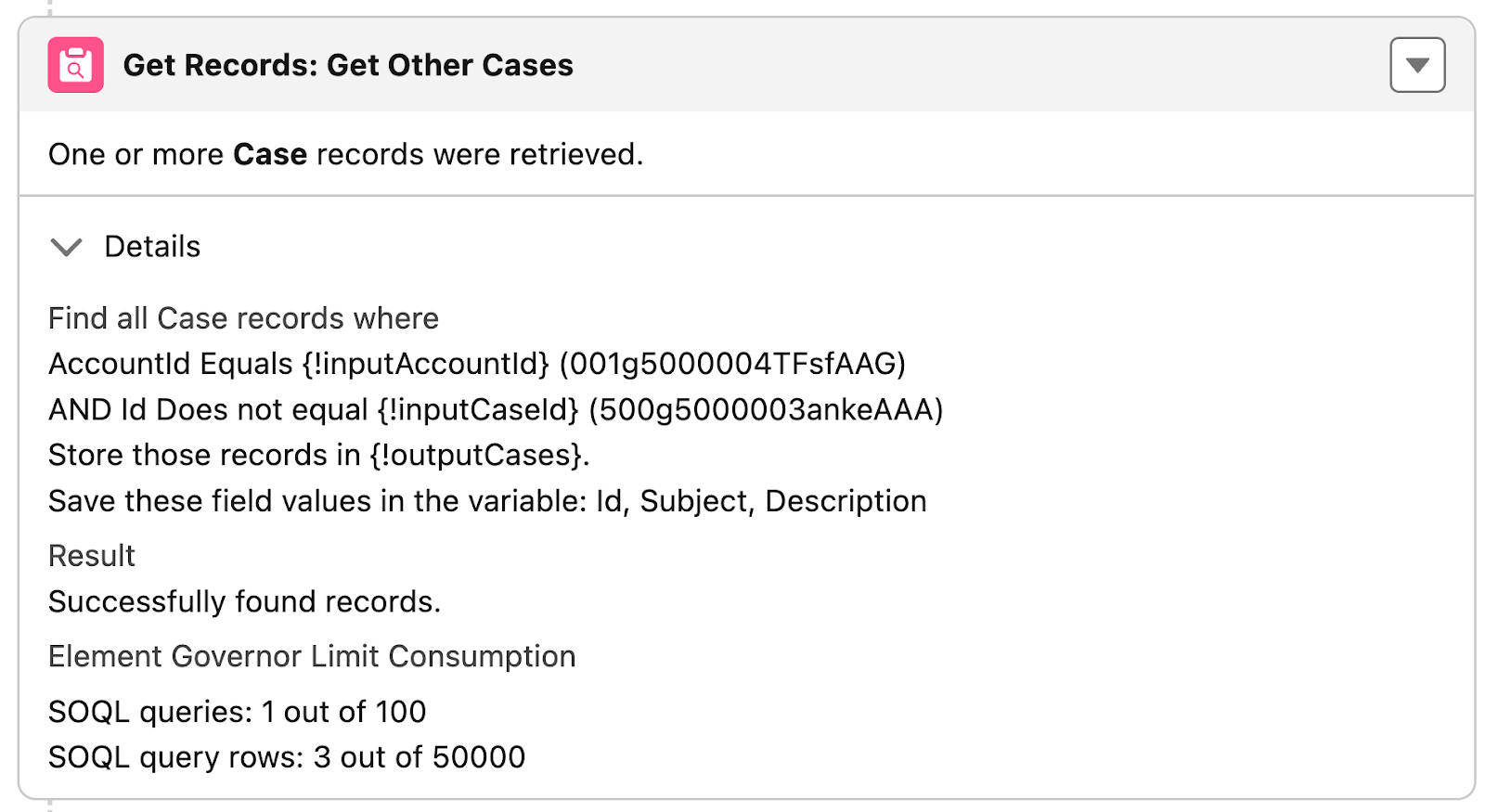
So this Flow does exactly what it says on the tin – it gathers together all the Cases that sit under the same Account as the original Case, but not the original Case, and returns it to the agent for assessment.
Final Thoughts
What I really wanted to point out with this article is that developing Flows for Agentforce is not that much different from developing Flows for human beings. There are some important things to consider, like filling in description fields to provide context directly within the Flow itself, and how the agents will call the Flow.
What kind of Flows are you building for your agents? If you’re new to Agentforce, can you see that the shift in development of Flows isn’t going to be so scary?