






Welcome! In this article, we’ll dive into the process of setting up an Apex Email Service in Salesforce to efficiently map inbound emails to custom objects. We’ll cover everything you need to know – from configuring the email service to integrating it seamlessly with Outlook. You’ll discover how to ensure replies are accurately linked to your records using the Message-ID, enabling efficient communication tracking without relying on subject lines.
By following this article, you’ll unlock the full potential of streamlining email handling and improving overall workflow efficiency. Whether you’re managing customer support or sales inquiries, mastering the Apex Email Service ensures that your emails are properly mapped, tracked, and linked to the correct Salesforce records. If you’re ready to enhance how your Salesforce environment handles emails, you’re in the right place. Let’s dive in and simplify your email processes together!
1. Create a New Apex Class
Firstly, let’s create a handy Apex class called EmailtoCustomObject! This class is designed to make your Salesforce processes smoother by mapping inbound emails directly to your custom object records, without relying on tricky subject lines.
Plus, it handles attachments and even sends notifications to the record owner. Check out my step-by-step code on GitHub.
2. Steps to Generate Salesforce Email Address
This next process ensures your system is ready to handle inbound emails seamlessly, including attachments.
- In the Salesforce Setup, search Email Services in the Quick Find box and select it. Click New Email Service to create a new service configuration.
- Provide a name for the email service and associate it with the relevant Apex class that will process the inbound emails. Set Accept Attachments to All for handling email attachments effectively.
- Leave the Accept Email From field empty to allow emails from any sender.
- Click Save to create the email service, making it active and ready to handle email processing.

- After saving, navigate to the Email Service Details page by clicking on the email service you created. Then, click New Email Address to add a new email address for the service.
- Enter a name for the email address and set the Email Address Local Part to define the unique part before the “@” symbol.
- Choose the Context User whose context will be used to create email messages, appearing in the Created By field of related records.
- Leave the Accept Email From field blank to accept emails from any domain, or specify domains (e.g., gmail.com) for restrictions. Click Save to finalize.

- After saving, Salesforce generates an email address by combining the Local Part you specified with a Salesforce-provided domain.

3. Set Up an Outlook Email Rule
Setting up an Outlook email rule is a quick way to ensure important emails are automatically redirected to your Salesforce-generated email address
- Use an existing Outlook email address or create a new one. Open the Outlook web or desktop app and log in.
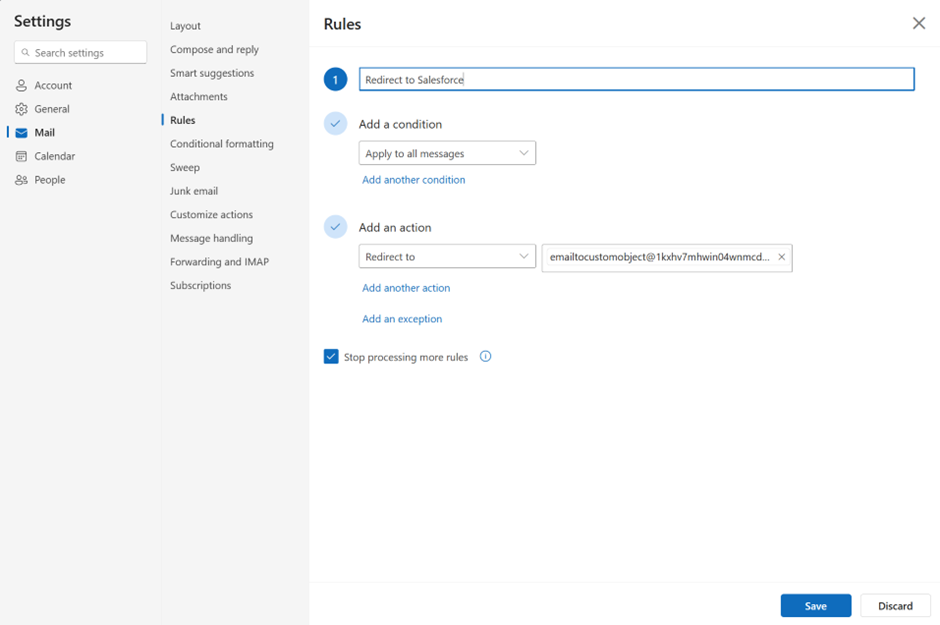
- Click the Settings icon (gear) in the top-right corner, search for Rules in the settings search bar, and select it.
- Click Add New Rule and define the conditions to filter emails, such as sender addresses or specific keywords.
- For the action, choose Redirect to and enter the Salesforce-generated email address in the corresponding field.
- Click Save to activate the redirection rule and ensure filtered emails are forwarded to Salesforce.
4. Add the Outlook Email Address to Salesforce’s Org-Wide Email Addresses
In this step, you’ll add your Outlook email address to Salesforce as an Org-Wide Email Address. This allows you to use the address in the “From” field when sending emails from Salesforce.
- In Salesforce Setup, search for Org-Wide Email Addresses in the Quick Find box and click on it.
- Click the Add button, enter a Display Name, and provide your Outlook Email Address.
- Check the box for “Allow All Profiles to Use This From Address” or select specific profiles as needed.
- Click Save, and Salesforce will send a verification email to the Outlook address for confirmation.

- Open your Outlook account, find the email from Salesforce, and click the link in it to verify your email address.

- Once verified, your Outlook email address will show up as an option in the From field when sending emails from Salesforce.
5. Steps to Compose and Send an Email from a Custom Object Record
Next up, you’ll learn how to compose and send an email directly from a custom object record in Salesforce, which ensures your emails are logged and tracked efficiently
- Open the record of the custom object (App__c) you want to send the email from and find the Email Activity section.
- Click Compose or New Email to open the email editor and select your verified Outlook email address from the From dropdown.
- If the Org-Wide Email Address doesn’t show in Lightning Experience, switch to Salesforce Classic to verify. Once visible in Classic, it will appear in Lightning after some time.
- Enter the recipient’s email address in the To field, add the subject, and write the email body. Click Send to send the email.

6. Verify and Reply to Received Email
For step six, you’ll verify that emails are being delivered successfully, ensuring replies are processed correctly by Salesforce and confirming that replies are mapped back to the original record.
- Ensure the email is delivered to the recipient’s inbox, and any replies are sent to the Salesforce-generated email address.


- The reply triggers the email service in Salesforce, invoking an Apex class that maps the Message-ID from the response to the original outbound email.
- Salesforce automatically creates an EmailMessage record and links it to the original custom object.
- The reply is displayed in the Activity Timeline on the custom object record without needing the subject line for mapping.

7. Enable Debug Logs Before Replying to Salesforce’s Email
This last step ensures everything runs smoothly by enabling debug logs to monitor and troubleshoot the email service.
- Click the gear icon and select Setup, then search for Debug Logs in the Quick Find box.
- Click New to create a debug log and select the User whose context you want to log (e.g., the user triggering the email service or Apex class).
- Set the Debug Level to include Apex Code, choosing a detailed level like FINEST or DEBUG.
- Click Save, then perform the action (such as replying to the email) that triggers the Apex class.
- After the action, return to the Debug Logs page, locate the log entry, and check the details for successful execution or errors.

Constraints
Before wrapping up, it’s important to be aware of a few constraints that can impact the functionality of this email setup.
1. Dependency on Salesforce-Generated Address as the Sender
Inbound emails will map to the activity timeline only if the sender’s address matches the Salesforce-generated address.
The setup depends on the Outlook forwarding rule, so any issues in Outlook forwarding could disrupt mapping.
2. Requirement of an Outbound Email for Record Mapping
An initial outbound email from Salesforce is required to establish a thread and store the Message-ID for reference in the Responses field.
Mapping relies on the Message-ID rather than the subject line, allowing flexibility in the subject content for future replies.
Summary
The Apex Email Service links emails to custom records using the Message-ID for accurate tracking. It works with a Salesforce-generated email and Outlook forwarding, making replies easy to map without relying on subject lines. With this setup, managing communication becomes simple, efficient, and perfectly organized.
I hope this post was insightful, and I look forward to sharing more useful information soon!




Comments: