

Imagine a sales representative in a hotel lobby the night before an important customer meeting. They tap “Sync content” in the mobile app you built. The app starts downloading a 500 MB content deck from Salesforce, and at 90%, the Wi-Fi disconnects. With a simple “one big GET” download, this failure means starting from scratch. On an unreliable network, this can happen repeatedly, causing the representative to lose faith in the app. This is the real issue this article aims to address.
Salesforce Files, based on the ContentDocument and ContentVersion objects, can store files up to 2 GB. This is great for large PDFs and videos. However, it also means your download strategy is crucial, especially for offline-first mobile apps on tablets. These devices often connect to unstable or slow networks, such as hotel Wi-Fi, hospital guest networks, and roaming 4G/5G. They also have limited device memory compared to a backend server. The whole point of this app is to have content normally stored in the cloud, but available offline before the meeting. But this requires a more fault-proof solution than the “one big GET”.
This article walks through two standard methods to download Salesforce Files:
- The Connect Files REST API.
- The shepherd servlet download endpoint.
Crucially, you’ll learn how to build a chunked, resumable download for mobile, and we will wrap up with trade-offs so you understand when each approach is optimal.
For more information on the Files data model, you can refer to Salesforce’s official ContentDocument and ContentVersion documentation. This article focuses on download behavior and design, not schema.
2 Ways to Download File Content
Salesforce gives you more than one way to get the bytes behind a File. At a high level, you’ll usually end up with one of these patterns.
1. Connect Files API
The Connect REST API exposes Files as resources you can work with via /connect/files/.... You typically call a file metadataendpoint (by ContentDocumentId) to get details such as name, size, type, and links, then call a file contentendpoint to stream the binary content.
On the server side, this feels very natural. You make a REST call, receive an HTTP response stream, and either write it to a file or pipe it elsewhere. For mobile and offline use, it’s less convenient. The default pattern is one long-lived streaming request, so if the connection dies, you generally have to restart the download from scratch.
It’s also harder to tune chunk size, retries, and resume behavior on a per-device basis. You can still make it work, but you end up building your own chunking and resume logic on top of a streaming API that was not designed for it.
2. Shepherd Servlet Download URL
The other standard option is the shepherd servlet to download a file.
/sfc/servlet.shepherd/version/download/{ContentVersionId}/sfc/servlet.shepherd/document/download/{ContentDocumentId}
From a mobile app’s perspective, this is just a standard HTTPS download URL. You include an OAuth token for authentication and get back the raw file bytes. The key advantage here is that this endpoint supports the HTTP Range header, making it ideal for building your own chunked downloader.
This is why many mobile implementations use the servlet or use the REST API ContentVersion/{Id}/VersionData blob-retrieve URL as the byte endpoint, then implement chunking, resumption, and validation on the client.
For example: /services/data/v67.0/sobjects/ContentVersion/{ID}/VersionData.
In the rest of this article, we will explore the servlet URL, but the design is the same if you prefer the ContentVersion.VersionData blob endpoint.
Step 1: Prepare a File Context
For this design, we’ll assume you’ve already fetched the necessary metadata from Salesforce (for example, ContentDocument/ContentVersion), you know which file and version to download, its size, and the file’s checksum, which plays an essential role in chunking.
The key to chunking is building a small file context object that includes only the fields your downloader needs. A minimal context might look like this:
contentDocumentIdandcontentVersionId: To identify the filetotalSize: File size in bytes (used for progress and range calculation)Checksum: MD5 or similar (used to validate the final file)fileName/extension: For naming the local fileremoteUrl: The URL you’ll actually download from, e.g.:-
{instanceUrl}/sfc/servlet.shepherd/version/download/{contentVersionId},or -
/services/data/vXX.X/sobjects/ContentVersion/{contentVersionId}/VersionData
-
downloadingURL: Local temp path where the file is writtenstartByte: Next byte to request (0 for new download, > 0 for resume)chunkSize: Size of each chunk (for example, 2–10 MB)
Step 2: Download in Chunks With HTTP Range
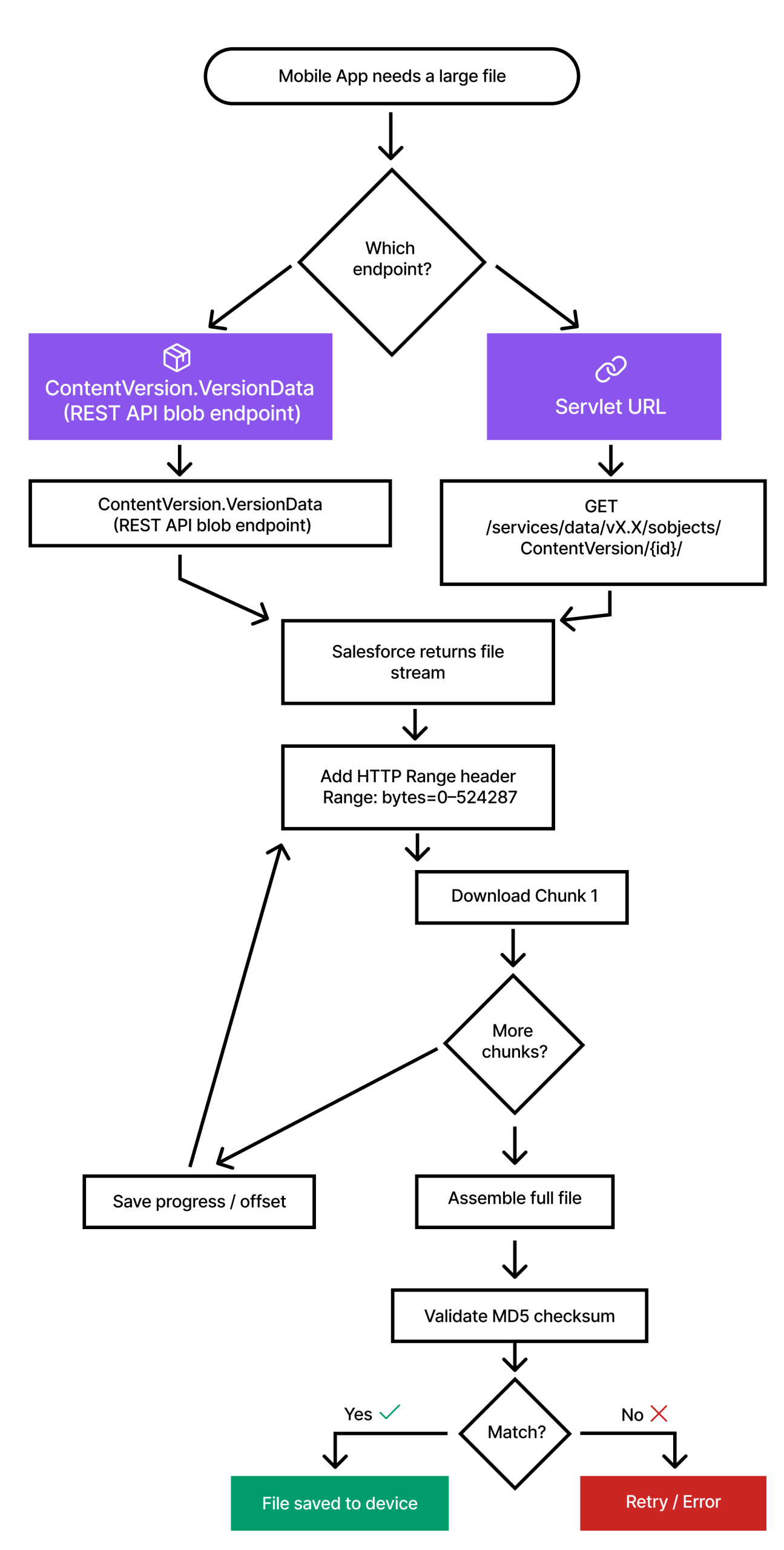
Once you have a file context, the next step is to pull the bytes down in chunks rather than a single request. We do this with the HTTP Range header.
A single chunk request uses GET to call your download URL, as Authorization: Bearer <access_token> header, and a Range header like bytes=0-2097151 to request just the first 2 MB. The server responds with only that byte range, and your downloader writes it directly to disk at downloadingURL.
You’d then update how many bytes have been downloaded so far (startByte), and move on to the next chunk. MD5 (or another checksum) is only computed once, after the entire file has been downloaded.
High-Level Chunking Loop Example
The following pseudo-code captures the algorithm to implement this:
offset = context.startByte // 0 for new download, >0 if resuming chunkSize = context.chunkSize
totalSize = context.totalSize
open file at context.downloadingURL in append mode
seek(file, offset)
while offset < totalSize:
end = min(offset + chunkSize - 1, totalSize - 1)
response = HTTP GET context.remoteUrl with headers:
- Authorization: Bearer <token>
- Range: "bytes=offset-end"
if response is not successful (timeout, 5xx, 429, etc):
// Network problem: keep the partial file
// and remember how far we got
context.startByte = offset
save context (status = "paused")
return "resumable error"
data = response.body
write data to file
offset += data.length
context.startByte = offset
// Persist progress so we can resume from here next time
save context (status = "inProgress")
report progress = offset / totalSize
close file
A few important things worth noting about this loop. We deliberately don’t compute MD5 here because the loop’s job is to write bytes to disk and track progress. After each successful chunk, we save the updated startByte (for example, in a local database or preferences) so if something goes wrong, we can restart from 60% instead of 0%.
Once the loop is complete and the file is fully downloaded, a later step opens the file, calculates the checksum once, and compares it with the context.checksum to determine whether to keep or discard the file.
Step 3: Resume After Network Failures
On a mobile device, you should assume the network will fail at some point. The user walks out of Wi-Fi range. When the app goes to the background, without the background task framework, pending requests to download the file might fail. The connection dies mid-chunk. Any of these can happen (and they probably will).
The important rule is don’t throw away work you’ve already done.
Instead of deleting partial files on errors, treat most network failures as recoverable. Keep the partial file on disk, persist the current startByte, and mark the context as paused or failed_resumable. Return a clear error so the UI can show “Download paused. Tap to resume.”
On the next attempt, load the FileDownloadContext for that contentVersionId. If startByte > 0 and the file exists at downloadingURL, open it in append mode and seek to startByte, and restart the HTTP range loop from there.
From a user experience perspective, this is a major shift. If Wi-Fi drops at 60%, the next sync continues from 60%, not from 0. If the app crashes, you don’t lose progress. You can even support an explicit “Pause” button simply by stopping the loop and persisting the state.
For fatal issues such as bad metadata, unauthorized access, or a checksum mismatch, you can delete the file and its context so that the next attempt starts fresh.
Step 4: Validate the File With MD5
Once the chunked download is finished, all bytes should be written to the local file. At this point, startByte equals totalSize, downloadingURL points to the fully downloaded file, and checksum contains the expected MD5 from Salesforce (or your backend).
Now we verify that what’s on disk is correct. First, confirm the download is complete by checking startByte equals totalSize. Then open the file at downloadingURL and read it from start to end in reasonably sized blocks (e.g., 1–4 MB per read), feeding each block into an MD5 calculator. Finally, compare the resulting MD5 string with the checksum stored in the file context.
If the checksums match, mark the file as valid (set the status to completed) and optionally move it from the temp download path to its final storage path. If they don’t match, treat the file as corrupted, delete the file, and clear the context, so the next attempt starts with a clean download.
A simple pseudo-code:
if context.startByte != context.totalSize:
return "download not complete"
open file at context.downloadingURL for read
init MD5 calculator
while there is data to read:
chunk = readNextBlock(file)
if chunk is empty:
break
update MD5 with chunk
computed = finalize MD5
if computed == context.checksum:
mark context as "completed"
return success(context.downloadingURL)
else:
delete file at context.downloadingURL
delete context entry
return "checksum mismatch"
This keeps responsibilities clear. The chunked download step only concerns itself with getting bytes to disk and updating startByte. The validation step runs after the full download and decides whether to keep or discard the file based on its MD5 checksum.
Connect Files vs. Servlet: When to Use Which
Both the Connect Files API and the servlet endpoint can deliver the same bytes. The question is: which one fits your situation better?
The Connect Files API is a good fit when you’re building backend services or integrations, want a higher-level REST interface around Files, and are working on stable networks where you don’t need complex resume behavior. You can absolutely still apply chunking ideas here, but it’s not the default usage pattern.
The Servlet (or VersionData blob) with HTTP Range is a good fit when you’re building offline-first mobile apps for tablets and mobile devices. You care a lot about resuming large downloads, fine-grained progress, and better behavior on unreliable Wi-Fi/4 G. The trade-off is that you’re responsible for managing metadata (size, checksum, URLs) yourself.
In many real projects, the answer is “both”. Use Connect Files for simpler server-side use cases and use the servlet or VersionData, plus a dedicated FilesDownloader component for significant, offline-critical assets on mobile.
Tip: Let Salesforce Mobile SDK Handle Auth for You
If you’re building an iOS or Android app with the Salesforce Mobile SDK, the good news is that all the complex parts of authentication, like OAuth login, token storage, and token refresh, injecting the Authorization: Bearer <access_token> header, and managing the current instance domain name, are already handled for you.
That means your chunked downloader doesn’t need to know anything about OAuth flows or token refresh. All it has to do is build an authenticated request using the SDK (e.g., RestRequest(method: .GET, path: url, queryParams: [:])), set the HTTP Range: bytes={startByte}-{endByte}, invoke the request through the SDK (e.g., RestClient.shared.send(request: request)), and write the response bytes to disk.
This keeps your FilesDownloader focused on chunking, resuming, progress, and checksum validation, while letting the Salesforce Mobile SDK handle all auth-related concerns in a standard, secure way.
Summary
Salesforce Files can be large (up to 2 GB). On mobile, a single “download everything in one GET” approach quickly runs into timeouts, memory issues, and very poor UX when the network fails. Salesforce provides multiple ways to retrieve file bytes: the Connect Files API, which offers a convenient, high-level interface, and the Shepherd servlet (and ContentVersion.VersionData), which works well for raw-byte endpoints.
A robust mobile design combines a file download context built from ContentDocument / ContentVersion metadata (size, checksum, IDs, URLs), a chunked HTTP Range loop that streams bytes to disk, resume by persisting startByte and the partial file, and checksum validation (e.g., MD5) before marking the file as ready.
Once you encapsulate this in a small, well-tested FilesDownloader component, your mobile app feels less fragile. It starts behaving like a reliable sync client, even when the network is not.