

GraphQL is a modern, high-performance alternative to traditional REST and SOAP APIs. It allows you to request exactly the data you need (no more, no less) in a single request, even if that data spans multiple objects.
Traditional APIs are like ordering a combo meal – you get a massive payload of fields you might not need (over-fetching), or you have to make multiple separate requests to get related data (under-fetching).
GraphQL is like a custom buffet. You make one request and tell the server exactly what you want. The server hands you a single response with exactly that data – nothing more, nothing less.
But there’s a wrinkle. GraphQL is its own language and syntax. It looks like JSON, but it isn’t. So developers can find it challenging to get started with writing GraphQL calls.
In this post, we’ve documented some of the most common query patterns for developers to be able to pick up GraphQL and be successfully making queries and edits – also known as “mutations” – in the shortest time possible.
Why Should You Care?
Salesforce have been adopting GraphQL functionality on the platform for nearly five years, including first surfacing its basic query functionality and more recently mutations to LWC. But if you’ve not used GraphQL yet, you may wonder what the benefits are.
- Lightning Fast: Fetching only the exact fields you need saves bandwidth, making your Lightning Web Components (LWCs) and mobile apps load much faster.
- All-in-One Queries: You can pull parent records (like an Account) and child records (like Contacts) in a single trip to the server.
- Built-in Security: The GraphQL API automatically respects Field-Level Security (FLS) and user sharing rules out of the box.
Testing GraphQL Calls
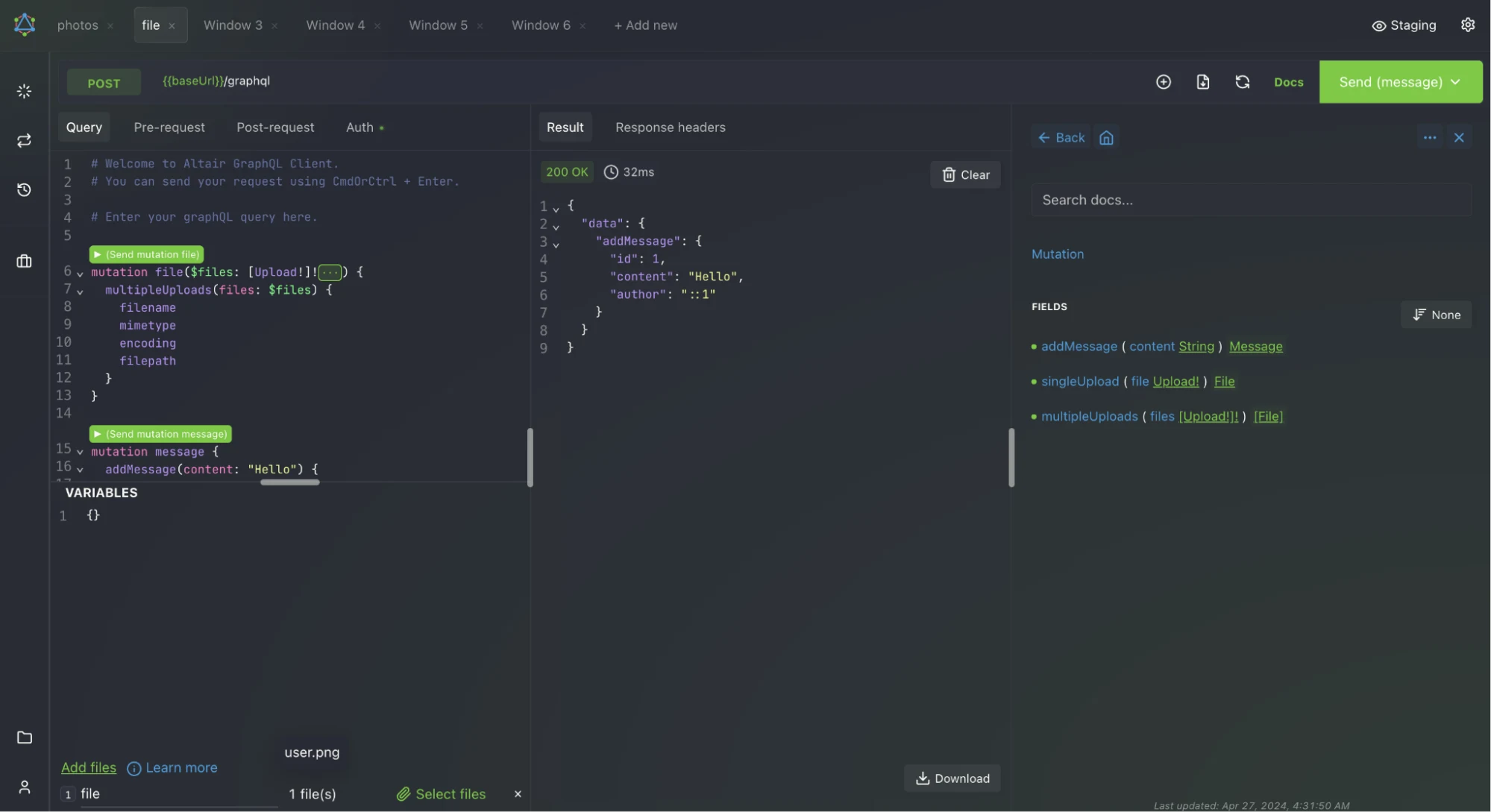
One might wonder how they can instantly test their GQL queries. One obvious way would be to use the GraphQL API of Salesforce with Postman, but there is a better option you can use: the Altair GraphQL Client. It’s a beautifully designed, feature-rich IDE built specifically for GraphQL to test and explore your APIs.
How It Works
- Connect: Enter your GraphQL endpoint URL and authorization token.
- Introspect: It automatically downloads your API’s schema so it knows all your available objects and fields.
- Query: You use the smart editor – which has auto-complete – to fetch the data.
You will need to obtain an access token, of course, to include in your requests. Altair has several ways to do this. The easiest is by using the Auth tab of your request, selecting Bearer Token from the Auth Type and then pasting in your token.
If you’re doing a lot of work with different queries and mutations, you can create a collection of requests and assign your access token to the collection. Otherwise adding your token to each individual request will definitely become tedious.
GraphQL Query Examples
Let us take a look at a few variations of GraphQL queries that might prove useful to you in your daily developer life.
Parent to Child
Fetching a list of Accounts with their associated contacts:
query ParentToChild {
    uiapi {
        query {
            Account(first: 2) {
                edges {
                    node {
                    Id
                    Name { value }
                    Contacts {
                        edges {
                            node {
                                Id
                                Name { value }
                                }
                            }
                        }
                    }
                }
            }
        }
    }
}
Result:
{
  "uiapi": {
    "query": {
      "Account": {
        "edges": [
          {
            "node": {
              "Id": "001xxxxxxxxx1IAA",
              "Name": {
                "value": "nadp"
              },
              "Contacts": {
                "edges": [
                  {
                    "node": {
                      "Id": "003xxxxxxxxxIAS",
                      "Name": {
                        "value": "Nadie Person"
                      }
                    }
                  }
                ]
              }
            }
          }
        ]
      }
    }
  }
}
Child to Parent
Fetching Contacts with their Account Details:
query ChildToParent {
    uiapi {
        query {
            Contact(first: 5) {
                edges {
                    node {
                        Id
                        Name { value }
                        Account {
                            Id
                            Name { value }
                            Industry { value }
                        }
                    }
                }
            }
        }
    }
}
Result:
{
  "uiapi": {
    "query": {
      "Contact": {
        "edges": [
          {
            "node": {
              "Id": "003xxxxxxxxxxAAK",
              "Name": {
                "value": "James Cox"
              },
              "Account": {
                "Id": "001xxxxxxxxxxAIAR",
                "Name": {
                  "value": "Beaux Arts Loft"
                },
                "Industry": {
                  "value": "Other"
                }
              }
            }
          }
        ]
      }
    }
  }
}
Two Unrelated Records
Fetch Accounts and Opportunities in one Query:
query TwoUnrelatedRecords {
    uiapi {
        query {
            Account(first: 3) {
            edges {
                node {
                    Id
                    Name { value }
                    }
                }
            }
            Opportunity(first: 3) {
                edges {
                    node {
                        Id
                        StageName { value }
                        Amount { value }
                    }
                }
            }
        }
    }
}
Result:
{
  "uiapi": {
    "query": {
      "Account": {
        "edges": [
          {
            "node": {
              "Id": "001ExxxxxxxxxxxIAA",
              "Name": {
                "value": "nadp"
              }
            }
          }
        ]
      },
      "Opportunity": {
        "edges": [
          {
            "node": {
              "Id": "006xxxxxxxxxxxxvIAL",
              "StageName": {
                "value": "Closed Won"
              },
              "Amount": {
                "value": 5408.76
              }
            }
          }
        ]
      }
    }
  }
}
Filter on Primary Record
Fetching Accounts which have Industry as “Technology”:
query FilterOnPrimaryRecord {
    uiapi {
        query {
            Account(where: { Industry: { eq: "Technology" } }) {
                edges {
                    node {
                        Id
                        Name { value }
                        Industry { value }
                    }
                }
            }
        }
    }
}
Result:
{
  "uiapi": {
    "query": {
      "Account": {
        "edges": [
          {
            "node": {
              "Id": "001xxxxxxxxxxxxxxIAT",
              "Name": {
                "value": "Candoris Technologies"
              },
              "Industry": {
                "value": "Technology"
              }
            }
          }
        ]
      }
    }
  }
}
“IN” Filter
Fetching Accounts which have Industry as “Technology” OR “Finance” OR “Healthcare”:
query InFilterExample {
    uiapi {
        query {
            Account(where: { Industry: { in: ["Technology", "Finance", "Healthcare"] } }) {
                edges {
                    node {
                        Id
                        Name { value }
                        Industry { value }
                    }
                }
            }
        }
    }
}
Result:
{
  "uiapi": {
    "query": {
      "Account": {
        "edges": [
          {
            "node": {
              "Id": "001xxxxxxxxxxxxIAJ",
              "Name": {
                "value": "Test Site Address"
              },
              "Industry": {
                "value": "Finance"
              }
            }
          }
        ]
      }
    }
  }
}
Filter on Parent Record
Fetching contacts where Account have Industry as “Technology”:
query FilterOnParentRecord {
    uiapi {
        query {
            Contact(where: { Account: { Industry: { eq: "Technology" } } }) {
                edges {
                    node {
                        Id
                        Name { value }
                        Account {
                            Name { value }
                            Industry { value }
                        }
                    }
                }
            }
        }
    }
}
Result:
{
  "uiapi": {
    "query": {
      "Contact": {
        "edges": [
          {
            "node": {
              "Id": "003xxxxxxxx6IAF",
              "Name": {
                "value": "Rich Huber"
              },
              "Account": {
                "Name": {
                  "value": "Genesis Systems"
                },
                "Industry": {
                  "value": "Technology"
                }
              }
            }
          }
        ]
      }
    }
  }
}
Parent to Child With Filter on Child Records
Fetching List of Accounts and their Contacts specifically with Title as “CEO”:
query ParentWithFilteredChildren {
    uiapi {
        query {
            Account(first: 5) {
                edges {
                    node {
                        Id
                        Name { value }
                        Contacts(where: { Title: { eq: "CEO" } }) {
                            edges {
                                node {
                                    Id
                                    Name { value }
                                    Title { value }
                                }
                            }
                        }
                    }
                }
            }
        }
    }
}
Result:
{
  "uiapi": {
    "query": {
      "Account": {
        "edges": [
          {
            "node": {
              "Id": "001xxxxxxxxxIAA",
              "Name": {
                "value": "nadp"
              },
              "Contacts": {
                "edges": [
                  {
                    "node": {
                      "Id": "003xxxxxxxxxxBIAS",
                      "Name": {
                        "value": "Nadie Person"
                      },
                      "Title": {
                        "value": "CEO"
                      }
                    }
                  }
                ]
              }
            }
          }
        ]
      }
    }
  }
}
Sorting Data (orderBy)
Fetching List of Opportunities Sort by “Amount” Descending:
query TopOpportunities {
    uiapi {
        query {
            Opportunity(first: 5, orderBy: { Amount: { order: DESC } }) {
                edges {
                    node {
                        Id
                        Name { value }
                        Amount { displayValue, value }
                    }
                }
            }
        }
    }
}
Results:
{
  "uiapi": {
    "query": {
      "Opportunity": {
        "edges": [
          {
            "node": {
              "Id": "006xxxxxxxxxxIAD",
              "Name": {
                "value": "0599562"
              },
              "Amount": {
                "displayValue": "",
                "value": null
              }
            }
          }
        ]
      }
    }
  }
}
Polymorphic Lookups (e.g. Owner Name)
Polymorphic relationships allow a single field (like Owner, Who, or What) to reference multiple object types simultaneously.
To query these relationships, use inline fragments with the “... on <sObject>” syntax to specify fields for each potential object type.
Fetching leads by owner name instead of Owner ID:
query LeadsWithPolymorphicOwner {
    uiapi {
        query {
            Lead(first: 5) {
                edges {
                    node {
                        Id
                        Name { value }
                        Owner {
                            __typename
                            ... on User {
                            Name { value }
                            }
                            ... on Group {
                            Name { value }
                            }
                        }
                    }
                }
            }
        }
    }
}
Result:
{
  "uiapi": {
    "query": {
      "Lead": {
        "edges": [
          {
            "node": {
              "Id": "00QxxxxxxxxxxMAR",
              "Name": {
                "value": "Edward Bozymowski"
              },
              "Owner": {
                "__typename": "User",
                "Name": {
                  "value": "Joe Vallee"
                }
              }
            }
          }
        ]
      }
    }
  }
}
Complex Filtering (AND / OR Logic)
Fetching Opportunities that are still open (IsClosed = false) AND meet at least one of two criteria: either the deal is massive (Amount is greater than or equal to $100,000) OR the deal is in the critical final stage (“Negotiation/Review”):
query FocusedOpportunities {
    uiapi {
        query {
            Opportunity(
                first: 10,
                where: {
                    and: [
                    { IsClosed: { eq: false } },
                    {
                        or: [
                            { Amount: { gte: 100000 } },
                            { StageName: { eq: "Negotiation/Review" } }
                        ]
                    }
                    ]
                }
                ) {
                edges {
                    node {
                        Id
                        Name { value }
                        Amount { displayValue, value }
                        StageName { value }
                    }
                }
            }
        }
    }
}
Result:
{
  "uiapi": {
    "query": {
      "Opportunity": {
        "edges": [
          {
            "node": {
              "Id": "006xxxxxxxxxIAF",
              "Name": {
                "value": "test Demo opp"
              },
              "Amount": {
                "displayValue": "$100,000.00",
                "value": 100000
              },
              "StageName": {
                "value": "Qualification"
              }
            }
          }
        ]
      }
    }
  }
}
Dynamic Variables (Using $recordId on a Record Page)
Fetching Opportunities of an Account via RecordId variable from Record Page dynamically:
query AccountSnapshot($recordId: ID) {
    uiapi {
        query {
            Account(where: { Id: { eq: $recordId } }) {
                edges {
                    node {
                        Id
                        Name { value }
                        Opportunities(first: 3, orderBy: { CreatedDate: { order: DESC } }) {
                            edges {
                                node {
                                    Id
                                    Name { value }
                                    StageName { value }
                                }
                            }
                        }
                    }
                }
            }
        }
    }
}
Result:
{
  "uiapi": {
    "query": {
      "Account": {
        "edges": [
          {
            "node": {
              "Id": "001xxxxxxxxxxxxlIAM",
              "Name": {
                "value": "Test Account"
              },
              "Opportunities": {
                "edges": [
                  {
                    "node": {
                      "Id": "006xxxxxxxxxxIAW",
                      "Name": {
                        "value": "Test Opportunity"
                      },
                      "StageName": {
                        "value": "Proposal/Price Quote"
                      }
                    }
                  }
                ]
              }
            }
          }
        ]
      }
    }
  }
}
GraphQL Mutation Examples
GraphQL mutations, especially in Lightning Web Components (LWC), are a game-changer for Salesforce developers.
Officially introduced in the Spring ’26 release, they allow you to create, update, and delete Salesforce records directly from your component’s JavaScript using the native GraphQL API. This means less reliance on Apex when building frontend features.
There are two critical differences you need to know before using mutations in LWC compared to queries:
- No @wire: Mutations are executed imperatively (e.g., triggered by a button click) rather than reactively.
- New Module: You must import executeMutation and gql from the newer lightning/graphql module, not lightning/uiGraphQLApi.
Let us take a look at a few mutation examples that might serve as a template for your use case.
Note: The Record attribute in query defines which fields will be populated in the response from the Server once your server once the update is complete.
Create a Single Record
Creating a new Contact with user inputs:
mutation CreateContact($input: ContactCreateInput!) {
    uiapi {
        ContactCreate(input: $input) {
            Record {
                Id
                Name {
                    value
                }
            }
        }
    }
}
Variables:
{
    "input": {
        "Contact": {
            "FirstName": "Astro",
            "LastName": "Nomad"
        }
    }
}
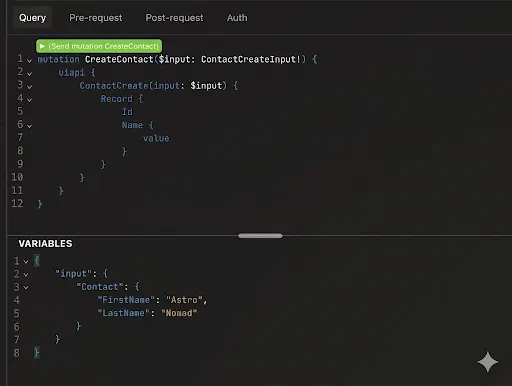
You can add variables in Altair as shown below.
Result:
{
  "data": {
    "uiapi": {
      "ContactCreate": {
        "Record": {
          "Id": "003xxxxxxxxxIIA5",
          "Name": {
            "value": "Astro Nomad"
          }
        }
      }
    }
  }
}
Update a Record
Updating field values in existing Account record:
mutation UpdateAccount($input: AccountUpdateInput!) {
    uiapi {
        AccountUpdate(input: $input) {
            Record {
                Id
                Name {
                    value
                }
                Industry {
                    value
                }
            }
        }
    }
}
Variables:
{
    "input": {
        "Id": "001xxxxxxxxxxxcAAE",
        "Account": {
            "Name": "Updated Account Name",
            "Industry": "Finance"
        }
    }
}
Result:
{
  "data": {
    "uiapi": {
      "AccountUpdate": {
        "Record": {
          "Id": "001xxxxxxxxxxxIAA",
          "Name": {
            "value": "Updated Account Name"
          },
          "Industry": {
            "value": "Finance"
          }
        }
      }
    }
  }
}
Delete a Record
Deleting an Opportunity record:
mutation DeleteOpp($input: RecordDeleteInput!) {
    uiapi {
        OpportunityDelete(input: $input) {
            Id
        }
    }
}
Variables:
{
    "input": {
        "Id": "006xxcccxxxxxxDAAQ"
    }
}
Result:
{
  "data": {
    "uiapi": {
      "OpportunityDelete": {
        "Id": "006xxxxxxxxxIAU"
      }
    }
  }
}
Create Multiple Records at Once (Using Aliases)
Creating multiple Contact Records in a single Transaction:
mutation CreateMultipleContacts {
    uiapi {
        contactOne: ContactCreate(input: { Contact: { FirstName: "Alice", LastName: "Smith" } }) {
            Record {
                Id
                Name {
                    value
                }
            }
        }
        contactTwo: ContactCreate(input: { Contact: { FirstName: "Bob", LastName: "Jones" } }) {
            Record {
                Id
                Name {
                    value
                }
            }
        }
    }
}
Result:
{
  "data": {
    "uiapi": {
      "contactOne": {
        "Record": {
          "Id": "003xxxxxxxxxxxcIAP",
          "Name": {
            "value": "Alice Smith"
          }
        }
      },
      "contactTwo": {
        "Record": {
          "Id": "003xxxxxxxxxxxxdIAP",
          "Name": {
            "value": "Bob Jones"
          }
        }
      }
    }
  }
}
Partial Success with allOrNone: false
Creating multiple Records in a single transaction using allOrNone: false
mutation PartialSuccessExample {
    uiapi(input: { allOrNone: false }) {

        # This will fail (Missing required LastName)
        badContact: ContactCreate(input: { Contact: { FirstName: "Oops" } }) {
            Record {
                Id
            }
        }

        # This will succeed
        goodContact: ContactCreate(input: { Contact: { FirstName: "Valid", LastName: "User" } }) {
            Record {
                Id
                Name {
                    value
                }
            }
        }

    }
}
Result:
{
  "data": {
    "uiapi": {
      "badContact": null,
      "goodContact": {
        "Record": {
          "Id": "003xxxxxxxxxxJIA1",
          "Name": {
            "value": "Valid User",
            "__typename": "StringValue"
          },
          "__typename": "Contact"
        },
        "__typename": "ContactCreatePayload"
      },
      "framework_augmented___typename": "UIAPIMutations"
    },
    "framework_augmented___typename": "Mutation"
  },
  "errors": [
    {
      "extensions": {
        "ErrorType": "DataFetchingException"
      },
      "locations": [
        {
          "column": 5,
          "line": 3
        }
      ],
      "message": "Required fields are missing: [LastName]",
      "paths": [
        "uiapi",
        "badContact"
      ]
    },
    {
      "extensions": {
        "ErrorType": "DataFetchingException"
      },
      "locations": [
        {
          "column": 5,
          "line": 3
        }
      ],
      "message": "The transaction was rolled back since another operation in the same transaction failed.",
      "paths": [
        "uiapi",
        "badContact"
      ]
    }
  ]
}
Final Thoughts
GraphQL in Salesforce represents a significant leap forward for building fast, efficient, and data-aware applications. By providing a way to fetch and manipulate exactly the data you need in a single round trip, it solves the long-standing problems of over-fetching and under-fetching associated with traditional REST and SOAP APIs.
From simple queries pulling related records to complex filtering and imperative record modifications via mutations, the Salesforce GraphQL implementation offers a powerful toolset for modern development.
To dive deeper into the mechanics of querying and mutating data, explore the following resources: