

The enterprise technology landscape is currently undergoing a “Agentic Pivot,” a transition as consequential as the initial migration to the cloud. This shift moves organizations away from static, deterministic automation toward a future defined by autonomous systems capable of multi-step reasoning and real-time data orchestration.
In the architecture of 2026, the Salesforce platform has evolved from a simple system of record into a system where digital workers navigate a complex data landscape and execute decisions with increasing autonomy. For developers and architects, this transformation necessitates a fundamental retooling of the enterprise stack – replacing data replication with federated grounding, static permissions with active governance, and basic logging with high-fidelity observability to build the infrastructure of trust required for the modern, agent-enabled enterprise.
The Architecture of the Agentic Pivot
To help you dive deeper into this technical analysis, here is how those four critical features bridge the gap between legacy systems and the agentic future:
| Feature | Legacy Approach | Agentic Evolution |
|---|---|---|
| Data Grounding | Data Replication (ETL) | Federated Grounding (External Objects via Data Cloud) |
| Governance | Manual Permission Sets | Agent-Assisted Identity |
| Observability | Simple Error Logs | High-Fidelity Observability (Flow Data Cloud Logging) |
| Deployment | Black Box” Pipelines | Transparent Delivery Lifecycles (Debug for Deployment) |
Grounding AI With RAG and External Objects
Generative AI is most effective when grounded in real-time enterprise data. By integrating External Objects with Prompt Builder via Retrieval-Augmented Generation (RAG), organizations can provide AI models with live context from external systems without the need for traditional data replication.
This “Zero-Copy” strategy allows the AI to reason across a federated data estate while maintaining security through the Einstein Trust Layer.
Integrating External Data in Prompt Builder
With External Objects enabled, building a prompt that queries external data is straightforward. In Prompt Builder, create a prompt template (type Flex) and select your External Object as the data source.
Then insert merge fields from that object into the prompt text (for example, Order__x.Status, Order__x.ShippedDate, etc.). At execution time, Salesforce fetches those field values from the external system and includes them in the prompt context. Essentially, the prompt template uses RAG: it retrieves real data from the external object, allowing the model to craft a more grounded answer.
The new feature enables many real-world scenarios:
- Order and Shipment Status: Support agents can build bots that query an ERP or warehouse system’s external order table to answer “Where is my shipment?” inquiries.
- Inventory Lookup: Sales or service agents can fetch real-time stock levels from an external inventory management system (e.g. SAP, Oracle) to tell customers if a product is available.
- Financial Records: A finance AI assistant could retrieve account balances or invoice details from an external accounting system, letting users ask “What’s my current balance?” without syncing data. External Objects connected to SAP/Oracle would expose those financial fields.
- Customer Data from Legacy Systems: If a company keeps customer profiles in a separate database, an AI agent can join that data on the fly. For instance, a chatbot could use an External Object to pull a user’s extended profile or history from the legacy system when drafting an answer.
Each scenario leverages the fact that the External Object fields behave like any Salesforce fields in the prompt, but under the hood they’re fetched live from the connected system.
Benefits of Real-Time External Data
Using External Objects with Prompt Builder gives several advantages:
- Always Current Data: Agents query the latest data on demand. Since queries go directly to the source, answers reflect real-time information. (This avoids stale data from periodic syncs.) Salesforce Connect’s live link “ensur[es] that users always work with the most up-to-date information”.
- No Data Duplication: Large datasets can remain in the external system. You don’t need to import or store them in Salesforce, reducing storage costs and maintenance. In Salesforce’s words, you can access large external datasets “without having to store the data in Salesforce”.
- Rich AI Context (RAG): By including external object fields in the prompt, the LLM is grounded in factual data. Prompt Builder “retrieves structured and unstructured data in real time through Retrieval Augmented Generation”, which helps produce accurate, relevant responses and prevents hallucinations.
- Scalability and Security: Heavy data (like IoT logs or detailed reports) can stay in its source. Salesforce only pulls what’s needed. External Objects also respect the external system’s auth model (OAuth, etc.), so you can leverage existing security and access rules.
Salesforce’s new external-object support in Prompt Builder empowers AI agents to tap into enterprise data anywhere it lives. A single Agentforce-powered bot can now seamlessly blend CRM data with external system data, delivering smarter, data-driven answers in real time. However, architects must account for performance sensitivity: querying external legacy systems can introduce significant latency that impacts end-to-end inference speed.
It is essential that the implementation includes a rigorous validation phase – leveraging tools like the Agentforce Testing Center – to simulate real-world interactions and ensure that response times remain within acceptable thresholds and do not trigger system timeouts.

Conversational Governance With Agentforce for Identity
Setting up secure integrations has historically been a manual, technical process. Agentforce for Identity introduces a conversational layer to identity management, allowing administrators to streamline OAuth and External Client App setup using natural language. This simplifies the creation of secure connections and ensures that integrations follow “Least Privilege” security principles.
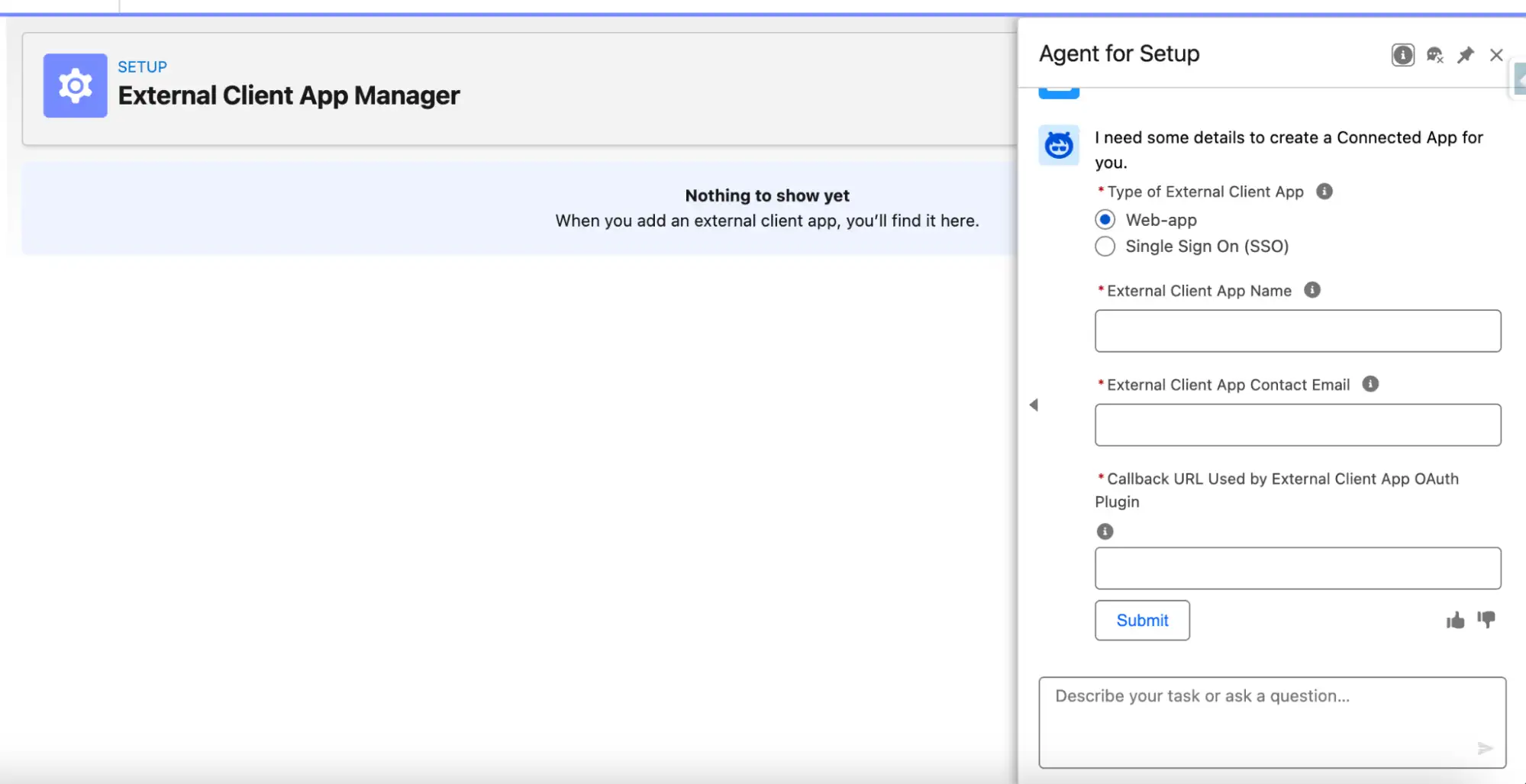
With the Summer ’25 release, Salesforce enhanced the Agentforce for Setup agent with new identity-focused capabilities. Developers can now use this agent to create and configure external client apps, integrated directly into the setup experience. Instead of navigating multiple identity configuration screens, you can now use a conversational interaction to define app details such as scopes, credentials, and redirect URIs.
This streamlines OAuth and integration setup, reduces configuration errors, and aligns identity management with Salesforce’s broader shift toward AI-assisted development. By combining this with Agentforce’s packaging and pro-code tools, teams can now version, automate, and reuse identity configurations across environments with ease.
First, you have to enable Agentforce for Setup. Go to Setup > Agentforce Agents, click New Agent, and choose ‘Agent for Setup’ to begin.

Here are the standard topics provided for the Agentforce for Setup agent. Let’s talk about the three that are related to identity management.

- Connected App Migration: Initiate this topic when a user requests the conversion of a single Connected App into an External Client App. It is designed for direct requests without complex filtering, such as “Migrate a connected app” or “Convert my connected app.” This can be desirable since External Client Apps offer enhanced security and configurability.
- Connected App Summary: Use this topic to provide a concise overview of OAuth settings for a specific Connected App. It applies when a user asks for a general summary of a single record, such as “Summarize Connected App OAuth” or “Give me a summary of this app.”
- External Client App Management: This topic provides end-to-end support for creating, configuring, and maintaining External Client Apps within your Salesforce organization..
Object Management and User Access Management are also available as Agentforce for Setup actions.
Below is an example that demonstrates creating an External Client App using Agentforce to securely access customer order status data.
Securely Accessing Customer Order Data via External Client Apps
Your company recently developed a website to provide visibility into customer order statuses. While this data is stored within your Salesforce CRM, your customer service manager needs a way for Help Desk users to access it directly while assisting customers.
To meet this requirement, you need to build a service that authorizes these users to retrieve the information without compromising data integrity. Because Salesforce External Client Apps are designed to integrate third-party applications with the Salesforce API, you decide to implement one to act as the secure gateway between your website and your Salesforce data.

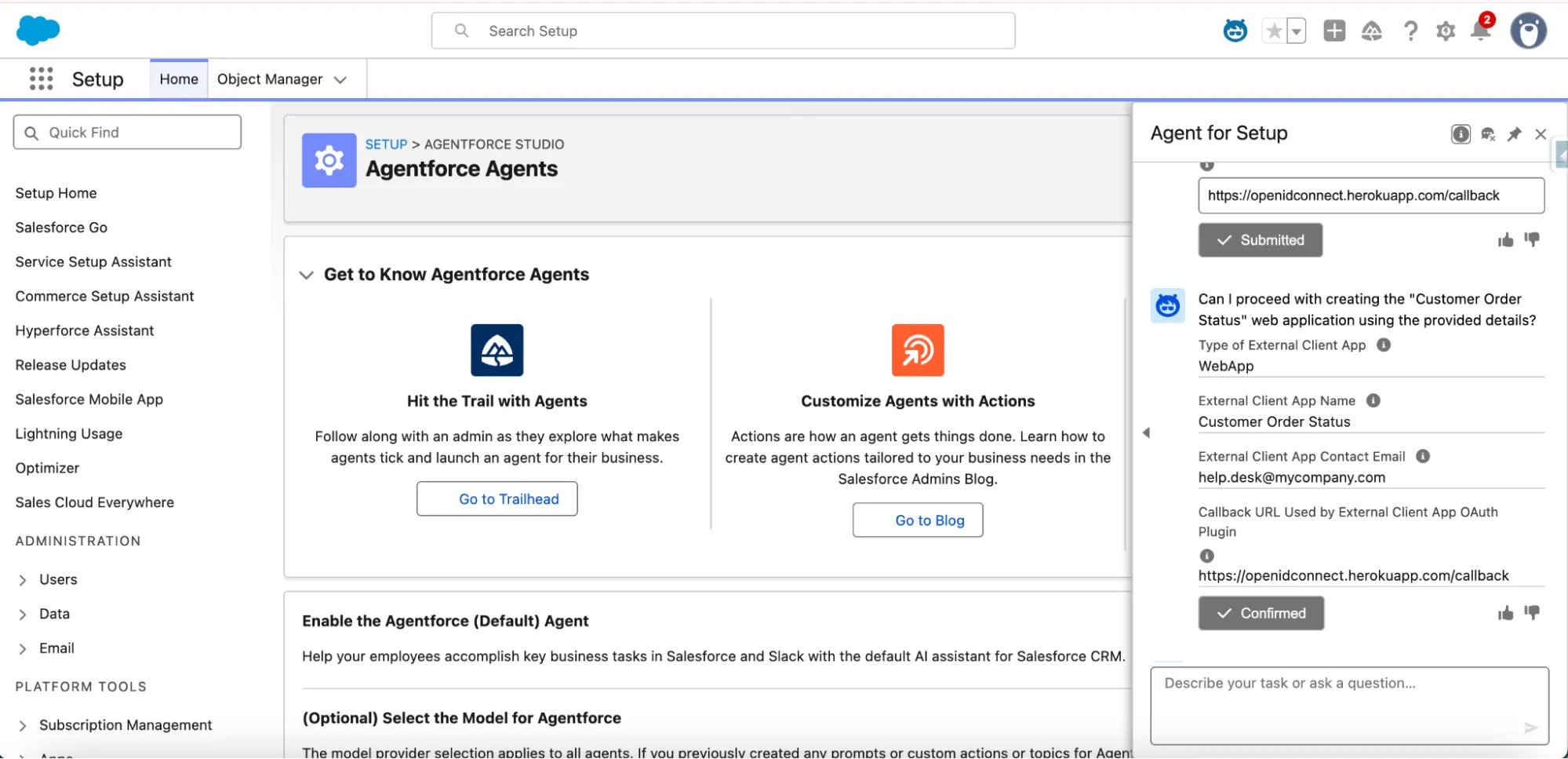
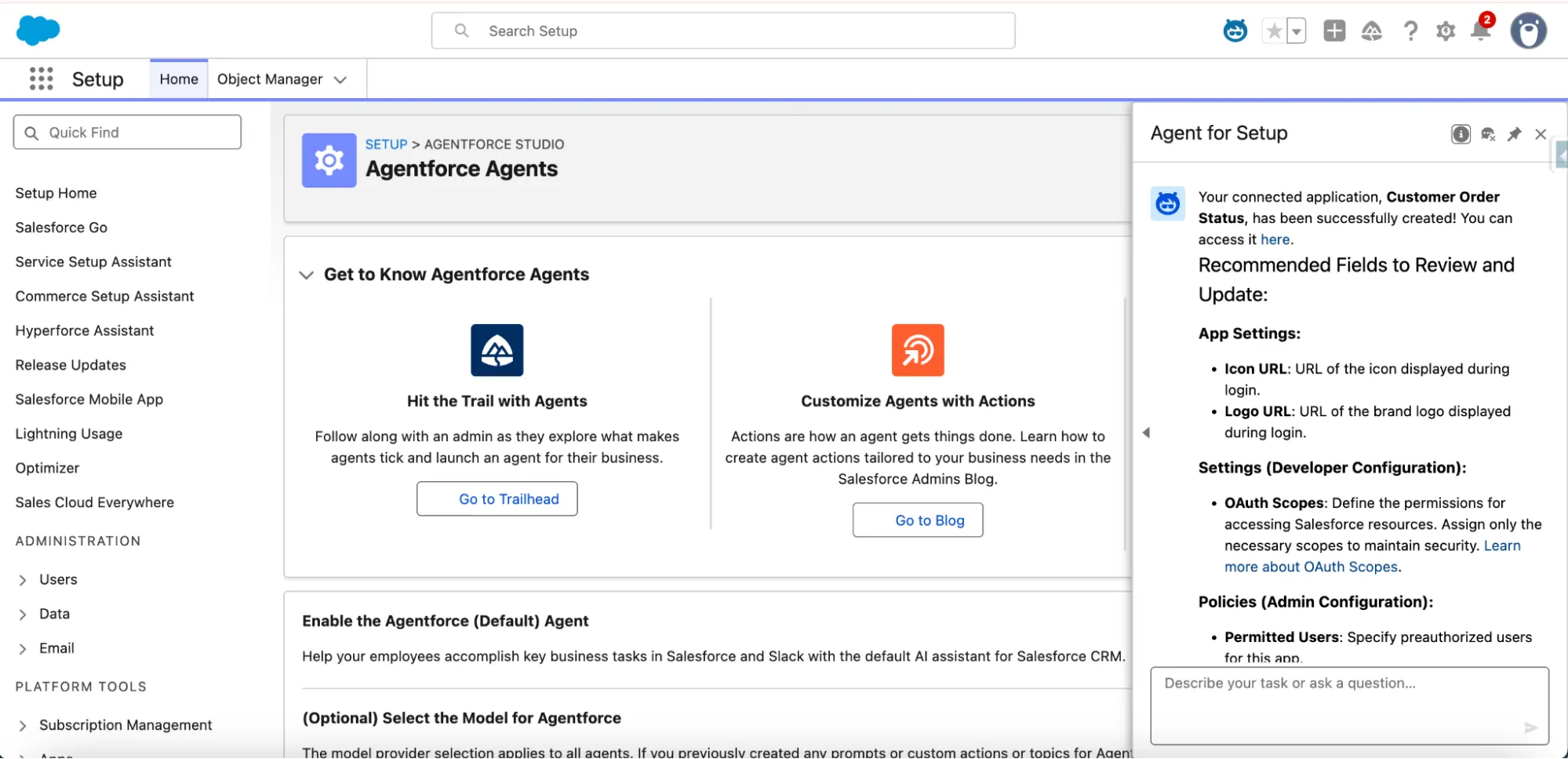
By creating External Client Apps via an agent, you can now instruct Agentforce to create and configure an external client app in your org. This helps automate and simplify the identity setup process.
Instead of manually navigating setup menus via UI, you interact with the “Agent for Setup” – which guides you to define app name, scopes, credentials etc. This reduces friction and potential configuration errors.
Once configured, that external client app can be used for integrations, OAuth flows, and external data access – effectively bridging external systems with Salesforce/Agentforce in a secure, managed way.
Scalable Observability: Log Flow Execution Data to Data 360
As automation scales, monitoring mission-critical logic becomes increasingly complex. Salesforce now allows developers to offload Flow execution logs to Data 360 (formerly Data Cloud), leveraging a high-ingestion analytical platform to monitor automation health at scale. This separates transactional processing from analytical logging, ensuring that high-volume monitoring does not degrade core platform performance.
For Salesforce Developers and Architects, monitoring the health and performance of automation is critical. In 2025, Salesforce introduced a new capability that bridges the gap between automation and big data: the ability to log Flow execution data directly to Data Cloud.
This feature allows you to offload the heavy lifting of logging from transactional tables to a scalable data platform, ensuring reliable data management for your auto-launched and scheduled flows.
Why Log to Data 360?
Traditionally, tracking flow interviews – especially at scale – can be resource-intensive. By routing this data to Data 360, you gain a mechanism to:
- Monitor Health at Scale: Collect comprehensive metrics without cluttering your core CRM transactional data.
- Centralize Analysis: Use Data Cloud’s capabilities to analyze automation trends over time.
What Data Is Collected?
According to the documentation, enabling this feature allows you to collect specific information about each flow interview. The key metrics include:
- Completion Time: When the interview finished.
- Status: The final status of the interview (e.g., Completed, Error).
- Error Details: Whether the flow encountered any errors during execution.
All these metrics are stored in the Flow Run DMO (ssot__FlowRun__dlm), allowing you to query and map this data just like any other Data Model Object in Data 360.
Step-by-Step: How to Enable Data Cloud Logging
Before any automation can be orchestrated, Data 360 must be explicitly enabled within the “Home Org” through a deliberate infrastructure provisioning process in the Setup menu. In a Data Cloud One (multi-org) scenario, where the primary Data 360 instance resides in a separate org, functionality is extended to “Companion Orgs” via a secure metadata-sharing connection.
This architecture allows the Companion Org’s Flow Builder to interact with unified profiles and calculated insights as if they were native objects, while the heavy-duty compute engines and data lake storage remain centralized in the Home Org. This ensures a “single source of truth” across the entire enterprise landscape without the need for redundant provisioning or siloed data environments.
Setting this up can be done directly within the Flow Builder. Follow these steps to turn on the feature for your specific flows:
- Open your flow in the Flow Builder.
- Click the View properties (gear icon), then click Show Advanced.
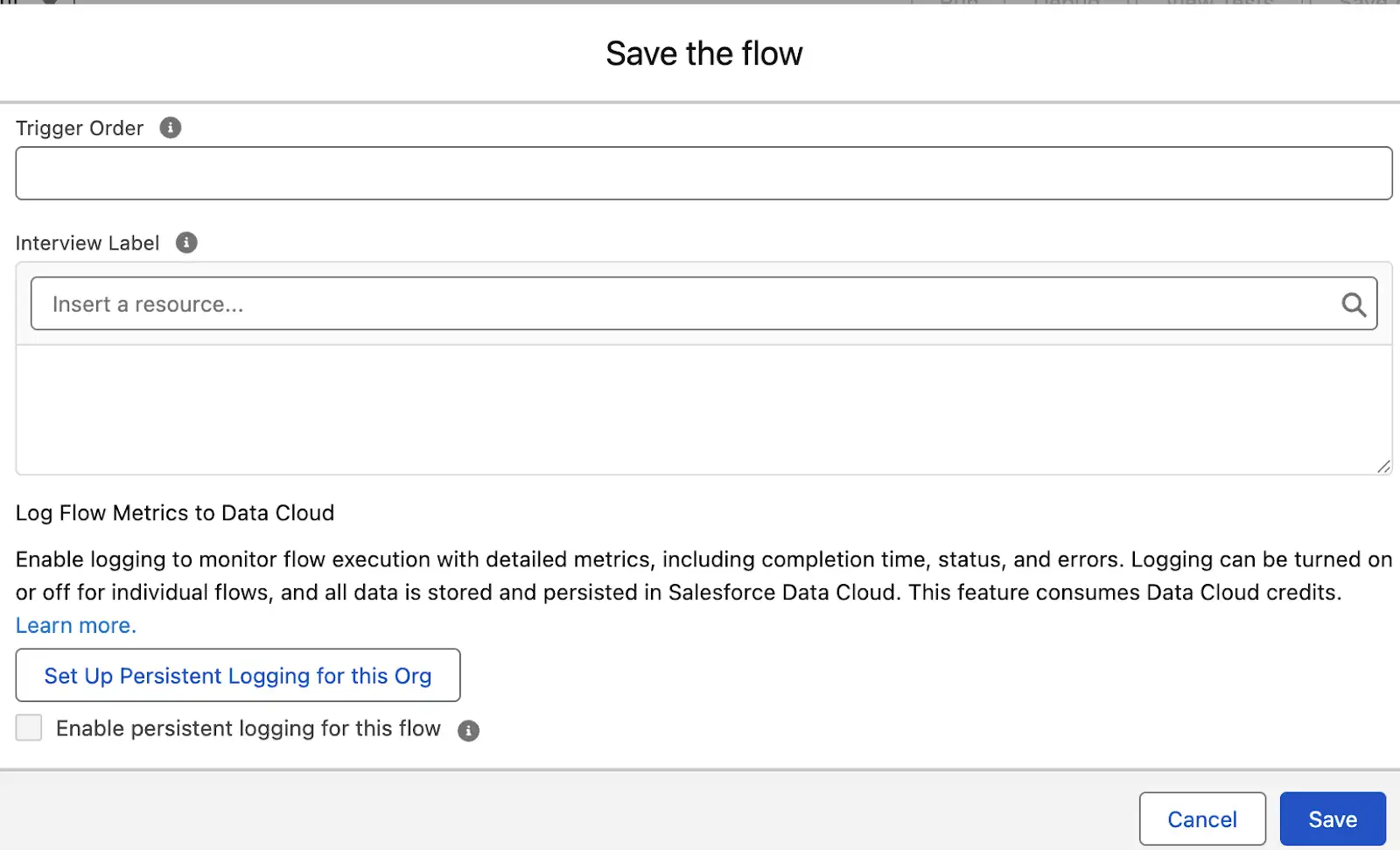
- Click Set Up Persistent Logging for this Org.
- After setup, select Enable persistent logging for this flow.
- Save your flow to apply the changes.
- Repeat these steps to set up persistent logging for each new flow version and new flow.
Note: This feature is available for record-triggered, platform event-triggered, schedule-triggered flows, and autolaunched flows.
Important Considerations
Before enabling this across your entire org, keep in mind that logging Flow execution consumes Data 360 credits. It is recommended to be strategic: prioritize mission-critical flows or use granular logging temporarily for high-volume automations during troubleshooting or performance tuning to avoid unnecessary data costs.
Additionally, be aware of the following behaviors:
- Subflows: Subflow element executions are logged regardless of whether the referenced flow has persistent logging enabled.
- Execution Time: The flow and element execution times are calculated in milliseconds.
- Exclusions: A flow run isn’t logged to Data Cloud if the flow is run using debug in Flow Builder or if it is run by an Apex test or flow test.
- Asynchronous Paths: Multiple flow run records may appear for a single flow execution due to asynchronous and scheduled paths creating separate flow interviews. For example, a flow with immediate, asynchronous, and scheduled paths generates three flow run records.
- Transaction Boundaries: Multiple flow element run records appear for a single flow execution with transaction boundaries, including wait elements that pause, resume, and complete, or asynchronous action elements.
New Control for Debug Logs During Metadata Deployment
Precision Troubleshooting in CI/CD
To improve transparency during the deployment lifecycle, a new setting enables org-wide debug logs during metadata deployment. Found under Apex Settings in Setup, this feature allows administrators to capture full execution details during deployments, making it significantly easier to troubleshoot complex interactions and transient errors in high-transaction environments.
For Salesforce Developers and Release Managers, visibility during deployment is crucial, but so is speed. In the Summer ’25 release, Salesforce refined how debug logs are handled during metadata deployments to optimize performance, giving you more granular control over your deployment logs.
The Change: Performance by Default
Historically, generating debug logs during deployments could slow down the process due to the overhead of log creation. To address this, debug logs during metadata deployment are now turned off by default for performance reasons.
This change ensures that your deployments run as efficiently as possible out of the box. However, there are times when you need those logs to troubleshoot failed tests or deployment errors.
How to Enable Debug Logs
Salesforce now allows you to enable debug logs for deployments via an org-wide setting or programmatically using the Metadata API. For teams managing org configuration via source control, you can toggle this feature using the ApexSettings metadata type.
- Field:
enableDebugLogsDuringDeployment - Location:
ApexSettings
Example Apex.settings file:
<?xml version="1.0" encoding="UTF-8"?>
<ApexSettings xmlns="http://soap.sforce.com/2006/04/metadata">
<enableDebugLogsDuringDeployment>true</enableDebugLogsDuringDeployment>
</ApexSettings>
Example package.xml file:
<?xml version="1.0" encoding="UTF-8"?>
<Package xmlns="http://soap.sforce.com/2006/04/metadata">
    <types>
        <members>Apex</members>
        <name>Settings</name>
    </types>
    <version>47.0</version>
</Package>
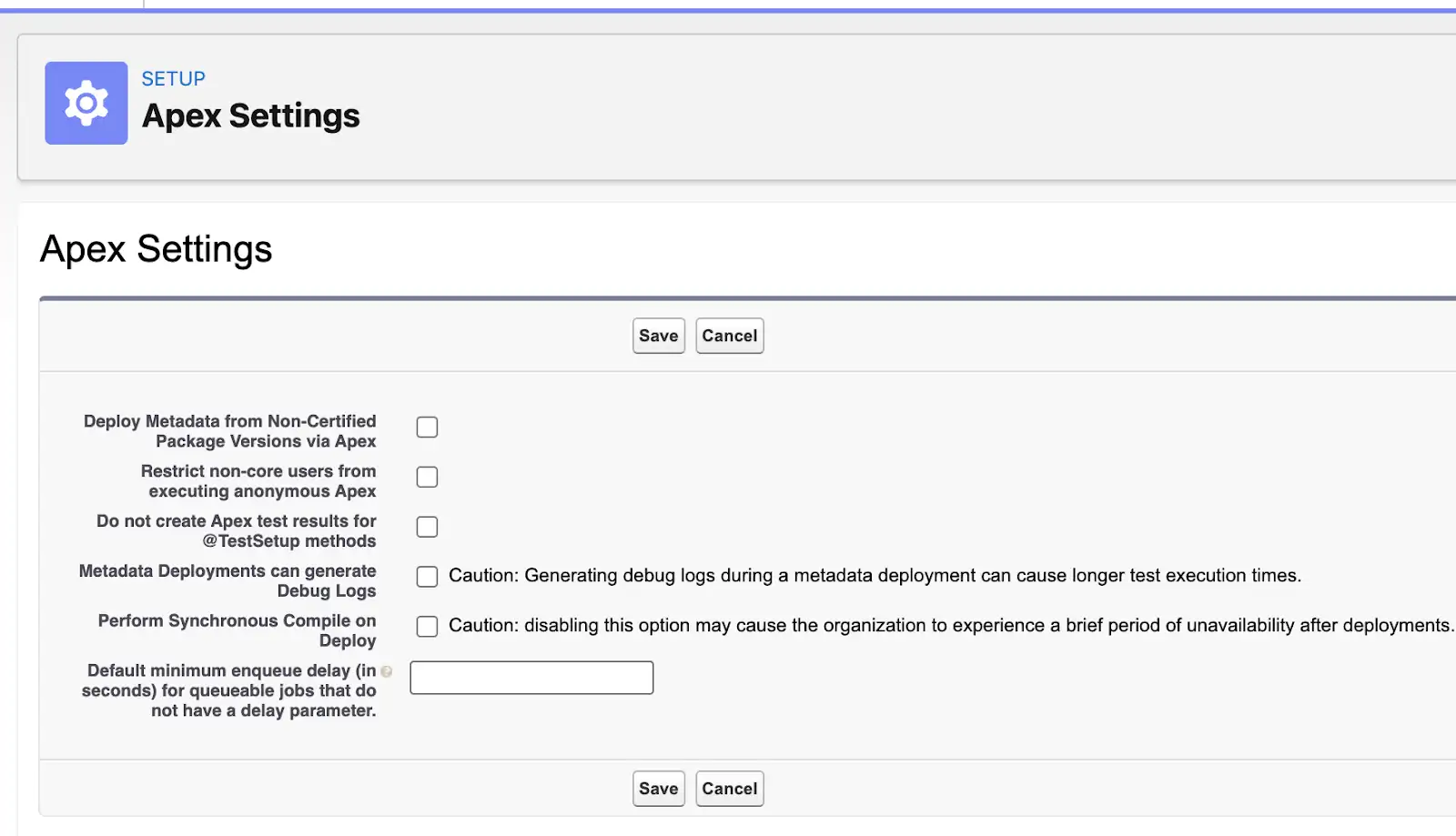
Alternatively, you can enable this through the setup menu in your org under Apex Settings by checking that Metadata Deployments can generate Debug Logs.
Summary
In 2025, Salesforce shifted its architectural paradigm toward an agentic ecosystem, empowering developers to build autonomous, data-aware systems with unprecedented precision. Salesforce has delivered significant enhancements for developers and architects, primarily focused on AI, automation, and deployment control.
Key updates include the integration of External Objects with Prompt Builder, enabling generative AI (RAG) to ground its responses in real-time external enterprise data for unmatched accuracy. Furthermore, mission-critical Flow automation is made more robust by the ability to Log Flow execution data directly to Data 360, allowing for scalable health monitoring and centralized analysis. For integrations, Agentforce for Identity streamlines OAuth and external client app setup through a conversational interface, reducing configuration errors.
Finally, the release improves deployment performance by setting debug logs for metadata deployment to be off by default, with new programmatic options available for easy troubleshooting when needed.