






Salesforce Flow is a powerful, declarative development tool that allows admins and developers to create custom automations and interactive user experiences. Flow’s ability to accomplish so much without code has been a game-changer for many companies.
Flows should be both maintainable and scalable so that they can grow right along with the business processes they are automating, but hard-coded values in flows can cause a number of issues. Let’s take a closer look at this problem, and how leveraging custom metadata types can help save the day.
The Problem With Hard-Coded Values in Flows
Salesforce’s definition of hard-coding is:
“The software development practice of embedding output or configuration data directly into the source code of a program.”
In our case, hard-coding refers to placing values (such as IDs, business rules, etc.) directly into flows. Here are a few examples of values that I’ve personally seen hard-coded in flows:
- IDs
- Business Rules
- Record Type Names
- Emails
- URLs
- Queue Names
- Email Template API Names
- Profile / Role Names
- Mappings
This example shows a flow with hard-coded threshold values for the Opportunity amount. These values are used to determine if an Opportunity is considered a “High-Value” deal.

Many admins may not see an issue with adding these values directly in flows. In fact, they are typically quick and easy to add. However, over time, these values may need to change as business processes change.
Every time a value change is needed, the affected flows will have to be updated directly. Which means a simple value change will require a flow deployment to production.
This becomes an even bigger problem when these values are referenced in multiple flows. Updating a single value would mean updating multiple flows, and that’s only if you can remember or locate every flow where the value is referenced.
This can potentially cause two main issues. First, it could cause inconsistencies and errors in each flow’s UI and automation. Also, it could cause issues with any data manipulated by these flows.
One way to combat these issues is to leverage custom metadata!
Benefits of Using Custom Metadata
There are some benefits to using custom metadata as a flow admin. Custom metadata can be:
- Created, customized, and deployed by flow admins in a declarative manner.
- Used to store values like business rules, API names, and more.
- Used for field and value mapping.
- Used to easily toggle flows on and off.
- Referenced directly in flows.
So, many of the values that you typically hard-code in flows can be added to custom metadata. And once you add those values to custom metadata records, you can reference those records in your flows!
Custom Metadata Basics for Flow Admins
You can get started with Custom Metadata using a few simple steps. First, determine which values make the most sense to be stored in custom metadata records.
| Value Type (often hard-coded in Flow) | What to store in Custom Metadata | Example |
|---|---|---|
| IDs (RecordTypeId, QueueId, UserId) | Avoid actual IDs. Try to use DeveloperName, API Names, and other identifiers instead | RecordType.DeveloperName: “Support_Ticket” |
| Business Rules | Thresholds, flags, segments, priorities, feature toggles, etc. | Minimum Amount: $25000 Maximum Amount: $100000 |
| Record Type Names | Object API name, RecordType DeveloperName | Object API Name: “Case”, RecordType.DeveloperName: “Support_Ticket” |
| Emails | To / Cc / Bcc addresses, subject / body snippets | To address: “support@example.com” |
| URLs | Relative paths, base URLs (avoid hard-coding full environment-specific URLs) | Relative URL: /lightning/page/case_faq |
| Queue Names | Queue DeveloperName | Queue DeveloperName: “Billing_Queue” |
| Email Template API Names | Template API Names | Email Template API Name: “Renewal_Reminder_Email” |
| Profile / Role Names | Profile / Role API Names | Profile API Name: “Sales_Manager” |
| Mappings | Source value, target value, and context | Source Value: “VIP Customer”, Target Value = “Tier 1 Support” |
Next, create a custom metadata data type with the fields needed to store important values that you don’t want to hard-code in flows. In our example, we are creating a custom metadata type to store the opportunity amount threshold values for different deal types.
Here are some general steps that you can follow to create a custom metadata type:
- In Setup, navigate to Custom Metadata Types.
- Click on the New Custom Metadata Type button.
- Fill out all required fields on the Custom Metadata Type Information screen.
- Keep the default visibility settings (unless you are creating a managed package).
- Click on the Save button to save your new custom metadata type. You will be able to view the newly created custom metadata type after clicking Save.
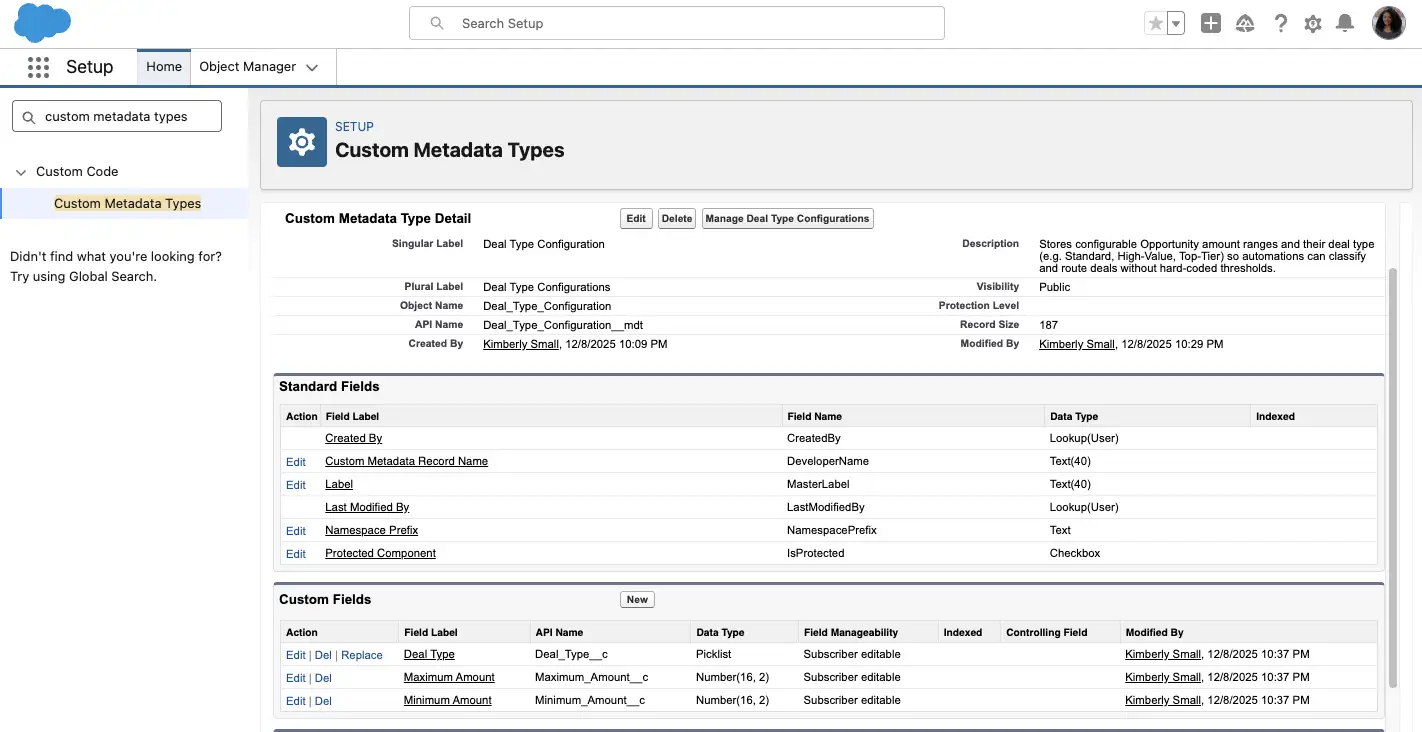
After creating the custom metadata type, we can add a deal type field, as well as minimum and maximum amount fields to store threshold values.
To add fields to your custom metadata type, you can follow these simple steps:
- Locate the Custom Fields section for your custom metadata type.
- Click on the New button in the Custom Fields section.
- Select the correct data type for the field you want to create, then click on the Next button.
- Fill out all necessary fields.
- For Field Manageability, you’ll want to select the following option unless you want to enforce restrictions for changing field values: Any user with the Customize Application permission (managed package upgrades won’t overwrite the value).
- Click on the Next button.
- Specify if the new field should display on the page layout or not, then click on the Save button.
Next, create custom metadata records to store those values. To add new custom metadata records:
- Locate and click on the Manage button at the top of your custom metadata type’s page. This will open a list view for your custom metadata type’s records.
- Click on the New button.
- Fill out all necessary fields, then click on the Save button (or the Save & New button if you need to add more than 1 record).
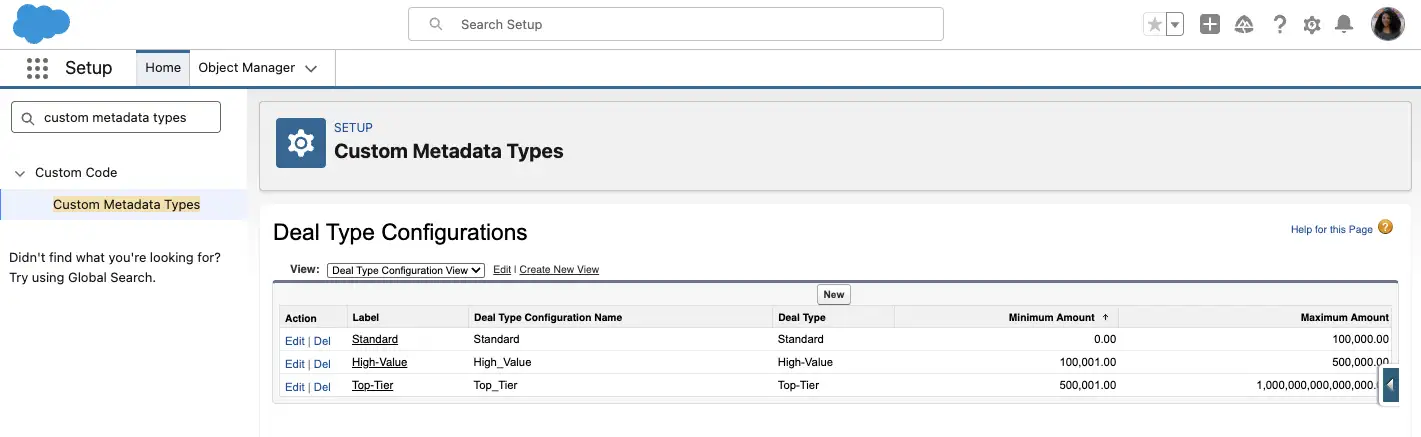
And then, you can reference those custom metadata records in your flows! We will explore two different options that you can use to reference the custom metadata records in your flows.
Option 1: Query Custom Metadata Records Using Get Records
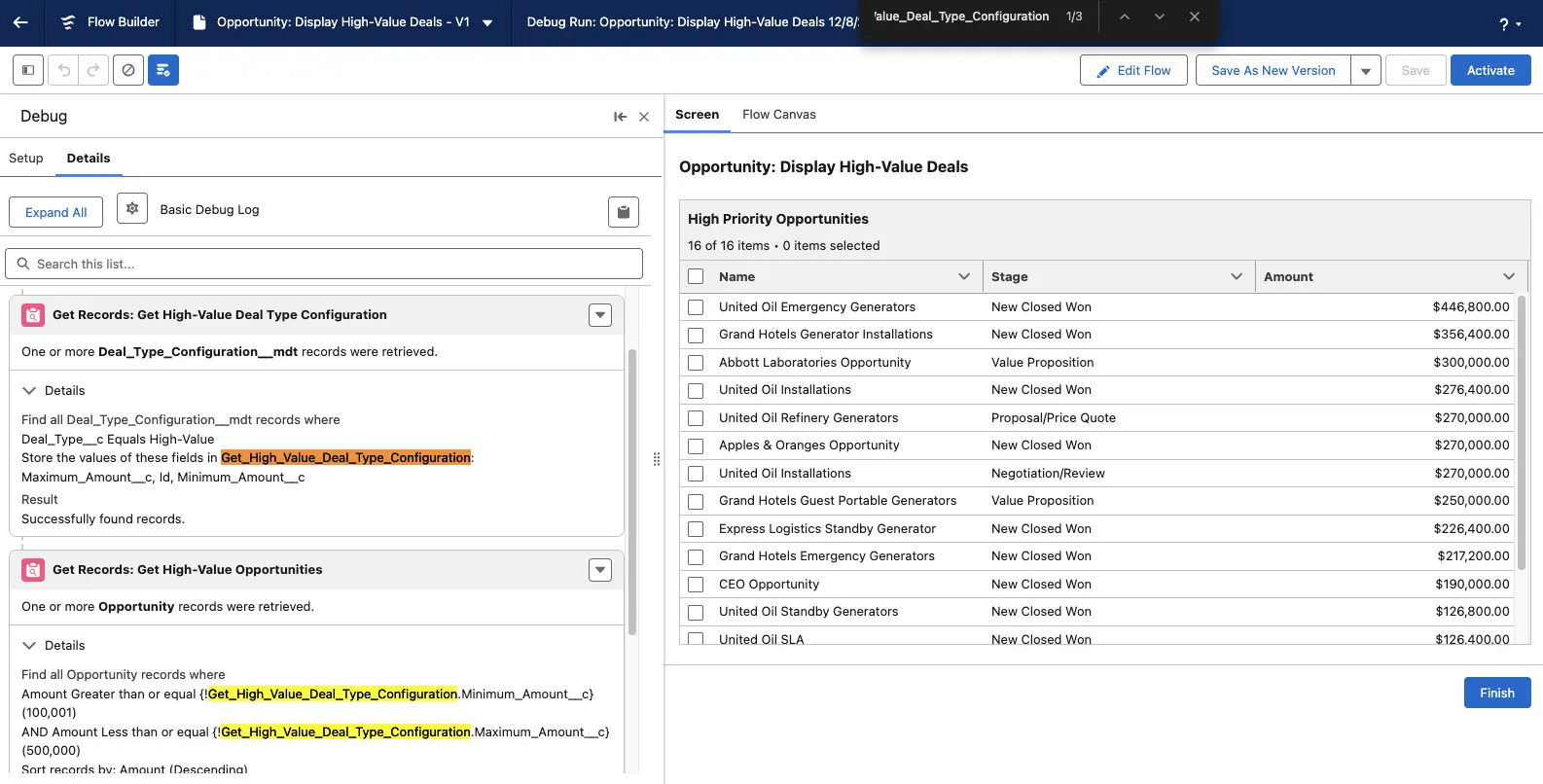
You can query the custom metadata records using a Get Records element. You will select the Custom Metadata Type you created as the object, and use specific criteria to drill down and get the metadata record(s) you need.
In our example, we are querying the Deal Type Configuration custom metadata type, and only retrieving the “High-Value” record.
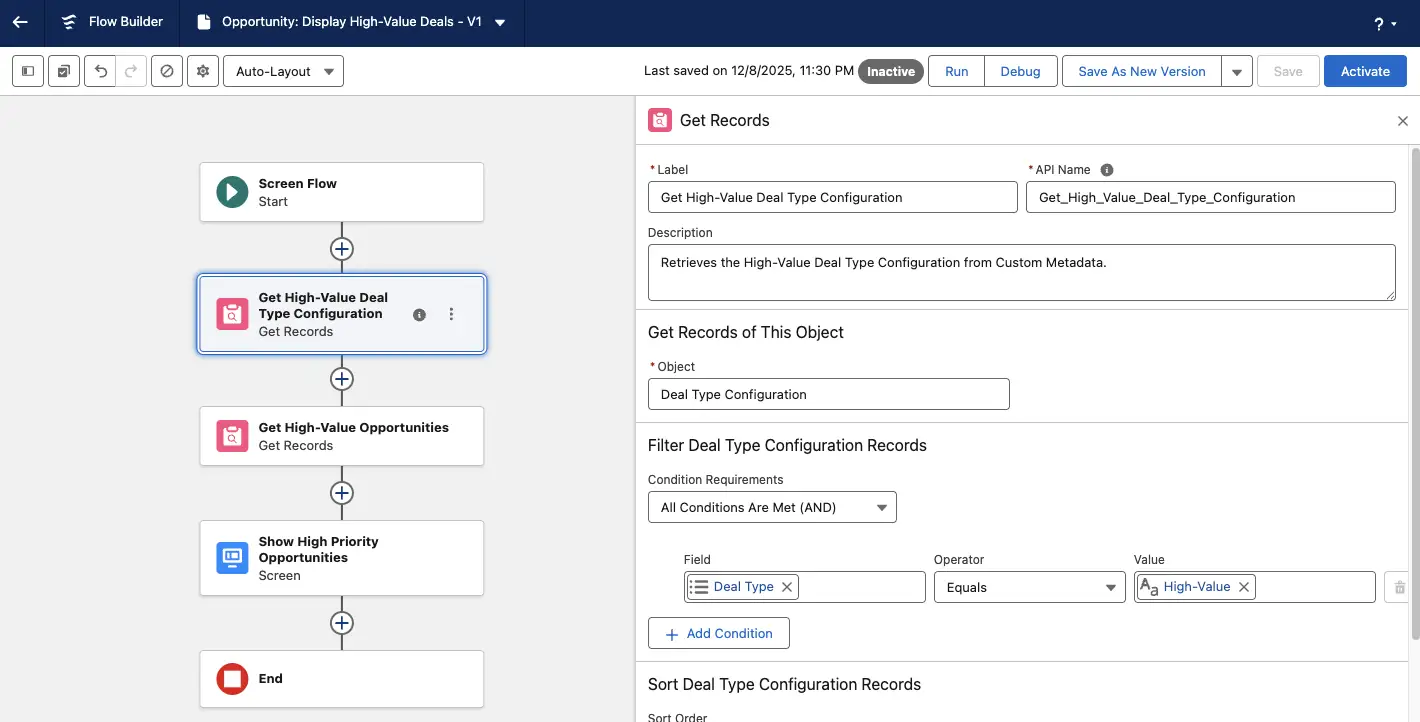
Next, use values from the queried custom metadata records in the desired flow elements.
In our example, we will reference the Minimum Amount and Maximum Amount fields from the queried custom metadata record in the criteria of the Get Records element that is used to retrieve Opportunity records.
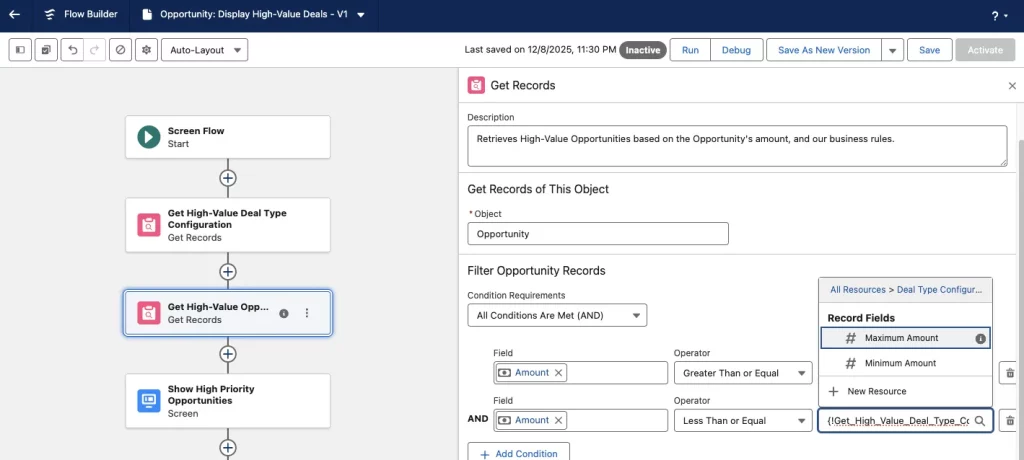
Now, when you debug test your flow, you will be able to see where the custom metadata was queried and referenced, while also verifying that everything displays as expected.
Option 2: Flow Formula Referencing Custom Metadata Record
If you want to avoid using additional queries in your flow, you can use flow formulas to retrieve custom metadata record field values! When creating the flow formula, you’ll want to use the pattern below:
$CustomMetadata.<Type_API_Name>.<Record_DeveloperName>.<Field_API_Name>
So, you’ll need the:
- Custom metadata type’s API name.
- The developer name of the custom metadata record you want to reference.
- Field API name from the custom metadata type.
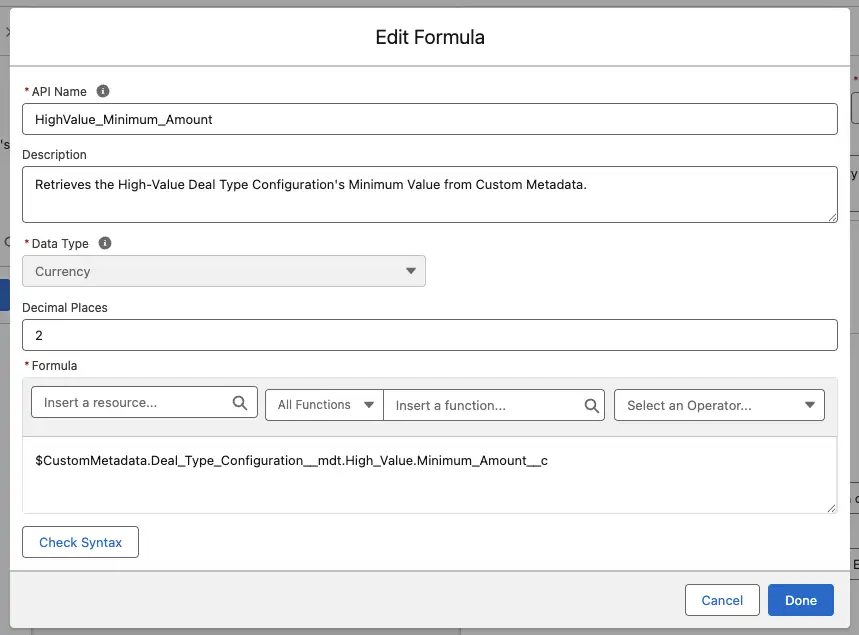
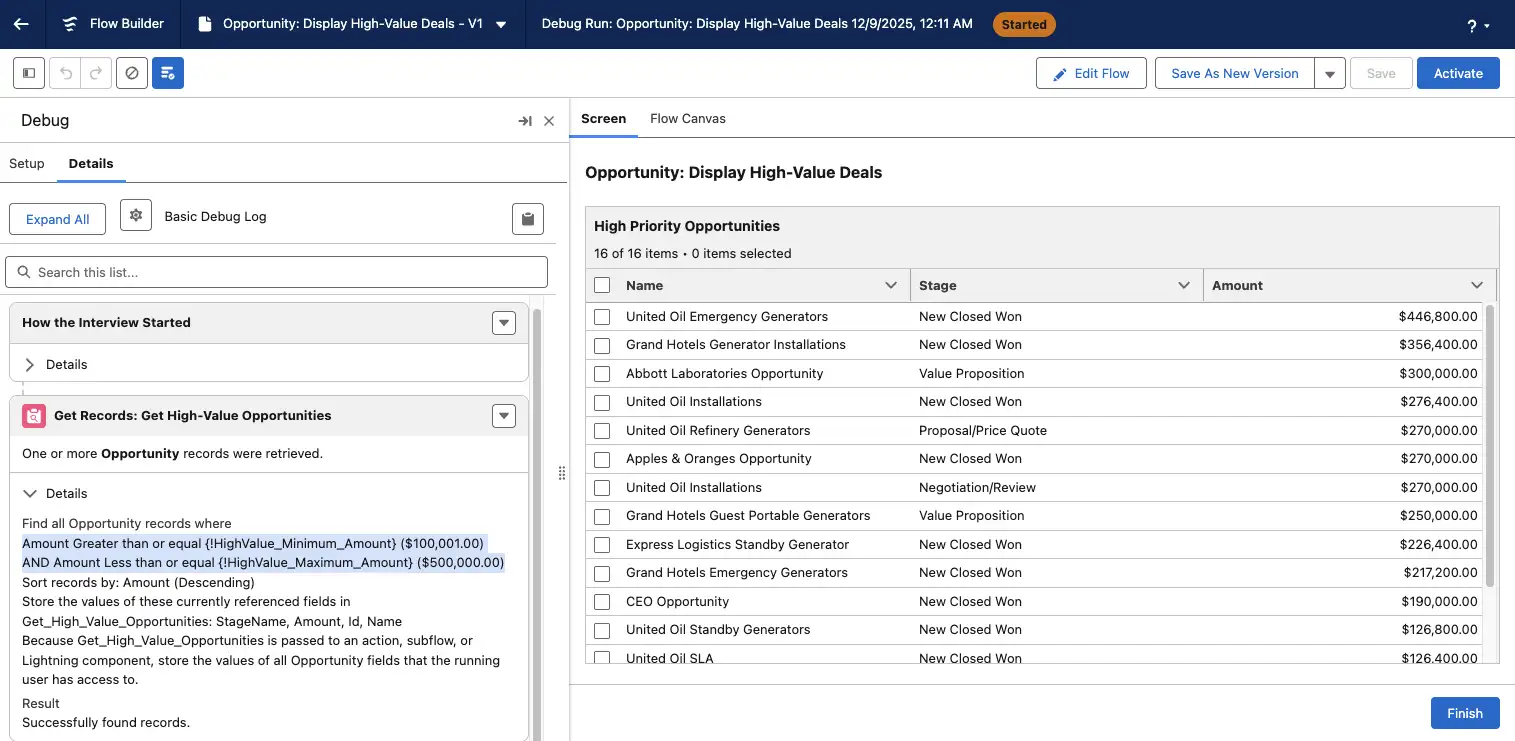
Once you create the custom metadata formulas you need, you can reference these formulas in the desired flow elements.

Now, when you debug your flow, you will be able to see where the custom metadata formulas were referenced, while also verifying that everything displays as expected.
Tips, Considerations, and Next Steps
Now that you understand how to use custom metadata in your flows, try the following:
- Review existing flows that have hard-coded values, and see where custom metadata can be leveraged.
- Keep custom metadata names clear and easy to understand.
- Work with your team to establish standards around using custom metadata in flows.
Keep in mind that:
- Custom metadata records are still metadata – therefore, moving these records from environment to environment typically requires a deployment rather than a data load.
- You may want to avoid storing values that will need to change frequently.
- These records will typically be updated in Setup, but you can work with a developer to leverage the Metadata API for additional options.
Summary
Now you see how custom metadata can help make your flows more configurable and easier to maintain. Instead of hard-coding values in multiple flows, you can define them once in custom metadata, then reference those metadata records in each flow.
Are you currently leveraging custom metadata to make your flows more dynamic? If not, do you have plans to replace hard-coded values with custom metadata in the future? Let us know in the comments.





Comments: