

If you’ve been a Salesforce Admin, Consultant, or Architect for a while, you’ve probably spent serious time on your security model. Profiles, permission sets, sharing rules, field-level security, and org-wide defaults. You’ve thought carefully about who can see what, and you’ve built your access model accordingly. Yet there’s a question that rarely makes it into security reviews: does search respect all of that?
The answer is mostly yes, with “mostly” doing a lot of work in that sentence. Salesforce search has its own set of security behaviours, edge cases, and exceptions that sit outside the mental model most administrators carry. Some of these are documented. Some are technically documented but buried deep enough that you’d only find them if you already knew what you were looking for. Today, we’re going to go digging!
When Field-Level Security Stops Protecting Your Search Index
The Problem
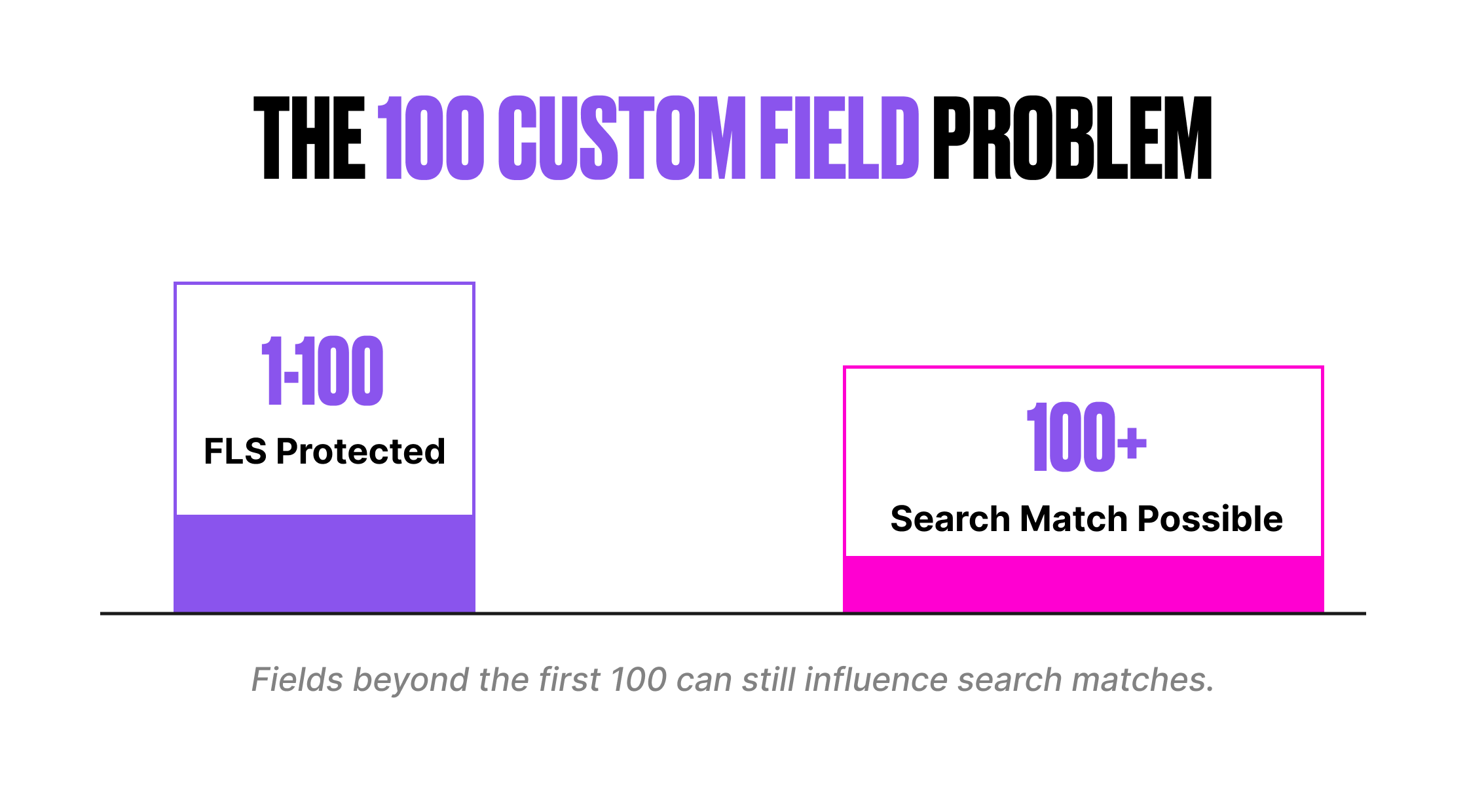
Salesforce search applies field-level security to all standard fields and to the first 100 searchable custom fields per object. Custom picklist fields are always protected and don’t count towards that limit. So far, so good. What if an object has more than 100 searchable custom fields? Everything beyond the 100th is unprotected in the search index.
“Unprotected” does not mean users can see the field value. It means the search engine can use the field value to match results. The user gets the record back in their search results (assuming they have record-level access), but the protected field value is hidden. The problem is that the match itself reveals information.
Example
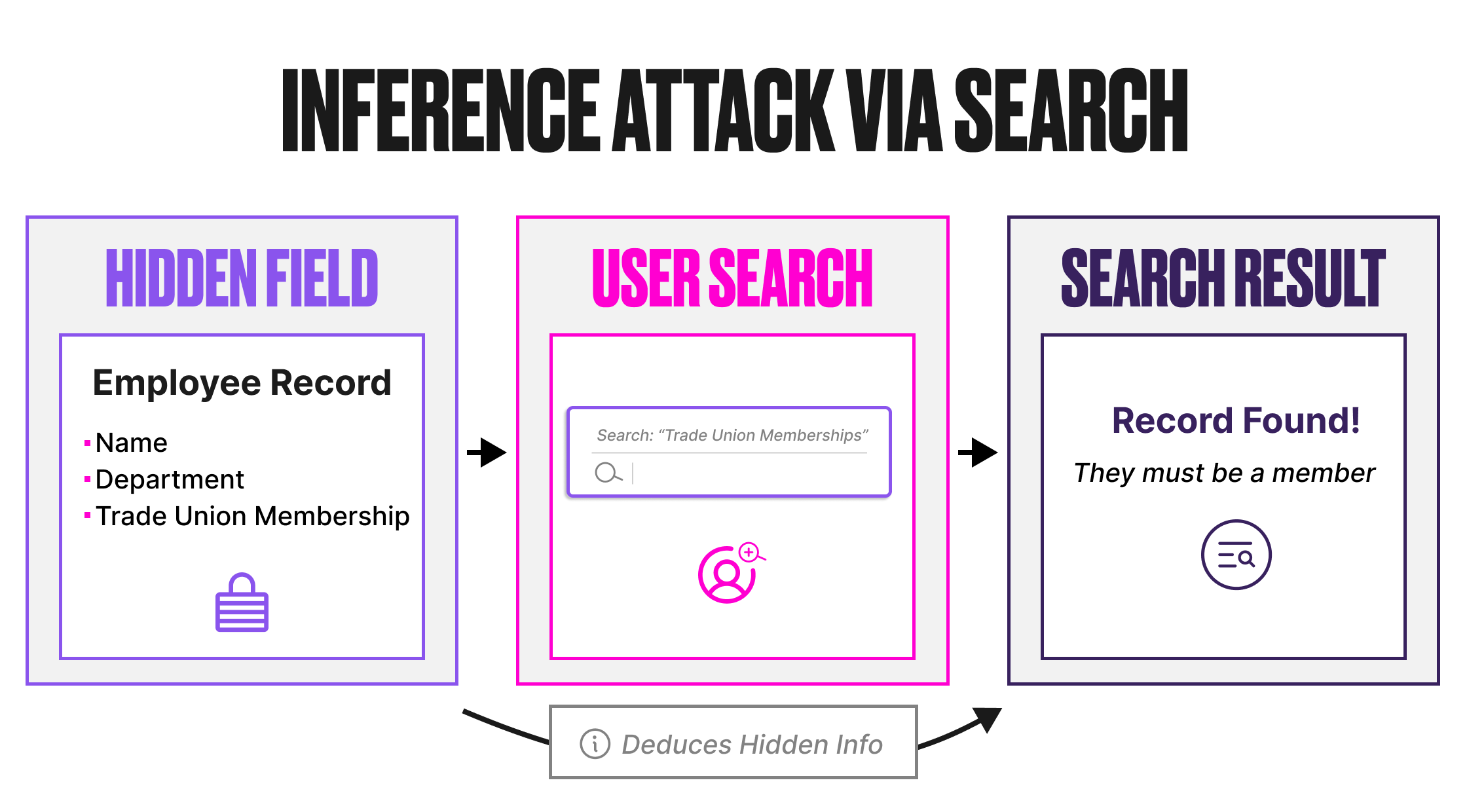
Consider an Employee custom object with 120 custom fields. One of those fields, positioned beyond the 100th, is “Trade Union Membership”. Field-level security is configured so that only HR staff can see this field.
A non-HR user searches for “Employees with Trade Union Membership”. The search engine scans the index, matches against the unprotected Trade Union Membership field, and returns the Employee records where that value exists. The user can see the records (they have object and record access), but the Trade Union Membership field is hidden. The user can’t see the field value, but the fact that those specific records appeared in the search results for that specific query reveals the membership information.
This is an inference attack. The data isn’t directly exposed. It’s deducible from the search behaviour.
The Fix
Since Summer ’24, Salesforce has provided admin control over which custom fields receive FLS protection in the search index.
- Navigate to Setup, Einstein, Einstein Search, Search Manager, then Search Setup.
- Select the object from the Salesforce Objects list in Configure Search Metadata.
- Click Manage Field-Level Security for Search.
- Move up to 100 fields to the Protected list.
- Save changes.
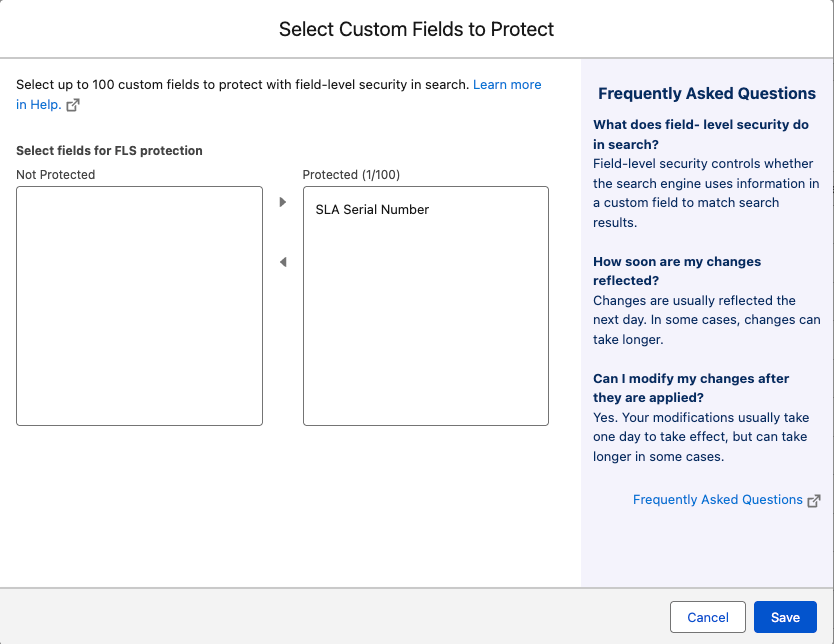
If you have more than 100 custom fields that need protection, you have two options. You can move less-sensitive fields to Not Protected to make room for the ones that matter. Or you can remove sensitive fields from the search index entirely using the “Remove from search index” option. A removed field cannot be used to match results at all.
Changes usually apply the next day, but can take a few days for complex orgs. A banner shows on the Object page while changes are pending.
What to Watch Out For
Search Manager shows how many objects have unprotected fields, so this is a quick audit item. The 100-field limit cannot be increased. Sandboxes and production orgs are both affected. And before Summer ’24, there was no admin control over which fields received the 100 protection slots.
It was effectively first-come, first-served based on field creation order. If you haven’t reviewed this setting in your org, the current allocation may not reflect your actual security and compliance needs.
When Code Ignores Your Field-Level Security
SOSL (Salesforce Object Search Language) is the query language behind cross-object search. When SOSL runs in Apex, it runs in system mode by default. This is well understood for SOQL queries. What’s less well understood is the specific implication for search: Apex running in system mode ignores field-level security when using IN ALL FIELDS.
This means a SOSL query in an Apex class can search across all searchable fields on all searchable objects, regardless of the running user’s field-level security settings. If a developer writes an SOSL query with IN ALL FIELDS and exposes the results to users via a Visualforce page, Lightning component, or API endpoint, those users may see records matched against fields they shouldn’t have access to.
Example
A developer builds a custom search component for the service console. The Apex controller runs the following SOSL query:
List> results = [FIND :searchTerm IN ALL FIELDS RETURNING Account(Name, Phone), Contact(Name, Email), Case(Subject, Status)];
This query runs in system mode. It searches every searchable field on Account, Contact, and Case, including fields the current user doesn’t have permission to see. If a sensitive field like “Internal Notes” on the Case object contains the search term, the Case record will appear in the results, even though the user’s profile restricts access to that field.
The record is returned. The restricted field value is not displayed (the component only shows Subject and Status), yet the fact that the record matched at all may reveal information the user shouldn’t have.
The Fix
Developers should enforce field-level security explicitly when running SOSL in Apex. The recommended approaches are:
Scope the SOSL query more tightly using IN NAME FIELDS, IN EMAIL FIELDS, or IN PHONE FIELDS instead of IN ALL FIELDS, depending on the use case. This restricts the search to specific field types rather than every searchable field on the object.
Custom search components should be reviewed as part of any security audit. If the SOSL query uses IN ALL FIELDS and the results are exposed to users, the component may be leaking information through search matching, even if the displayed fields are properly restricted.
What to Watch Out For
This behaviour is by design. System mode exists so that Apex can perform operations that the running user may not have permission for, and search is a context where the “match” itself reveals information, which makes it different from a SOQL query where you control exactly which fields are queried.
IN ALL FIELDS is the default search group when no IN clause is specified. If a developer omits the IN clause entirely, the query still searches all fields.
SOSL queries run from the Developer Console, Apex code, or the REST API can also search objects even if the object’s tab is hidden for the running user’s profile.
Search Crowding and the Permission Timing Problem
The Problem
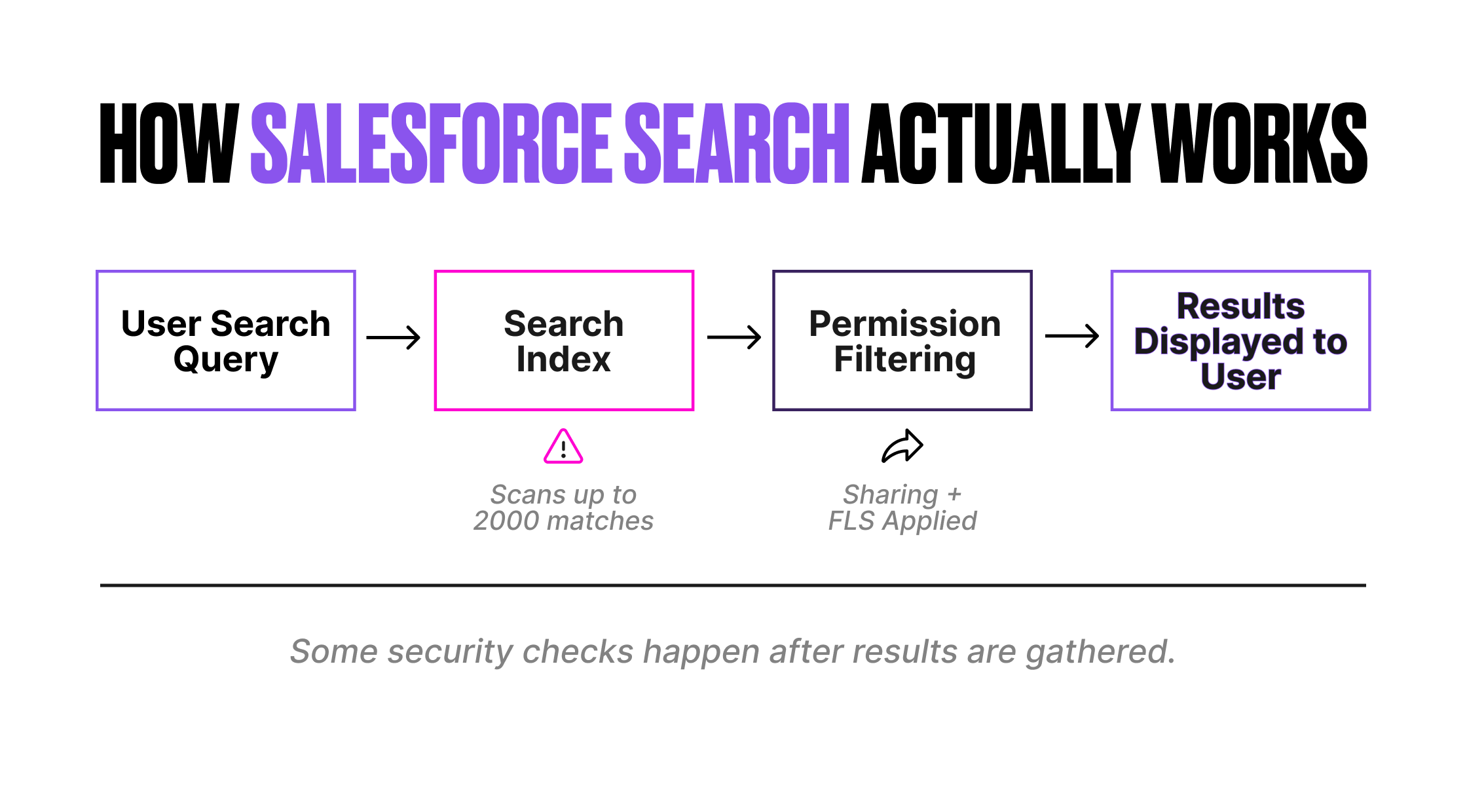
The Salesforce search engine has a fundamental architectural choice that creates an indirect security consideration: sharing and permission checks are applied after the result set is returned from the search stack, not during the search itself.
The search index scans up to 2,000 matched records for a given query. After that scan, Salesforce applies the running user’s sharing rules and permissions to filter out records the user can’t access. The records the user can’t see are removed from the results after they’ve already consumed part of the 2,000-record scan limit.
This means that in orgs with restrictive sharing models, users may see fewer results than expected, not because their query is wrong, but because inaccessible records are using up the scan budget before permission filtering occurs.
Example
A user searches for “Industrial Computing”. The search index finds 2,800 matching records. The search engine analyses the first 2,000 (the scan limit). Of those 2,000, 400 are records the user doesn’t have access to. After permission filtering, the user sees 1,600 results. The remaining 800 records that matched the query but fell outside the initial 2,000-record scan are never evaluated.
The user isn’t seeing inaccurate results. They’re seeing incomplete results. Some of the records in the unseen 800 may be ones the user does have access to, but they were pushed out by the 400 inaccessible records that consumed scan slots.
This is search crowding, and it’s more pronounced in orgs with complex sharing models, private org-wide defaults, and large data volumes.
The Fix
No configuration toggle changes this behaviour. It’s an architectural characteristic of the search platform. The mitigation is to improve search selectivity so that queries match fewer total records, reducing the likelihood of hitting the 2,000 scan limit and a lower number of returned results indicating inaccessible hits.
Admins can help by configuring Search Manager to exclude objects and fields that aren’t relevant to specific user profiles. Search Manager rules can pre-filter results (for example, excluding closed cases) so that irrelevant records don’t consume scan slots. Users can help by searching with more specific terms and using the object scope dropdown to limit searches to a single object.
For developers building custom search functionality, adding WHERE filters and using the RETURNING clause to narrow results improves selectivity. A query that returns 500 matches is far less likely to hit crowding issues than one that tries to return 5,000.
What to Watch Out For
For most, this is not a data exposure issue. Users never see records they don’t have access to; they can just conclude at times when there are records they cannot access. It can cause frustration and, in edge cases, could lead users to believe certain records don’t exist when they actually do. In regulated environments where completeness of search results matters (for example, compliance searches across case records), this behaviour should be documented and understood.
Document Content in the Search Index: The First Million Characters
The Problem
When a file is uploaded to Salesforce, the first 1,000,000 characters of its text content are indexed and become searchable via the global search bar and Chatter feed search. File name, description, type, and owner fields are always searched. The supported file types include PDF (up to 25 MB), Word documents (up to 25 MB), PowerPoint (up to 25 MB), Excel (up to 5 MB or 100,000 cells), HTML, RTF, plain text, XML, and various code file types.
This means that the content of uploaded documents is searchable by any user who has access to the file. If a document containing sensitive information is uploaded to a location with broad visibility (for example, a public Chatter group, a shared library, or a record with permissive sharing), the text content of that document becomes discoverable through search.
Example
A finance team member uploads a spreadsheet containing employee salary data to a Chatter group that is visible to all internal users. The file itself may not be prominently displayed, but the text content is indexed. Any user can now search for a salary figure, a name, or any other term that appears in the first million characters of that file and see it in their search results.
This is not a bug. File visibility is controlled by the sharing model of the location where the file is stored. But the search index makes that content far more discoverable than it would be if users had to navigate to the file manually.
The Fix
The primary control is the file-sharing model itself. Ensure that files containing sensitive information are stored in locations with appropriate access restrictions. Libraries, record attachments on restricted records, and private Chatter groups all limit who can discover the content through search.
If a field on a record contains sensitive information and you can’t apply FLS for some reason, you can remove that field from the search index entirely via Search Manager, under Index Management. For files specifically, the visibility is controlled by where the file lives, not by Search Manager settings.
It’s also worth noting that CSV files with comma-separated content and no whitespace (for example, “aaa, bbb, ccc”) don’t tokenize properly during indexing. The string doesn’t break into individual searchable terms. This is a known limitation, not a security feature, but it does mean that densely packed CSV data may not be as discoverable as you’d expect.
What to Watch Out For
The key question for a security review is: where are files being stored, and who has access to those locations? The search index doesn’t grant additional access; it makes existing access far more powerful. A user who technically has access to a document in a shared library but would never have navigated to it manually can now find it in seconds by searching for a term that appears inside the file.
Tab Visibility Is Not a Security Boundary
The Problem
Tab visibility settings affect whether users see search results for an object in the Lightning Experience UI. If a standard object’s tab is set to Tab Hidden, search results for that object may not appear in the global search bar. For custom objects, the object must have a tab with correct visibility for the user’s profile, and the Allow Search checkbox must be enabled.
Many administrators use tab visibility as a way to hide objects from certain user groups. This works in the UI. But it does not work for SOSL queries executed in Apex code, the Developer Console, or the REST API. SOSL can search an object even if the tab isn’t visible for the running user’s profile.
Example
An admin hides the “Internal Audit” custom object tab for all non-audit profiles. In the Lightning Experience UI, those users don’t see Internal Audit records in global search. The admin assumes the object is effectively hidden from search.
A developer then builds a custom Lightning component that runs an SOSL query across multiple objects, including Internal Audit. Because SOSL in Apex runs in system mode, the query searches Internal Audit regardless of tab visibility. If the results are exposed to the user, they can see Internal Audit records in the custom component even though the standard global search hides them.
There is also an edge case with Activities: Task and Event objects remain searchable even when their tab visibility is set to Tab Hidden. This is documented behaviour, but it catches many administrators off guard.
The Fix
Tab visibility should be treated as a UI convenience, not a security control. If an object should be genuinely hidden from certain users, the correct approach is to remove object-level permissions (Read access) from the user’s profile or permission set. This prevents the object from appearing in search results, SOSL queries, SOQL queries, reports, list views, and any other access path.
For custom Lightning components that run SOSL queries, developers should check object-level permissions before returning results to the user. The Schema.sObjectType.ObjectName.isAccessible() method verifies that the running user has Read access to the object before including it in the response.
What to Watch Out For
The user object has a special case. To make user records unsearchable, both the People tab and the Profile tab must be set to Tab Hidden. If Chatter is disabled, the User object is not searchable regardless of tab settings. This is a niche scenario; it only comes up in orgs that need to restrict user directory visibility.
Federated Search: External Results and the Profile Visibility Checkbox
The Problem
Federated Search brings external content into the Salesforce search bar using the OpenSearch standard. When you create an External Data Source of type “Federated Search: OpenSearch”, there’s a checkbox labeled Search results visible to all profiles. If this is selected, external search results from that source are visible to every profile in the org.
This is convenient during setup. It’s also easy to forget about after the initial configuration. If the external data source contains content that should be restricted to certain user groups (for example, internal HR documents, financial data, or legal materials hosted in a Confluence instance), the “visible to all profiles” setting can expose that content to users who shouldn’t see it.
Example
A consultant configures Federated Search to bring in results from the company’s Confluence wiki. During development, they enable “Search results visible to all profiles” to simplify testing. The project goes live. Six months later, a user in the marketing team searches for “restructuring plan” and sees results from the HR section of Confluence in their Salesforce search results.
The external search provider may have its own access controls, and clicking through to the document might be blocked, but the search result itself, including the title and summary, appears in Salesforce and may contain sensitive information.
The Fix
If you clear the “Search results visible to all profiles” checkbox, you must manually configure which profiles can see results from that external data source. This is done through the External Data Source settings and profile-level permissions on the external object.
For each federated search source, review the profile visibility setting as part of your security configuration. You should ask yourself: Will every user in the org be able to see search results from this source? If the answer is no, configure profile-level access explicitly.
It’s also important to understand the boundary of Federated Search: Salesforce’s own search enhancements (lemmatization, spell correction, nicknames, synonym groups) are not applied to external results.
Relevance ranking is handled entirely by the external provider. This means the quality and security of external search results depend on the external provider’s configuration, not on Salesforce.
What to Watch Out For
Federated Search external objects are designed to display search result information, not full records. They only contain fields defined by the external data source. Those fields typically include a title and summary, which may be sufficient to reveal sensitive information even without clicking through to the source. Treat the title and summary as data that needs access control, not just the underlying document.
Search Manager Rules Only Apply When Users Can Read the Field
The Problem
Search Manager rules are hidden filters that silently exclude records from search results. They’re a powerful tool for improving result quality, but there’s a consideration that’s easy to miss: rules only apply to users who have read access to the filtered field.
If a rule is based on a field that certain users can not read due to field-level security, the rule is ineffective for those users. The records that the rule would have excluded still appear in those users’ search results.
Example
An admin creates a Search Manager rule on the Case object: RecordType equals “Internal”. The intent is to ensure that external-facing users who use Experience Cloud only see external-type cases in their search results.
However, the RecordType field is restricted via FLS for the Community User profile. Because the rule can only apply to users who can read the RecordType field, the Community Users are unaffected by the rule. All Case record types appear in their search results, not just the external ones.
The admin assumed the rule was filtering results for everyone. In practice, it’s only filtering results for users who can already see the field the rule is based on.
The Fix
When creating Search Manager rules, verify that all target user profiles have read access to the field used in the rule. If you’re using a rule to restrict results for a specific user group, ensure that the group can read the filtered field. If they can’t, the rule silently fails to apply.
Alternatively, use a combination approach: apply object-level or record-level sharing restrictions to control what users can access and use Search Manager rules to improve the relevance of results for users who already have appropriate access. Don’t rely on Search Manager rules as a primary security control.
What to Watch Out For
This behaviour is buried in the Search Manager considerations help section; it’s not prominent. It’s particularly relevant in orgs that use Experience Cloud, where Community User profiles often have more restrictive FLS than internal profiles. Rules designed for the broader user base may not apply to the user group that most needs them.
The Knowledge Object: An Exception to Search FLS
The Problem
The Knowledge object doesn’t currently support the field-level security mechanism for search that other objects use. For most standard and custom objects, the search index protects up to 100 custom fields per object with FLS. The Knowledge object is an exception to this.
This means that knowledge articles with sensitive information in custom fields may be more discoverable through search than you expect, even if FLS is configured to restrict those fields.
Example
An org uses Knowledge articles for both customer-facing FAQs and internal technical runbooks. The internal runbooks include a custom field called “Infrastructure Details” that contains server names, IP ranges, and deployment notes. FLS is configured so that only IT staff can see this field.
Because the Knowledge object doesn’t fully support the search FLS mechanism, the search engine may match articles based on values in the Infrastructure Details field, even for users who can’t see the field. A customer support agent searching for a server name could see the article in their results.
The restricted field value is hidden, but the article itself appears, and its other visible fields (title, summary) may provide enough context to reveal sensitive information. This sets up the perfect situation for an attacker on the support site trying to exfiltrate details about your internal systems.
The Fix
For Knowledge articles, the recommended approach is to control access at the article level rather than relying on field-level security in search. Use data categories, article types, and record types to segment articles into groups with appropriate visibility. Articles intended for internal use should be in a different category from customer-facing content, with visibility controlled through data category assignments and user profiles.
If a Knowledge article contains genuinely sensitive information in a custom field, consider whether that information belongs in a Knowledge article at all. Knowledge is designed for content that needs to be discoverable. If the content shouldn’t be discoverable by certain users, it may be better suited to a restricted custom object or a document in a private library.
What to Watch Out For
This exception is particularly important for orgs using Search Answers, which surfaces knowledge article content as AI-generated responses in the global search bar and service console.
Search Answers generates responses from article content. If the article content includes sensitive information in fields that aren’t properly secured at the article level, that information could surface in an AI-generated answer.
HIPAA and Search Query Storage
The Problem
For orgs operating under HIPAA requirements, there’s a nuance worth understanding. Salesforce states that CRM data and the search index are stored in the production environment. However, search queries are stored separately. The documentation notes that this separate storage “may not be covered” by HIPAA protections.
This means that if a user searches for a patient name, a medical condition, a diagnosis code, or any other protected health information, the search query itself may be stored in a location that doesn’t have the same compliance coverage as the CRM data.
Example
A healthcare org uses Salesforce for patient case management. A service agent searches for “John Smith diabetes management” in the global search bar. The CRM records for John Smith are stored in the HIPAA-compliant production environment. But the search query “John Smith diabetes management” may be stored separately, in a system that isn’t covered by the same HIPAA protections.
If Search Analytics is enabled, this expands the scope further. Search Analytics captures query text (the first 100 characters), interaction data, and result data in Data Cloud DMOs. These are additional storage locations for search-related data that need to be evaluated against HIPAA requirements.
The Fix
There’s no configuration to change where search queries are stored. The mitigation is awareness and policy.
For HIPAA-regulated orgs, include search query storage in your data processing assessment. Understand that search queries, as user-generated content, may contain PHI, and that this content may be stored in a different part of Salesforce’s infrastructure than the CRM data.
If Search Analytics is enabled, review the DMO storage locations and data retention policies. The Search Queries DMO (SASearchQueries_dlm) stores the first 100 characters of query text. If optional user data is included, the DMO also stores UserId and UserLicense fields, linking queries to specific users.
Consider whether your organisation’s search usage training should include guidance on what information should and should not be entered into the search bar.
What to Watch Out For
Government Cloud orgs have a stricter boundary: no usage data or search queries are sent outside Government Cloud data centres. If HIPAA compliance is a hard requirement, understand the difference between Government Cloud’s guarantees and the standard cloud’s “may not be covered” language.
Salesforce also notes that search personalisation profiles are constructed at query time and never stored. This is a positive privacy characteristic, but it’s distinct from the search query storage question.
Global Model Opt-Out: Your Org Data May Be Training Models
The Problem
Einstein Search uses global predictive models to power query classification and result ranking. These models are trained on data aggregated from multiple Salesforce orgs. If your organisation has at least one Einstein license, has signed an Order Form allowing data use, and has enabled at least one Einstein feature, your data may be included in these global models.
This isn’t limited to search. The global model data contribution applies across a wide range of Einstein features, including Einstein Search, Einstein Search for Knowledge, Einstein Opportunity Scoring, Einstein Bots, Agentforce, and services that use Hybrid Search or Search Actions.
Salesforce states that global models look for aggregate, anonymous trends and that no individually identifiable data is shared with other customers. However, for organisations with strict data governance policies, regulatory requirements, or contractual obligations around how customer data is used, the default opt-in position may not be acceptable.
Example
A financial services firm enables Einstein Search to improve the experience for their service agents. By doing so, the org’s search interaction data becomes eligible for inclusion in Salesforce’s global search ranking model.
The firm’s compliance team has a policy that customer data must not be used for any purpose beyond direct service delivery. Nobody on the Salesforce admin team was aware that enabling Einstein Search also meant contributing data to a global model shared across Salesforce’s customer base.
The data isn’t being leaked. It’s being used to identify aggregate patterns, like the correlation between activity timing and opportunity close rates. From a compliance perspective, though, the firm’s data governance policy doesn’t distinguish between sharing raw data and contributing to aggregated model training. The policy says no, and the default says yes.
The Fix
Salesforce provides a per-org opt-out process. To opt out, submit a support case with the Feature Activations Team with the subject line “Global Model opt-out request”. No business case or justification is required.
Key details:
- You must submit a separate case for each org you want to opt out. Production orgs are included in global models by default. Sandbox orgs are already excluded.
- Opting out stops Salesforce from using your data to build global models. It also means Salesforce will not use your Customer Data for research and development of new services or features, and no Salesforce employee will view your Customer Data outside of a support case, pilot, or as otherwise described in your legal agreements.
- Opting out does not prevent Einstein from using your org’s own data to train models specific to your organisation. If you enable an Einstein feature, Einstein still builds a single-customer model from your data.
- Opting out may reduce result quality for features like Einstein Search, where global models provide the ranking intelligence that no single org has enough data to build on its own.
What to Watch Out For
The opt-out is not surfaced in Setup. There is no toggle, no checkbox, no setting you can review during a security audit. The only way to confirm your org’s opt-out status is to check whether a support case was previously submitted, or to submit a new one. If you’re a consultant or contractor landing in an org for the first time, there’s no way to tell from the UI whether the org has opted out. Please be kind to those who follow you and make sure you document your opt-out or default status.
For organisations subject to GDPR, CCPA, or sector-specific regulations, this should be part of the data processing inventory. The fact that search query and interaction data are being used to train cross-customer models is a data processing activity that may need to be documented, assessed, and potentially disclosed, regardless of whether the data is aggregated and anonymised.
Final Thoughts
None of the issues in this article requires an emergency response. They are documented behaviours, not vulnerabilities. Collectively, they represent a significant gap in most security reviews. Search is the one feature that many users interact with every day, and yet it’s rarely included in security assessments.
The common thread is that search has its own security model that sits alongside, yet is not identical to the standard Salesforce access model. Field-level security, sharing rules, and profile permissions do most of the heavy lifting.
Search adds its own behaviours: the 100-field FLS limit, system mode SOSL, post-scan permission filtering, document content indexing, and the exceptions for Knowledge. Understanding these behaviours is the difference between an access model that looks secure and one that actually is.