








Highlights
- Flow Builder evolves constantly, and solutions that were built in the past could use a makeover to bring them into the current day.
- Many new native features don’t just bring an aesthetically pleasing or simpler way of building, but also come with performance upgrades.
- Auditing your automations is a critical step that should be performed frequently. You can choose to do this in line with Salesforce’s release cycles to take advantage of new features as they’re released.
Over time, Salesforce has updated Flow Builder to include new features that make it easier to build Flows. Many of these features came from user feedback and suggestions from the Ohana. After years of hacking together ways of achieving certain tasks, a Flow upgrade speeds up your building process and simplifies your flows.
The only problem is that older flows won’t have these features implemented automatically and are often left in the past. This is until someone goes and audits historic flows and brings them into alignment with modern best practices, leaving the hacks in the past.
In this article, I’ll highlight some of the Salesforce Flow hacks that I’ve seen implemented time and time again in my years as a consultant, many of which are often not updated until something goes wrong.
The Importance of Auditing Your Automations
If it ain’t broke, don’t fix it!
You’ve likely heard this before, and it’s often true – but not in this case. Auditing and updating your historic flows – even if they’re working perfectly fine – is critical to ensure they follow up-to-date best practices. It’s also a great opportunity to ensure they conform to your business’s naming conventions and design standards.
Before Salesforce introduced some of these new features, the hacks that were required in the past were complex. Building them is one thing, but ensuring they’re well maintained is a whole other problem.
Not only this, but Salesforce native functionality is often designed to be more performant than the hacked solutions. There are many reasons to update to the newer native methods, and it’s not just about using the cool, shiny new thing.
5 Common Patterns to Update
There are countless hacks that Salesforce professionals have built over the years that can and should be replaced by newer native features. The five examples that I’ve given below are some of the more common ones I’ve seen in my years as a consultant.
You should also keep an eye on Salesforce Release Notes to ensure that you’re taking advantage of newer tools and building them into your audits.
1. Transform Element
When I started with Flow a decade ago, Flow Builder wasn’t around yet; I was still using Cloud Flow Designer. Whenever I wanted to iterate through a collection of records and do something to them, or have a new record created for each, there was only one solution, and one pattern:
- Loop through the Collection.
- Assign the new variable.
- Add the new variable to a Collection.
- Insert/Update the record after the Loop has closed.
Here’s what it looks like in the Flow Canvas.
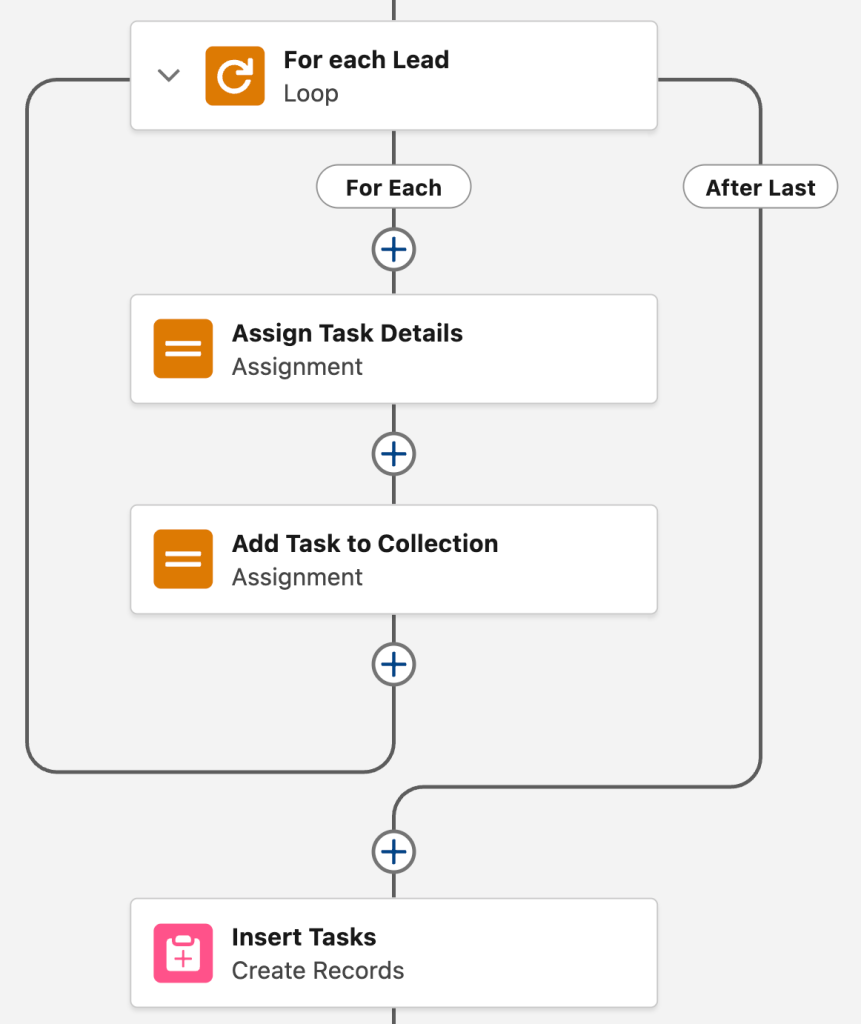
This worked for years, and in fact, it still works today. That said, it’s not the optimal way to go about it anymore, from a time-to-build, maintenance, or even performance perspective. Today, you should be using the Transform Element:
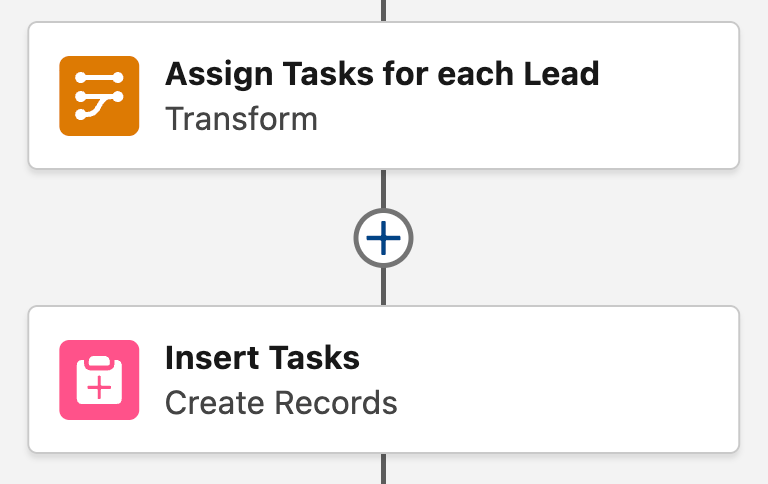
According to Salesforce, Transform performs up to 10 times faster than Loops. While they’re much easier to set up and maintain (because you’re reducing three elements’ worth of build into one), the performance increase should give you some leverage to go back and update your older Flows.
2. Collection Filter
This one has been around for a while, but I still see active Flows that aren’t fully taking advantage of this feature just yet.
Let’s go through an example together. Let’s say you’ve got a collection of Task records that are due in the next month. You have a requirement that requires you also to get a collection of Task records that are due in the next 7 days, and another collection of those due in the next 14 days.
There were two ways you could tackle this prior to the release of the Collection Filter element:
- Use 3x Get Records elements to query them all individually. Not ideal, using three times the required DML statements.
- Use a single Get Records element to get the widest collection, then use a Loop with nested Decision Elements — one to check if it’s due in the next 14 days, then one to identify if it’s due in the next 7 days. Fiddly. Uses a single DML statement, but quite a few more elements. The clutter on your Canvas was huge, but this was the optimal way to achieve this.
You’re going to have to zoom in to see what’s going on in this Flow… Yikes.
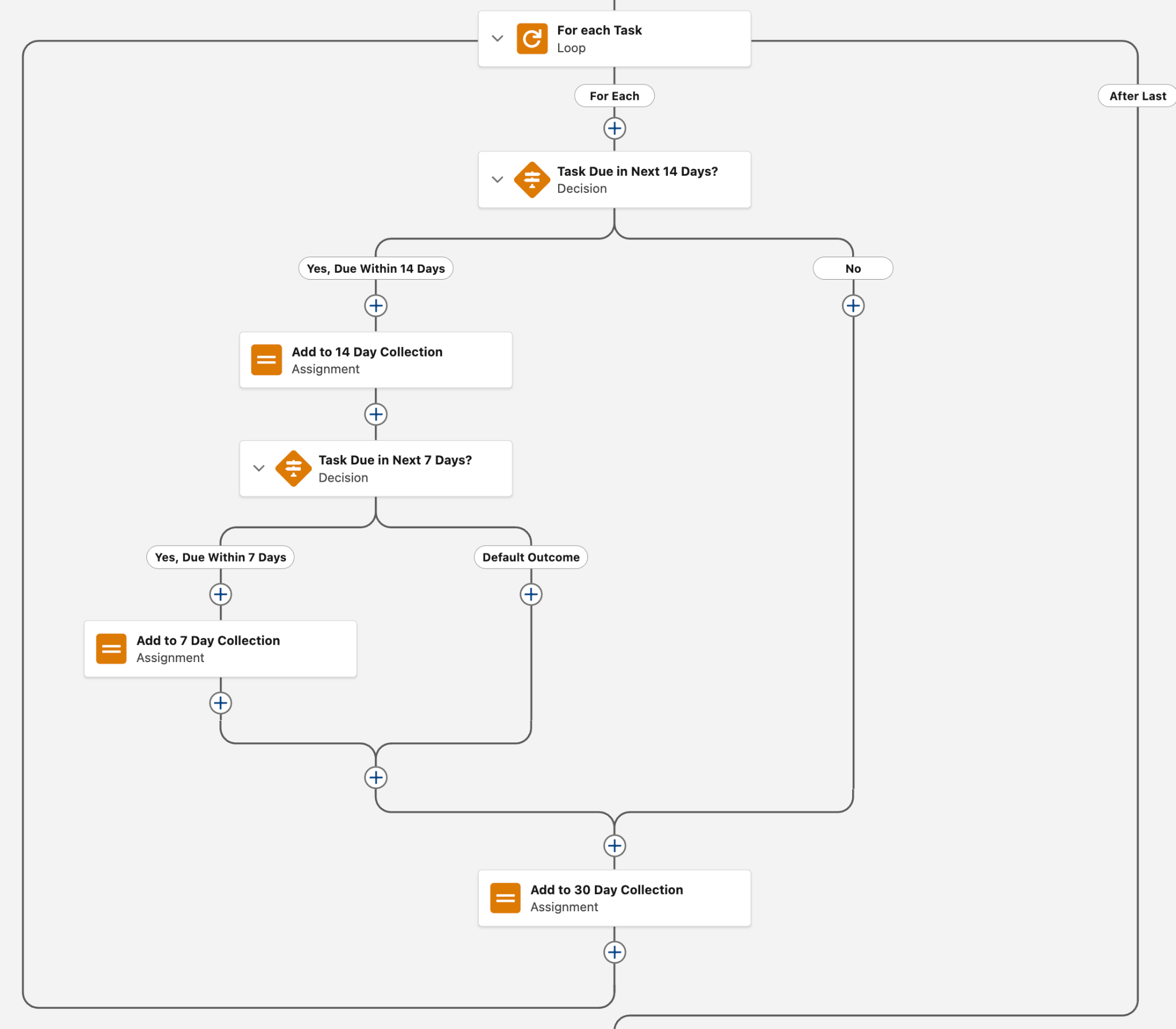
Thankfully, Collection Filter makes this SO much easier to build, and easier on the eyes. You can zoom back out for what this looks like using modern Flow features.
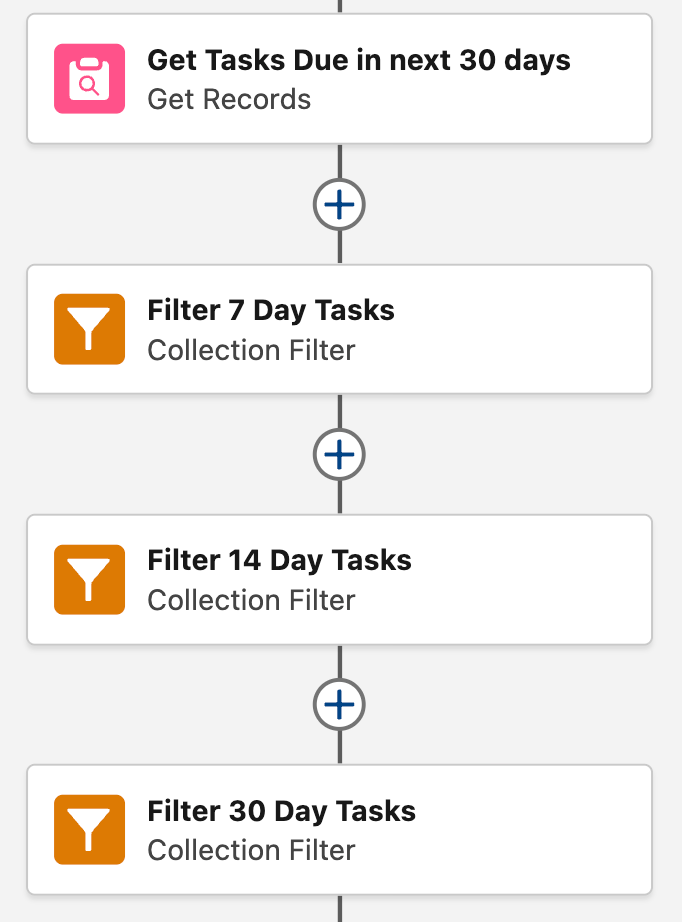
Simple, scalable, more performant, and significantly easier to look at and find what you’re after. Goodbye, messy spaghetti Flows!
3. Screen Actions
Screen Actions are a personal favorite of mine. Gone are the days of spam-clicking the Next button just to see updated information. Screen Actions allows you to breathe life into your Screens without the need for additional decision elements or paths on the Canvas.
Historically, if your user made a selection on a screen and wanted to see updated data, they would need to click Next, which would route them through a Decision element, gather the new data, then push them back to the original screen with the new data.
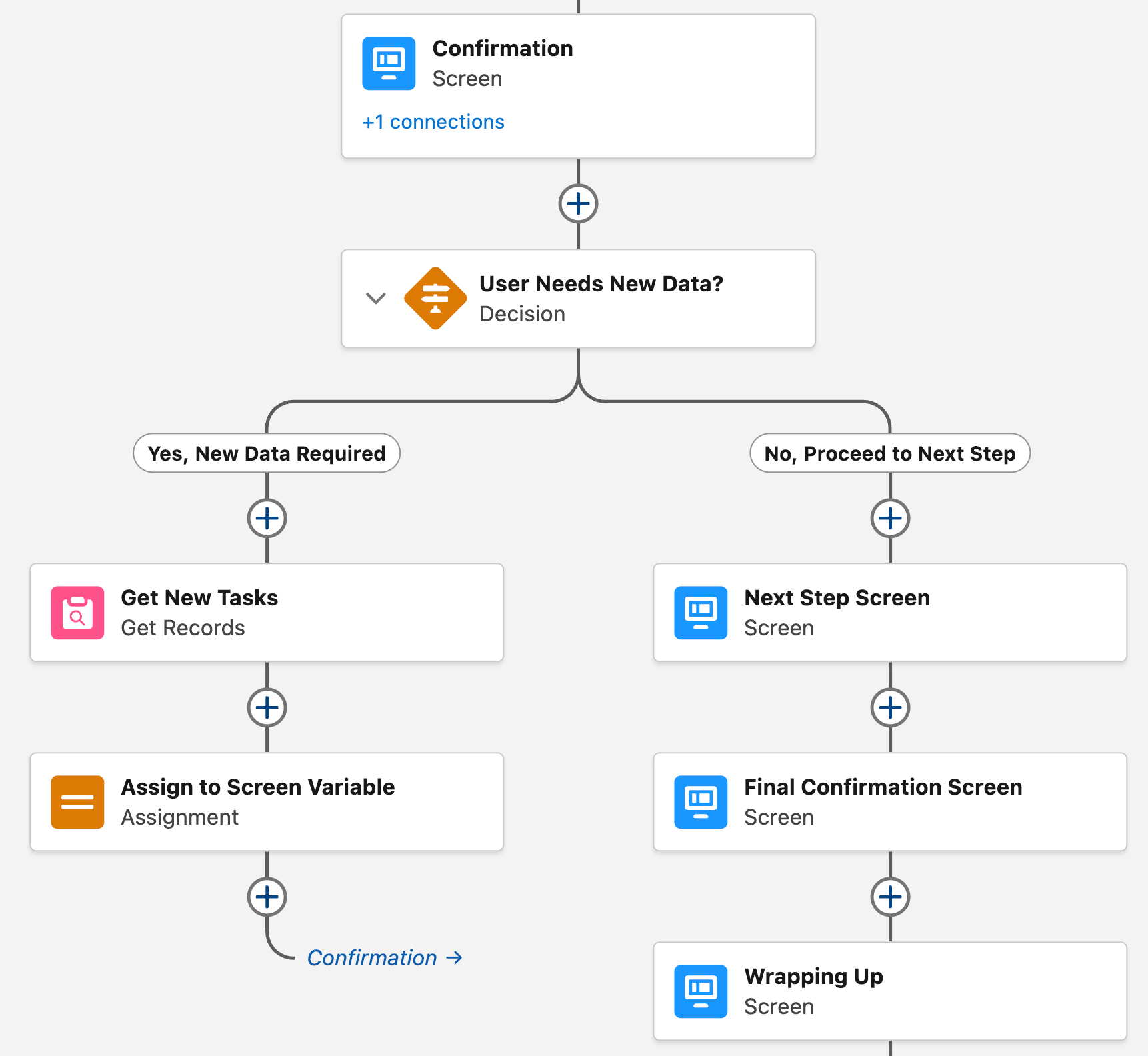
With Screen Actions, you can remove the Decision, the Get Records, and the Assign entirely. Well, from this flow at least. You’ll still need to build an Autolaunched Flow that handles the gathering of records, but you can then call that Subflow directly from inside the Screen itself. In the main Flow, that whole section now should look like this:
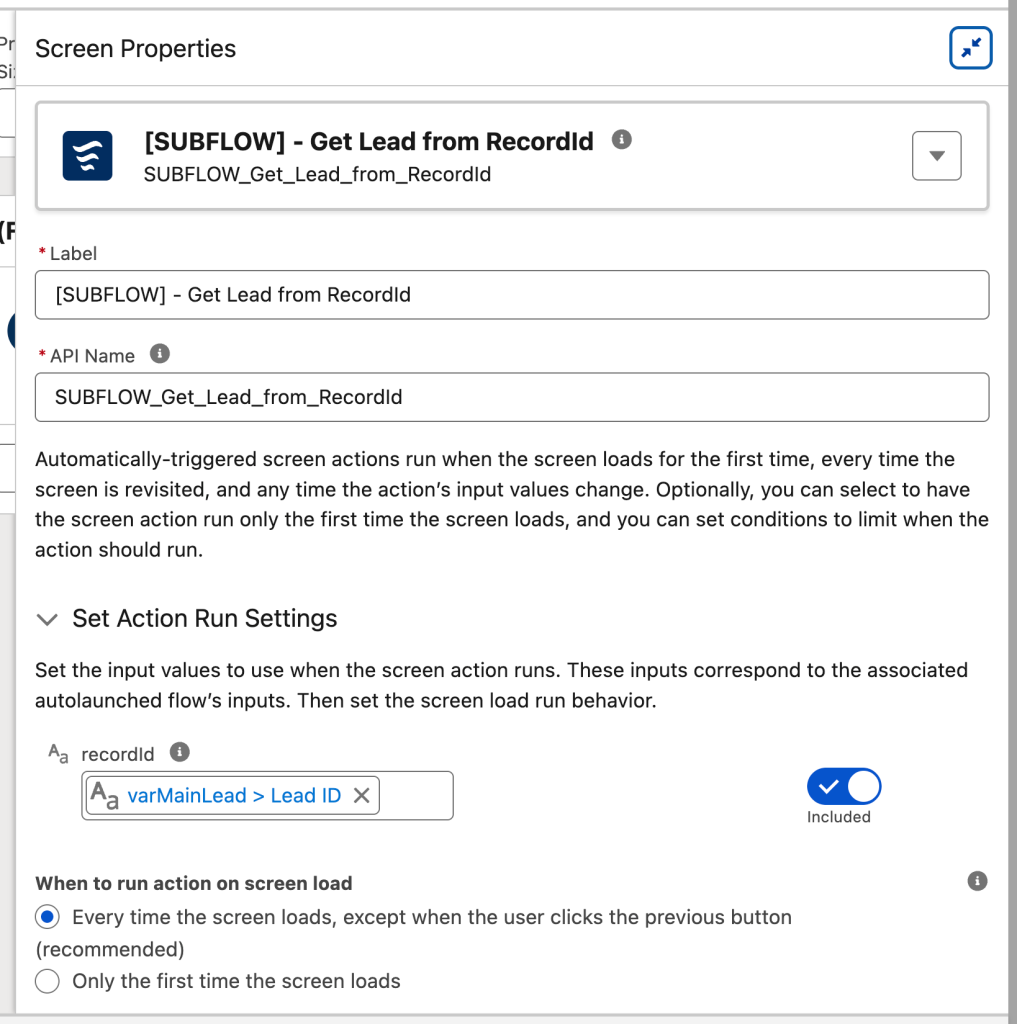
Then, when editing your Screen, simplify configure the Screen Action that you need by selecting the Flow, passing in any relevant information, and referencing the output variables in your Screen.
4. Repeater Component
The Repeater Component that was first seen in Spring ‘24 allows you to have dynamically repeating sections on a Flow Screen. Similar to Screen Actions, this reduces the amount of “Next” clicks that your end user needs to do just to submit multiple of the same kind of information.
Historically, this would require you to construct a Screen – often with a checkbox or some other way for the user to communicate that they need to submit another record. Then, the user would click Next.
The main variable would be assigned and cleared, and a Decision element determined if they had ticked the checkbox denoting another record is required. If it were, they’d be sent back to the original Screen.
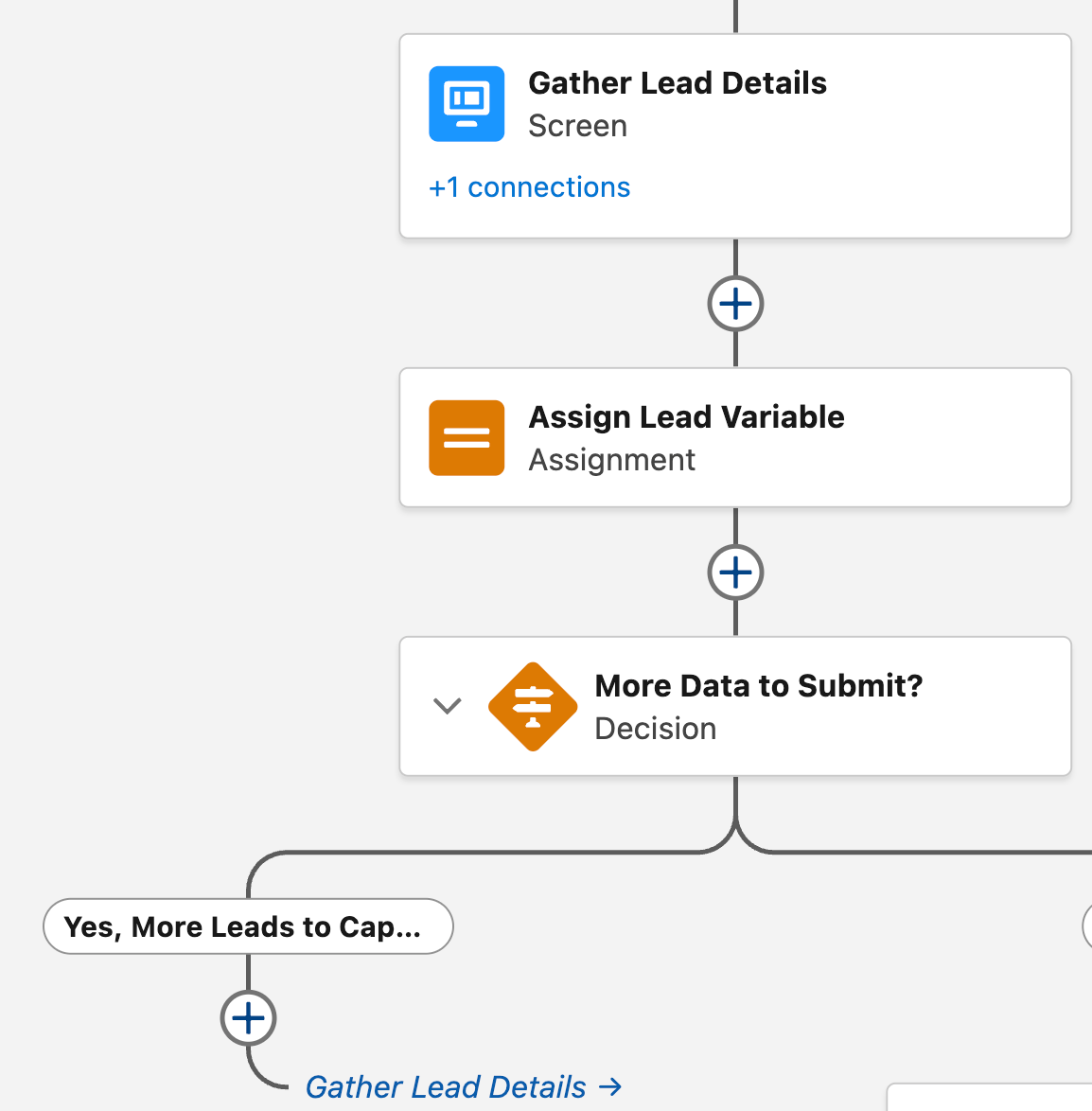
With a Repeater component, your user can simply click the + Add button to add another record without the need to click Next, wait until the screen is refreshed, and then add another. An added benefit is that the user can see what they’ve already input while adding more data.
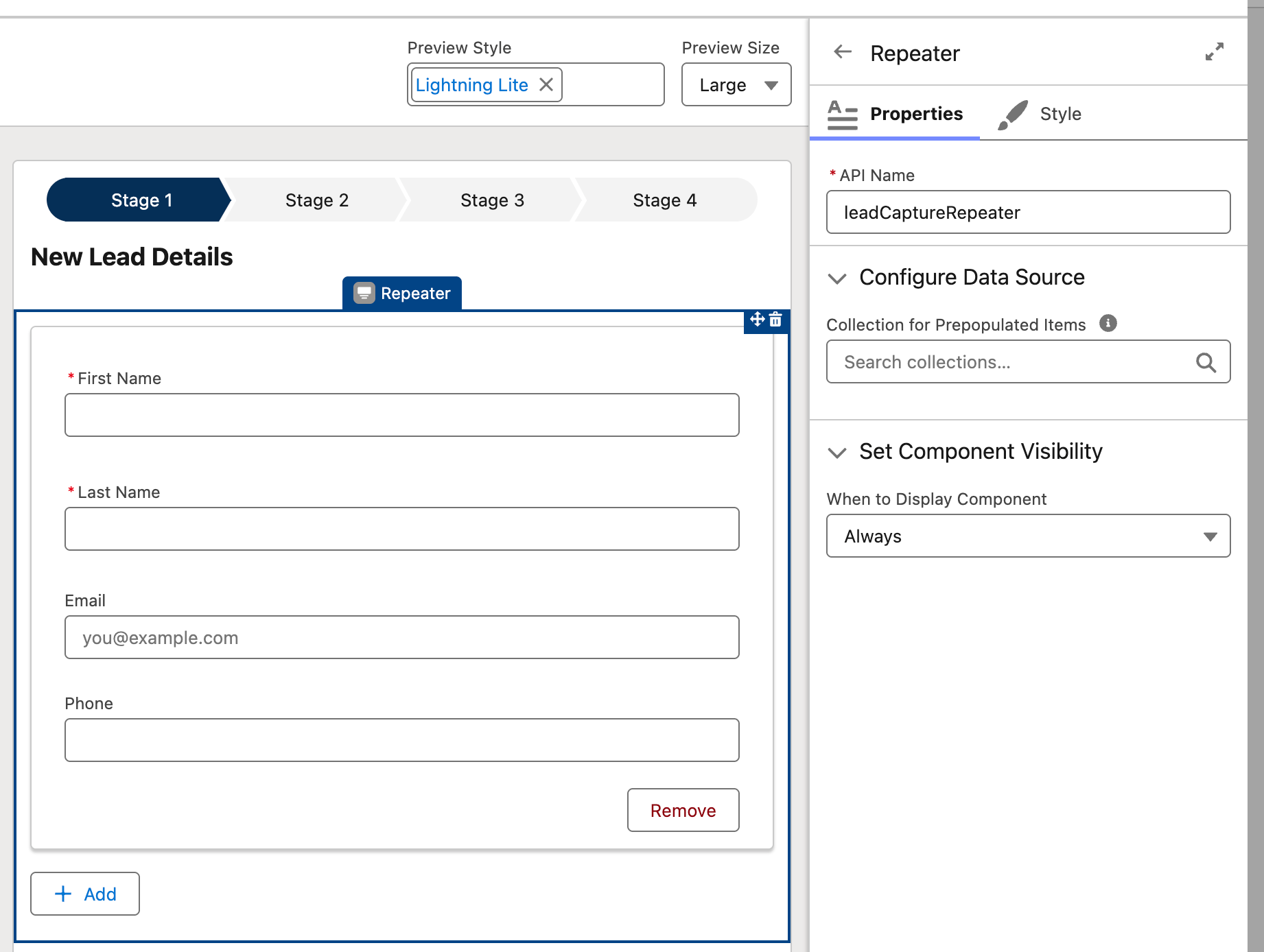
There are restrictions and limitations to the Repeater component, but it’s quite good for several simple use cases.
5. Get Records with Related Records
Let’s say you need to gather an Account record, as well as any Contacts and Opportunities that are related to it. In the past, the solution was simple – get the Account, then get the related Contacts and Opportunities records. This makes sense, is logical, and works well.
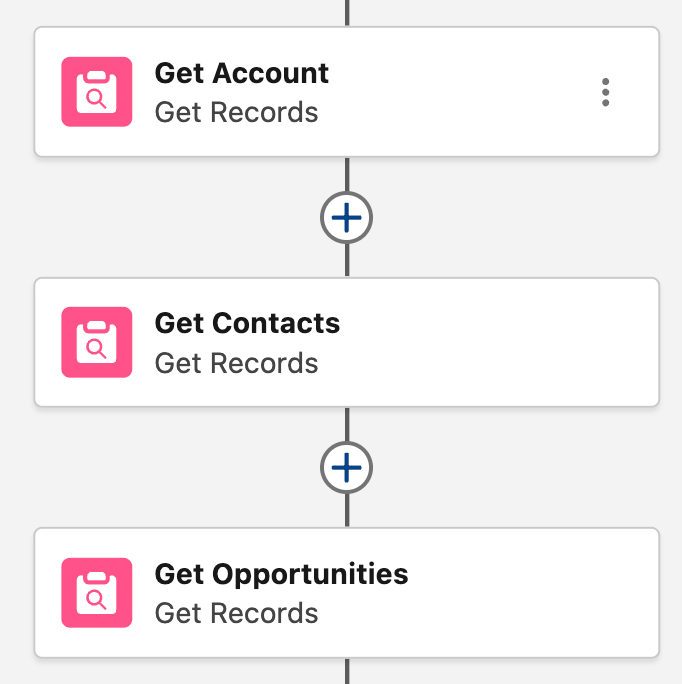
This solution uses three DML statements, which is not significant. However, depending on the number of different related objects that you want to query, the damage to your DML limits per transaction increases quickly. That’s why Salesforce’s new “Get Records with Related Records” feature is so powerful.
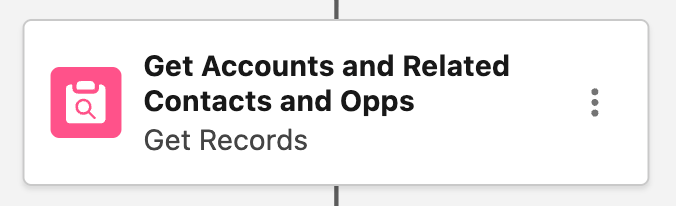
Not only is this significantly easier on the eyes, but you may be surprised to learn that you can query as many related objects as you want, and it will consume only one DML statement. This has a profound impact on your DML usage within your flows and is a prime reason why you should go back and implement this feature retrospectively.
As of writing this, this feature is in beta. Please remember that Salesforce could choose to pull this feature or change it significantly until such time as it is GA. This is extremely rare, although Salesforce has recently gone back on a pretty major decision that impacts a majority of their customers.
So it is worth weighing up your risk appetite for such a feature, and it may be worth delaying the use of this until it has gone GA.
Futureproofing Your Updates
You should be auditing your automations as often as reasonably possible to ensure that they still do what your business needs them to do. This also allows you to see if the business’s needs have changed. However, auditing your flows should also be done from a technical perspective to see if there is a better technical solution to a problem you’ve solved in the past.
It’s a good idea to perform your audit in line with Salesforce’s release cycle, as this is a great time to see what has changed, and also see how new features could play a part in your configuration from day one.
Summary
Salesforce Flow is an incredibly powerful tool, and it is one that Salesforce is paying a lot of attention to. It’s constantly evolving and putting out new features that you can, and should, be taking advantage of in your org. Not only for new automations, but also for older automations that could do with a new lick of paint. This is not only to ensure you’ve got more visually appealing flows, but also to improve performance overall.
What are some features that you’ve implemented in your org that have replaced some historic flow hacks? Did you notice performance improvements, or did you find that doing things a different way stopped some problems you were having? Let us know in the comments.