





Over the years, a native dark mode option across the Salesforce platform has been highlighted as a major experience gap within the Lightning Experience. A few other options have emerged previously, mainly through browser extensions and machine settings. But having such an option out of the box and officially supported remained the community’s ask, and here’s where SLDS 2 comes to the rescue.
In this article, we’ll dive into the look and feel of the native Salesforce dark mode experience, how you can take it for a spin, as well as availability and considerations.
The Dark Mode Question
To put in perspective the importance of having dark mode available on Salesforce, given its on most applications nowadays, let’s name a few benefits it can bring for users:
- Reduced blue light exposure: A potential health-related consideration, as it could improve sleep quality and be overall better for the eyes in comparison with bright screens.
- Improved accessibility: The higher contrast between the background and written text can make pages easier to read.
- Look and feel preference: As a matter of choice, some users simply prefer to use dark mode wherever possible. Especially for applications used every day, having this choice across the board also removes the annoyance of having to switch from a dark-mode application to a light one.
For these reasons, as well as the amount of time users spend in Salesforce, the dark mode question was one of the most often asked amongst Salesforce professionals and users alike.
In addition to the long-standing IdeaExchange entry – which has been open since 2016 – dark mode has made constant appearances over the years during True to the Core Sessions as well.
The Dreamforce 2025 True to the Core was the latest (and hopefully the last) time this question has been asked, as dark mode has been officially announced once again. 2025 has finally seen the question being addressed by Salesforce, and not only with a promise for the future: dark mode was available in beta/pilot as of Winter ‘26 only for Starter Editions, but with Spring ‘26, it was announced to be available to more editions, including your very own developer orgs.
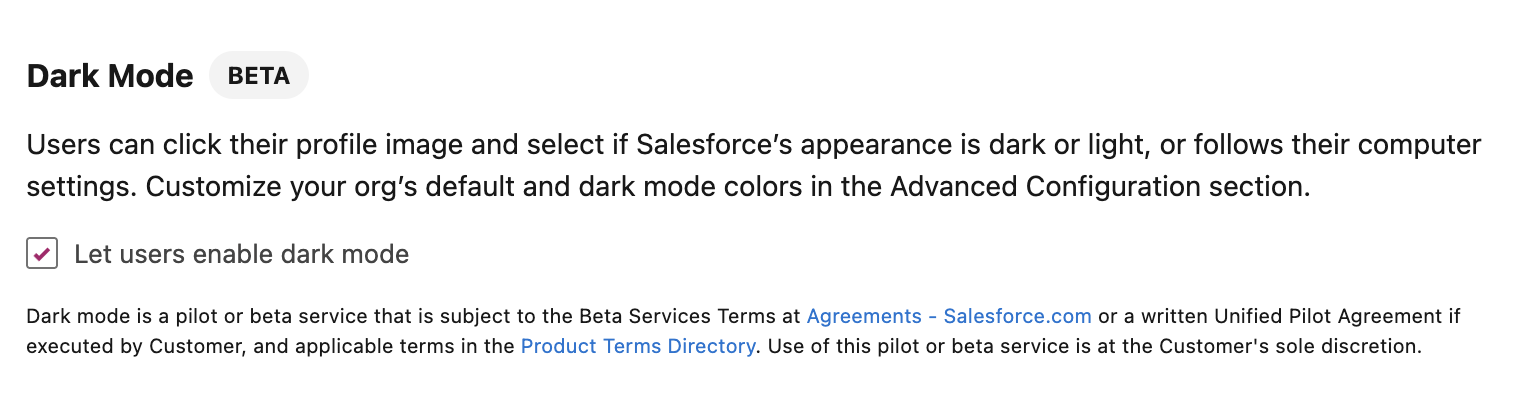
While you should make all of your purchasing decisions based on currently available features (safe harbor), let’s dive into what is available and how you can get hands-on with dark mode yourself!
Salesforce Lightning Design System 2
Before diving into dark mode itself, note that moving on to SLDS 2 is a non-negotiable prerequisite. SLDS stands for Salesforce Lightning Design System, and it is a readily available set of design patterns that can be used to offer your custom components the look and feel of Salesforce Lightning. SLDS 2 has become generally available in the Winter ‘26 release.
In a nutshell, SLDS 2 is a significant design system update, but it should not be confused with a platform migration. Even though it may sound like a huge lift, it all depends on your existing customizations and the rollout plan you’ll make. It all starts within the Themes and Branding page in Setup:
- Find the Cosmos theme, and choose to preview it. It’s always a good idea to do so in a sandbox, as while Record Pages, for example, are supported, you will notice that Setup Pages are not.
- If you are using any hard-coded CSS within your implementation, now is the time to plan to replace it with SLDS 2 styling hooks. This new architecture offers significant theming flexibility, but also dedicated tools such as the SLDS validator to help Salesforce Developers migrate with ease.
- You may choose to activate the Cosmos theme; however, the beauty of SLDS 2 is the level of customization it offers in comparison with SLDS 1 themes. Create a new custom theme, and start exploring the available settings while using your brand’s color scheme.
While exploring SLDS 2 custom or standard themes, you’ll begin to notice rounded logos, better color contrast, and overall more options to pick and choose from to make Salesforce truly yours through this new visual style.
It’s not only a change from the SLDS 1 experience you and your users are familiar with, but also a step up in terms of accessibility, as it will help you adhere to Web Content Accessibility Guidelines (WCAG).


Native Salesforce Dark Mode
Following the SLDS 2 run-through, it’s time to finally dive into how the experience transforms with dark mode, and how you can set it up.
All steps below can be completed in a dark mode-enabled developer edition, which you can sign up for here. And with the Spring ‘26 release, you should be able to complete these steps in other developer edition orgs as well. As we all hoped, the process of enabling this long-awaited feature is straightforward:
- As a Salesforce Admin, you need to make sure Dark Mode is enabled on the SLDS 2 theme you are planning to use.

- Within the Advanced Configuration section, you will also notice a separate Dark Mode Settings tab where you can further tweak the color scheme. Salesforce, however, recommends not doing so, as the default colors in this section already meet the accessibility standards.

- Once enabled, Salesforce users can simply toggle the color mode from their profile picture and choose between light, dark, or system theme.

Just like any other user, even as an admin, you will have the choice exactly in the same place after clicking your user picture. So after the setup is done, it’s a matter of going straight into it!
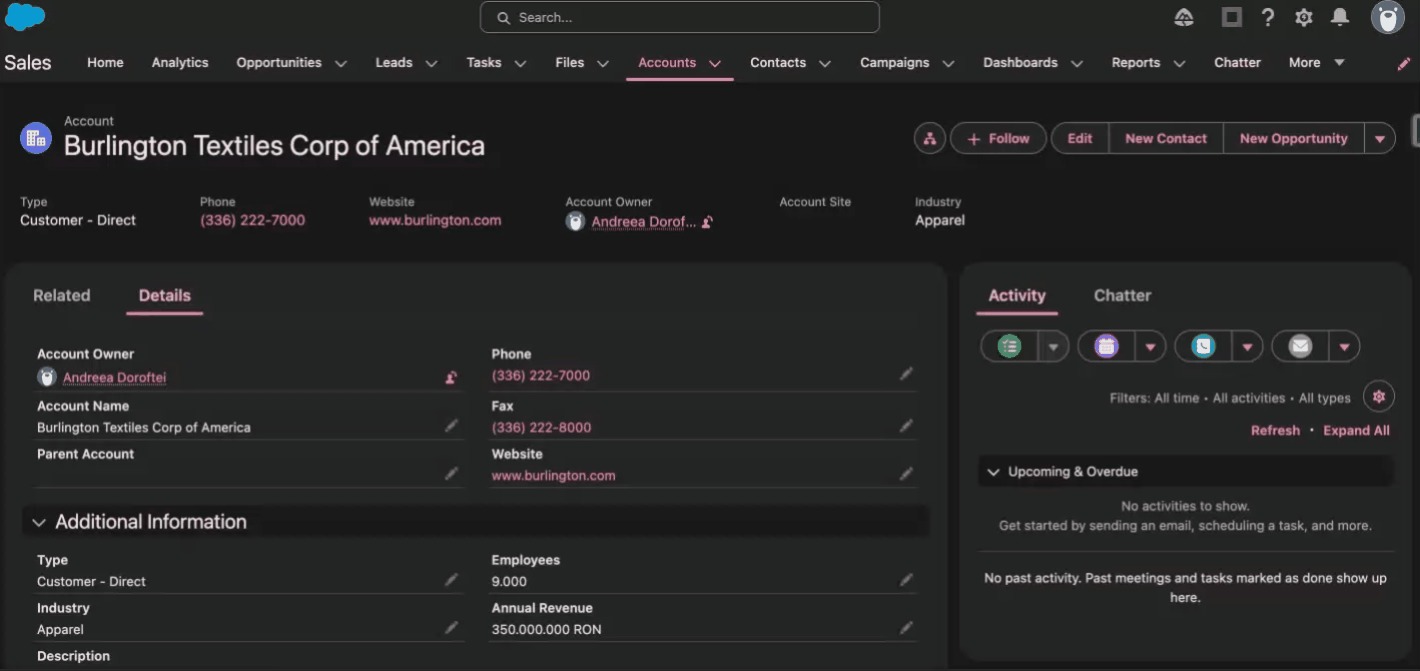
While keeping in mind that this is a beta feature in a developer edition, there’s no denying that dark mode does change the entire experience. While Record Pages, List Views, and Reports, just to name a few, look great, there are a few areas where dark mode doesn’t yet feel completely dark – Seller Homepage being one of them.
Additionally, you might notice a pop of white areas while the page is loading, especially when it comes to Related Lists.
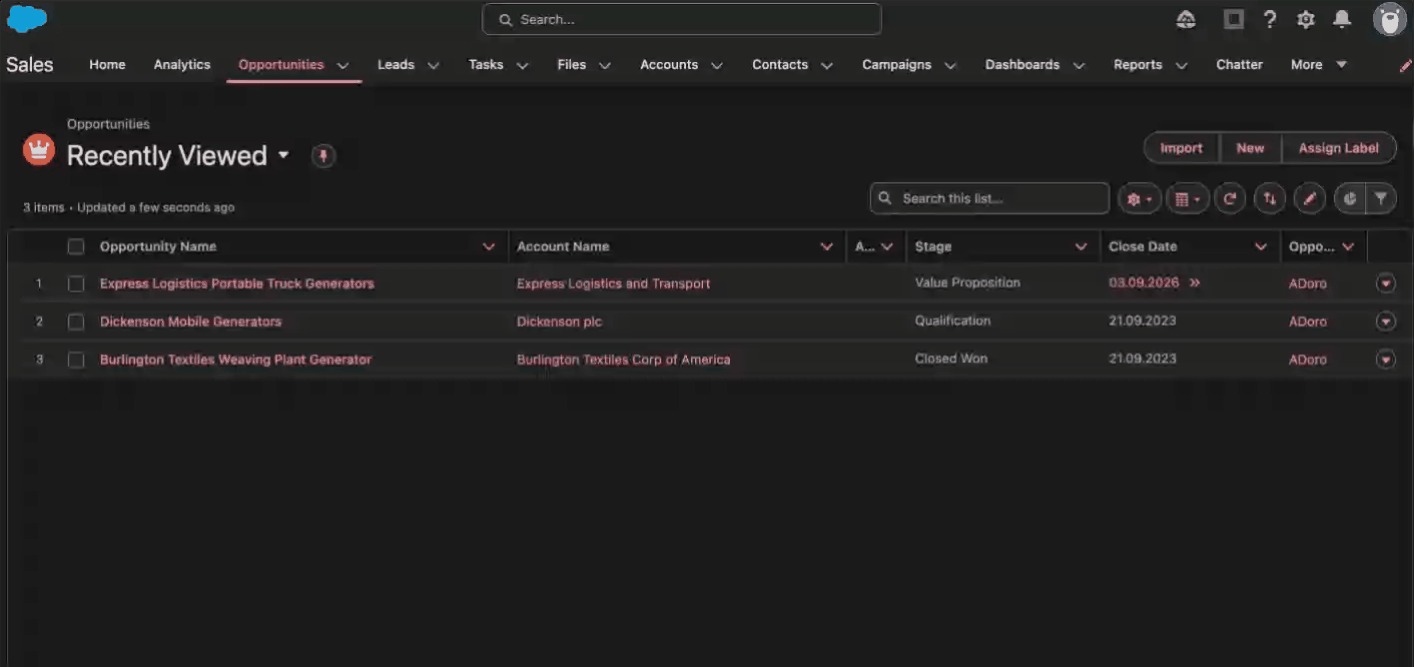
For users who do spend a lot of time navigating through records and making updates, the dark mode experience is consistent and on par with what they might expect. Hyperlinks, buttons, and required fields’ colors pop to draw attention where needed.
Considerations
As with any feature, and especially a beta one, there are a few considerations to keep in mind:
- Dark Mode will only be available following the transition to an SLDS 2 theme.
- As of Winter ‘26, the feature is available for Starter Edition only. As of Spring ‘26, native Dark Mode will be available for Free Suite, Pro Suite, Professional, Enterprise, and developer editions too, still as a beta feature.
- Setup Pages are not currently supported, and neither are the builders (e.g. Flow Builder).
- Prior to embarking on this journey, make sure to review features, availability, and limitations.
On top of the dedicated developer edition, Salesforce also makes a dedicated Trailhead module available for you to experiment with dark mode and SLDS 2 customizations.
Final Thoughts
As one of the most anticipated user experience enhancements, the native dark mode in Salesforce will surely see great adoption amongst users and Salesforce professionals alike. Since this feature will be available for even more editions along with Spring ‘26, there’s no time like the present to take a closer look at what it has to offer.
Since migrating to SLDS 2 is a prerequisite to enabling dark mode on your themes, make sure to check out the full step-by-step transition guide in preparation for the change.
Will you be promoting dark mode within your organization? Let us know your thoughts in the comments section below!





Comments: