

As selling will always be a team sport, especially in larger enterprise organizations with longer sales cycles, collaboration in the flow of work is key. Salesforce already supports many parts of the sales process, but the reality is that communication tools such as Slack are mostly used for quick conversations and additional context between team members across all parts of the organization. What if you could offer your team the best of both worlds in one single place?
In this post, we’ll dive into the new Salesforce Channels, how to get started, how to set them up, and what benefits they ultimately yield for your business.
A New Era for Slack and Salesforce
With artificial intelligence and agentic workflows being perhaps the most current topic across businesses of all types, it should come as no surprise that Slack has started including support for various AI features for their customers, alongside announcing a price adjustment for their offerings.
AI Summaries, AI Search, and the option to search across other apps within your organization’s tech stack are just a few items worth looking into when choosing your plan, as they could be seen as setting the tone for what’s coming next.
While the Slack acquisition happened back in 2021, talks about a more seamless integration have been happening ever since. Between the already well-known Sales or Service Apps, as well as the readily available Salesforce Flow Slack actions, there was still a gap in terms of the actual messaging and collaboration, as application switching was necessary more often than not. Most of these gaps can be addressed with the new Salesforce Channels, which are already available for all Slack plans, including the free version.
Could this be the first step in completely moving away from Chatter, as noted by Parker Harris last year? It certainly seems so!
Get Started
If you were bracing yourself for a complicated implementation, Salesforce Channels is not it. While in a real-life scenario it may take longer to establish the objects the feature should be available for, complete the user enablement, write the documentation, and everything in between, in a sandbox or developer edition, it’s just a matter of minutes from start to finish!
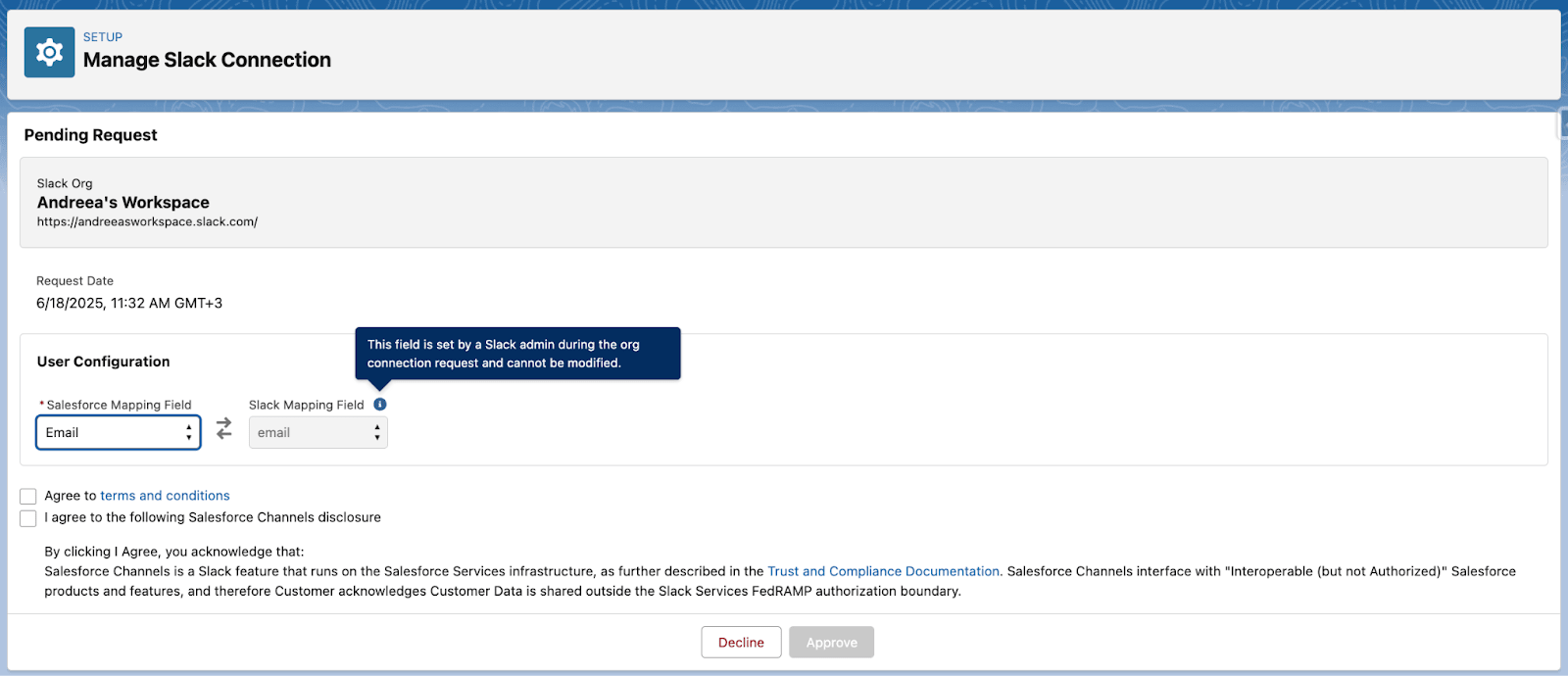
The first step is connecting your Slack workspace to the Salesforce org of your choice. As a Salesforce admin, you will be notified, and then you’ll be able to manage the connection in Salesforce and determine the User Mapping field.

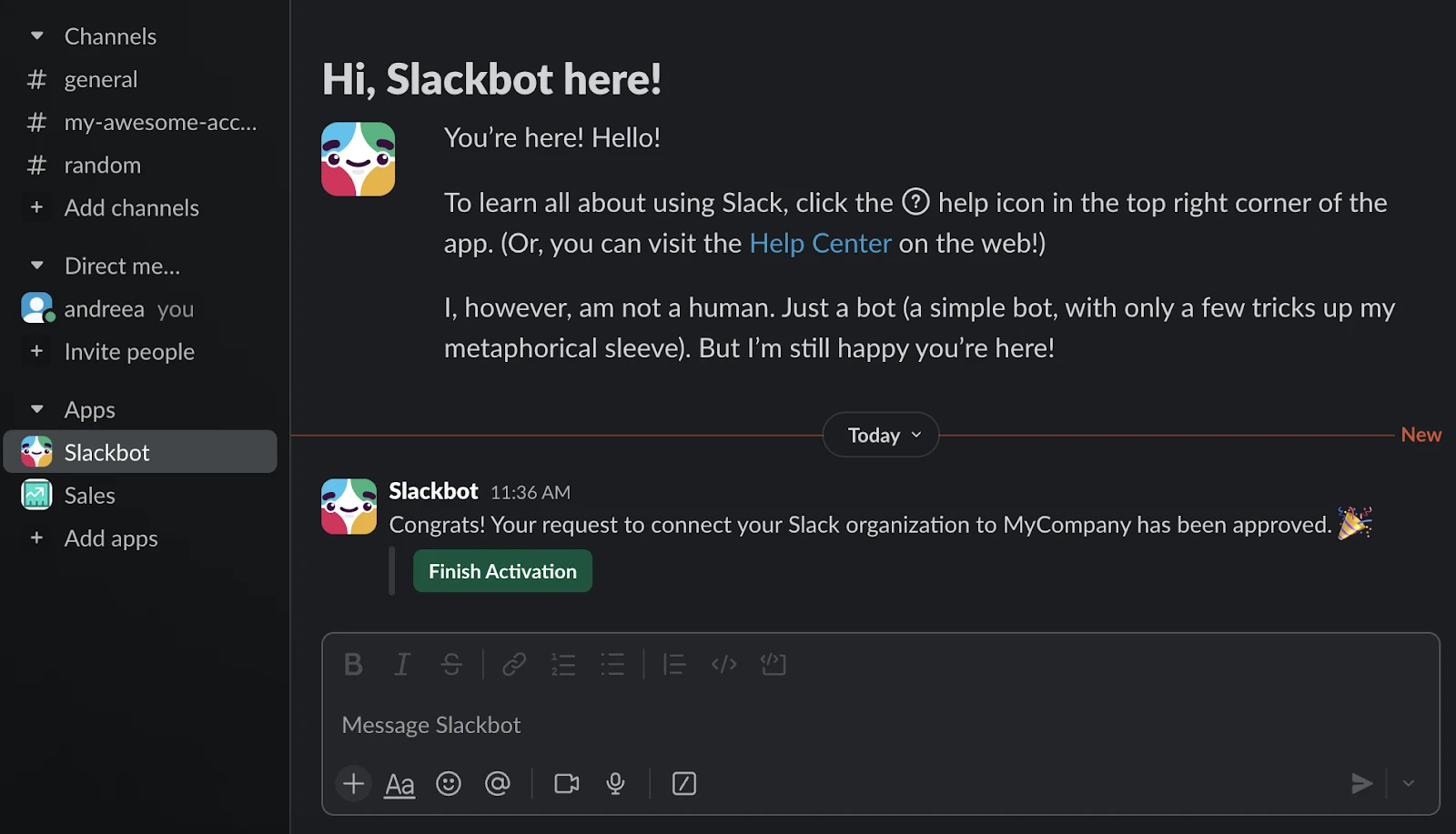
Once ready, you’ll be notified in Slack to finish the activation. The detailed configuration steps can also be found here.

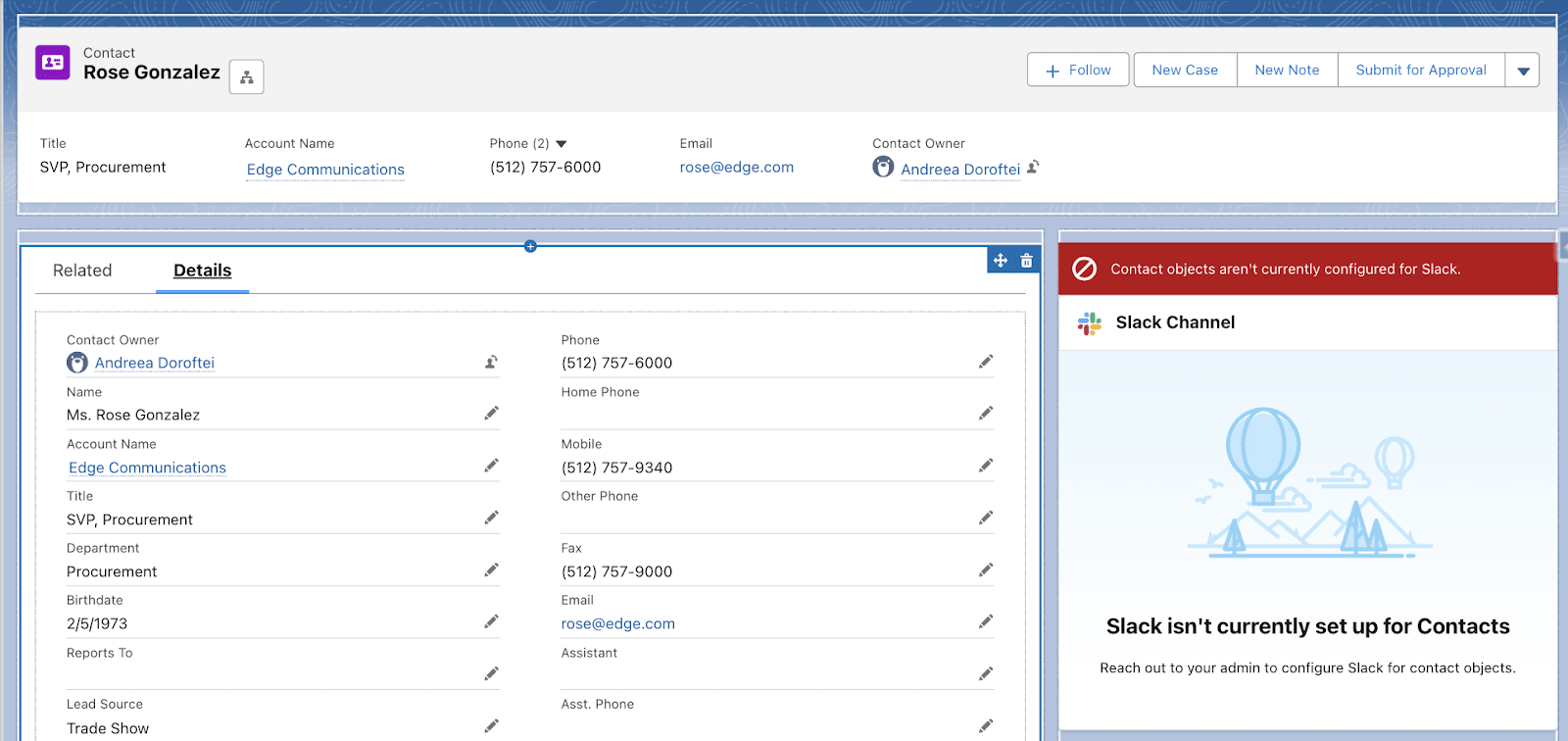
As an admin, something that you will have to do a few times is enable the desired objects within the “Slack Channels for Records” section in Setup. Your stakeholders may not know all the objects from day one, or would rather explore what this connection has to offer on just one object to begin with, but you can always come back to this page and continue to enable either standard or custom objects with just a few clicks.
Either before or after doing this, make sure that the Slack out-of-the-box component is added to the Record Pages of the objects it needs to be exposed for. As with any other component, this can also be filtered based on criteria. If you add the component before the object is enabled, the component will display a message accordingly, reminding you to configure the object.
Start Linking New or Existing Channels to Records
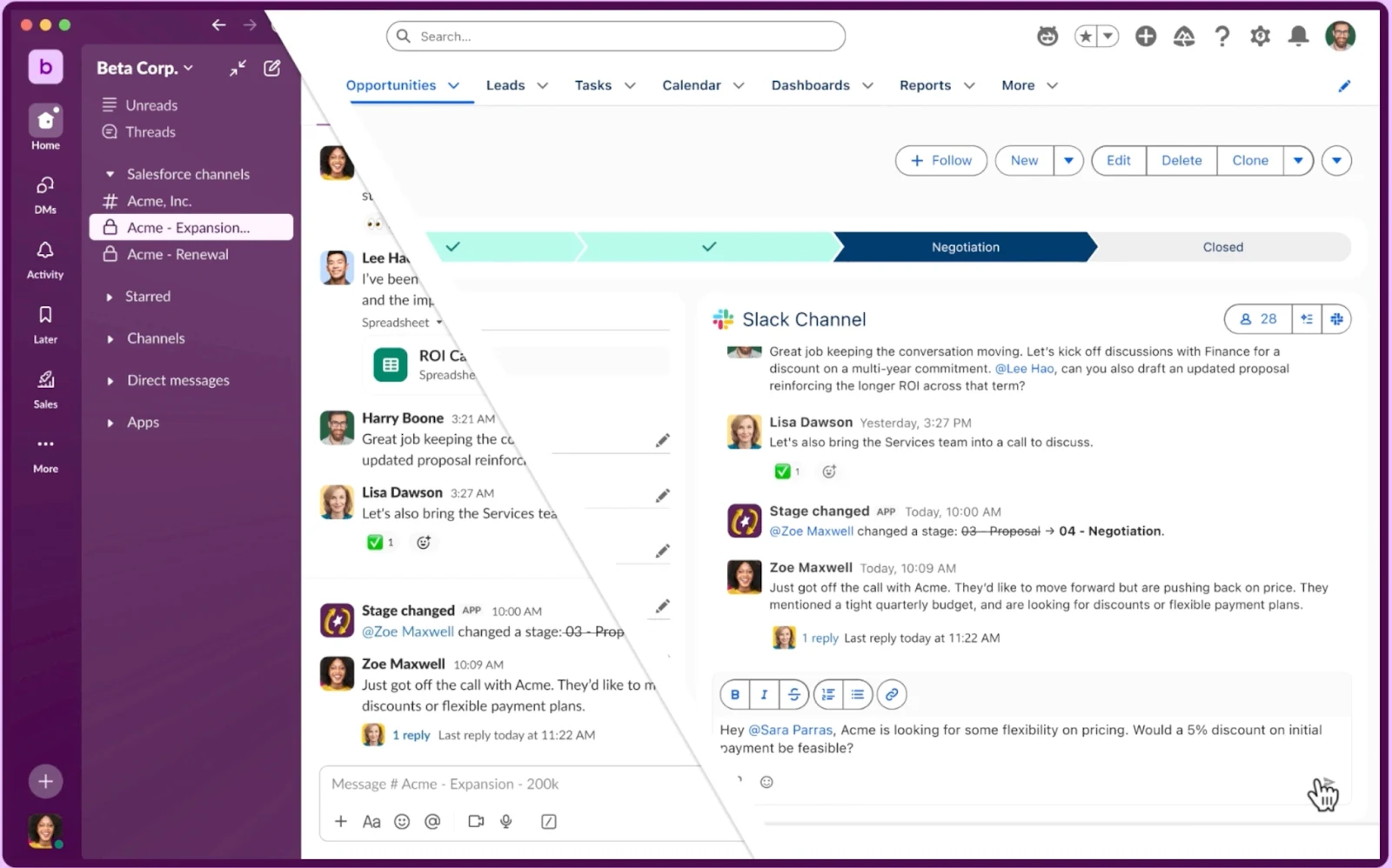

On channel-enabled objects that have the Slack component on the record page, users will be presented with an option to create a new channel or link an existing one. For a new channel, all it takes is one click, and they can already start communicating about the record at hand!

They will be able to not only write messages, but also tag colleagues and add them to the channel directly from Salesforce. They can also format the text, use emojis, and even upload files as needed. At this time, additional functionality such as huddles and workflows are not supported within the Salesforce component, but let’s hope that some of them are coming soon.
Switching to Slack, the experience may not be exactly what you expect, but in the best way! The messages will be available just like any other conversation, but you may notice that the Salesforce record channels are grouped within a new section called Salesforce Channels.
Additionally, you will see a dedicated Record Details tab corresponding to the linked Salesforce record, where you can not only review the actual record fields but also take action – quick actions, field editing, and even creating related records! In this example, I chose to expose the Contact Roles related list as a separate tab, but you could also opt not to, and simply click the related list, which would instead open in a new window to allow you to create new records. How cool is that?
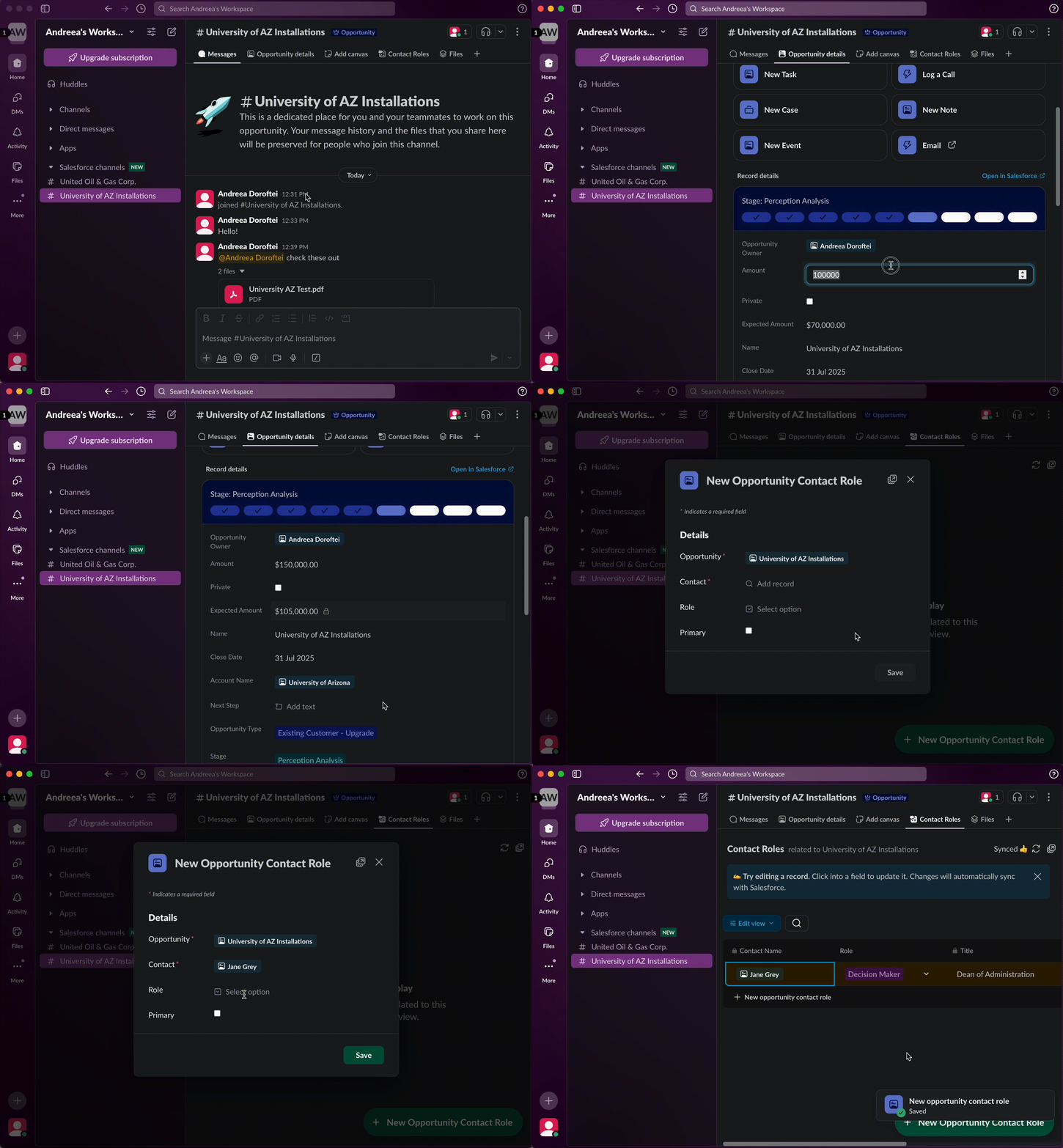
Going back to Salesforce, you will notice both changes made in Slack: the Opportunity Amount and the new Opportunity Contact Role appearing in real-time. Of course, if any new messages were sent to the channel, they will be reflected on the Salesforce record in real-time, too. As of now, external participants cannot be added to Salesforce Channels, thus ensuring that everything being discussed on the channel is between internal employees only.
Keep in mind that the Salesforce permissions are preserved, meaning that users won’t be able to edit records in Slack that they can’t also edit in Salesforce. But if they also have access to the Salesforce record, they will be able to join the Slack channel even if they are not directly invited. Make sure to review the security considerations in detail to know what to expect and how to prepare.

Additional Features
If you’re a Business+ or Enterprise+ Slack customer, remember to take a look at the AI Summary as well, which will be found within the Summary tab of the channel. This will be a quick way for you and your users to get a high-level glimpse of what was discussed about the Salesforce record, with the option to drill down to the source from within the conversation as well.
Also, Slack customers on these paid subscriptions will have the option to automate Salesforce Channel invites using Slack Workflows.
Final Thoughts
There’s no denying that Salesforce Channels are bound to transform the way teams work with these two tools, all while enhancing collaboration and reducing the need to switch applications and tabs. Whether it’s the Sales team primarily working on Salesforce Accounts and Opportunities, or other supporting teams that spend the majority of their time in Slack, Salesforce Channels have something for everybody on the team, exactly where they prefer working.
Have you already taken Salesforce Channels for a spin in your organization? Let us know in the comments below!