

Asynchronous processing is a tried and tested way to scale. Among options in Salesforce, platform events pose a good opportunity to do this in a way that automatically supports both on-platform functionality and integrations. They use a publish-subscribe pattern and a variety of publisher and subscriber options. But when subscribing to platform events with an Apex trigger, high volumes of platform events can overwhelm a single subscriber.
Parallel platform event subscribers provide a native way to partition and balance work. This enables multiple instances of the same trigger to execute at the same time with its own unique batch of records. Let’s dive in and see how this works.
Revisiting Platform Events
Platform events are a feature of the Salesforce platform that allows asynchronous publish-subscribe functionality. Underneath, they are built on top of Apache Kafka, an open source messaging technology.
The event bus is like a superhighway for events. Publishers stream events into the event bus. Subscribers can then collect events they’re subscribed to in order to perform the work the event represents.
Platform events are configured as SObject metadata. Although created and configured in a different setup menu item from Salesforce Objects, in your project, they will appear alongside other custom object metadata. Instead of the __c suffix, platform events use an __e suffix. You can see this with the Inbound_Order__e event in a project below alongside the Order standard object and the Inbound_Order_Status__c custom object.

However, in a similar way to how Big Objects or Connected Objects get treated differently from regular old SObjects, the same goes for platform events. Platform events have no permanent data store. Once received, they live in the event bus for up to 72 hours. During that time, they can be replayed (useful if a subscriber is temporarily unavailable). Platform events, once received by the event bus, are immutable. While events don’t use traditional DML, keeping to the SObject analogy, they are only ever “inserted” in their lifecycle – this happens when they are published to the event bus.
Speaking of publishers, there are a number of different ways to publish a platform event. Apex, Flow, and API calls are all options for publishing events.
On the other end, there are also a number of subscribers. Again, Apex and Flow each have mechanisms to subscribe. You can create a direct-to-UI subscription using the empAPI on an LWC. And then you can also use two standards-based approaches, either gRPC or CometD.

Events have configurable properties. One example is immediate versus post-commit. This configuration is specific to being triggered from within the platform. When an Apex trigger or flow action triggers the event, an immediate event becomes decoupled from the transaction and fires immediately. Post-commit means it will be rolled back if the transaction is rolled back because of an exception or failure. The examples in this blog will exclusively use immediate events.
Finally, platform events serve as infrastructure for a number of other features on the platform – one example is change data capture. The whole Shield event monitoring product is also built around platform events, which are published when certain meaningful monitoring events occur in your org. These all share the event bus.
Apex Subscribers
Since parallel subscribers are (for the moment) exclusively a feature of Apex subscribers, we’ll focus a bit on those. To make an Apex subscription, you simply write an Apex trigger, and just like a normal SObject, the event is identified after the on keyword. The main functional difference to a normal trigger is that a platform event trigger can only implement the after insert operation.
trigger InboundOrderSubscriber on Inbound_Order__e(after insert) {

  System.debug('Start Platform Event Trigger');

  InboundOrderEventSubHandler.handleInboundOrders((List<SObject>) Trigger.new);

  System.debug('End Platform Event Trigger');
}
From here, many of the same best practices for triggers apply.
- Events are found in Trigger.new.
- Use bulk processing of events.
Avoid logic in your trigger and use a trigger handler class.
There are, of course, distinctions between platform event triggers and regular Apex triggers. The trigger batch size for a normal trigger is 200. For a platform event trigger, it is a max size of 2000. It is also configurable.
Batches also aren’t deterministic, meaning if the subscriber determines it’s time to run, it won’t wait to have its full allotment of 2k events before doing work (more on this later!). So in cases of large numbers of events, it’s best to think of a batch size as a maximum, not the expected size that you’ll always have every time a batch runs. To clarify:
- In a normal Apex trigger, if you had 1000 records, every runtime batch would have exactly 200 records in it.
- In a platform event trigger, if you had 10,000 records, the actual runtime batches might vary anywhere from 1 to 2000 in size (assuming it was configured to use the full 2000 batch size).
Platform Event Bottlenecks
Platform events are pretty efficient, but a single subscriber can become overwhelmed. To understand this, imagine your washing machine at home. Maybe you have a supersized 20kg front-load washer, and that works really well for you and your family. But what if your entire extended family descended on your house for a week for the annual family reunion? You might quickly get backed up and fall behind the wash. To catch up, you might need to take them to the laundromat and run several loads at once to handle the massive amount of laundry quickly.
Platform event subscribers are the same. In fact, this is what some Salesforce customers were experiencing, especially when high volumes of inbound integration events were backing up Apex subscribers. It’s not hard to understand how this could happen.
Let’s imagine three seconds in the life of the event bus and a platform event subscriber.

Let’s say the event bus was at rest and then 1500 events stream in the event bus. The subscriber jumps into action and collects 1000 of them. But it takes two seconds to process them.
The next second, there are still 500 events left unprocessed. But another 1500 events stream into the event bus. Now there are 2000 events.
Finally, the subscriber is ready to process again, and maxes out its batch size this time collecting another 2000 events. It takes three seconds to process those. But in the meantime another 1500 events stream in each second. The subscriber will now continually fall behind, with events sitting in the event bus until the peak traffic dies down.
Nothing prevented you from creating a second trigger that also subscribed to the same event. But the event bus is designed to give every event to every subscriber. This creates duplicate event processing.
This bottleneck condition was the reason for parallel subscribers – the laundromat of platform event subscriptions.
Parallel Subscribers
In building the parallel subscriber feature, Salesforce takes on the problem of duplicate event processing and solves it for us. By configuring your single Apex trigger to run multiple instances, you tell Salesforce to allocate each event to one (and only one) of several subscribers. In our scenario above, the bottleneck never happens.
Let’s say you’ve configured three parallel subscribers. When the initial 1500 events stream in, immediately the parallel subscribers each collect a share of the events, greatly increasing the capacity to process events in a given time.

A partition key field is used to ensure a given event is only ever processed by one subscriber. A hash of that field value is used to determine which partition an event is allocated to. By default, subscribers use the platform event EventUUID standard field. The unique values ensure the allocation is randomized. This creates a load-balancing effect in high-volume processing. The only downside is that you cannot control the order in which work is completed.
And what if you need to do that, but still improve performance?
In this case, you can use a deterministic partition key. Let’s say you need to be sure that within your business’s customer tiers, events are processed in the order they’re received. For instance, let’s say you have customer tiers of Gold, Silver, and Bronze. The platform event could have a required Loyalty_Tier__c custom field to support this kind of subscriber allocation. You would then configure the event subscriber to use Loyalty_Tier__c as the partition key (and three partitions). This will ensure that orders for each tier will be processed by the subscriber in the order they’re received. In this case, you also risk a bottleneck in one of the partitions. But ideally, it will be a smaller bottleneck than with a single subscriber.
Configuring Parallel Subscribers
Apex platform event triggers are configured in their own type of metadata, the PlatformEventSubscriberConfigs metadata type.

In this metadata, you identify the name of the trigger you’re configuring and any configurations, including for parallel subscriptions:
numPartitions: how many parallel subscribers will be materialized at runtime.partitionKey: which field used for partitioning.
<?xml version="1.0" encoding="UTF-8" ?>
<PlatformEventSubscriberConfig xmlns="http://soap.sforce.com/2006/04/metadata">
    <masterLabel>InboundOrderConfig</masterLabel>
    <platformEventConsumer>InboundOrderSubscriber</platformEventConsumer>
    <numPartitions>10</numPartitions>
    <partitionKey>EventUuid</partitionKey>
    <user>demo@order.storm</user>
</PlatformEventSubscriberConfig>
Other common configurations include batch size and the running user.
Parallel Subscribers Performance
I was introduced to this feature in a thought-provoking talk from the product team at London TDX in May 2025. The demo laid out a clear case and showed a markedly improved performance of parallel subscribers over a single subscriber. I wanted to explore this on my own. I also wanted to understand the performance better at different subscriber counts. In the absence of an open source example of the demo, I built my own.
The results completely backed up the TDX demo and showed some very clear ways in which parallel event subscriptions can boost performance. They also give some hints as to how the load distribution algorithm works. I’m unsure how much of this is an underlying feature of Kafka and how much is Salesforce’s implementation, but the performance gain is clear.
Before we look at the data, here is how the tests were run.
- Each test generated 50k platform events, which in turn each created a custom object record.
- Tests were for 1, 2, 4, 6, 8, and 10 subscriber partitions.
- Each number of partitions was tested 10 times.
- Results were then aggregated across all test runs for each partition size.
- These tests used the EventUUID field.
- Tracing (although primitive) was done via a custom queueable class and object with instrumentation to note the start and end time of each Apex trigger batch.
- While I do know Python, my command of both pandas and matplotlib are not great. So credit to whatever Gemini model Colab uses to help me produce the graphs below.
The handler class below illustrates the bulk processing of the platform event subscriber as well as the calls to the Tracer.trace() method to store information about each batch being processed.
public with sharing class InboundOrderEventSubHandler {
  // single generic SObject method to process both sets of events.

  public static void handleInboundOrders(List<SObject> orderEvents) {
    // used to capture metrics about the processing of platform events
    String batchId = UUID.randomUUID().toString();
    String eventName = orderEvents.getSObjectType().getDescribe().name;
    Datetime timestamp = System.now();

    // store start trace record
    Tracer.trace(
      (String) orderEvents[0].get('Trace_Id__c'),
      batchId,
      'Trace point start',
      eventName,
      orderEvents.size(),
      timestamp
    );

    // straightforward processing of sobject (in this case platform events)
    // remember that PE trigger batch sizes are up to 2000
    List<Inbound_Order_Status__c> ordersToInsert = new List<Inbound_Order_Status__c>();

    for (SObject orderEvent : orderEvents) {
      Inbound_Order_Status__c orderStatus = new Inbound_Order_Status__c();
      orderStatus.Status__c = (String) orderEvent.get('Status__c');
      orderStatus.Event_Uuid__c = (String) orderEvent.get('EventUuid');
      orderStatus.Order_Type__c = (String) orderEvent.get('Type__c');
      orderStatus.Trace_Id__c = (String) orderEvent.get('Trace_Id__c');
      orderStatus.Batch_Id__c = batchId;
      orderStatus.Platform_Event_Name__c = eventName;

      ordersToInsert.add(orderStatus);
    }

    insert ordersToInsert;

    // fetch new timestamp for end trace
    timestamp = System.now();

    // store end trace record
    Tracer.trace(
      (String) orderEvents[0].get('Trace_Id__c'),
      batchId,
      'Trace point stop',
      eventName,
      orderEvents.size(),
      timestamp
    );
  }
}
Overall Time
As expected, adding just a single additional partition improves performance greatly. With a single partition, the 50k records typically took around 90 seconds to complete on average. This number is halved with a second partition and stepped down from there. Improvement was marginal moving past six partitions, though. The platform event product team has shared that there is no specific upper boundary for partitions, but that there is rarely any improvement when scaling beyond ten partitions.

Were this in a typical public cloud system, additional resources would probably be charged for. As the feature gains adoption, it will be interesting to see if there are ever any “greedy” neighbors where certain customers configure more partitions than necessary in hopes of gaining some kind of event subscriber performance advantage.
Batch Size
Remember how I said that batch size didn’t ever have to max out. Well, it is even more interesting. In fact, apart from the single subscriber configuration, batch size never seemed to reach its max configured size. I found this really interesting, even elegant. When configured with multiple partitions, it is almost as if it frees up each subscriber to go and run with the “right” number of events to achieve optimal performance for that batch.

For the single subscriber, while there were a few smaller batch sizes, the majority actually were 2000. This tells the story of a resource that is always working at max capacity in order to optimize throughput.
But it gets even more interesting if we look at the execution properties of the batches.
Parallelism and the Cold Start
The charts below illustrate parallelism of batches across partitions by plotting the execution time of different batches. First, let’s look at a single partition. Note that the horizontal lines do not represent the number of partitions. Rather, it simply illustrates the nature of parallel activity at any one time. Also, line length is relative to the x-axis in each graph. As such, you cannot accurately compare the line length between two of the graphs to determine the time to process.
Tests with single subscriber partition:

Of course, no second subscriber, no parallelism to be found here. That said, it does illustrate the problem of the bottleneck. Especially when understanding that a good deal of the time the subscriber is running with a maxed-out batch size.
Test with four subscriber partitions:

Next, we see a case where there are four subscribers. This is as we expect. But one thing that stood out to me is instances of very fast-running batches. These correspond to very small batch sizes. In fact, once you hit four or more subscribers, this phenomenon seemed to always occur right at the start of a test run. To go from at-rest to “here’s 50k events, go do something,” subscribers would initially grab the minimum amount of work necessary to get started. Those batches would then finish quickly and then take a bigger chunk the next time. These “cold-start” batches were very small – almost always less than 20 events, with the majority under 10.
Test with 10 subscriber partitions:
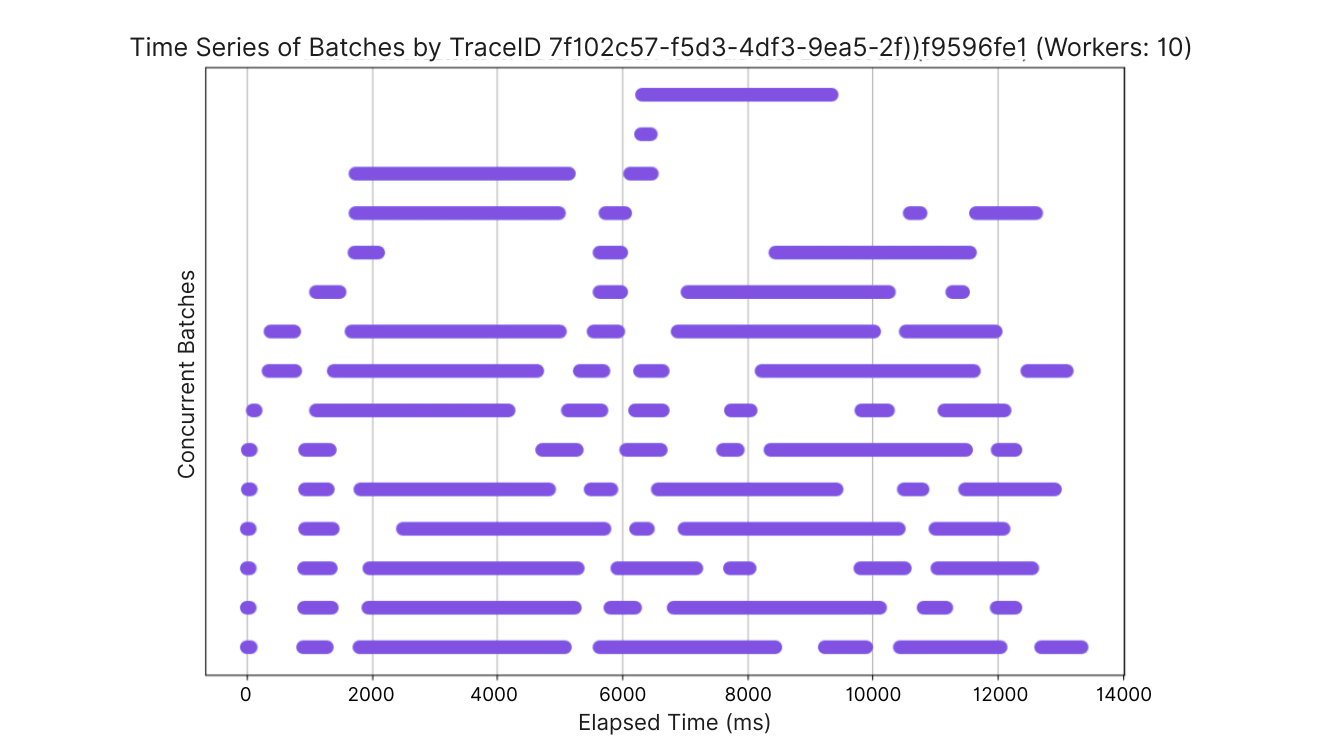
Again, the cold-start phenomenon of most of the partitions starting off with very small batches kicking off and completing quickly with larger batch sizes later.
The takeaways from these performance characteristics are pretty straightforward.
- A few parallel subscribers can make a big difference.
- There is a diminishing return as you scale parallel subscribers.
- Every project should plan benchmarking work in order to find the optimal number of parallel subscribers.
Considerations
There are, of course, some things to keep in mind should you go looking to build out parallel subscribers.
Sharp Edges
There were two apparent bugs I’ve continued to experience as I’ve built out this example. First is that the platform event detail page in Setup throws an error in my scratch org whenever an event is configured with a numPartitions value of more than 1. I also found that retrieving a debug log for parallel subscribers was challenging (which is partly why I created my own janky tracing solution).
Old Platform Event Schema
Some orgs are using the old original platform event schema. These do not work for parallel subscribers. You’ve not been able to create these old “standard volume” platform events since Spring ‘19. So unless you have a solution that old, you’re likely in good shape. If you do find you have older platform events, the documentation has guidance for how to update your old events to the new schema, which requires adding a new field and redeploying them with a current API version of the metadata API.
Repartitioning
You can change partitions while events are in process, but it may delay processing while events in the previous partitions are processed. If you need to do this, check the docs in the references section below.
Still No Guaranteed Delivery
If you’ve gotten this far, it’s likely that you were already familiar with platform events – so you may know this. But it always bears repeating that the key thing many developers balk at is that platform events do not guarantee delivery of an event. This can be architected around, as shared on the Well-Architected website. But if you have mission-critical pieces of data, just standing up a platform event integration may not be enough, or may not even be the right solution for you.
Summary
While platform events on their own have always been a key tool for asynchronous integration and processing in an org, with the enhancement of parallel subscriptions, it extends their usage into even more use cases – specifically when dealing with high volumes of events being consumed by Apex.
While this feature only applies to Apex at the moment, the presentation at TDX hinted at other possible parallel subscribers in the future. What do you think? Do you have a highly scaled platform event use case you’d like to try out? Please share with us in the comments below or on social media.
Resources
- GitHub project for testing parallel platform event subscriptions.
- Google Colab notebook with all the docs about parallel platform events.
- Well-Architected asynchronous processing decision guide.