

With Salesforce serving as the backbone for sales, service, and marketing operations, safeguarding user accounts has become a top priority for security teams.
This urgency has been underscored throughout 2025 with attackers exploiting Salesforce integrations in the Salesloft Drift supply-chain breach, stealing OAuth tokens and exposing sensitive data from hundreds of companies, including Cloudflare and Palo Alto Networks. There have also been numerous direct breaches of Salesforce customers via social engineering.
Although Salesforce’s auditing tools – like LoginHistory and SetupAuditTrail – track user logins and administrative changes, they produce dense and technical logs. Turning raw data like IP addresses and failed logins into actionable insights, such as detecting an administrator logging in from two continents within 30 minutes, requires significant manual effort that often slips through traditional monitoring.
This is where automation and AI can help. By combining Salesforce’s native logging with GitHub Actions automation and local large language models (via Ollama) for analysis, we can create a cost-effective pipeline that automatically collects user activity data, detects suspicious patterns, and generates human-readable reports.
This article demonstrates how to build such a pipeline around three core principles:
- Automated data collection: No manual exports, always up to date.
- AI-powered insights: turning logs into contextual security findings.
- Actionable reporting: structured recommendations for admins and auditors.
By the end, you’ll see how a GitHub Actions workflow can act as your 24/7 Salesforce Security Analyst, securing sensitive data without costly integrations.
Objective
This article introduces a fully automated GitHub Actions pipeline, named the AI-Powered User Activity Analyzer, and designed to:
- Gather user login and audit data from Salesforce.
- Leverage local AI model (via Ollama) for behavioral analysis.
- Produce clear, comprehensive security reports.
- Operate on-demand, securely, and cost-efficiently.
Key Benefits
- Detects suspicious activities (e.g., privileged account misuse, repeated failed logins).
- Uncovers policy violations (e.g., unauthorized admin changes or password resets).
- Streamlines compliance audits and reporting for frameworks like SOC 2 and HIPAA.
- Saves money & time by leveraging local AI to avoid expensive SIEM integrations and cloud API costs.
- Democratizes security by delivering AI-driven insights accessible to both technical and business teams.
This solution is perfect for Salesforce Administrators, Security Analysts, and DevOps teams seeking to enhance monitoring with intelligent, secure analytics while keeping sensitive data protected from third-party AI platforms.
Use Cases
- Periodic Security Audits: Run the pipeline to produce compliance-focused reports.
- Breach Investigation: Examine user activity to respond to potential security incidents.
- SSO Rollout Monitoring: Track login patterns following single sign-on deployment.
- Administrative Control: Identify unauthorized changes to permissions.
- User Onboarding Audit: Verify JIT provisioning behavior.
Core Technologies Powering the User Activity Analysis Pipeline
This pipeline leverages a mix of CI/CD orchestration, Salesforce tooling, and local AI inference. Let’s look into its underlying technologies:
CI/CD
CI/CD (Continuous Integration and Continuous Delivery/Deployment) automates the process of integrating code changes and deploying them reliably. For Salesforce, this automation helps find problems early by running tests and checks before releases.
Ollama
An open-source platform for running large language models (LLMs) like Mistral locally with minimal setup. Its simple command-line and REST API allow it to be hosted on the same runner as the pipeline, eliminating the data privacy risks of cloud-based AI services and offering several advantages:
- Data Sovereignty: In-memory analysis with no external data transmission.
- Offline Capability: No internet connection required once the models are downloaded.
- Developer Flexibility: Easy integration into scripts and custom automation tools.
Meta Llama 3
Designed as a versatile, general-purpose, open-source model that excels at a wide range of tasks, including dialogue, brainstorming, coding, and creative writing.
Available in 8B and 70B parameter sizes, Llama 3 is built on a standard decoder-only transformer architecture and is trained on a massive dataset of over 15 trillion tokens to ensure high performance and improved reasoning capabilities.
Its balanced design and strong performance across industry benchmarks make it an excellent choice for developers looking for a powerful, all-around model to kickstart innovation.
OpenAI GPT-OSS
Engineered with a Mixture-of-Experts (MoE) architecture to excel at complex reasoning, tool use, and agentic workflows.
Models Comparison at a Glance:
| Feature | Meta Llama | OpenAI GPT-OSS |
|---|---|---|
| Developer | Meta | OpenAI |
| Key Strength | General-purpose capabilities across dialogue, coding, and reasoning. | Advanced reasoning, agentic tasks, and tool use (e.g., API chaining). |
| Model Sizes | 8B, 70B, 405B parameters (Llama 3.1 variants). | 20B, 120B parameters. |
| Defining Feature | High performance per parameter; multilingual support in 8 languages. | Configurable reasoning effort (Low, Medium, High) for adaptive compute. |
| Release Date | April 18, 2024 (initial); July 23, 2024 (3.1 update). | August 5, 2025. |
The Solution Architecture
Let’s discover how this pipeline operates.
Overview
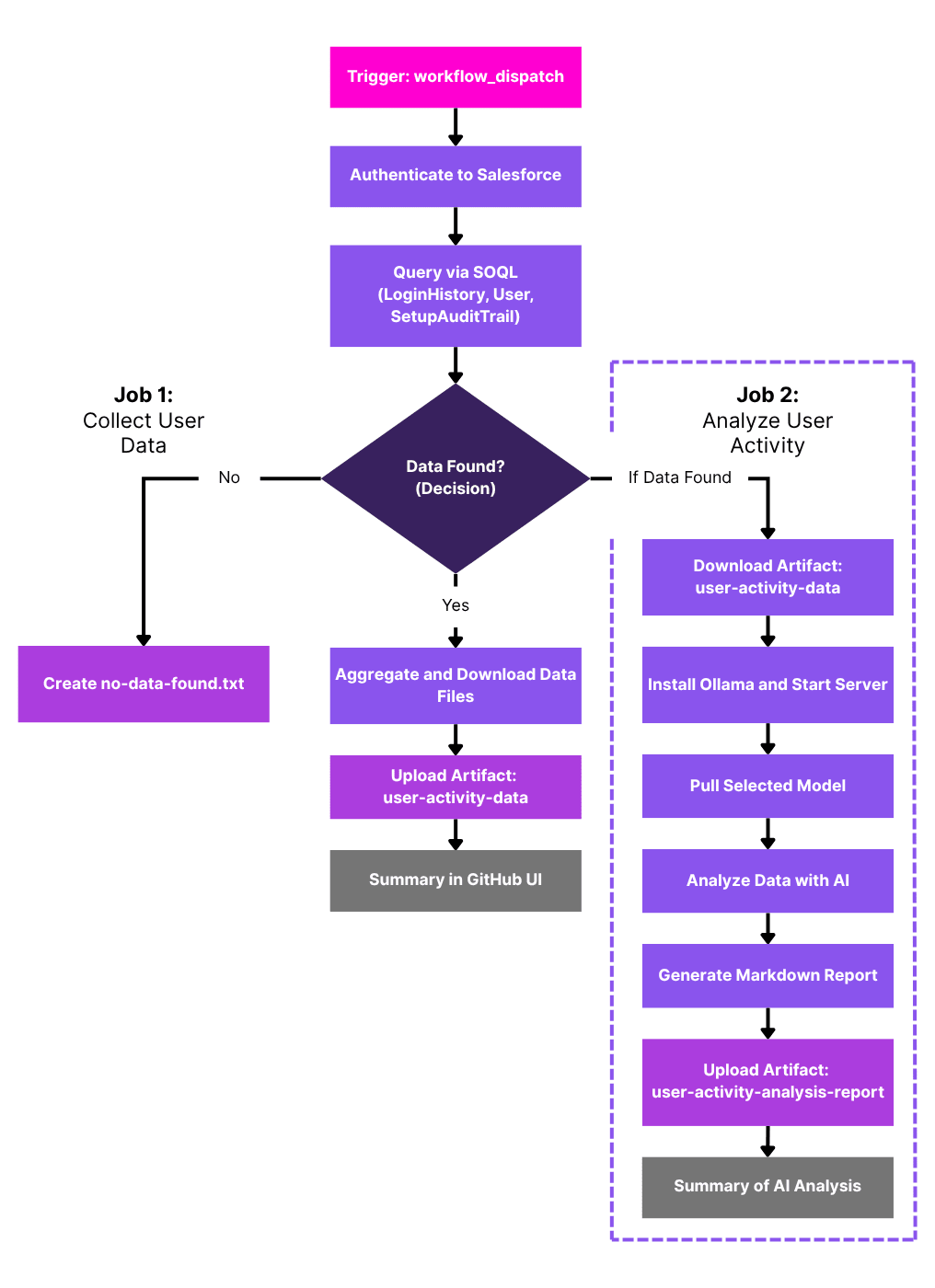
This workflow is initiated manually via GitHub’s workflow_dispatch event and runs in two sequential jobs:
collect-user-data: Authenticates to your Salesforce org, queries user activity data (login history, user details, and security audit trails) for a configurable time window, and aggregates it into JSON artifacts.analyze-user-activity: Conditionally downloads the artifacts (only if data exists), sets up Ollama for local AI inference, and generates a comprehensive Markdown security report using the selected LLM model.
By processing data locally, this self-contained pipeline ensures privacy while scanning for security anomalies such as suspicious logins. It then generates actionable insights, enabling efficient DevOps auditing with no external dependencies.
The runtime of this pipeline varies depending on data volume and the selected model size.
The following diagram illustrates the pipeline’s architecture and its jobs workflow:
Prerequisites
Before implementing the pipeline, ensure you have:
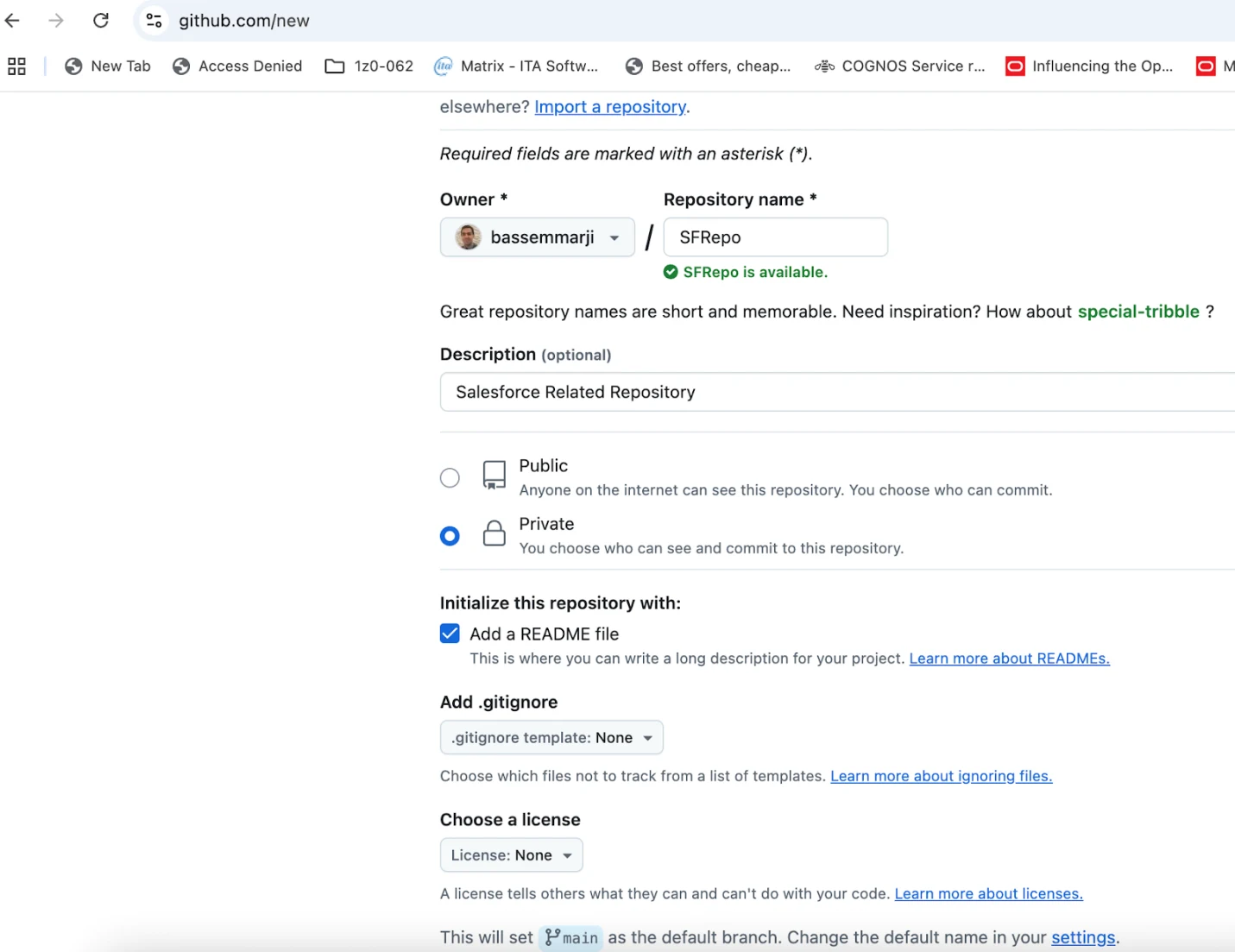
- GitHub Repository: Sign in to GitHub and create a new private repository for your Salesforce project as shown below:
- Generate Salesforce Authentication URL: Using the Salesforce CLI, authenticate to your org and generate an authentication URL by running this command in your terminal:
> sf force:auth:web:login --alias <OrgAlias> --instance-url <OrgURL> --set-default
Then, follow these steps:
- When the browser opens, log in to Salesforce.
- Close the tab after successful authentication.

- Execute this command in your terminal:
> sf org display --target-org <OrgAlias> --verbose
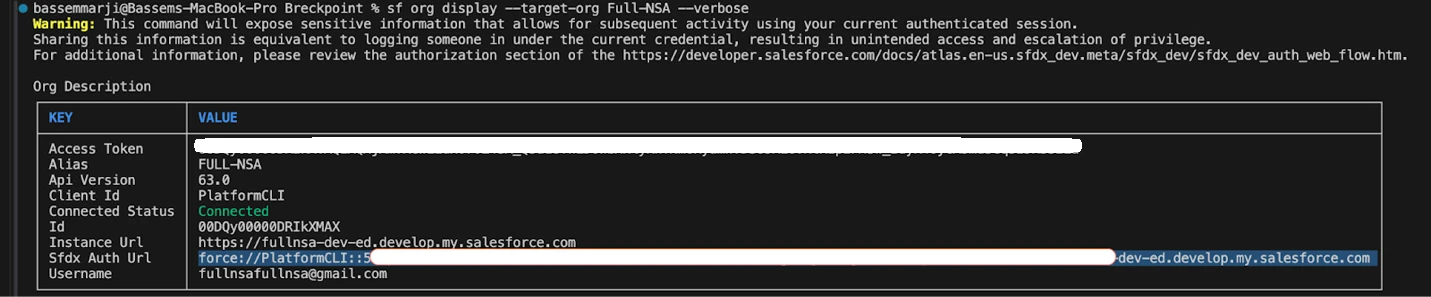
- Copy the generated SFDX Auth URL and store it in a secure location for later use.
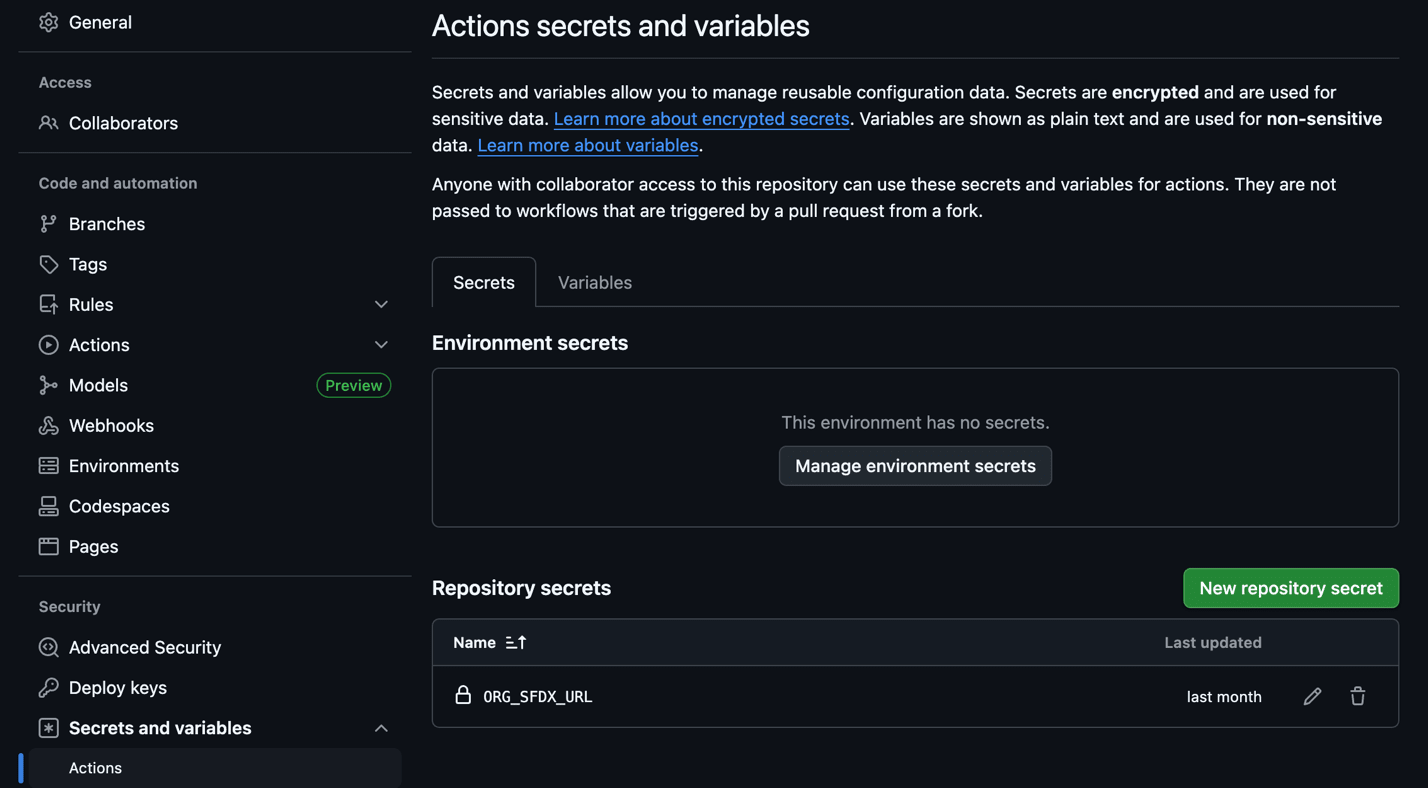
Security Note: SFDX Auth URLs must be classified and protected as highly sensitive credentials due to their ability to grant permissions equivalent to the associated Salesforce user. As development orgs frequently employ administrative profiles, exposure could result in a full compromise of the organization.Secret Name Description ORG_SFDX_URL SFDX authentication URL for your Salesforce org
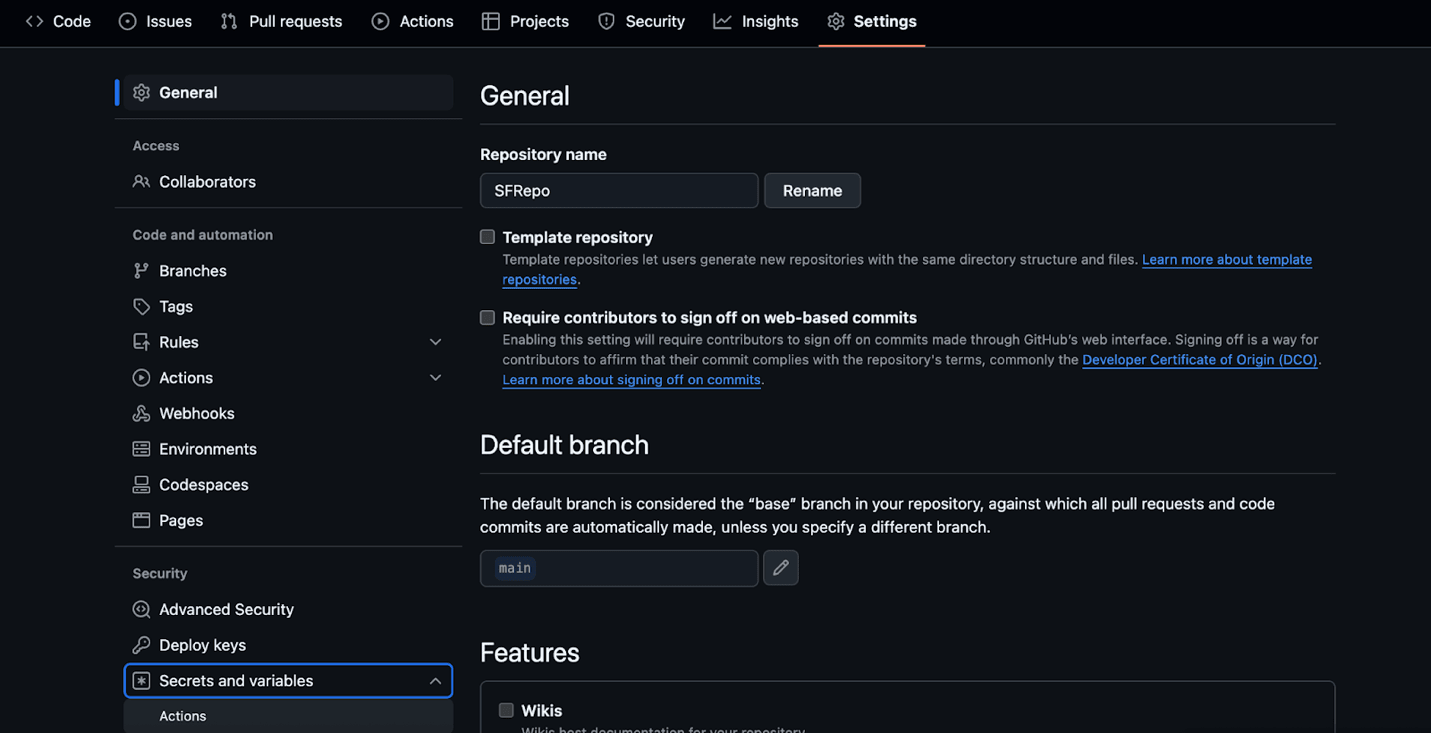
- Store the collected authentication URL in GitHub Secrets: Navigate to Repository Settings → Secrets and variables → Actions. Select New repository secret and add the following:
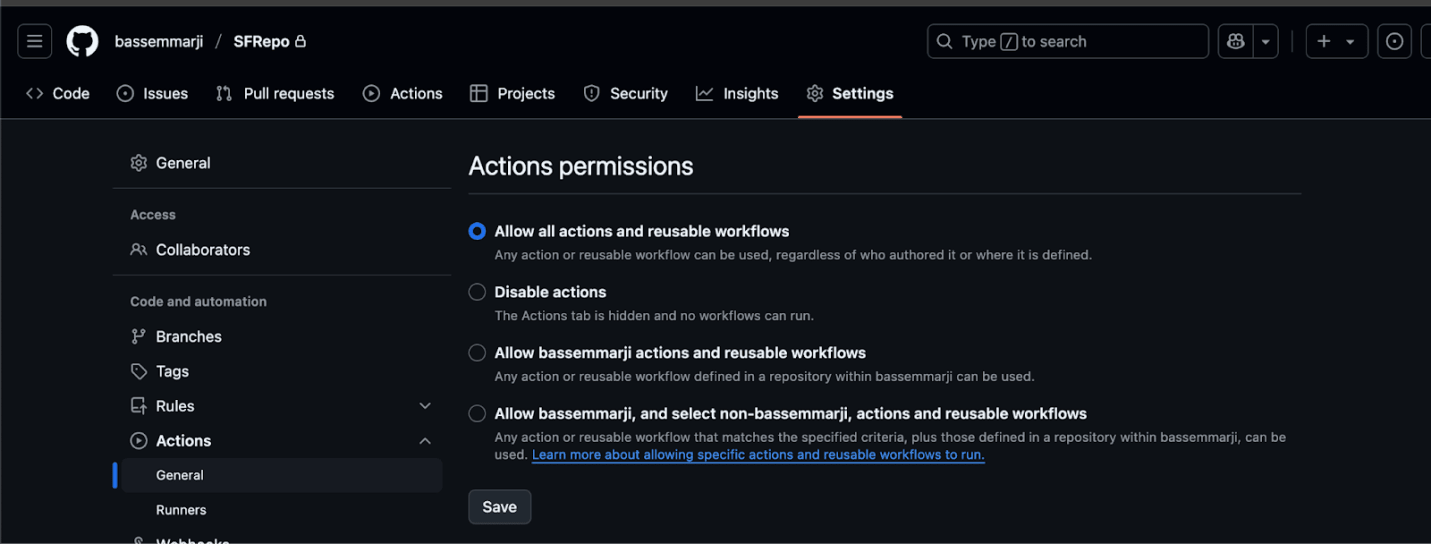
- Enable Workflow Permissions: Grant permissions for actions and reusable workflows by selecting the “Allow all actions and reusable workflows” setting:
Implementation
- Create a new file named “UserActivityAnalyzer.yml” in your repository’s /.github/workflows/ folder.
- Paste the following YAML code snippet into the new file.
- Save and commit your changes to enable the workflow.
name: AI Powered User Activity Analyzer

on:
  workflow_dispatch:
    inputs:
      org_alias:
        type: string
        description: "Salesforce org alias"
        required: true
        default: "dev"
      days_back:
        type: number
        description: "Number of days back to retrieve user activity data"
        required: true
        default: 30
      model_name:
        type: choice
        description: "Ollama model to use"
        options:
          - llama3:latest
          - gpt-oss:latest
        default: llama3:latest

env:
  ORG_ALIAS: ${{ github.event.inputs.org_alias }}
  DAYS_BACK: ${{ github.event.inputs.days_back }}
  MODEL_NAME: ${{ github.event.inputs.model_name }}
  NODE_VERSION: "20"
  DATA_DIR: "user-activity-data"

jobs:
  collect-user-data:
    name: Collect User Activity Data
    runs-on: ubuntu-latest
    outputs:
      login_count: ${{ steps.query-logins.outputs.login_count }}
      user_count: ${{ steps.query-users.outputs.user_count }}
      has_data: ${{ steps.check-data.outputs.has_data }}
    steps:
      - name: Checkout repository
        uses: actions/checkout@v4

      - name: Setup Node.js
        uses: actions/setup-node@v4
        with:
          node-version: ${{ env.NODE_VERSION }}

      - name: Install dependencies
        run: |
          npm install --global @salesforce/cli
          sf plugins:update
          sudo apt-get update && sudo apt-get install -y jq

      - name: 🔐 Authenticate to Salesforce Org
        run: |
          echo "${{ secrets.ORG_SFDX_URL }}" | sf org login sfdx-url --alias $ORG_ALIAS --set-default --sfdx-url-stdin
          sf org list

      - name: Query Login History
        id: query-logins
        run: |
          mkdir -p "$DATA_DIR"
          START_TIME=$(date -u -d "$DAYS_BACK days ago" '+%Y-%m-%dT%H:%M:%S.000Z')
          echo "🔍 Querying login history since: $START_TIME"
          OFFSET=0
          > "$DATA_DIR/login_history_all.json"
          while true; do
            RESULT_FILE="$DATA_DIR/login_history_$OFFSET.json"
            sf data query \
              --query "SELECT Id, UserId, LoginTime, LoginType, SourceIp, Platform, Browser, Status FROM LoginHistory WHERE LoginTime >= $START_TIME ORDER BY LoginTime DESC LIMIT 500 OFFSET $OFFSET" \
              --target-org "$ORG_ALIAS" \
              --result-format json > "$RESULT_FILE"
            COUNT=$(jq -r '.result.records | length' "$RESULT_FILE")
            [ "$COUNT" -eq 0 ] && break
            OFFSET=$((OFFSET + 500))
          done
          # Merge paginated files into one JSON
          jq -s '{result:{records:map(.result.records) | add, totalSize:(map(.result.records)|add|length)}}' "$DATA_DIR"/login_history_*.json > "$DATA_DIR/login_history.json"

      - name: Aggregate Logins
        id: aggregate-logins
        run: |
          login_count=$(jq -r '.result.totalSize // 0' "$DATA_DIR/login_history.json")
          echo "login_count=$login_count" >> $GITHUB_OUTPUT

      - name: Query User Information
        id: query-users
        timeout-minutes: 5
        run: |
          # Get unique user IDs from login history
          user_ids=$(jq -r '.result.records[].UserId' "$DATA_DIR/login_history.json" | sort -u | head -100)
          user_count=$(echo "$user_ids" | wc -l)

          if [ "$user_count" -gt 0 ]; then
            # Convert user IDs to SOQL IN clause format
            user_ids_formatted=$(echo "$user_ids" | sed "s/^/'/g" | sed "s/$/'/g" | tr '\n' ',' | sed 's/,$//')

            # Query user details
            USER_QUERY="SELECT Id, Username, Name, Email, Profile.Name, UserRole.Name,
                               IsActive, LastLoginDate, CreatedDate, LastModifiedDate,
                               Department, Division, Title, CompanyName, City, State, Country,
                               TimeZoneSidKey, LocaleSidKey, LanguageLocaleKey, UserType,
                               LastPasswordChangeDate, NumberOfFailedLogins, MobilePhone
                          FROM User
                         WHERE Id IN ($user_ids_formatted)"

            echo "Executing User details SOQL query..."
            sf data query \
              --query "$USER_QUERY" \
              --target-org "$ORG_ALIAS" \
              --result-format json > "$DATA_DIR/user_details.json"

            echo "📊 Found details for $user_count users"
          fi

          echo "user_count=$user_count" >> $GITHUB_OUTPUT

      - name: Query Additional Security Data
        timeout-minutes: 10
        run: |
          # Query SetupAuditTrail for security-related changes
          SETUP_START_TIME=$(date -u -d "$DAYS_BACK days ago" '+%Y-%m-%dT%H:%M:%S.000Z')

          SETUP_QUERY="SELECT Id, Action, Section, CreatedDate, CreatedById, CreatedBy.Username,
                              CreatedBy.Name, Display, DelegateUser, ResponsibleNamespacePrefix
                       FROM SetupAuditTrail
                       WHERE CreatedDate >= $SETUP_START_TIME
                       AND (Action LIKE '%User%' OR Action LIKE '%Login%' OR Action LIKE '%Password%'
                            OR Action LIKE '%Profile%' OR Action LIKE '%Permission%' OR Action LIKE '%Security%')
                       ORDER BY CreatedDate DESC"

          echo "Executing SetupAuditTrail SOQL query in batched mode..."
          sf data query \
            --query "$SETUP_QUERY" \
            --target-org "$ORG_ALIAS" \
            --result-format json \
            --all > "$DATA_DIR/setup_audit_trail.json" || echo "⚠️ SetupAuditTrail query failed (may not have access)"

      - name: Check Data Availability
        id: check-data
        run: |
          login_count=$(jq -r '.result.totalSize' "$DATA_DIR/login_history.json" 2>/dev/null || echo "0")

          if [ "$login_count" -eq 0 ]; then
            echo "⚠️ No login data found in the last $DAYS_BACK days"
            echo "has_data=false" >> $GITHUB_OUTPUT
            echo "No user activity data found in the last $DAYS_BACK days" > "$DATA_DIR/no-data-found.txt"
          else
            echo "✅ Found user activity data to analyze"
            echo "has_data=true" >> $GITHUB_OUTPUT

            # Create summary statistics
            jq -r --arg days "$DAYS_BACK" '{
              summary: {
                days_analyzed: ($days | tonumber),
                total_logins: .result.totalSize,
                analysis_period: {
                  start: (.result.records | map(.LoginTime) | min),
                  end: (.result.records | map(.LoginTime) | max)
                },
                unique_users: (.result.records | map(.UserId) | unique | length),
                unique_ips: (.result.records | map(.SourceIp) | unique | length),
                login_types: (.result.records | group_by(.LoginType) | map({type: .[0].LoginType, count: length})),
                platforms: (.result.records | group_by(.Platform) | map({platform: .[0].Platform, count: length}))
              }
            }' "$DATA_DIR/login_history.json" > "$DATA_DIR/data_summary.json"
          fi
      - name: Upload User Activity Artifacts
        uses: actions/upload-artifact@v4
        with:
          name: user-activity-data
          path: ${{ env.DATA_DIR }}
          retention-days: 7
          if-no-files-found: warn

      - name: 📄 Summary of Collected Data
        run: |
          {
            echo "## 📊 Data Collection Summary"
            echo "- Org Alias: **$ORG_ALIAS**"
            echo "- Analysis Period: **$DAYS_BACK days**"
            echo "- Login Records: **${{ steps.query-logins.outputs.login_count }}**"
            echo "- Users Analyzed: **${{ steps.query-users.outputs.user_count }}**"
            if [ "${{ steps.check-data.outputs.has_data }}" = "true" ]; then
              echo "- Data Available: ✅ **Yes**"
              echo "- Artifact: \`user-activity-data\`"
            else
              echo "- Data Available: ❌ **No data found**"
            fi
          } >> $GITHUB_STEP_SUMMARY

  analyze-user-activity:
    name: Analyze User Activity with AI
    runs-on: ubuntu-latest
    needs: collect-user-data
    if: needs.collect-user-data.outputs.has_data == 'true'
    steps:
      - name: Download User Activity Artifacts
        uses: actions/download-artifact@v4
        with:
          name: user-activity-data
          path: data

      - name: Install Ollama
        run: |
          curl -fsSL https://ollama.com/install.sh -o install.sh
          chmod +x install.sh && ./install.sh
          echo "$HOME/.ollama/bin" >> $GITHUB_PATH
          export PATH="$HOME/.ollama/bin:$PATH"
          ollama serve &
          for i in {1..30}; do
            curl -s http://localhost:11434/api/version && break
            sleep 2
          done
      - name: Download Model
        timeout-minutes: 30
        run: |
          MODEL="${{ inputs.model_name }}"
          echo "📥 Downloading Ollama model: $MODEL"
          ollama pull "$MODEL"

          echo "🔍 Verifying model installation..."
          ollama list
      - name: Analyze User Activity Data
        run: |
          REPORT_FILE="user_activity_analysis.md"
          MODEL="${{ inputs.model_name }}"

          # Initialize report
          echo "# AI User Activity Analysis Report" > "$REPORT_FILE"
          echo "**Analysis Date:** $(date)" >> "$REPORT_FILE"
          echo "**Model Used:** $MODEL" >> "$REPORT_FILE"
          echo "**Period:** Last ${{ inputs.days_back }} days" >> "$REPORT_FILE"
          echo "" >> "$REPORT_FILE"

          # Add data summary if available
          if [ -f "data/data_summary.json" ]; then
            echo "## 📊 Data Overview" >> "$REPORT_FILE"
            echo '```json' >> "$REPORT_FILE"
            jq '.' data/data_summary.json >> "$REPORT_FILE"
            echo '```' >> "$REPORT_FILE"
            echo "" >> "$REPORT_FILE"
          fi

          # Generate comprehensive analysis prompt
          generate_analysis_prompt() {
            local login_data="$1"
            local user_data="$2"
            local audit_data="$3"

            cat <<EOF
            You are a Salesforce Security Analyst specializing in user activity and login behavior analysis.
            Analyze the provided Salesforce user activity data and produce a comprehensive security assessment report covering all aspects: suspicious logins, user behavior patterns, and security anomalies.

            **Data Provided:**
            1. LoginHistory records with IP addresses, browsers, platforms, geographic data
            2. User account details with profiles, roles, and account status
            3. SetupAuditTrail records for administrative changes (if available)

            **Required Output Format (Markdown):**

            ## 🚨 Critical Security Findings
            | Severity | Finding | Evidence | Recommendation |
            |----------|---------|----------|----------------|
            | HIGH/MEDIUM/LOW | Description | Supporting data | Action to take |

            ## 🌍 Geographic & Network Analysis
            | Category | Details | Risk Level |
            |----------|---------|-----------|
            | Unusual Locations | Countries/cities not typical for org | HIGH/MEDIUM/LOW |
            | Suspicious IPs | IP addresses with multiple user logins | HIGH/MEDIUM/LOW |
            | VPN/Proxy Usage | Potential proxy or VPN indicators | HIGH/MEDIUM/LOW |

            ## 👤 User Behavior Patterns
            | User | Pattern Observed | Risk Assessment |
            |------|------------------|-----------------|
            | Username | Behavioral description | Risk level + reasoning |

            ## ⏰ Temporal Analysis
            - **Peak login times:** [List unusual login timing patterns]
            - **After-hours activity:** [Suspicious off-hours logins]
            - **Weekend/holiday logins:** [Unexpected login timing]

            ## 🔐 Authentication & Access Patterns
            - **Failed login clusters:** [Multiple failed attempts patterns]
            - **Rapid location changes:** [Same user, different locations quickly]
            - **Device/browser anomalies:** [Unusual client patterns]

            ## 📋 Administrative Activity Review
            [If SetupAuditTrail data available - review admin changes, user modifications, permission changes]

            **Analysis Rules:**
            - Flag logins from new countries/unusual locations
            - Identify users with failed login spikes
            - Detect rapid geographic changes (impossible travel)
            - Highlight privileged user suspicious activity
            - Note unusual login timing patterns
            - Identify shared accounts or credential concerns
            - Be specific with user IDs, IP addresses, and timestamps
            - Provide actionable security recommendations
            - Rate findings as HIGH/MEDIUM/LOW risk
            - Base conclusions ONLY on provided data

            **Data:**
            LOGIN HISTORY:
            $login_data

            USER DETAILS:
            $user_data

            AUDIT TRAIL:
            $audit_data
          EOF
          }

          # Prepare data for analysis
          login_data=""
          user_data=""
          audit_data=""

          if [ -f "data/login_history.json" ]; then
            login_data=$(cat data/login_history.json)
          fi

          if [ -f "data/user_details.json" ]; then
            user_data=$(cat data/user_details.json)
          fi

          if [ -f "data/setup_audit_trail.json" ]; then
            audit_data=$(cat data/setup_audit_trail.json)
          fi

          # Generate analysis
          echo "🤖 Generating comprehensive AI analysis..."
          generate_analysis_prompt "$login_data" "$user_data" "$audit_data" | ollama run "$MODEL" >> "$REPORT_FILE"

          # Add technical appendix
          echo -e "\n---\n" >> "$REPORT_FILE"
          echo "## 📋 Technical Data Summary" >> "$REPORT_FILE"
          echo "- **Total Login Records:** $(jq -r '.result.totalSize // 0' data/login_history.json 2>/dev/null || echo 'N/A')" >> "$REPORT_FILE"
          echo "- **Analysis Period:** ${{ inputs.days_back }} days" >> "$REPORT_FILE"
          echo "- **Report Generated:** $(date)" >> "$REPORT_FILE"

      - name: Upload Analysis Report
        uses: actions/upload-artifact@v4
        with:
          name: user-activity-analysis-report
          path: user_activity_analysis.md
          retention-days: 14

      - name: 📄 Analysis Summary
        env:
          MODEL: ${{ inputs.model_name }}
        run: |
          {
            echo "## 🧠 User Activity Analysis Summary"
            login_count=$(jq -r '.result.totalSize // 0' data/login_history.json 2>/dev/null || echo '0')
            user_count=$(jq -r '.result.records | map(.UserId) | unique | length' data/login_history.json 2>/dev/null || echo '0')
            echo "- **Login Records Analyzed:** $login_count"
            echo "- **Unique Users:** $user_count"
            echo "- **AI Model:** \`$MODEL\`"
            echo "- **Report:** \`user_activity_analysis.md\`"
            echo "- **Artifact:** \`user-activity-analysis-report\`"
            echo ""
          } >> $GITHUB_STEP_SUMMARY
Running and Monitoring the Pipeline
To execute and keep track of your workflow:
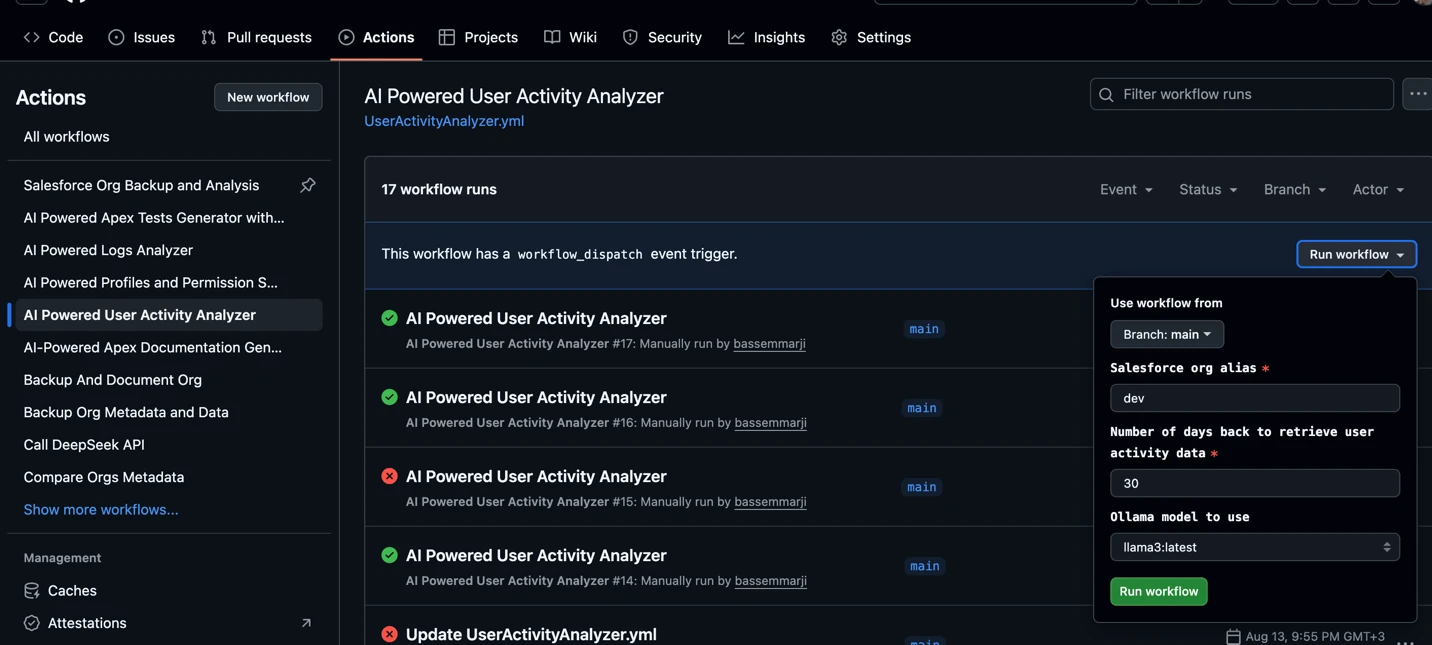
- Navigate to your GitHub repository and select the “Actions” tab in the top navigation bar:
- Trigger the workflow:
- In the left sidebar, locate and select the “AI Powered User Activity Analyzer” workflow.
- Click the “Run workflow” dropdown, verify the input parameters, and click to execute.
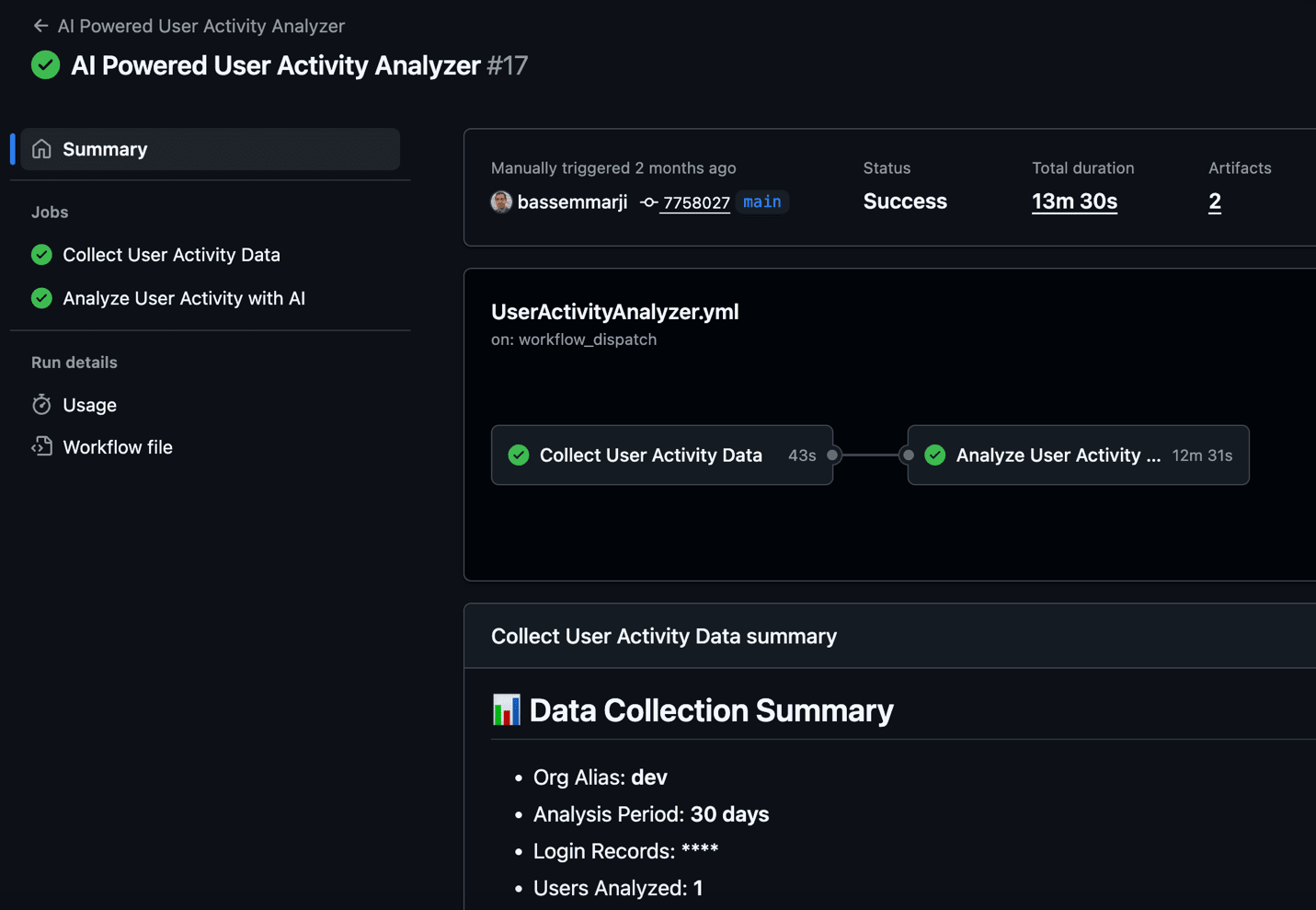
- Monitor Execution: Expand the job instances to inspect logs and outputs.
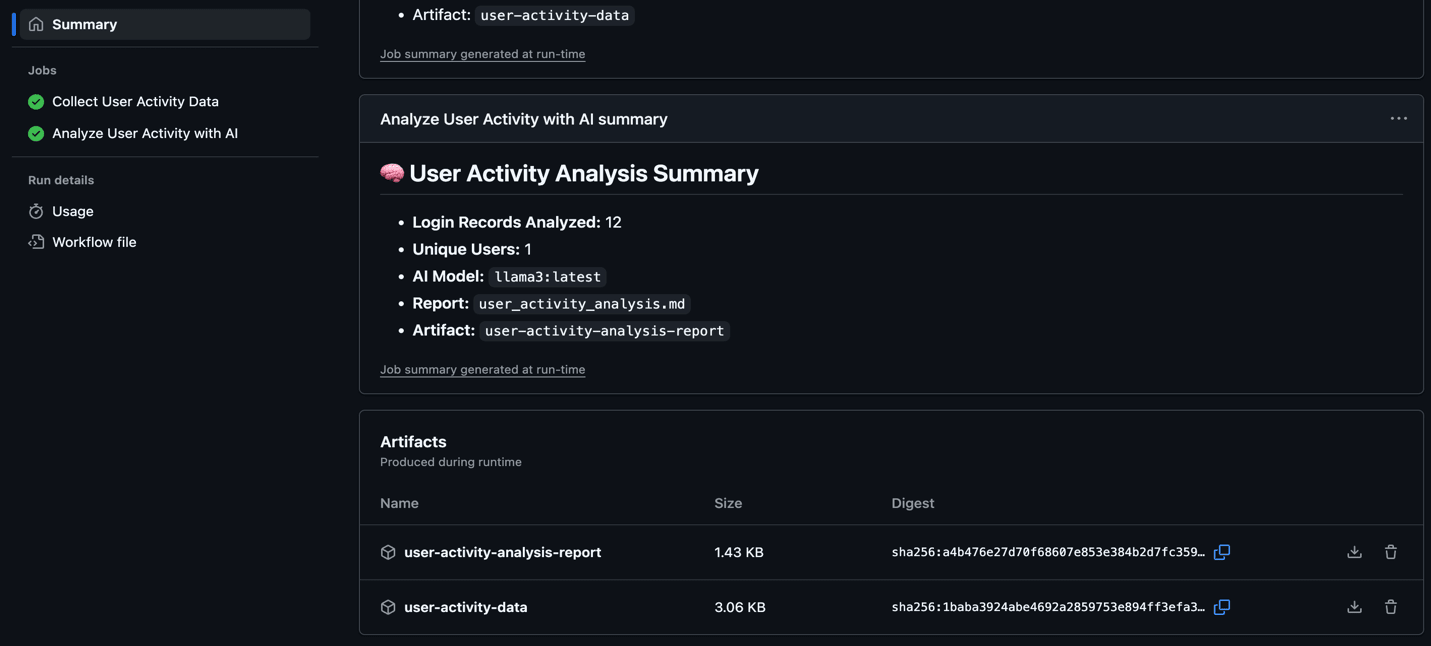
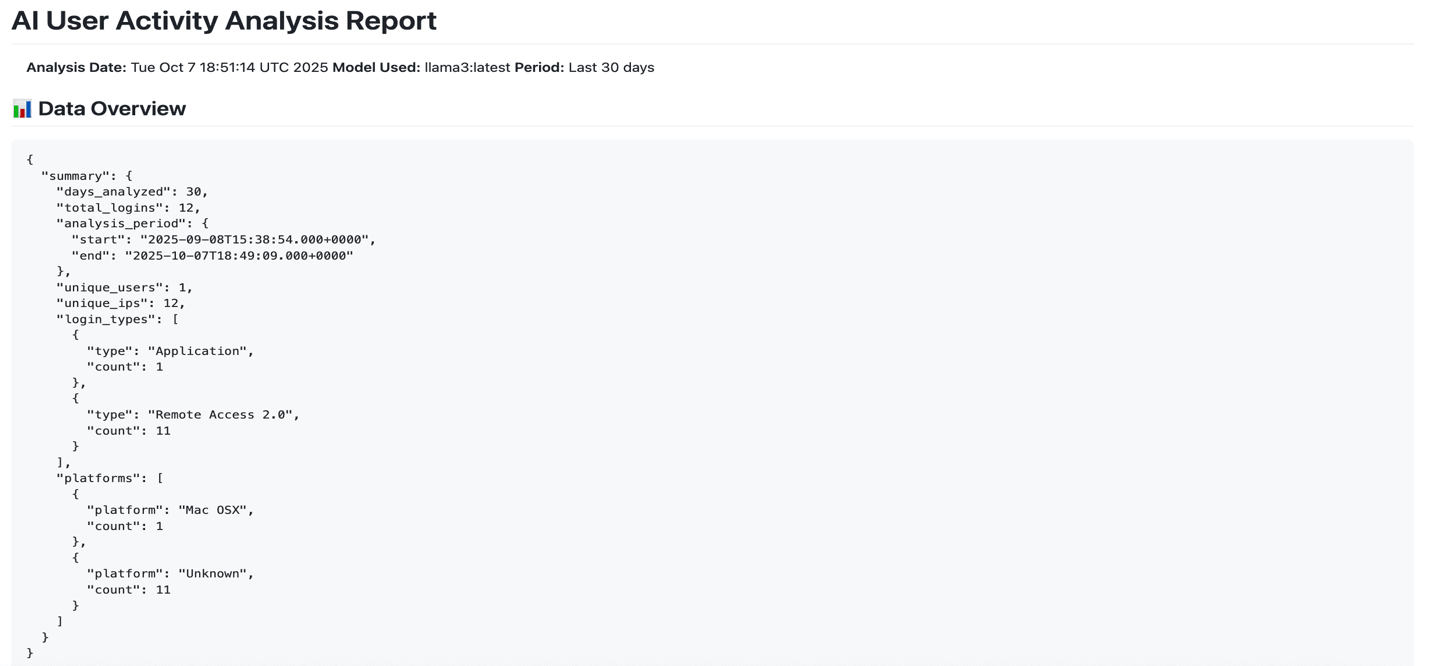
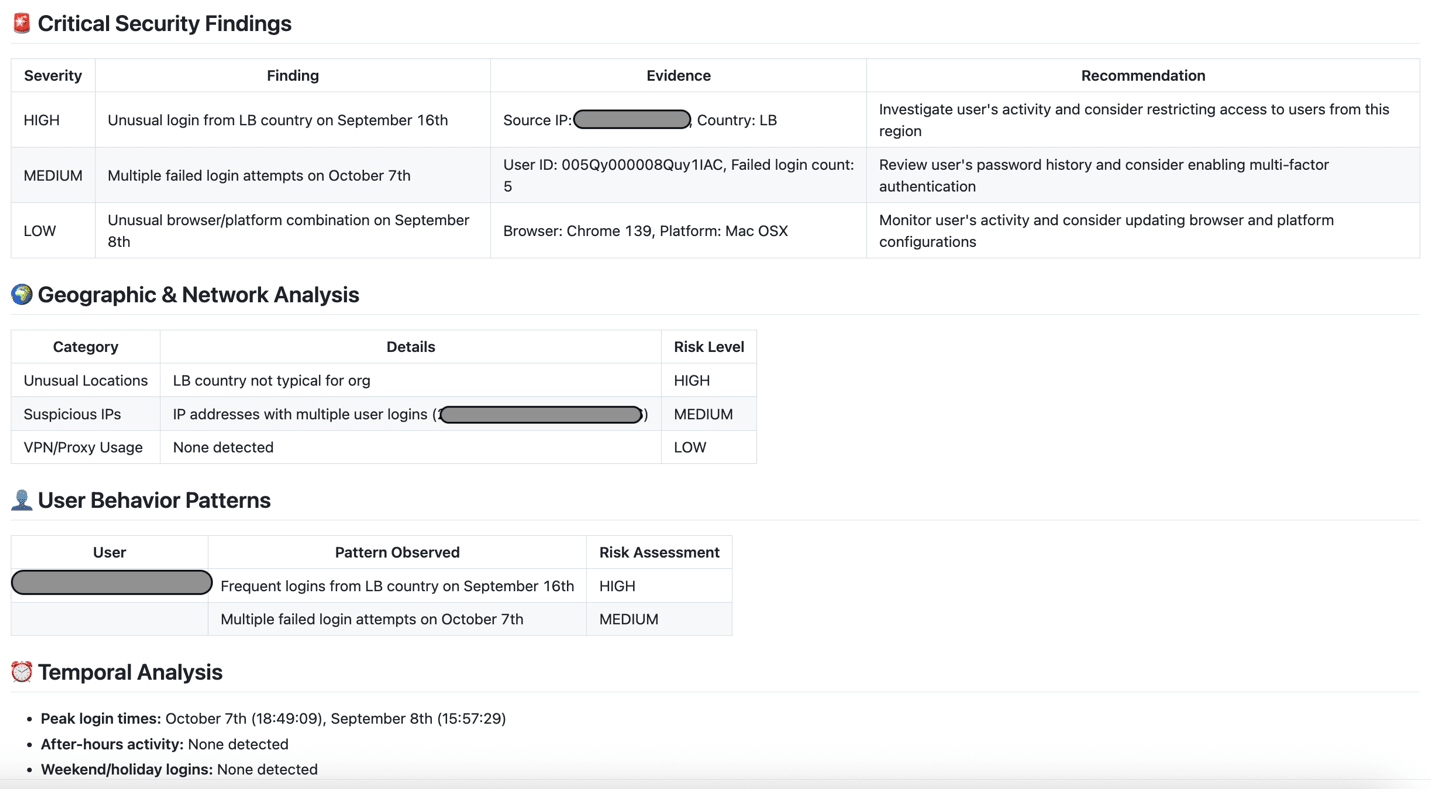
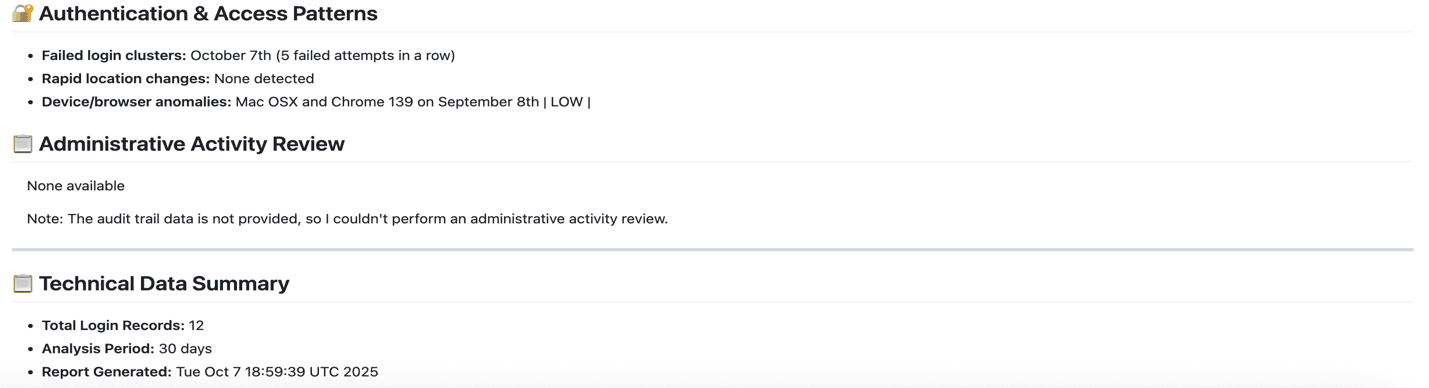
- Check the Results: To view the analysis results, download the
user-activity-analysis-reportartifact and open the markdown file it contains.
Final Thoughts
Traditional monitoring tools often fall short, requiring manual log reviews, complex dashboards, or expensive SIEM integrations.
This pipeline demonstrates how DevOps, open-source AI, and Salesforce can converge to create a powerful, secure, and intelligent monitoring system.