
Knowing everything about your Salesforce orgs when it comes to metadata and processes is no easy feat. What if you could skip the manual digging and instantly uncover optimization opportunities?
Highlights
- Forget about hidden risks and guesswork with instant visibility into your Salesforce org.
- Generate crystal-clear UPN (Universal Process Notation) diagrams and data models to align business and technical teams based on your org metadata.
- Get a handle on data governance, data quality, and security to make agents a success.
- Ensure Agentforce success with Agent Finder and Agent Designer.
- Speed up requirements and user stories with AI-powered generation, right inside your process diagrams.
- Get the analysis you need where you work with a Chrome Extension that brings insights and documentation into Salesforce, Jira, and more.
Understanding what is going on in your Salesforce org – as well as managing complexity, risk, and impact when it comes to changes – is not optional, but rather a must for all Salesforce professionals. Failing to account for dependencies, potential ramifications, and documentation is bound to not only allow technical debt to creep in from the get-go, but also negatively impact the user experience and lead to expensive rework.
While you could combine multiple tools and manual effort to prevent some of these, wouldn’t you rather have an easier, auditable way to manage everything from documentation to release planning in one place?
Chances are, you have already heard about Elements.cloud if you’ve been in the ecosystem for a while, especially due to the sleek and insightful diagrams you can produce within their product. Many Salesforce customers, as well as Salesforce itself, leverage this change intelligence platform to untangle their orgs, have meaningful stakeholder conversations, better understand and document their overall implementation – be it core Salesforce, Data Cloud, and Agentforce.
This in-depth review will showcase the main Elements.cloud features, ideal use cases, and setup effort, as well as how fast you and your team will adopt this new solution.
Features
While Elements.cloud may already be well-known for process mapping capabilities, there’s so much more to discover within their product. From metadata analysis, requirements and user story management, and agent design and governance, there’s something for every role within your Salesforce team to enjoy – even more so now that the UI has been recently revamped. Let’s dive into the main features the platform offers!
Analytics 360
Presented to you as a multi-faceted dashboard covering various dimensions of the connected Salesforce instance, the Analytics 360 page within Elements.cloud can be accessed either through the email you will receive when the first sync is finalised, or whenever you need through the Org Model. This is meant as the entry point for any admin or consultant starting to work within an org.
There are multiple angles you could look at your Salesforce metadata, and these visualizations make sure that no rock is left unturned. You can see exactly which objects store most of your data, as well as which objects might be potential candidates for a clean-up, given the number of objects or record types. Ultimately, the purpose of this dashboard is to give you and your stakeholders a complete view of your org’s health right from the get-go.

Org Model
As soon as your first Salesforce instance is synced within your Elements space, you can start exploring every aspect of your Salesforce metadata. The tab-based structure in the side panel allows for easy navigation, either through information and sync details about the overall org, or insights about each node selected from the list.
Be it an object, Apex Class, Flow, or an Agentforce Agent, the side panel offers information from Salesforce, but also the first glimpse into what Elements can do and how granular you can get. You can explore the list of available Salesforce Clouds and metadata here.
This approach can drastically cut the time spent understanding the high-level of how a given org is configured, specifics of the data model, but also more granular details such as dependencies, utilization, and even permissions.

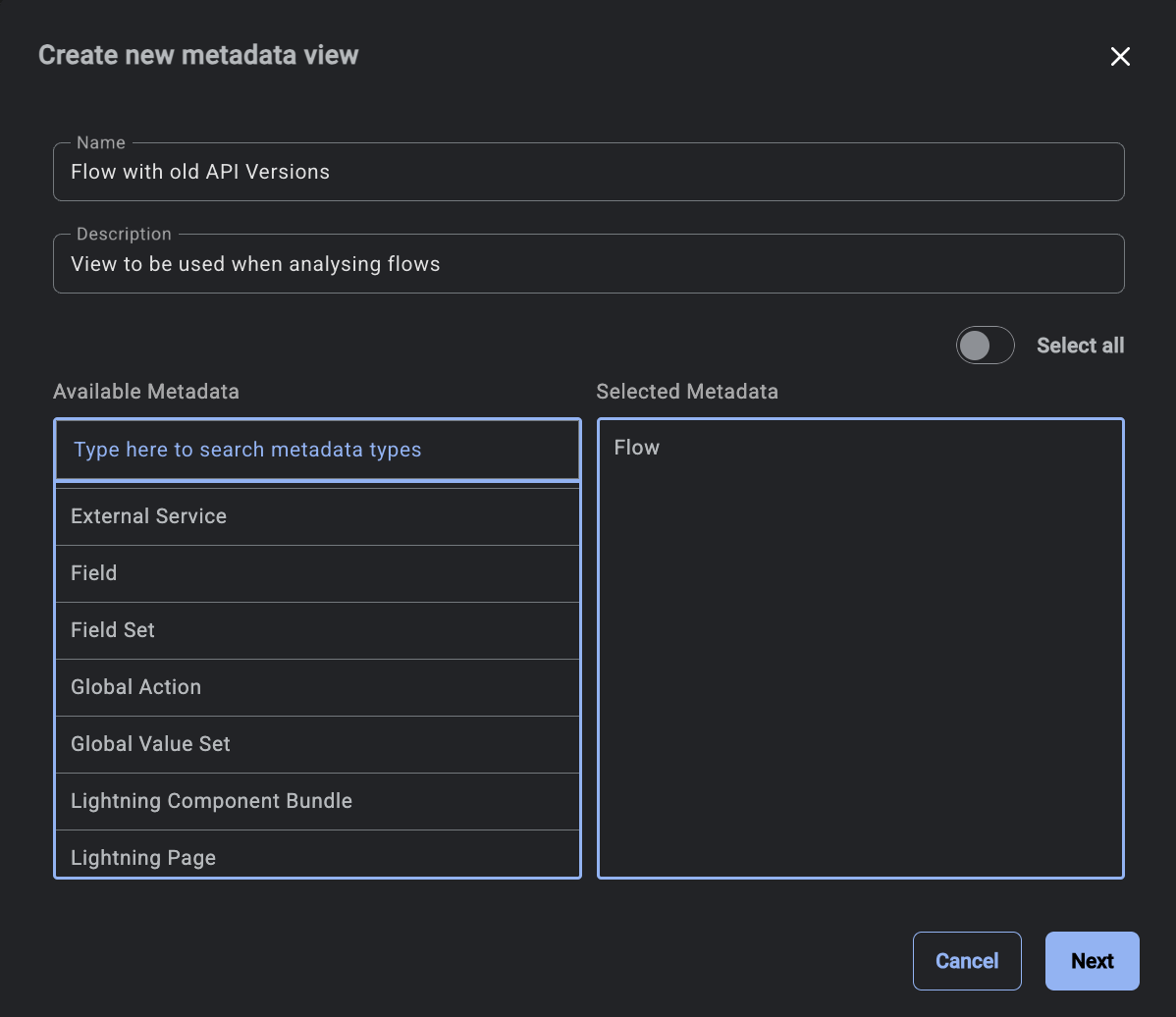
Keep in mind that you can always create more metadata views for each initiative you conduct, such as analyzing unused fields or, why not, checking out Flows which should have their API version updated. For unused fields, for example, Elements provides the completion rate, and these attributes can be used as filters before saving the view.
Dependency Explorer
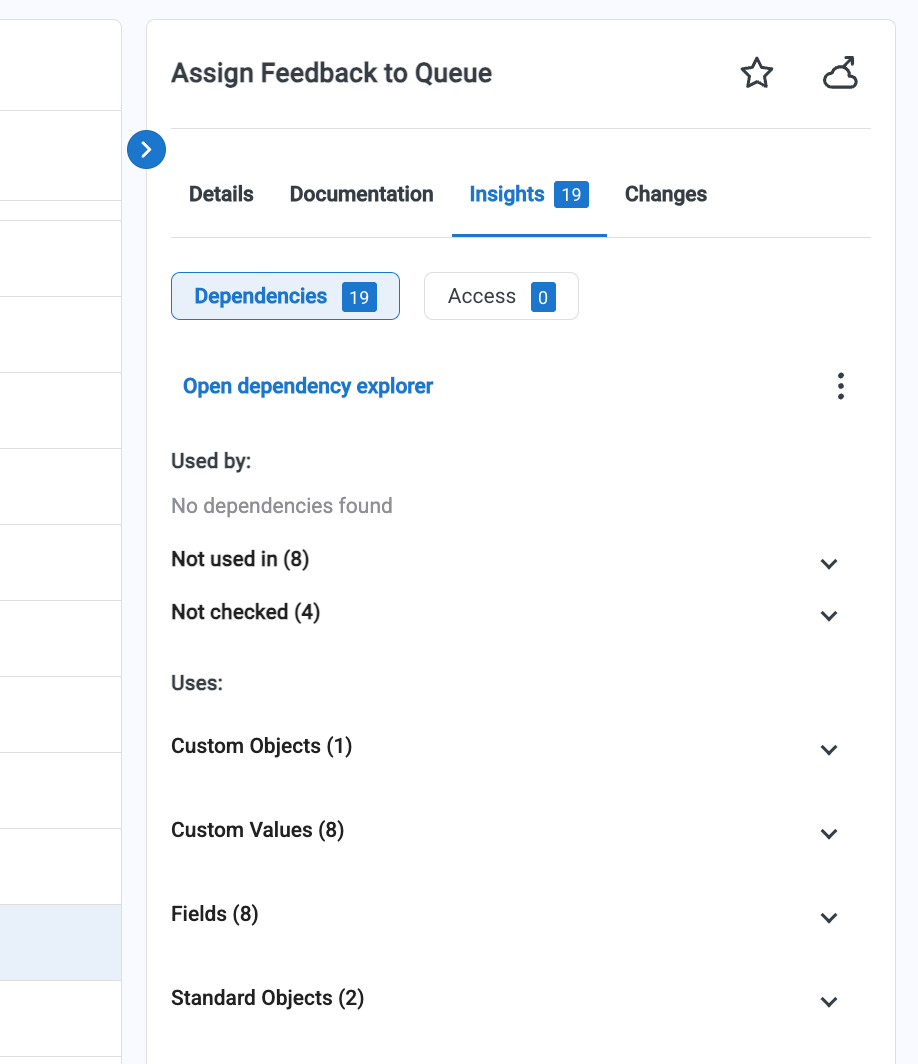

Speaking of dependencies, you might have already noticed above that the first option under the Insights tab contains the node’s identified dependencies. The breakdown on the side panel can be helpful as is – for objects, even field dependencies are automatically classified based on their impact, be it low, medium, or high.
For other types of metadata, such as Salesforce Flows, this tab is where fields, objects, and custom values will be highlighted as dependencies. The side panel will also include metadata where the given component is not used, but also metadata that was not checked, which you can further search for references in if needed.
The dedicated dependency explorer offers a more visual way to peruse all related dependencies. You can opt for one of the two modes:
- The tree-like interactive experience, where each of the nodes can be further expanded as needed, and can be clicked to surface details about it within the side panel. From an experience perspective, this can translate into a one-stop shop for finding all key information about a given component and properly assessing any potential downstream impact a seemingly simple change may cause.
- The dependency grid, where you can review all metadata in a table format, and use filters to narrow down the information. You can also export the listed metadata with a click, or even choose to use mass actions such as tagging or generating a requirement or user story.
Requirements and User Stories

While Elements.cloud is not a fully fledged project management tool, it does include helpful functionality to help business analysts, admins, architects, and even business stakeholders manage requirements and all related work within the platform.
Requirements and stories can be manually created from the Changes tab, or from many other places across the platform, including Org Model and diagram steps. When starting from a diagram, these can also be automatically generated using AI, so even if you are not a wizard at writing them, the entire process can be a walk in the park.
These should also be related to a Release, to keep track of what is delivered and when, alongside other details. Additionally, if a certain requirement or story will lead to metadata changes, they should be linked to the components as soon as the dependency is identified.
A New Way to Document Your Implementation
If you are lucky enough to work on a greenfield implementation of Salesforce, or create a new process in a mature org, following the best practice of designing before building is non-negotiable. One of the well-architected principles that professionals building on the Salesforce platform should always follow is to design before building, no matter how simple an implementation might initially seem.
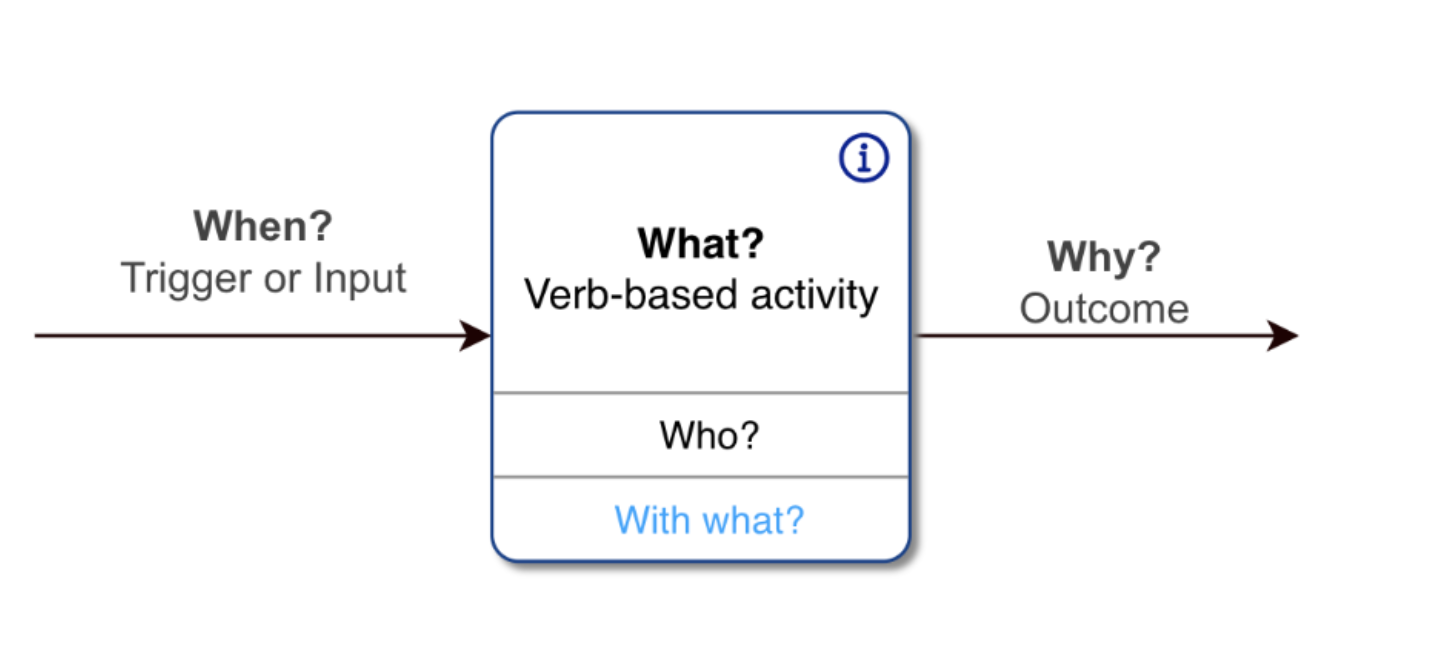
Elements.cloud provides not only the ability to review your entire Salesforce metadata and associated dependencies, but also an easy-to-use builder for all your diagramming needs. The tool is created to support and promote the use of one of the most well-known notations, respectively UPN (Universal Process Notation). Since it is easy to use and understand for non-technical stakeholders, as it includes clear text-based explanations, it can easily bridge the gap between business stakeholders and technical teams when discussing any process changes. A UPN diagram should always answer a few basic questions: When, What, Who, How, and Why.
Speaking of well-architected, Elements.cloud makes it a breeze to create Salesforce-specific architecture diagrams as well, to clearly outline solutions, system landscape, or anything else any Salesforce professional might need to document or showcase. Within the same building experience, you have the option to create a fully collaborative architectural diagram using building blocks, icons, and flowlines you’re already familiar with. There is also a vast template library available for both process diagrams and architectural diagrams, which you can use as a starting point instead of building from scratch.

Regardless of whether you choose to build (or even automatically generate) a UPN or Salesforce architecture diagram, both of them support multiple levels, hence there will never be a need to cram all details into one single diagram. Using the child diagram approach and navigating through them from the diagram tree or directly from the element will ensure that each part of the solution or process remains clear and concise at all times. Even more so, while you can easily add attributes to all cards, keep in mind that Salesforce metadata can be directly linked instead.
Note that while for Salesforce architecture diagrams the additional levels may capture a different scope or just more detail, in UPN, the levels are meant to drill down into the “how” of the parent element.

For UPN diagrams specifically, even if you’re not familiar with the best practices, the AI-powered UPN check has you covered. As you build more diagrams using UPN, you will know that there shouldn’t be more than 8-12 boxes on the screen to ensure readability, and also that all activities should be verb-based and have verifiable outcomes. If multiple roles and systems are involved, that should be noted as well. Until then, though, the readily available UPN check can help you get there and suggest improvements that you can choose to accept and incorporate within your process map.
Recommendations may or may not be what you’re looking for, but you can still accept them and adjust as needed. In the example below, the Lead wouldn’t be created by the Sales Rep, so you can ignore that recommendation, but the Lead assignment will be handled by the Sales Manager, so you can accept that one, which will be immediately reflected on the canvas. For any resource you choose to add for the activity, you can opt to display the RASCI matrix value for easy identification of the roles and responsibilities.

While it may seem small, another testament to Elements’ commitment to a great user experience is the readily available dark mode, or more specifically, the theme settings within the app. So if you need or prefer to use this option, you can easily switch between light and dark mode across the entire platform.
Collaboration
Regardless of the process or type of diagram you’re working on, it will most likely be shared with at least one other person, and that’s where smooth collaboration mechanisms come into play. The built-in tools, such as feedback and sticky notes, can help you either highlight certain items on the diagram or directly ask questions. Feedback can be easily managed, as once it has been addressed, it can be resolved while the entire history remains accessible.
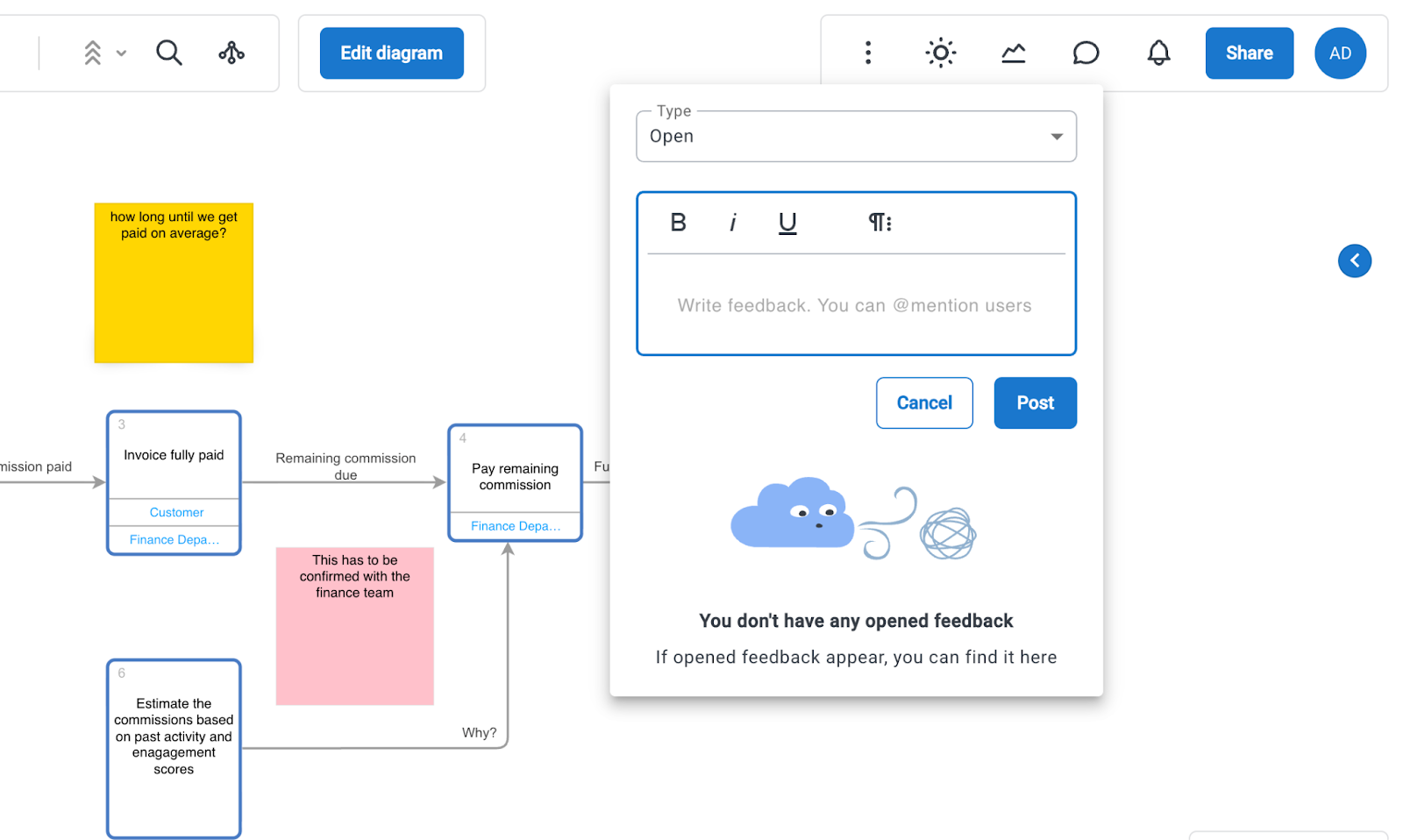
Diagram Versioning
Speaking of history, feedback is not everything that can be tracked, as each individual diagram is versioned, for you to keep track of all iterations, which are either work in progress, published, or archived.
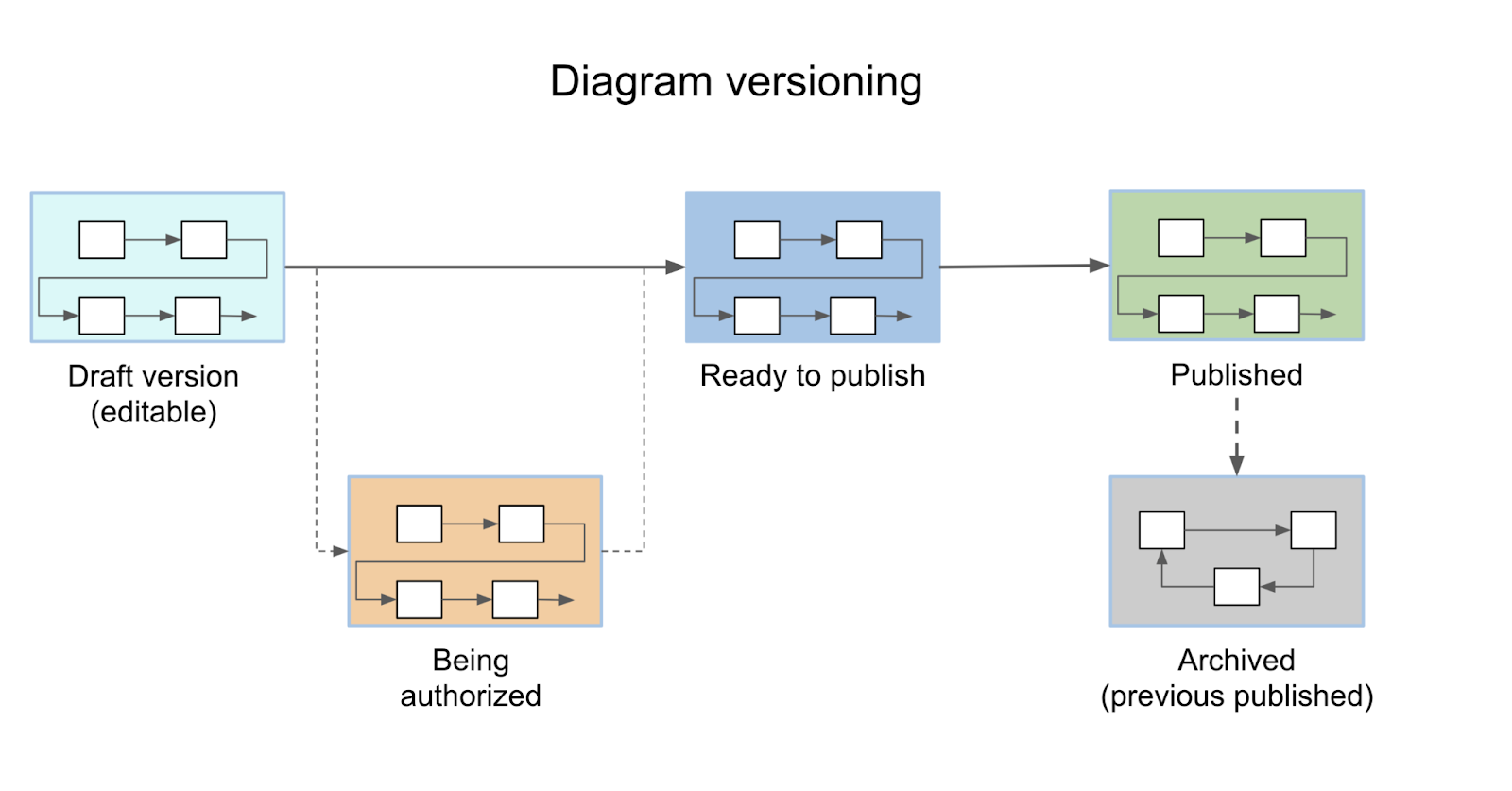
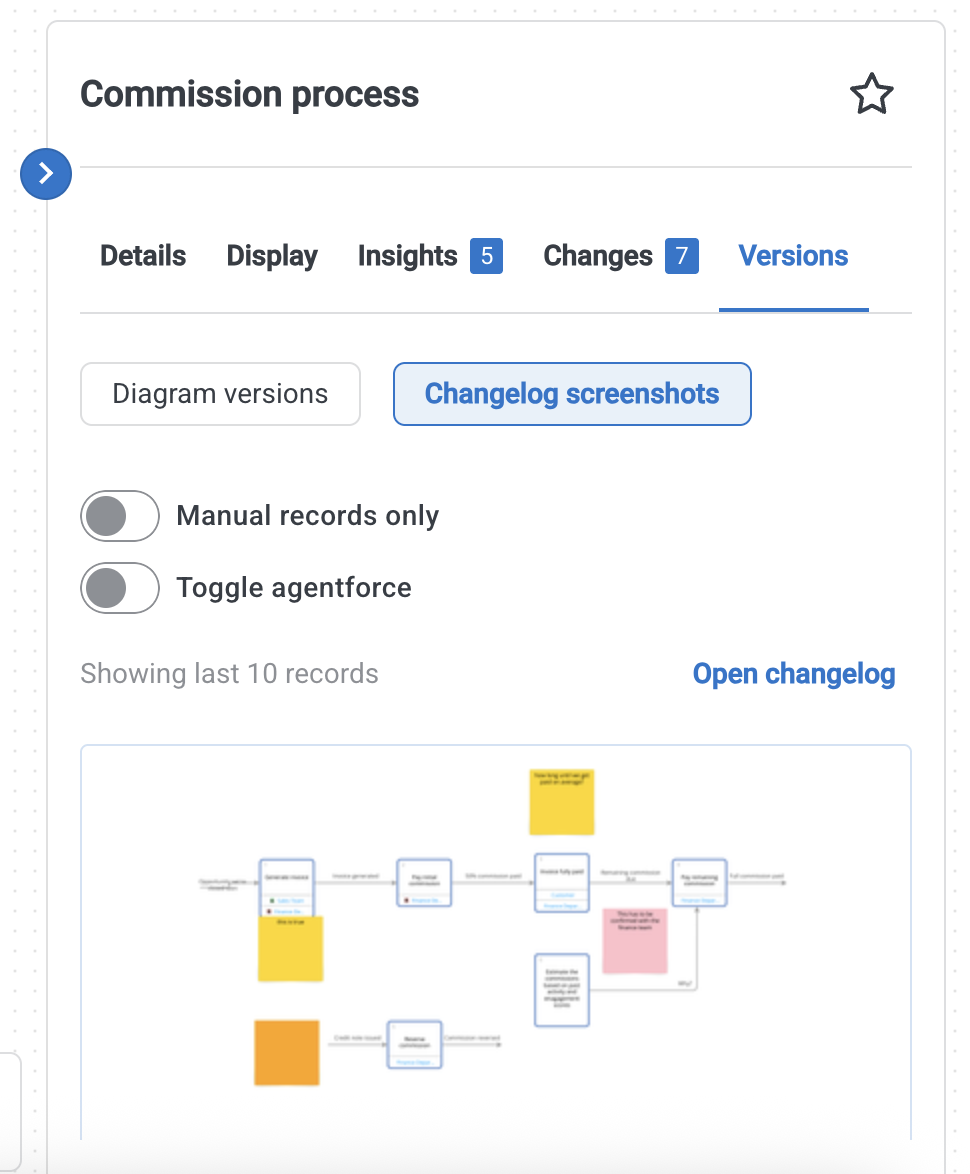
Elements also keeps a changelog, which includes screenshots as well as who and when made the changes. All of these can help you ensure proper governance and change management best practices across all of your process diagrams, regardless of how many colleagues have to contribute.
Documentation
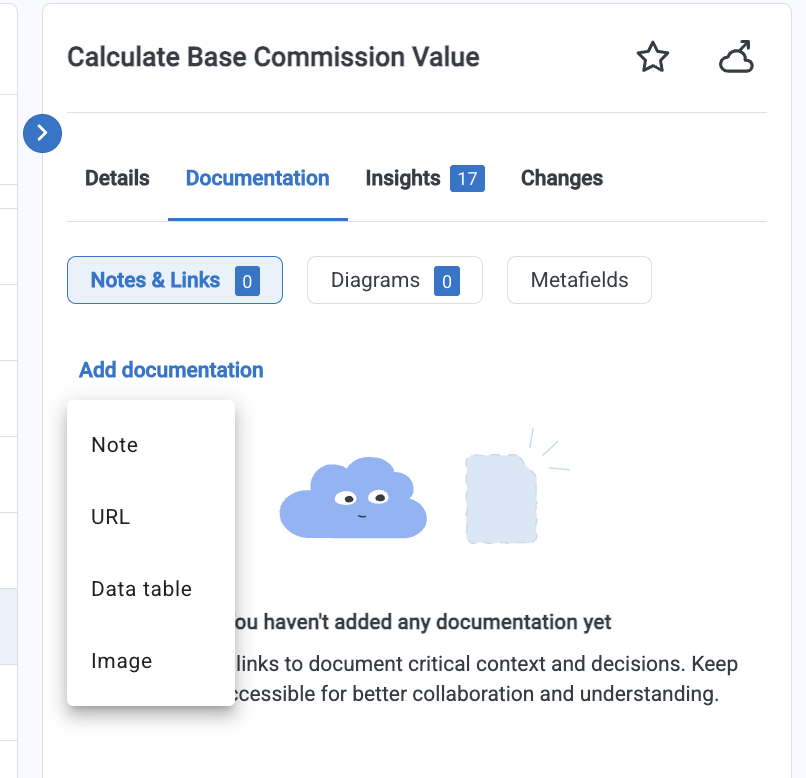
Maintaining up-to-date documentation is one of the most time-consuming tasks alongside the actual implementation. To ease the burden and ensure a smooth way to document all decision-making as well as critical context, Elements.cloud allows you to attach notes, images, and links to virtually anything – be it process steps within a diagram, stories, or Salesforce metadata. There is also a built-in URL library that you and your team can populate to store all helpful resources in one place, as well as the option to create custom metafields for classification purposes.
Deep Dive into Existing Processes

Specifically for existing Salesforce implementations, Elements.cloud is now offering the ability to automatically construct a process diagram, based solely on natural language and a few selections.
Configuration Mining recently became generally available on the platform, and it unlocks a whole new level of optimization for you and your team to not only understand your org faster than ever, but also ensure AI readiness.
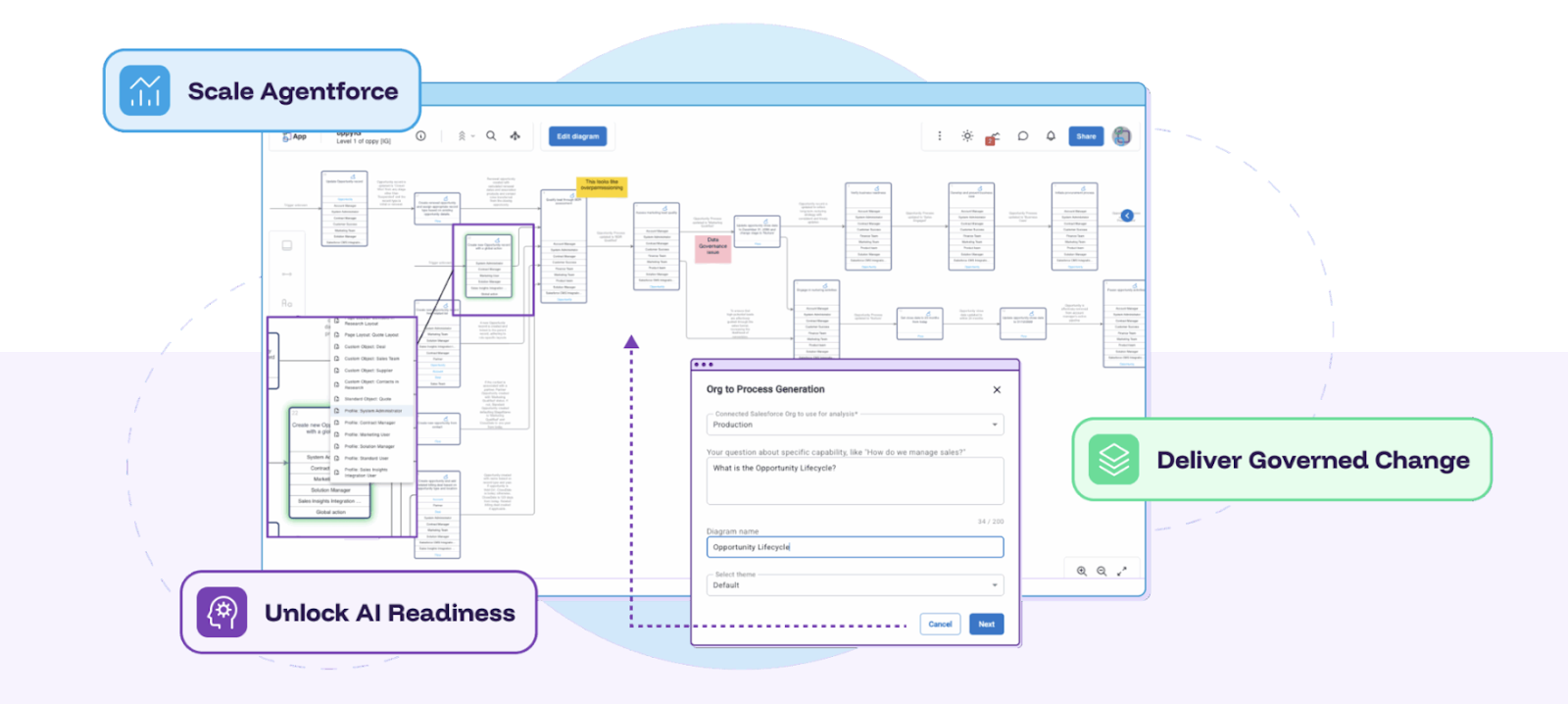
Regardless of how your processes were designed and implemented, Elements can surface the entire process for you alongside identified dependencies automatically linked to every process step. The example below showcases the result of a pre-existing Sales process, with a map generated in a matter of just a few minutes. Metadata components are attached to each node and can be reviewed and edited individually, if need be. Also, similar to any other diagram, you can make changes, add notes, documentation, and start creating new requirements or user stories for upcoming changes.
What could have taken your team weeks or months of multiple conversations, as well as digging through Salesforce metadata, can be achieved almost instantly within Elements.cloud. The same exercise can also be conducted on your data model, with the ability to filter entities based on related record populations to truly understand where your data is stored and how best to use it.
Jira and ADO Integration
Seamless shift to development teams doesn’t have to be a hassle, and the Elements team accounted for this part of the process as well.
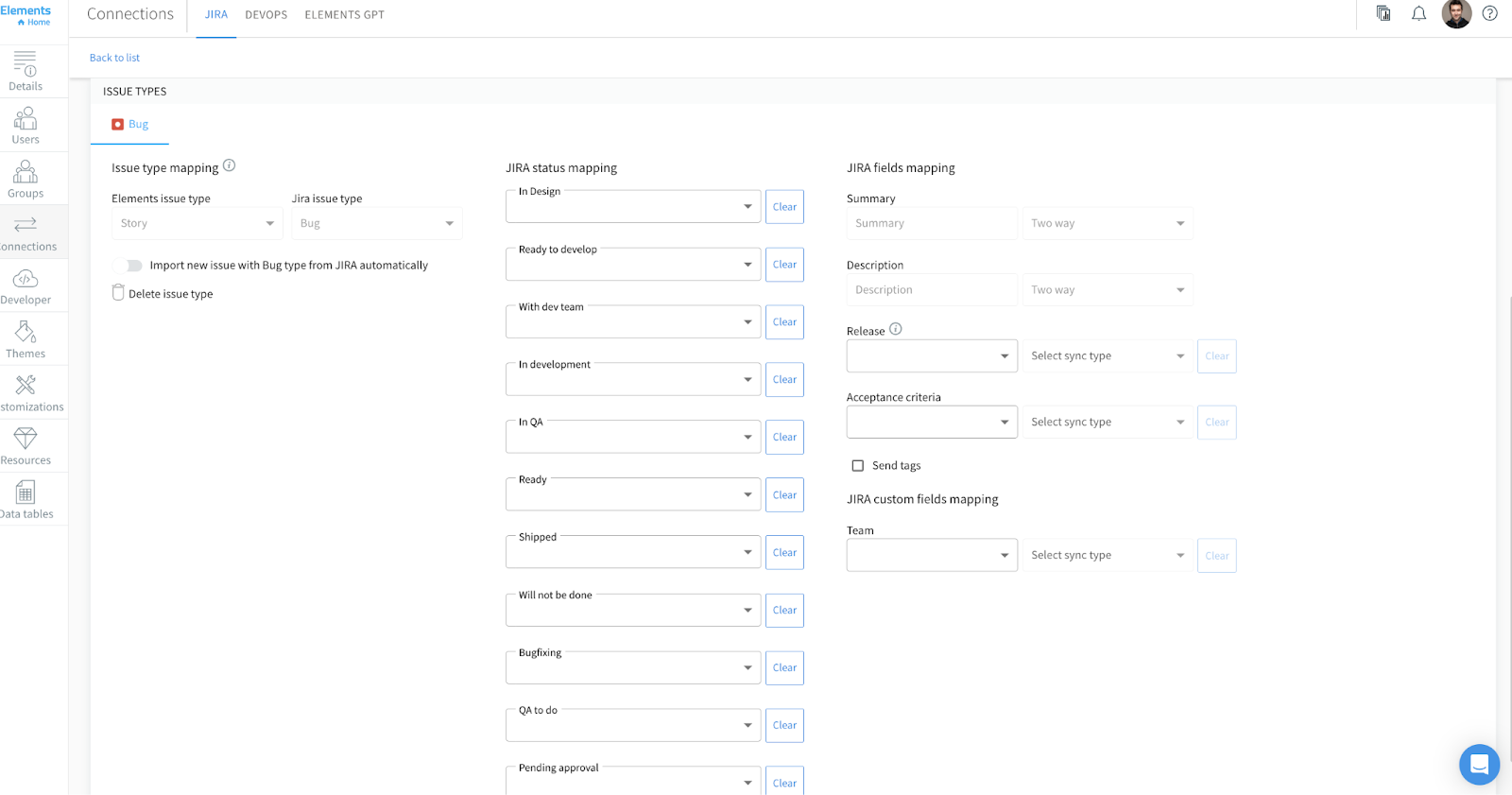
Jira is one of the most popular enterprise-level project management tools, so it should come as no surprise, given Elements’ ability to account for requirements and stories, that an out-of-the-box integration is possible. Not only that, but in just a few steps, your team can enjoy a bidirectional sync between the two platforms, preventing silos or discrepancies, without disrupting the way teams are already familiar with to complete their tasks.
Elements business requirements can be connected to Jira Epics, for example, while Elements user stories can be linked to any standard issue types you choose, such as stories or bugs. Both standard as well as custom Jira fields can be mapped, with a few exceptions.
Within the mapping itself, you can ensure that the Jira status is aligned with Elements status, but also choose which fields will have a two-way sync so that updates from one platform are immediately reflected in the other one and vice versa.
Jira is not the only integration Elements.cloud supports, as in addition to the growing list of integration partners, they also offer robust Public APIs and Webhooks to account for any custom integration needs your particular organization might have for requirements and stories management.
Chrome Extension
Especially useful when exploring a new org, but just as much when analysing an existing implementation, the Elements.cloud Chrome Extension makes it possible to access key insights, documentation, and analytics without having to leave Salesforce.

For Salesforce, the right panel surfaces everything there is to know about any given object right within the Object Manager. While everything can be opened within your Elements space for a closer look, information you might need at a glance is one click away – high-level summary, stakeholders, dependencies, field impact, and much more, including access.
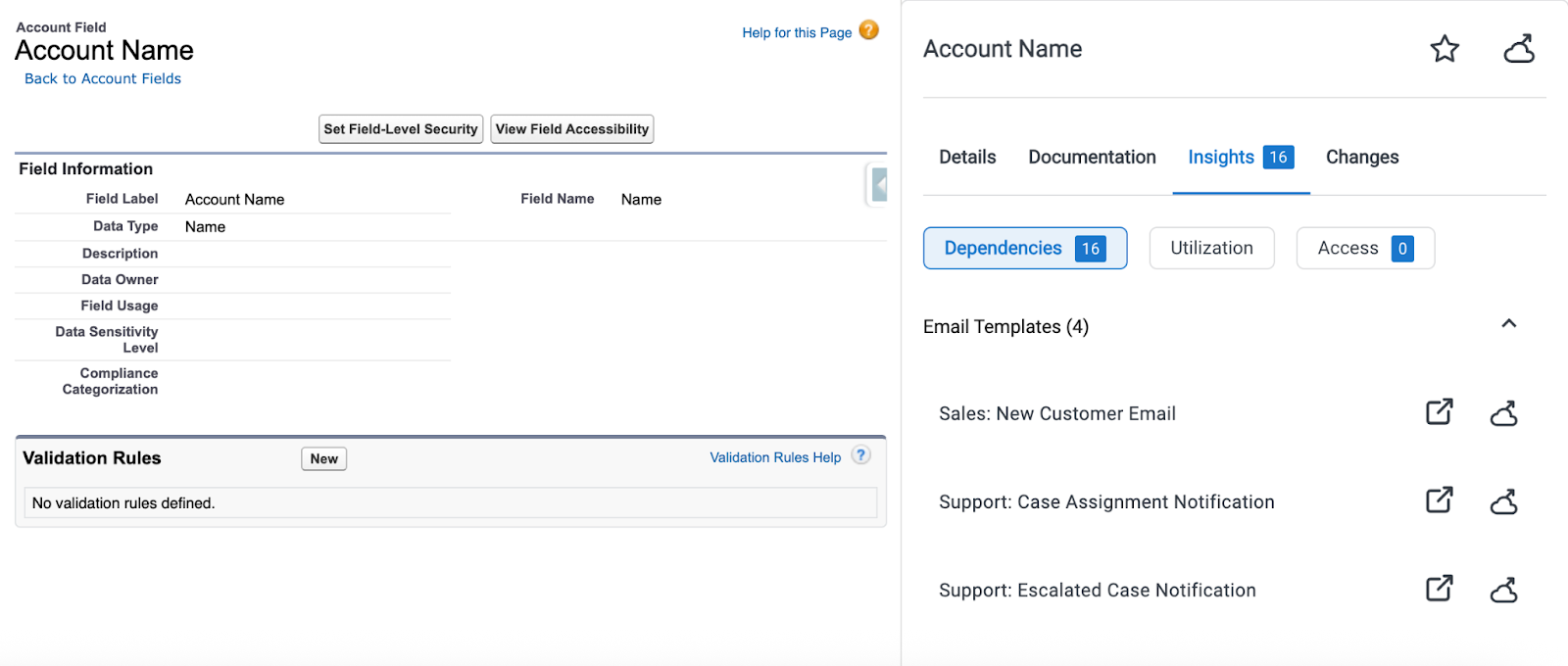
On top of this, it’s not only the object level that the additional details are available for, but individual fields as well. Gone are the days when you had to dig through the org to find where a standard field is being used!
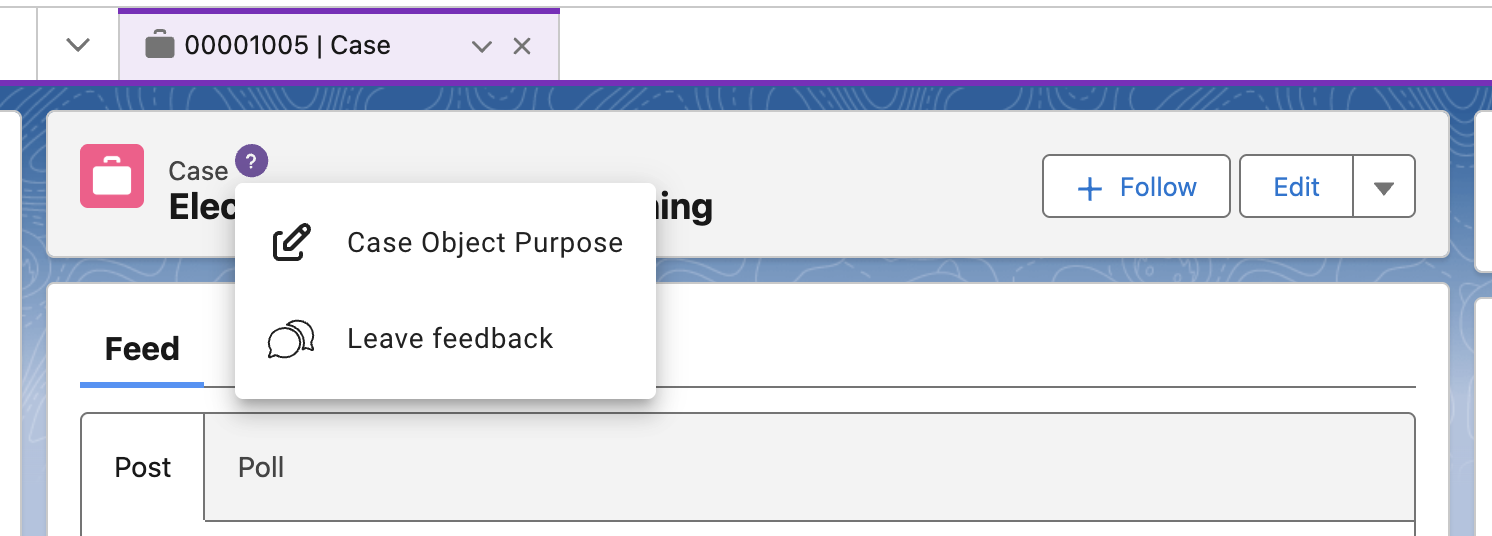
As not only users with the ‘View Setup and Configuration’ permission will use the change intelligence platform or need access to certain information, surfacing this data in the user-facing record page as well could not be missing. You have full control over which content will appear by object, as well as a handy option for the end-users to provide immediate feedback.
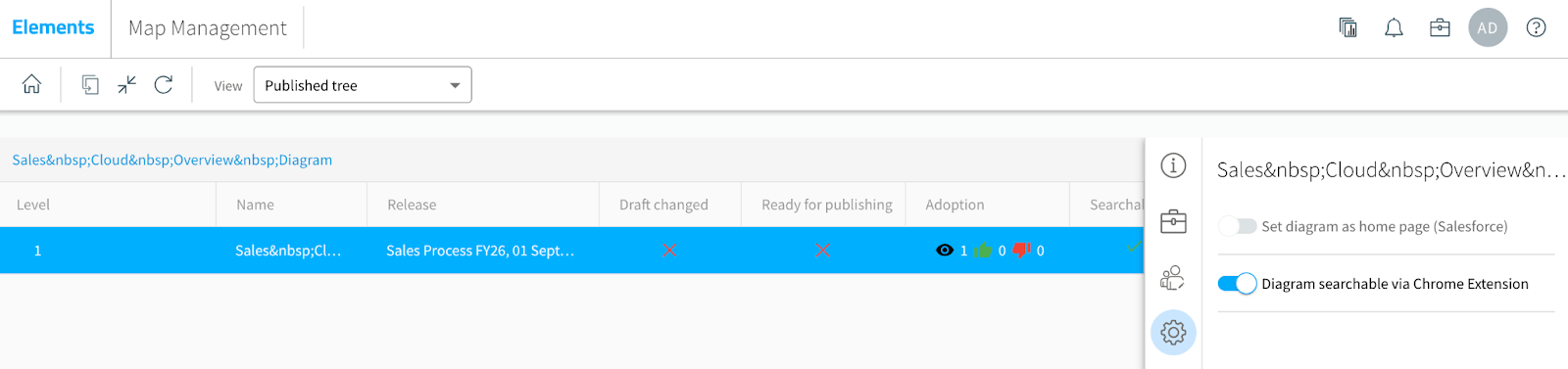
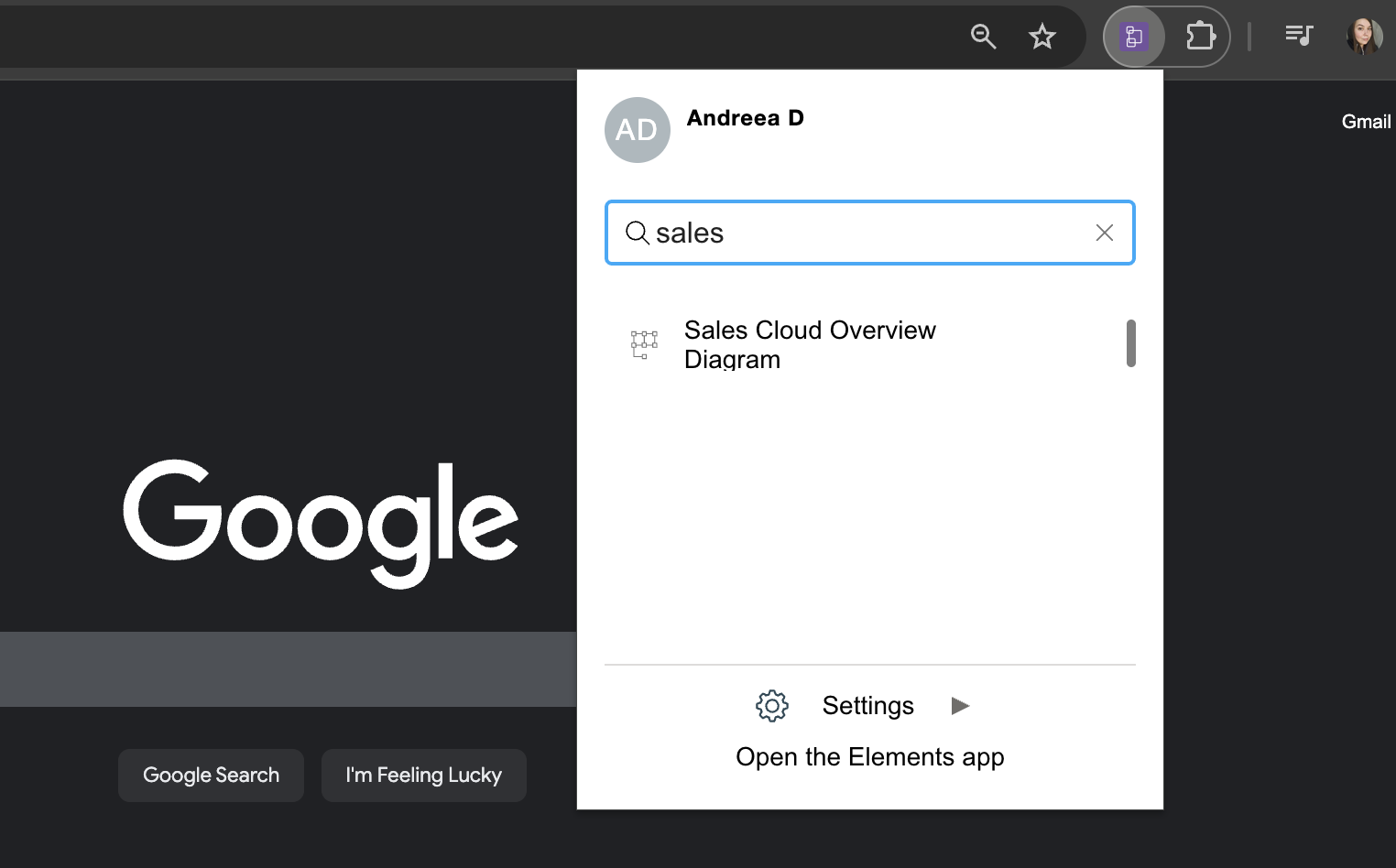
Furthermore, published diagrams can be made available to search within the extension from any webpage. This way, all of your end-users and collaborators can access the diagram and content they need with ease. The setting is applicable to each diagram, ensuring that only those you wish to be searchable are going to be.
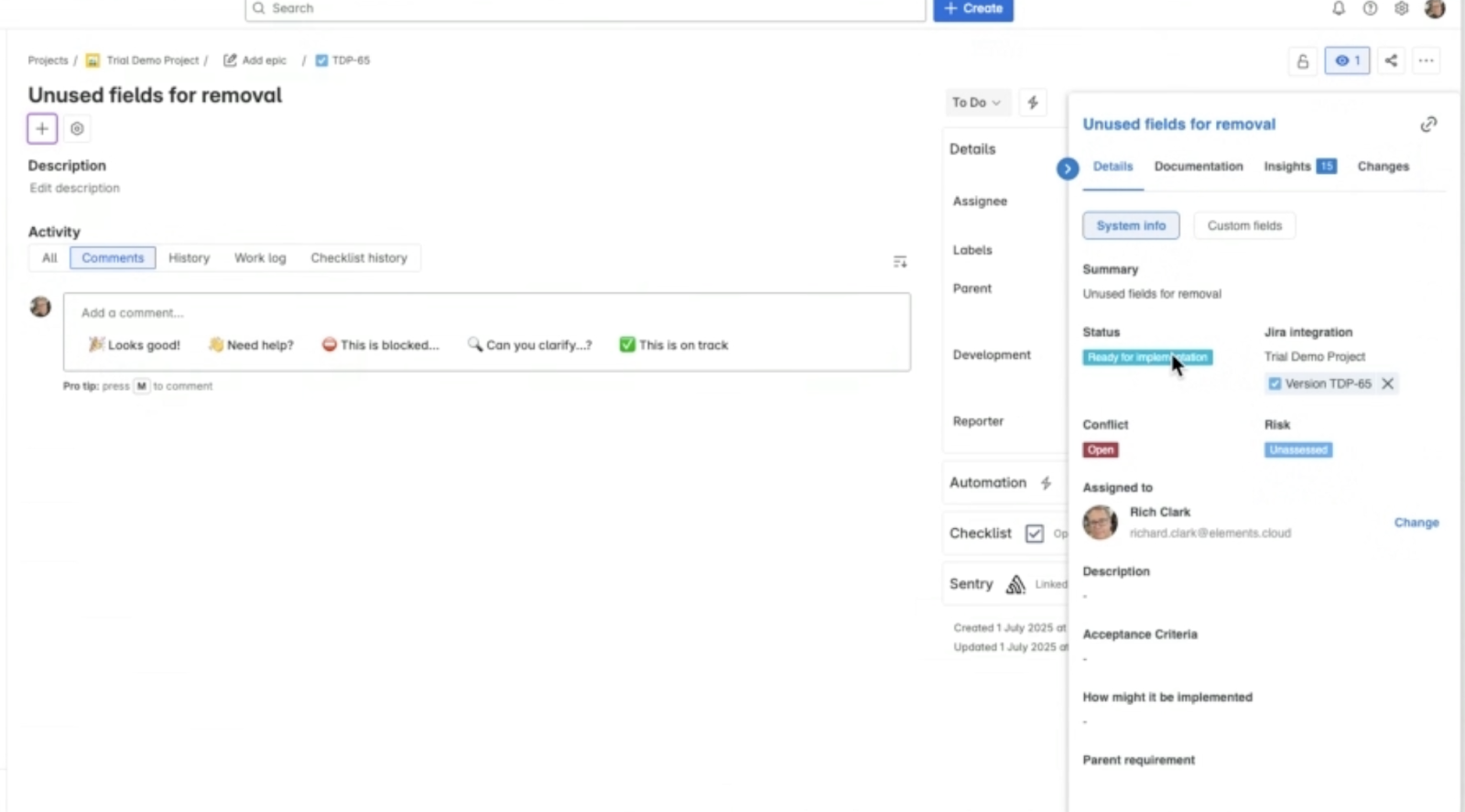
The Chrome extension side panel is visible in Salesforce, as you’ve seen above, but also Jira, Copado, DevOps Center, and Azure DevOps. Depending on how you choose to use the platforms and available integrations, it will open up further capabilities to optimize the overall process.
Roadmap
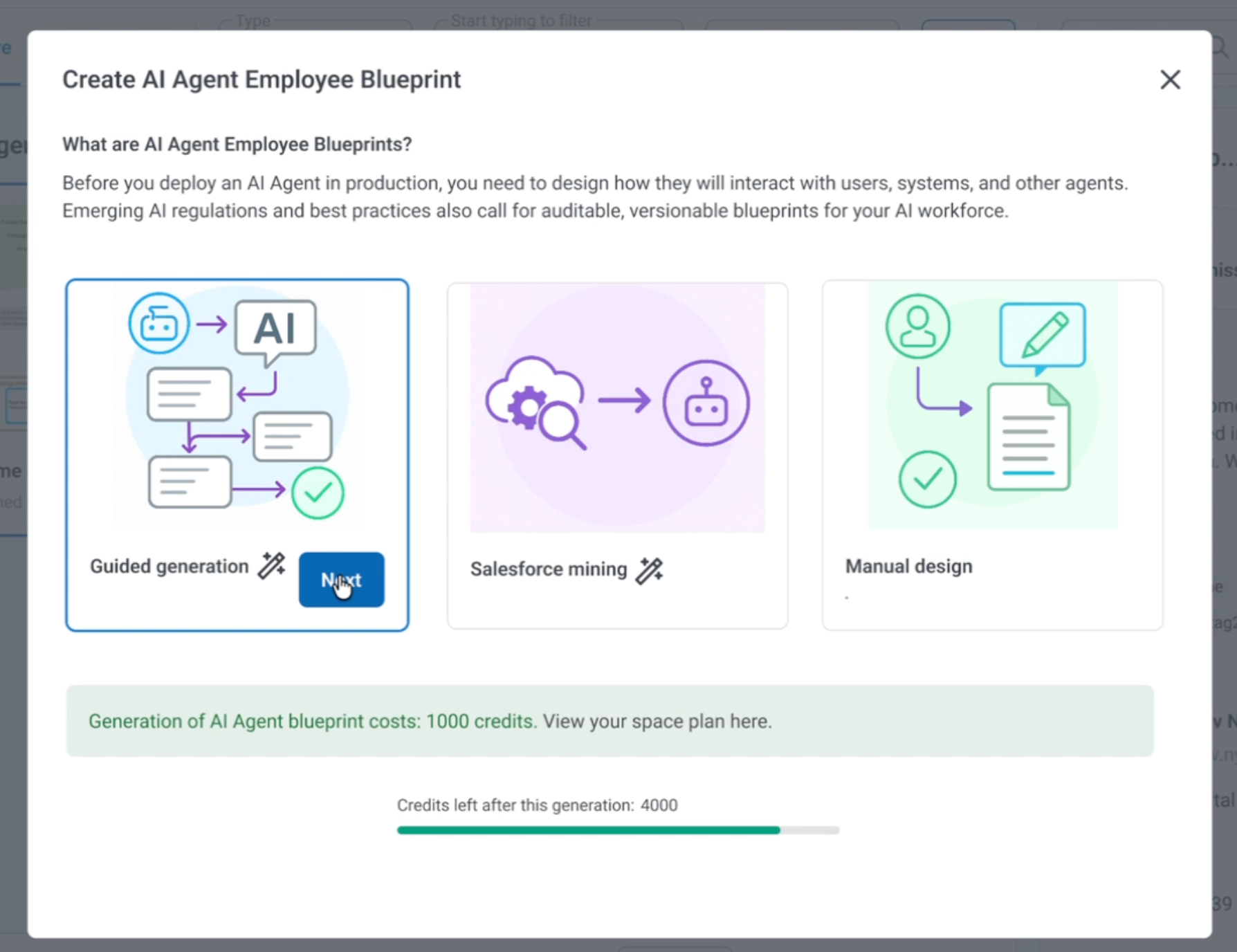
- Configuration Mining – multi-object analysis, Order of Execution diagram generation, Knowledge Graphs, reverse engineer existing Agent topics to Agent Instruction Diagrams.
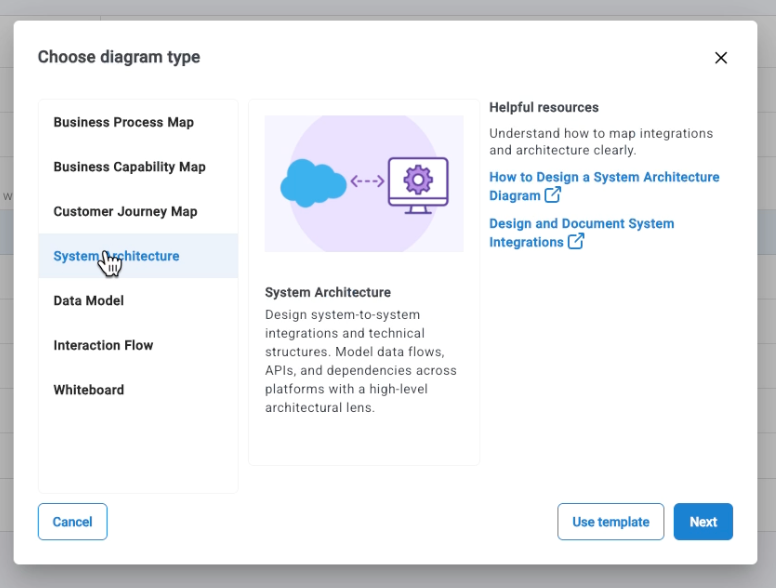
- AI generation of additional diagram types beyond process maps, for example, system landscapes, data models, customer journey maps, to name a few.
- New Architecture Diagram Types and UX.
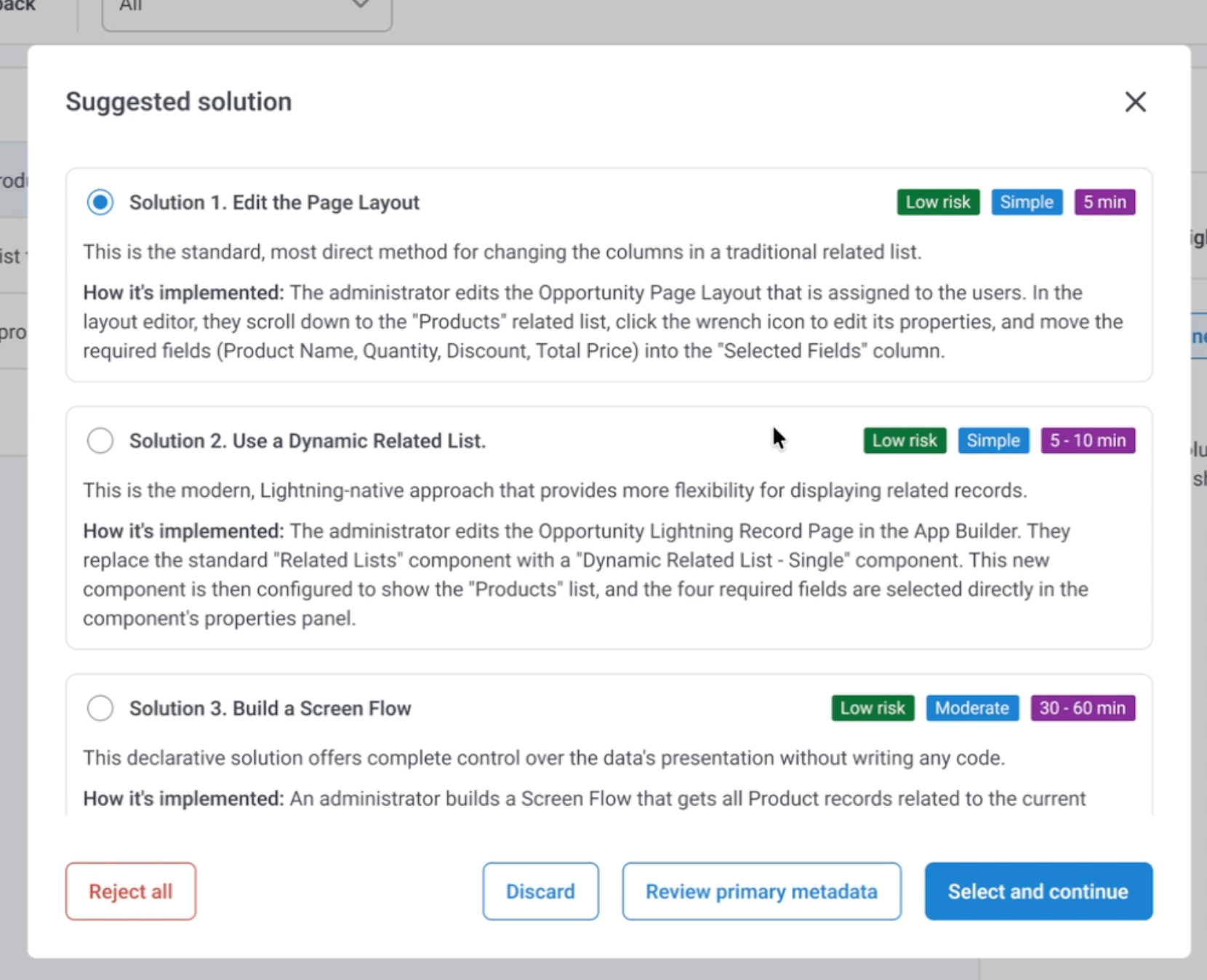
- Automatic impact assessment from ticket: ability for Elements to offer solution recommendations, list of affected metadata to update, create, or delete, to match the required ticket.
Use Cases
With so much functionality catering to all roles within a Salesforce team and beyond, it should come as no surprise that the number of potential use cases for Elements.cloud is close to limitless. Now that you know the way to uncover, document, and plan for further changes in your Salesforce instance, let’s go one step further into how insights can turn into valuable improvements.
Agentify Your Processes
Designing an agent with a process focus makes it reliable and well-governed, leading to a digital teammate that knows its role and how to do it. While you could manually peruse the processes and assess where an agent might help after building the process maps and diagrams, you don’t have to!
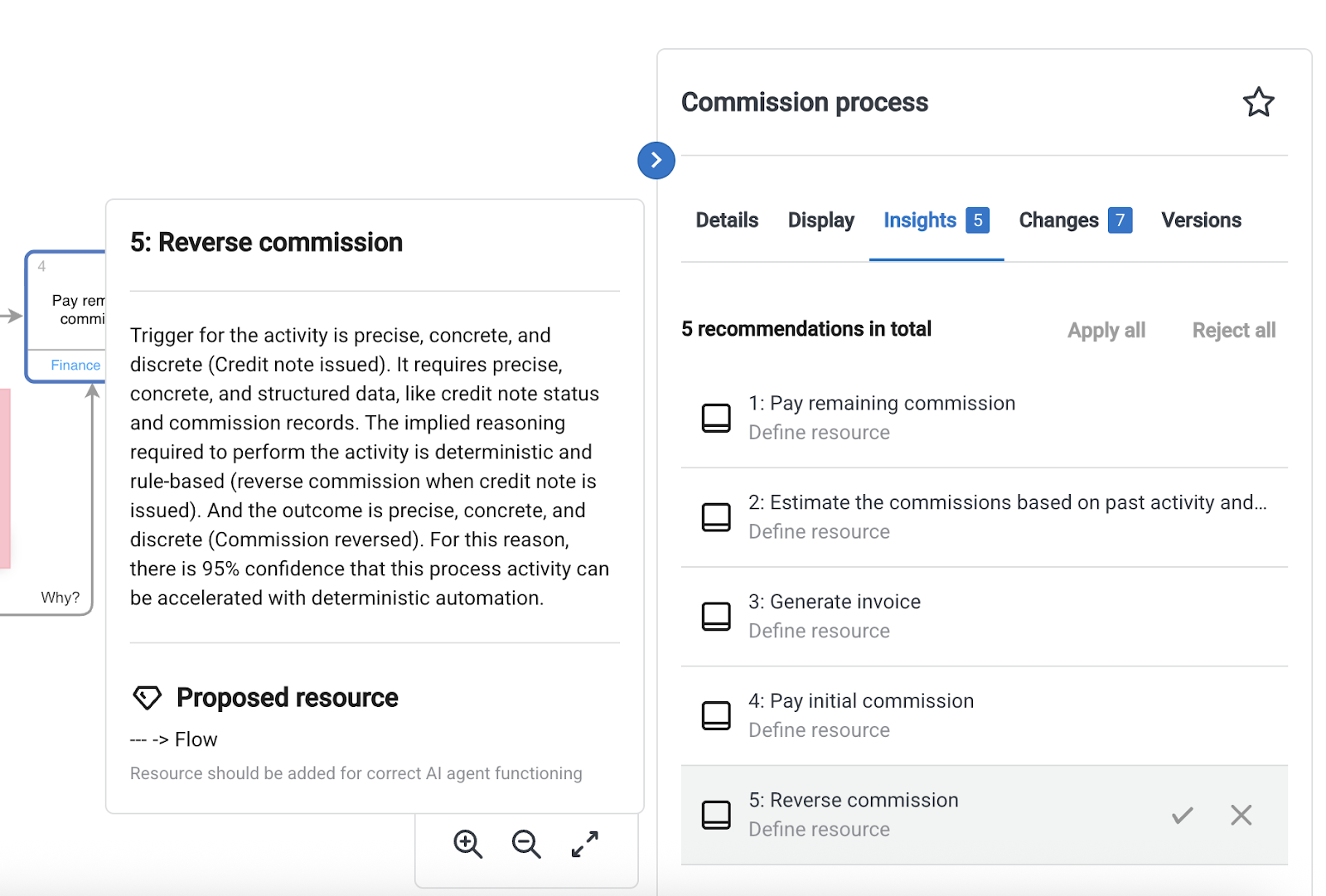
Elements.cloud is at the forefront of helping Salesforce customers scale Agentforce, and part of that involves uncovering the part of the process where an agent will truly shine. Agent Finder is the built-in assistant that will highlight agent opportunities within your documented processes and provide a reasoning for where an AI agent is better suited than a deterministic automation approach.
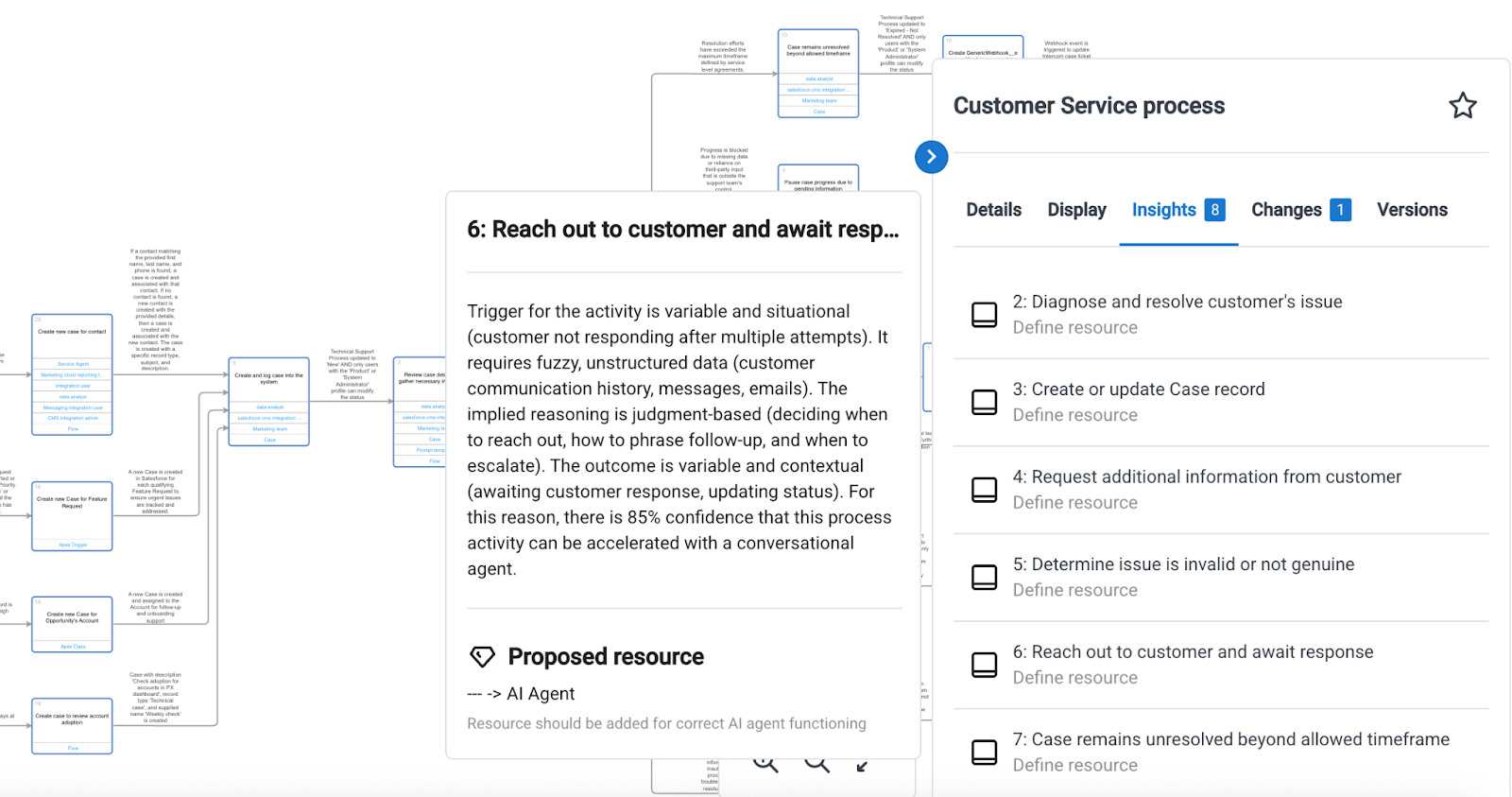
Even with the Agent Finder recommendation at hand, planning and delivering a fully functional agent might seem a lengthy process, but it doesn’t have to be. Elements.cloud recently launched Agent Designer – a tool that helps you create Agent Instruction Diagrams (AID), which will serve as an easy-to-follow blueprint for the job that the agent will perform, including how it should behave and take action in all possible scenarios. The building blocks for this type of diagram are agent-specific, and each component you choose to use will include guidance as to how it should be used.
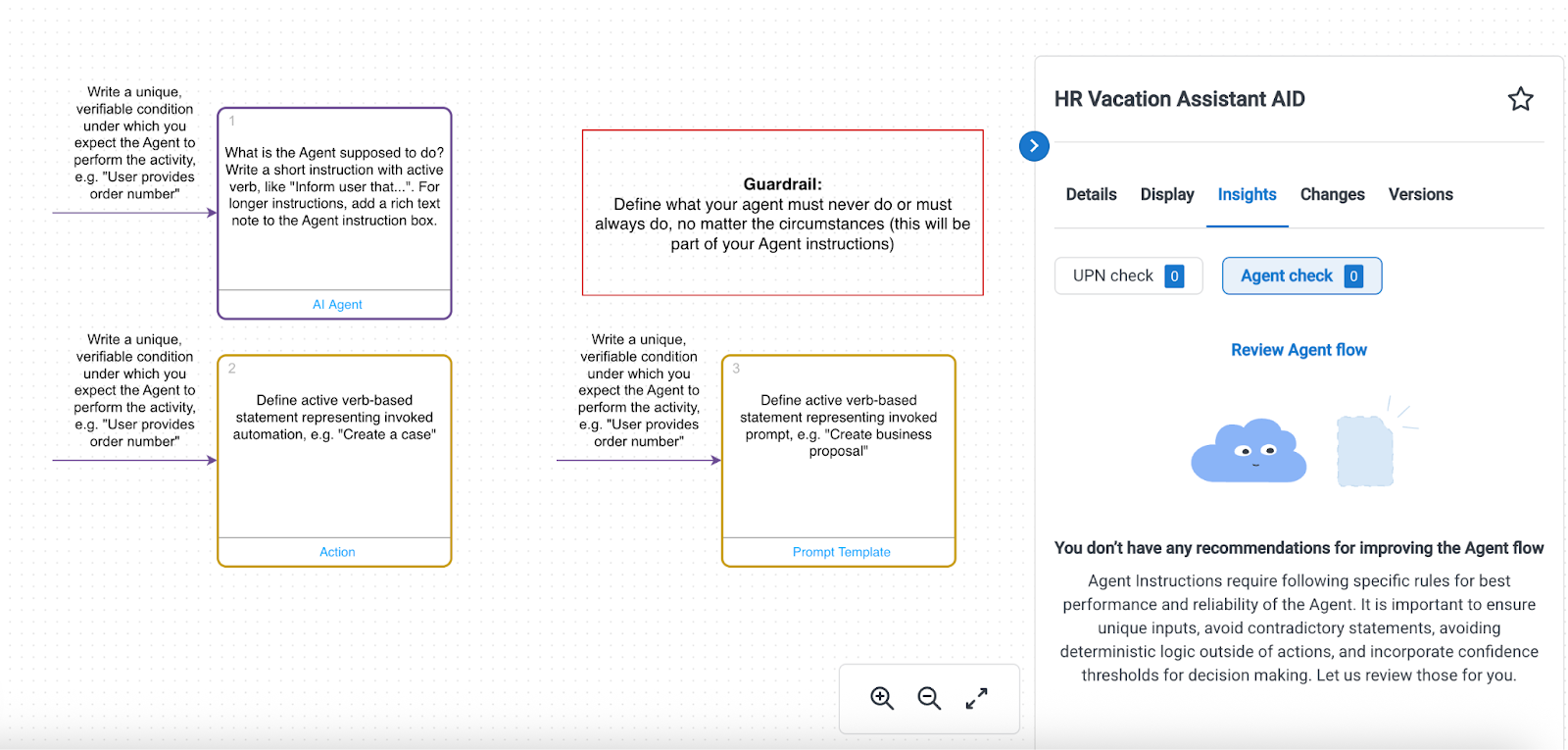
An Agent Instruction Diagram can be translated into a working Agent Topic in mere minutes, especially if the agent will be using out-of-the-box actions or pre-made custom actions.
The reason behind this is the AI-powered instruction and utterance generation, which you can make use of when defining a new Topic within Agent Builder. While the output should always be verified and tweaked as needed, this option will make the most time-consuming parts much faster if you account for all scenarios within the diagram.

The AID is bound to surface scenarios that you may not have considered, as seeing the entire agent interaction laid out on the canvas gives you a bird’s-eye view of the end-to-end conversation. The example below is a simple agent that can help your colleagues with holiday submissions, but wouldn’t it be an even better experience if the agent also accounted for weekends and legal holidays? Or if this is already accounted for in the submission automation, let’s say, a note could be added for clarity, and the agent could still inform the user.
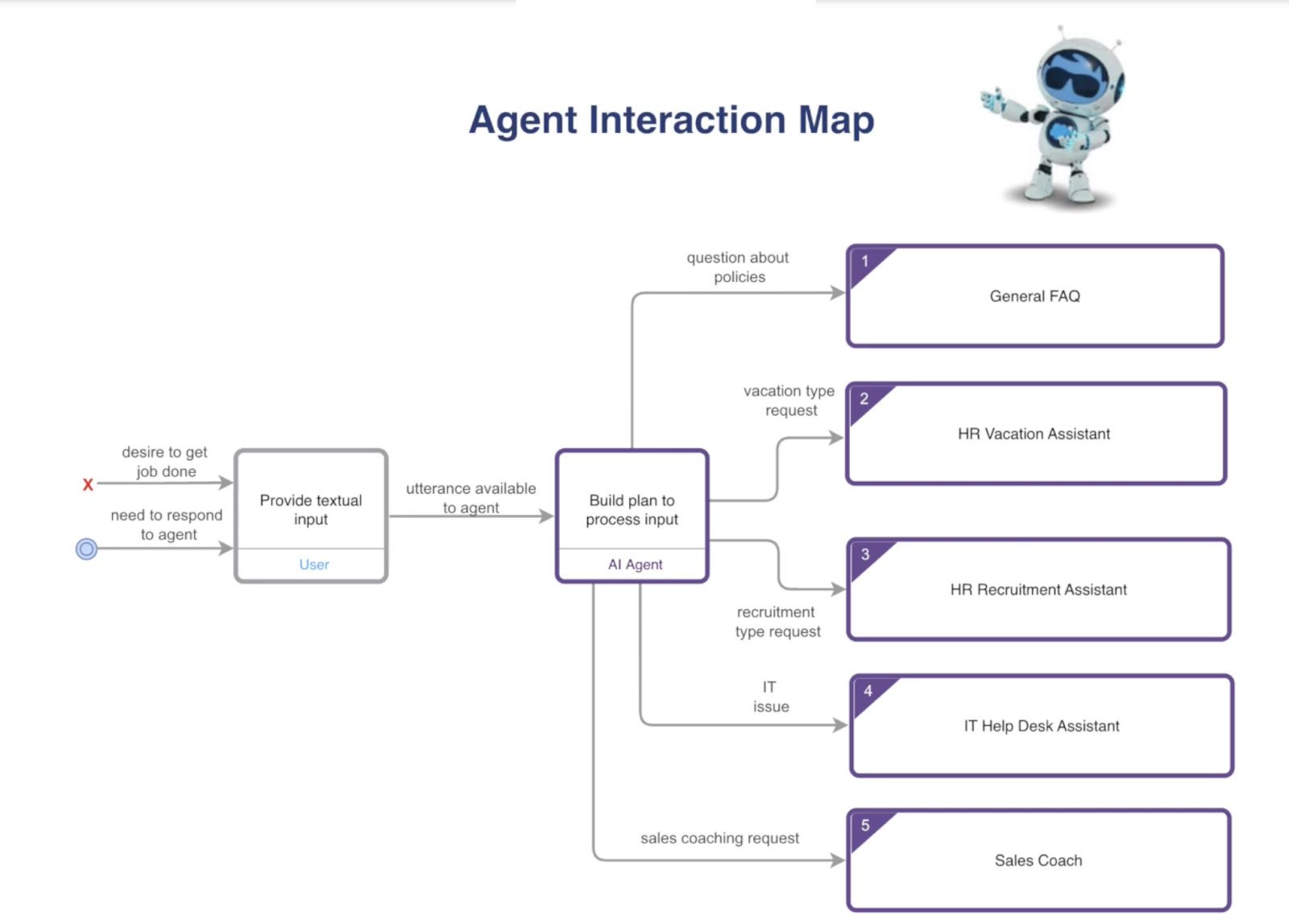
Agentforce agents can handle multiple topics, and as each AID focuses on one topic’s actions, you can once again leverage the diagram hierarchy to organize the topics in an easy-to-digest manner. Your entire digital workforce can be visually represented through an Agent Interaction Map, starting from the various Agents, Topics, followed by the AID for each of the Topics. And the best part? You can get started with Agent Designer at no cost.
Uncover Automation Possibilities
While a wide variety of processes could be handled by agents, there are also other mechanisms to consider as improvements. When it comes to Salesforce processes, those may be automations or even Validation Rules to ensure data completion. For such scenarios, the Agent Finder will recommend the more suitable approach, and provide a detailed explanation as to why – so if the outcome can be achieved with a deterministic automation instead of an agent, you will know.
Setup
After seeing what capabilities are packed with Elements.cloud, you might expect a lengthy setup process, but that’s not at all the case! While using the tools, creating diagrams, or documenting requirements and user stories depends on your own pace, the actual setup involves only three main steps:
- Connecting your Salesforce org(s), be it production or sandbox instances.
- Installing the Elements managed package from AppExchange and assigning the Elements Admin permission set.
- Installing the Chrome Extension.
While you could only use Elements’ platform, the managed package and the Chrome extension make the experience that much better and open up additional functionality.
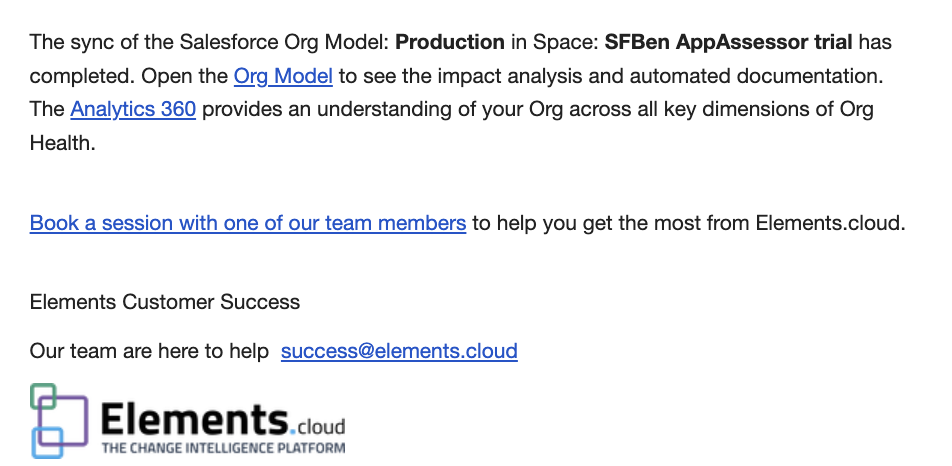
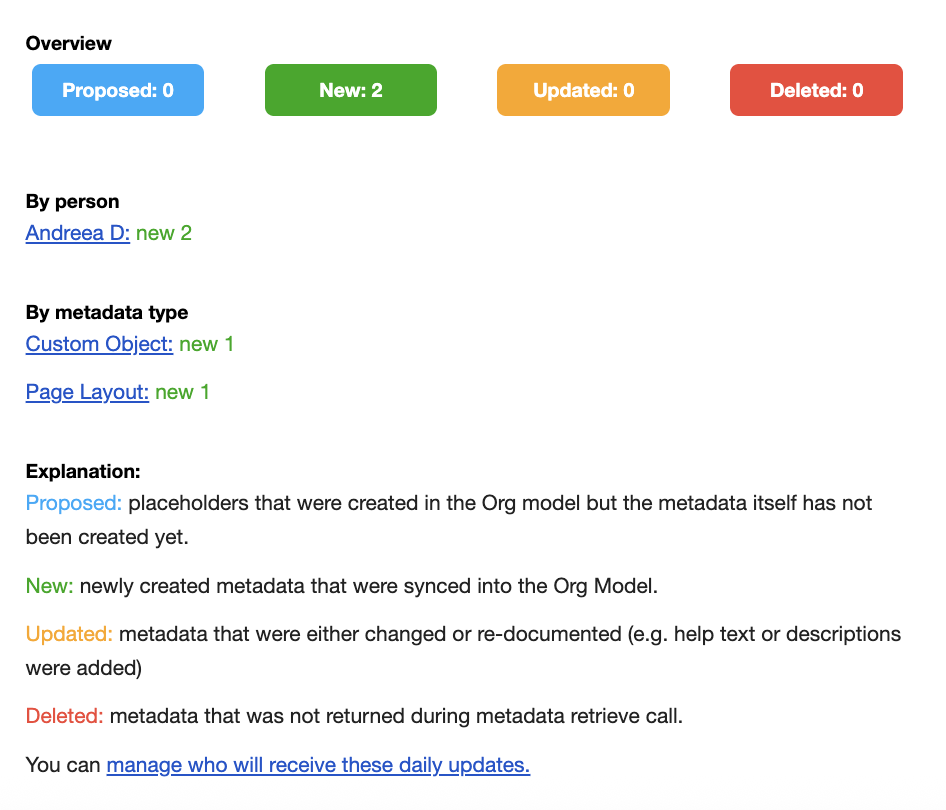
The initial sync of the org model will happen quite quickly, depending on the size of your org. Once ready, however, you will be notified via email and prompted to check either the Org Model or Analytics 360 right from the get-go. Additionally, since there is a sync happening every 24 hours, you will also be notified about any metadata changes – even if it’s just proposed metadata you created in your Org Model for planning.
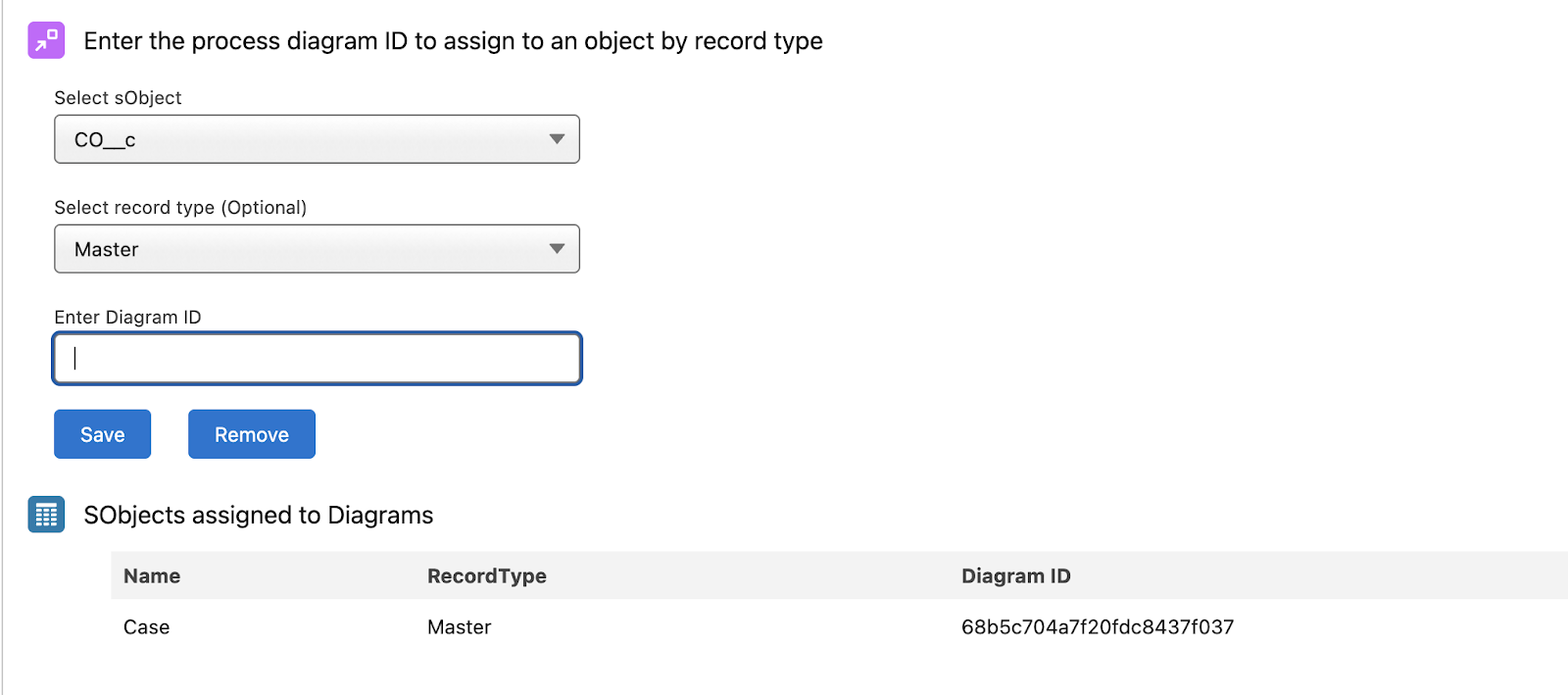
After the org is connected, the Salesforce managed package is bound to enhance the overall experience. Scheduled jobs will have to be set as mentioned earlier to allow for access insights within Elements, but you will also have the option to easily assign diagrams to each object and record type.
Support
Elements.cloud has not only a comprehensive support portal containing articles on all topics you may need, but also a fully-fledged academy, which you can sign up for to gain more in-depth product knowledge to make the most out of the product.
If you have a specific question or there is something you can’t find within the available resources, the chat option on the support portal or directly within the platform is one click away. You can also email success@elements.cloud for further queries.
Pricing
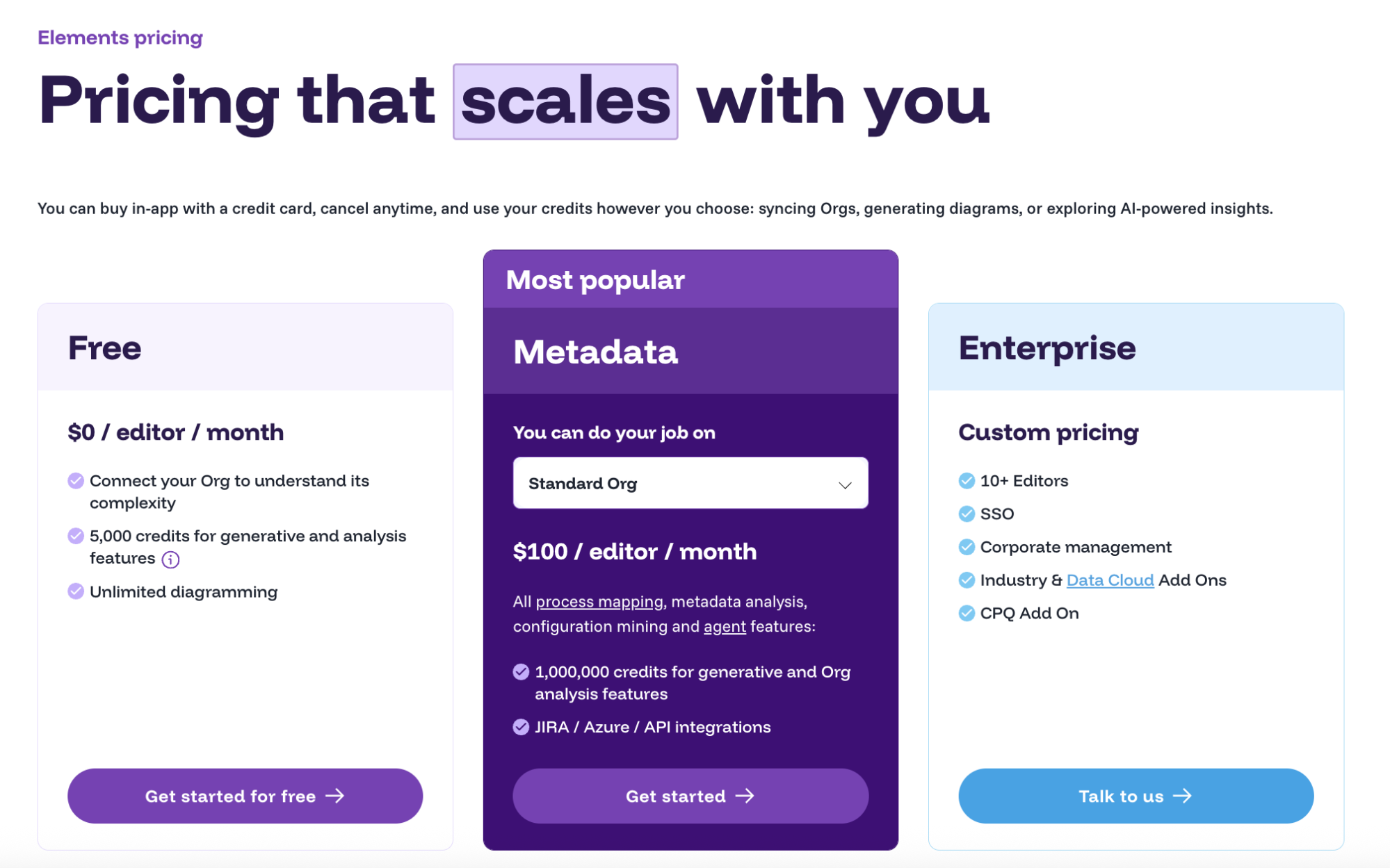
Elements.cloud’s Change Intelligence platform pricing starts with a free offering, as one of their main goals is making it accessible for any Salesforce customer to get started and see for themselves what a difference an all-in-one tool can make.
As far as the paid plans go, the options are based on which functionalities you and your team need – from the number of editors and more AI-powered capabilities, to the Jira Integration and governance mechanisms.
Summary
Preventing and reducing technical debt is no easy feat, and neither is keeping an optimized and collaborative release process. Elements.cloud’s Change Intelligence platform can be the ally you were looking for in this journey, helping your team act with increased agility while working through even the most tangled Salesforce processes.
Whether or not you use Agentforce or AI agents just yet, removing any doubt from your Salesforce implementation through detailed process maps, documentation, and easy access even for end users, is sure to set you up for success.