






The Spring ‘26 release surprises are not over just yet! If you’re like me, one of the first things that you saw when investigating the Spring ‘26 drop was that the Data Table component for Flow was finally editable. You may have then shed a tear when it was taken away hours later due to some issues with it.
Well… it’s back! It looks like it’s here to stay, too. Buckle up, we’re going on an adventure into what the new editable Data Table component for Screen Flow looks like in the Spring ‘26 release.
One More Thing
Steve Jobs, the late co-founder and CEO of Apple, used to mark historic announcements at the tail end of a keynote by stating that there was “One more thing” that he had to show. This started in 1999 with the reveal of the Apple Cinema Display, and more notably in 2001 with the iPod announcement and in 2007 with the birth of the iPhone. It seems that the Salesforce team is taking a leaf out of Apple’s book by revealing some of the most exciting elements of Spring ‘26 late into the preview window.
I’m talking, of course, about the upgrades to Data Table for Flow that we saw for a few hours after the first Spring ‘26 preview org updates. I’ll go into more detail in exactly how it works in a second, but ultimately, this makes the standard Data Table component for Screen Flow editable for the first time. It was one of the most exciting features for me and many others, and there was a collective groan when it was pulled. The excitement about this feature being back is immeasurable across the Salesforce ecosystem.
The New Editable Data Table in Action
Let’s go through a quick example of how this new tool works. The scenario is this: Your business wants you to build a flow that allows users to see a list of Leads assigned to them, and allows them to edit said Leads.
Historically, if you wanted this to be done inside a flow, you’d immediately need to start looking for a third-party data table component. However, in this scenario, your business is asking for this in a Spring ‘26 world – there’s no need for third-party components for such a simple requirement!
First, you’d spin up a new Screen Flow. Secondly, you’d use a Get Records component to get the Leads that are assigned to the Running User. I’m going to assume that you know how to do this and save your time by not repeating the basics here. What we will do together is the third step – setting up the Data Table component to meet these requirements.
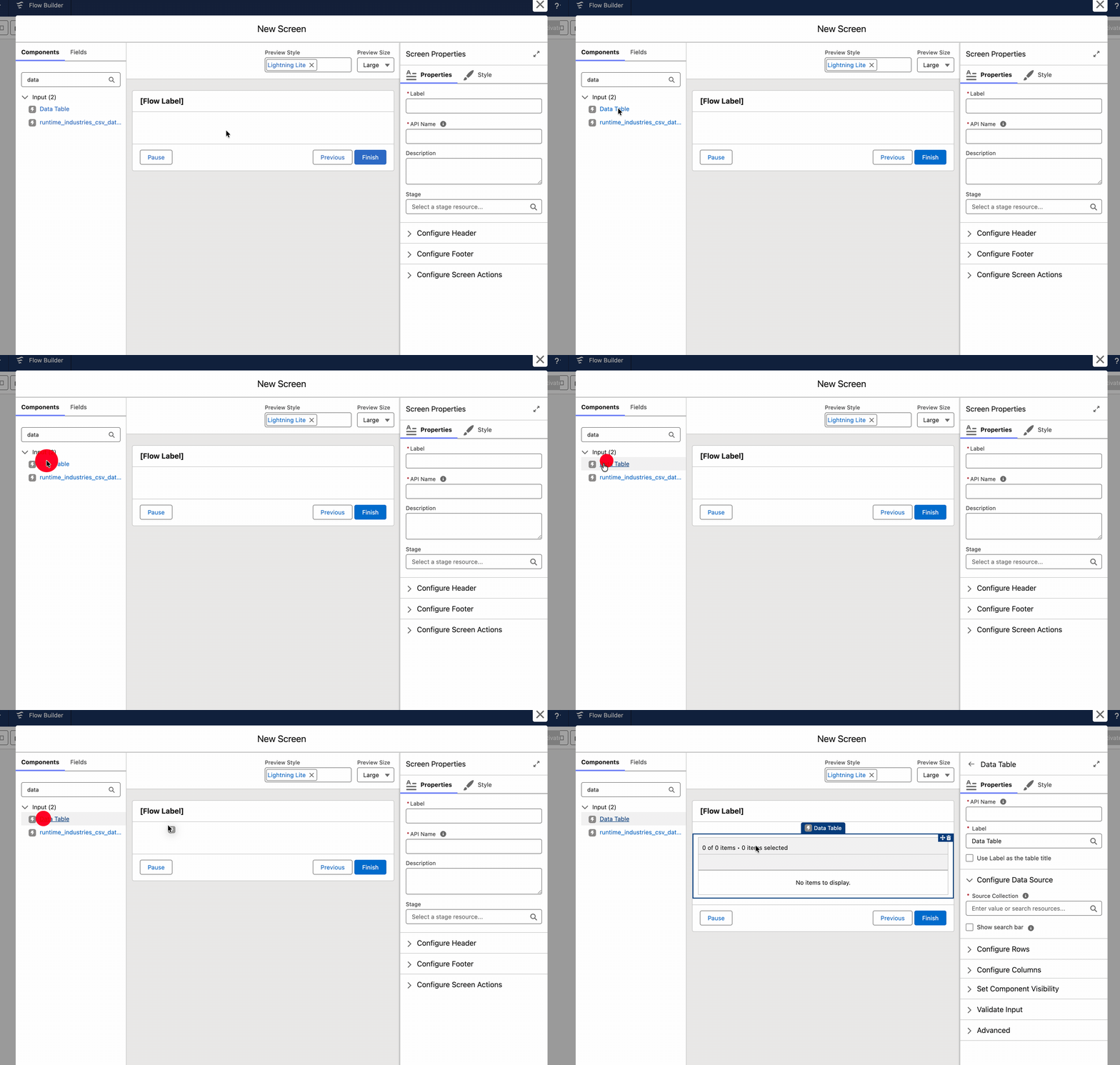
Firstly, we drag in the new Data Table component onto the Screen from the Components list. As you can see, it’s the same Data Table component as before, unlike the many different file upload components.
Next, as usual, we select our Source Collection and give the Data Table a name. My source is called “Get Leads”, and the table is called Leads Table (LeadsTable). Then, and this is where the magic happens, we open the Configure Columns tab to begin setting up the columns. I’m going to keep it simple for this example – First Name, Last Name, Email, Mobile, Phone.
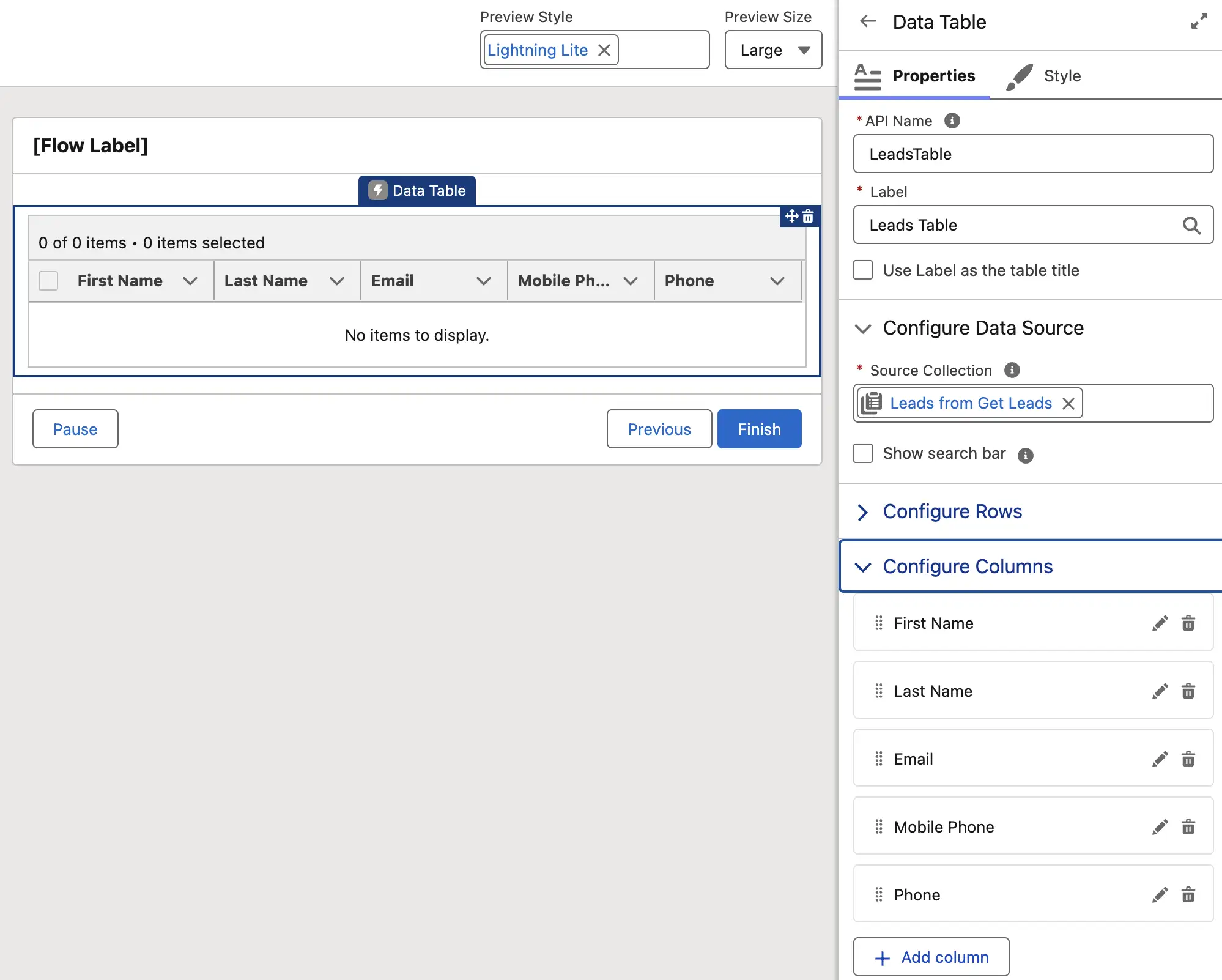
Everything is normal so far… you’ve no doubt done this a million times in your Flow career. Now, we change things up by making columns editable.
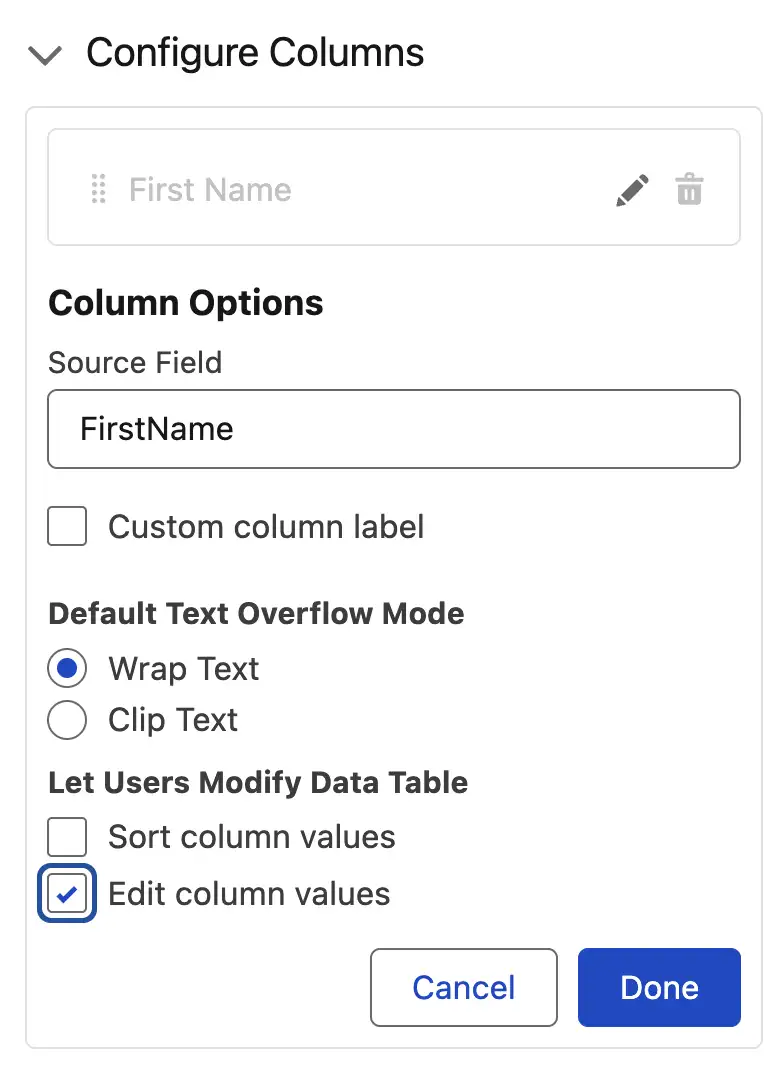
To do this, you expand one of the columns you’ve just set up and look at the Let Users Modify Data Table options. You’ve got two options here – the ability to let them sort by a column, or the ability to let them edit a column. For now, I’m just going to mark the First Name column as editable so that we can see what that looks like
Next, save your flow and debug it to see what it looks like.
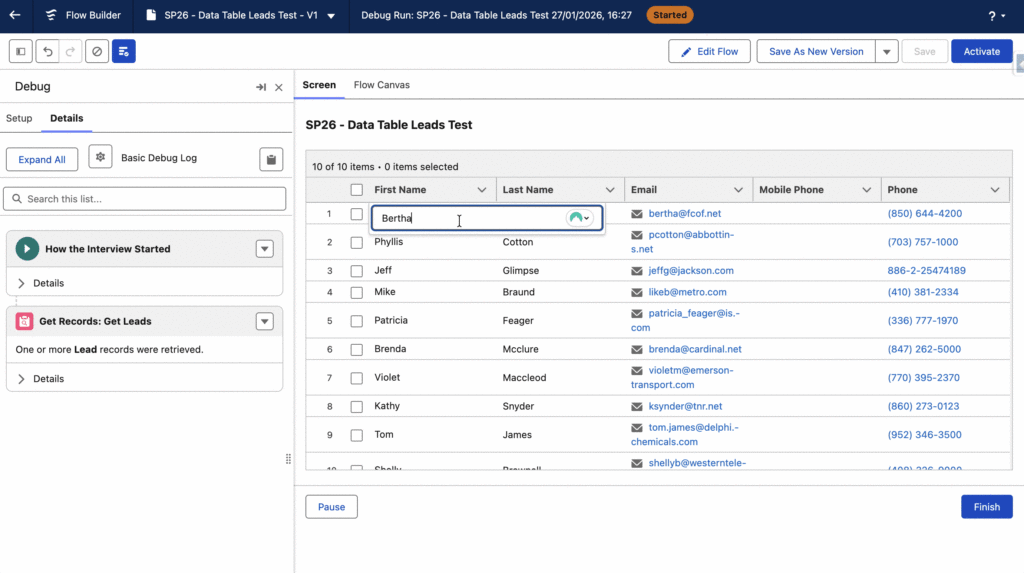
Great start! Clicking Confirm and then Finish shows no errors, but it also doesn’t actually make any changes. To do this, we need to use an Update Records element to update the rows that have been edited. Data Table makes this easy by giving three output collections, as shown below.
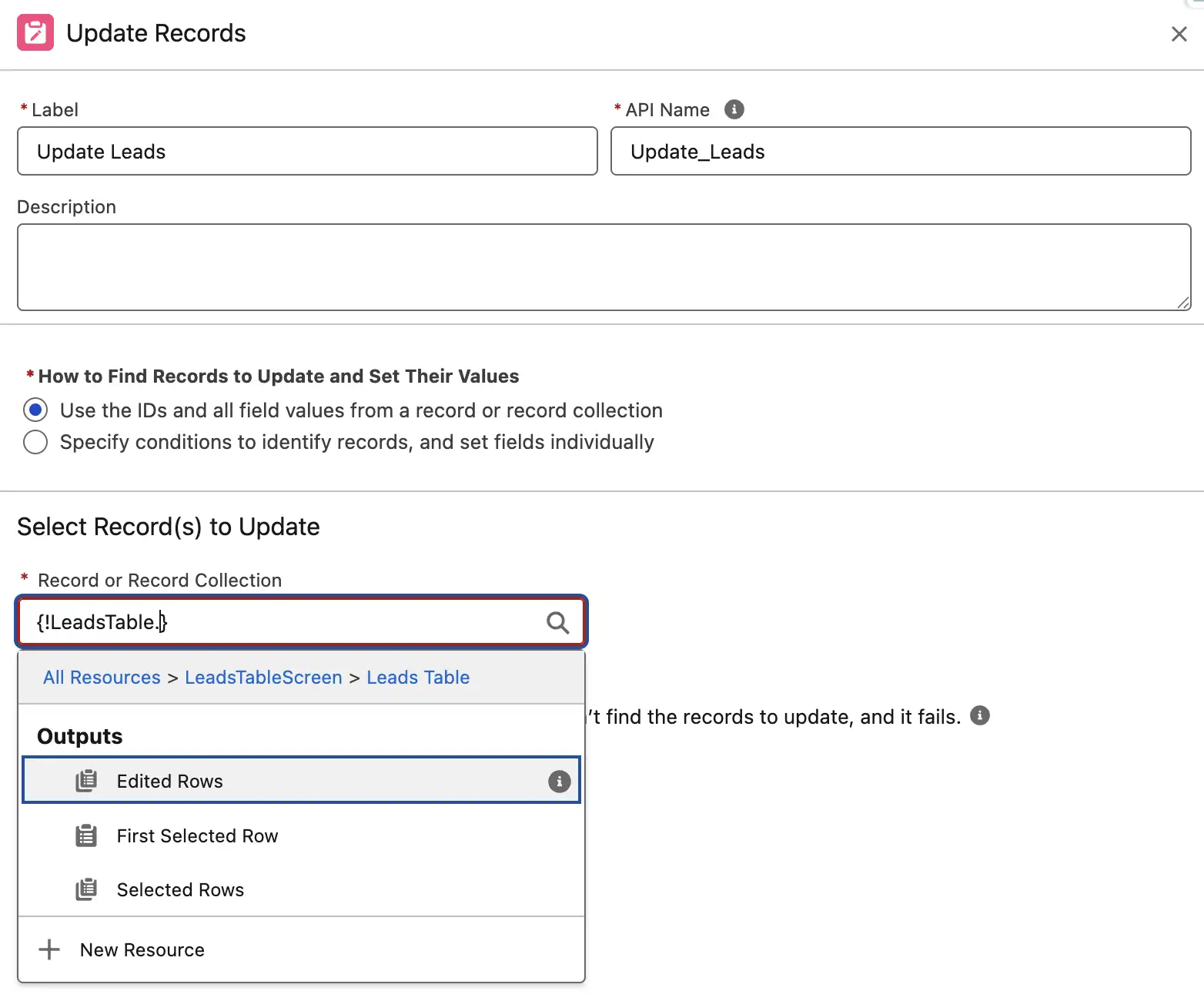
Edited Rows is what we want to use in our Update Records Element – this includes all the records that we make changes to. The First Selected Row and Selected Rows collections are the same as they have always been – these are not new.
After adding the Update Records element, your flow should look something like this:
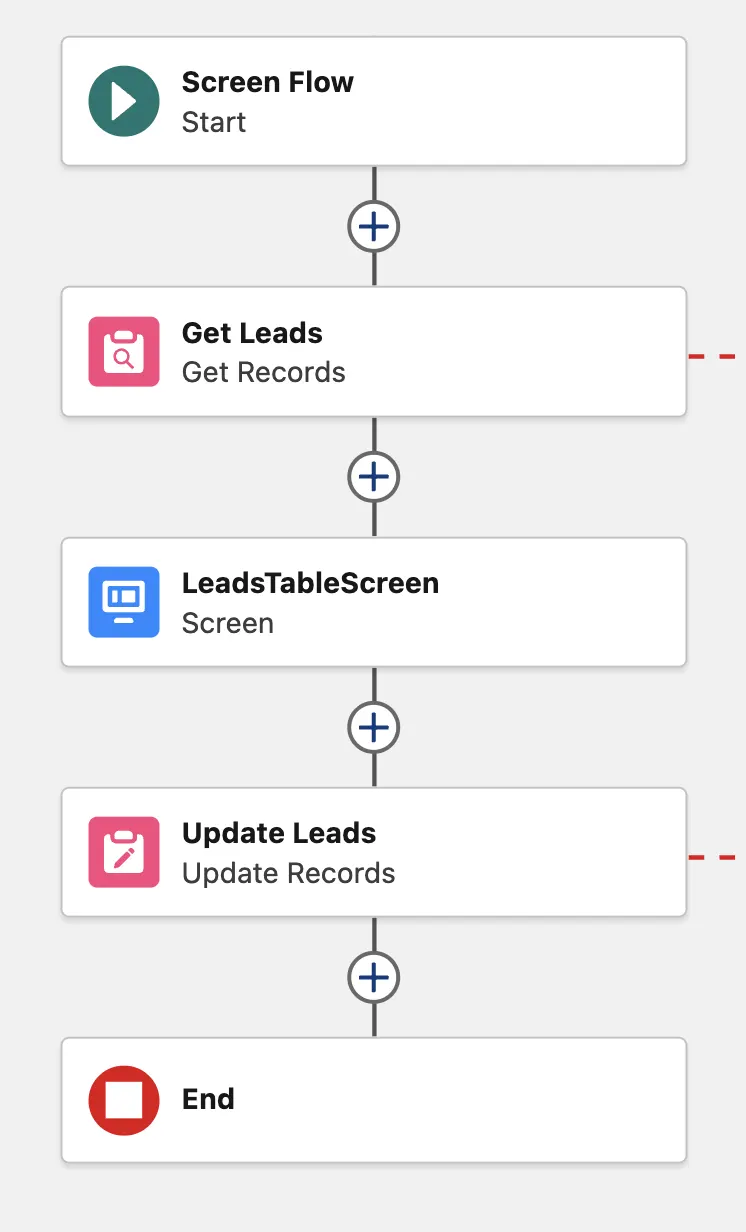
Debug the flow again, and this time run the debug twice to see that your records have indeed updated.

Notably, you cannot make relationship fields editable just yet. This includes the ability to change the Owner on the fly. I would love to see this in a future enhancement!
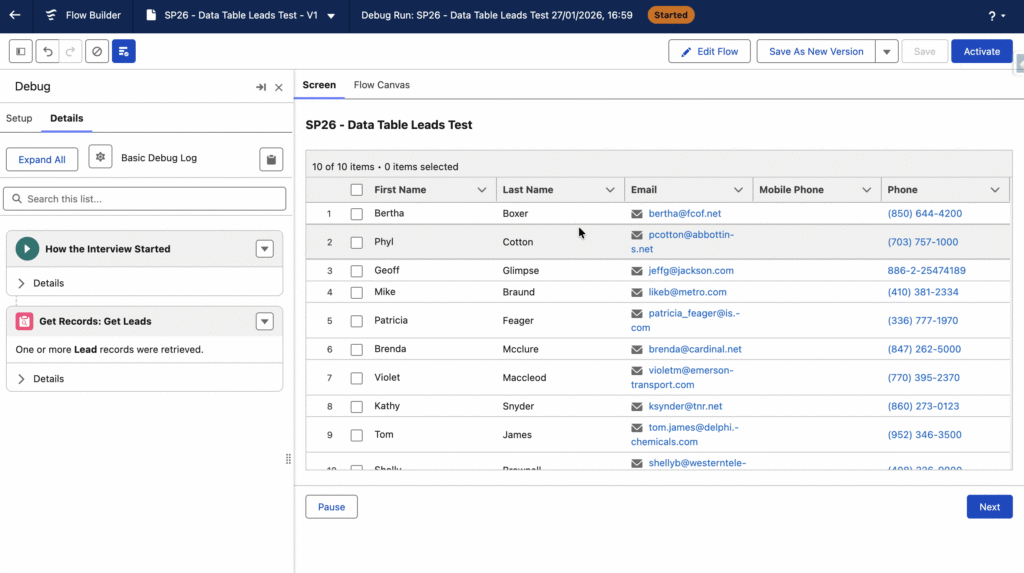
Next, let’s allow users to sort by the Last Name column. Go back to Edit Mode and open up the Screen, then the Table, then go to Configure Columns once more. This time, open the LastName column and tick the Sort column values checkbox.

Save the flow, and debug it once more to test this new functionality.
Editable Data Table Use Cases
The possibilities are endless with these updates – there’s a reason it is such a welcome change. Think about how you can solve problems for various teams within your business.
Take your Sales team, for example. You could build a component for their Home page that allows them to review different sets of Opportunities that they’re working on, and actually make changes directly within that component, rather than needing to change pages.
Similarly, you could serve your Service teams by creating a flow that displays the oldest 20 Cases that are assigned to them, or a collection of Cases that are either assigned to them or Queues that they are related to. Then, make certain fields editable so that they can make changes on the go.
Here’s another one – updating the statuses of multiple specific Campaign Member records is tough enough, but what about if they need to make changes to the related Contacts as well? With Flow, and specifically with Data Table, this can be done with ease!
Summary
This is my personal favorite feature that is coming in the Spring ‘26 release. Long have we waited for the native Data Table component to become editable, and the wait is finally over!
How are you planning to use the new editable Data Table component to benefit your org? Are there historic flows that you’ve used a third-party tool that you could now leverage the native component?





Comments: