

Known as the Swiss Army Knife of the Salesforce productivity tools realm, Salesforce Inspector Reloaded just keeps getting better! Whether you’re just starting your Salesforce journey or already have years of experience under your belt, this extension is that one tool that can completely shift the way you work.
The extension is actively maintained and enhanced by Thomas Prouvot, alongside numerous contributors from across the community. In this post, we’ll zoom in on the upcoming 2.0 version and the shiny new features you can expect.

Migration to SLDS2
You might already be using Salesforce Cosmos, but if you’re not yet, then you have surely heard about it! Salesforce Lightning Design System (SLDS) is a framework that can help you achieve the look and feel of the Lightning experience within your own custom components and implementation.
While SLDS 1 was the first step of a cohesive experience between out-of-the-box solutions and what customers choose to build, SLDS 2 is the next iteration of the framework and a major CSS-based styling enhancement – not to be confused with a functionality update.
SLDS 2 is not only about a fresh Lightning look – it promotes accessibility best practices and sets the ground for Salesforce native Dark Mode, so it shouldn’t come as a surprise that Inspector Reloaded also aligns with these guidelines and design patterns.
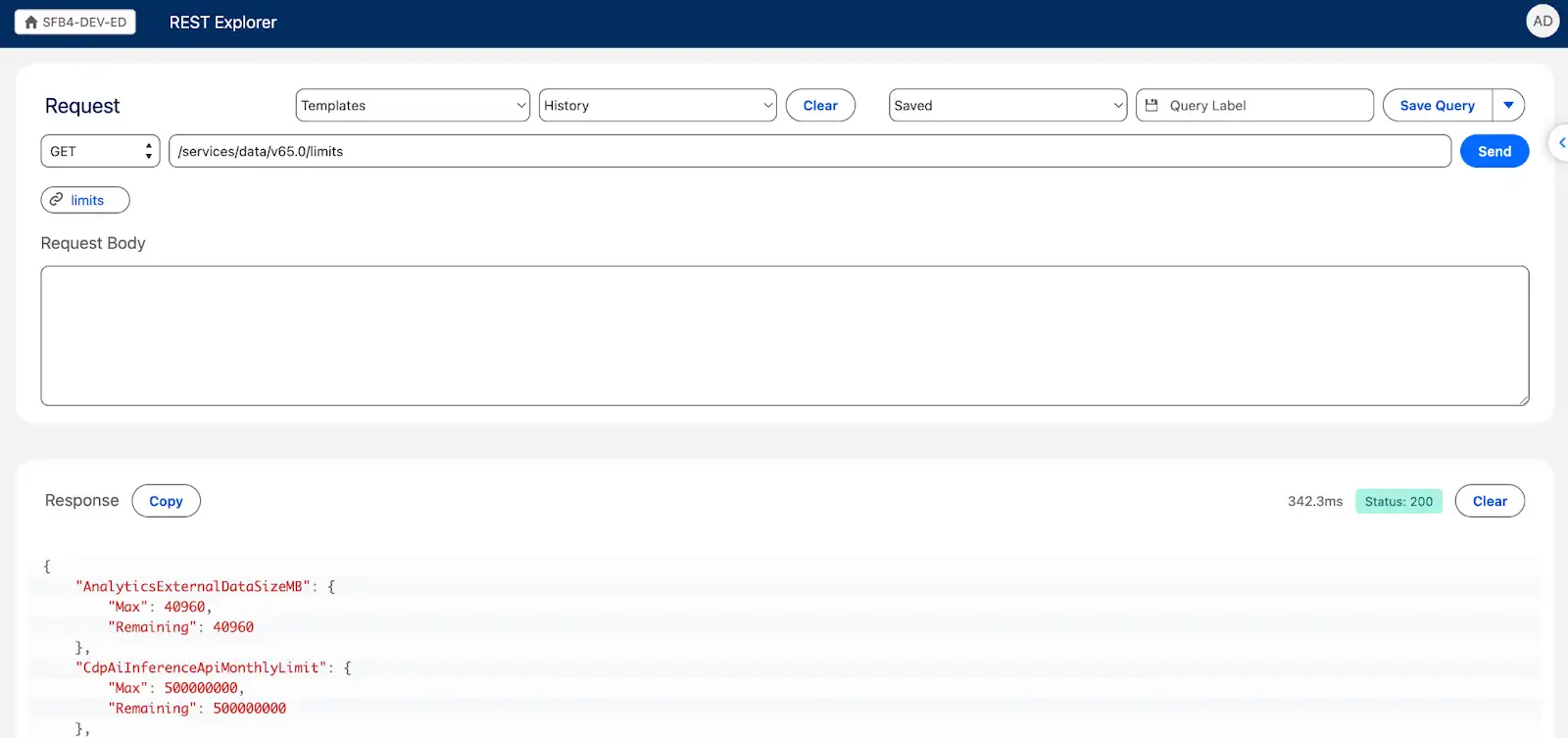
This contribution by Victor Garcia can be seen across the extension – both on the pop-up as well as standalone pages such as Data Export, Options, or REST explore. The new look and feel is more modern and in line with what you would expect to see from SLDS 2, while maintaining all existing functionality we know and love within the extension.
New Kid on the Block: Flow Scanner
Salesforce Flow has become, in the past few years, the pinnacle of Salesforce declarative automation. While Flow Builder is much more powerful than any of its predecessors, with great power comes great responsibility – and every Salesforce professional is responsible for building and maintaining Flows that adhere to best practices, and account for security and performance as well.
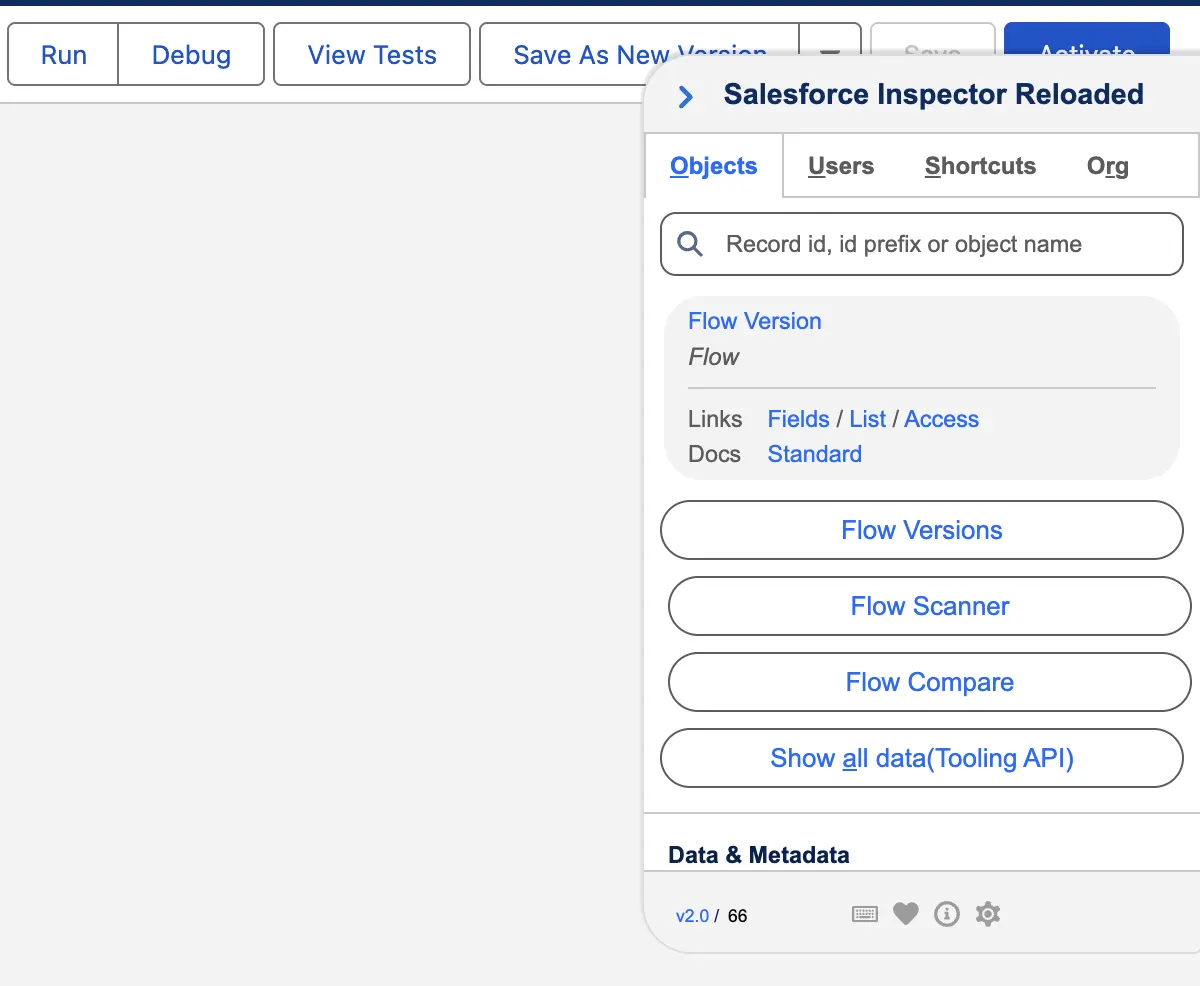
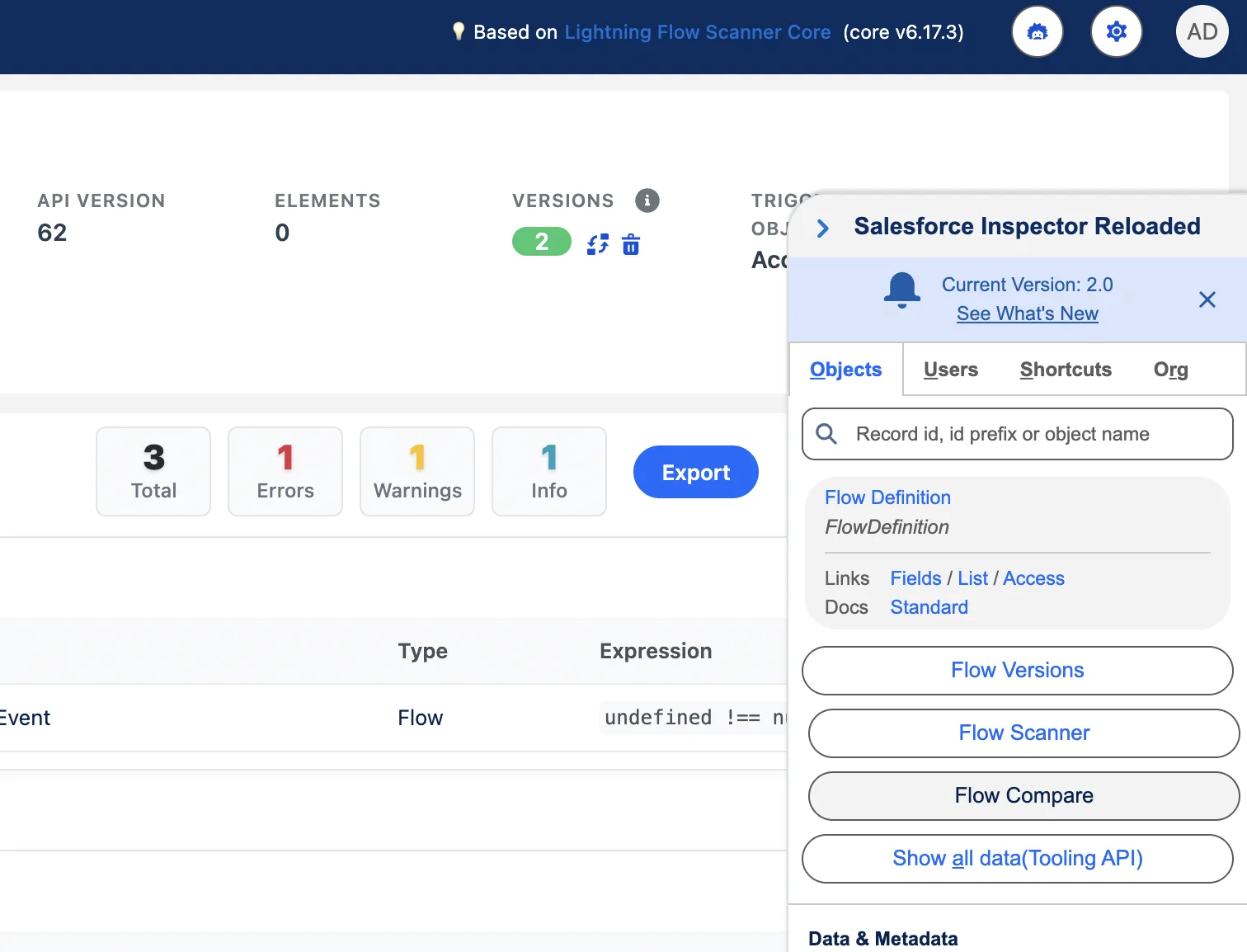
This is no easy feat, especially when inheriting an org, and that’s where Camille Guillory comes to the rescue with his latest contribution to Salesforce Inspector Reloaded! The new Flow Scanner button will appear every time you open the extension while in Flow Builder.
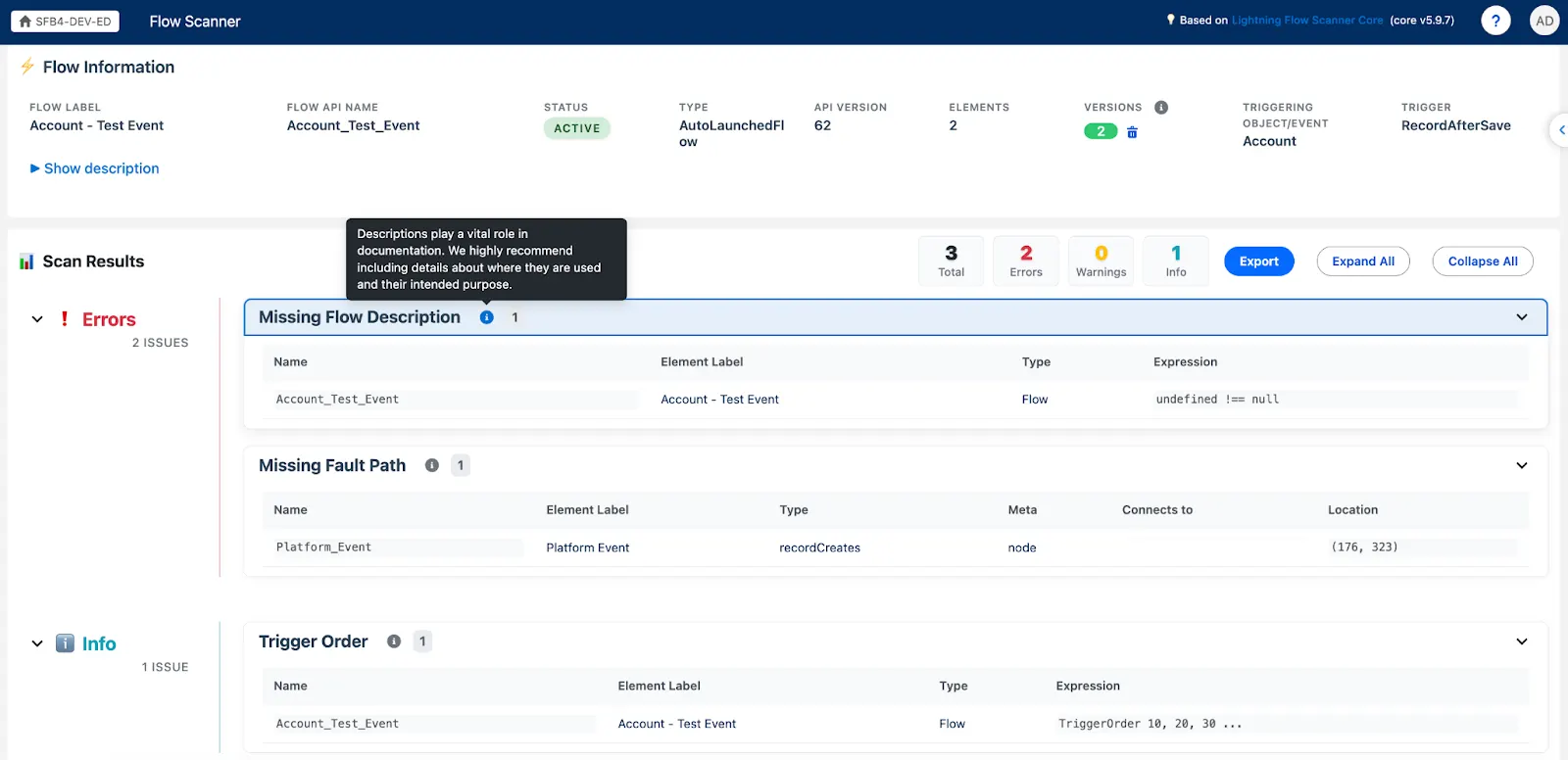
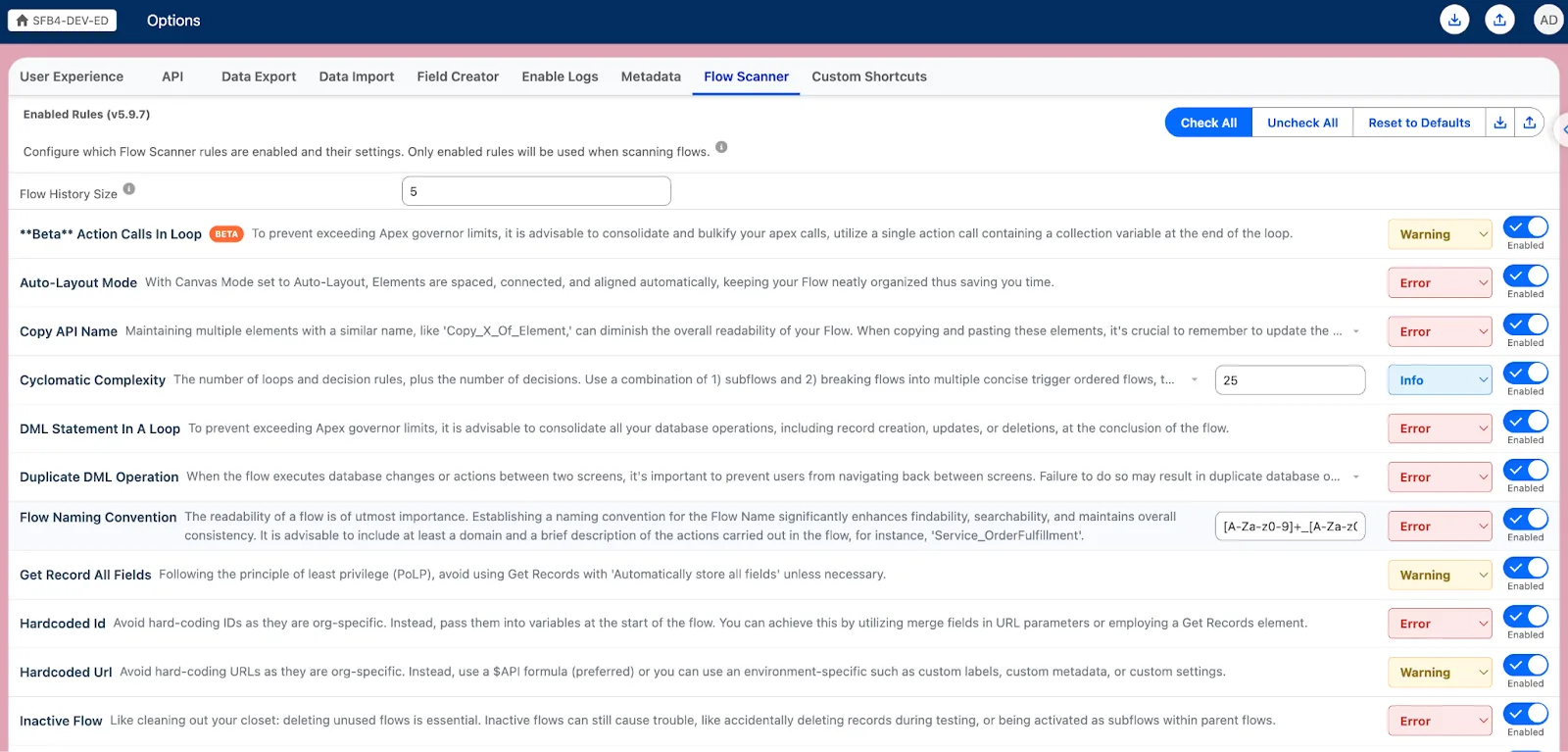
Based on Lightning Flow Scanner’s core functionality, the Flow Scanner page helps you quickly analyze flow metadata against a given set of best practices, to ensure every flow you or your team creates is up to par. Within this new page, key information about the flow is also visible (such as the version, name, and object), but more importantly, the scan results are at your fingertips!
At a glance, you will see the total number of items, but also how many of them are errors, warnings, or just information. These results can easily be exported for further analysis, and each of them has an information description pertaining to the action you should take – for example, why adding descriptions or fault paths to your automations is helpful.
The great news is that while the result behavior is preset, you can adapt it to your needs by configuring each individual rule. Additionally, these rules can be set by one person, then exported and shared within the team to ensure consistency. This means that if a naming convention was agreed across the team, for example, Flow Scanner ensures the entire team knows and follows the format.
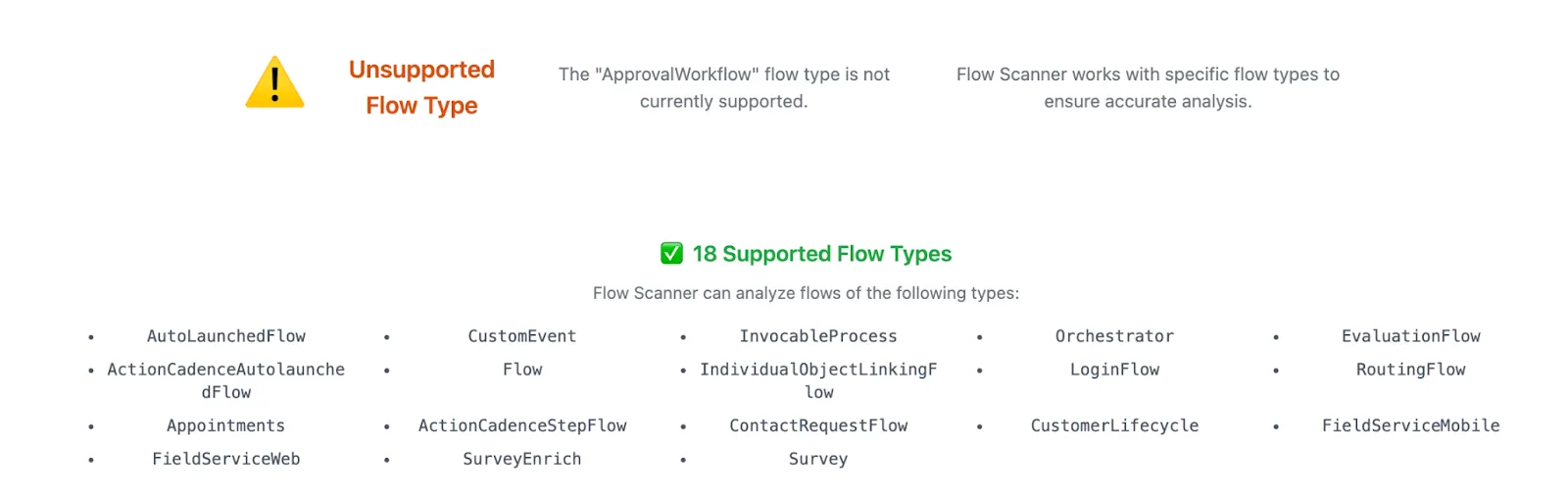
Keep in mind that at this time, certain flow types are not supported, but below is a list of the ones that are. Hopefully, the remaining ones will be supported in the future as well.
Manage Inactive Flow Versions
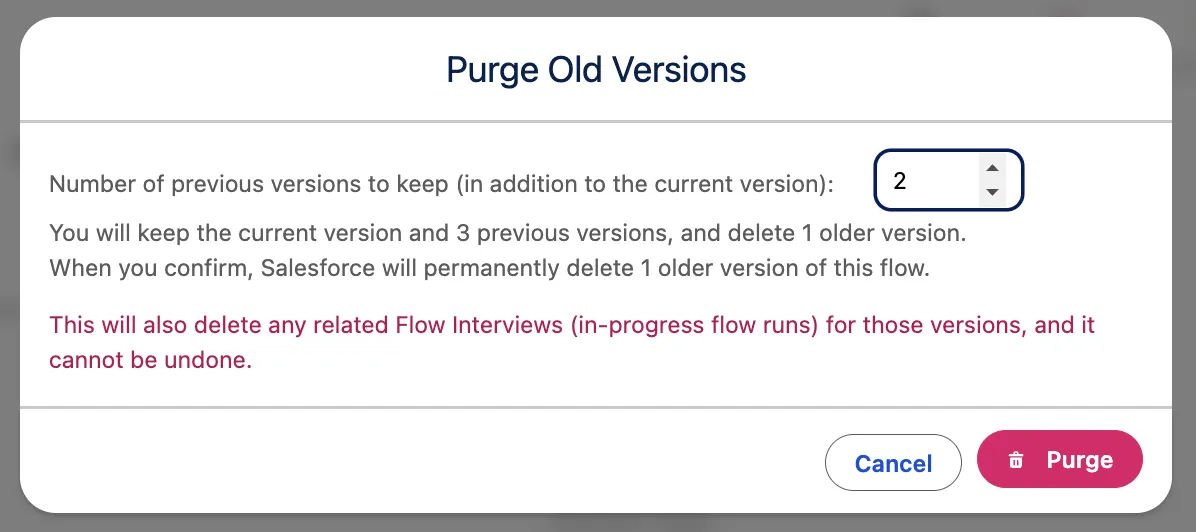
You might have already noticed in the screenshot above, but another key piece of information about flows is the number of existing versions. Flow Scanner not only draws your attention to how each flow you review fares against the limit, but also allows you to delete the versions you don’t need anymore with a couple of clicks.

When purging, you can simply choose how many versions you’d like to keep. In most cases, you may want to keep at least one, in case the need arises to revert to it, but the use cases may vary. Either way, the option is there to make use of, rather than having to do a SOQL query for one single flow’s versions!
Agentforce Flow Scanner
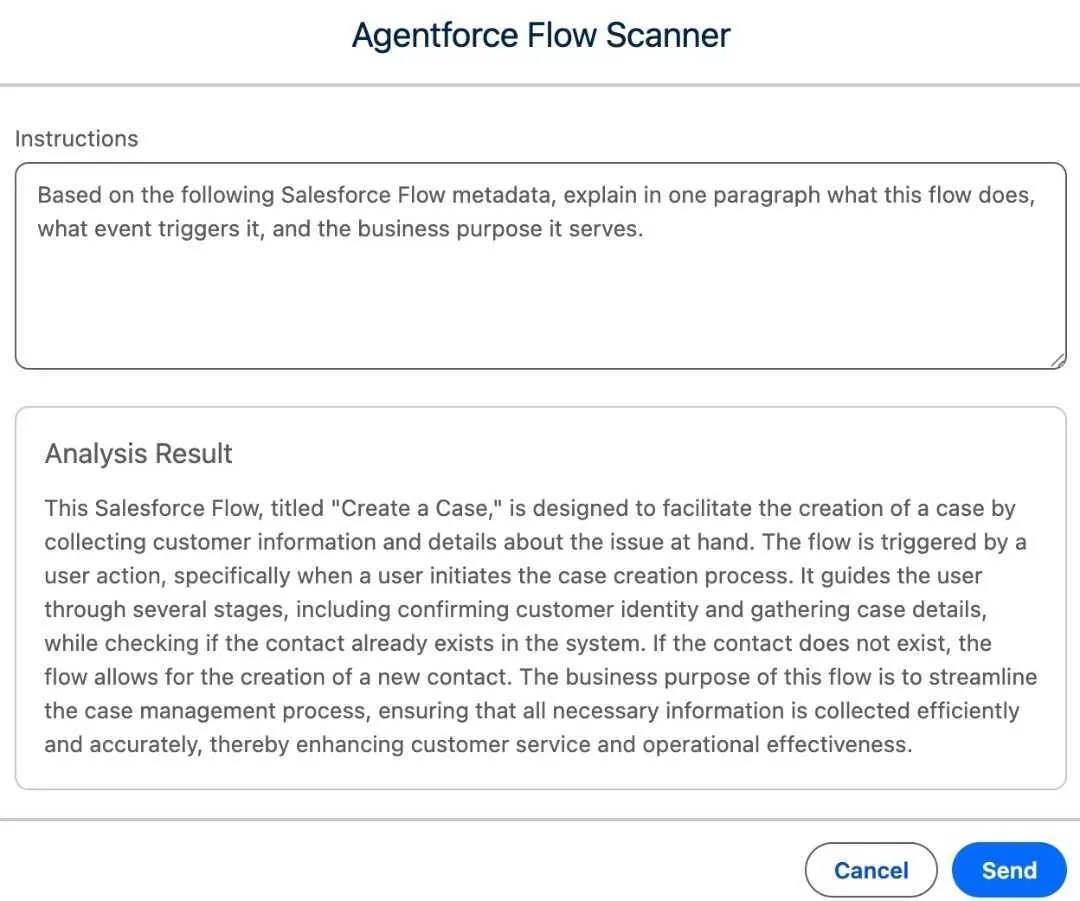
If your org is currently using Agentforce (even through Salesforce Foundations), then you will also have the option to leverage some of the capabilities within Flow Scanner. Based on the prompt you will provide, Agentforce Flow Scanner can be used to explain the entire functionality in detail, and the result can easily be used as your flow’s description if it doesn’t have a complete one already.
Flow Compare Shortcut
The ability to compare flow versions has been one of the most useful out of the box Salesforce additions to the Flow canvas – Inspector Reloaded makes it easy for you to access the feature as you work through your analysis, directly from the Flow Scanner while opening the side pop-up, or when reviewing individual flows as well.
Dependencies Explorer
Another brand new addition to our favorite browser extension is the Dependencies Explorer, made possible by Georgi Dobrishinov. You are most likely already familiar with MetadataComponentDependency (or Dependency API, as it is most commonly referred to), given the well-known “Where is it used” button.
This Tooling API object can be queried to surface relationships your metadata items have with each other – Inspector Reloaded 2.0 makes this unbelievably easy by allowing a drag and drop interface for selection, alongside a quick summary and dependency tree for you to actually review the components.

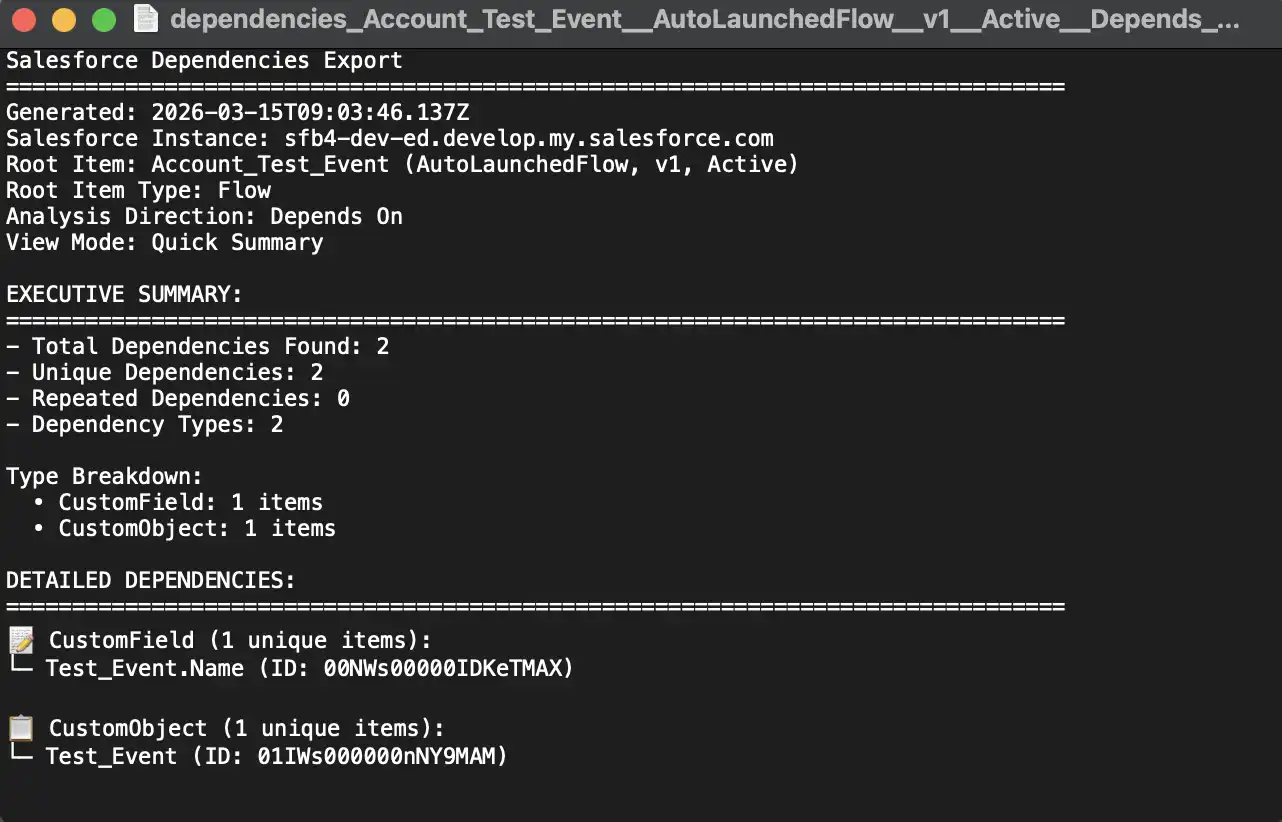
Furthermore, a Package.xml containing the identified components can be generated, as well as an export of the summary for you to quickly share or save for later. Even though this option doesn’t cover absolutely all metadata in your org, for the items it does cover, there shouldn’t be a scenario in which you’re taken by surprise by a dependency anymore.
Enhancements Galore
While Flow Scanner, Dependencies Explorer, and the transition to SLDS 2 are huge changes to the extension, that’s not all! There are quite a few more notable enhancements that will surely make your day-to-day tasks much easier.
User Management
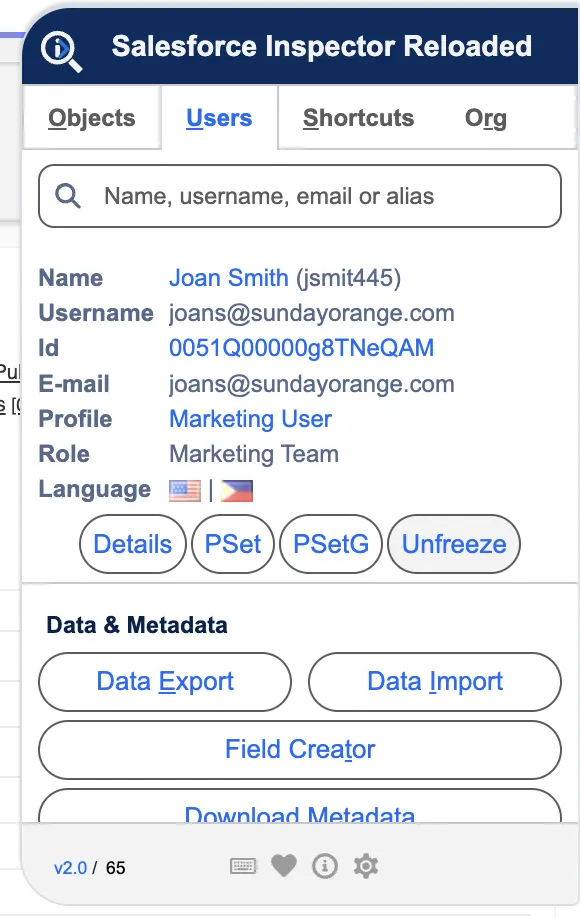
If one thing is for certain when it comes to Salesforce administration, it is user management. Inspector Reloaded already makes it incredibly easy to find users based on various information, such as username, name, or email, right within the side pop-up. But what about the results?
This 2.0 version features Thomas Malidin Delabriere’s contribution, which gives you the option to filter out not only inactive internal users, but Experience Cloud external users as well. An added bonus is that Profile Name can also be enabled as a default search field, right within the Options page. It can be confusing at times for the search results to return all users, so make sure to check out these options and enable or disable them as needed.

Also in the realm of user management, if you ever need to unfreeze a certain user, a handy button will appear within the pop-up after selecting them from the results.
Data Export Page
The fairly new query tabs functionality within the Data Export page is already seeing a very useful update, by allowing users to rename and reorder them. This opens up a whole new way of working when querying Salesforce data, as you can simultaneously look at multiple different or the same objects, but still stay organized at all times.


Speaking about the Data Export page, the CSV export encoding is fixed now for non-Latin characters, thanks to Samuel Krissi. Data exports containing Hebrew, Arabic, or Chinese characters, to name a few, were made possible by adding a UTF-8 BOM for Excel compatibility.
Custom Favicon Color and Banner Text
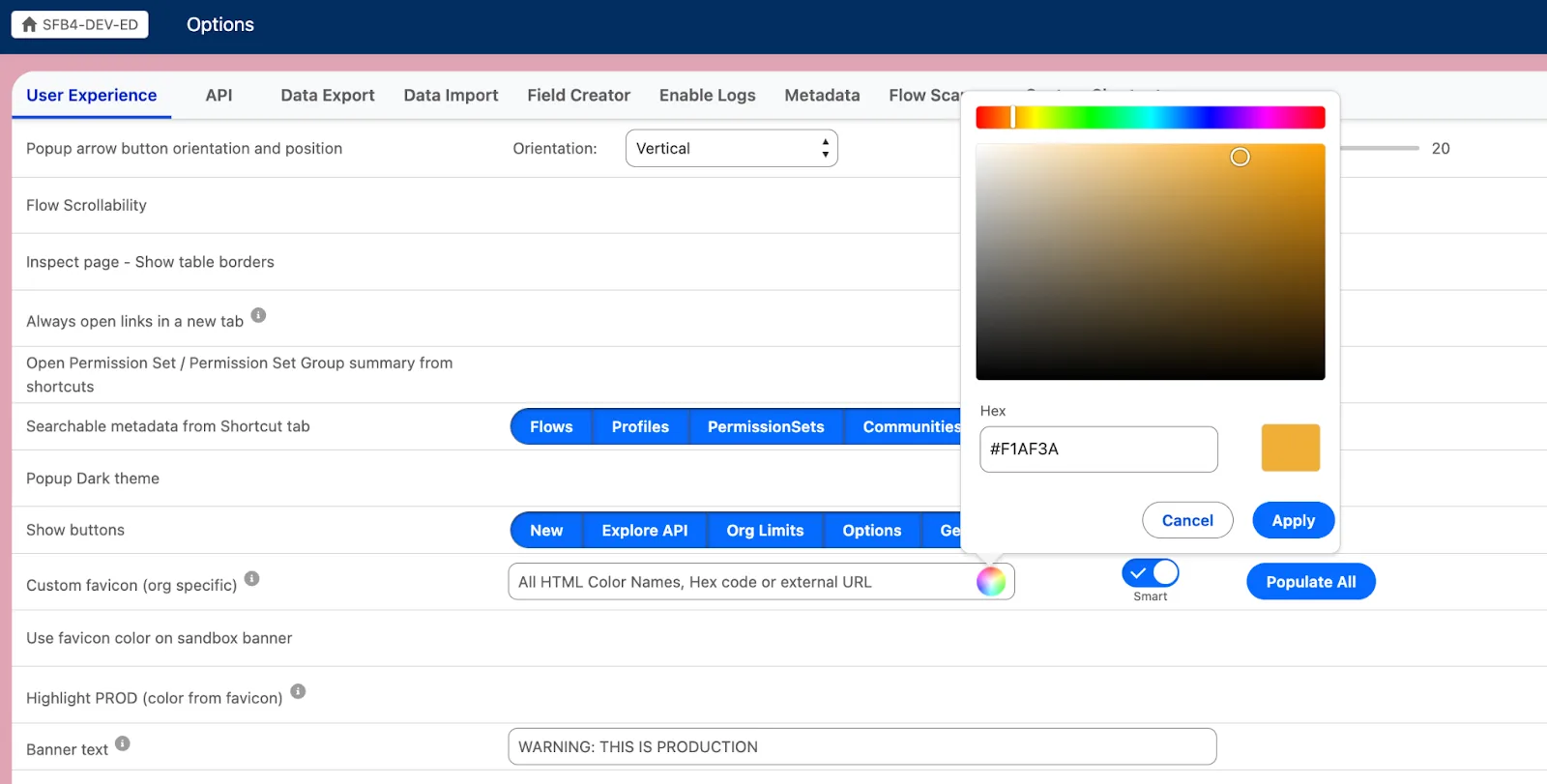
Going back to the Options page, Camille Guillory added one more feature to make the experience even better. Instead of a limited range of colors based on name or having to find hex codes, everyone can now make use of a color picker to set the org favicons to the share and color that appeals most to them.
Agentforce Formula Helper
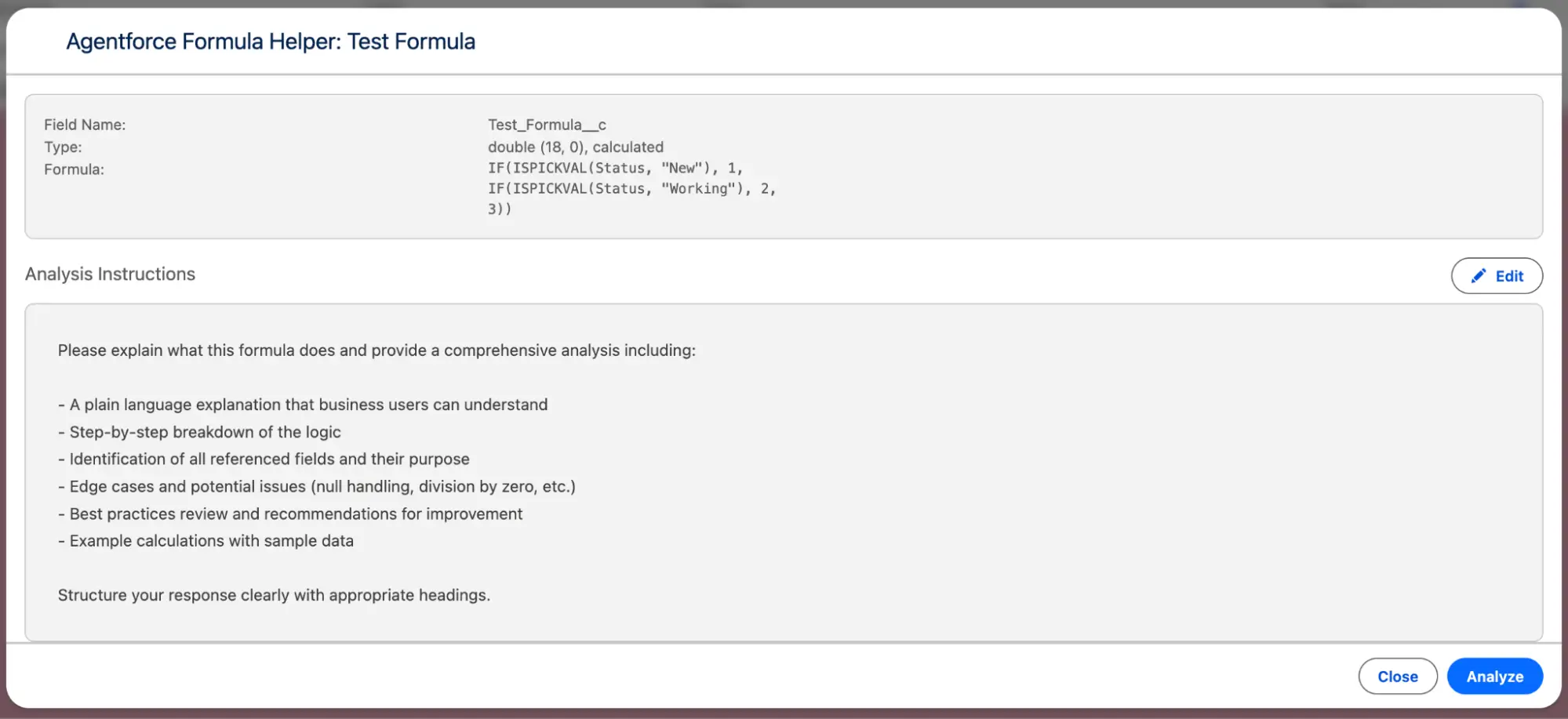
If you thought that Agentforce Flow Scanner is the only AI-powered addition, you’re in for a surprise! When reviewing record information, Inspector Reloaded 2.0 allows you to access Agentforce Helper for formulas. This option can be used to explain what a formula does, but also how it can be optimized, as well as highlight any potential issues.
This may come in handy for more complex formulas, but also when exploring a new org and would like to understand more about the formula fields.
Logs Viewer
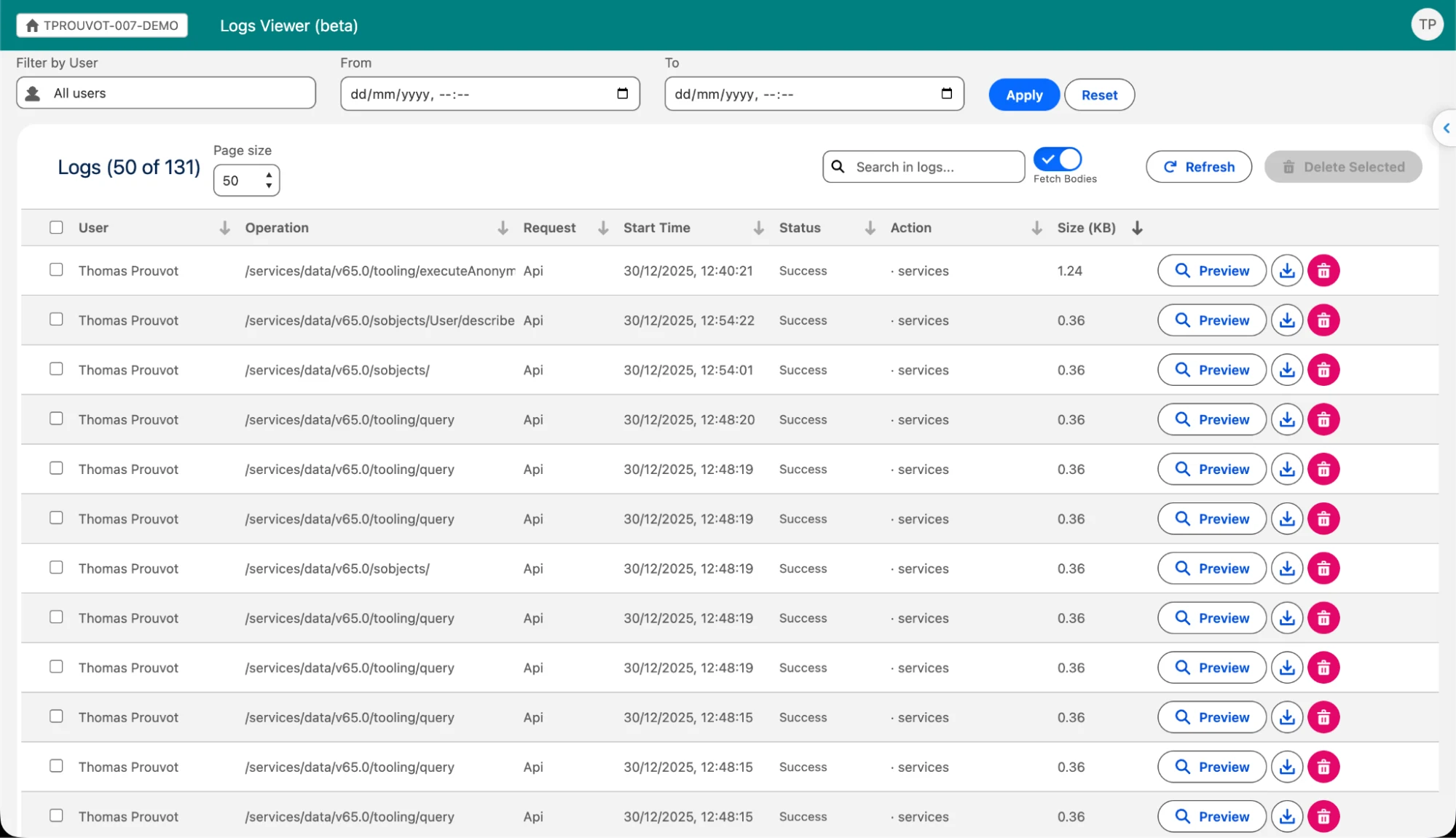
Does anyone actually enjoy reviewing Debug Logs? Probably not. This is why Samuel Krissi has transformed the log review experience into a productive workflow, right within Inspector Reloaded. After clicking on “Logs Viewer” you can easily peruse through the logs, filter them and search the one you’re looking for. Additionally, each of them can be previewed or downloaded as needed.
Even more so, if you are using Agentforce, you can also make use of it on this page to generate a comprehensive analysis. This option is turned off by default, but you can toggle it on within the Inspector Reloaded Options page.
OAuth 2.0 Web Server Flow With PKCE
Connected Apps are going to be deprecated as part of the Salesforce Spring ‘26 release, so if you haven’t used External Client Apps just yet, now is the time to do so. Thomas has already put together a quick guide in the extension’s documentation to get started with this extra layer of governance, in order to have more control over how and who uses Salesforce Inspector Reloaded.
In this new release, Mehdi Cherfaoui’s latest contribution will help you be even more mindful about security. By implementing Proof Key for Code Exchange (PKCE) alongside the OAuth 2.0 Web Server Flow, not only will the token not be in the browser URL (which could have been potentially exposed through the browser history, for example), but the exchange is fully protected and happening in the background.

Rest Explore Customizable Headers
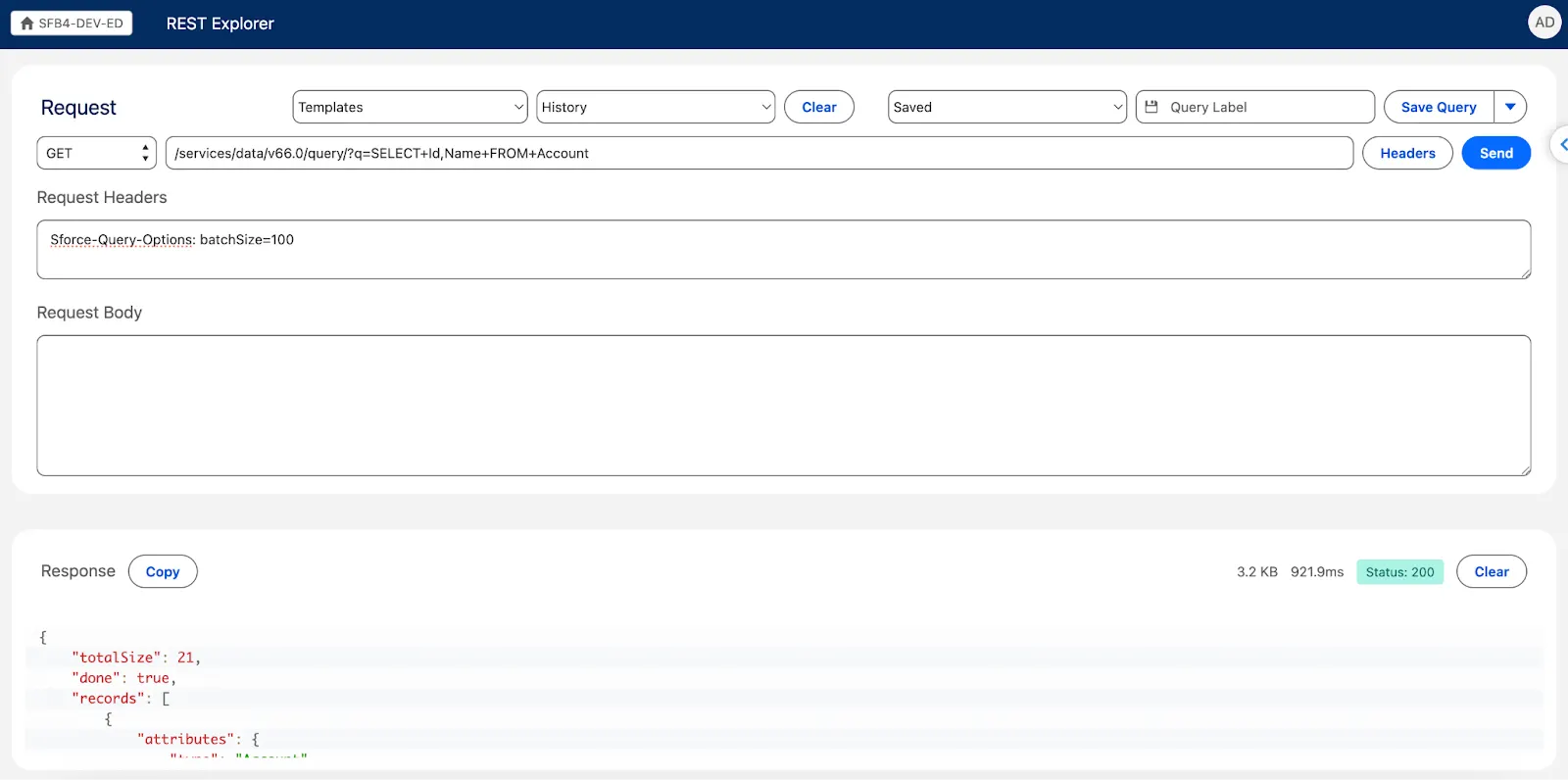
Within Inspector Reloaded 2.0, REST Explorer now also supports custom headers for your API request. Having this option at your fingertips allows you to better manage the authentication, performance, and response format for your request, even in the context of Bulk API.
View Metadata
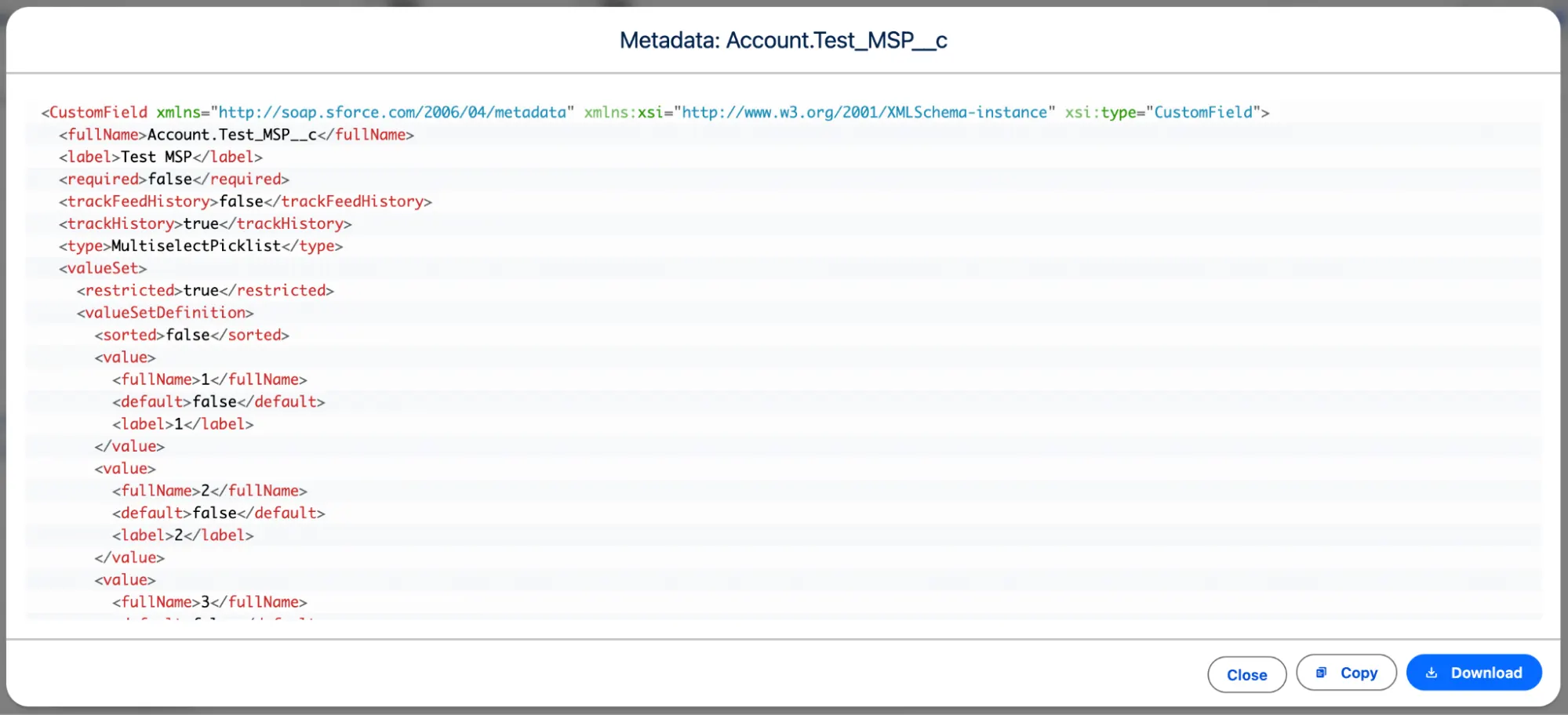
While you may be familiar with the Download Metadata button and subsequent page, there is a new enhancement here as well – the ability to click into the item you’re analyzing to view all its details without having to download any file.
Within the modal, both XML and code leverage syntax highlighting for better readability, and you have the option to also copy or even download the file if needed.
Cache Optimization
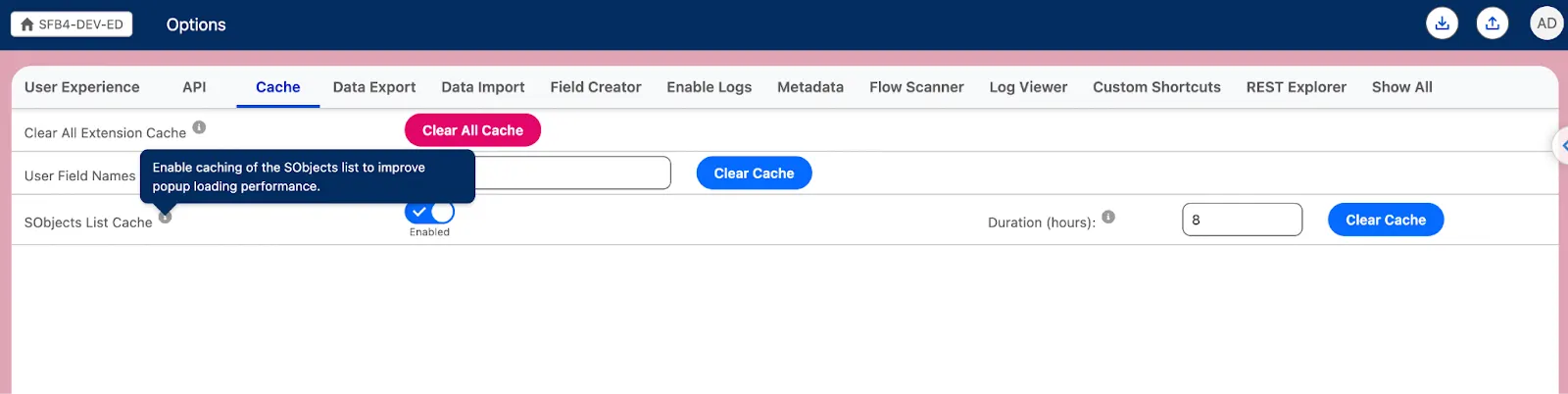
Alongside this version, thanks to Nicolas Greard, also comes the reduction in API calls made to retrieve sObject definitions when opening the pop-up or when switching orgs. With this new “sObjects list cache” option enabled, the pop-up loading performance is improved, and a lower number of API calls is needed – keep in mind that if a new object you created doesn’t come up in the extension, this may be the reason, so clearing the cache may be a good idea.
The entire sObject cache management flow is thoroughly explained in the Inspector Reloaded documentation, which you can find here. Keep in mind that you can also track and monitor all API calls made by the extension.
There are many more enhancements and fixes coming with Inspector Reloaded 2.0, so make sure to check out the release notes.
Summary
Summary
With significant changes coming this release, including the Flow Scanner to ensure best practices are followed and SLDS 2 restyling to bring the new look and feel, Salesforce Inspector Reloaded remains an open source project that you can contribute to and keep making it better.
If you’d like to try new features sooner now and in the future, you can do so by installing the beta version of the extension for Chrome.
What Salesforce Inspector Reloaded 2.0 enhancement are you most excited about? Let us know in the comments below!