






If you have ever played around with tools like Google’s NotebookLM, you already know how magical it feels to drop a pile of dense documents into an AI and have it instantly become an expert on that exact content. With the Spring ‘26 release, Salesforce has brought that exact capability directly into Data 360 with the general availability of Notebook AI.
But instead of a standalone consumer tool where you manually upload files one by one, Notebook AI is a secure, enterprise-grade generative workspace. It is designed specifically to let your users explore, converse with, and synthesize your organization’s massive, unstructured data vaults – safely and natively inside the CRM.
Let’s look at a classic challenge: sales reps waste countless hours hunting through 10K reports, call transcripts, and dense account PDFs just to prepare for a single client meeting. In this article, I’ll walk you through a proof of concept (POC) that completely eliminates that friction.
By connecting Data 360 to an external document storage vault (like Google Drive or Microsoft SharePoint – we’ll use SharePoint for this POC), we can ground Notebook AI in our own unstructured data for instant deal prep. This proves that we no longer need to risk data leaks by copying and pasting sensitive enterprise files into unapproved external AI tools.
What Notebook AI Actually Is
To understand what makes this tool so powerful, we have to look under the hood. Notebook AI is essentially the front-end user interface for Data 360’s new unstructured data engine.
When a user asks a question, Notebook AI uses a process called Retrieval-Augmented Generation (RAG). Don’t let the acronym intimidate you. It simply means that before the AI answers your question, it “retrieves” the correct information from your connected files and “augments” its brain with those facts to “generate” a highly accurate, customized answer.
To make this work behind the scenes, Data 360 uses two core components:
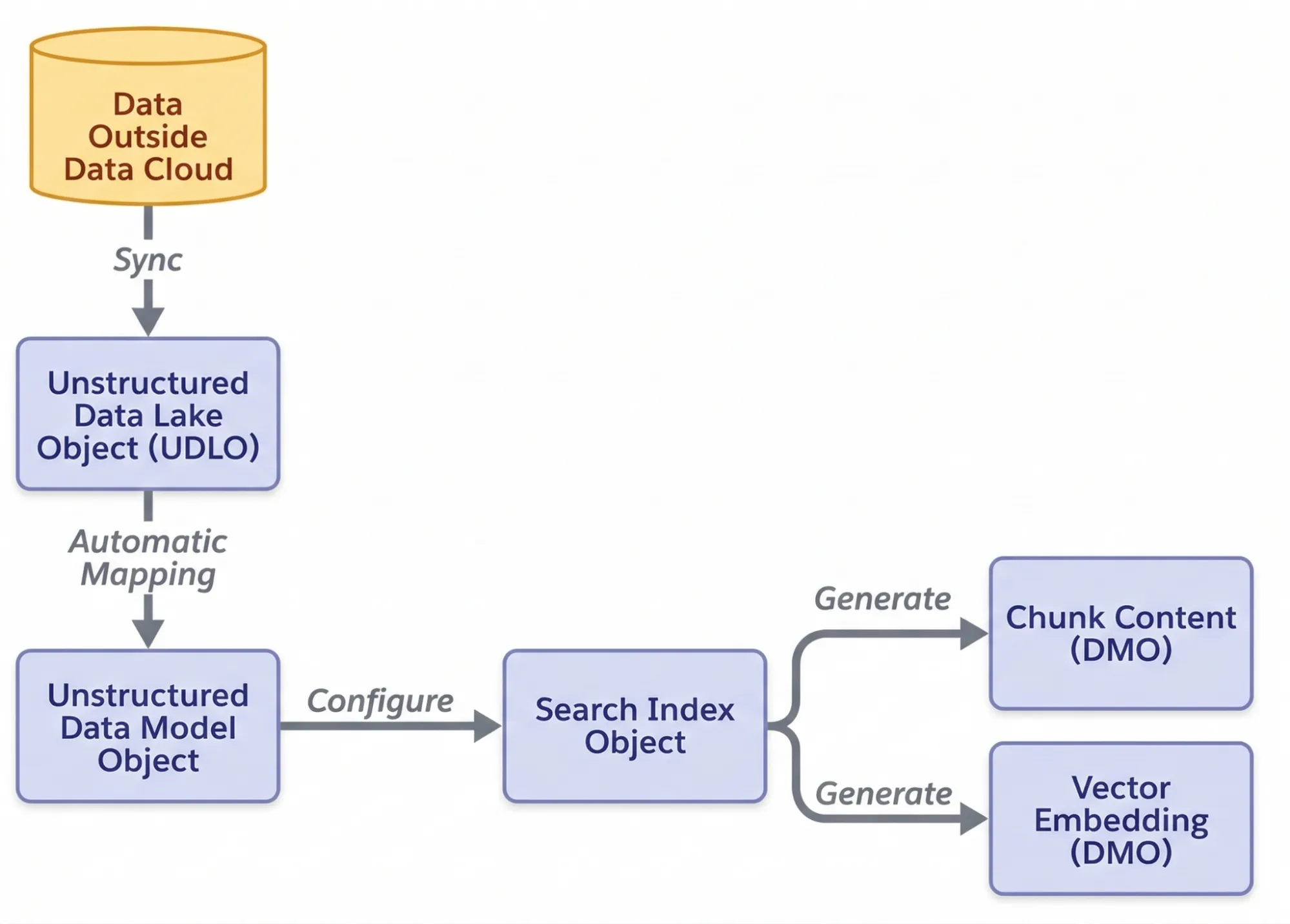
- Unstructured Data Lake Objects (UDLO): Think of these as secure containers inside Salesforce that hold the raw text extracted from your PDFs, transcripts, and documents.
- Vector Search Index: This is the AI’s “librarian”. It breaks down those massive documents into smaller chunks and indexes them. When a user asks a question, the index instantly points the AI to the exact paragraph needed to formulate the answer.
Keeping Unstructured Data Secure
While comprehensive deal prep requires deep research, security is the roadblock. Using public AI chatbots risks exposing sensitive data, like financial reports or client transcripts that are outside your secure enterprise ecosystem.
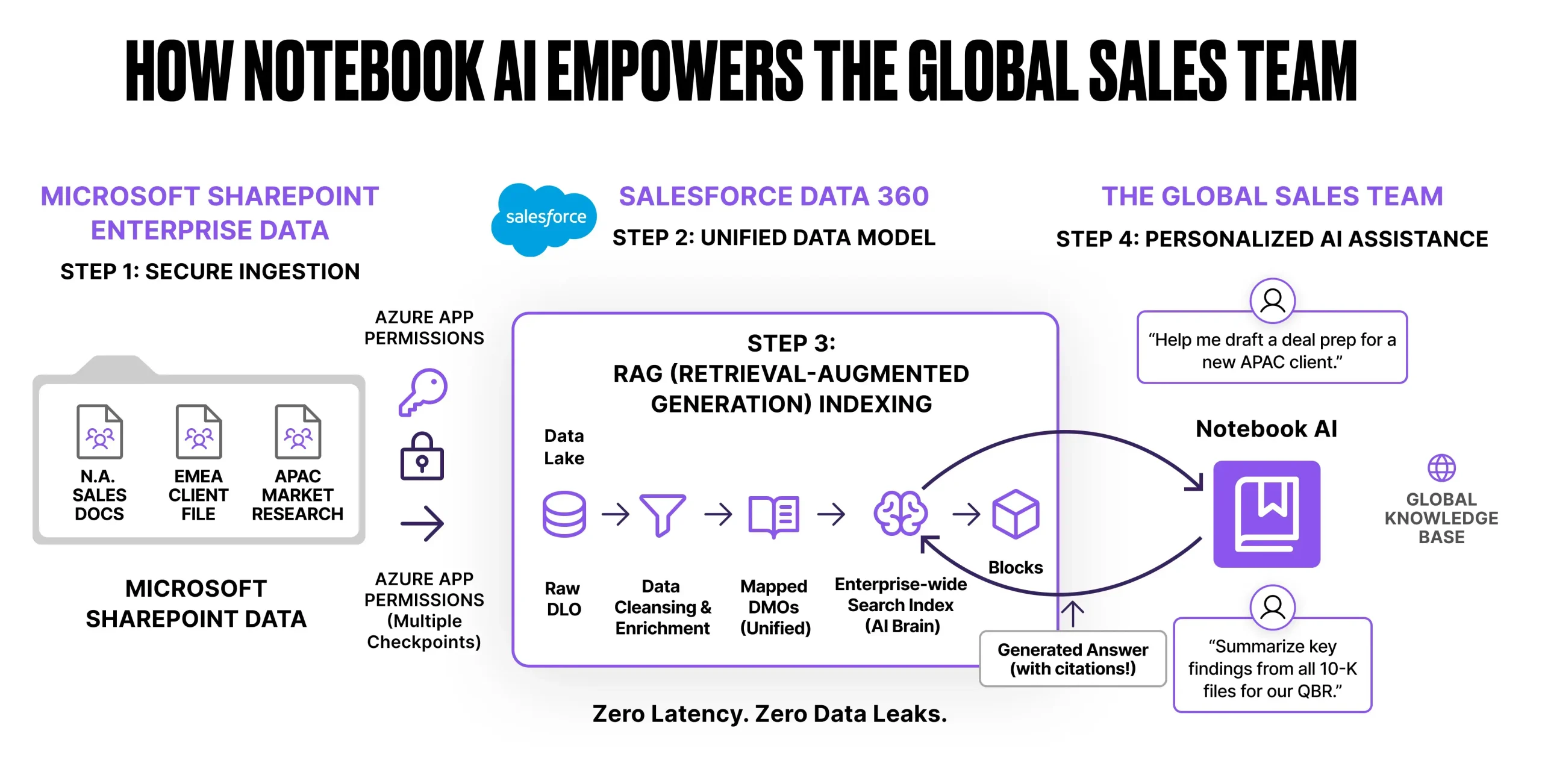
Notebook AI solves this by keeping your files securely within your enterprise perimeter. When you connect Data 360 to an external vault like SharePoint, you are not mindlessly duplicating thousands of files into your CRM storage. Instead, Salesforce uses secure API connectors and federation to read the text.
Most importantly, Data 360 respects your existing external permissions. If a sales rep does not have access to a highly confidential M&A folder in SharePoint, Notebook AI will not retrieve that folder’s contents to answer their questions.
“True enterprise AI isn’t just about generating text; it is about generating trust. By grounding Notebook AI in Data 360, your unstructured data is protected by the Einstein Trust Layer and is never used to train outside Large Language Models, keeping your Deal Prep strictly confidential.”
POC: Sales Cloud Deal Prep and Account Research
Let’s put this into practice. For this proof of concept, we want our sales team to analyze a prospect’s market position using massive 10K financial reports and our own internal project overviews, all securely stored in a Microsoft SharePoint folder.
Step 0: The Prerequisites
Before touching Data 360, we had to lay the groundwork in Microsoft. This required setting up an Azure Entra ID App Registration with Sites.Read.All API permissions. This ensures Salesforce only reads the files we explicitly authorize, maintaining our existing corporate security boundaries.
Watch out: Depending on your org’s release cycle, if you navigate to the Data Lake Objects tab and do not see the option for unstructured data, you likely need to enable it first. Head to Data Cloud Setup → Feature Manager and ensure the necessary unstructured data feature toggles (some of which may still be labeled as beta) are flipped on. You will also need to ensure Notebook AI is enabled in this same setup area!
Step 1: Connecting the Vault
With our credentials ready, we established a secure connection using the native Microsoft SharePoint Unstructured Data connector in Data 360.
Pro tip: The connector requires your exact SharePoint Site ID, which Microsoft frustratingly hides in their standard UI. The fastest way to locate it is to log into your SharePoint site and append this endpoint to your URL: https://yourdomain.sharepoint.com/sites/YourSiteName/_api/site/id
Step 2: Ingesting the Unstructured Data
If you’re used to bringing data into Salesforce, your first instinct is likely to head straight to the Data Streams tab.
Watch out: Native data streams are built strictly for structured data (rows and columns). If you try to push PDFs through a standard data stream, you will hit a wall.
To ingest unstructured files, we bypassed streams entirely and created an Unstructured Data Lake Object (UDLO). We named our object SharePoint_PDF_DLO and pointed it specifically at the folder containing our target PDFs to prevent it from crawling the entire corporate intranet.
Step 3: Content Harmonization (Building the Brain)
Next, we mapped our DLO to an Unstructured Data Model Object (SharePoint_PDF_DMO). The real magic of Data 360 happens on this screen with a single, crucial checkbox: Enable Unstructured Content Harmonization.
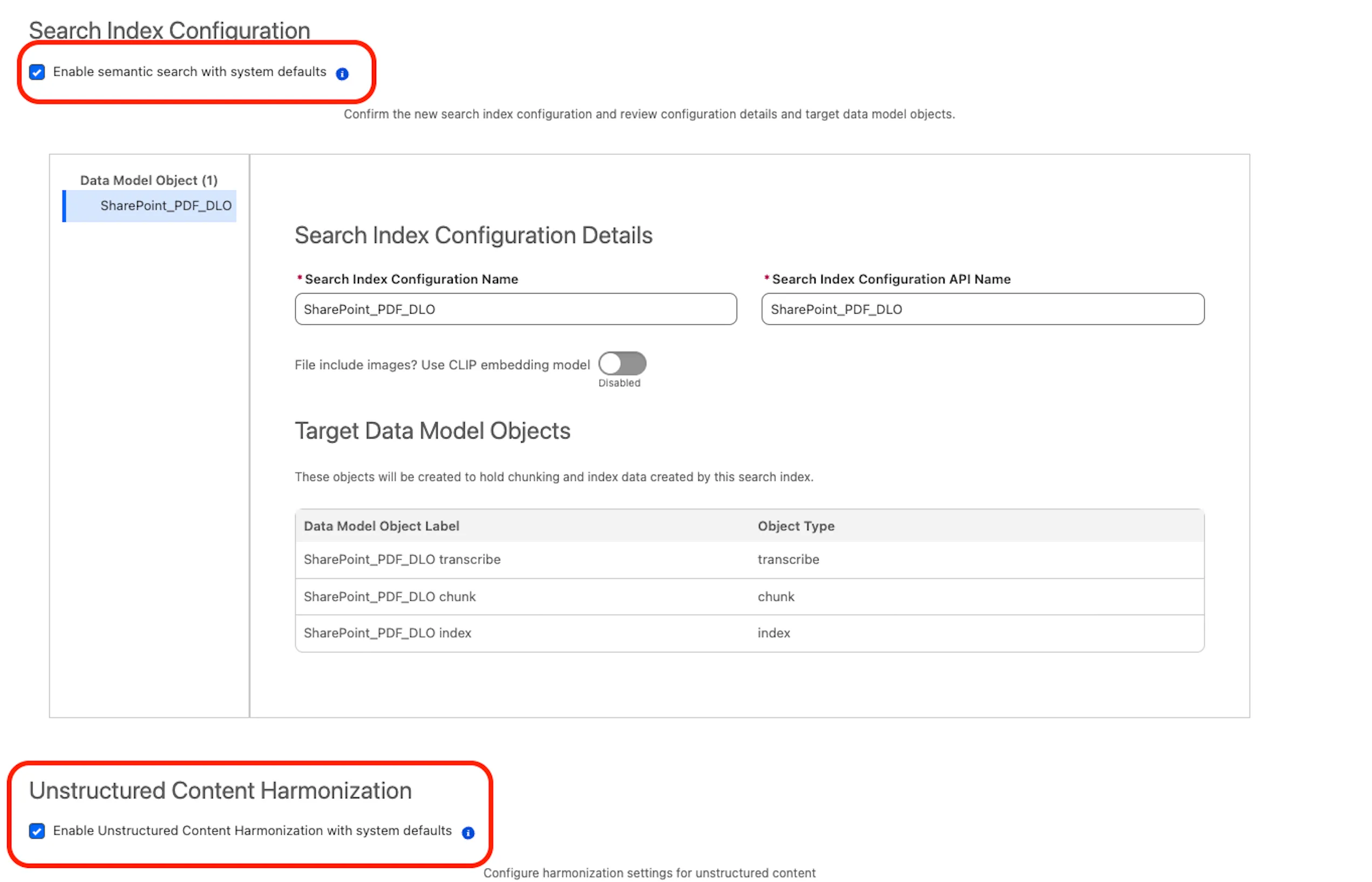
Checking this box tells Salesforce to automatically open the PDFs, break the text down into digestible chunks, and generate a search index. This vector index is the actual “brain” that Notebook AI uses to read and retrieve information.
Pro tip (patience is an architecture skill): Do not rush to Notebook AI immediately after clicking Save. Processing massive unstructured files, like a 100-page Apple 10K, takes computational power. You need to wait for both your DLO and your search index status to change to Active. Expect a 5-15 minute delay before the AI is fully ready to chat with your documents.
The Execution: Notebook AI in Action
With our search index active, we opened a new workspace in Notebook AI, imported our SharePoint_PDF_DMO into the Resource Library, and gave the AI its assignment.
Want to see it in action? Watch the 60-second live demo of our cross-document deal prep.
As you saw in the video, we used this exact prompt:
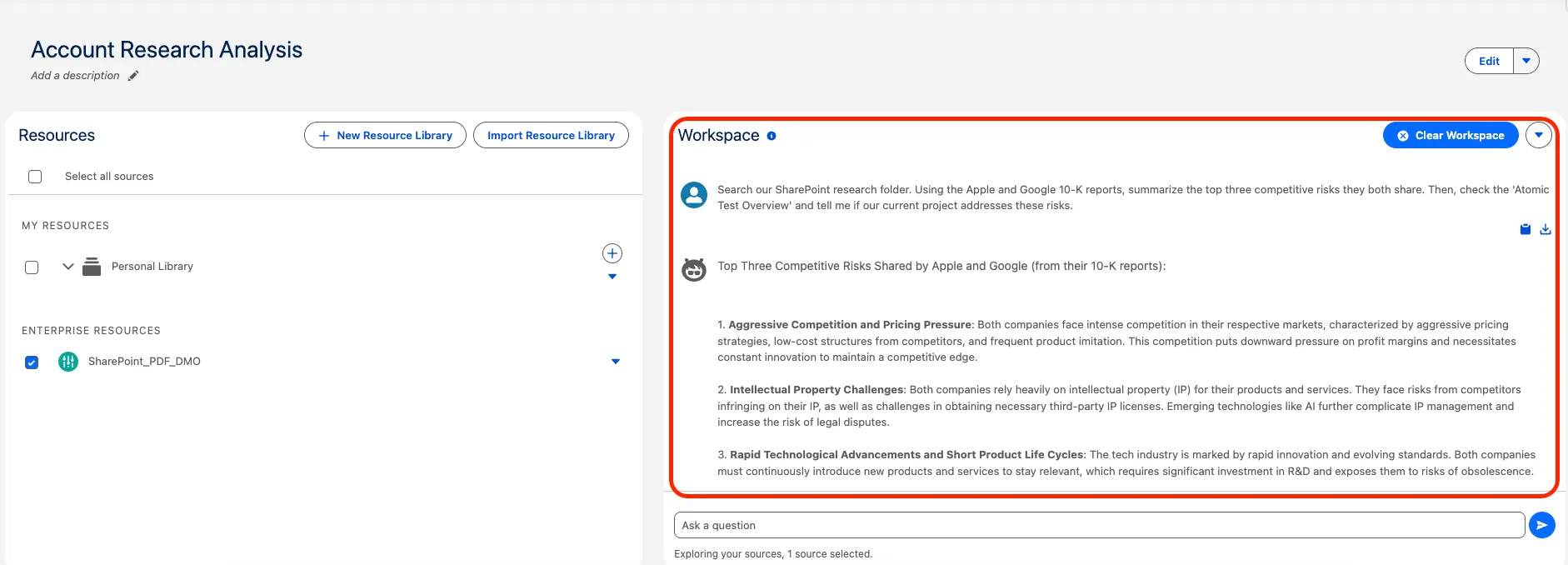
“Search our SharePoint research folder. Using the Apple and Google 10K reports, summarize the top three competitive risks they both share. Then, check the “Atomic Test Overview” and tell me if our current project addresses these risks.”
The result was exactly what we hoped for. The system performed a cross-document analysis, extracted shared risks like aggressive pricing pressure, and grounded that external data against our internal project overview. Best of all, it provided clickable citations pointing directly back to the source files in our SharePoint vault.
Pro tip (rolling it out to the team): Everything we built above covers the backend Data 360 architecture. To let your actual sales reps log in and use this tool, you must explicitly grant them permission to access the generative interface. Check out the official Salesforce guide on how to Enable Notebook AI Web Access for your end users!
The Architectural Trade-Off
Why go through the effort of building this pipeline instead of just letting users upload PDFs directly into the Notebook AI chat window?
| Feature | Local File Upload | Data 360 Enterprise RAG |
| Scalability | Manual, one-by-one upload | Automated folder synchronization |
| Security | Files must be downloaded to local desktops | Respects external source system permissions |
| Effort | Highly repetitive for every user | Build the pipeline once, query endlessly |
Trust and Governance
Our POC successfully proved that we can securely ground Notebook AI with external unstructured data, but manually typing prompts into a workspace is just the beginning. This architecture is the foundation for moving your organization from reactive Generative AI to proactive, agentic AI.
Because our SharePoint vault is now mapped to a native Data 360 search index, we are not limited to just the Notebook AI interface. This exact same “brain” can be connected to Agentforce.
Imagine a future state where deal prep happens autonomously. When your marketing team drops a newly released competitor 10K into that connected SharePoint folder, Data 360 automatically syncs and chunks the new file. An Agentforce agent, running in the background, detects the update, reads the new document, identifies a critical new pricing strategy, and instantly sends a Slack alert to the account executive with a suggested battle card before the rep even knows the 10K was published.
By building this pipeline the right way using Data 360’s native connectors rather than one-off file uploads you establish a governed, scalable standard that prepares your entire CRM for true enterprise automation.
Read More
- Data 360 (Formerly Data Cloud) Deep Dive: Your Guide to the Vector Database
- Architectural Lessons: The Salesforce Customer Zero Implementation of Data 360
Summary
Unstructured data is no longer a dark hole in the enterprise, and Notebook AI is the flashlight. By taking the time to properly connect external vaults like Microsoft SharePoint directly into Data 360, we remove the temptation for users to bypass security protocols with public AI tools. You empower your sales teams to conduct deep, cross-document research in seconds, firmly grounded in the reality of your own corporate knowledge base.
But as an architect, I view this POC as just step one. The true “art of the possible” lies in what we do with these insights next. Imagine a near-future where these Notebook AI summaries do not just live in a chat window, but are automatically pushed to update an Account Plan, generate a new Opportunity record, or pin a competitor battle card directly to the account page layout. We are no longer just retrieving data; we are building the foundation to completely automate the CRM lifecycle.





Comments: