








Highlights
- Salesforce has introduced two new logic elements in Winter ‘27: Split by Field Value and Split by Date.
- Split by Field Value allows you to quickly create branching logic based on whether the value of a variable is equal to a specific value.
- Split by Date allows you to quickly assess if the date that the flow ran was before, after, on, or between specific dates.
- Both support the use of formulas to make things more dynamic, but also have very specific use cases.
For years, the only way to create branching logic natively in Flow Builder was through the use of a Decision element. As of Winter ‘27, the way branching logic works in Flow Builder has changed forever.
Salesforce introduced two new logic elements in this release: Split by Field Value and Split by Date. They are a totally new way to branch logic in Flow Builder using the values of your variables. In this article, you’ll learn how they work, when to use each, and where the Decision element still makes sense as the best solution.
Split by Field Value
First off is the new Split by Field Value element. This operates very similarly to the traditional Decision element, but it’s focused on the values of a single variable.
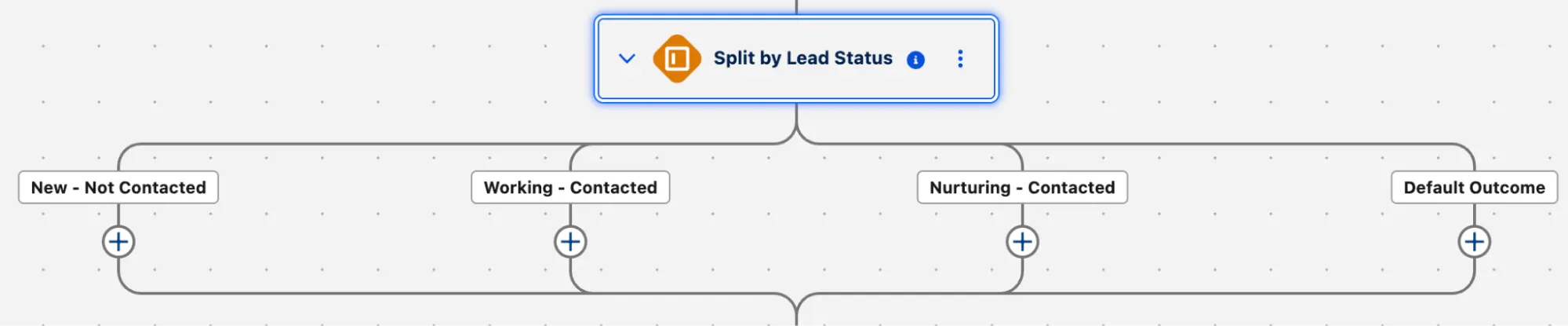
After selecting it from the Add to Flow menu, you’ll need to give it a Label, API Name, and Description as per usual. Then you’ll need to make a selection in the Field to Evaluate field.
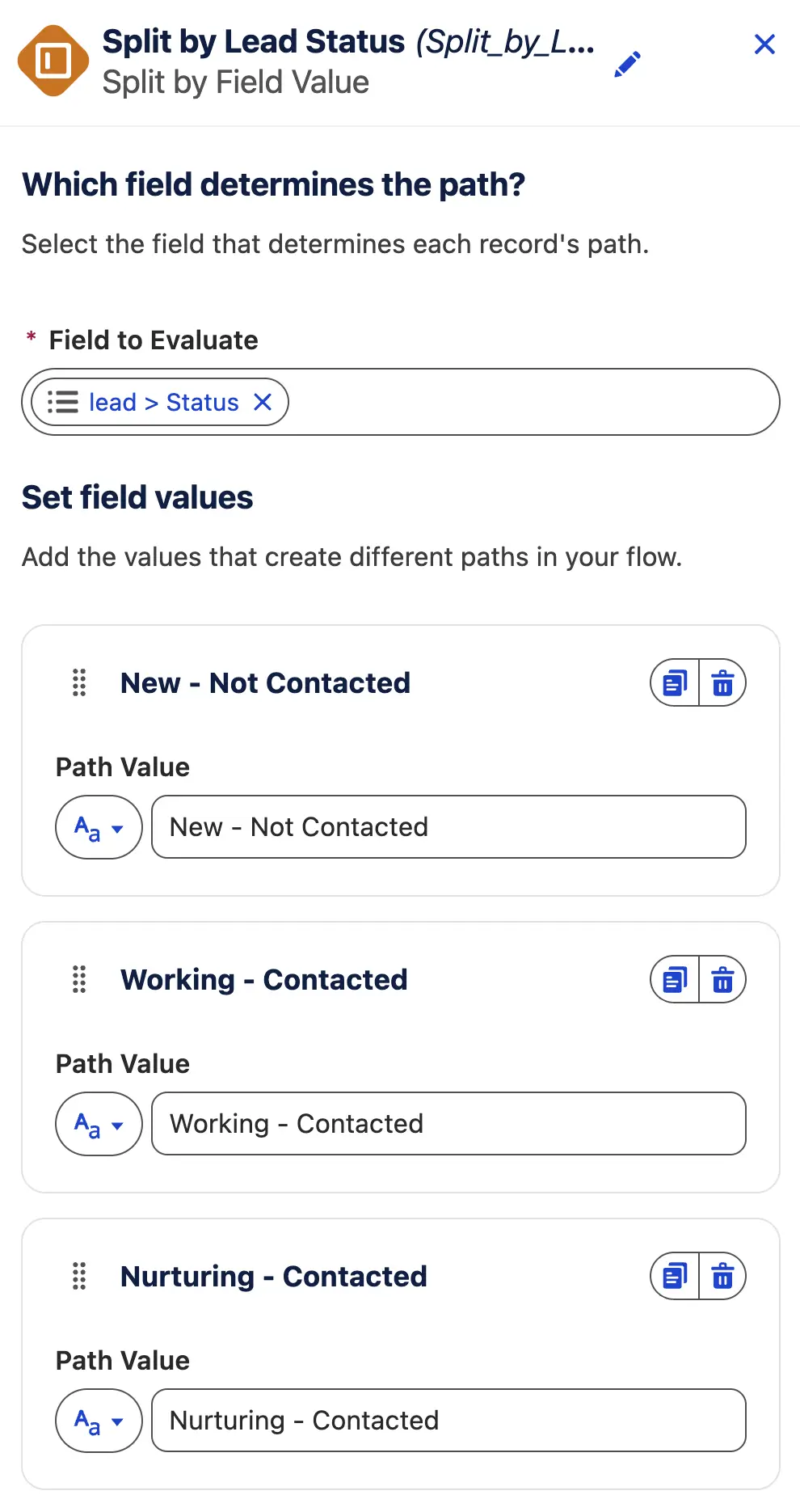
While yes, it does refer to a field, you can also use any old variable here. I’ve tested it with text variables, number variables, and even date variables. That said, it probably doesn’t make sense to use a date variable here. More on that later.
For each field value that you wish to split the path by, you’ll need to add a new branch. An easy illustration of this is using the Status field on a Lead. You may want to handle a Lead differently depending on where it’s at in its nurturing process. So, you’d add a new branch for each Status value that you want to handle. There is also a default path that is created whenever you use this element, and it acts as a catch-all.
Split by Date
Next up, we have Split by Date. Split by Date does what it says on the tin. You can branch your flow based on the date on which it runs. Unlike the Split by Field Value element, you don’t need to be as specific with the date criteria. What I mean by this is that you can set ranges and leverage formulas to ensure your branching is more dynamic and flexible for each path.
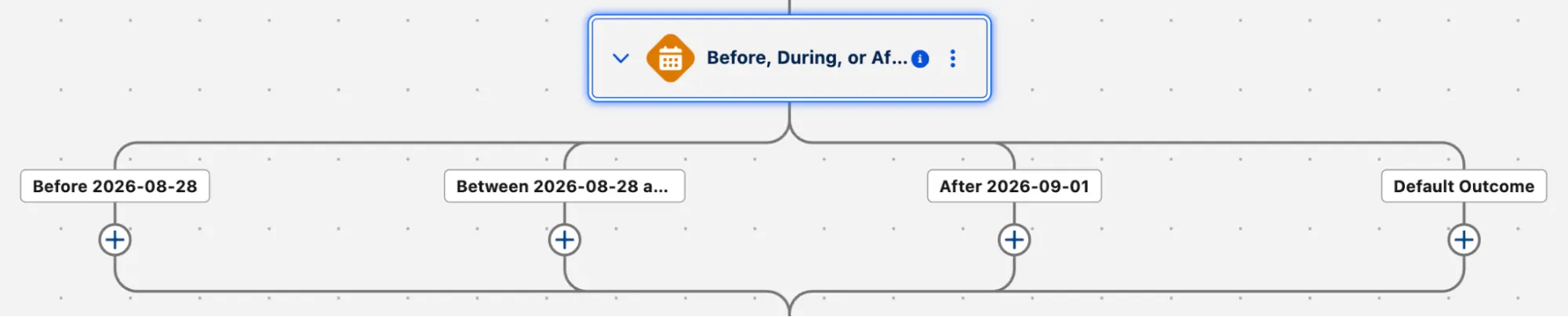
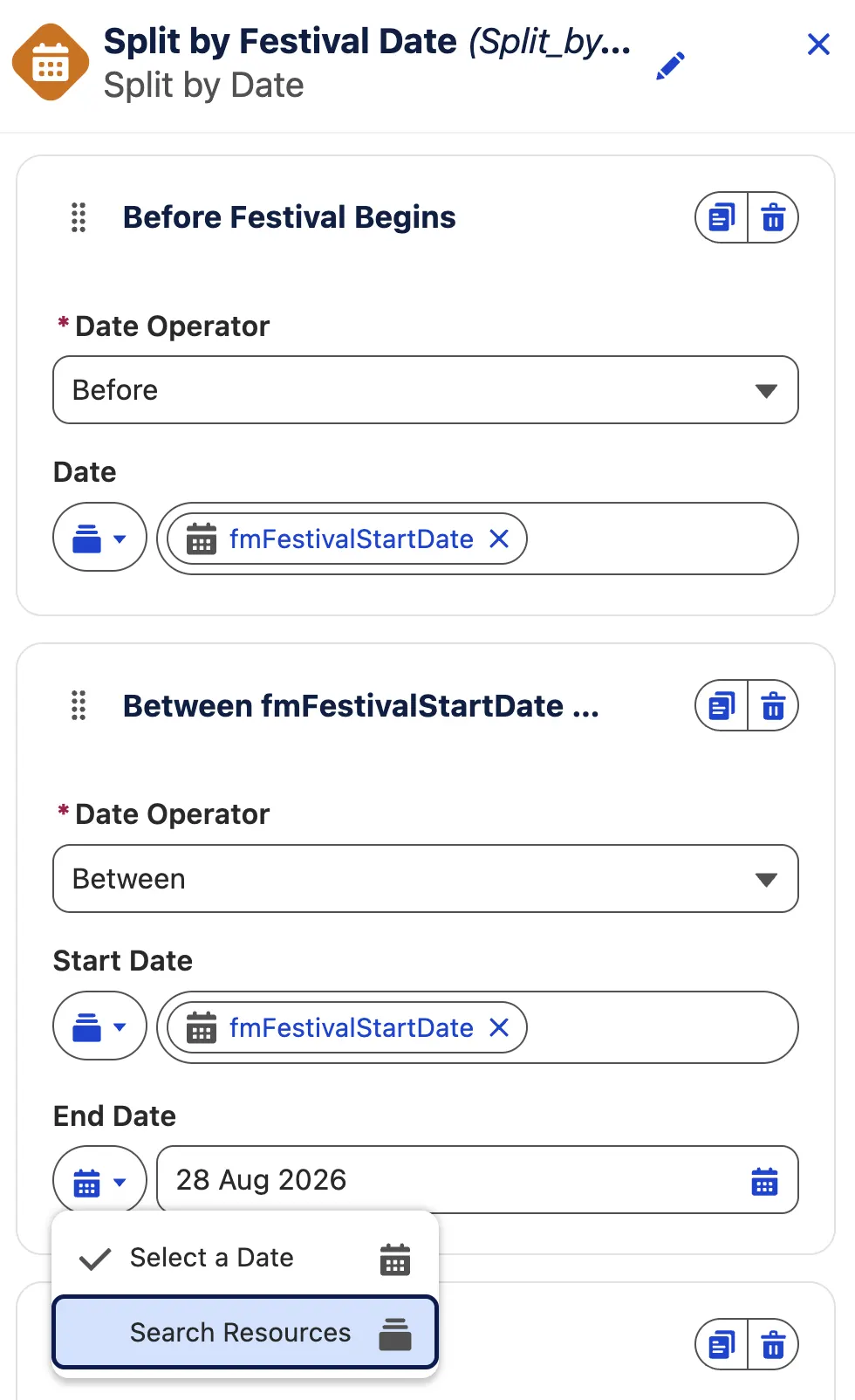
Similar to the Split by Field Value element, you need to create a new branch for each date or date range that you want to assess. When you build a new branch, you can pick either Before, After, Between, or Is On for how you wish to assess the date.
Before or After checks to see if the current date is before or after the date you specify, and Is On checks to see if the value is equal to the current date. Between allows you to specify a range and check if the current date is within that range. Of course, there’s also a Default Outcome branch that is automatically created for you each time you use this element.
It’s worth mentioning that you can choose to use a specific date, or use a variable or formula to create a more dynamic assessment.
When to Use Each Element
Just because we have new logic branching elements doesn’t mean that the traditional Decision element is no longer useful! In fact, it’s still going to be required in a lot of cases.
Consider the Split by Field Value element. It allows you to create a branch for each exact value that you expect to see in a field. If you’ve got a situation where you want to check for two exact values, but route them down the same path, there’s currently no way to build this criteria. The element only supports a single value at a time.
You could go ahead and create two branches and connect them, which is a better option than duplicating the elements within one path to the other, but this still means you’ve got two separate paths. In the above scenario, a Decision element would be a better option as it allows for more complex criteria than the Split by Field Value element.
Then, consider the Split by Date element. It’s fantastic if you’re looking to compare the date that the Flow ran to a specific date, or even a date calculated from another value using a formula. However, if you’re looking to compare a date that is any date BUT the date the flow ran on, you’re out of luck. This is where the Decision element comes back into play, and will be the far better solution as Split by Date doesn’t allow for this (at least, as of writing this).
If you’re looking to have dedicated actions for very specific single values in a field, the Split by Field Value element is a great way to simplify your flow build. Similarly, if you’re looking to check if the flow is currently running on a date, before or after that date, or between two dates (and these dates could be calculated using a formula too), the Split by Date element is for you.
| Split by Field Value | Split by Date | Decision | |
|---|---|---|---|
| What it does | Creates one branch per exact value in a field or variable. | Compares the date the flow is running on to a set date, date variable, or formula-calculated date. | Routes records using custom, complex criteria with multiple values and condition structures (AND/OR/etc.) |
| Best for | Dedicated actions for very specific single values. | Checking if the flow is running on, before, after, or between two dates. | Anything that the purpose-built splits can’t express (i.e. more complex criteria). |
| Where it lacks | Only one value per branch, no complex logic. | Can only compare to the date that the flow is running on. | More configuration required to set up. |
As of writing this, there is no official documentation from Salesforce that the new split elements are in any way more performant than a Decision element, too. I know, for example, that the Transform element is roughly 10 times faster than performing loops for similar tasks. I suspect that may also be the case here, which is another reason why Salesforce has introduced these new elements.
Final Thoughts
While not super revolutionary, the new Split by Field Value and Split by Date elements are going to make certain circumstances a lot easier to build in Flow Builder. They allow for a brand new way of branching your flows, and sit alongside the existing Decision element, not replacing it in every situation.
Can you see this being beneficial in your flows? Are you still a bit confused about how best to use them? I’d love to hear from you on this!