








Winter ‘27 preview orgs are going live, and it’s time for a preview party! This exciting time – when changes become available in preview orgs (link active when available) – is about to kick off. We’ll share the sign-up link once preview org registrations go live on August 13.
After that, you’ll have the opportunity to explore the new Salesforce release features before they’re pushed to production. It’s the perfect chance to learn how to harness these capabilities ahead of their official release (full details here).
If you’ve signed up for a preview org in the past, you’ll be able to access these features earlier. If not, you’ll need to wait until registrations open to sign up. This is a great reminder to save your preview org credentials so you can access future features sooner!
1. Collapsible Sidebar in Setup Menu
Starting off with another of those smaller updates that make a big impact, you can now collapse the sidebar in the Setup menu. From memory, we actually saw this at the beginning of the last update, but it was pulled before release.
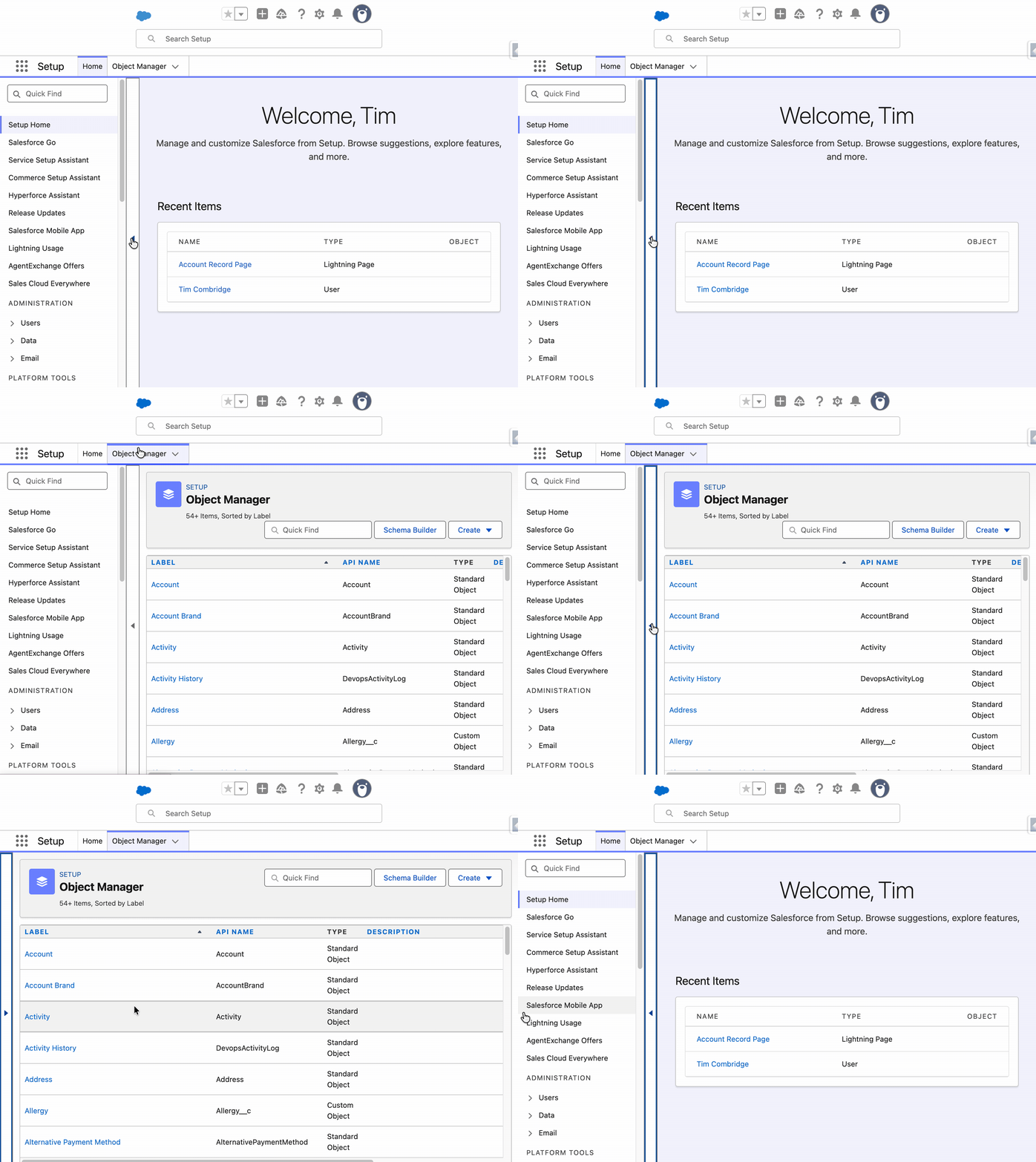
This allows you to have access to the sidebar in all aspects of the Setup menu (including Object Manager), and also get more screen real estate as needed.
2. Separate Setting for Customizable Salesforce Mobile Home Page
There’s a new toggle in the Salesforce Mobile App settings page that allows users to customize their Salesforce Mobile App home page based on their business needs.

I need to understand a little bit more about exactly what this function does, and if it was included in the “Customizable Mobile Home Page” feature in the previous release, but it’s good to see some more granular control over the Mobile App.
3. New Test Mode for Flow Builder
My colleague Andreea managed to see some of this in action at TDX, and I’ve been itching to get my hands on it ever since. That day has finally come! Winter ‘27 brings a brand new testing suite to Salesforce Flow Builder.

Enabled in Process Automation Settings, the Flow Test Mode is a powerful new way of managing your Flow tests. I know it’s only early in the release cycle, but I think I’m ready to crown my favorite new Flow feature already!
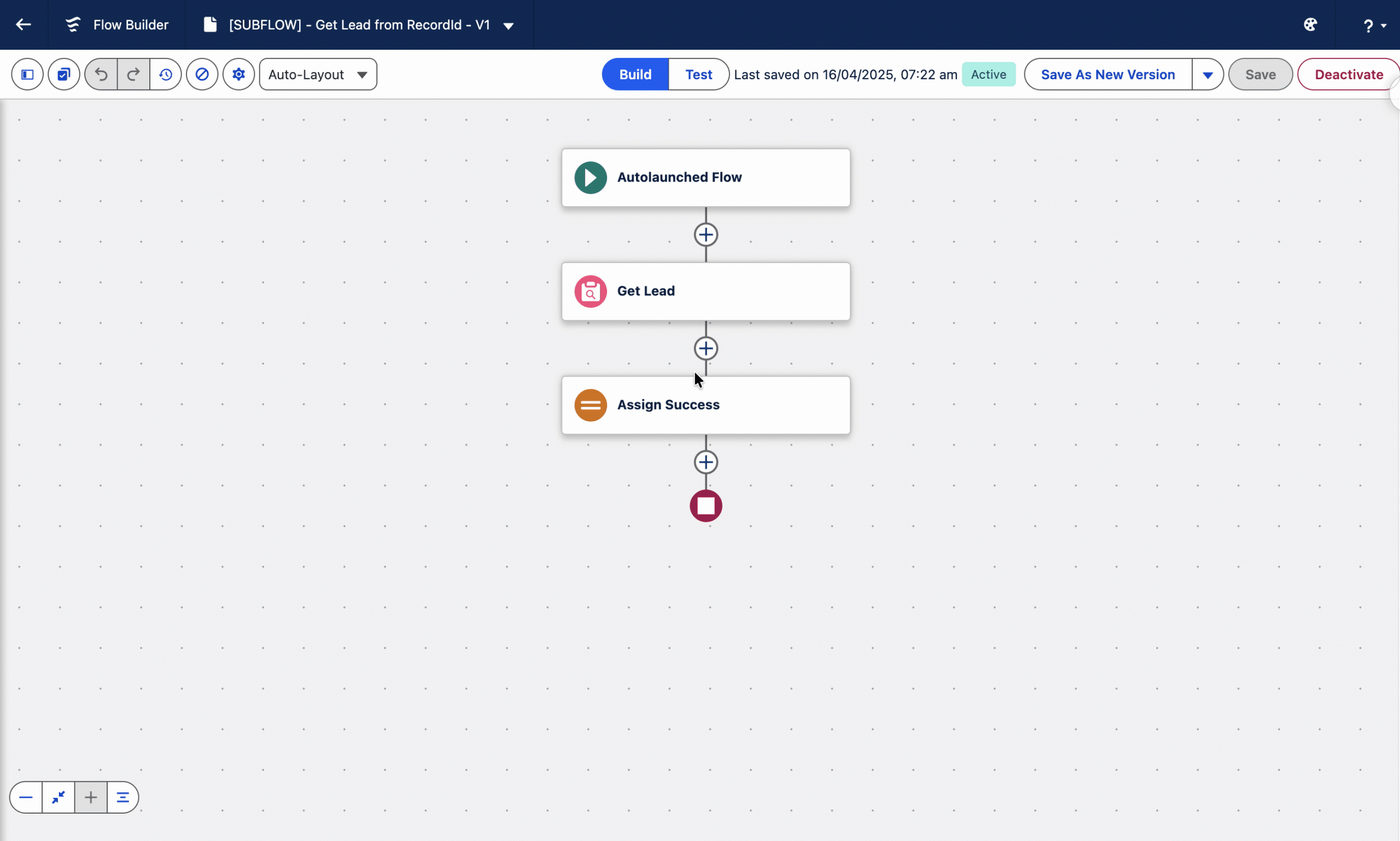
4. Tags for Flow in Automation App
Building is one thing, but organizing is its own special kind of challenge. That’s why I’m excited to see this next Winter ‘27 feature coming to orgs very soon. Anything that can help reduce technical debt and make Salesforce Flows easier to work with is a big win in my book.
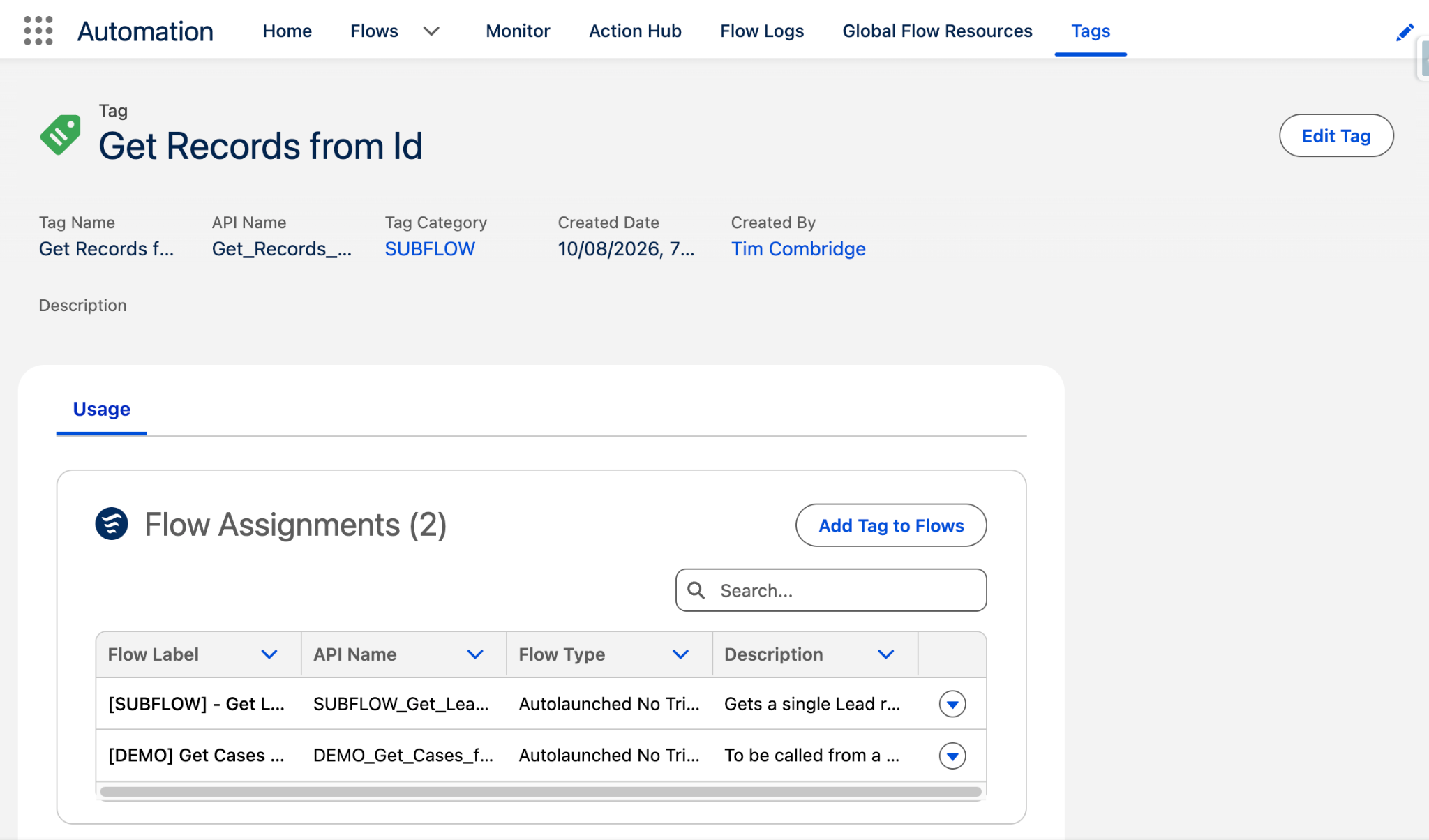
You can add Tags to your Flows to help organize them, which is great given how many Flows we’re encouraged to build these days. This is, again, one of those small but mighty features that are about to have a MAJOR impact for a large number of Salesforce customers. Watch this space!
5. Screen Flows in Mass List View Actions
This is a feature that I saw many people get excited about before Winter ‘27 dropped in preview orgs, and that’s thanks to a very exciting update from Adam White! Essentially, you’re now able to pass multiple record Ids into a Screen Flow, with support for nested collections as well. This must be done using a Text Collection called ‘ids’, in lowercase.
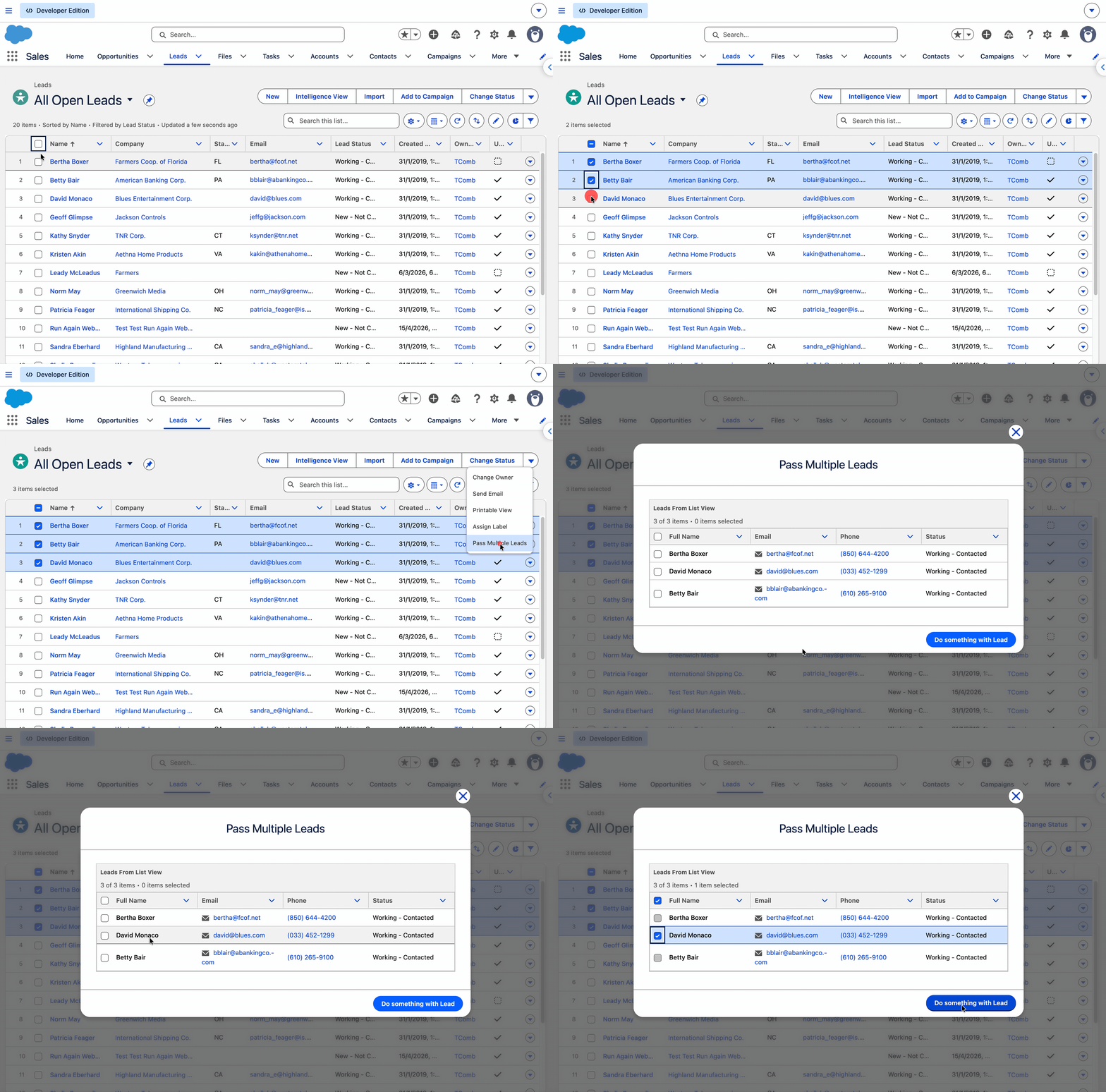
Notably, this feature supports both List Views and Related Lists as well. This is exciting for multiple reasons, including Salesforce’s renewed commitment to supporting new collection types in Flow Builder (including something adjacent to a Map type, finally).
6. Customizable Flow Builder Experience
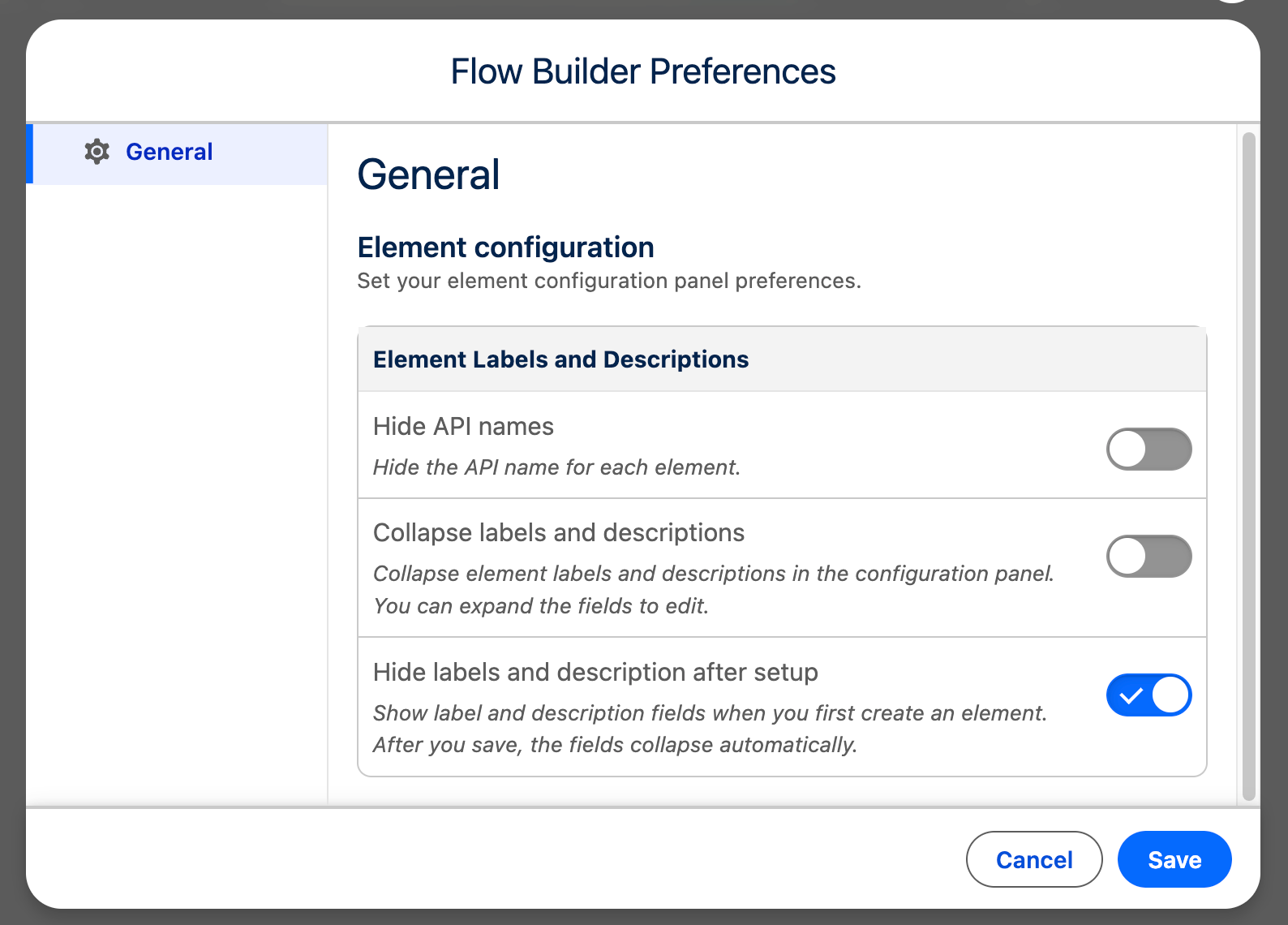
Flow Builder is the most powerful tool in a Salesforce Admin’s arsenal, and now it can be the most personal. When you’re working with Flow Builder, you’ll notice a new icon at the top-right that allows you to hide and view API names, and collapse and display labels and descriptions.
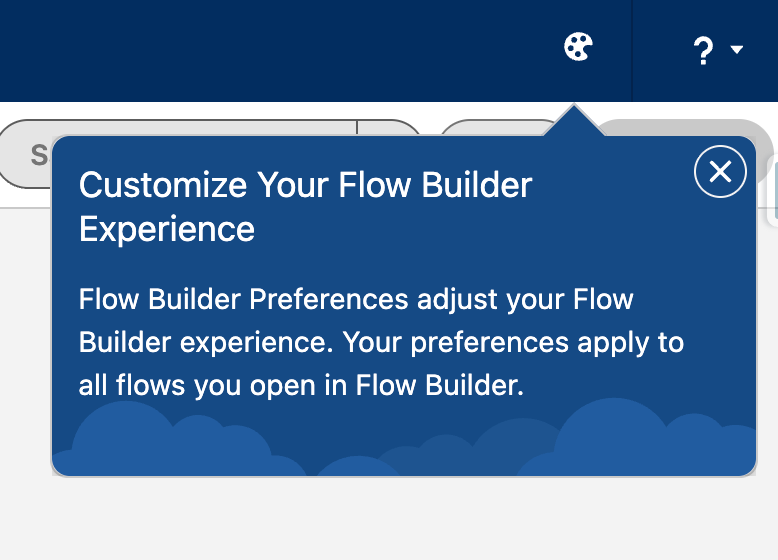
Notably, this menu has a single tab called “General”, but leaves space for additional tabs in the future. Once again, watch this space!
7. SLDS 2 Support in Flow Builder
Have you noticed something across all the different screenshots in this article so far? That’s right, we’re FINALLY seeing a brand new lick of paint in Flow Builder in the form of SLDS 2 support!
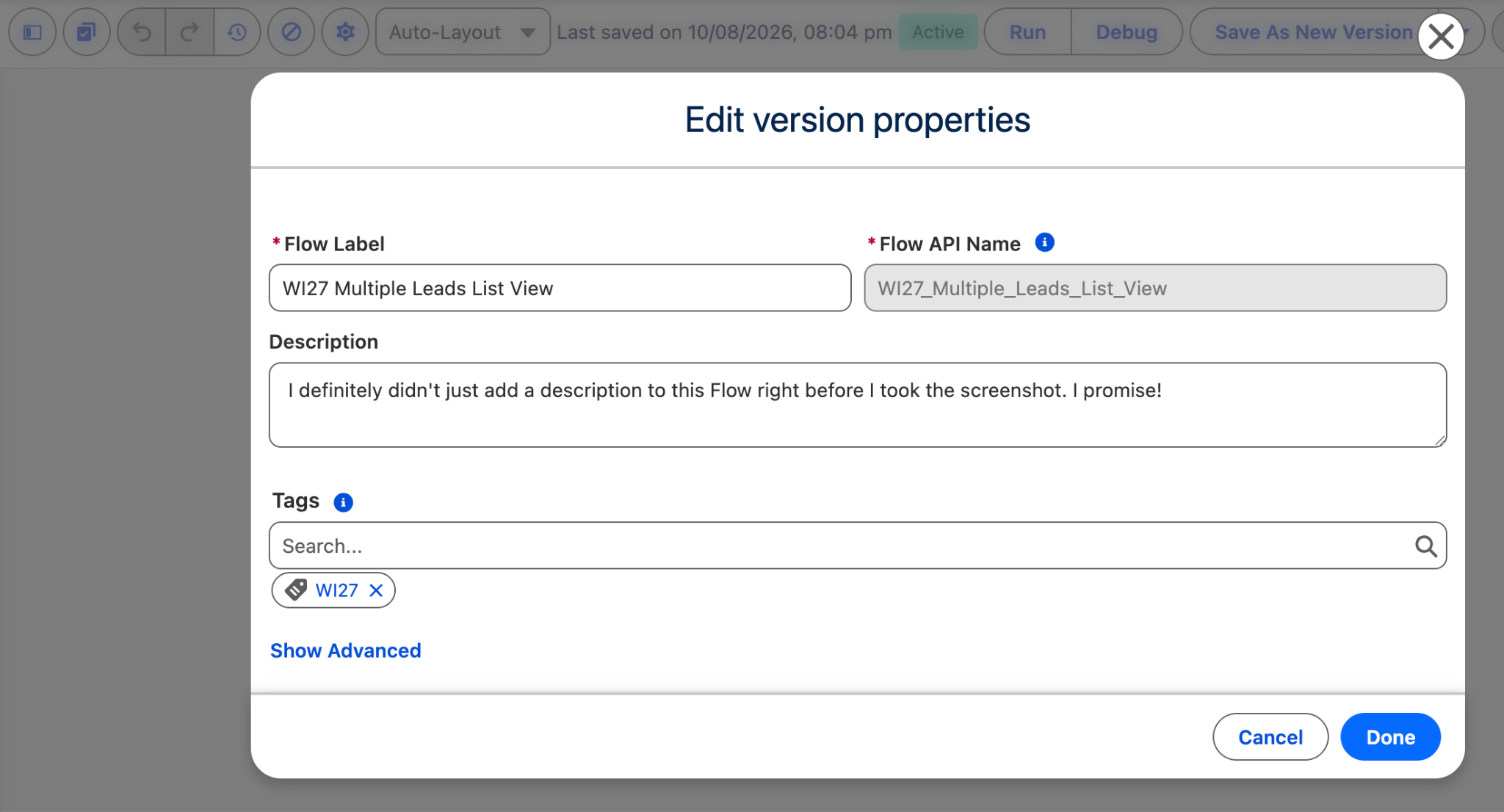
This is the biggest visual overhaul to Flow Builder since Flow Builder! Salesforce Professionals can enjoy the very same look and feel as end users do.
RIP SLDS 1 Flow Builder, 2019 – 2026.
8. New Split Logic Elements in Flow Builder
The Decision Element has given Flow an extra dimension in terms of automation possibilities over other tools, and today we’re seeing a totally new way of splitting logic in different paths. Winter ‘27 introduces Split by Date and Split by Field Value, which do exactly what they say on the tins.
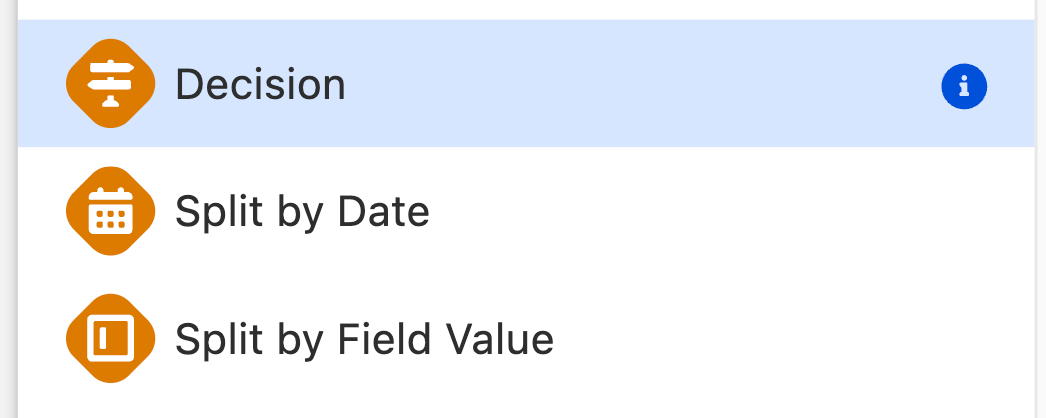
I’m genuinely curious to see how the wider Salesforce community reacts to this update, as it totally changes how branching logic works in Flow Builder. Let me know your thoughts in the comments!
9. Default Colors in Style Tab for Flow Builder
We’re seeing major changes to how you select colors in the Style tab of Flow Builder. This could realistically just be related to the SLDS 2 overhaul, but it’s very cool to see regardless.
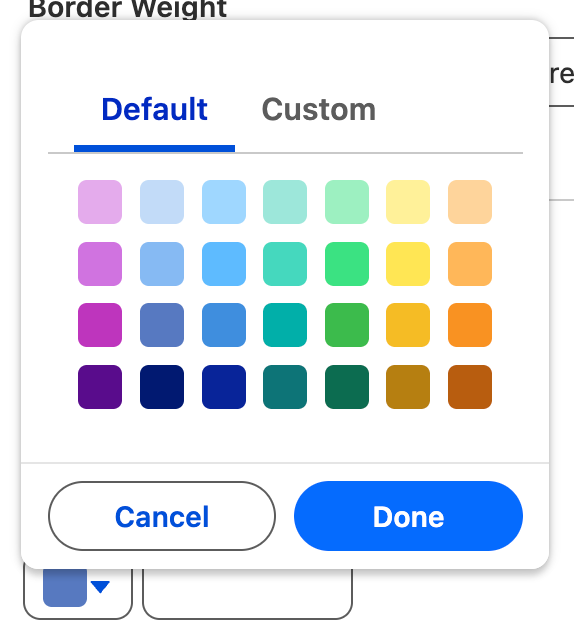
I’m still a bit upset that you can’t use a formula or variable as the value in the color fields, as this would make it significantly easier to use. But hey, who knows what the future holds!
10. Filter for Unused Elements in Flow Builder
Thanks once again to my colleague Andreea for bringing this one to my attention! No one hates technical debt like Salesforce Admins do, and this new filter feature in Flow Builder is a great way of removing it from your flows.
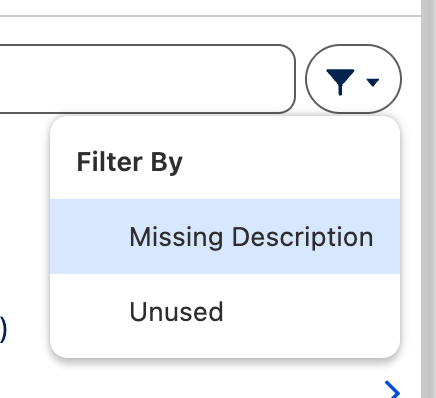
With the click of a button, you can see what elements in your flow aren’t being used, and which don’t have descriptions yet. You can then shame your colleague who built the flow for forgetting to add a description!*
Note: I do not actually condone shaming your colleagues.
Bonus: Preview Style Removed from Screen Flow
Previously, we were given the ability to preview a screen in a specific style. That appears to have been removed in Winter ‘27! This used to be visible in the top right of the screen canvas, but is nowhere to be seen now.
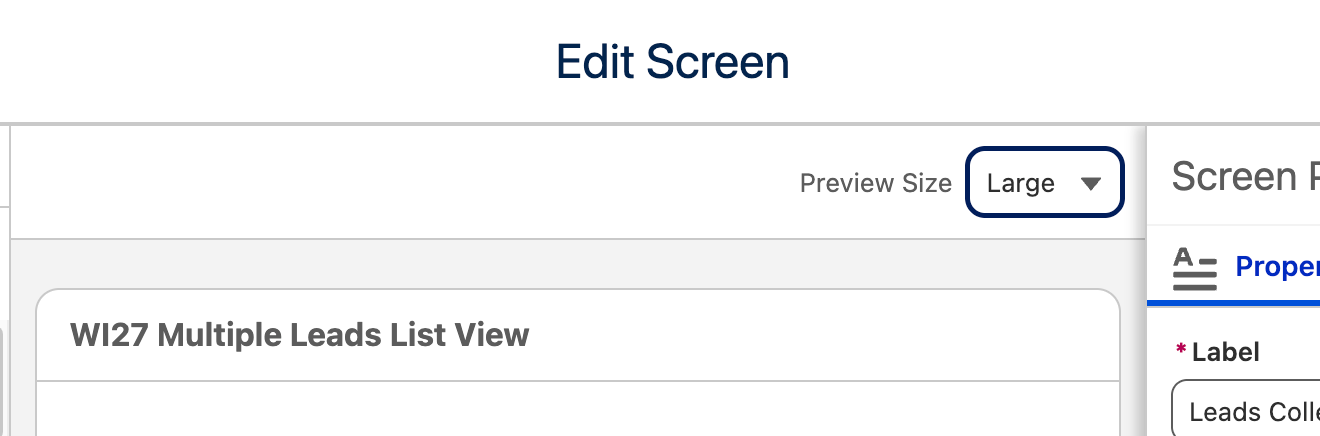
I’m sure this will be making a comeback, and potentially was missed accidentally as part of the SLDS 2 update.
Summary
And there you have it! These are my favorite features (so far!), including a few that I’ve read about but haven’t yet been lucky enough to get my hands on.
We’re still super early in the release cycle, and we anticipate more new features to come, as well as refinement to those we’ve already covered in the above article.
It’ll be exciting to see some of the more hidden features come to light when the Salesforce release notes are available on August 19 – what a bonanza of a release this one is!
And don’t forget to sign up for a pre-release org (link active when available) to see what you can find.