





Highlights
- Salesforce has a new home for debugging and testing in one place: Flow Test Mode. Winter ‘27 introduced a new dedicated testing view for Flow Builder, for Autolaunched and Record-Triggered Flows.
- Builders can create reusable Test Scenarios. Save input variables, run either manually or automatically, and re-run as required.
- Automated testing can include assertions to check whether a flow is doing what it’s supposed to, similar to Apex testing.
- Builders can set mock outputs for actions to simulate responses from external sources without having to set them up and ping them each time testing is required.
- While it doesn’t have total feature parity with Apex, Flow Test Mode is a significant step in the right direction for Salesforce Flow.
While Flow Builder is one of the most powerful and accessible tools at Salesforce Admins’ disposal, it’s not perfect. One of the biggest flaws is its lack of proper testing capabilities – Flow Builder has long needed something like what Apex has.
Thankfully, we saw the first iteration of this sort of suite in the form of Flow Test Mode in Winter ‘27. Flow Test Mode introduces a whole slew of new features designed to make testing flows easier and more effective. Join me as we dive into what is included with Flow Test Mode, and how to put it to use in your Salesforce org.
Introducing Flow Test Mode
If you’ve worked with Salesforce Flow as much as I have, you’d know that it’s a fantastic tool in terms of declarative capabilities, but it lacks the same testing capabilities and requirements that Apex has. This has long been a criticism of Flow Builder, and we’re now seeing Salesforce making some moves in the right direction.
Winter ‘27 comes with the new Flow Test Mode, which enables many new testing features, UIs, and automations that make testing and maintaining flows a lot easier. By clicking the new Test button, you’ll switch over to a new canvas that focuses on testing scenarios. In this new canvas, you can only make limited changes to the flow itself, as it’s designed specifically to split testing interactions from the main flow-building canvas.
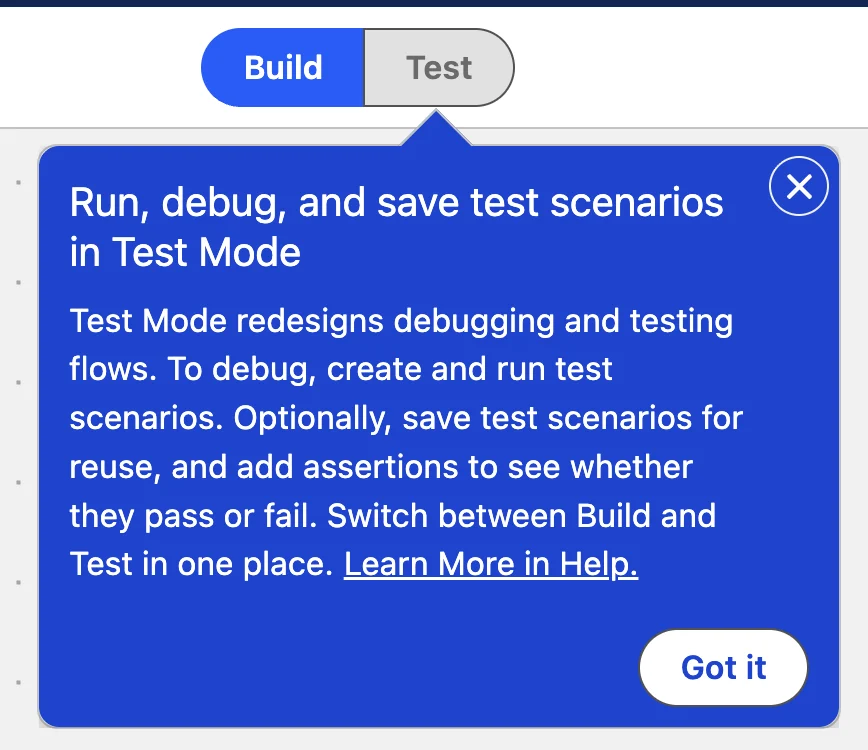
Flow Test Mode supports Autolaunched Flows and Record-Triggered Flows. In addition, as of Winter ‘27, Flow Test Mode (as well as the mock output feature that I’ll talk about later in this article) is currently in beta and covered by Salesforce’s Beta Terms of Use. Remember, as always, make your purchasing decisions based on what is currently available.
Enabling Flow Test Mode
To use Flow Test Mode in Salesforce, you first need to enable it. To do so, head to the Setup menu and open the Process Automation Settings page. On this page, you’ll find the Flow Test Mode (Beta) toggle. Switch it on to enable Flow Test Mode.

As always, it’s best to enable and test new features in a sandbox first. This matters more so this time around because it’s currently in beta.
Feature Overview
Flow Test Mode is a significant upgrade and contains many different features and tools.
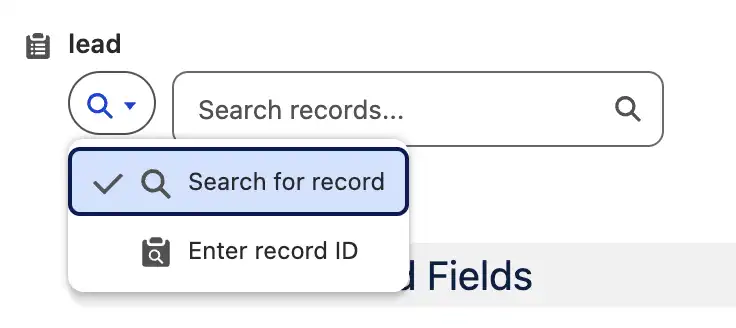
Debugging by Record Name or Record Id
You can specify a record Id to test your flow with. Salesforce’s Release Notes explain that giving flow testers the choice to either search by name or provide the Id of the record may make it easier depending on the object and circumstances.
Debugging with Collection Variables
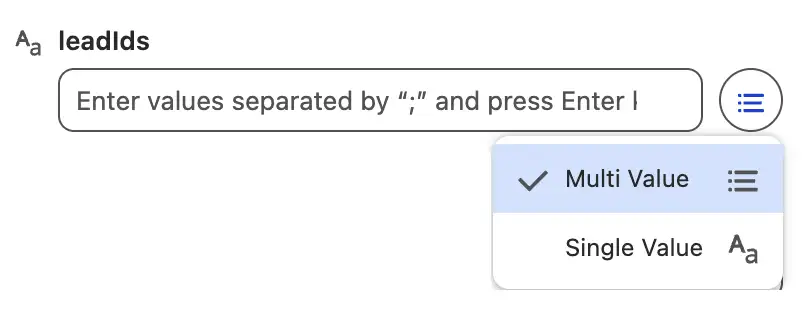
Historically, it was not possible to debug flows with primitive collection variables. Now, you can. Simply separate each of the values with a semicolon, and you can test your flow by simulating what it would do with a collection of values.
Building Repeatable Test Scenarios
Being able to debug your flows is one thing, but this next feature is where Flow Test Mode shows what it can really do. Where you could historically debug your tests by populating values into the input panel as needed, now with Flow Test Mode you can save test scenarios and re-run them as required.
Once you’ve opened Test Mode and populated your input values, you can expand the Details section above it to provide a Label, API Name, and Description for the Test Scenario you’d like to save.
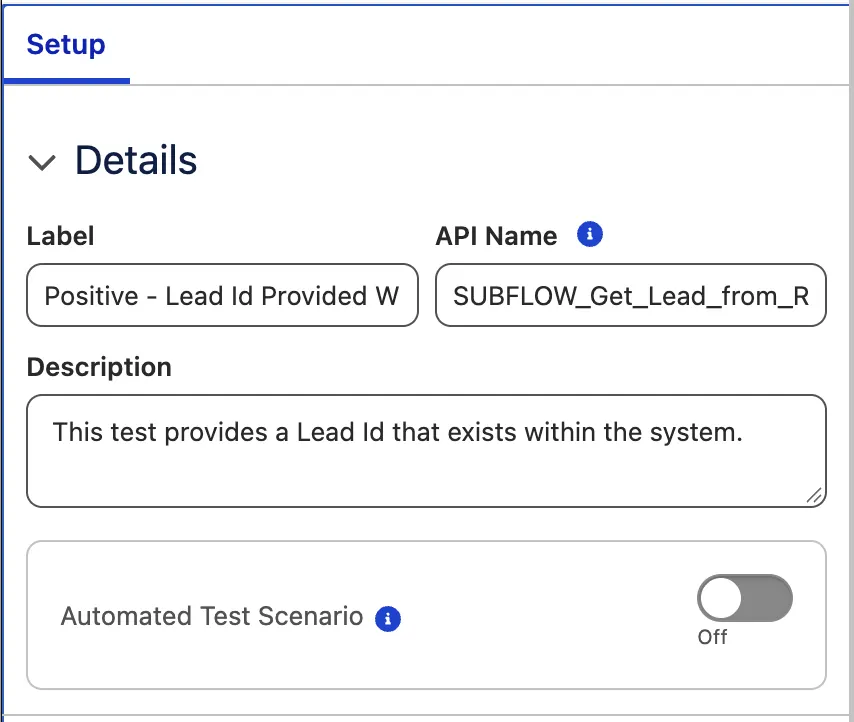
You can also configure some additional run options such as whether you want to run the flow in rollback mode, or as another user. In this case, I’m keeping things simple and leaving the default values (rollback on, everything else off).
Once you’ve configured your test scenario, you can save it by clicking the Save Scenario button at the top-right of the screen (I personally think this button should be relocated to the bottom of the Test Scenario panel, because I keep forgetting it’s separate from the rest of the input).
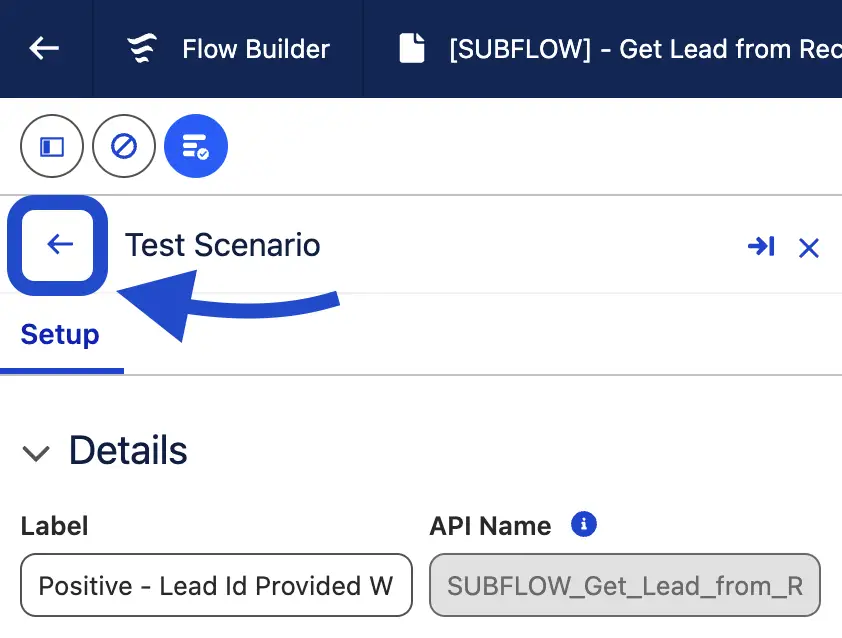
Once you’ve saved, click the back button at the top-left of the Test Scenario panel to show all the test scenarios you’ve saved.
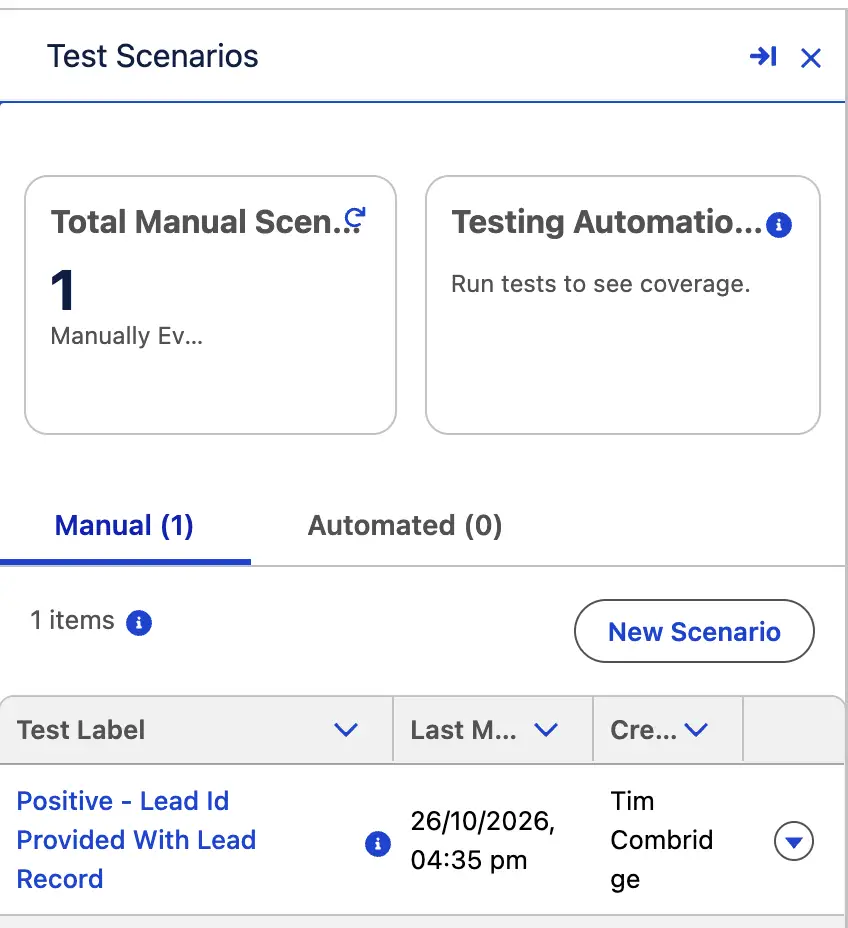
This shows you the Test Scenarios that you’ve got saved against your current flow. Unlike Apex testing, where the Apex test class is separate from the main class, your flow tests can be managed directly from within Flow Builder when looking at your flow.
From here, you’ll see there are two tabs – Manual and Automatic. For now, we’ve left it as a scenario that can be manually triggered, but you can also set up automatic testing of your flow (more on that in the next section).
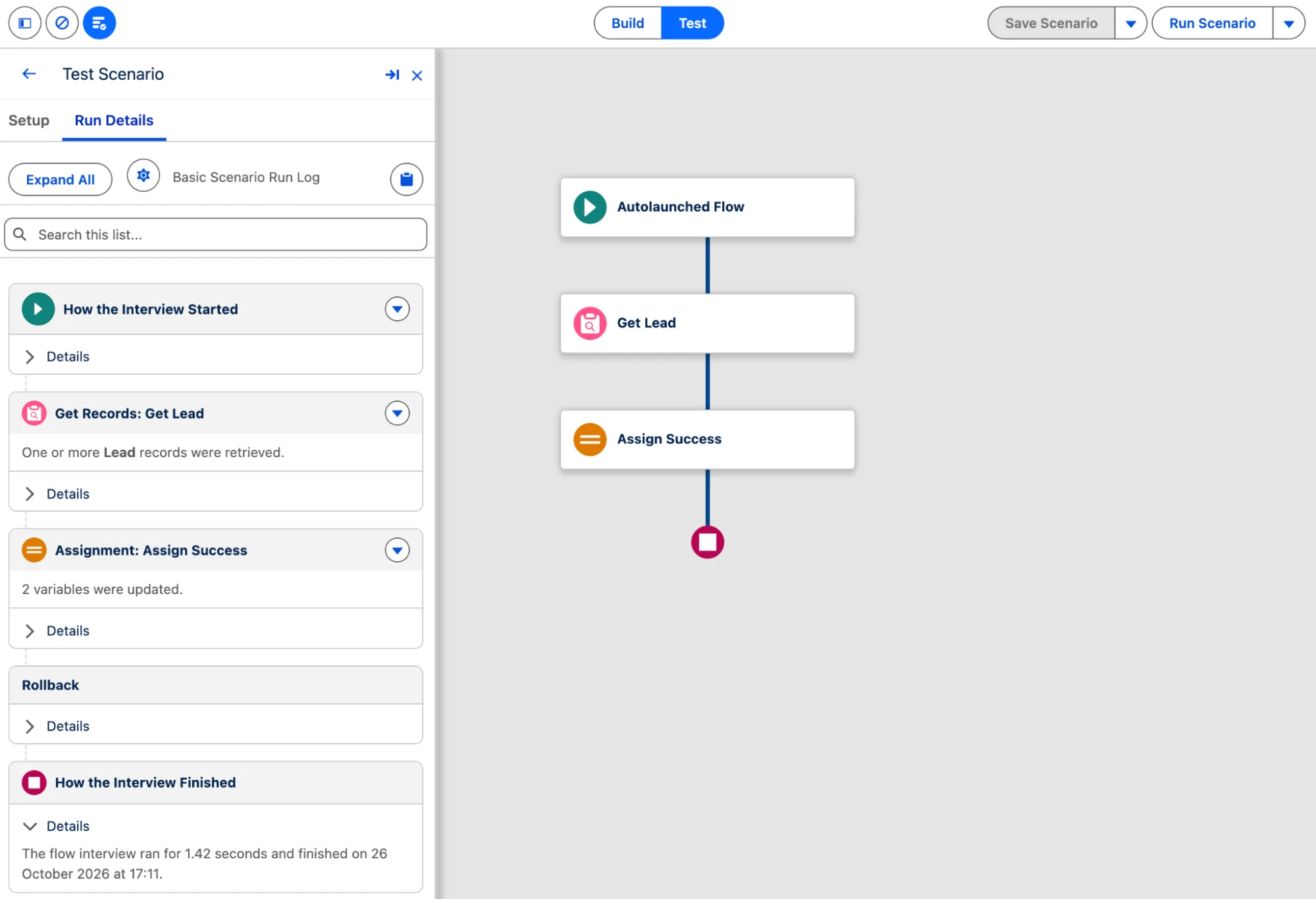
To run a scenario, simply click the name of it to open it, and then click Run Scenario at the top-right to run it manually.
Scenario Testing Automation
It’s one thing to be able to manually run your flow tests, but it’s a whole other ball game to be able to automatically run them. There are additional features that can be leveraged too, such as the ability to set your expected results (assertions).
To demonstrate this feature, I’ll go to the original manual test I created above, and enable the Automated Test Scenario toggle.
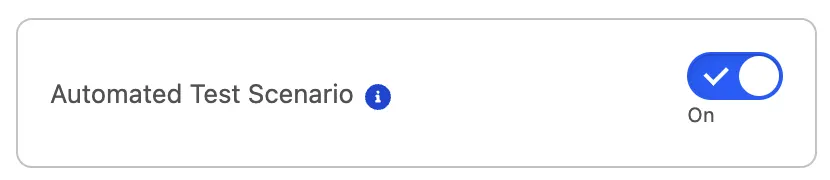
Switching this on enables some additional sections in the Test Scenario panel. Firstly, you’ll see that there’s a Select Data Source section, as well as an Expected Results (Assertions) section and a Select Flow Versions section. Let’s look at them one-by-one.
In the Select Data Source section, you get the ability to choose whether you’re testing with data from your Salesforce org or with isolated test data from a data silo. Salesforce says that tests are designed to work with silos by default, but that data silos do require configuration inside of an Apex class to work. For this example, we’ll use data from our Salesforce org.
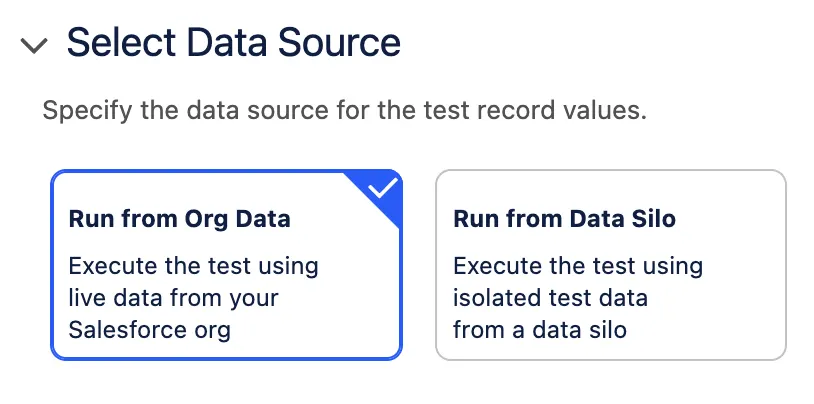
Please note, this will only work if your data from one org to another (i.e. Sandbox to Production) is the same, or your tests are designed to work with dynamic data. This example uses a hardcoded record Id, which is not a best practice. I am doing so only for the sake of simplicity in this example.
The flow gets a Lead record based on an Id. For this test, I provided the Id of a Lead in my developer org that I know correlates to the Bertha Boxer record. Knowing that the flow should get that particular Lead record, I set the following three assertions:
- Assign Success WAS VISITED True
- Lead from Get Lead.FirstName EQUALS Bertha
- Lead from Get Lead.LastName EQUALS Boxer
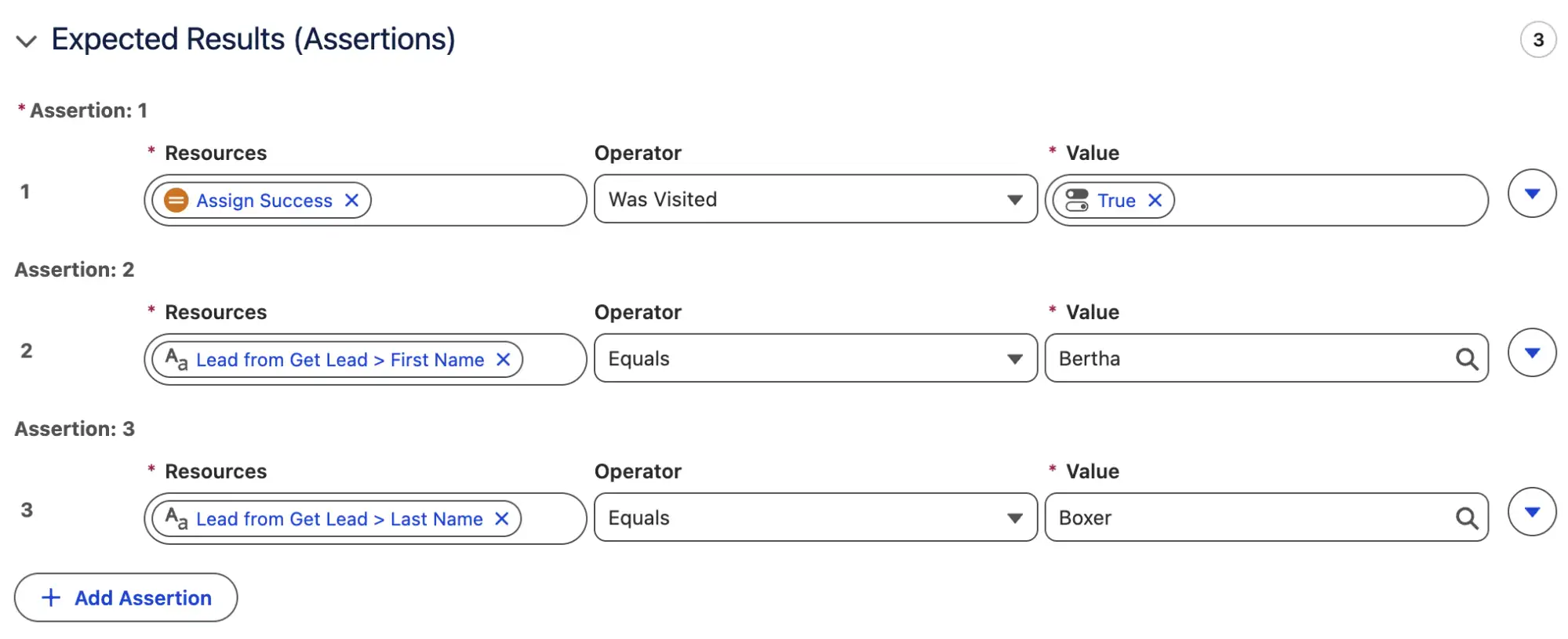
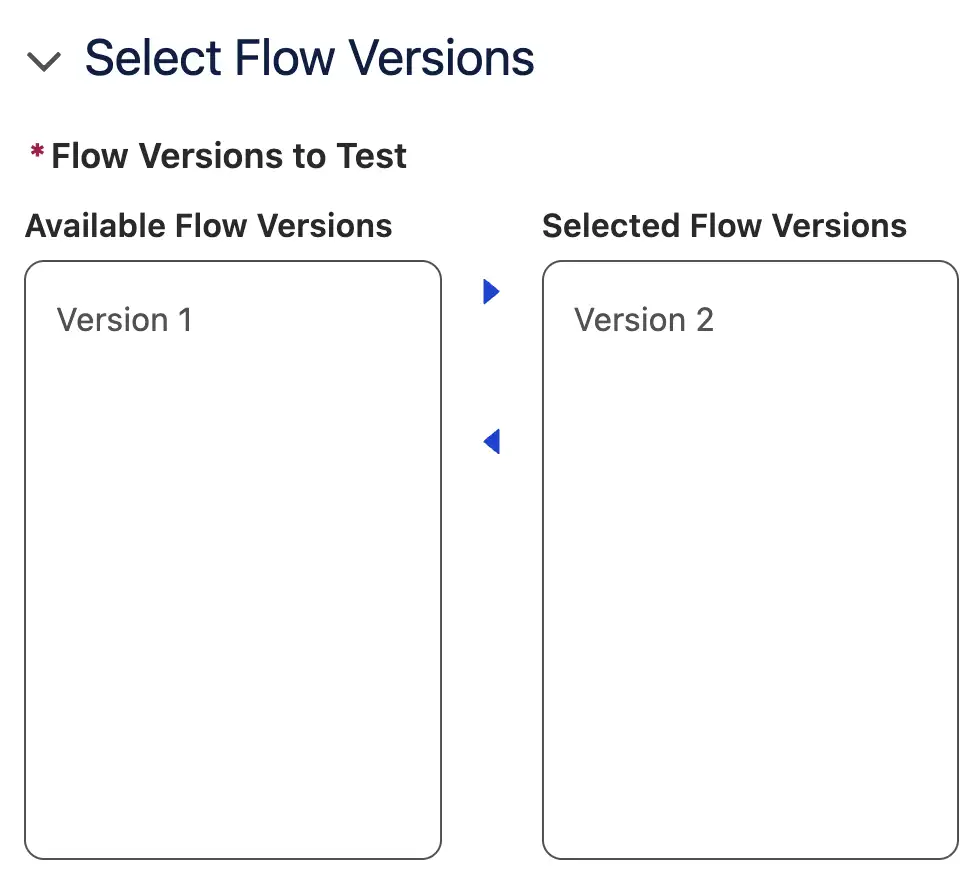
There’s one last section that I want to highlight for automated testing, and that is the Select Flow Versions section. This is where you can choose which versions of your flow should be tested using the selected scenario. I currently have two versions of my flow, and I only want to test the latest version. So, I removed Version 1 and saved my scenario.
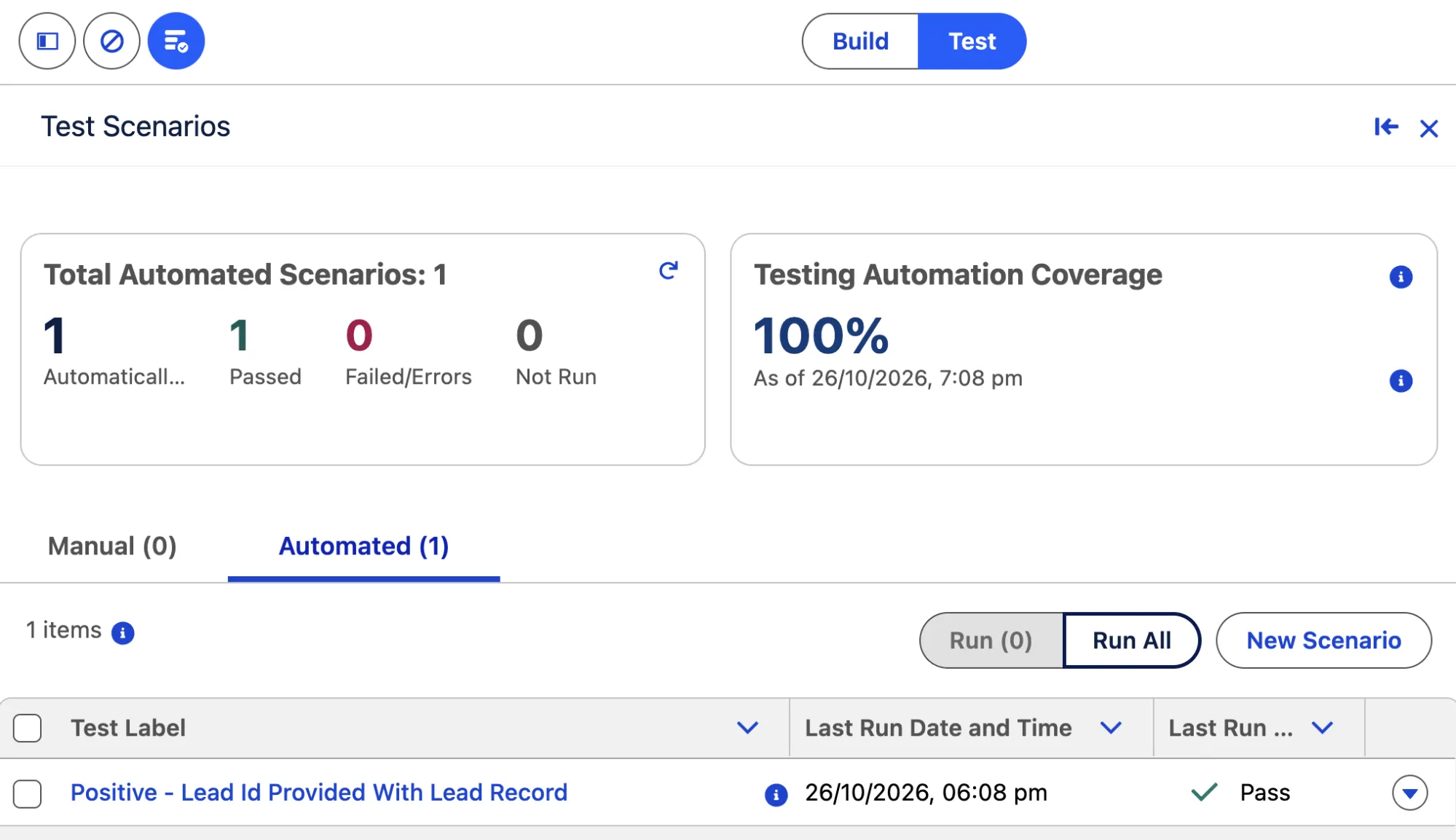
Now, when I want to run all of my automated tests together, I can simply click Run All in the Automated Testing section. I did so, and achieved a 100% coverage rate and 100% success rate.
Mock Outputs for Endpoints
In the past, if you wanted to test the Action elements within your flow, you’d need to ensure that your connections were fully set up and actually ping those endpoints. This made testing unpredictable and testing difficult.
Salesforce has solved this by introducing the ability to mock outputs for your endpoints with pre-configured values. This ensures that your tests are consistent and much faster, as they don’t need to reach out to external endpoints.
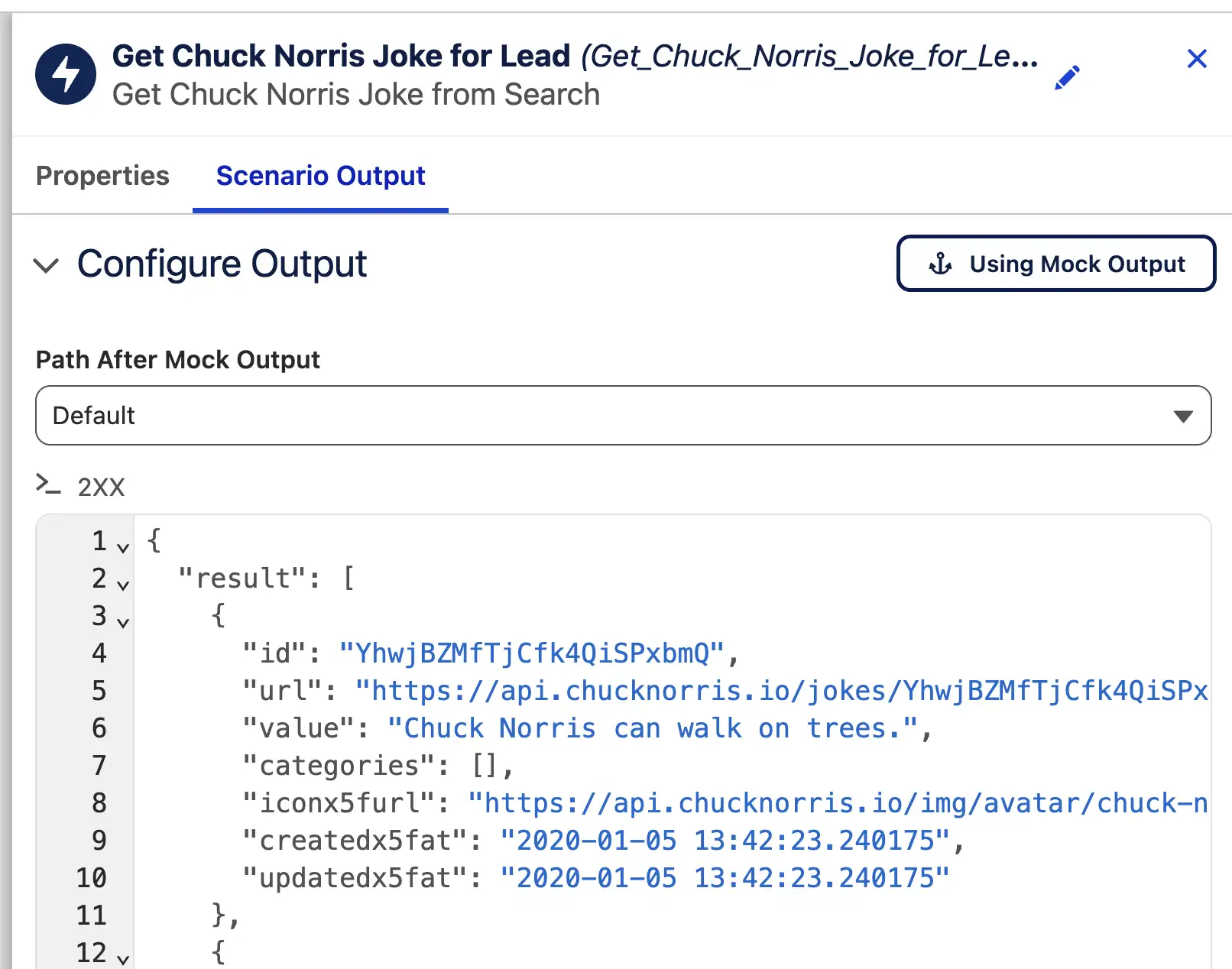
To create a mock output, open a flow in Test Mode and then open a Test Scenario. Then, find an Action element that uses an external callout. Here, you’ll need to open the Scenario Output tab and select the Use Mock Output button to enable the feature.

Once enabled, you’ll be able to specify a fabricated output value that you expect to see from the endpoint, and this can be used to test your flow with a consistent output from the external service.
In the example below, I have provided a mock output for the Chuck Norris API based on a result that I’ve received in the past. This way, I don’t need to actually send a request each and every time I want to test the flow.
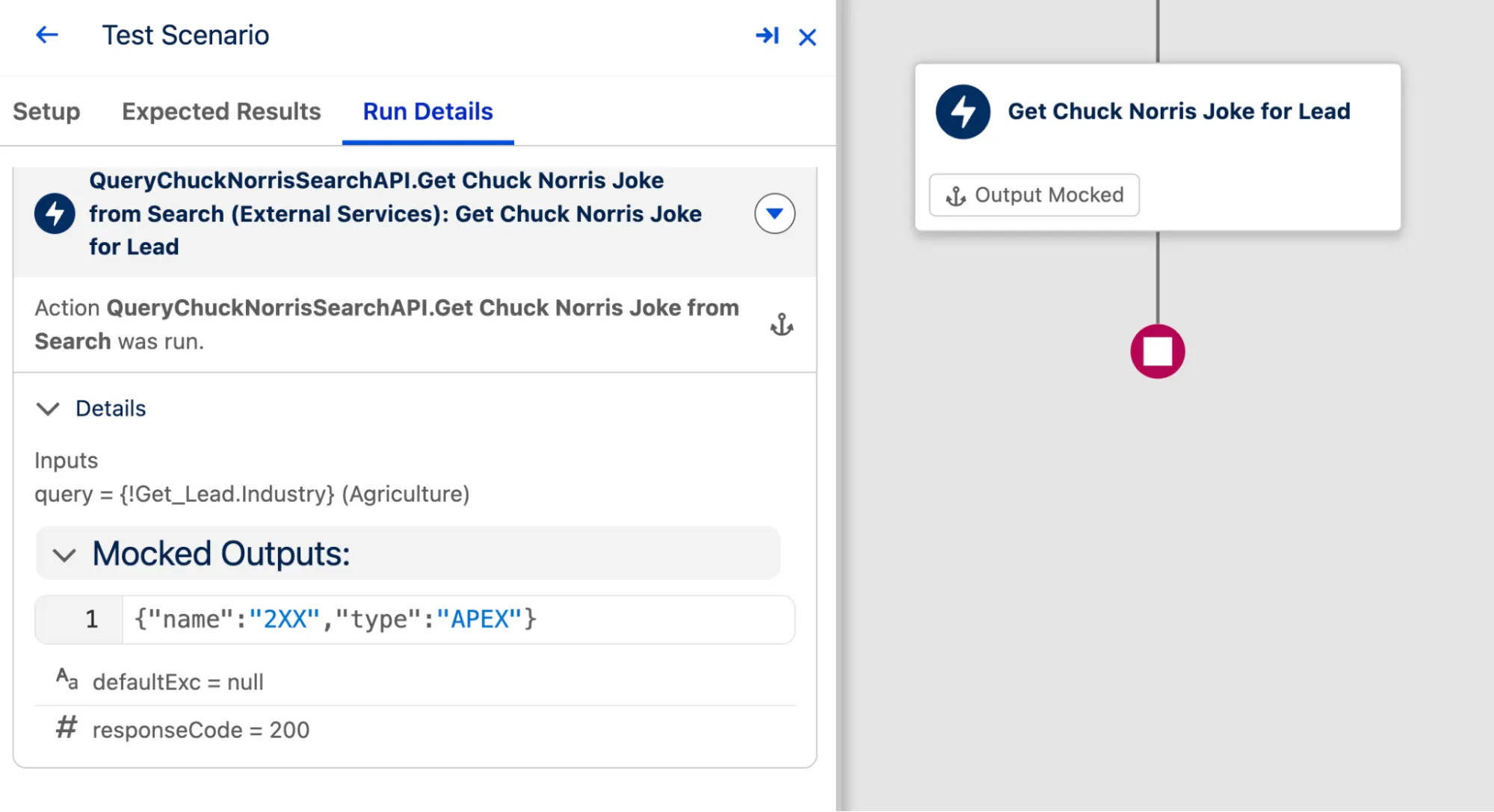
When you run the Test Scenario, you’ll see both on the canvas and in the details section that the output was mocked.
Deploying Flow Tests
The big question that many may be asking is just how Test Scenarios get deployed. Do they form part of the flow’s XML file itself, or are they stored and deployed separately? Can I still deploy a flow that’s got a Test Scenario related to it if I don’t push the Test Scenario itself?
Great questions, hypothetical reader! I have some answers for you.
Firstly, FlowTest is its own metadata type. This means that it sits separately from the flow itself, and must be considered as another component. When you’re packaging up your metadata for a deployment or distribution, you’ll need to include both the flow as well as the tests, individually.
As of right now, you can deploy a flow that you’ve built tests for without deploying the tests themselves. That means that, as of today, Test Scenarios are more of a “nice to have” than an enforceable requirement, like Apex tests are.
I strongly believe that in the future, maybe once we see Flow Test Mode go GA, we’ll see the ability to enforce testing for flows at the production org level.
Benefits Over Legacy Debugging
Traditional debugging absolutely had its place, but Flow Test Mode takes testing and debugging to a whole new level. There were some flaws or missing features that debugging had that Flow Test Mode solves.
Stop Reconfiguring Inputs When Debugging
While we certainly did see the ability for values to be preserved between test runs in some of its final updates, it was nothing in the face of what Test Scenarios offer.
This is great for automated testing, absolutely. But think of some other ways that it could be beneficial to Flow builders. If you’re facing an issue in a particular flow, you can set up a test that triggers the issue. Then, you can rerun that same scenario over and over again until you’ve found and applied a fix. This is much quicker than having to rebuild your debug variables each time!
Regression-Proof Flows
There’s nothing quite so annoying as when you make a small change to the way a process works, and it breaks all of your perfectly working flows. Your flows were designed properly, met the requirements of the business, and followed architectural best practices.
That’s where automated testing can be used as a method of regression testing. Simply add your assertions to your Test Scenarios, and re-run all your automated tests each time you make a change to your org. Then you can keep an eye on the coverage and results of those tests to ensure your flows will continue to perform as expected, despite the changes you’ve made.
Testing Integrations Without Setting Them Up
Testing integrations can be dicey, especially when you want to test both a success and failure scenario at once. By setting up your mock responses within a Test Scenario, you can force the flow down either the success or fault path at will, and automatically.
All of this, by the way, without needing to actually ping the external service. This helps to reduce your callouts, speed up your testing, and allows for more reliable testing of flows that contain external actions.
Flow Test Mode Compared to Apex Testing
As great as Flow Test Mode is, I believe there’s still a long way to go compared to Apex Testing. I do not doubt that we’ll see improvements over the next few years, but for the time being, I’m still quite envious of the testing capabilities of Apex.
When it comes to Apex, testing is an absolute requirement. It’s not a fancy add-on. This ensures that your org only introduces clean code that passes stringent testing requirements. There is a minimum of 75% code coverage across all your code required before you can deploy your code into production.
It is strongly encouraged to write unit tests that will cover 100% of your code for the best results, but a 75% minimum requirement cannot be bypassed. With Flow Test Mode, there is still no absolute requirement to test your flows before you deploy them into production. In fact, you can build flows directly in production, bypassing sandboxes and proper testing entirely.
Flow Test Mode does include the ability to mock your test data for callouts to ensure the callout is not actually made. This is similar to how it works within Apex as well, but it is done through a point-and-click interface rather than a Test.setMock and HttpCalloutMock implementation.
Finally, not so much a comparison as it is more just something important to note. You can use the Test Discovery API to run Apex and automated flow tests at the same time. So, while there may not be total feature parity between the two, they are beginning to converge. I would argue this is a good sign for the long-term future of Salesforce Flow.
Final Thoughts
Flow Test Mode is one of the most promising new features that I’ve seen come to Salesforce Flow in a very, very long time. The reason for this is that one of Salesforce Flow’s biggest weaknesses has been its ability to enforce proper testing.
With the ability to build out repeatable Test Scenarios, both manual and those that can be run automatically, Salesforce Flow is graduating from a handy automation tool to a state-of-the-art business system necessity.
Please remember that Flow Test Mode is still in beta as of writing, so make your decisions accordingly.
With that said, are you excited to start using this new suite to build safer flows? Will this replace any other systems you’d built to keep your flows in check in the past? What are you most excited for in terms of future new features coming to Flow Test Mode? Let us know in the comments!