

If you’re comfortable with Salesforce’s standard sharing model 9Org-Wide Defaults (OWD), Role Hierarchy, Sharing Rules, etc.), then it’s likely you have a good mental map of how record access works for internal users. However, as soon as you step into Experience Cloud, things start to look a little different. External users, like customers and partners, live in a completely different world, and the way you share records with them has its own rules.
In this article, we’ll break it all down and explore the Experience Cloud sharing model in detail while comparing it to the more familiar standard Salesforce sharing.
Internal vs. External Users
We’re all used to dealing with internal users in Salesforce, such as employees of the business with standard Salesforce licenses. For internal users, access to data and records is controlled through the well-known profiles, permission sets, Org-Wide Defaults (OWDs), role hierarchy, and sharing rules; basically, the typical sharing model that most admins know and love.
Experience Cloud, on the other hand, is a completely different story. It’s built specifically for external users, or people who aren’t employees of the company but still need to interact with your Salesforce data through a branded portal or site. This is why Experience Cloud’s sharing model and license types behave differently from the standard internal-user model.
The primary types of external users you’ll encounter in Experience Cloud include:
- Customer Community Users: External customers accessing support, cases, knowledge, etc.
- Customer Community Plus Users: External users who also need role-based sharing, reports, dashboards, or more advanced access than the basic community user offers.
- Partner Community Users: External partners or resellers who need access to sales-related objects such as leads, opportunities, and campaigns.
- External App users: External identities used to enable access to specific experience apps built on Salesforce.
As these users don’t need the same access that internal employees typically do, they usually only require a subset of your org’s data, like for example: their own cases, orders, or opportunities – and nothing more. The key is to grant access thoughtfully, following the Principle of Least Privilege, so your org stays secure, and each user sees only what they actually need to do their job.
It is with this shift that you can change how you think about external sharing. It’s not just about opening your org for employees, but you’re also carefully exposing the right data to people outside your company. You’re essentially giving outsiders a controlled window into your Salesforce org, and that window needs to be very carefully sized.
To make this concrete, here are a couple of quick examples of what that might look like:
- A customer logging into your support portal should NOT see another customer’s cases.
- A partner shouldn’t see ALL opportunities in your pipeline, only the ones assigned to them.
External User Licenses
Before we dive into sharing with external users, we must first understand the differences between each type. When building for external users in Experience Cloud, you can’t always just assume “all community licenses behave the same”, because depending on the license, the sharing mechanisms available can also be quite different.
Understanding those differences first is key to designing a portal sharing model that behaves the way you intend.
Major Experience Cloud License Types
The major experience cloud license types are:
- Customer Community: The “standard” community license for external users.
- Customer Community Plus: Enhanced from the Customer Community license and introduces additional sharing and access to reports/dashboards.
- Partner Community: License aimed at external partners or B2B-style users, which is why it also offers the broadest sharing and CRM object access among community licenses.
To put all that into perspective, here’s a handy table showing how each license stacks up:

Always check license capabilities before designing your sharing model. This is one of the most common reasons admins run into unexpected access issues.
Sharing Sets
Yes, Sharing Sets, not Sharing Rules. If you haven’t heard of these before, it’s because they are not part of the standard sharing model in Salesforce. Sharing Sets are unique to Experience Cloud, and I like to think of them as a “bridge” between users and the records they’re related to, because this allows you to extend and tailor community user access based on their related Account or Contact Ids.
Basically, instead of writing a sharing rule for every scenario, access can be automatically granted based on relationships, like for example, records where a field on the record matches the logged-in user’s Account, or Contact can be shared.
So if you want customers to only see their Cases, Orders or records tied to their Account, Sharing Sets can do it for you.
- Cases
- Orders
- Records tied to their Account
Sharing Sets can do it for you.
How Do Sharing Sets Work?
It’s kind of like dynamic filtering tied to who the user is. You pick an object (Case, for example) and choose a lookup field on that object (like ContactId on that Case). Then, you tell Salesforce:
“If the Case’s Contact = Logged-in User’s Contact, give them access.”
The user then sees only the records related to their identity. This is the reason why Sharing Sets are the main foundation for sharing with Customer Community users, as they shine when you’re building portals for high-volume user licenses.
Creating Sharing Sets
- Go to Setup → Digital Experiences → Settings.
- Scroll down to the Sharing Sets related list and click New.
- Give it a Name and Label, then select the Profiles you want to apply it to.
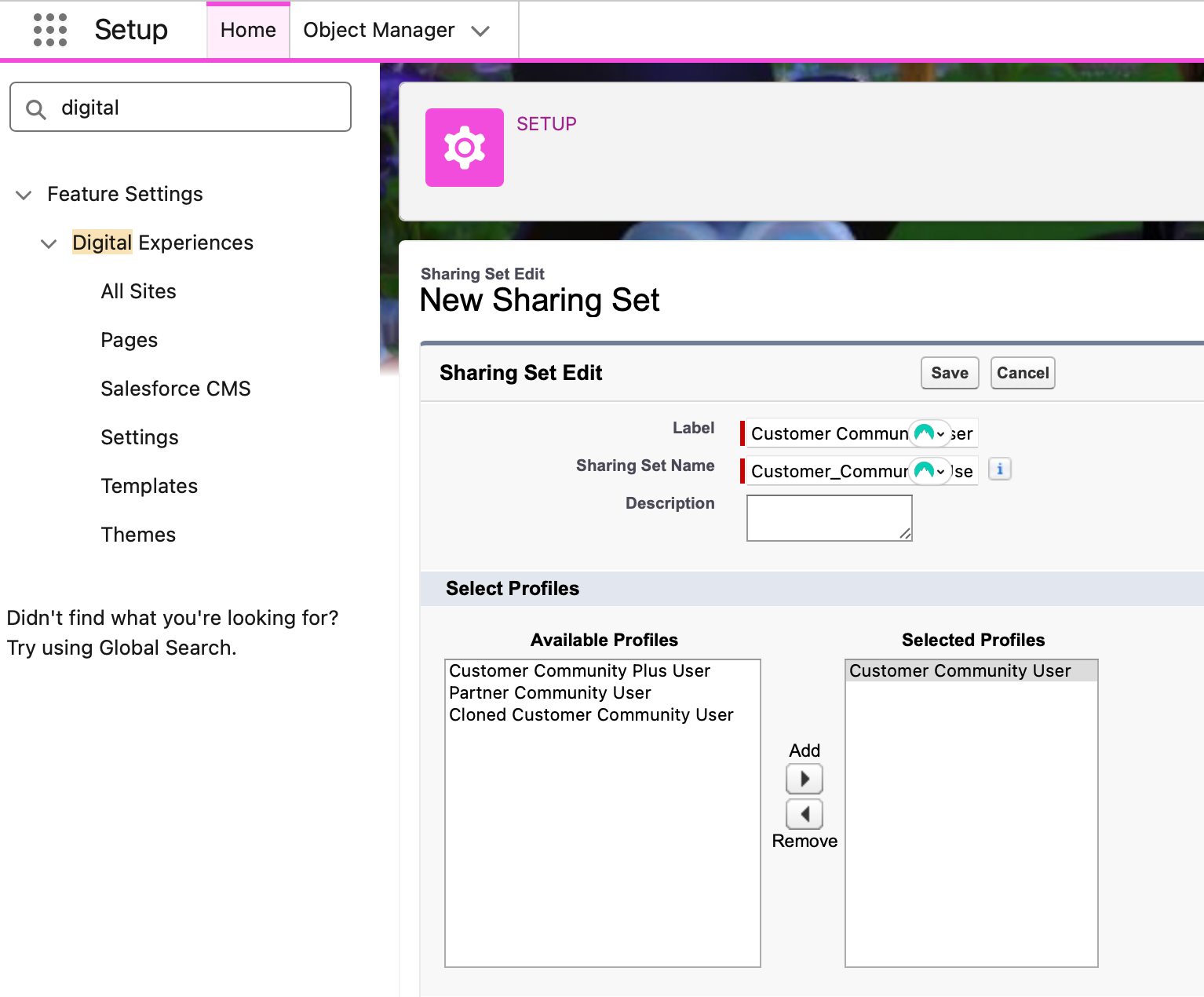
- Under Select Objects, choose the Object/s you want to share.
- The selected objects will appear under Configure Access. Click Set Up beside the object you want to configure.

- For “Grant Access Where”, select the field that you want to match to the Object, serving as the user’s identifier. Usual options are Account and Contact.
- For the Target, select the Object field to match the field you selected in Step 6. Your Access Level can either be Read or Read/Write.
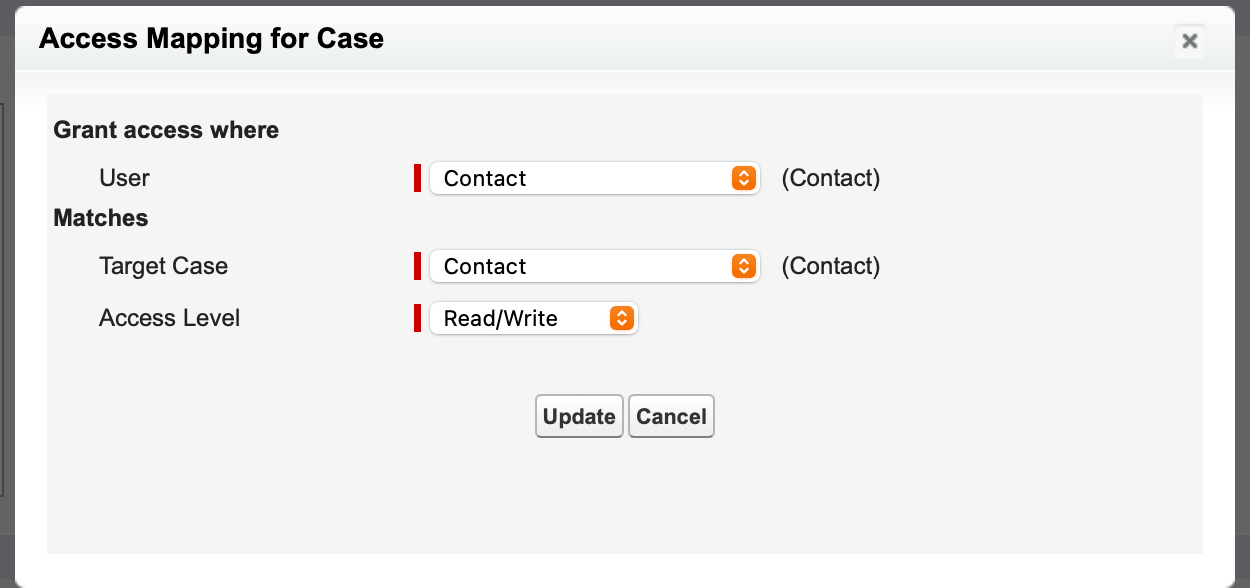
- Click Update and Save!
Sharing Sets are best for simple, relationship-based access. If you are looking to take into account more granular conditions like “only Cases with Status = Open”, this is not the way to go.
External Roles
With Sharing Sets as the “starter pack” for Experience Cloud sharing, External Roles make up the advanced layer that gives your external users more hierarchical visibility. The good news is it’s similar to how internal users get access via the org’s role hierarchy. However, do not misinterpret that they’re the same, because External Roles exist separately from your internal roles.
Going back to our licensing table above, you’ll find that external roles only apply to two out of the major licenses mentioned.
- Partner Community users: Can have up to 3 roles (Partner Executive, Partner Manager, Partner User).
- Customer Community Plus users: Can have one role.
- Customer Community licenses: No roles allowed.
Partner Community External Roles
When you enable the first external user on a partner account, Salesforce automatically generates a role hierarchy for that partner in this pattern: Partner User → Partner Manager → Partner Executive.
These three roles are created under the partner account owner and roll up to the internal role of the account owner. This hierarchy then lets you share records by role and use role‑based sharing rules.
Customer Community Plus External Roles
You can create customer roles for Customer Community Plus and control the number of roles via Experience Cloud settings.
The default limit is up to three roles for customer accounts (just like partner). However, most orgs choose to use a single role per account for performance and simplicity.
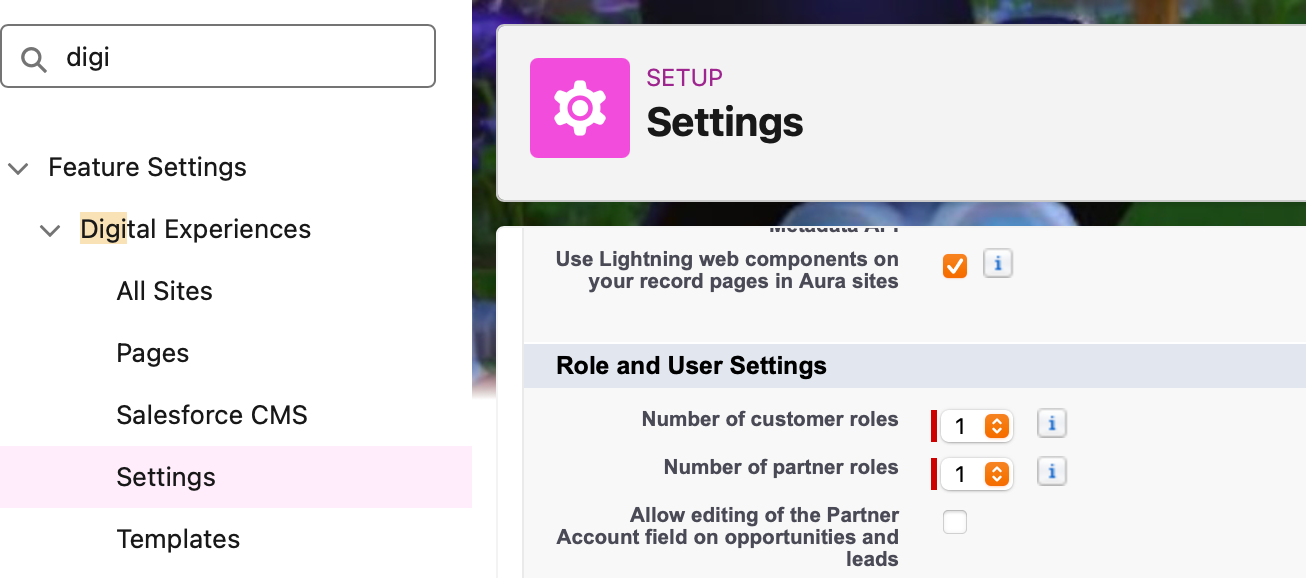
If, for example, in the image above, we set 1 as the number of partner roles, then enabling the first external user on a partner account would only generate the first role, which is Partner User.
Sharing Via External Roles
This works similarly to internal sharing. When setting up sharing rules, having external roles means you now have the option to select them under Portal Roles. This also opens up criteria-based sharing, a functionality that cannot be accomplished by simply setting up Sharing Sets.
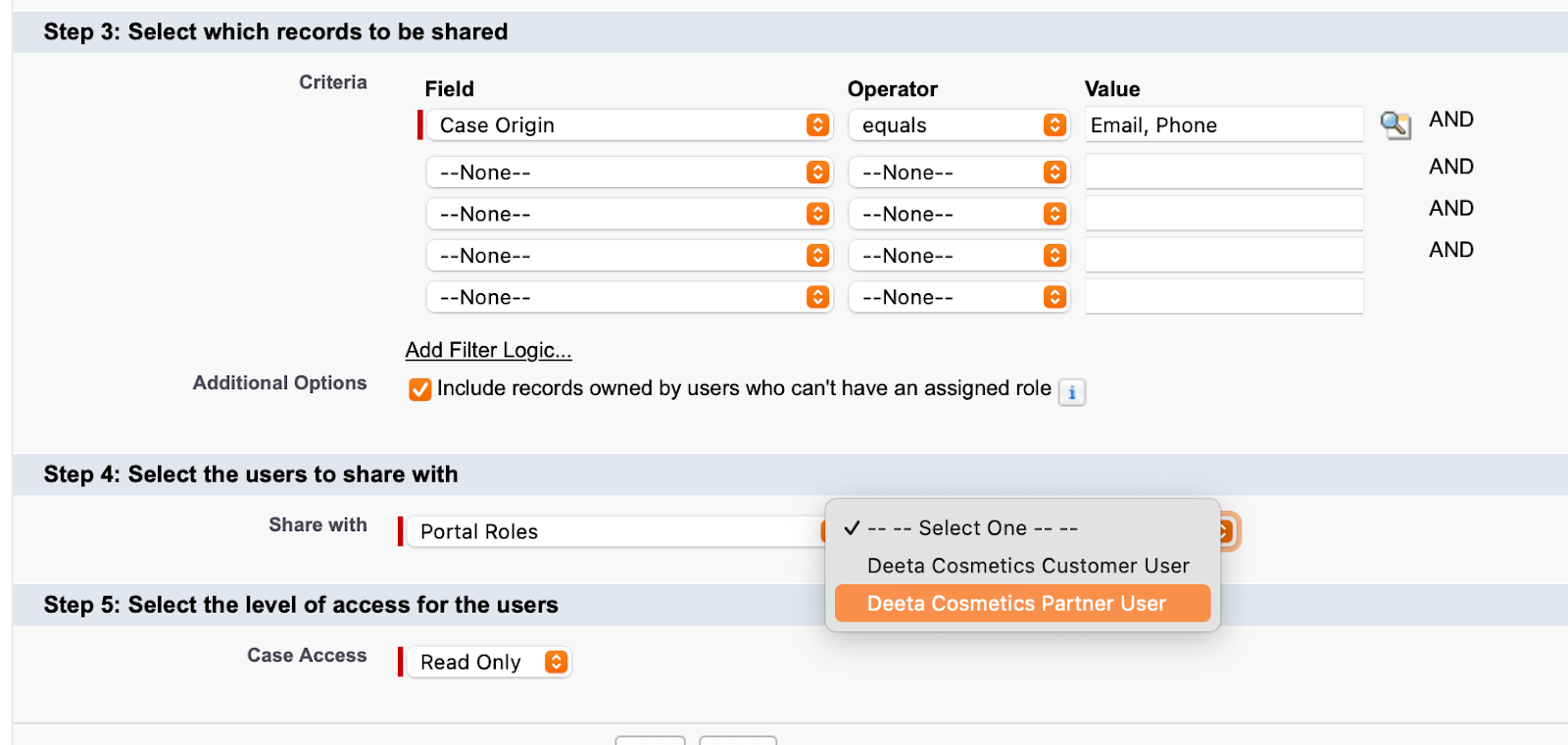
If you don’t assign an external role, sharing sets become your main control mechanism, which is fine for most customer portals, but for partners collaborating on multiple accounts or deals, external roles can be essential.
Manual Sharing
As with your internal sharing model, sometimes there really are scenarios where built-in rules just don’t cut it. Manual Sharing is usually the first solution that comes to mind, and the same holds for external sharing. Think of it as a “special access pass”, or a way to grant individual users access to a specific record that they normally wouldn’t see.
For example, you might want to manually share a specific confidential opportunity with a partner manager for review, but general access should be handled via sets or rules.
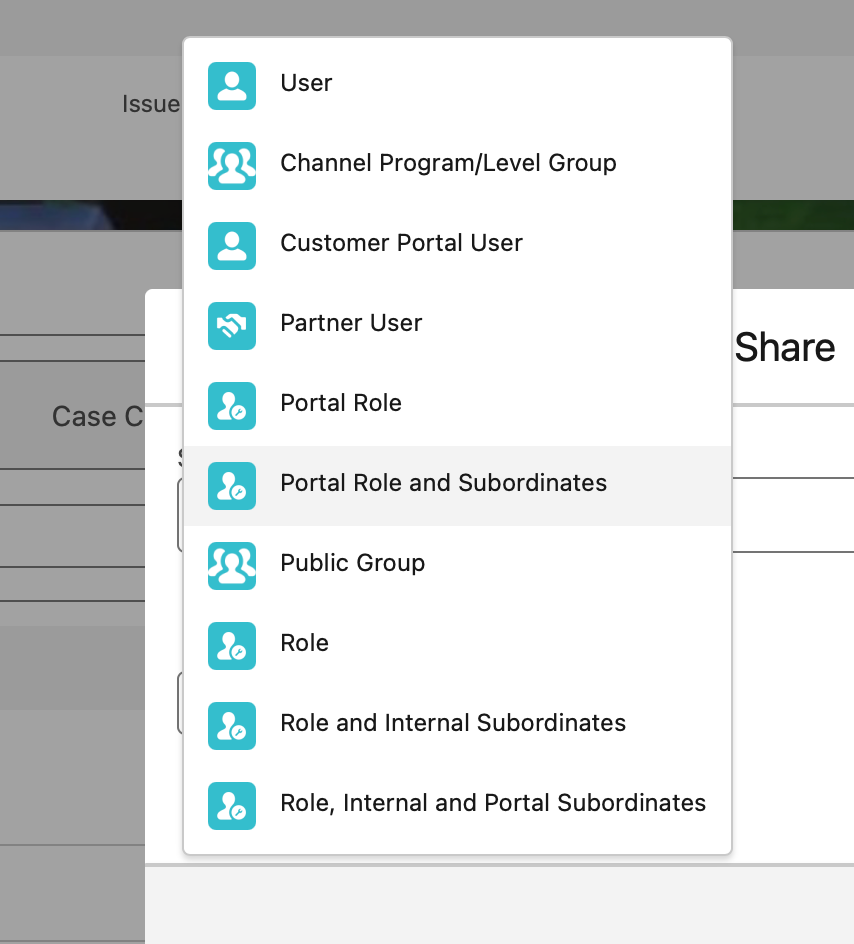
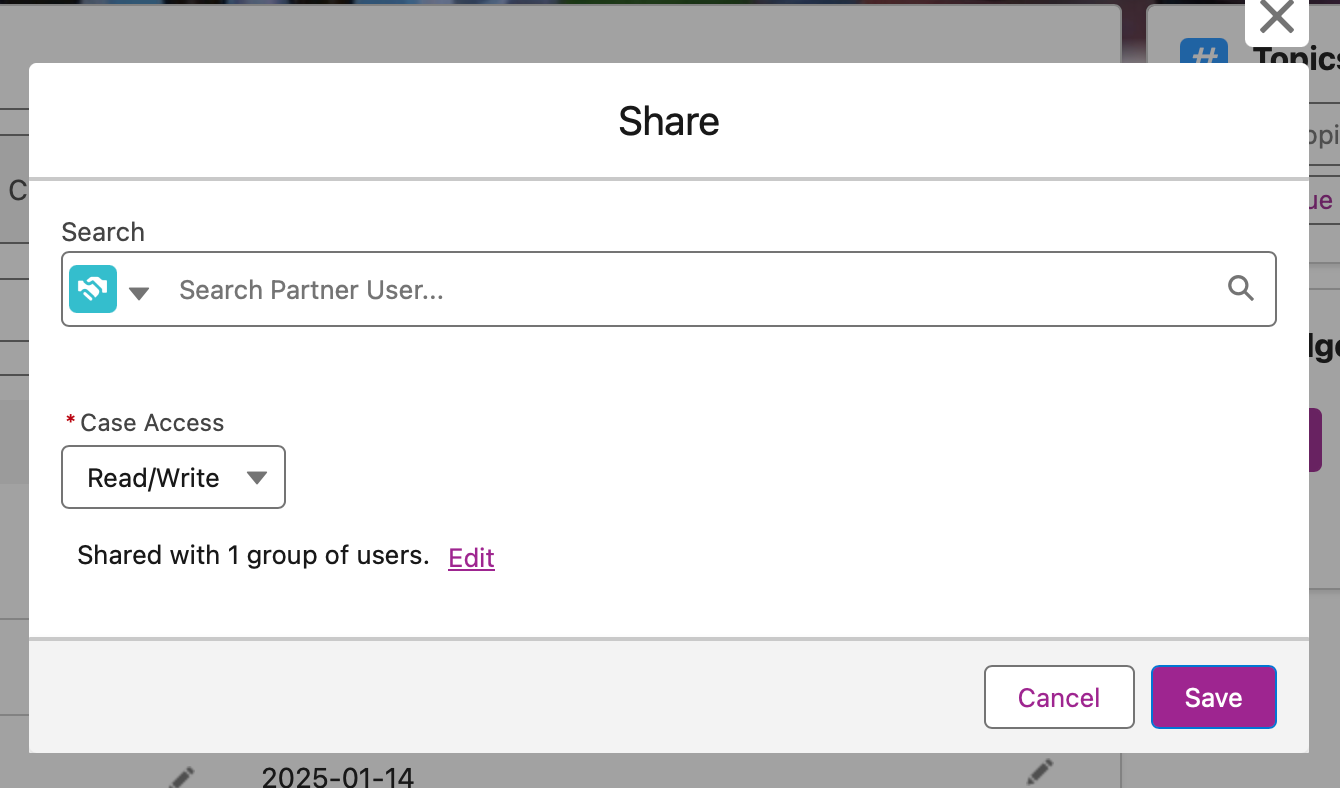
To share a record manually, access the record and select Sharing. It’s the same as doing it for internal users, but this time, click the dropdown to filter according to the type of user:
And as usual, you have the option to grant Read or Read/Write permissions.
When Internal and External Users Collide
Sometimes, you’ll need internal and external users to collaborate: think of cases or opportunities. In these scenarios, always remember:
- Internal sharing rules still apply to your employees.
- External access is scoped separately, through sharing sets, external roles, and license limitations.
It is key to map out internal vs external visibility before you even launch a portal, as this prevents unintentional data exposure and ensures you know exactly just what your external users need access to.
It would be good to document your entire sharing model, which seems like extra work at present, but will be a tremendous help when onboarding new admins or troubleshooting access issues later.
Final Thoughts
Experience Cloud sharing seemed daunting to me at first, as my mind was so used to the internal sharing model. I used to think of it as just “Salesforce with external logins”. However, when I finally understood what it looked like as a separate layer of sharing designed to give external users exactly the right access (no more, no less!), it became easier to grasp how sharing sets, external roles, and licensing limitations play into the big picture with internal users.
Armed with this knowledge, it’s definitely easier to confidently design portals that are secure, user-friendly, and easy to maintain. With a crystal-clear understanding of the model, every decision becomes much more intentional.