

Salesforce is well-known as a versatile tool, with plenty of no-code, low-code, and fully programmatic options to achieve your teams’ ideal process flows and experience. Making use of these customization capabilities ultimately translates into numerous metadata changes, which will have to reach other environments along the way for further testing, as well as the production org in the end. How do you know or keep track of exactly what is being changed?
In this post, we’ll explore DX Inspector and how it can help you keep track of metadata changes when building in Salesforce.
Why Care About Metadata Changes?
Be it for simple or more complex projects, knowing what is being changed during development in your sandbox or scratch org can prevent issues down the line, but also ensure seamless collaboration and accountability within the team.
For example, if something is no longer working as intended, quickly reviewing metadata changes can uncover the issue and help with troubleshooting. Additionally, knowing that a change was made even though it shouldn’t have been can prompt you to deep dive and roll back to a previous version from your version control system if needed.
In the end, keeping track of changes ahead of any commit can help you save time and optimize the process right from the get-go!
Salesforce DX Inspector
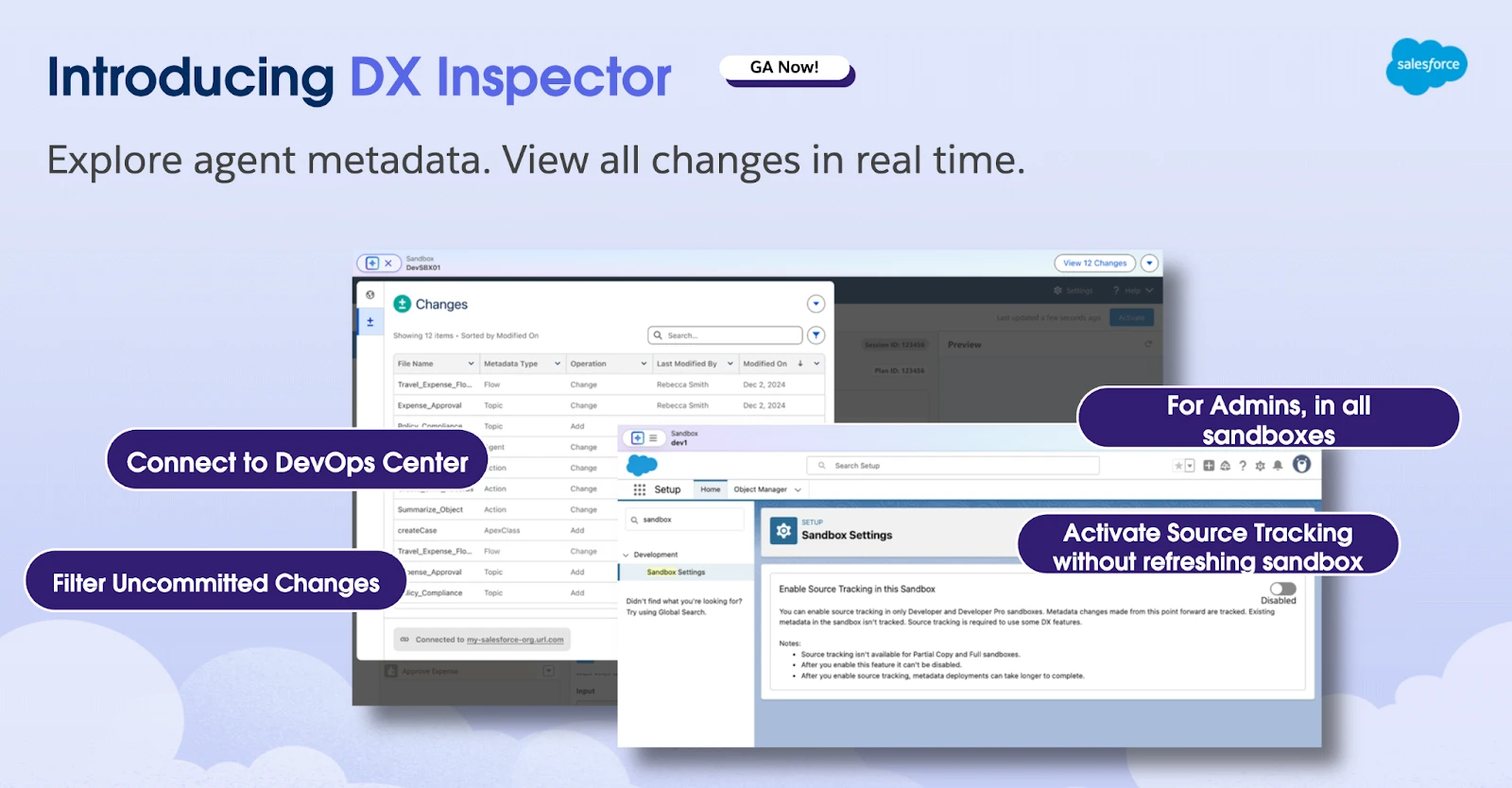
Starting with the Spring ‘25 release, Salesforce made DX Inspector available as a replacement for the well-known gray sandbox bar at the top of the page. This new design is not only a more polished experience, but also seems to be on track to include more functionality in the future, right at your fingertips. DX Inspector is now generally available and can easily become the go-to place for anyone on your team making metadata changes at the build phase of your application lifecycle management process.
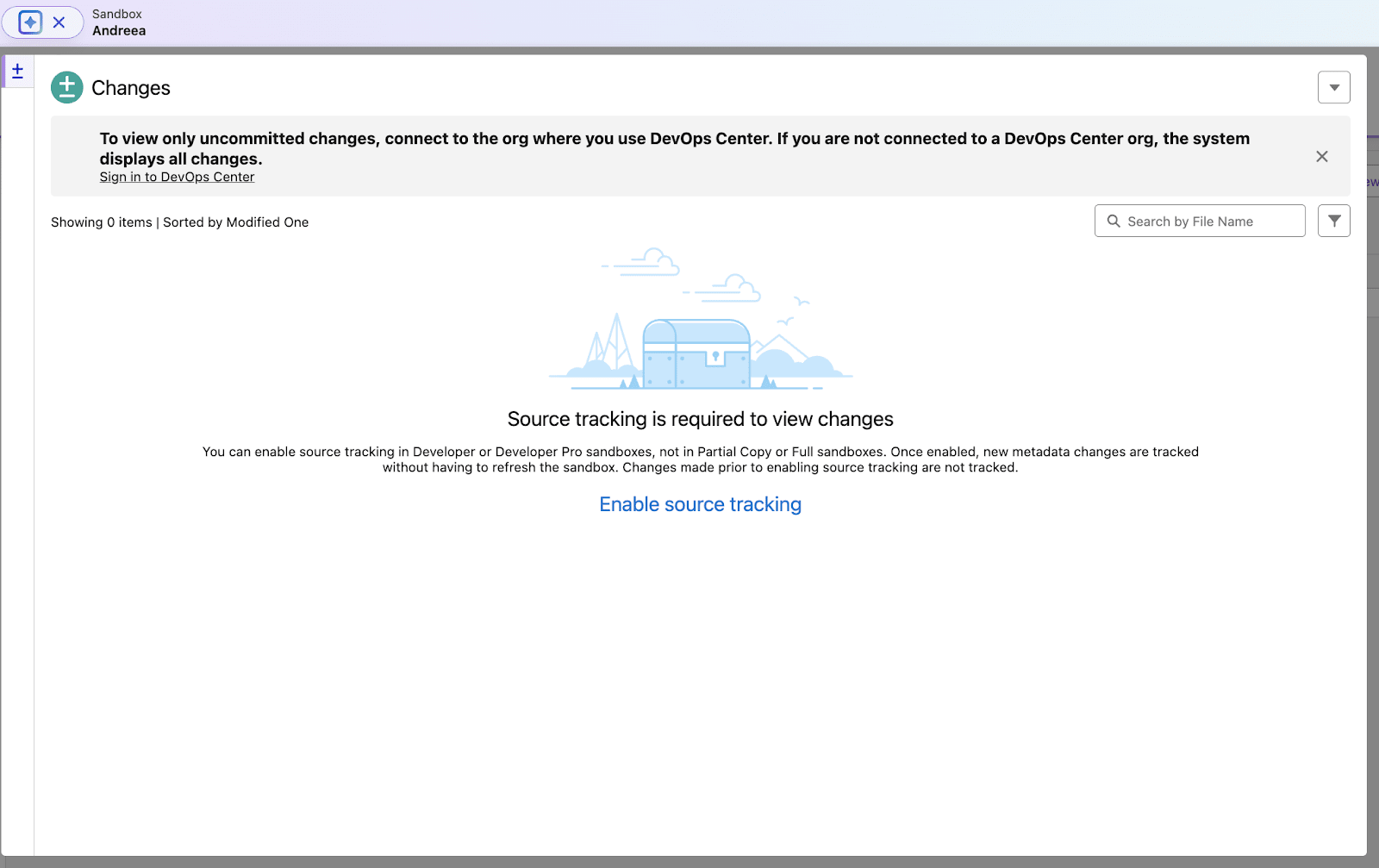
Clicking on the left-hand side bubble available in both sandboxes and scratch-orgs right next to the org’s name will expose a Changes tab (±) which will prompt you to enable source tracking. This will be the only step needed to get started with DX Inspector, and for the changes to then start appearing in this panel. To access it, you or any other users in the sandbox need the Customize Application permission.
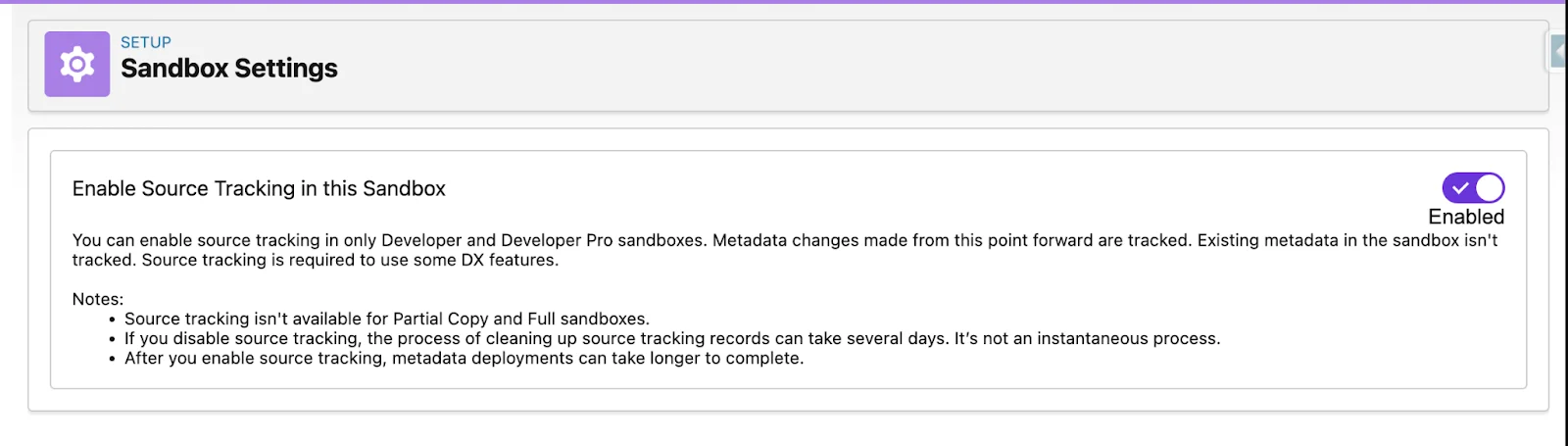
Enabling source tracking is just a flick of a switch, found within the new Sandbox Setting page in setup. This is a significant shift, considering that there is no longer a need to refresh the sandbox. Keep in mind that this option is not currently available for full-copy or partial-copy sandboxes – while it will appear on the same page, it will be grayed out. If you choose to do so, source tracking can be disabled, but the cleanup process might take up to a few days.

Start Reviewing Changes in Real Time
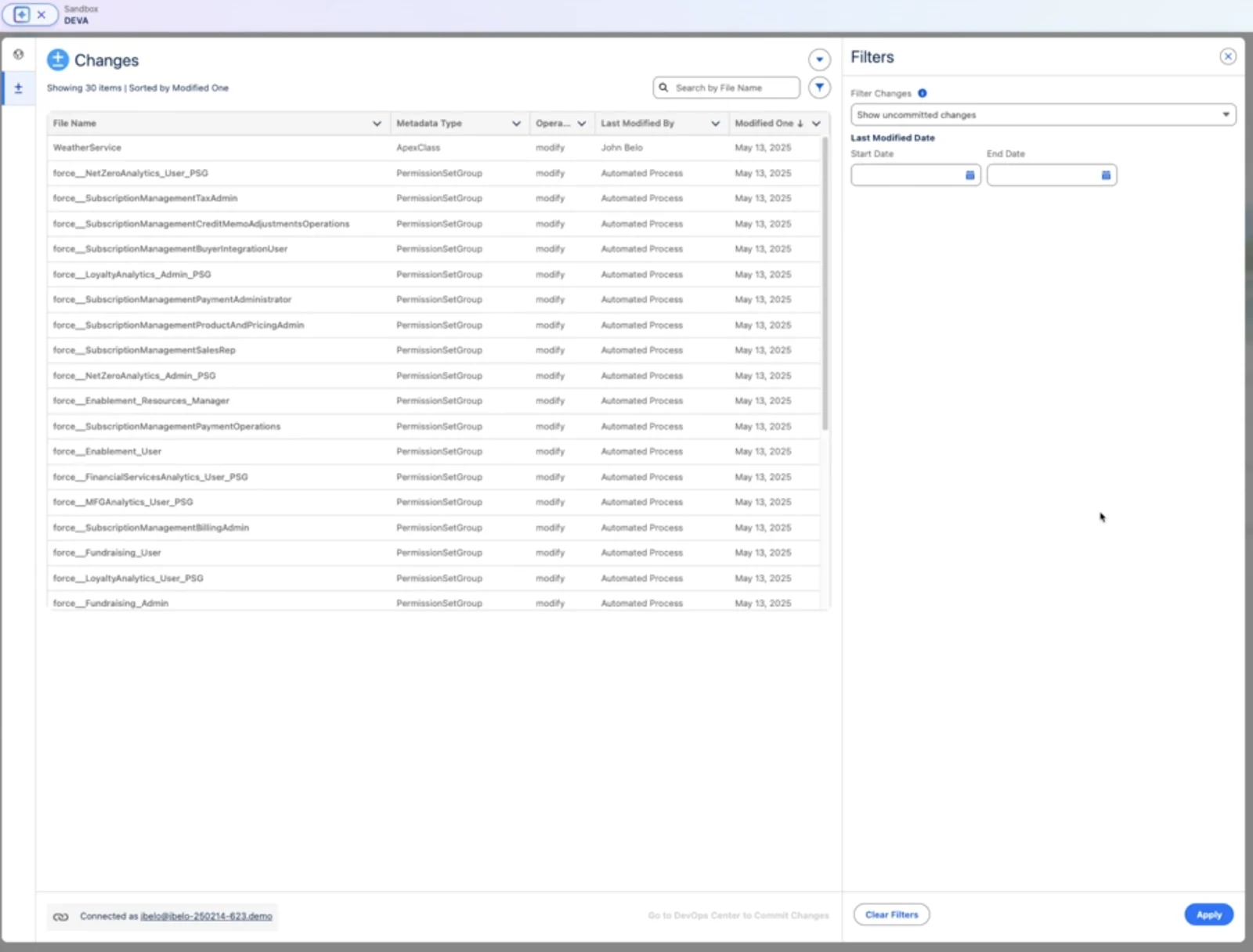
Once source tracking is enabled within the sandbox, changes made within the org will start appearing within the Changes tab of DX Inspector in real-time, allowing you to find out exactly who changed what, when, and what type of change it was. While details such as what exactly was amended on a page layout are not directly available, tracking the various component changes from wherever you are within the org will allow you to quickly see if any unintended changes happened, for you to deep dive into them.
How often have you forgotten about a component or dependency? Having the possibility to see all the changes can easily serve as a list of what was changed, in order for all components that are part of your project or change to be accounted for.
Changes can be searched by their name, the list can be sorted, and there is also a filter available if you want to see changes only within a specific timeframe based on the last modified date.
DevOps Center offers Salesforce professionals a modern alternative to change sets, giving users the ability to manage their change management and release processes within a point-and-click interface, therefore making collaboration a breeze. To make the transition from building to the next stage of the process even smoother, DX Inspector allows DevOps Center users to connect directly from within the Changes tab, which will open up the possibility to filter on the uncommitted changes.
Surely this is only the beginning for this seamless integration, so it will be exciting to see what future releases will bring to the table! If you haven’t explored DevOps Center just yet, the connection with the DX Inspector Changes tab may be yet another reason for you to do so.
Final Thoughts
DX Inspector makes both tracking and visualizing metadata changes easier than ever before, right within your flow of work. Be it sandboxes or scratch orgs, knowing what was changed, when it was changed, and who made the change with only a few clicks can not only simplify how you keep track of the components but also streamline collaboration in real-time, right from the get-go.
Have you already used DX Inspector and the Changes tab? Let us know in the comments below!