

Hello again – let’s continue from where we left off in Part 1. We have already created a web crawler connection within Data Cloud to scrape data from the Salesforce Foundations website and configured the necessary objects and search index for the retrieval. We also queried our Data Lake and Data Model objects to see if our knowledge objects are being populated.
The next step is to retrieve this prepared knowledge base to an actual Agentforce Service Agent. So how are we going to do it? Well, we need to create something called: You guessed it… a retriever.
A retriever returns relevant information from a data point, such as a search index or web data, to augment a Large Language Model (LLM) prompt.
In this part, we’ll:
- Create a custom retriever in Einstein Studio.
- Build an Agentforce Service Agent.
- Configure a custom data library with our retriever.
- Test the agent’s responses using Prompt Builder.
Let’s get started.
Create a Custom Retriever in Einstein Studio
Before creating the agent, we need to set up a custom retriever that will fetch the right chunks from our search index. The default retriever that Data Cloud creates automatically returns many fields, but for our use case, we specifically want to return the Chunk__c field since that’s where our actual FAQ content lives.
- Navigate to Data Cloud → Einstein Studio → Retrievers → New Retriever.

- Select Individual Retriever for our use case. (Ensemble Retriever is a relatively new feature where you need to rank the results of multiple retrievers and want to reference fewer individual retrievers in your prompt template).
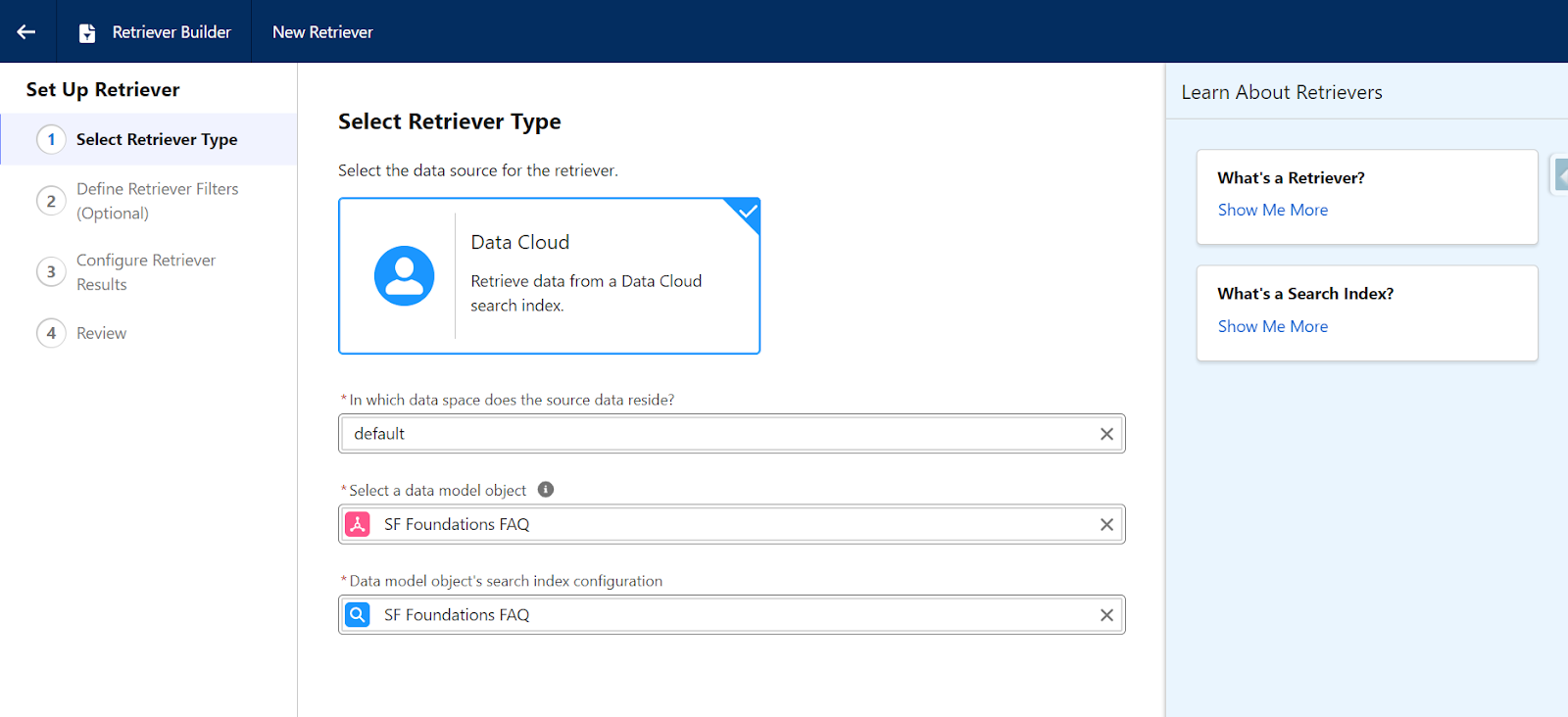
- Then, select one of these Retriever Types:
- Data Space: Default (default data space created when your Data Cloud instance is deployed).
- Data Model Object: “SF Foundations FAQ” – our DMO object we created earlier.
- Search Index: “SF Foundations FAQ” – the search index we created earlier.
Define Retriever Filters (Optional)
You can skip this part since we already filtered our DLOs by focusing on a specific part of the website in our web crawler settings.
Note: Using a dynamic field filter on your retrievers will enable prompt templates to be more flexible, and there is a specific retriever limit based on your data cloud instance, so it’s good to use them sparingly – but this is outside of our scope at the moment.
Configure Retriever Results
The number of results is set to 20 by default. This determines how many relevant chunks will be retrieved for each query. 20 is a good, balanced default set between having enough context and not overwhelming the LLM.
The next critical part is return fields.
- Select which fields from your chunk DMO to return.
- Click Field name section and select:

- Then select Data Model → Related Attributes → SF Foundations FAQ Chunk → Chunk__c.
- Chunk__c: The actual FAQ text content (this is what the LLM needs to answer questions).
- These two fields are helpful, but optional:
- SourceRecordId__c: Identifier linking back to the source (useful for citations).
- DataSource__c: Which field the chunk came from (helpful for debugging).
The Chunk__c field is the most important here because it contains the actual question and answer text from our FAQ page.
- Next, click Save to create your retriever.
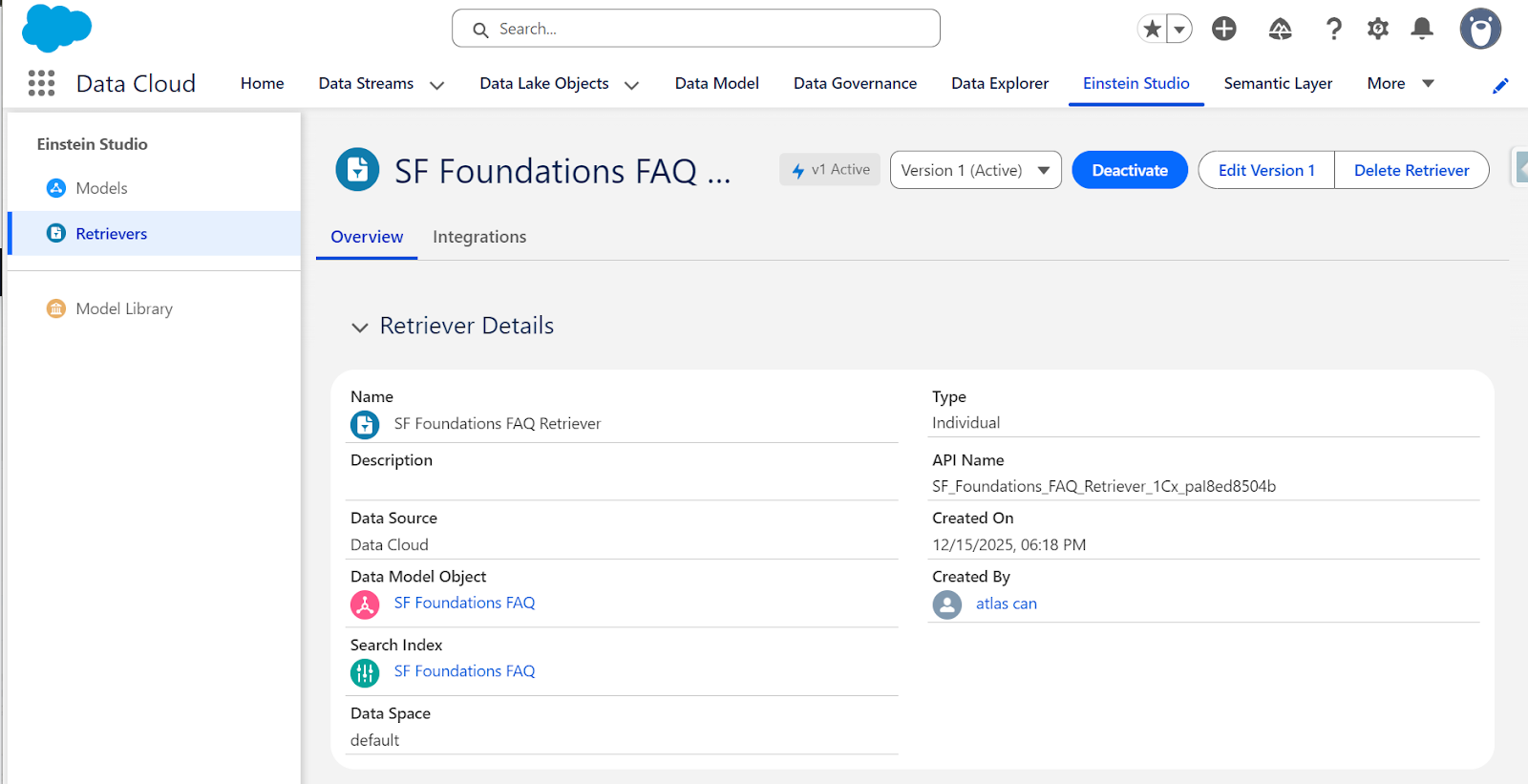
- Also, don’t forget to activate your retriever! The custom retriever is now ready to use, and you can find it in Einstein Studio under Retrievers.
Create Your Prompt Template
Your agent responses and prompt template responses can wildly differ based on configuration and other internal factors.
In this section, we are going to cover how to debug your custom retriever and how to improve the responses it’s generating so you can reference it confidently to your agent.
You may be asking, why is Prompt Template testing recommended first? A few key reasons are:
- Direct retriever control: You specify exactly which retriever to use.
- Better debugging: You can see exactly what chunks are being retrieved.
- Customizable prompts: You can adjust the instructions to suit your content better.
- Testing flexibility: Easier to test and iterate instead of relying on Agents only.
Part of the reason why Agentforce doesn’t respond well to questions if you’re new to it, especially when using custom data libraries is that it’s using the {!$EinsteinSearch:sfdc_ai__DynamicRetriever.results} default retriever, which looks for web and internal knowledge sources when, for use cases, it’s not needed.
While the default “Answer Questions with Knowledge” action works well, we need to override and customize this prompt template for better control and troubleshooting.
As a best practice, after creating your retriever, it’s best to test the responses first using prompt templates before using the retriever assigned to the agent.
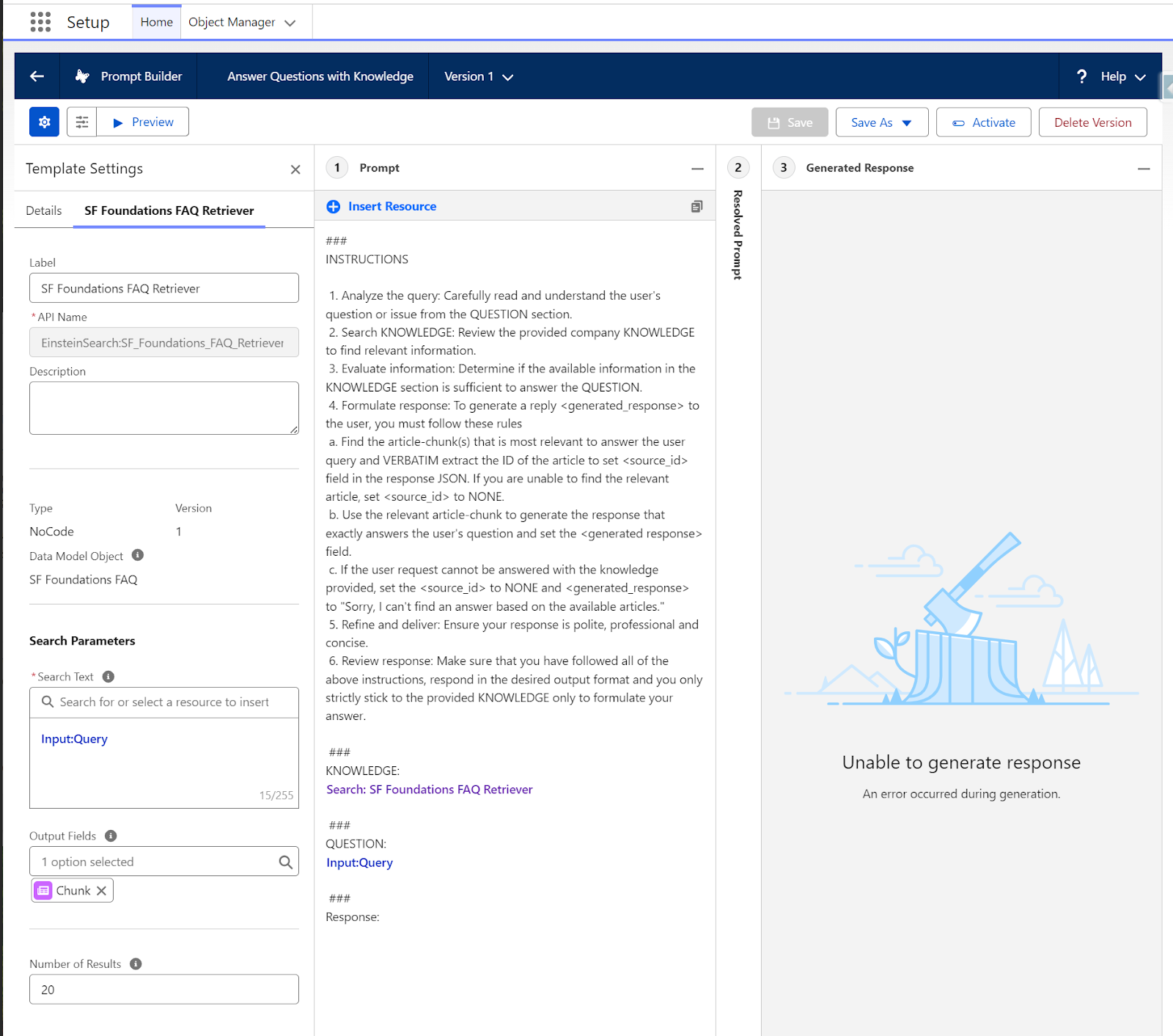
- Navigate to Setup → search for Prompt Builder → Answer Questions with Knowledge.

- Remove the standard dynamic retriever {!$EinsteinSearch:sfdc_ai__DynamicRetriever.results} for our testing from the KNOWLEDGE section.
- After removal in the Insert Resource section, choose Search → SF Foundations FAQ retriever instead.
- In the Search Text, click Free Text → Query.
- As Output Fields, select Chunk only.
- Save the template as a new version and activate it.
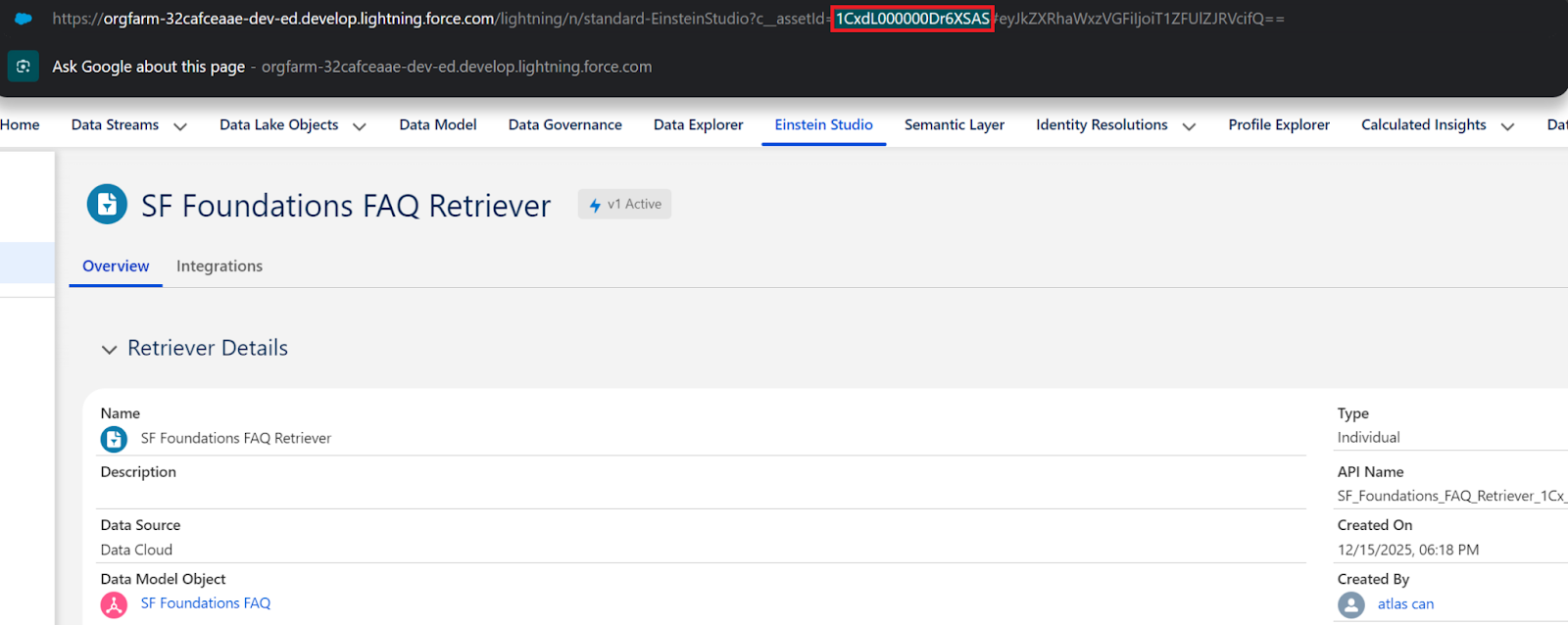
- How are you going to test this new prompt template? It’s easy, go to the preview section and fill the Query field with your question that you want answered, and grab the Retriever ID from the Einstein Studio → Retrievers.
- In this page, feel free to experiment with different LLM models, different input queries, and languages.
- Now you can easily test this prompt template. Populate the Retriever ID field with the custom retriever ID you can grab from the retrievers page.
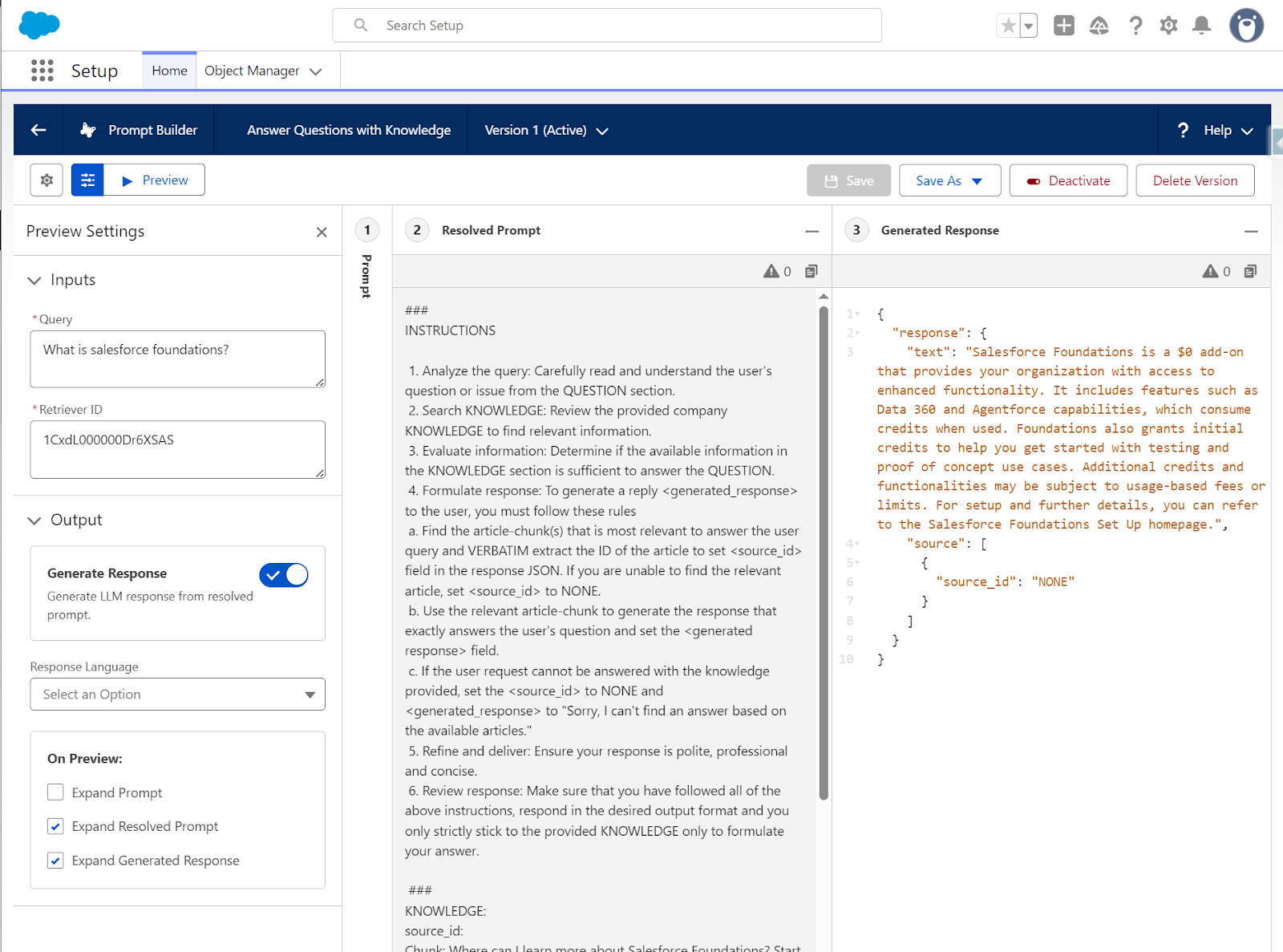
After testing the FAQ questions for our retriever, we have the confidence to add this action and prompt template to your agent. So let’s create our agent!
In a real-world scenario with complex requirements and multiple actions on our agent, we would need to test extensively at the prompt template level for retrieval only and use the Agentforce testing center and multi-step with variable-based scenarios.
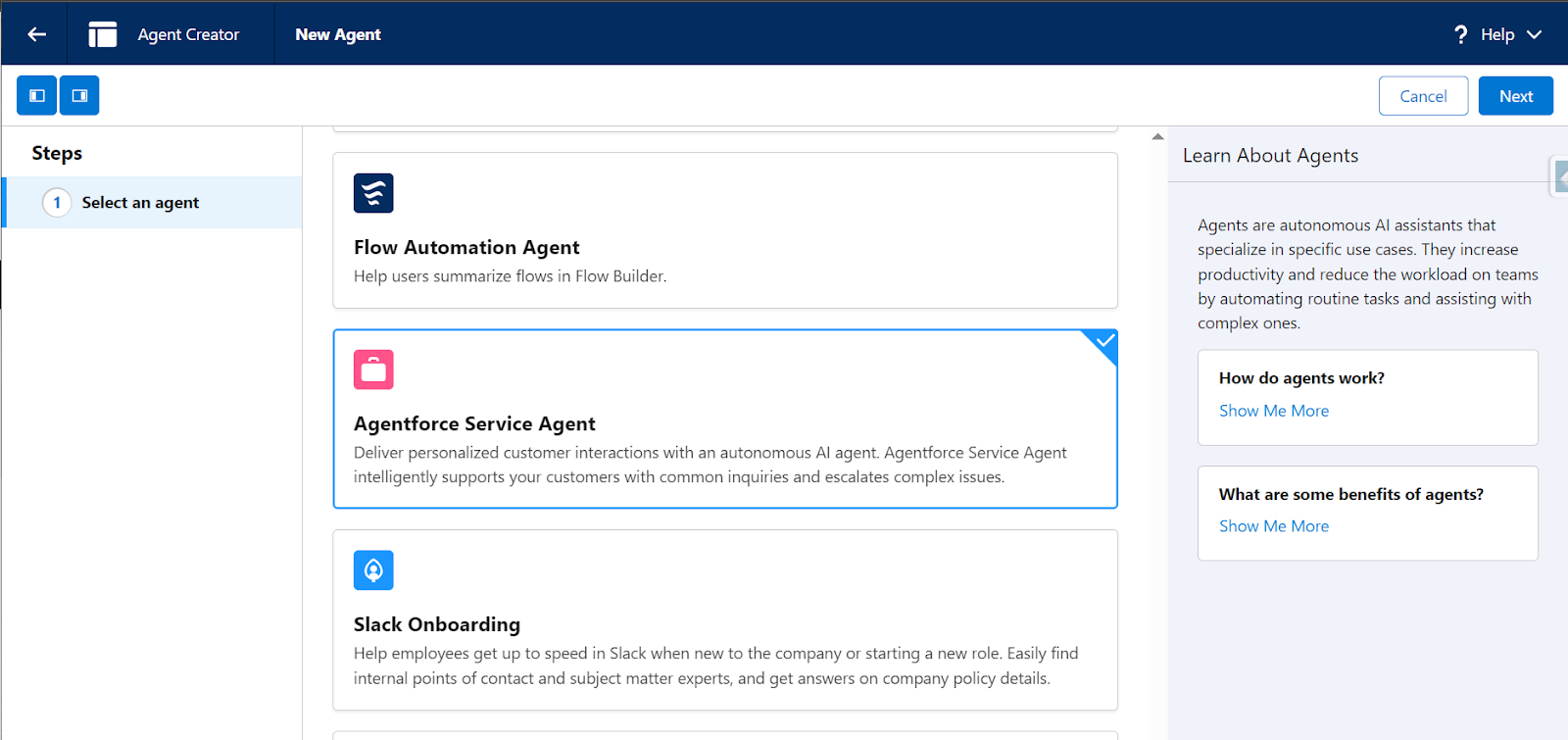
Now, let’s build the agent that will use our custom retriever to answer questions. Make sure to navigate to Setup → Search for Agentforce → Agentforce Agents → New Agent for the next bit.
Configure Agent Basics
- The first step is to select an Agent – Agentforce Service Agent fits best for our use case.
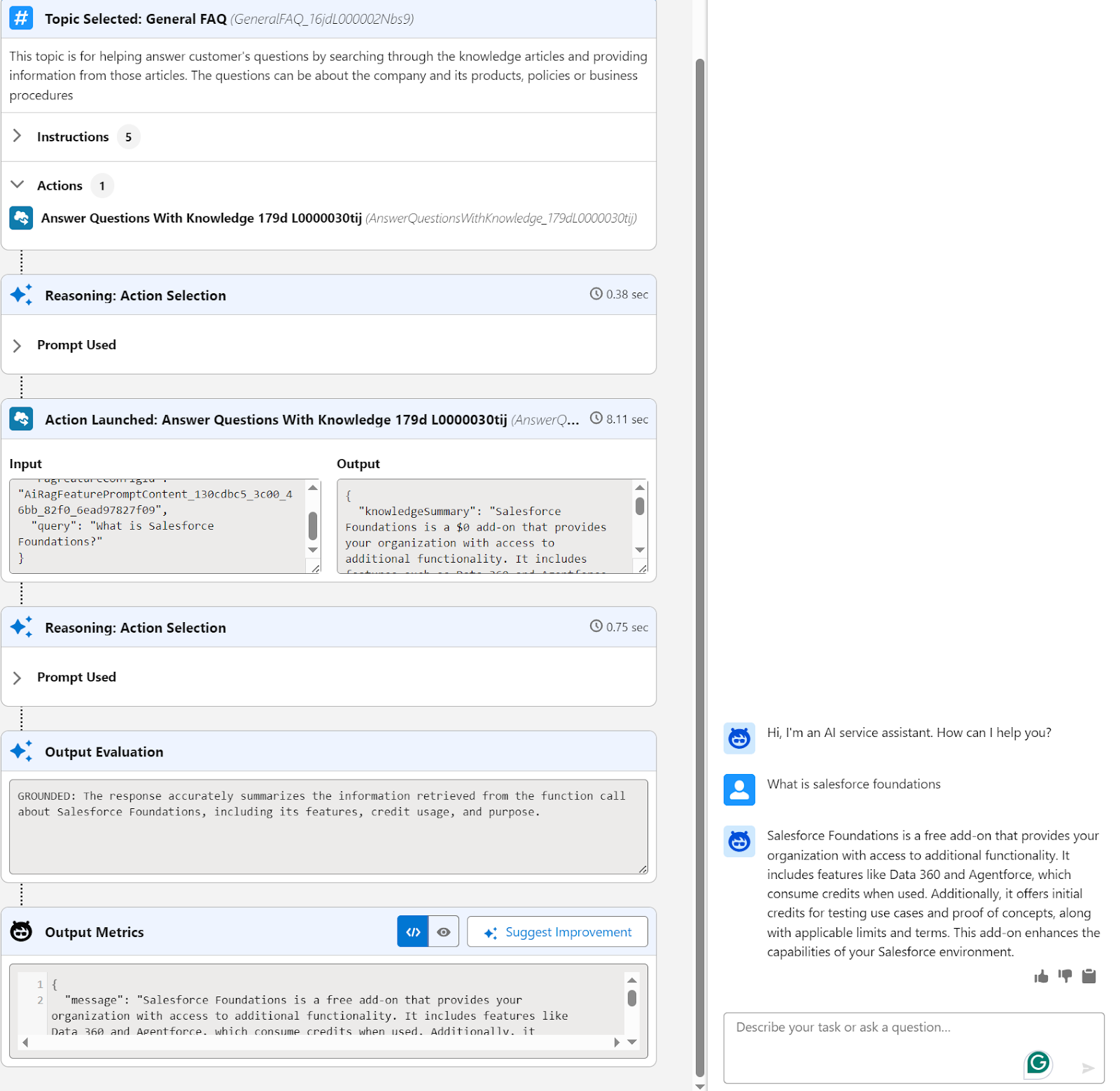
- Then select the topics – General FAQ is the relevant action for our use case.
- Select data sources, click on new library in the data library section, and choose the data type as Custom Retriever and choose the SF Foundations FAQ retriever we just created earlier.
- Click create, and that’s it! Your agent is ready to answer questions.
Final Thoughts
This concludes our scenario! To summarize what we achieved in both articles:
Part 1
- Crawled external FAQ content from Salesforce Foundations website using Data Cloud web crawler.
- Configured Data Cloud pipeline created Data Lake Object, mapped to Data Model Object, and built search index.
Part 2
- Created custom retriever in Einstein Studio that returns the Chunk__c field (actual FAQ text content)
- Built and tested a custom prompt template in Prompt Builder to verify retriever returns relevant chunks and LLM generates grounded responses.
- Connected to Agentforce Service Agent using a custom data library linked to our retriever, enabling the agent to answer questions using web-crawled knowledge.
Thank you for reading this far. Whatever intelligent entity you might be, be sure to share this content if you have found it useful!