

At this point, there have been so many AI and Agentforce-related advancements in the Salesforce ecosystem that it’s easy to miss those that didn’t really make huge waves or are much less talked about in general. Agentforce Grid quietly became generally available (GA) earlier this year, and I think a lot of admins still have the wrong mental model for it (or maybe haven’t even heard of it at all).
Salesforce framed this tool as something that could move AI workflows out of your team’s random Google Sheet (or worse, copy-pasted into a ChatGPT tab) and into something that actually runs inside your org, with your data governance intact. So if you’re an admin with users who still depend so much on list views, or someone who’s still exporting and running org data through an external AI tool because there wasn’t a better option, this is worth a closer look.
What Is Agentforce Grid?
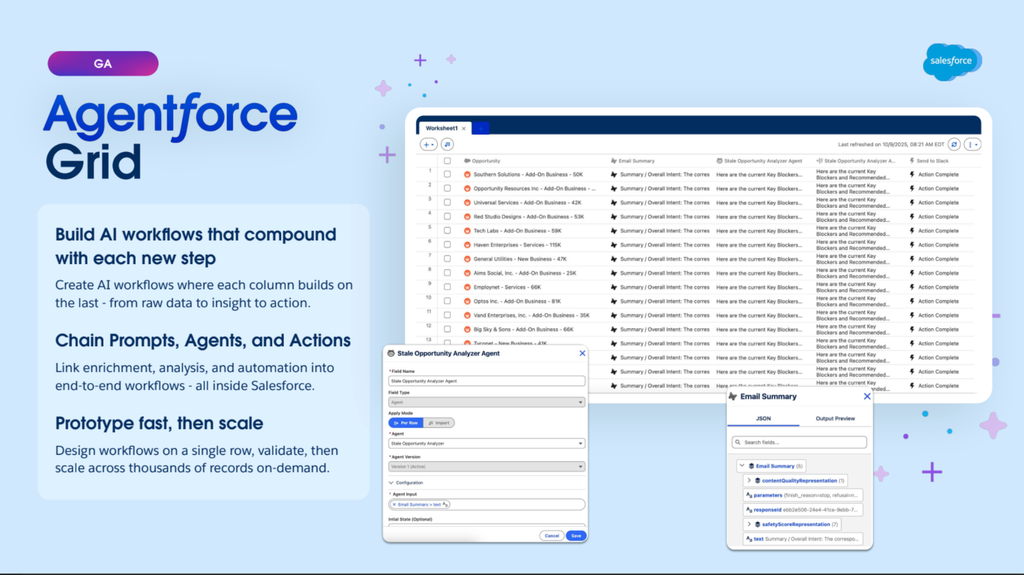
Agentforce Grid is basically a no-code, spreadsheet-style workspace inside Salesforce where each row is a record, and each column is a step.
You can start a grid with:
- Salesforce standard or custom objects
- Data 360 entities and DMOs
- A CSV import
- Plain free-form text
From there, you add columns that do something like run an AI prompt, call an agent you’ve already built (or Coworker, with no setup at all), run a prompt template, invoke a Flow or Apex method, update a Salesforce record, search the web, or score another column’s output against criteria you set. The possibilities are vast!
Because it’s column by column, each step compounds on the last one. When raw data comes in, an AI step can enrich or classify it, another step decides what to do with it, and a final step can take the actual action of updating a record, sending an email, or whatever the workflow calls for.
If you’re wondering about permissions, none of this bypasses the permissions your org already has. Grid runs entirely in the context of whoever’s using it, so it enforces the same object-level and field-level security everywhere else in Salesforce. If you don’t have access to a prompt template, an agent, or a field in Salesforce, you don’t get it inside Grid either.
More Than a Testing Tool
When I first watched the demo for Agentforce Grid at one of Dreamforce’s sessions on Salesforce+, I thought of it more like a testing tool that can double-check how a prompt works on a handful of rows before deciding whether to build it into a real agent. That’s still a legitimate use case, though.
Grid is built to process, say, 200 rows (or one thousand) the same way, and acts as the Excel/Google Sheets replacement that many admins have been cobbling together with AI tools that weren’t approved for their org’s data in the first place.
Our Admin Survey 2026 actually revealed that almost 90% of respondents use Excel or Google Sheets alongside Salesforce, but despite that, 49% cite manual errors as their biggest challenge.
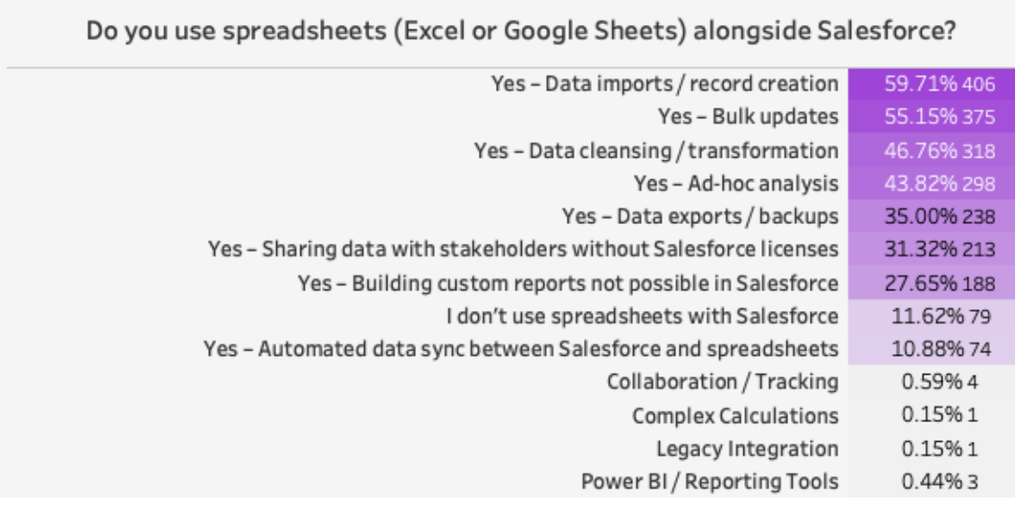
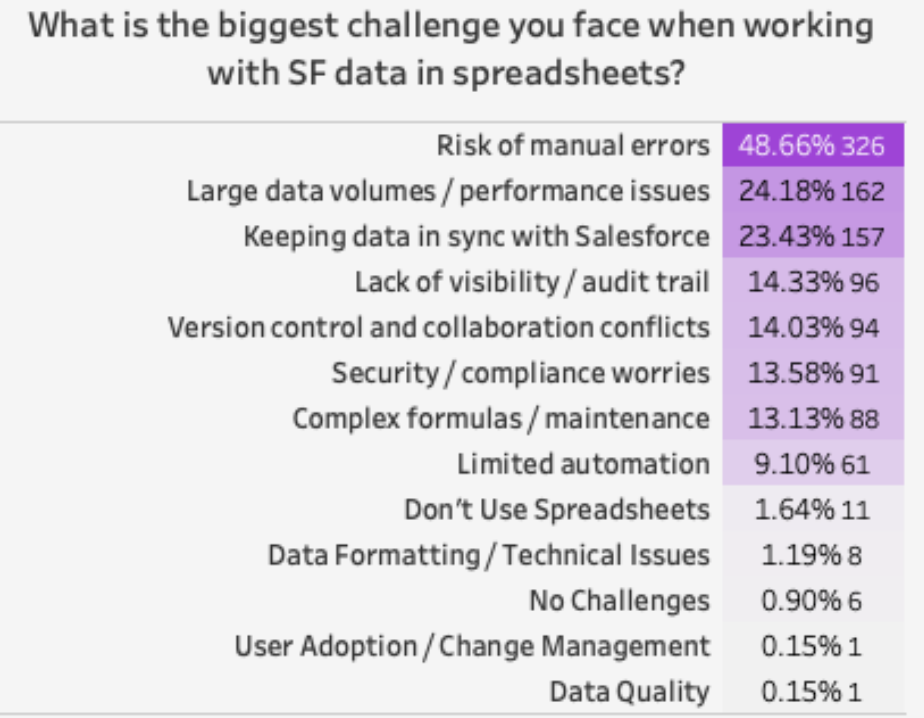
I’d bet a big chunk of that 90% use spreadsheets the traditional way, where they export records, run them through an external AI tool to help with analysis, and import results back into Salesforce when needed. It’s tedious, but many have grown used to it. With Agentforce Grid, the whole process can now happen inside the platform, using models your org is allowed to use.
This is important, especially for orgs in regulated industries that have teams working under compliance constraints. Security teams aren’t new to situations where untracked ChatGPT workflows touch org and customer data at this point, so having a tool that works within Salesforce will definitely come in handy.
Agentforce Grid Use Cases
Another misconception I had with Agentforce Grid early on was thinking of it simply as a “smart report” or a “smart spreadsheet” that can make you ditch the traditional tools altogether. And in a way, that metaphor is true – but it’s also more than that.
“Since Grid can update records as well, why not just use Flow?” you might ask. While this is true, and a clever way to do mass actions, the bigger reason to choose Grid over Flow is when you need high-scale deterministic AI workflows, and you want to actually have a visual overview of what’s happening at each step.
Every column in Grid is its own visible layer, meaning you can click into any cell and see the output and reasoning behind it before the next step runs or anything gets updated on the record. Compared to Flow – which is built more around executing logic reliably – Grid can show you what AI was thinking along the way.
Salesforce also says a lot of non-technical users find building a workflow in Grid noticeably faster than doing the same thing in Flow, which makes sense as there’s no need to learn variables, decision elements, or loop logic when the interface just looks like a simple spreadsheet most people already know how to use!
So, the best way to maximize Grid’s use is to utilize its AI capabilities and add AI input wherever it’s needed most in your workflow.
Looking through common use cases can help paint a better picture of what Grid can actually do.
- Sales teams are the most obvious fit. For example, a sales manager may want a next-step recommendation on some opportunities in their pipeline, like those that have been open for a certain amount of time. They can set a range of time as criteria and pull those stale opportunities into a Grid, run a prompt that summarizes the email thread on each one, run a second prompt that reads that summary for sentiment, then have an agent turn all of it into a recommended next move posted straight to the deal’s Slack channel.
- Service teams can rely on it for the things that used to only get spot-checked. For example, instead of manually sampling a handful of support tickets or call transcripts a week (because that’s all anyone had time for), a grid can run sentiment, root cause, and quality scoring across every single one, then flag only what actually needs a human to look at it.
- Marketing and ops folks can use it for the reporting they would normally do by hand, like pulling campaign or pipeline data, having AI flag what’s off track, and generating a plain-language summary instead of exporting data and digging through numbers outside Salesforce.
These are only some of the possible use cases where manual work used to be extensive and take more time, and with Grid the “work” can now be reduced to simply refreshing the grid every couple of weeks. The common thread across all of these as well is that the whole thing can be set up by admins, and none of the data ever had to leave Salesforce to get any sort of AI treatment. There is also no requirement to build a custom agent first.
Getting Started With Agentforce Grid
Grid is available to any users with the right permissions (not just admins). To get started, you’ll need two things: an Agentforce license (Grid runs on flex credits), and the “Manage Agentforce Grids” permission assigned to yourself or whoever’s going to be creating or editing Grids.
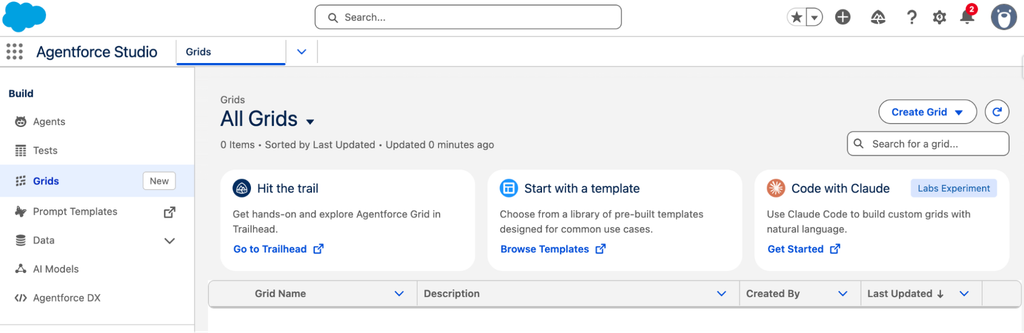
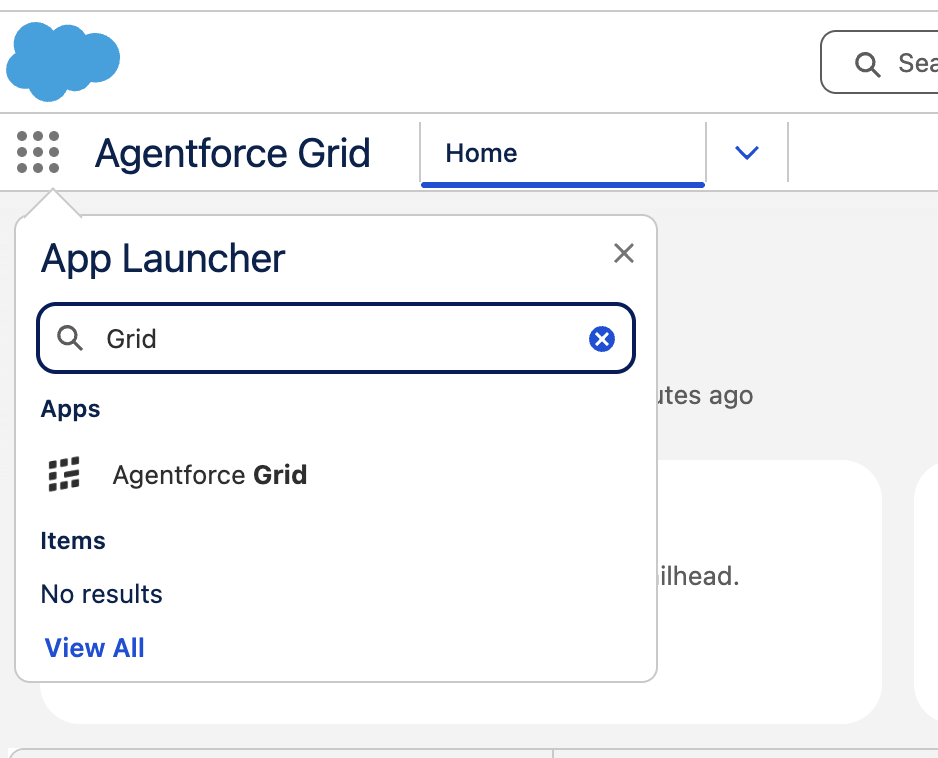
Anyone without that permission can still view a Grid that’s shared with them, but they won’t be able to create or edit one. Once that’s sorted, you’ll find Grid in Agentforce Studio under the Grids tab, or by searching “Agentforce Grid” in App Launcher.
Notes on Pricing
Before you build anything, it’s also worth doing the math to get a feel for how your usage consumes flex credits. Every AI or agent column runs once per row, and each of those runs is an action that draws from your flex credits.
A grid with 500 rows and 3 AI/agent/enrichment step columns is roughly 1500 actions in a single refresh. At the standard rate of 20 credits (about $0.10) per action, it’s actually a small cost on its own when you think about it singularly, but that can add up fast if you’re working on a large grid repeatedly. When unsure, it’s always good to start small first and build from there!
Salesforce’s Digital Wallet can help massively so you don’t have to guess your consumption. It gives real-time visibility into how many credits you’re burning through, so you can check usage from time to time before committing to more columns.
Building a Grid
From there, here’s roughly how to build your first Grid:
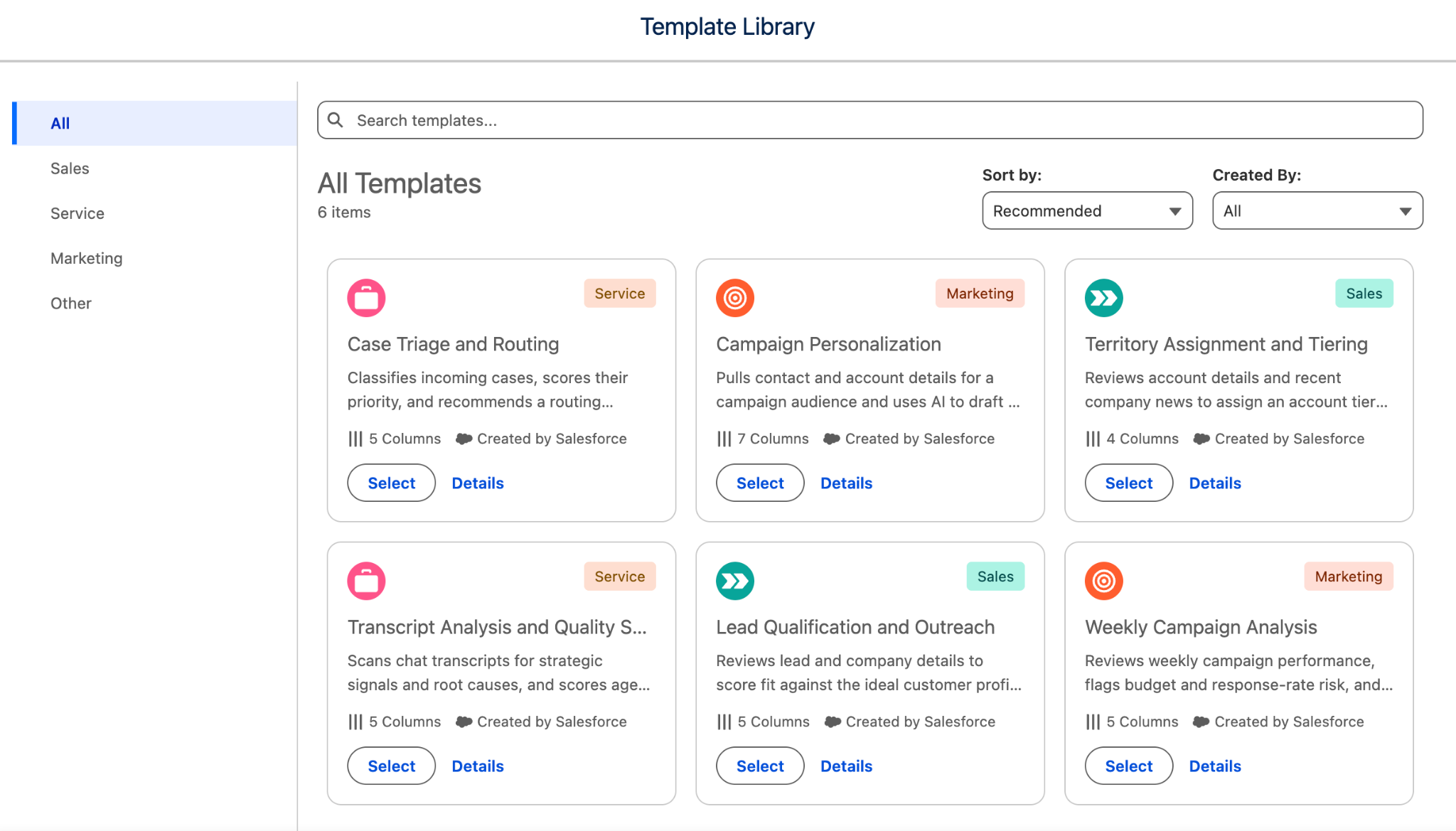
- Click the Create Grid dropdown on the upper right. This will give you the option to either start from scratch or from a template. Salesforce has six templates to choose from, ranging from Sales and Service to Marketing.
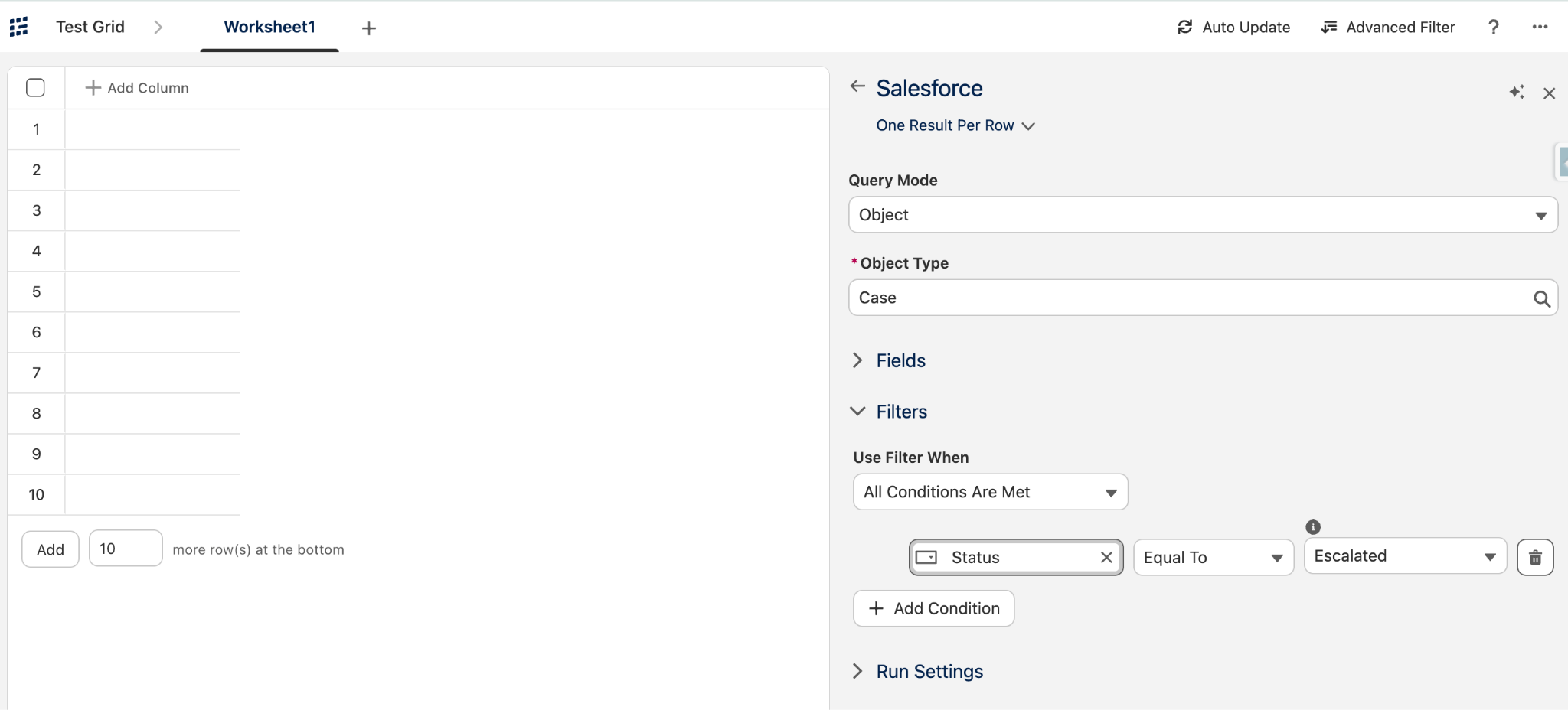
- Bring in your data. Whether you’re using a template or starting from scratch, your Grid needs data to work on. See below, for example, where I want it to work on escalated Cases, so I queried it as such. You can also start from a Data Cloud entity, a CSV, or even an existing list view if you’ve already built the filters you want somewhere else.
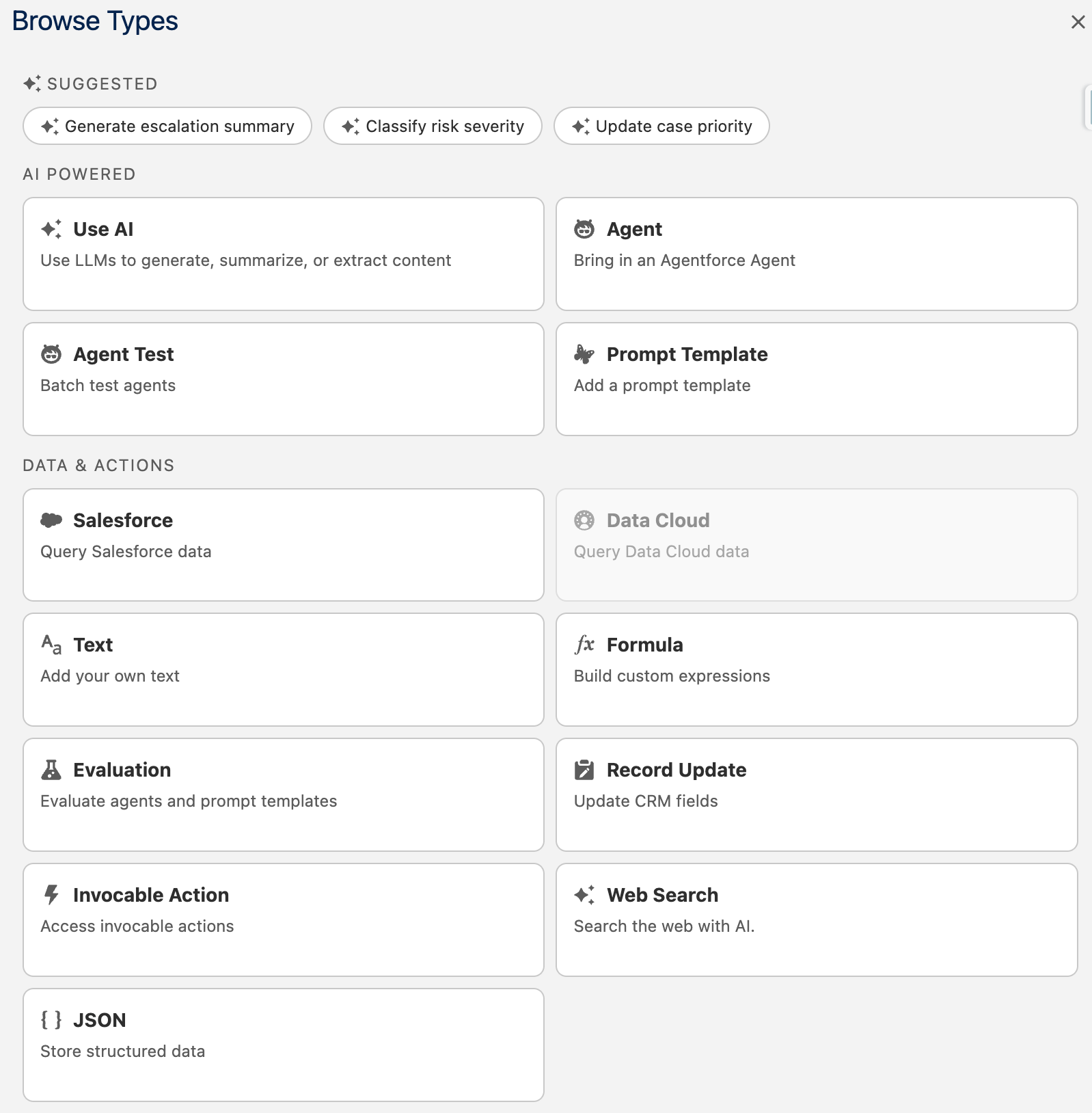
- Add your first column. If you’ve already got a prompt template built for your use case, select it and point it at the data column you just created. If you haven’t, use the plain AI column instead and write the instruction inline. Either way, you’ll reference the data you want it to use by typing @ and selecting the column. These are the sample actions you can do for each column.
- Run it and check the output. Grid runs that column across every row at once. Click into any cell, and you can see the full session trace, meaning the actual inputs, outputs, and parameters behind that result, and not just the final text. This serves as your audit trail if something looks off.
- Add in a second step. This separates Grid from being simply a one-off prompt and makes it a full-on workflow. Add another column that reads the output of the first (pull out sentiment, decide a priority, whatever the next logical step is), or hand it off to an existing agent to generate a recommendation.
- Take action on the result. Use an update record column to write something back to Salesforce, or an invocable action column to trigger a Flow, send an email, or post to Slack.
- Save and reuse. Once it’s built, the grid persists like a saved file. Refresh it whenever you want the workflow to run again on current data.
You can also check out this module on Agentforce Grid from Trailhead.
Agentforce Grid Developments
Grid’s current capabilities do not seem to be the end state of it, as Salesforce hinted at many exciting innovations coming in the near future. We all know list views are one of the most commonly used features in Salesforce, and while they are useful, they are also static. The future of Grid can turn static list views into a dynamic and intelligent experience that you can control and act on instead of having to export into another workflow.
Another reason to keep an eye on future updates has to do with the launch of Claudeforce. If Claude is the default reasoning model behind Agentforce Coworker, and Coworker can run inside Grid, the possibilities are vast.
AI output generated (like in a chat window, for example) can be redirected into a grid to be saved, reviewed, or acted on. The reverse can be true as well, where a grid can be surfaced into Coworker, so it can act on a much larger set of records than it could reasonably hold in a single response.
Final Thoughts
In the midst of all the “flashier” AI things Salesforce unveiled this year, I wouldn’t say Agentforce Grid looks like the “main event”. It is, however, a valuable step in helping users stop working “around” their data with exports, spreadsheets, and external AI tools.
It’s a solution that kills the export-to-ChatGPT-and-back loop that users have been doing since AI became a bigger part of their daily workflows, and that alone is a good reason to consider adopting this, especially if you already have Agentforce in your org and are unaware of its existence.