






Developing a sound object permissions strategy is a core part of any Salesforce sharing model. Even though Salesforce has postponed the decision to retire permissions via Profiles, admins should still be aware that provisioning permissions via Permission Sets and Permission Set Groups over Profiles is now considered best practice.
In this how-to guide, we’ll unpack how admins can design and deliver a modular object permission strategy leveraging key Salesforce features: Permission Sets and Permission Set Groups instead of Profiles.
Note: Read to the end to find a downloadable template to help structure your Permission Set and Permission Set Group design, and permission assignment model against system personas.
Transitioning From Profiles to Permission Sets?
Shifting permissions from Profiles to Permission Sets allows for a modular permissions model, giving admins more control over who sees what – enabling a simpler, more maintainable Profile structure.
Permission Sets allow admins to create discrete permissions (i.e. Read access on a Program__c custom object).
Permission Set Groups then allow admins to group certain permissions according to a pre-defined function; for example, a ‘Finance Officer’ persona. This means that numerous discrete permissions required for a persona can be parcelled into one group and assigned once to any user that matches the business function.

Modularity Supports Maintainability
If the underlying permissions required for Finance Officer users change, the Permission Set Group can be maintained in one place, automatically applying the changes across all users where the Permission Set Group is assigned.
The singular point of maintenance that Permission Set Groups provide makes permissions administration more efficient.
Instead of having to introduce a new profile(s) when access requirements change between users, the same baseline profile can now be leveraged with different Permission Set Groups layered on top.
Leveraging this modular design also reduces technical debt and makes the system easier to interpret.
Automate Permissions Assignment
Using User Access Policies – a Salesforce feature that went GA in Summer ‘24 – Permission Set Groups (among other types of permissions) can be automatically assigned to users based on criteria defined on the User record.
Leveraging user Access Policies can trim further system maintenance time for Admins by eliminating the need for manual permissions assignment.
Configuring a Modular Permissions Model
Now that you understand why one would migrate from a Profile-based to a modular Permission Set-based sharing model, let’s unpack how.
Follow the steps below to learn how to configure your own Permission Sets, Permission Set Groups, and (optionally!) how to automate the assignment of permissions to users based on their functional role.
Step 1: Define Personas and Permissions Requirements
Before you start reconfiguring your permissions strategy, you will need to…
- Analyze and identify all necessary permissions (that may currently reside in Profiles).
- Define personas (or another functional group by which to define your Permission Set Groups).
To explain the configuration steps, we’ll use a fictitious organization seeking to provision finance-related object permissions to Finance Team users as a case study. Consider the data model and personas below:

| Persona | Definition |
|---|---|
| Program Officer | Responsible for planning and tracking expenditure and payments against established budgets for programs that they manage. |
| Finance Officer | Responsible for managing budgets and approving planned and actual expenditure and payments. |
Step 2: Define Granular Permissions
Our next step is to conceptually define your permissions. Defining granular permissions helps to increase the modularity of your Permission Set Groups, making them easier to maintain.
Consider the following object permissions required in our case study:
| Persona | Object permissions |
|---|---|
| Program Officer | · Create Program__c · Read Program__c · Update Program__c · Read Budget__c · Create Expense__c · Read Expense__c · Update Expense__c · Create Payment__c · Read Payment__c · Update Payment__c |
| Financial Officer | · Read Program__c · Create Budget__c · Read Budget__c · Update Budget__c · Read Expense__c · Read Payment__c |
Now that we know who needs what object permissions, let’s put this into a coherent Permission Set structure by defining the minimum viable Permission Sets:
| Object | Permission Set(s) |
|---|---|
| Program__c | Read Only Program |
| Create/Update Program | |
| Budget__c | Read Only Budget |
| Create/Update Budget | |
| Expense__c | Read Only Expense |
| Create/Update Expense | |
| Payment__c | Read Only Payment |
| Create/Update Payment |
*Remember that the appropriate read/write field-level access should also be specified in each Permission Set according to your business rules.
Step 3: Group Permissions By Personas
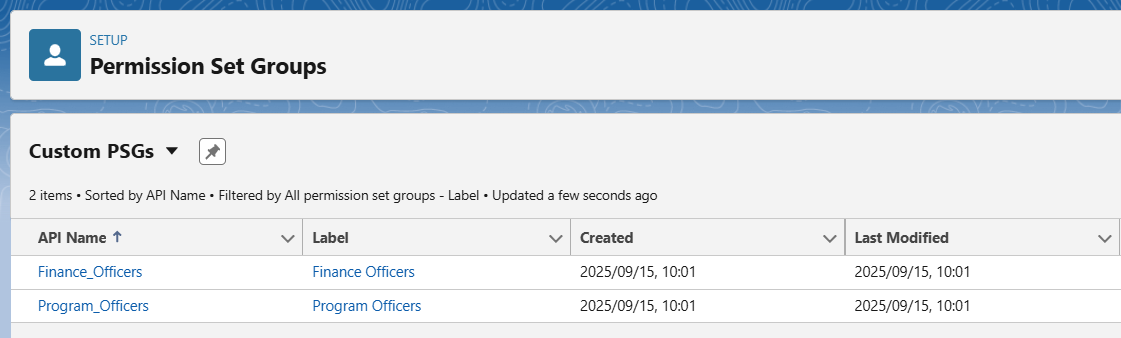
With a minimum set of Permission Sets configured, we can now bundle them into Permission Set Groups aligned with our functional personas to make them easy to assign.
Consider the following Permission Set Groups required to support the personas outlined in our case study:
| Permission Set Group | Definition |
|---|---|
| Programs Officer | Provisions CRU permissions to programs and programmatic expenses/payments and R permission to program budgets. |
| Finance Officer | Provisions R permissions to programs and programmatic expenses/payments and CRU permissions to program budgets. |
Each Permission Set Group acts as a container for the granular Permission Sets that support permissions for that persona. Let’s see how we can assign our configured Permission Sets to the two defined Permission Set Groups:
| Permission Set Groups | ||
|---|---|---|
| Permission Set | Program Officer | Finance Officer |
| Read Only Program | YES | YES |
| Create/Update Program | YES | NO |
| Read Only Budget | YES | YES |
| Create/Update Budget | NO | YES |
| Read Only Expense | YES | YES |
| Create/Update Expense | YES | NO |
| Read Only Payment | YES | YES |
| Create/Update Payment | YES | NO |
With Permission Set Groups configured, instead of having to assign multiple granular permissions to each user, admins can simply assign the single Permission Set Group.
If permissions change for any group, they can be maintained at the Permission Set Group level – the changes of which are applied to all users assigned the Permission Set Group.
Step 4: Manage Profiles
Given that most Admins work with brownfield orgs, it’s important to consider how Profiles are managed and deprecated effectively through this process.
Leveraging the Permission Set/Permission Set Group permissions model enables Admins to streamline Profile management, reducing Profiles to a minimum set of “flat” (no permissions) Profiles (i.e. Standard User, System Admin), on top of which Permission Set Groups are layered on a user-by-user basis.
To ensure effective design, testing, and delivery of your updated permissions model, be sure to:
- Account for all permissions contained in Profiles in your Permission Sets to ensure no disruption to functionality.
- Test your new permissions on top of “flat” Profiles (that don’t contain permissions); if you layer them on top of your existing Profiles you won’t be able to test effectively.
- Consider if there are any settings and permissions that are not serviceable in Permission Sets that need to be retained in Profiles and how that influences your Profile design.
- Properly deprecate legacy Profiles from the system to ensure clarity and simplicity.
Check out David Chater’s article for more information on how to avoid common pitfalls when migrating from Profiles to Permission Sets, and consult Salesforce documentation for the most up-to-date information on Permission Set considerations and limitations.
[Optional] Step 5: Automate Permission Assignment
We’ve built a simple, highly maintainable object permissions model for Programs and Finance Team members in our case study. However, by using User Access Policies, a special automation feature designed specifically to save Admins time in provisioning user access, we could make our admins’ lives even easier.
The criteria used to determine when and what permissions are assigned depends on your business logic; however one simple way to assign persona, or business function related Permission Set Groups is through the use of a custom Persona__c field on the User record.
This field can be leveraged to indicate the user’s persona, triggering a User Access Policy to fire, automatically assigning the appropriate Permission Set Group to the User on create or edit of the record, saving Admins even more time in assigning permissions to users.

Speak to your Architect to decide the appropriate design of User Access policy automation for your org, and learn more about how to configure User Access Policies on Trailhead.
Download the Design Template
Designing the Permission Set-driven model requires a bit of upfront muscle for long-term pay off in terms of reducing the level of effort to maintain user permissions.
Clearly documenting your design is instrumental in making sure that all permissions are accounting for, able to be tested, and are understandable to any members of your team who will be responsible for engaging with (updating, debugging, etc.) the solution.
This design artifact contains:
- Profile structure
- Permission Sets definition
- Permission Set Group definition
Final Thoughts
Transitioning from a Profile-driven to an automated Permission Set-driven permissions model can help to:
- Streamline and simplify permissions management in Salesforce.
- Modularize permissions management, ensuring that users only have access to what they should and no more.
- Reduce the number of required Profiles.
- Save time in provisioning new users with the correct permissions.
As an admin, it is your job to ensure that the new model is coherently designed, well-documented, and thoroughly tested. Ensure that you are doing the following before you migrate:
- Thoroughly analyzing Profiles to identify all necessary permissions.
- Identifying any settings/permissions that may need to stay in Profiles due to Permission Set limitations.
- Introducing a simple set of “flat” profiles and re-assigning these to users.
- Creating a set of Permission Set Groups that align with personas, business units, or another functional group, that is easy to understand.
- Documenting your Permission Sets, assignment of Permission Sets to Groups, and any associated automation/User Access Policies.
- Properly deprecating legacy Profiles to avoid technical debt.
- Testing thoroughly in a sandbox environment before release.
While migrating away from permissions via Profiles will no longer be enforced by Salesforce according to a defined timeline, moving to a Permission Set/Permission Set Group model is adherent to best practices and should be featured on the roadmap for any organization still heavily leveraging Profiles.





Comments: