








Validation rules are one of the most well-known and commonly reached-for tools in an admin’s toolkit (and for good reason!). They catch bad data before a record ever hits save, without needing to code even a single line of Apex. But knowing how to write a validation rule is only half the story; knowing which rules are actually worth building is what separates a clean org from a cluttered one.
Below are real-world validation rule examples pulled from Sales Cloud and Service Cloud (now Agentforce Sales and Service), covering specific situations that may come up again and again, such as keeping Account data consistent, enforcing Lead qualification standards, protecting Opportunity and Order integrity, making sure Case ownership and closure actually reflect what happened, and more.
Sales Cloud (Agentforce Sales) Validation Rules
Sales reps aren’t the biggest fans of data input. To keep your Salesforce data quality on track, use validation rules to guide users while working with common Sales objects.
Which information can sales reps realistically complete themselves based on customer conversations? Enforcing fields such as “Annual Revenue” isn’t the best idea, seeing as first, users won’t want to search for that information online, and second, you can leverage data enrichment tools for more accurate data.
Stick to what sales reps should be asking during conversations, or what can be determined by using common sense (for example, the “State” field can only be “Alabama” if the country is “United States”).
Here are examples for Accounts, Contacts, Leads, Opportunities, Contracts, and Orders.
Information Required by Account Type
Take basic Account validation rules further by creating multiple validation rules based on a specific field.
Example: You require different information depending on what the ‘Account Type’ field value is.
If they are a ‘prospect’, we need less information filled in than if they are a ‘customer’. For customers, we need a full billing address, but not yet if they are a prospect.
As each line of the address is a separate field, we need to use OR() to catch the record if any of the address fields are missing:
AND(
OR(ISBLANK(BillingStreet),ISBLANK(BillingCountry),ISBLANK(BillingCity),ISBLANK(BillingState)),
(Text(Type) = "Customer")
)
What if you’d like to do the same, but would depend on the record type instead?
Example: You require different information depending on the Account Record Type. You can use Record Types to separate customer and partner accounts.
Use the Validation Rule above, switching (Text(Type) = “Customer”) to (RecordTypeId) = [INSERT ID])
Country Validation Rules
Validation on the “Billing Country” field is one of the most important validation rules you can implement on an Account. If you let employees enter a country name as free text, different formats and spelling mistakes will eventually become an admin headache.
Take the United States of America, for example: you will find people could switch between the USA, U.S.A, US, and United States.
While this solution isn’t exactly a straight-up validation rule formula, you can consider the following:
- Salesforce Custom Address Field: a Salesforce feature where suggested matching results appear when a user begins typing an address.
- AddressTools: this is an AppExchange (now AgentExchange) app that can instantly solve the problem, too; however, there’s much more to this tool beyond the Salesforce functionality, so it’s recommended you check out our full review.
Required Fields for Lead Conversion
Lead records usually have minimal information because this is the start of a Business Development rep’s (BDR) relationship with them. As qualification progresses, a BDR will get to know more about them.
Once a prospect is qualified (the BDR is satisfied they have an interest in purchasing your product/service), the record is converted.
Example: You require contact information (phone number and email) to ensure the qualified lead can be contactable. You also want BDRs to pass on a “Rating” to the next rep that will be handling the opportunity stages.
IsConverted
&&
OR(
           ISBLANK (Phone),
           ISBLANK (Email),
           ISPICKVAL (Rating, “”)
)Required Fields for Closed Won Opportunities
Change ‘IsConverted’ to ‘IsWon’ from the formula above and use the same formula to ensure the fields required to close an Opportunity are filled, helpful for handing over from the sales team to a post-sales/onboarding team.
IsWon
&&
OR(
          ISBLANK (Phone),
          ISBLANK (Email),
          ISPICKVAL (Rating, “”)
)
Accounts Created Only Through Lead Conversion
Example: You would like all records to go through the lead stages to ensure they have been properly qualified. Therefore, reps shouldn’t be skipping the lead lifecycle by creating accounts directly. But if you block users from creating Accounts, they won’t be able to convert Leads either – this is a perfect time to use a Validation Rule!
Step 1: Create a lead formula field
A field that captures the Lead Created Date means that the record must have existed as a lead in the first place. Create a lead formula field that adds the value of the standard “Lead Created Date” field.
Then, create a date field on the Account object. And finally, map the Lead formula field to the Account date field.

Step 2: Create the Account Validation Rule:
ISBLANK ( LeadCreatedDate__c )
Bonus: this validation will also carry over the Lead’s created date to the Opportunity, meaning that you can calculate the total time it takes from first interaction to won business for the first deal with them.
Limit to One Open Opportunity at a Time
One Account can have multiple Opportunities associated (one-to-many relationship).
Example: You would like each Opportunity to be closed (won/lost) before a new Opportunity is created, so that the Account is only engaged in one sales process at a time.
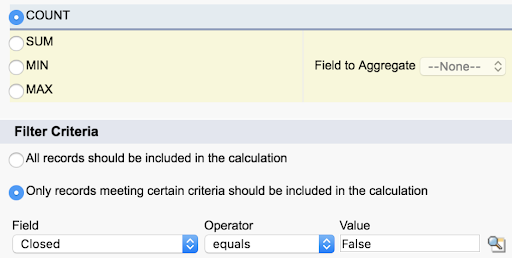
Step 1: Create an Account roll-up summary field that counts the number of open Opportunities (Closed = false):
Step 2: Create the Opportunity Validation Rule:
Account.NumberofOpenOpportunities__c > 1
Won Opportunities Must Have an Amount Greater Than 0
The “Amount” field is populated either by products being added to the Opportunity, or users manually entering the number.
Example: You want to avoid blank or $0 values in the closed business reporting:
OR( ISBLANK(Amount), Amount <= 0 )
Contract End Date Must Be After the Contract Start Date
Use this Validation Rule on Contracts (or any other object, like Campaigns) where two date fields represent a duration, and can be edited by users.
Example: The End Date must be after the Start Date.
StartDate > EndDate
Order Products Cannot Be Modified for “Activated” Orders
Example: Once an Order has been placed (Activated), you don’t want its related Products to be modified. Otherwise, what’s delivered or billed for will be different from what your reports reflect. Create this rule on the Order Product object:
ISPICKVAL (Order.Status, “Activated”)
Service Cloud (Agentforce Service) Validation Rules
Service agents have enough to juggle while assisting customers on the phone, email, chat, or the many other channels they are expected to monitor.
Which information should an agent complete that keeps a solid audit trail of the customer’s issue and the service they delivered? This information capture should be purposeful to provide feedback to other parts of the organization, such as product development, sales, or marketing.
Also, validation early on in the case management process can benefit reps later in the process by narrowing down or automating processes, so look out for those opportunities.
Cases Cannot Be Edited When Owned by a Queue
Salesforce Queues prioritize, distribute, and assign records for teams who share workloads. This is ideal for support teams who can pick up Cases from the Queue when they have the capacity, reducing the time a customer has to wait.
Example: Once an agent picks up a Case, they should assign it to themselves (change the Case Owner field). If they don’t, any Case activity won’t be associated with that user. This simple validation rule prevents a user from editing the Case while it’s still owned by a Queue:
LEFT (OwnerId,3) <> “005”
What does it mean? Every Salesforce record ID starts with a three-character prefix that identifies the object type, and all user record IDs start with 005! This formula just checks the first three characters of whatever’s in the Owner field. If it’s not 005, the Case isn’t owned by a person yet (most probably still sitting with a Queue), and the rule blocks the save.
Bonus: Use this validation for Lead Queues too!
Case Origin Cannot Be Edited
Example: You want to prevent users from changing the “Case Origin” field after the Case has been created.
ISCHANGED (Origin)
&&
NOT( ISNEW() )
If Case Status Is Not ‘New’, the Contact Cannot Be Blank
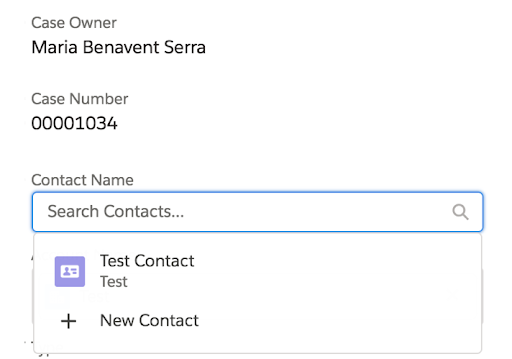
Example: You want the agent to fill in the customer contact that has raised the support request (linking it to the respective Contact record).
NOT (ISPICKVAL (Status, ’New’))
&&
ISBLANK (ContactId)
Required Fields to Close a Case
Example: When agents wrap up Cases, you want certain fields to be completed for reporting reasons.
The rule below will require the user to input the reason, type, subject, and description:
IsClosed
&&
OR(
           ISPICKVAL (Reason, “”),
           ISPICKVAL (Type, “”),
           ISBLANK (Subject),
           ISBLANK (Description)
)
‘IsClosed’ is a checkbox field that groups different closed statuses together (regardless of whether the outcome was successful/unsuccessful). You can also request information at different stages during the Case management process by using the “Status” field:
OR(
        ISPICKVAL (Status, ‘Working’)
        &&
        OR(
                ISPICKVAL (Reason, “”),
                ISPICKVAL (Type, “”)
        ),

        IsClosed
        &&
        OR(
               ISBLANK (Subject),
               ISBLANK (Description)
        )
)
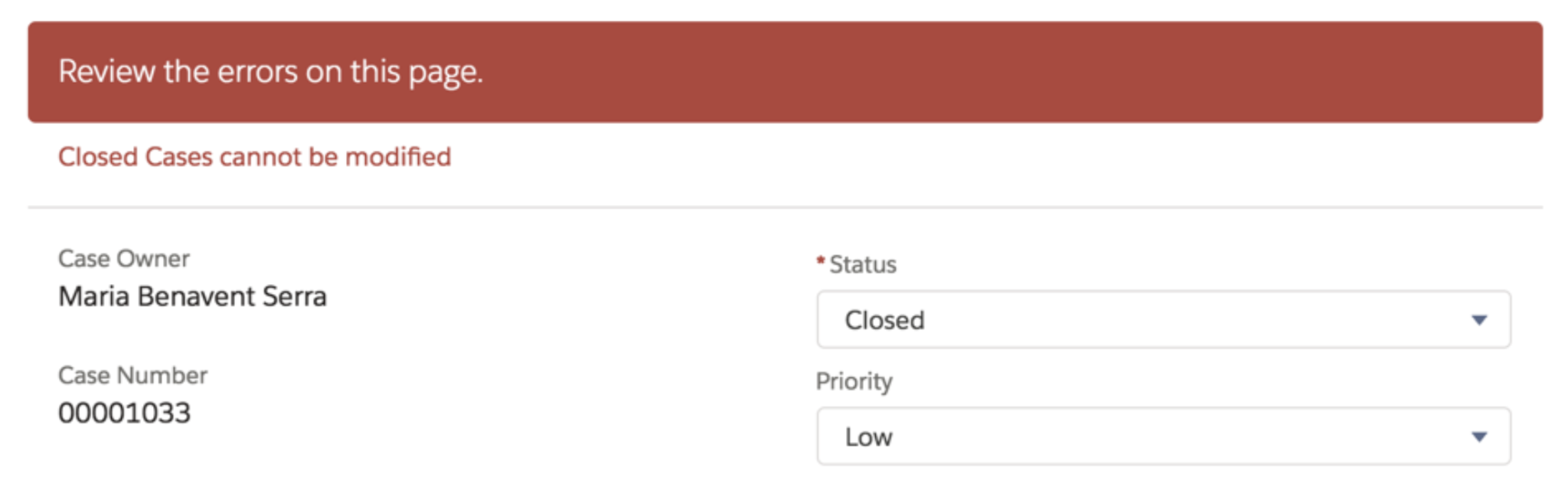
Closed Cases Cannot be Modified
Example: Once a Case has been closed, it should not be updated or reopened.
The rule is breathtakingly simple:
IsClosed
Tip: You can link Cases through the “Parent Case” field. If a support issue needs to be reopened, users can create a new Case and link the new case to the previous case.
Summary
Validation rules are simple by design, and that simplicity is exactly what makes them so effective. A single formula can save your team from hours of data cleanup later on. The examples above cover the situations you’ll hit most often, but they’re a starting point, and you can customize them further depending on your specific needs. As your org’s processes mature, chances are you’ll find your own “if this happens, then that must be true” moments worth locking down.
Whenever you create a new validation rule, make it a habit to also ask who might legitimately need to bypass it (for example, an admin doing bulk updates, or an integration syncing records). Having that in mind and building that flexibility in from the start will save you from chasing down tickets later.