

Understanding Salesforce formula operators can sometimes feel like cracking code, especially for newbies. With operators and functions like IF, CONTAINS, ISBLANK, and many more, navigating formulas might seem intimidating at first glance. But whether you’re a beginner trying to grasp their purpose or a seasoned admin building complex formulas, it’s easy to get lost in these technicalities!
This article aims to break down the fundamentals of Salesforce formula operators and functions in a simpler way. This guide isn’t just for beginners, though! Experienced Salesforce professionals can also benefit from revisiting these key concepts to refine their formula-building skills. Would it be better to use CONTAINS or INCLUDES? Or do we actually need to use a CASE function if the formula can be built with nested IFs?
We’ll explore some of the most essential Salesforce formula operators and functions, breaking down their uses and explaining when to apply them. Unlike my previous guide on beginner Salesforce terminology, this article won’t follow a glossary-style format. Instead, I’ll group functions based on their purpose or highlight those that are often interchanged or misunderstood.
Date and Time Functions
DATE
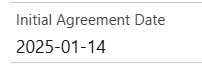
Take note of the format: DATE(year, month, day). This creates a date from year, month, and day inputs. For example, DATE(2025, 1, 14) outputs 1/14/2025 or January 14, 2025.
Here’s how the formula above looks like when converted to text and displayed on the record page:
DATEVALUE
Sometimes confused with DATE above, this one converts a text string, text field, or date/time field into a date value. The format is DATEVALUE(), where the text string or field is placed within the parentheses. For example:
- Text String:
DATEVALUE("2025-01-14")will return January 14, 2025, as a date value. The double quotation marks indicate that the expression is a text string. - Field:
DATEVALUE(Appointment_DateTime__c)will return the date portion of the custom Appointment Date and Time field, ignoring the time. There are no quotation marks in this one as it is not a text string.
Note: This function will work as long as the expression in the parentheses is a Date/Time field.
TIMEVALUE
Similar to DATEVALUE above, except this one extracts the time portion from a text string or field. The format is TIMEVALUE(), where the text string or field is placed within the parentheses. For example:
- Text String:
TIMEVALUE("13:40:42.125")will return as a time value of 1:40 PM. The double quotation marks indicate that the expression is a text string. - Field:
TIMEVALUE(Appointment_DateTime__c)will return the time value of whatever the date is in the custom Appointment Date and Time field, ignoring the date. There are no quotation marks in this one as it is not a text string.
This function will not work if you place a Date field in the parentheses. Make sure it’s a Date/Time field that actually has a time value in it.
DATETIMEVALUE
Like TIMEVALUE above, this converts a text string into a date and time value. It’s like a combination of DATEVALUE and TIMEVALUE. The format is DATETIMEVALUE(), where the text string or field is put within the parentheses. For example:
- Text String:
DATETIMEVALUE("2025-11-14 18:00:00")will return as 6 PM on January 14, 2025. The double quotation marks indicate that the expression is a text string. - Field:
DATETIMEVALUE(CloseDate)will return the date and time value of whatever the date is in the standard Close Date field.
This works for both the Date and Date/Time fields put within the parentheses, just like DATEVALUE. However, note that this will return only the date with a time of 00:00:00 for the Date fields, as they technically don’t have a time value.
DAY
Extracts the day of the month, where the result is a number from 1 to 31. For example:
DAY(DATE(2025, 1, 14))outputs 14. You can also put in a date field within the parentheses:DAY(Agreement_Date__c)outputs the day in your custom Agreement Date field.
Note that this formula only works on Date fields, and not Date/Time fields (despite them having an actual date value). To work around this, you can use DATEVALUE() to extract the Date from a Date/Time field before using it in the DAY() function, like so: DAY(DATEVALUE(ClosedDate)).
MONTH
Extracts the month, where the result is in number format. The values range from 1 to 12, representing January to December. For example:
MONTH(DATE(2025, 1, 14))outputs 1. You can also put in a Date field within the parentheses:MONTH(Agreement_Date__c)outputs the month in your custom Agreement Date field.
Like the DAY function, this only works with Date fields. If you need the month on a Date/Time field, use DATEVALUE() to extract the Date from a Date/Time field before using it in a MONTH() function, like so: MONTH(DATEVALUE(ClosedDate)).
YEAR
The YEAR function extracts the year from a date value. Like the DAY above, this does not work with Date/Time fields unless you first convert the field into a Date value. For example:
YEAR(Agreement_Date__c)extracts the year from a custom Date field called “Agreement Date”.YEAR(DATEVALUE(ClosedDate))gets the Date value from the standard ClosedDate Date/Time field on the Case object, then extracts the year from the result.
HOUR
The HOUR function is similar to the DAY function above but extracts the hour from a time input. The result would be a number from 1 to 24. This works when you place a field or a time value within the parentheses. The TIMEVALUE() function is useful here for getting a field or text string’s time value before extracting the hour using this function. For example:
HOUR("14:33:45.125")will lead to an error because the input is a text string, not a time value.HOUR(14:33:45.125)will also lead to an error as the input is not recognized as a time value.
HOUR(TIMEVALUE("14:33:45.125")) is the correct expression, leading to an output of 14.
The same is true with field inputs:
HOUR(TIMEVALUE(Appointment_DateTime__c))gets the custom Appointment Date and Time field’s time value first before having theHOUR()function extract the hour number from the result.
MINUTE
This function extracts the minute from a time value. The result would be a number from 0 to 59, and a field or time value goes within the parentheses. Similar to the HOUR function above, do not input a field or time directly; instead, you can use the TIMEVALUE() function to first convert a Date/Time field to a time value. For example:
MINUTE(TIMEVALUE("14:33:45.125"))returns 33.MINUTE(TIMEVALUE(Appointment_DateTime__c))returns minutes in the custom Appointment Date and Time field.
SECOND
This function extracts the minute from a time value. The result would be a number from 0 to 59, and a field or time value goes within the parentheses. Similar to the HOUR function above, do not input a field or time directly; instead, you can use the TIMEVALUE() function to first convert a Date/Time field to a time value. For example:
SECOND(TIMEVALUE("14:33:45.125"))returns 33.MINUTE(TIMEVALUE(Appointment_DateTime__c))returns minutes in the custom Appointment Date and Time field.
NOW
This function returns the current date and time. Yes, the actual current moment!
All of the functions mentioned above use parentheses, and this one does too. However, this does not need an expression or any value inside the parentheses. The actual expression is NOW().
When I use this in formulas, I like to think of it like a variable that always houses the current date and time, which are always calculated using the user’s time zone.
For example, NOW() + 3 adds three days from the NOW() value. So, if we say that the date and time now is 5 PM on January 12, 2024, the formula returns 5 PM on January 15, 2024.
TODAY
Similar to the NOW function above, except that TODAY() returns the current date without the time. The parentheses here don’t need anything in them as well; simply use this expression as if it’s a variable that always houses the current date.
Examples:
TODAY() - Agreement_Date__ccalculates the number of days between the current date and the date in a custom Agreement Date field. If today is January 15, 2024, and the Agreement Date is January 13, 2024, this formula returns 2.TODAY() - 5calculates five days ago from the current date. So, if today is January 15, 2024, this formula returns January 10, 2024.
TIMENOW
Belonging to the same family as NOW and TODAY above, this one outputs the current time only (in GMT). As usual, no need to put content within the parentheses as this function is meant to be used as is: TIMENOW().
For example, TIMENOW() - TIMEVALUE(Appointment_DateTime__c) extracts the time from the custom Appointment Date and Time field and subtracts it from the current time.
Conditional Statements
IF
This evaluates a condition and returns values accordingly: it shows a given value if true and another value if false. The format is IF(logical test, value if true, value if false).
Here’s an example: IF(Amount > 1000, "High", "Low").
This formula checks whether the amount is greater than 1000 or not, then displays the word “High” if it is, then “Low” if it isn’t.
Note: The true value and the false value must always be of the same data type.
CASE
This function checks multiple conditions and returns a value for the first true match. You basically have to have a set of values you want to display based on another set of values. If the resulting value doesn’t match any of the ones you set, it will display the else_result. The format is CASE(expression,value1, result1, value2, result2,…, else_result).
Let’s try an example…
I want my formula field to display “Red” if a case is in “Escalated” status, “Green” if it’s “New”, and “Blue” if it’s “Closed”. Any other values should display “White”. Translating this into a formula using the CASE function, we get the following:
CASE(Status, "New", "Green", "Closed", "Blue", “Escalated”, “Red”, "Default")
When working with several values, it also helps to put them all in a table first so you can visualize how to write the formula. The else_result is displayed for literally any value apart from the ones you included in the CASE function, including blank.
In case you haven’t noticed, the CASE function is similar to a nested IF function, but it’s typically easier to read and manage when you have multiple conditions that need to be checked.
In general, if you have multiple conditions that can be logically broken into simple ‘if this, then that’ checks, CASE is often cleaner. But for more varied or complex logic that requires dynamic comparisons, IF is more appropriate.
Logical Operators and Functions
Logical operators determine whether expressions are true or false.
ISBLANK
This function checks if a field is blank or null and evaluates true if it is. The format is ISBLANK(), and inside the parentheses is the name of the field to evaluate. For example:
ISBLANK(Account.Name)returns true if the Account Name field has nothing in it.ISBLANK(Maintenance_Date__c)returns true if the custom field Maintenance Date has no value.
Considerations:
- A field is not blank if it contains characters, like a space or zero, for example.
- For example, if you decide to evaluate a text field wherein someone used the space bar to enter just a space, it technically isn’t blank! You might see the field as empty because you don’t ‘see’ the space, but this function will not consider it blank.
- For numeric fields, consider whether the field is configured to treat blanks as zeros. Zero is still a value, so this function will not consider it blank.
ISNULL
This is often confused with ISBLANK above because it also checks if a field is null.
While it behaves like ISBLANK in many cases, it is no longer suggested to use this, as it has a lot of loopholes and issues. For example:
- A text field is never null, so using
ISNULLfor text fields renders it useless. - Empty date and date/time fields always return true when referenced in
ISNULLfunctions. - Empty lookup fields always return false when referenced in
ISNULLfunctions. - Consider whether you’re referencing a formula that ‘treats blank fields as blanks’ or ‘treats blank fields as zeroes’ when using
ISNULLbecause if a field treats blanks as zeros, it technically isn’t null!
On the other hand, ISBLANK supports all the fields mentioned above and has the ability to see blank fields as they are, provided you keep in mind the considerations stated. ISBLANK can check for all blank, null, or empty values, so you can forget about ISNULL and make your life easier by using ISBLANK instead for all kinds of blank checks!
BLANKVALUE
This function returns a value if a field is blank; otherwise, it uses the value of the expression. This is also sometimes confused with ISBLANK above, but instead of just a blank checker, it helps to think of this as a function for creating a default value or a ‘fallback’ when the original field has no data. For example:
BLANKVALUE(Due_Date__c, Date_Opened__c + 7)displays the value of the custom Due Date field when it has data, but when left blank, automatically displays a date that’s seven days after the custom Date Opened field.BLANKVALUE(Site, “No Website”)displays the value of an account’s website, but when left blank, it automatically shows “No Website”.
The considerations for using BLANKVALUE are the same as those of ISBLANK above.
NULLVALUE
Like BLANKVALUE, this function returns a value if a field is null; otherwise, it uses the value of the expression. Comparing this with ISNULL above, which is just a null checker, this is more of a function for creating a default value or a ‘fallback’ when the original field has no data.
This one has the same loopholes and issues as ISNULL (see above), so it’s recommended to use BLANKVALUE instead, given their similarities.
AND
This operator ensures all conditions are true. The format is AND(),and inside the parentheses would be values you want to evaluate, separated by commas. For example:
AND(ISBLANK(Subscription_status__c), Account.OwnerId = $User.Id)would mean a condition where the custom field “Subscription Status” is blank(ISBLANK(Subscription_status__c))and the account owner is the same as the current user(Account.OwnerId = $User.Id). See how both expressions are separated by a comma inside the parentheses ofAND. This whole condition would only be evaluated as true if both expressions are true.IF(AND(Level__c < 5,Difficulty__c < 3),"Easy", null)displays the word “Easy” if the level is less than five and difficulty is less than three. Again, notice how both expressions(Level__c < 5 and Difficulty__c < 3)are separated by a comma.
Another format for this operator is &&. This does not involve any parentheses and can be placed directly between two expressions to denote that they should be evaluated together and both should be true. For example, IF(Level__c < 5 && Difficulty__c < 3,"Easy", null) is the same as the example above but written differently, replacing AND() with &&.
OR
This operator ensures at least one condition is true. The format is OR(),and inside the parentheses would be the values you want to evaluate, separated by commas. For example:
OR(ISBLANK(Subscription_Status__c), Account.OwnerId = $User.Id)would mean a condition where custom field “Subscription Status” is blank(ISBLANK(Subscription_Status__c))or the account owner is the same as the current user(Account.OwnerId = $User.Id). See how both expressions are separated by a comma insideOR’s parentheses. This whole condition would be evaluated as true if either one of the expressions is true.IF(OR(Level__c < 5,Difficulty__c < 3),"Easy", null)displays the word “Easy” if the level is less than five or difficulty is less than three. Notice both expressions(Level__c < 5 and Difficulty__c < 3)separated by a comma, and only one of them needs to be true for the whole thing to evaluate as true.
Another format for this operator is ||. This does not involve any parentheses and can be placed directly between two expressions to denote that they should be evaluated together and only one should be true. For example, IF(Level__c < 5 || Difficulty__c < 3,"Easy", null) is the same as the example above but written differently, replacing OR() with ||.
NOT
This operator inverts the result of a condition, returning false for true, and true for false. The format is NOT(), and inside the parentheses is an expression you want to invert. I personally like to read this as ‘anything but’. For example:
NOT(ISBLANK(Subscription_Status__c))evaluates as true if the custom field “Subscription Status” has a value (i.e. is not blank). ‘Anything but’ a blank Subscription Status!IF(NOT(Level__c = 1),"Requires Review", null)displays the words “Requires Review” for any level except 1.
Two alternative formats for this operator are != and <>. These do not involve any parentheses and can be placed directly between two expressions to denote that they should not be equal to each other. For example, IF(Level__c <> 1),"Requires Review", null) is the same as the example above but written differently, replacing NOT(Level__c = 1) with Level__c <> 1.
Note: These alternative formats should not be used for comparing with null, such as Level__c != null or Level__c <> null. Instead, use ISBLANK, which will be discussed in the next section.
Record-Level Functions
ISCLONE
This function returns true or false depending on whether or not the record is a clone of another. The format is ISCLONE(), and nothing goes inside the parentheses as it is not meant to be used on fields.
You can use this function for validation rules to check if the current record is a clone before displaying an error message. It returns true for a cloned record.
ISNEW
Same as ISCLONE, this one returns true or false to check if the formula is running on the creation of a new record. If it is, the formula returns true. The format is ISNEW(), and again, does not require a value in the parentheses.
This function is primarily used in validation rules to enforce that certain changes occur only during record updates or creations. For example, AND(ISNEW(),ISBLANK(Site)).
This displays an error message when the record is new and the Account Site is blank, ensuring that all created account records have a website upon creation.
ISNUMBER
This function returns true or false to check if a text value is a number. The format is ISNUMBER() wherein the parenthesis houses the name of the text field.
ISNUMBER(Bank_Account_Number__c) checks whether the value of custom field Bank Account Number is made up of digits and not letters. Note that this function returns false for blank values.
ISCHANGED
This function simply checks if a field’s value has changed. It returns true if the previous value of the field is different from the current one, and false if not. This is available only in validation rules, assignment rules, and workflow or process builder formulas. Format is ISCHANGED(field).
For example, let’s say you’re writing a validation rule that shows an error when a user attempts to make changes to the Priority field. The formula would be ISCHANGED(Priority).
PRIORVALUE
This retrieves the previous value of a field on the record. The format is PRIORVALUE() where the name of the field goes in the parentheses. For example, PRIORVALUE(Status).
Take note that this function does not return default values and is available only in assignment rules, validation rules, and field updates.
You may ask, “But what if the field technically does not have a previous value because the record has just been created?” This function will return the value of the referenced field instead. So if, for example, the created record has a status of “New”, PRIORVALUE(Status) returns “New”.
This can also be used in combination with other functions, like INCLUDES or ISPICKVAL, to return the previous value of picklists and multi-select picklists.
Math Functions
FLOOR
This function rounds to the nearest integer. It may be rounding up or down, but always remember that FLOOR rounds the number towards zero. For example:
FLOOR(5.7)outputs 5.FLOOR(-5.7)outputs -5.
The opposite of this is CEILING.
CEILING
This one also rounds to the nearest integer. Since it’s the opposite of FLOOR, always remember that it rounds the number away from zero.
CEILING(5.7)outputs 6.CEILING(-5.7)outputs -6.
MIN
This finds the smallest number in a list. Enter the list of values in the parentheses, separated by commas. For example, MIN(500, Total_Price__c/3).
This picks the lower value between 500 and the Total Price divided by three. It can be used in a discount field, where the maximum discount a customer can get is 500.
This function is the opposite of MAX.
MAX
The MAX function finds the smallest number in a list. Like MIN, enter the list of values in the parentheses, separated by commas. For example, MAX(5000, Salary__c * 2).
This picks the lower value between 5000 and twice the employee’s salary. It can be useful in cases where a minimum threshold must be met, like bonuses or loan amounts. For example, if an employee’s salary is too low for a calculated bonus, this formula ensures they receive at least 5000.
Text Functions
CONTAINS
This function checks if a text contains a specific substring. For example, CONTAINS(Name, "Sales") checks whether the Name field has the word “Sales” in it.
Note: This is case-sensitive! So, if using our example, you also want to check for “Sales” – it has to be accounted for.
INCLUDES
The purpose of this is similar to CONTAINS but made for multi-select picklists. It checks if a multi-select picklist includes a value. Note that the value you’re looking for should always be enclosed in quotes, signifying a text string. For example:
In a custom multi-select picklist with options Product 1, Product 2, and Product 3, check whether the record has Product 2 selected.
INCLUDES(MultiSelect__c, "Product 2")returns true for any of the following selections:
- Product 2
- Product 1 and 2
- Product 2 and 3
- Product 1, 2, and 3
ISPICKVAL
This one’s pretty common and well-used due to most objects having picklist fields! It checks if a picklist field matches a value. When I was new to writing formulas in Salesforce, I kept referencing picklist fields directly and getting errors because of that. Remember, you almost always need this when referencing a picklist field in a formula!
Again, the value should always be enclosed in quotation marks, signifying a literal text string. The format is ISPICKVAL(picklist_field, “text string”). For example, IF(ISPICKVAL(Status, "Escalated"), TODAY()+7, Target_Close_Date).
This formula checks if the case status is “Escalated”. If it is, it adds seven days to the current date and displays that. Otherwise, it displays the date on a custom Target Close Date field.
Summary
Mastering Salesforce formula operators can unlock powerful ways to automate processes, validate data, and create dynamic solutions. By understanding how to effectively use formula operators and functions – from basic conditional logic with IF statements to more advanced ones with multiple combinations – you can enhance the functionality of your Salesforce org.
Having a solid grasp of these will ensure you’re better equipped to tackle any formula challenge that comes your way and say goodbye to syntax errors. What other functions do you often use in your org formulas? Leave them in the comments below!