







If you’ve been keeping half an eye on Salesforce’s MFA rollout and telling yourself “I’ll sort it next week,” this is your sign that next week is now. Production enforcement for MFA begins July 20, 2026, staggered over a 15-day window, and if your org gets caught at the front of that window, you will not get a warning shot.
You might remember that this enforcement was briefly paused on July 1, while Salesforce resolved an issue where users with existing security keys were incorrectly prompted to register new ones. That pause bought everyone a bit of breathing room, but it was exactly that: a pause, not a cancellation. The new schedule is live, and five days is not a lot of runway if you haven’t started.
Before July 20, you need to ensure:
- All users have compliant MFA methods.
- Privileged users have phishing-resistant MFA.
- SSO signals are validated.
- Integration accounts are reviewed.
- Support staff are prepared for resets.
So let’s not overthink this. Here is a straightforward, day-by-day plan to get your org ready, whether you’re starting from scratch or just tidying up loose ends.
Fair warning: this plan has a built-in choice you don’t get to opt out of. You can either have the busiest Friday of your professional life, or you can spend your weekend doing MFA admin instead of anything resembling a weekend. There is no third option where this quietly sorts itself out. Pick your suffering, and let’s get moving.
Day 1: Audit Your Setup
First, run an audit. Before you touch a single setting, find out what you’re working with.
Confirm if You Use SSO
Before you do anything else, determine how users authenticate into Salesforce. Your MFA preparation depends on it.
- Salesforce-native login: Users authenticate directly with a Salesforce username and password. MFA enrollment and enforcement are managed within Salesforce.
- Single Sign-On (SSO): Users authenticate through an external identity provider (IdP) such as Okta, Microsoft Entra ID (Azure AD), Ping Identity, or ADFS. In this case, MFA must be enforced by the IdP, and Salesforce must receive evidence that a compliant authentication process took place.
This distinction is important because it determines how Salesforce evaluates MFA compliance and where any remediation work needs to happen.
For SSO users, Salesforce relies on industry-standard authentication context information provided by your IdP. In particular, Authentication Methods References (AMR) and Authentication Context Class References (ACR) indicate how a user authenticated and whether a phishing-resistant MFA method was used. If these values aren’t being passed correctly, Salesforce may prompt users to register a compliant MFA method directly or prevent access altogether.
If your organization uses SSO, engage your identity team early and verify that the required AMR and ACR values are being sent as part of the authentication flow. If they aren’t, you have two options:
- Configure your IdP to pass the appropriate phishing-resistant authentication signals.
- Have affected privileged users register a Salesforce-native phishing-resistant method, such as a passkey or FIDO2 security key, as an alternative means of compliance.
Taking the time to verify your authentication model now will save significant troubleshooting later in the rollout.
Identify System Admin Accounts
Check every user with a System Administrator profile by going into Setup → Profiles → System Administrator → Assigned Users. You should also identify users who have been granted administrative privileges through Permission Sets or Permission Set Groups, particularly permissions such as Modify All Data, Manage Users, View All Data, Customize Application, or Author Apex.
These users will be required to use phishing-resistant MFA. While Salesforce administrators are the most obvious group affected, the requirement extends to anyone with certain elevated permissions, meaning some users without an administrative profile may also fall within scope.
To ensure you don’t miss anyone, use Data Loader (or a similar tool) to query the PermissionSetAssignment object:
SELECT Assignee.Id,
       Assignee.Name,
       Assignee.Email,
       Assignee.Username,
       Assignee.IsActive,
       PermissionSet.Name,
       PermissionSet.Profile.Name,
       PermissionSet.PermissionsModifyAllData,
       PermissionSet.PermissionsViewAllData,
       PermissionSet.PermissionsCustomizeApplication,
       PermissionSet.PermissionsAuthorApex
FROM PermissionSetAssignment
WHERE Assignee.IsActive = TRUE
AND (
     PermissionSet.PermissionsModifyAllData = TRUE
     OR PermissionSet.PermissionsViewAllData = TRUE
     OR PermissionSet.PermissionsCustomizeApplication = TRUE
     OR PermissionSet.PermissionsAuthorApex = TRUE
)
This approach helps identify all active users who hold affected permissions, regardless of whether those permissions are granted through a Profile, Permission Set, or Permission Set Group.
Locate Users That Need to Register An Approved MFA Method
Run a standard identity verification methods report to get a clear read on your current setup. This will show which users still need to register an approved MFA method. Pull a list of every user and check who already has a verified authentication method registered against who doesn’t. Don’t assume – check. This is the detail that tells you exactly who needs attention over the next 48 hours.
Then, get the word out. This is the one admins underestimate every single time, and it’s usually the reason for a flood of tickets on go-live day. If any of your users don’t yet have MFA set up, they need to hear from you now, not on the 20th. One email is not enough. Send a message today explaining:
- Why this is happening (Salesforce is enforcing MFA org-wide, no opt-out).
- When it takes effect for your org.
- Exactly how to enroll, step by step.
Set up a dedicated channel too, whether that’s Slack, Teams, or a shared inbox, so people have somewhere to ask questions instead of guessing and giving up.
The goal is simple: by tonight, you should know exactly where your org stands, and nobody should be finding out about this for the first time when they’re already locked out.
Resources:
- See How Your Users Verify Their Identity
- Which Salesforce Users Need Passkeys? A Quick Guide for Admins
- Multi-Factor Authentication for Salesforce
Day 2: Deploy and Communicate (Again)
Today is about execution. By the end of the day, users should not only understand what’s changing but also have the authentication methods they need in place before enforcement begins.
Register a Backup Authentication Method
When enrolling users in MFA, don’t stop at a primary authentication method. Every user should have a backup method registered as well.
Devices are lost, replaced, reset, or damaged. If a user’s only authentication method is tied to a device they can no longer access, your support team becomes responsible for resetting their MFA access at exactly the moment they’ll be busiest.
Pay particular attention to users who may not have access to a personal smartphone or dedicated device, such as manufacturing staff, warehouse workers, contractors, or users operating from shared workstations. If alternative authentication methods are required, plan and deploy them now rather than waiting until enforcement begins.
Deploy MFA Org-Wide
For most users, MFA deployment will involve either:
- Salesforce Authenticator.
- A supported third-party TOTP application, such as Google Authenticator or Microsoft Authenticator.
Remember that verification methods based on email, SMS, or voice calls do not satisfy Salesforce’s MFA requirement and should not be relied upon as a user’s only authentication method.
Resources:
- Enabling Salesforce MFA: Top 5 Methods for Salesforce Admins
- Configure the MFA Verification Methods Available to Your Users for Salesforce Orgs
- Prepare for MFA Enforcement for All Employee Users
Enable Phishing-Resistant Methods in Setup
Privileged users subject to Salesforce’s phishing-resistant MFA requirements should be enrolled in a compliant authentication method before enforcement begins.
Navigate to Setup → Identity Verification and enable the supported phishing-resistant options available in your org.
The following authentication methods meet Salesforce’s phishing-resistant MFA requirements:
- Built-in authenticators such as Touch ID, Face ID, and Windows Hello.
- FIDO2/WebAuthn security keys such as YubiKey.
- Cloud-synced passkeys stored in FIDO2/WebAuthn-compliant platforms, including password managers and device ecosystems that support passkeys.
By contrast, the following methods do not qualify as phishing-resistant authentication:
- Salesforce Authenticator push notifications.
- TOTP applications such as Google Authenticator, Microsoft Authenticator, and Authy.
- SMS-based verification codes.
- Email verification codes.
Ensure affected users understand which authentication methods are required and provide enough time for them to register and test their devices before enforcement reaches your org.
Resources:
- Which Salesforce Users Need Passkeys? A Quick Guide for Admins
- Do Password Managers Satisfy Salesforce’s MFA Requirement?
- Prepare for Phishing-Resistant MFA Enforcement for Privileged Users ncluding Admins
Communicate Again
Once deployment is complete, communicate with users again. Remind them of the enforcement timeline, where to find enrollment instructions, and how to obtain support if they encounter issues. A short reminder now can prevent a significant number of support tickets once enforcement begins.
Day 3 (Friday): Handle the Exceptions Before They Become Emergencies
This is the day to deal with everything that isn’t a straightforward human login. Congratulations, this is officially the busiest Friday of your life.
Integration Users, Middleware, and API Connections
These logins matter just as much as your people, and they don’t get a polite error message if MFA breaks them – they get a broken business process. Review your connected apps, external client apps, and integration user setup now, while you still have time to fix anything that looks fragile.
“Waive Multi-Factor Authentication for Exempt Users”
If any of your accounts, particularly test automation or RPA tools, rely on this permission, be aware that it stops working automatically once enforcement reaches your org. Getting an exemption approved requires reaching out to Salesforce Support directly, and that is not something you want to be doing on the morning of the 20th. Start that conversation today.
SSO Signals
If your org authenticates through an identity provider, check in with your IdP team to confirm that AMR (Authentication Methods Reference) and ACR (Authentication Context Class Reference) signals are being passed correctly. Salesforce relies on these to confirm MFA actually happened upstream. If the signals aren’t right, users may get blocked or prompted to enroll in a Salesforce native method as a fallback, even though they technically completed MFA elsewhere.
Day 4 and Day 5 (Saturday and Sunday): Final Housekeeping and a Dry Run
You’re nearly there. Today is about tying off loose threads.
Delegate MFA Support So It Isn’t All on You
Assign the Manage Multi-Factor Authentication in User Interface permission to your Service Desk or Tier 1 support team if you haven’t already. With this, they can generate temporary verification codes, reset authentication methods, and review identity verification activity, without needing full admin access. This alone will save you a difficult week.
Clean Up Old and Invalid Verification Methods
If a user replaced their phone months ago but the old authenticator entry is still sitting on their profile, disconnect it now. Otherwise, they can end up stuck being prompted for a method they can no longer access, which looks like MFA is “broken” when really it just needs tidying up.
Test the Full Login Journey, Not Just the MFA Step
Log in as a test user through each path your org supports: mobile, desktop, SSO, and shared devices, if you have them. You’re checking for a smooth experience end to end, not just confirming the prompt appears.
Resources:
- Resolve MFA Access Issues for Your Users (Salesforce Orgs)
- 10 Mistakes to Avoid When Implementing MFA for Salesforce
July 20: Enforcement Day
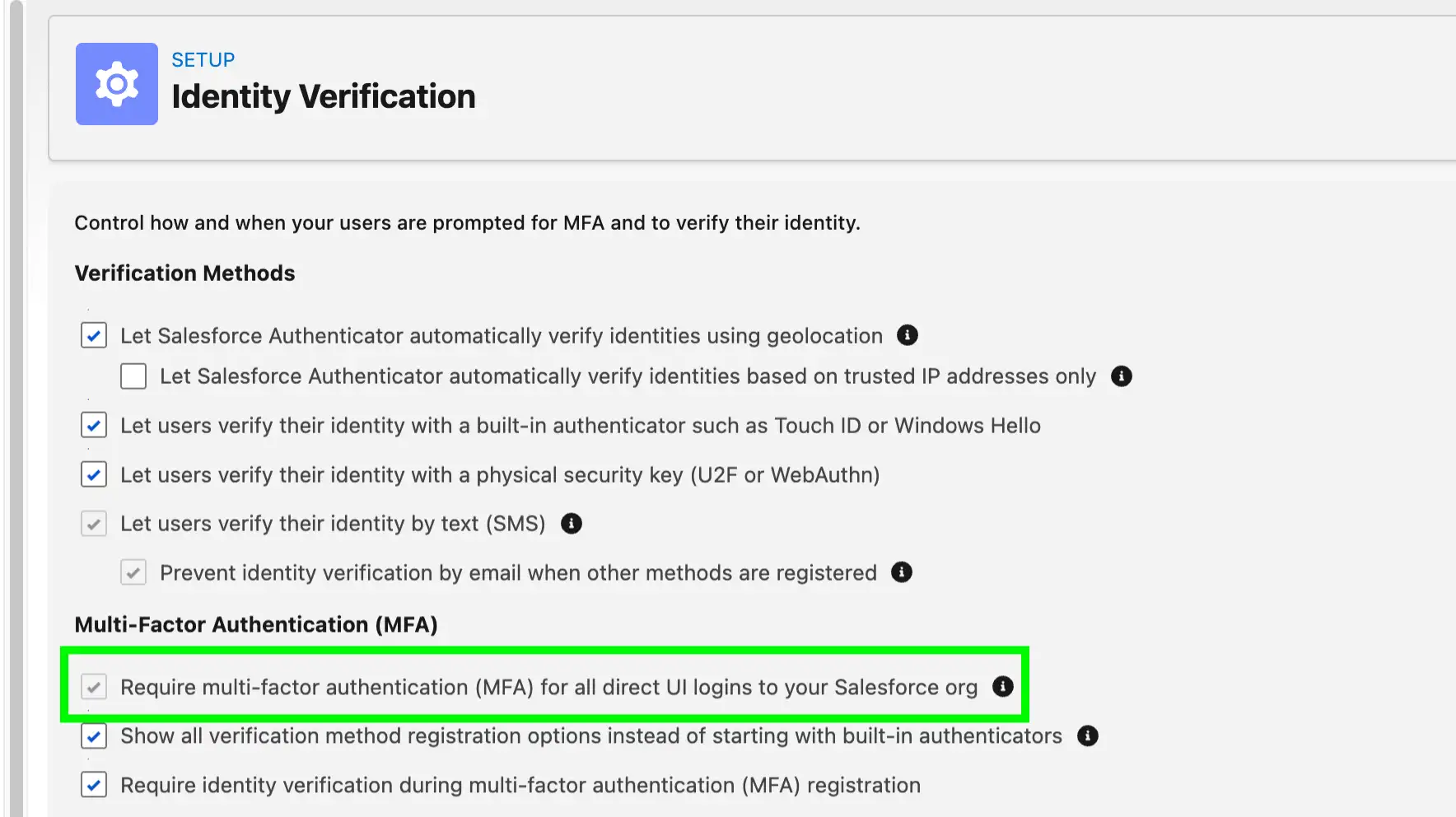
Once your org is caught in the rollout window, the “Require multi-factor authentication (MFA) for all direct UI logins to your Salesforce org” setting becomes permanent, and it cannot be deselected. There’s no going back to flip it off if something feels off, so today is about monitoring, not configuring.
Keep your support channel open and watch it closely for the first few hours. Make sure your delegated support staff know they’re on point for lockouts. And if you do hit a snag, remember that Salesforce has already shown once this year that it will pause and adjust when something isn’t working. That’s reassuring, but it’s not a reason to lean on it. Assume it goes ahead as scheduled and plan accordingly.
You can check the enforcement dates for your release group in the Release Group Enforcement Schedule.
How Will I Know if MFA is Being Enforced in my Org?
Once MFA is enforced and rolled out to your org, “Require multi-factor authentication (MFA) for all direct UI logins to your Salesforce org” becomes active and greyed out.
Final Thoughts
None of this is complicated on its own. It’s the combination of communication, backup planning, exception handling, and a proper test run that turns a stressful enforcement date into a non-event. If you’ve been putting this off, five days is genuinely enough time, provided you start today.
You’ve got this. Just don’t wait until July 20 to find out.