
DevOps Center has been around for a while as a managed package, and over the last few releases we’ve watched Salesforce gradually fold its capabilities into the core platform. The DX Inspector Bar, introduced a few releases ago, was an early sign of this.
As of the Spring ’26 release, DevOps Center is now a core app. This finally brings DevOps out of its own isolated silo and makes it a native part of a healthy Application Lifecycle Management (ALM) strategy. Before diving into the technical details of the new app, let’s refresh the core concepts behind ALM, DevOps, CI/CD, source-driven development, and Git.
Why You Should Use Sandboxes
In short, sandboxes are copies of your production org, used to build and test your application in isolation before pushing changes to the live environment.
A good analogy comes from vehicle safety testing. Manufacturers crash-test cars using anthropomorphic test devices (ATDs, or “crash dummies”) in controlled, high-impact scenarios to measure damage and improve safety before mass production. These tests happen in isolated environments purpose-built to replicate real-world conditions, which is exactly what a sandbox is: a replica of your production org, with its configuration and, sometimes, a copy of its records (metadata and data).
Now picture testing a crash dummy in live traffic instead of a closed track. That’s what changing something directly in production is like. Hopefully that’s enough to make you think twice before fixing a bug straight in production and skipping proper testing.
Creating these safe environments matters because testing under real-life conditions means replicating what you’d actually find in production. That might involve creating test data or migrating real records into the test environment, done manually, with templates, or using sandbox types like Partial Copy or Full Copy.
Why DevOps? Turning Risk Into a Repeatable Process
Moving an application from an isolated environment into a live org carries real risk of introducing bugs. Sometimes because we don’t know the change’s full impact on the target environment, sometimes because testing is rushed under tight deadlines.
Regression testing during deployment (re-running the full test suite, including tests unrelated to the current change) helps with partial testing, but unknowns are, by definition, unpredictable. Recovering from a broken deployment is genuinely difficult without tooling that lets you revert to a previous version.
DevOps (Development & Operations) is a set of practices designed to reduce that risk. It introduces structured, multi-step quality gates that catch issues early, well before a change reaches production (the “shift-left” principle), and it breaks down the silo between Dev (where the solution is built) and Ops (where the organization runs it), supporting a healthy ALM framework.
Note: Salesforce recently renamed this DevSecOps, to put more emphasis on security.
Application Lifecycle Management (ALM) in a Nutshell
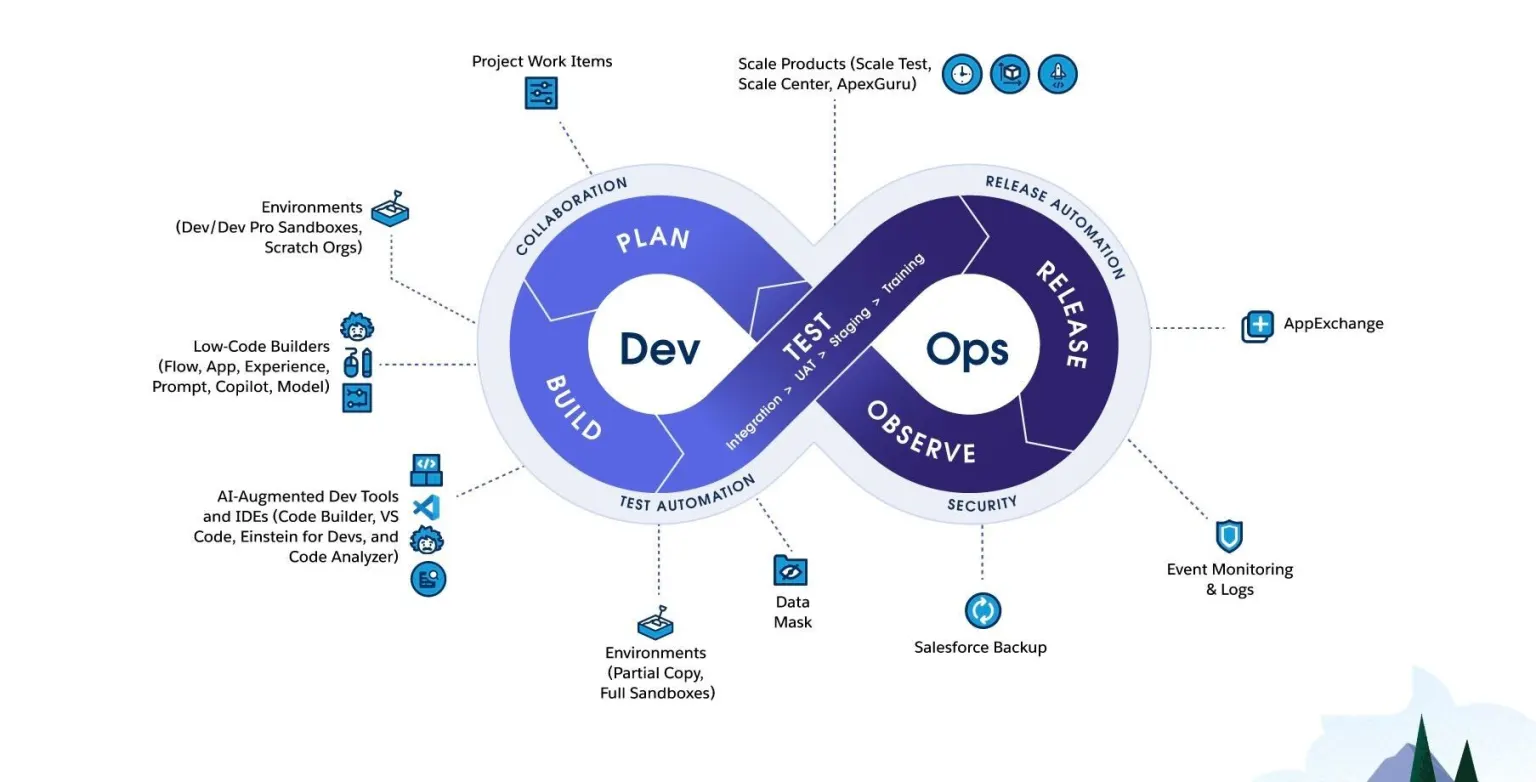
Source: What is Application Lifecycle Management (ALM) | Salesforce
Changes are planned and built on the development side, then deployed, released, monitored, and fed back into planning from the operations side. ALM is an infinite loop of continuous feedback. This is where CI/CD (Continuous Integration, Continuous Delivery/Deployment) comes in, automating parts (or all) of that loop to increase velocity for frequent releases.
Along that cycle sits a range of supporting tools, but the testing segment deserves special attention: a structured approach provides robust quality gates before a change reaches operations.
The Sandbox Pipeline as Quality Gates
Those quality gates take the form of sandboxes arranged in a pipeline, where changes move left to right, from development environments toward their final destination, which is usually production (though a sandbox can also be a valid final destination in its own right).
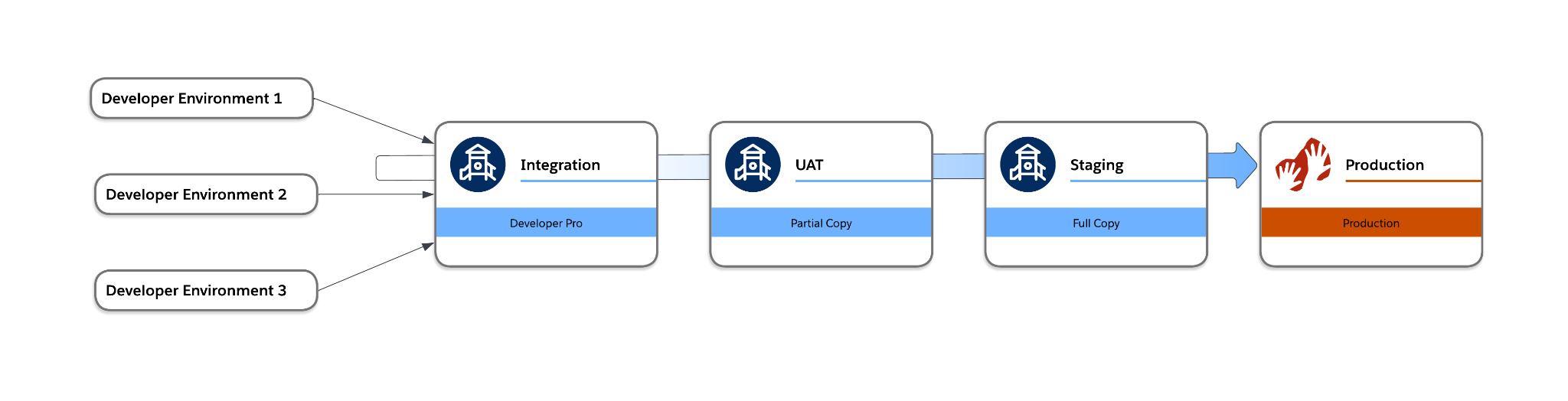
Salesforce’s recommended pipeline has five environments:
| Stage | Sandbox Type | Purpose |
| Developer | Developer / Scratch | Where the solution is built and rigorously tested. |
| Integration | Developer Pro | Where multiple solutions are tested together to confirm compatibility and coexistence. Usually a Developer Pro org, which has greater data-storage limits. |
| UAT | Partial Copy | User Acceptance Testing: demos, training, etc. Normally holds a partial copy of production data. |
| Staging | Full Copy | The final stage before release, where changes accumulate until release day. Normally a Full Copy sandbox, for teams that can afford one. |
| Production | Production | The live environment where the organisation operates. |
Putting a Definition to DevOps Center
Taking the sandbox pipeline and DevOps principles above into account, here’s my own working definition of DevOps Center:
“DevOps Center is Salesforce’s point-and-click tool for managing changes through a staged pipeline, while keeping everything synchronised in a single source of truth – including changes made outside Salesforce environments. It enables teams to collaborate across the Application Lifecycle Management process, tracking changes, enabling version control, and reducing conflicts.”
The concept underpinning all of this is source-driven development, which we’ll unpack next.
Org-Based vs. Source-Driven Development
Salesforce’s official documentation currently describes two models:
Both now imply the use of source control (called “Version Control” inside DevOps Center) by default, but that wasn’t always the case.
Historically, org-based and source-driven development were separate approaches. Teams used Change Sets to move components through the UI, while developers pushed changes from their IDE straight into the target org, with or without version control, and without a structured framework for rolling changes back. Moving components between environments, and committing from multiple sources quickly became complex, before you even try to apply structured quality gates on top.
Package Development took a different route: components lived in a “master” (packaging) org and were distributed internally as installable packages, via a link, AppExchange, or unofficial packages. The newer approach, Unlocked Packages, also uses version control as its baseline. This model is best suited to large enterprises or organisations whose standardisation varies across departments, and who may run multiple production orgs.
With source-driven development, all changes go to a single place (a repository) and are distributed from there to every environment. This lets team members see the same state, even without logging into a sandbox, and collaborate and merge changes outside the org entirely.
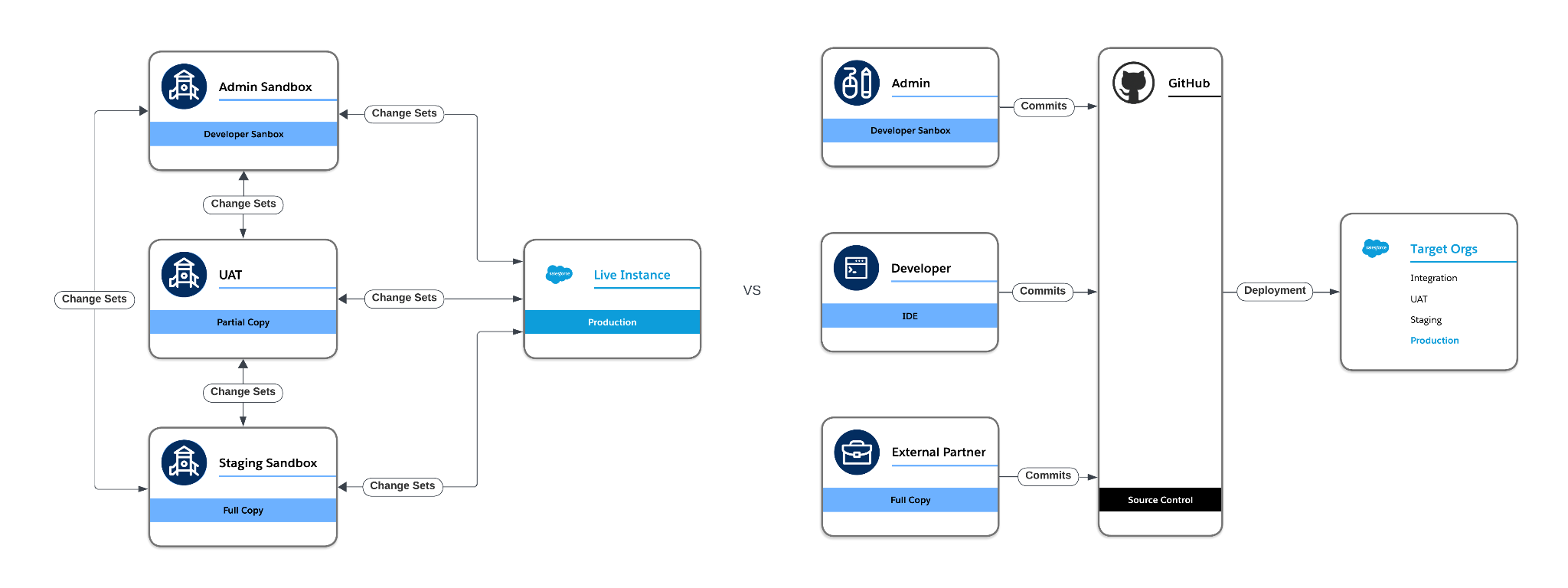
The fundamental takeaway about version control: the repository becomes the sole source of truth, not the org. Changes made directly in an org can be overwritten by incoming changes on the next promotion, so there’s no more “quick fix straight in production.” Even when a hotfix is genuinely the only option, it’s essential to commit that change back into the source control system afterward, to keep everything in sync.
Source Control and Git Fundamentals
Source-driven development relies on source control (Version Control, in DevOps Center’s terminology) as its baseline. Without going too deep into history: version control systems (VCS) and source code management (SCM) trace back to the 1970s–80s, when programmers first needed to track changes reliably; as growing teams sharing one central repository quickly ran into complexity.
Git arrived in 2005, letting developers work with a local copy of the central repository in isolated environments (branches), save their work as fixed snapshots (commits), and merge changes back into a single place (a pull request). Three years later, GitHub launched as a cloud platform to host those repos and make collaboration easier.
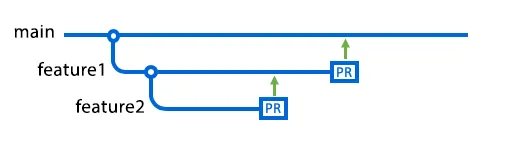
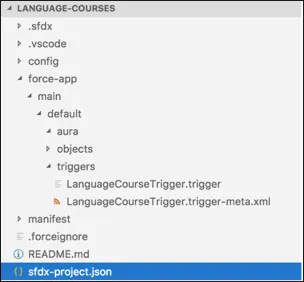
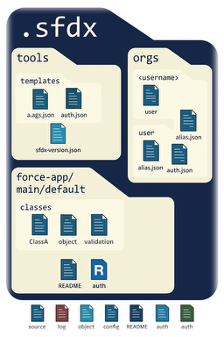
On a Salesforce project, the central repository stores your configuration (metadata) as human-readable text, XML, JSON, HTML, Apex classes, triggers, and so on – organised in the standard SFDX project structure.
When work begins on a discrete piece of work such as a user story or an issue ticket, a feature branch is created, copying all those files into an isolated space where admins and developers can commit their work against a shared state, once the work is done, a pull request is raised for review, and the feature branch is merged into the central repository (the main branch).
DevOps Center controls all of this Git activity from a friendly UI, powering an underlying engine of Git actions with clicks instead of code.
Common Challenges DevOps Practices Solve
With the concepts above in place, here’s how they show up in practice.
Work Overlap
Some organizations have every team member working in the same sandbox, hoping to consolidate changes in one place, but that also means people end up editing the same components. This creates a bottleneck at promotion time, since nothing can move until all items and their dependencies are ready.
A common example is the Contact Lightning Record Page. One admin is organizing fields in the page layout (which means the matching permission sets need to be ready too, and so on), while a developer adds a Lightning Web Component to the same page. The page can’t be promoted until both pieces of work are finished, or someone has to strip one out just to ship the other, delaying that person’s work instead. The same problem applies to any shared component: permission sets, profiles, reusable utility subflows, and more.
Dependencies
A related issue is components tangled in dependencies without anyone intending it. Creating a new field, for example, automatically updates every profile with (or without) access to that field, depending on the field-level security chosen at creation. If that field is deprecated and never makes it to promotion, the profile referencing it will fail to deploy, because the target org has no idea the field exists.
Both of these problems apply just as much to a solo admin working across multiple projects: you still need to check that every dependency is ready before shipping, and work out how to detach anything that isn’t. Tricky.
The fix is isolated environments: a DevOps tool that moves components only when necessary, and a backsync to distribute changes across your environments once a unit of work is complete.
Conflicts
Clashes are inevitable when isolated environments push changes to the same components from different branches. Back to the Contact page example: if the admin pushes their layout changes first, only that version reaches the target environment. When the developer then pushes their version with the new LWC, it overwrites the admin’s changes, and only the later push survives.
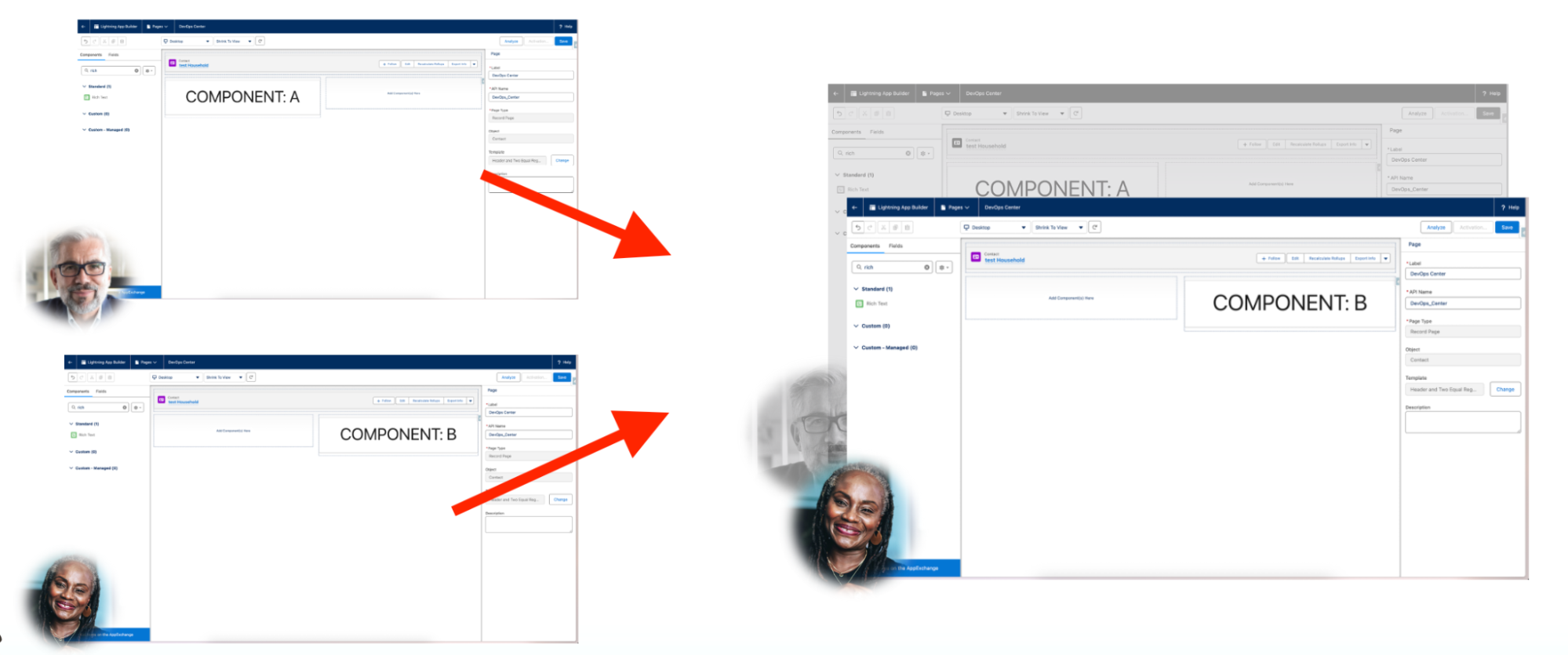
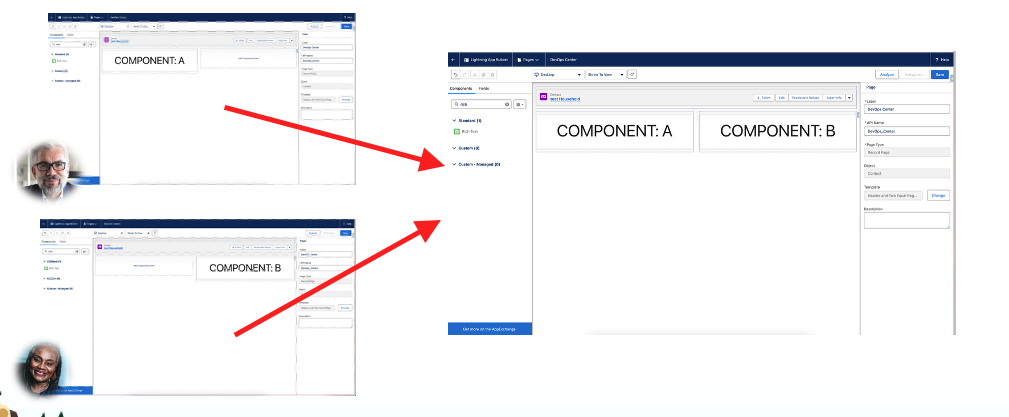
Version control detects and flags these conflicts during promotion, so you can merge both sets of changes into one component and deploy safely.

Clicking Resolve Conflicts opens a web editor where you can change files directly from the UI (or the command line), or hand the job to your preferred AI agent.
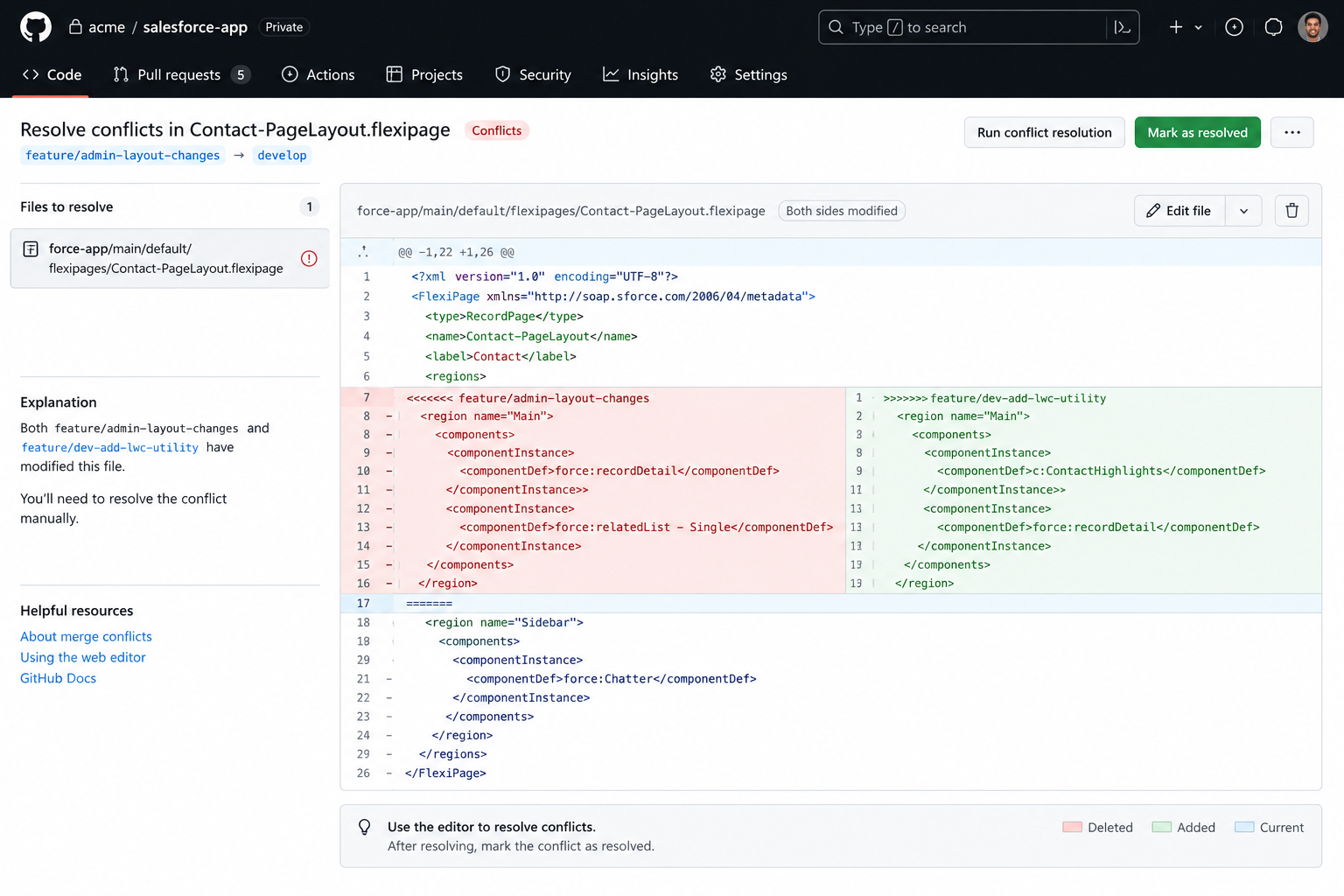
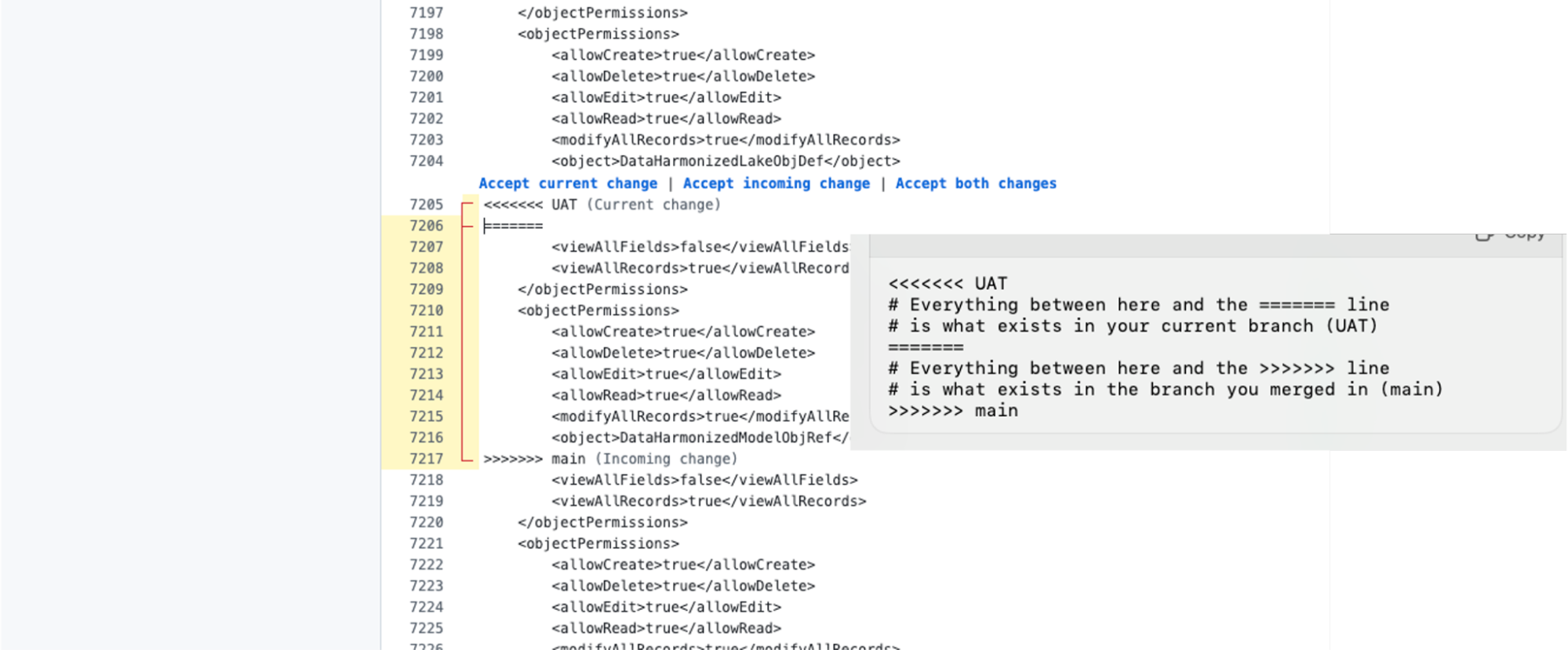
Version control shows a side-by-side comparison so you can manually merge the two sets of changes into one component. This can get fiddly with XML-based components like FlexiPages or Flows, but it’s entirely possible.
Committing from Multiple Sources
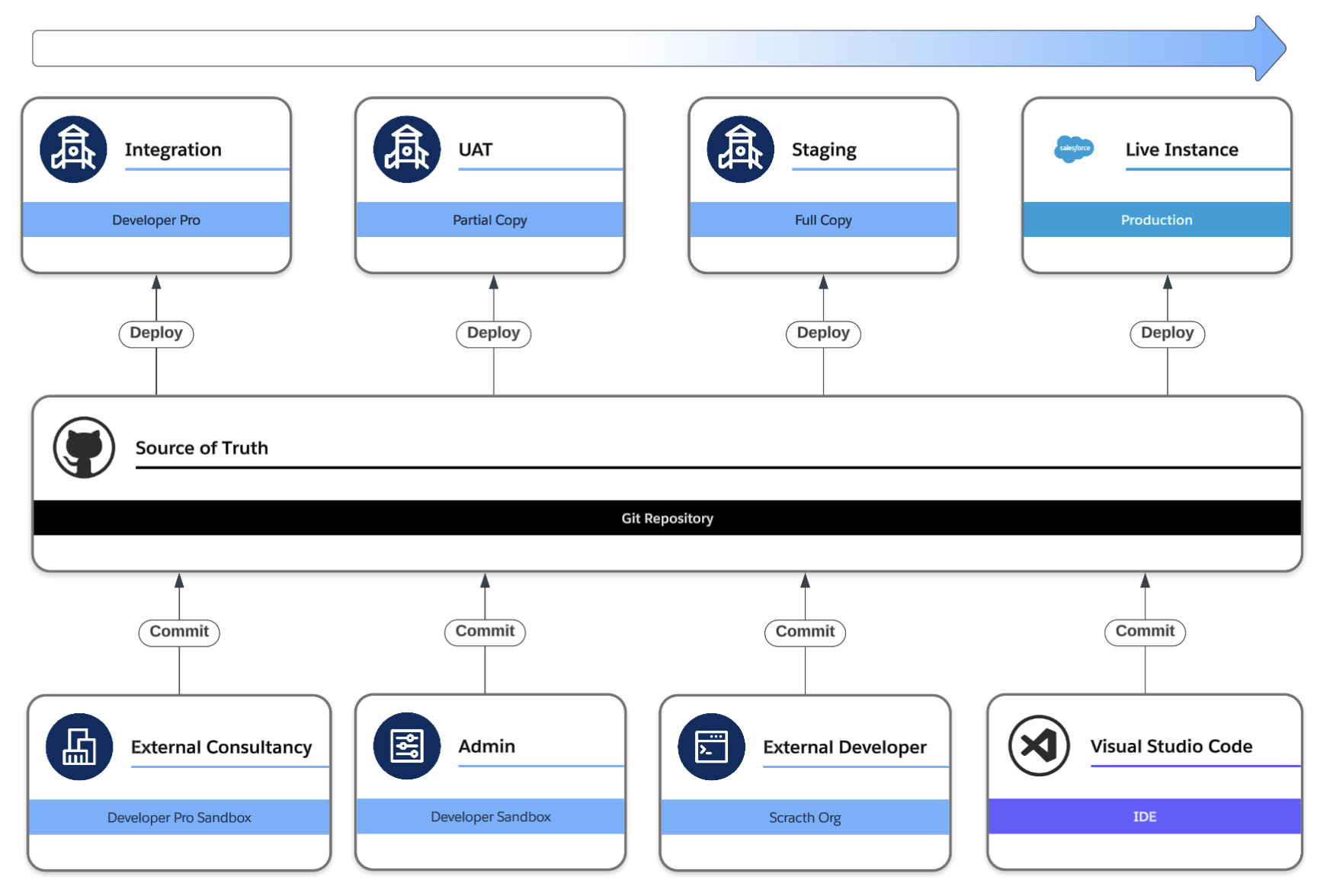
Before DevOps Center, there was no declarative way to commit changes into version control from the UI. Components had to be pulled to a local machine via an IDE (like VS Code) or the CLI, then pushed to a working branch in the repo. This created a gap between admins and developers, where change sets and programmatic changes lived in separate silos.
DevOps Center bridges that gap: changes can be committed straight from the UI and from outside the org (via programmatic tools), giving everyone a single, unified view of the change.
Roll Backs
Picture a disruptive deployment, one that breaks the system and halts critical operations. Reverting to the previous state manually can mean a lot of work: finding the previous version of a flow to reactivate, checking whether Apex class backups exist, and so on. With version control, changes can be rolled back at the repository level, recovering the previous state far faster.
Refreshing Sandboxes (Backsync)
Refreshing a sandbox is the usual way to bring the latest production changes into a developer environment and keep configuration in sync, but it also wipes out any work in progress in that sandbox. Version control solves this with Backsync: pushing changes only to the lower environments in the pipeline, without wiping out the sandbox entirely.
Integration Environments
The recommended pipeline uses a sandbox as the Integration stage, where all changes are tested together to confirm they interact correctly. This gives release managers a way to monitor the release as a whole before it moves further down the pipeline.
Fixed Releases (or Not)
In that same pipeline, the last environment, Staging, is where changes accumulate until a scheduled release date. This gives the organisation time to train staff, prepare documentation, and be ready when everything goes live together. At the same time, individual items can still be pushed separately when needed, or when the release cadence is fast-paced. DevOps Center is flexible enough to adapt to whichever approach an organisation uses.
Final Thoughts
Testing in isolated environments is fundamental to shipping applications without interruption. Promoting those changes into a live environment is a real challenge without the right tooling. DevOps practices support that constant cycle of change by enforcing quality gates along the way. Salesforce’s first attempt at this was Change Sets, a declarative way to manage change across environments, but one that created a gap between declarative and programmatic approaches.
Since late 2022, DevOps Center has offered a point-and-click alternative to Change Sets, introducing source control as the central layer to bridge that gap. And now, as of Spring ’26, the Next Generation DevOps Center is built in as a native core application.
In the next article, we deep-dive into the Next Generation DevOps Center, walking through the underlying actions step by step, comparing it to the managed package, and highlighting the details that matter most when using it.