

If your company has been sold, it can mean a fresh beginning for the business, bringing a new focus and vision for the future. However, it can also mean significant changes to sales, service, marketing, finance, IT, and of course, your Salesforce Org.
Over time, your Salesforce Org has taken on the identity of the business – this identity will be changing, and therefore, so will Salesforce. Most Salesforce Admins would relish the opportunity to rebuild the Org from scratch, but this is often impractical and risky at a pivotal time for the business. Thus, “migrating-in-place” is usually the best approach.
In this post, I’ll walk you through the steps to consider as my example company, “OldCo,” is sold, renamed, and rebranded as “NewCo.” OldCo was provided managed infrastructure services by its former parent company. However, NewCo will build a new, self-managed infrastructure. Fortunately, the Salesforce Org was included in the sale, and now it’s up to the Salesforce team to migrate it over to the new infrastructure.
Change “My Domain”
What’s in a name? Quite a lot, actually. The “My Domain” setting is the unique URL that identifies every instance of Salesforce. Changing this will have a cascading effect throughout the entire Salesforce Org. It is used for login, integration, email links, Chatter links, and other essential functions.
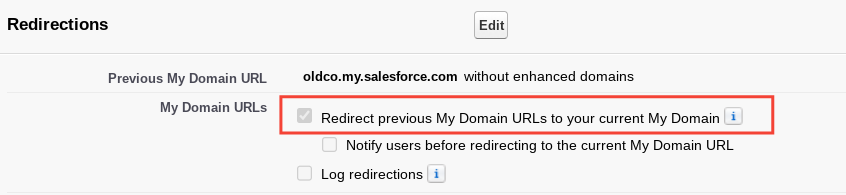
To change it, we’ll go to Setup → My Domain and change the My Domain URL from https://oldco.my.salesforce.com to https://newco.my.salesforce.com.

Tip: Check the box for “Redirect previous My Domain URLs to your current My Domain”. This ensures that any requests made to the old URL will be forwarded to the new URL.
Reconfigure Single Sign-On (SSO)
To reconfigure SSO, our IT Admin will send us an SSO metadata export file from Azure, which will serve as our identity provider. We’ll import the file by clicking on “New from Metadata File” at Setup → Single Sign-On Settings.
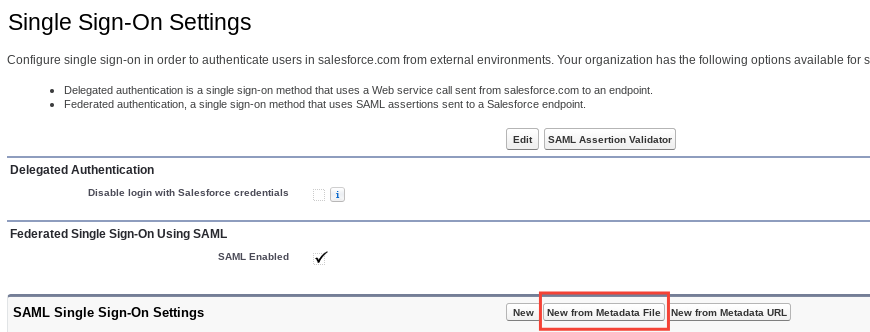
Once the file is imported and configured, we’ll export our settings by clicking “Download Metadata”. We’ll send the metadata export back to the IT Admin to import into Azure and complete the handshake.
User Login
With My Domain and SSO reconfigured, we’ll change our Salesforce usernames to match their corresponding Azure UPN (User Principal Name – typically the primary email address of the user). This one-to-one mapping of UPN-to-Username enables a domain user to pass through to Salesforce without a second login.
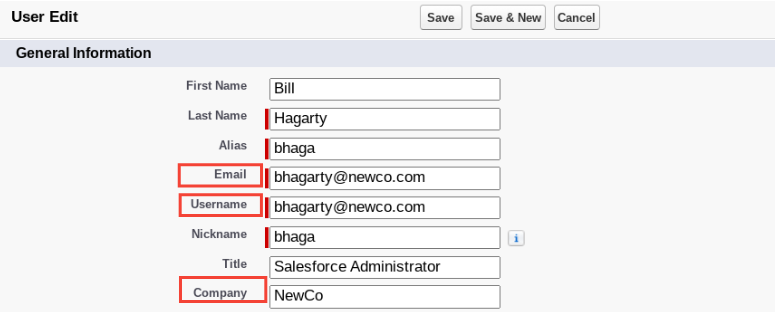
Tip: To change usernames in bulk, import them with Dataloader. This is also a great time to import their new Email and Company name.
Change Integration Logins
We also need to update integration usernames and URLs. This will be tricky, so we’ll coordinate with the integration endpoint admins. Our integrations have continued to function because we previously set the “Redirect previous My Domain URLs to your current My Domain” option. When we are ready, we’ll simultaneously cut over the usernames and URLs, ensuring minimal disruption.
Tip: Don’t forget user-authenticated integrations! The Salesforce App and third-party apps like Outlook, ZoomInfo, Seismic, etc. will need users to re-authenticate to Salesforce.
Rebrand the Org
NewCo has a new logo and brand colors. We’ll give our Salesforce org a fresh makeover to reflect these changes by creating a new theme at Setup → Themes and Branding. We’ll then load our new logo and enter the hexadecimal values of our new brand color and background colors. Then we’ll click Preview after each change until it looks just right. When we are ready to go live, we’ll click Activate.
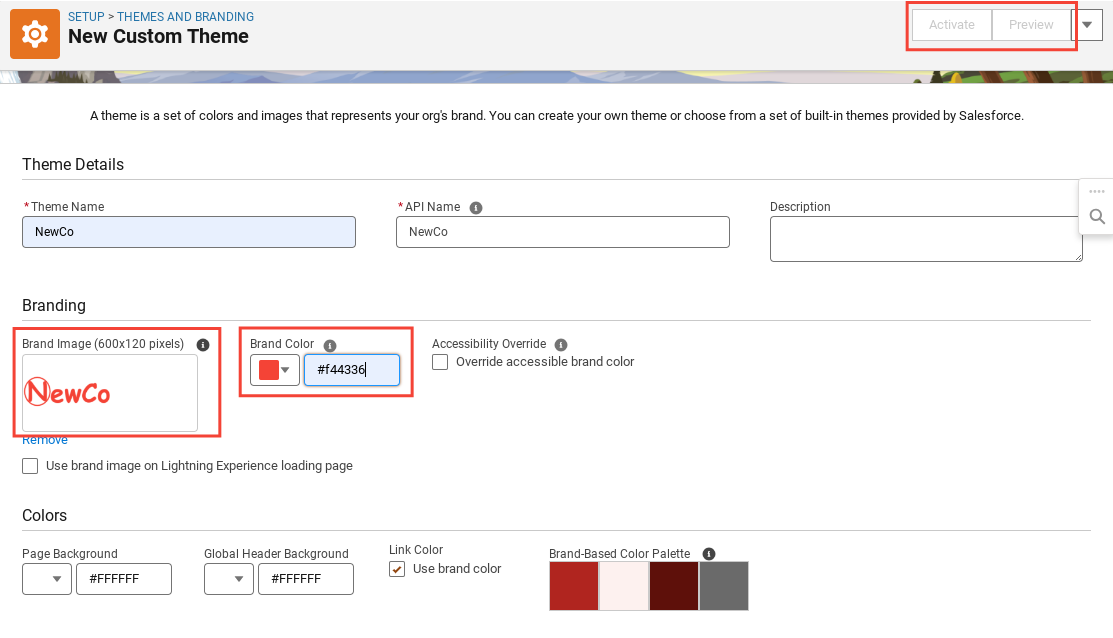
Tip: Be sure to also rebrand your login screen at Setup → My Domain and the Salesforce App at Setup → Mobile App.
Email Changes
Our new email addresses were imported earlier, but we are just getting started with email.
At Setup → Organization-Wide Addresses, we update the global email addresses available in the “From:” field of Email Alerts, Email Actions, Reports, etc.
We also update Email Alerts, Email Templates, and Letterhead with the new logo, colors, and any reference to the OldCo name, language, or branding in the body of the email template.
Lastly, we create a public link of our new company logo image so that users can add the link to their own email signature under Settings → My Email Settings.
DKIM
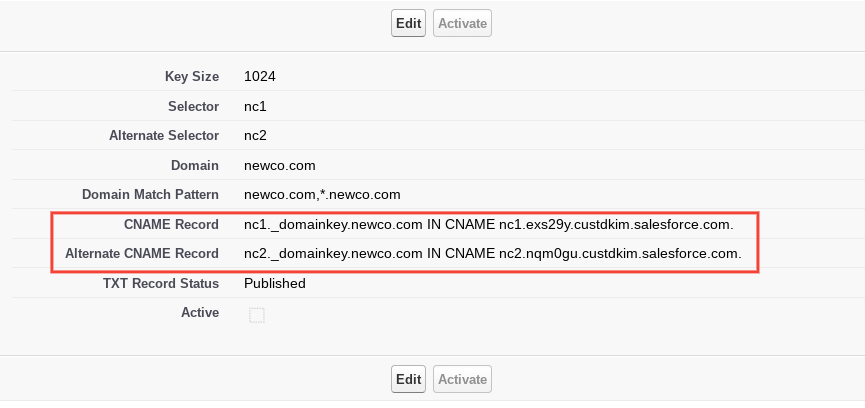
At Setup → DKIM Keys, we set up DKIM signatures for outbound emails from our Org. This will verify to recipient email servers that Salesforce is authorized to send emails on behalf of newco.com. Otherwise, our emails would be filtered as spam.
On the DKIM screen, we enter a Selector and Alternate Selector name, our email domain, and the match pattern of the domains we want to send as. After clicking Save, Salesforce will generate two CNAME records which we send to our public DNS provider for publishing. Once published, we activate DKIM by clicking the Active checkbox.
Email-to-Case
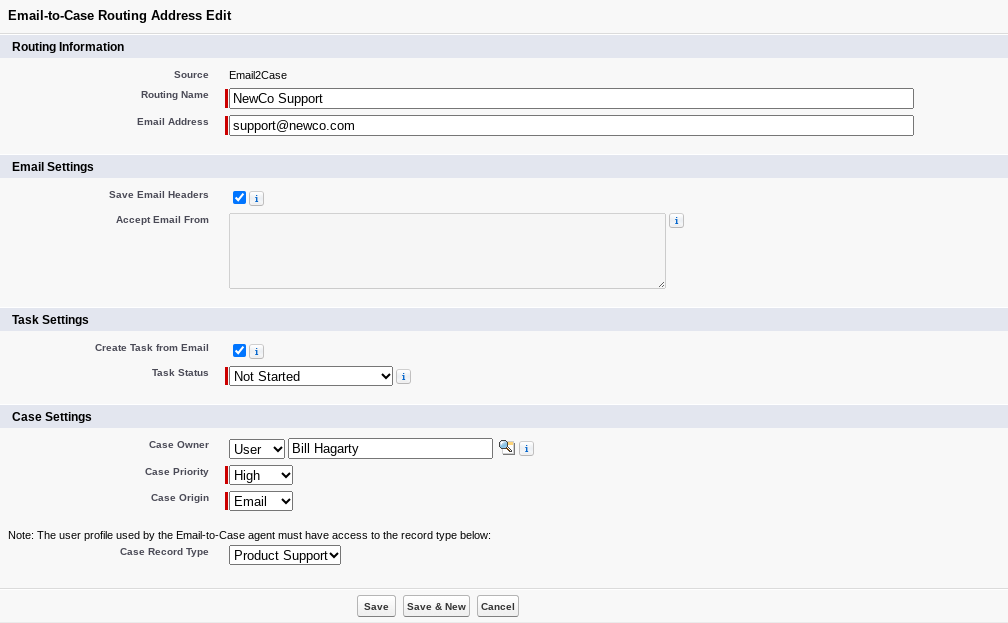
At Setup → Email-to-Case, we’ll create a new Routing Address for support@newco.com. The routing address will contain a unique salesforce.com email address that, when sent, will generate a new case from an inbound email. Our IT Admin will then set support@newco.com to forward to this unique address.
Quote Templates
Similar to Email Templates, Quote Templates are updated with the NewCo logo, plus updated bank payment information and legal terms as well.
Tip: If you use Salesforce CPQ, quote templates are record and field-driven. So build a report for a consolidated view of the quote templates side-by-side. With this report, you can create an import file, use inline editing, or simply bring awareness to necessary changes.
Account Engagement (Pardot)
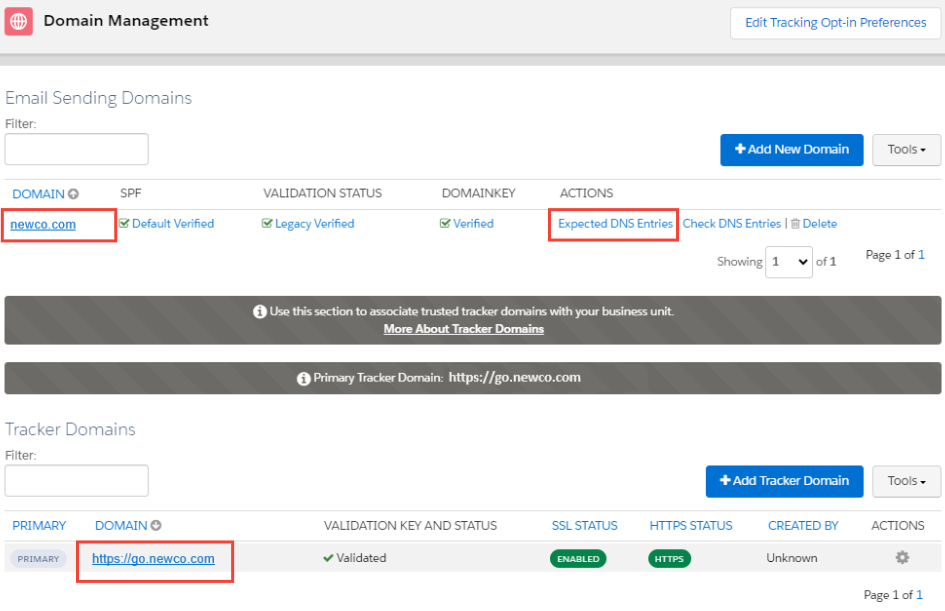
Account Engagement (formerly Pardot) uses an email domain for its verified sender. We’ll change this to the newco.com domain name and then enable DKIM by clicking on Expected DNS Entries.
We’ll also add a new Tracker Domain of go.newco.com, our branded alias URL for all marketing assets. We’ll then set up this tracker domain with a DNS CNAME record that will resolve to go.pardot.com.
Security
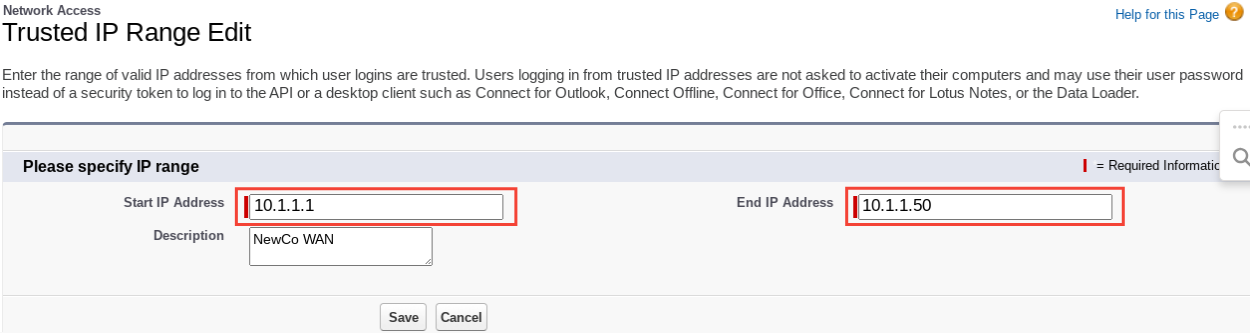
Our IT Admin updates all firewall rules, access lists, and whitelists for the new My Domain URL. NewCo uses Trusted IP ranges to limit certain access to Salesforce. These IP addresses will change because NewCo has a new IP backbone. We add the new IP address ranges at Setup → Network Access.
Fiscal Year
NewCo will change its Accounting Fiscal Year from April-March to January-December. We make this change at Setup → Fiscal Year.
Tip: Changing the fiscal year in Salesforce will impact reporting, particularly reports that use fiscal-based filters. For example, the Last Fiscal Year filter is relative to the current Fiscal Year setting. Your results may not necessarily reflect the actual Last Fiscal Year once the Fiscal Year has been changed. Consult with key stakeholders to determine your best path forward. You may have to consider the Custom Fiscal Year feature.
Summary
The sale of a business can be a transformational experience. Every aspect of the business, including people, processes, and products will be re-evaluated.
But, your Salesforce Org will not have to be rebuilt from scratch. Salesforce is a highly transferable platform with plenty of creative ways to transition from the old to the new without putting the business at risk.
You can unwind and reconfigure your Salesforce Org to adapt to the new business environment. In the end, you will gain a deeper understanding of your Org and perhaps see some opportunities to “do it right this time”.