








Security in Salesforce is rarely ignored on purpose, but it often slips down the priority list. Between supporting users, building automation, and delivering new features, it is easy for admins to assume their org is “secure enough”. The reality is that security is not static. Settings drift, requirements change, and new risks emerge over time. What was secure a year ago may not meet today’s standards.
That is where Salesforce Health Check comes in. It gives you a clear, measurable way to understand your current security posture and highlights exactly where improvements can be made. If you are not reviewing it regularly, you are missing opportunities to strengthen your org.
Salesforce Health Check
If you feel a bit out of depth when it comes to Salesforce security, don’t worry – a lot of the heavy lifting has been done for you! Let’s take a look at Salesforce Health Check in more depth. To play along in your org, in Setup, head over to Security → Health Check.
Salesforce Health Check Score
Salesforce comes with a default baseline security standard (which you can adjust to suit your business by creating a Custom Baseline).
Tip: Why would you want to add a Custom Baseline since Salesforce includes a standard one? Well, this is useful for admins working in highly regulated industries such as finance or healthcare, where compliance requirements are often stricter and more specific than standard security baselines.
Your org will receive a score out of 100 grading your org’s health when compared to Salesforce’s recommended settings (or the Custom Baseline if one has been set up). The more restrictive your settings, the higher the score.
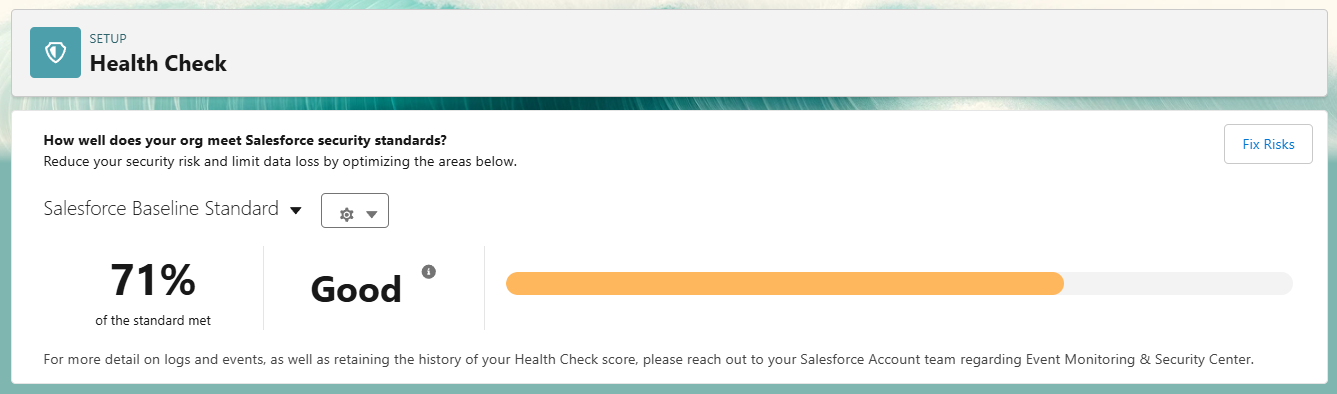
Here’s how your score is classified:
- 90% and above = Excellent
- 80%–89% = Very Good
- 70%–79% = Good
- 55%–69% = Poor
- 54% and below = Very Poor
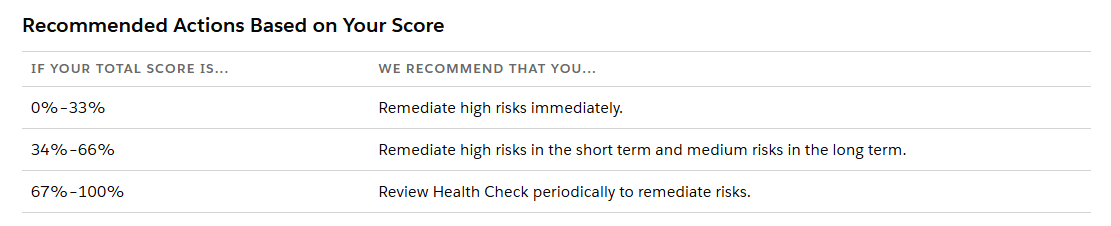
Your score will change as you update your security settings. Still, it is also important to remember that it can shift when Salesforce updates the criteria used in the calculation, such as adding or removing specific settings.
The score is helpful, but it should not be your only focus. Instead of aiming for 100%, use it as a guide to identify high-risk areas and prioritise the changes that will have the greatest impact on your org’s security.
Security Settings
Security settings are categorized as “High-Risk”, “Medium-Risk”, “Low-Risk”, and “Informational”; these will guide you on what to tackle first.
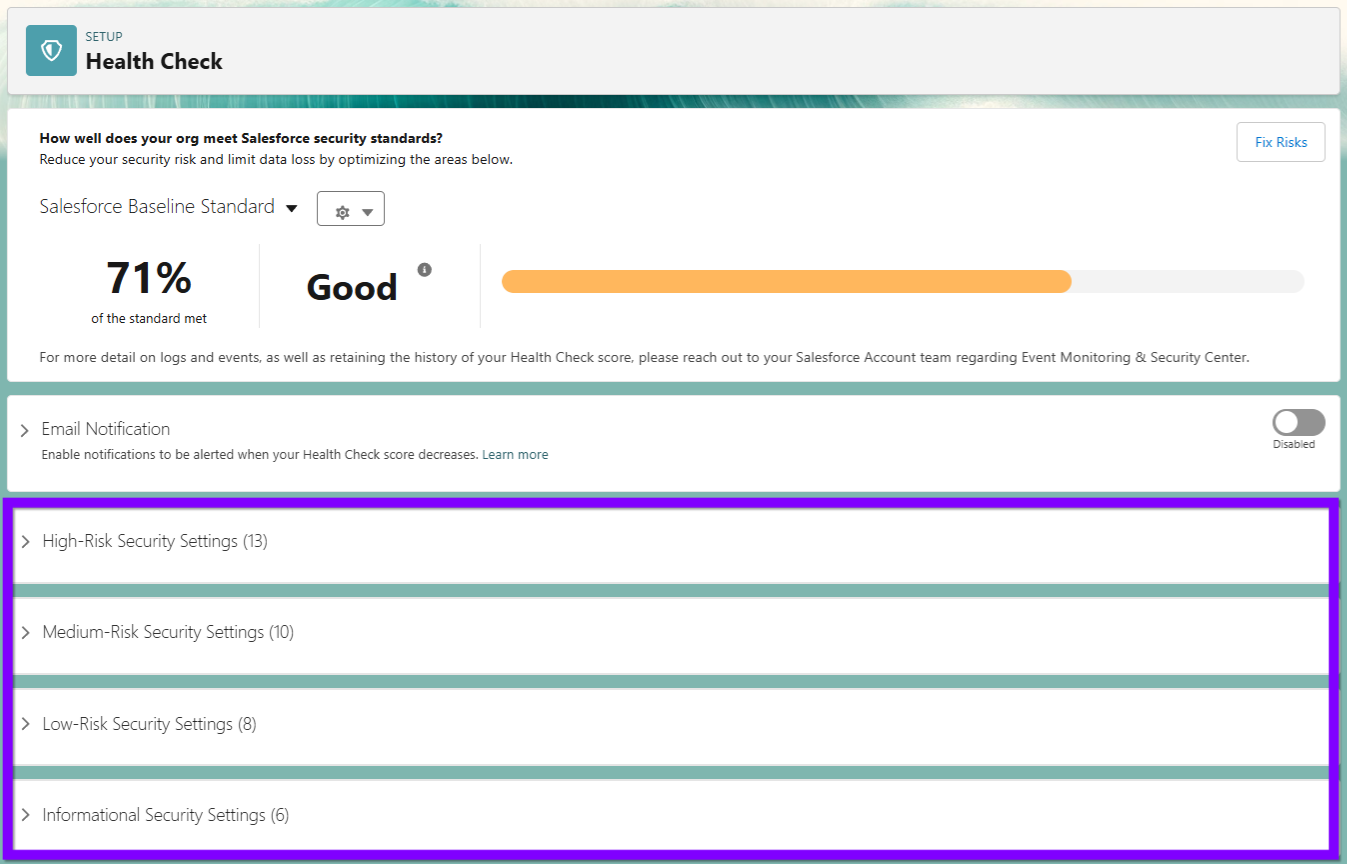
Within each section, you’ll have settings to review that are also categorized into statuses such as “Critical”, “Warning”, and “Compliant”.
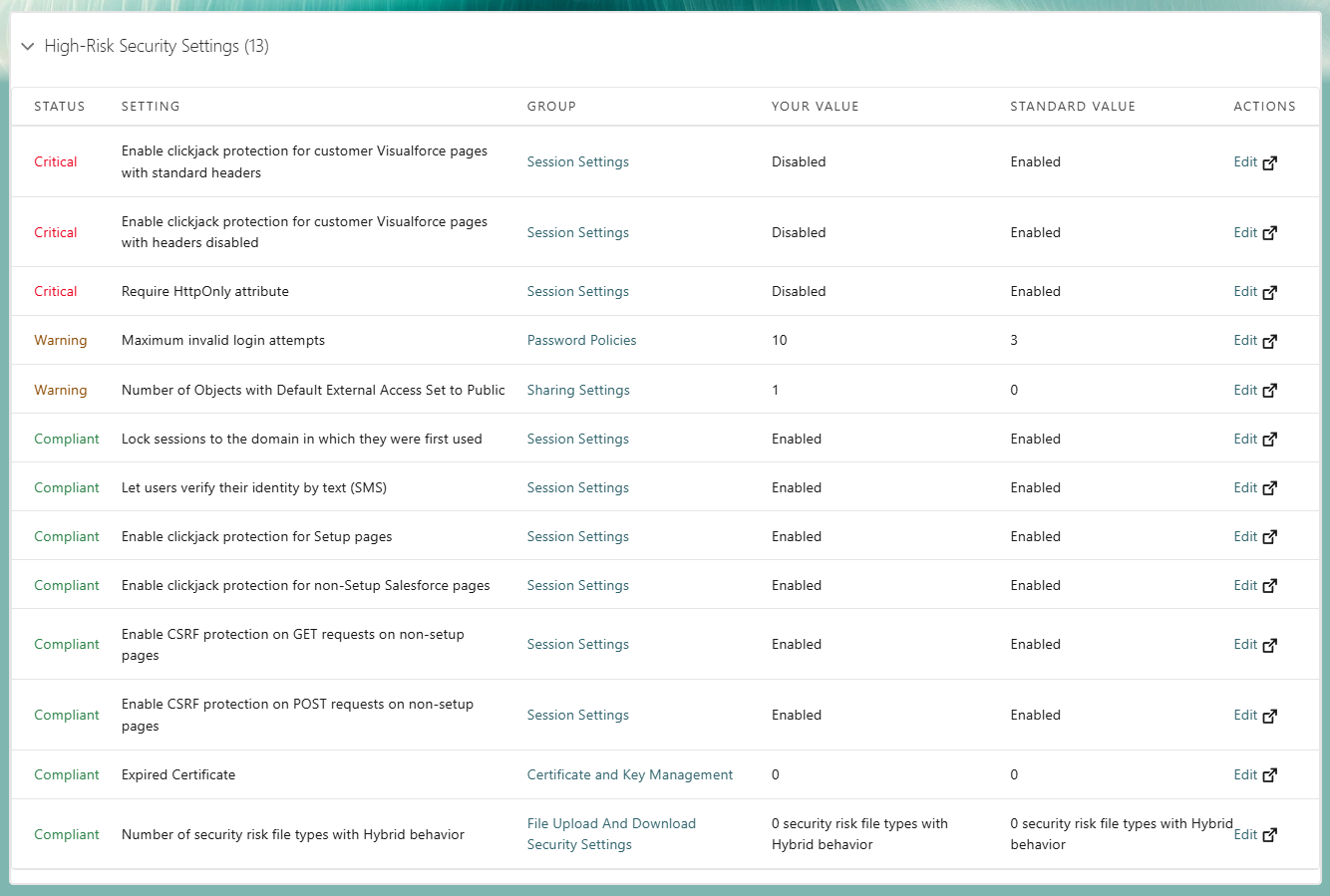
The types of recommendations include:
- Password Policies
- Session Settings
- Network Access
Click “Edit” next to any setting to be taken to the Setup page, where it can be adjusted or configured.
You can also click “Fix Risks” to be presented with a page of settings that can all be changed to the standard value. Select the settings you want to change, and click “Change Settings”.
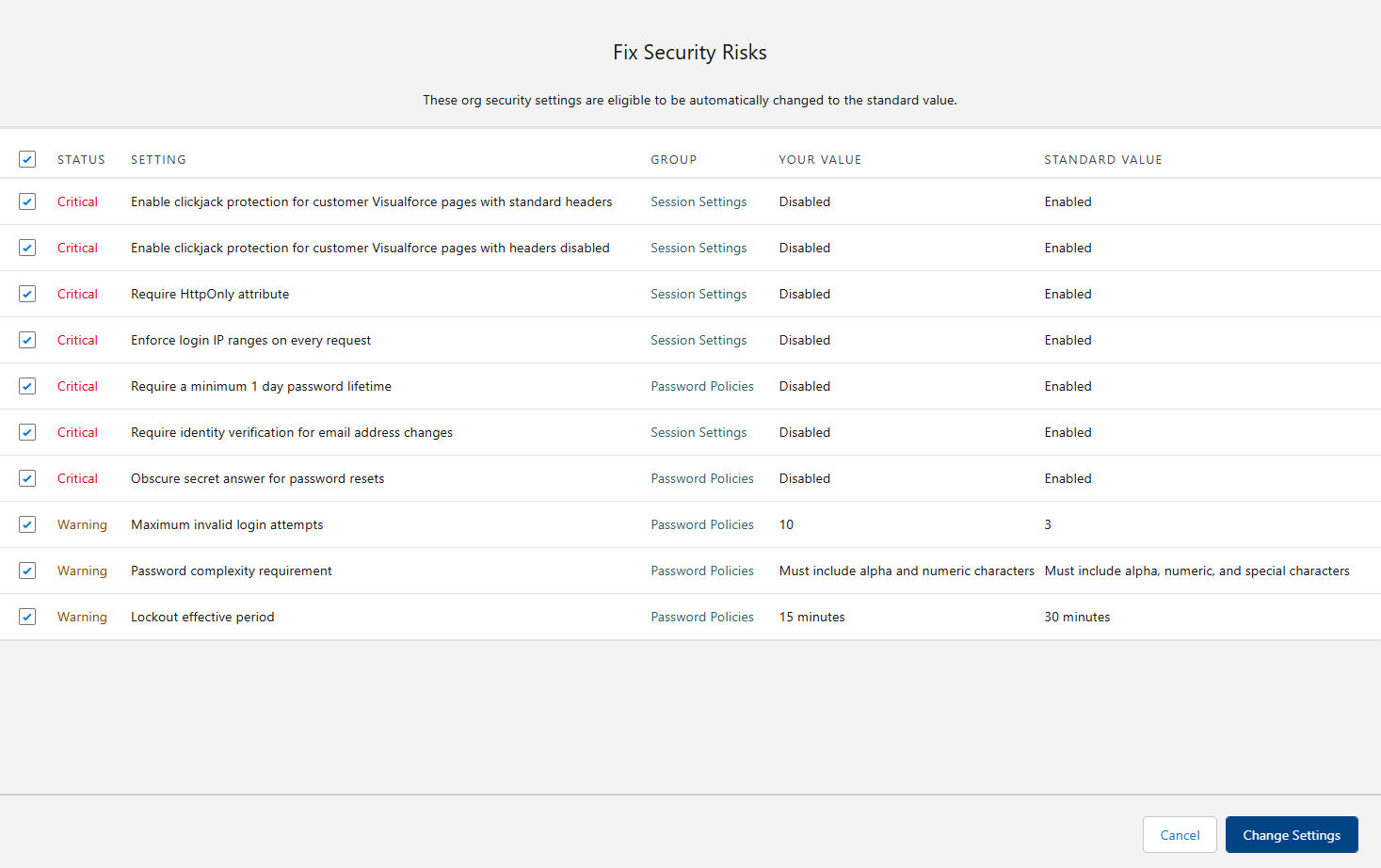
You are not required to meet every baseline recommendation, but they provide a strong starting point for securing your org. There are some occasions where you may not want to adjust your settings to match Salesforce’s recommendations. A great example is the ability to log in as another user.
Salesforce recommends that this setting be disabled; however, it is an extremely useful feature when troubleshooting issues, so you may choose to leave it enabled. Or, enable it as and when you need it.
This highlights that security is not one-size-fits-all. You need to balance best practices with operational needs.
Automate Security Notifications
New for Spring ‘26 is the ability to configure who receives notifications tied to changes in the Health Check score. The trigger is not a specific setting. It is the overall score movement. If something impacts your security baseline enough to change the score, the system can let you know.
Why does this matter? This removes the need for manual checks and helps teams respond faster to unexpected security changes.

Admins have several flexible options for recipients:
- Notify all System Administrators
- Select individual Salesforce users
- Add external email addresses
This last option is particularly useful for organizations with centralized security or audit teams.
Summary
Salesforce Health Check is one of the simplest ways to stay on top of your org’s security, but only if you use it consistently. It provides a clear benchmark, highlights areas of risk, and helps you make informed decisions about which settings to prioritise.
Not every recommendation needs to be implemented exactly as suggested. The goal is not perfection, but awareness and control. A well-secured org is one where admins understand their risks and actively manage them.
Make Health Check part of your regular admin routine. Review it monthly or quarterly, monitor changes to your score, and use it as a guide to keep your org secure as it continues to evolve.
Resources
- Security Health Check
- How Is the Health Check Score Calculated?
- Use Health Check to Scan Your Security Configurations





Comments: