








Reddit and community threads have been full of admins venting about MFA and passkeys lately due to the recent mandatory security changes by Salesforce. It seems that this action to push orgs toward stricter MFA enforcement has caused users more confusion than clarity, including users getting locked out unexpectedly and clients who are, quite frankly, just upset about it.
Passkeys are not a bad idea, and on paper, Salesforce does have good reasons for pushing orgs to use them. The problem is that the rollout has raised some questions and issues that are not too obviously covered by official docs, leaving admins piecing together workarounds in community threads instead of getting straight answers.
This article is an FAQ built from the questions people have been asking, pulled from the threads where they’ve been comparing notes. So if you’re one of the people experiencing issues since the enforcement, read on.
1. Why Is Salesforce Asking My Standard Users to Create a Passkey?
This is the most common issue I’ve seen out there. Salesforce now shows the “Create a Passkey” screen by default any time a user doesn’t have any registered MFA method (regardless of whether or not that user is a privileged user, aka those with admin-level access, Modify/View All Data, etc). However, that default-first prompt does not mean passkeys are mandatory for that user.
For non-privileged users, there’s actually a “Choose Another Verification Method” link directly below the primary button (in tiny font!), which lets them register Salesforce Authenticator or a third-party TOTP app instead.
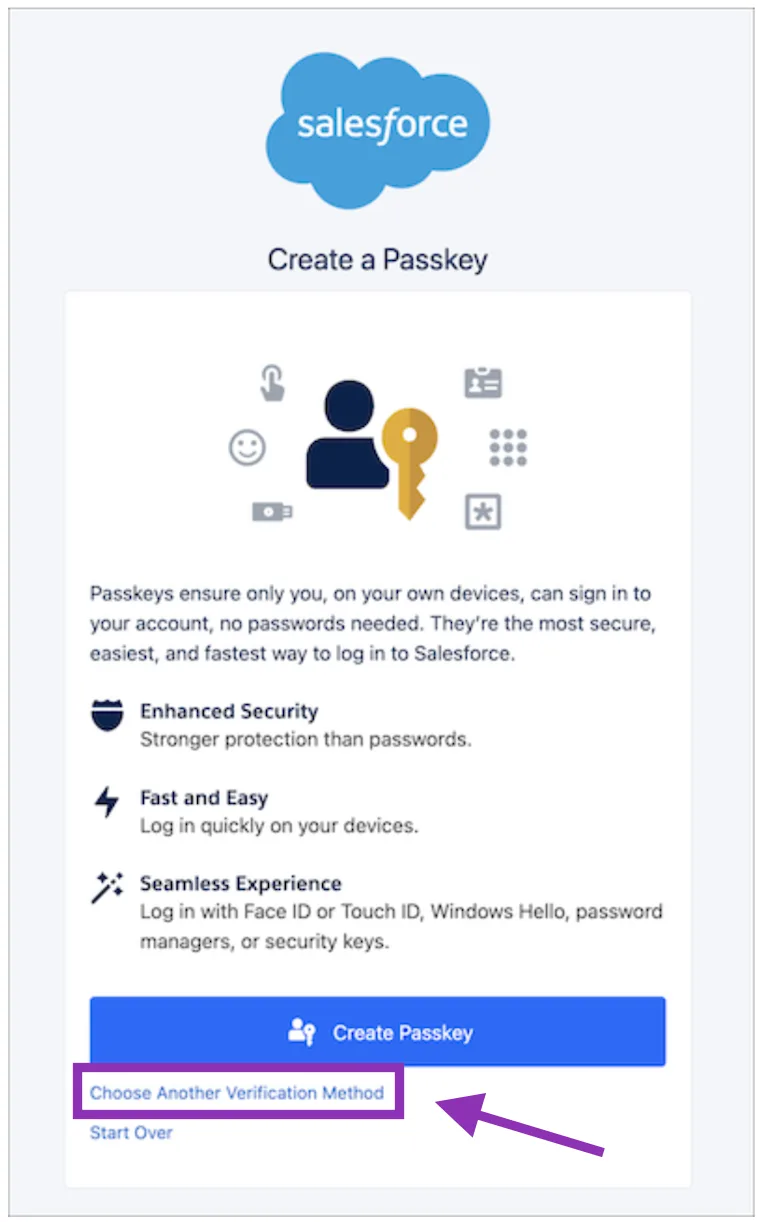
In fact, Salesforce’s documentation does mention this change: “Non-Privileged Users will begin seeing this prompt to Create a Passkey when the MFA enforcement changes happen.”
So, technically, this passkey prompt does not mean the user seeing it requires a passkey. Salesforce is merely pushing passkeys as the default because it’s the most secure option available. For your non-privileged users, it’s more of a suggestion.
2. Which Salesforce Users Actually Have to Use a Passkey?
The straightforward statement is that “all admin users need a passkey”. However, this requirement is actually defined by permissions, not title. Yes, admins are a given, but plenty of people who think of themselves as “just a power user” technically also qualify as privileged.
Users who satisfy the following or are assigned the following permissions require phishing-resistant MFA:
- System Administrator profile
- Modify All Data
- View All Data
- Customize Application
- Author Apex
Check out this article for a deeper dive on setting up passkeys for your users.
Follow-up question: Why can’t my non-admin user get past the “Create a Passkey” prompt?
As long as they find the “Choose Another Verification Method” option in tiny font below the prompt, they should be good to go. Salesforce has deliberately made the passkey button the prominent, default option, with the alternative link sitting underneath it, so it’s pretty easy to miss.
BUT if a non-privileged user genuinely can’t find or use that link, that’s not expected behavior. Make sure to check if the user has any of the permissions mentioned above (permission sets can surprise you!).
3. Why Is Salesforce Requiring a Passkey from Users Who Already Use SSO/MFA (Okta/Entra/ADFS)?
It seems to be a common misconception that SSO-level MFA is automatically sufficient, but having MFA at your identity provider isn’t enough on its own. Salesforce needs the SSO assertion to explicitly tell it that MFA happened, using signals it recognizes such as AMR (Authentication Method Reference) and ACR (Authentication Context Class Reference).
By default, Salesforce treats an SSO login as having no MFA until it sees a recognized AMR or ACR value in the token or SAML response. If your IdP doesn’t send one, or sends a value Salesforce doesn’t currently accept, the user gets prompted to register Salesforce MFA directly (even though they genuinely did authenticate with MFA at the IdP level).
Follow-up question: What are AMR and ACR, exactly?
- AMR (Authentication Method Reference) describes how the user authenticated (password, hardware key, biometric, etc.)
- ACR (Authentication Context Class Reference) describes the overall strength of the authentication context.
Salesforce evaluates both differently depending on whether your IdP uses SAML or OIDC, and maintains a running list of which specific values count as phishing-resistant, standard, or weak. That list has changed more than once mid-rollout (an example is the “wia” removal, which I will mention in a bit), so it’s worth checking Salesforce’s official table rather than assuming an integration that worked last month still works now. They did mention that the list is subject to change, so keep tabs on the “Authentication Strength Tiers” section in this doc.
An easy way to check both AMR and ACR is by using the Login History in your org. Create a view that has the AMR and ACR columns.
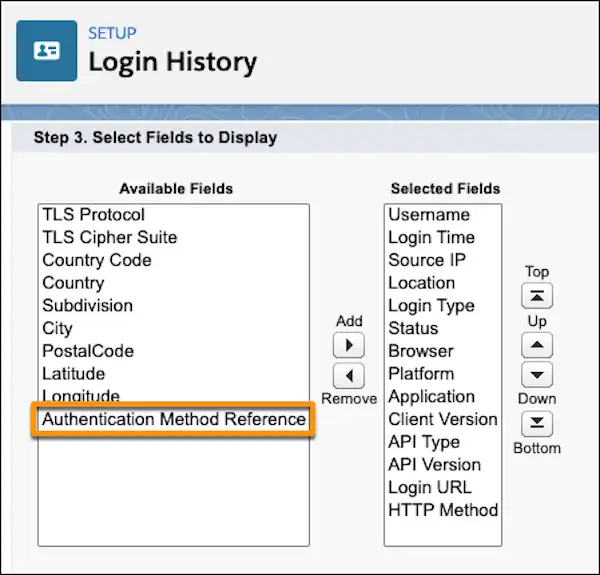
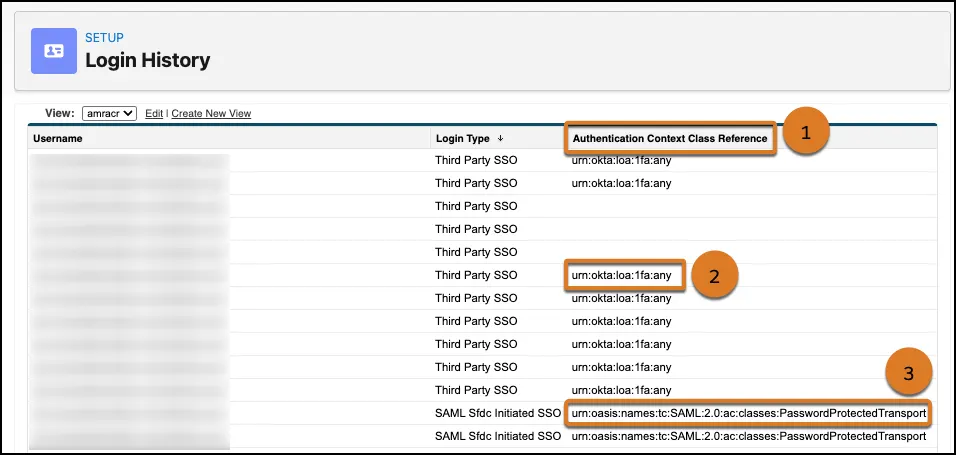
A recent update worth calling out is that Salesforce actually removed WIA or IWA (Windows Integrated Authentication / Integrated Windows Authentication) from the accepted phishing-resistant signal list on July 16 of this year, specifically because it doesn’t confirm real MFA occurred on its own (as per this doc’s change log).
If your org’s IdP was sending that signal, this is likely why previously fine logins started tripping the prompt.
4. Why Are Passkey Management Options Missing from Setup?
This is a specific (and apparently common) issue mentioned on r/salesforce, where one admin’s org started enforcing passkeys, and most users registered theirs without any trouble until a user needed to move his passkey out of Chrome’s password manager so he could use multiple browsers.
MFA enforcement can actually force passkeys into active use without automatically enabling the setting that makes them visible and manageable. That setting can be accessed from Setup → Identity Verification → “Let users verify their identity with a built-in authenticator (passkey) such as Touch ID or Windows Hello”.
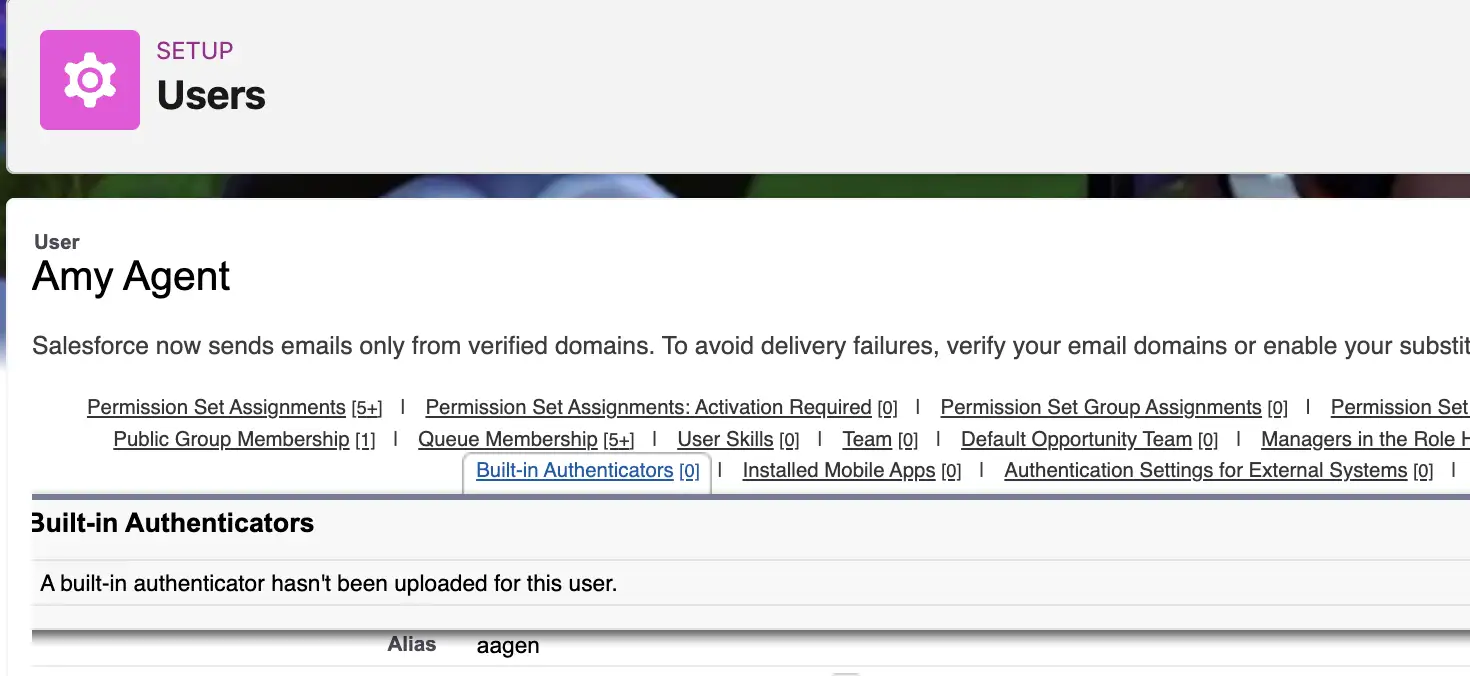
Enabling it adds the Built-in Authenticators related list to user detail pages and gives users the ability to control their passkeys from personal settings.
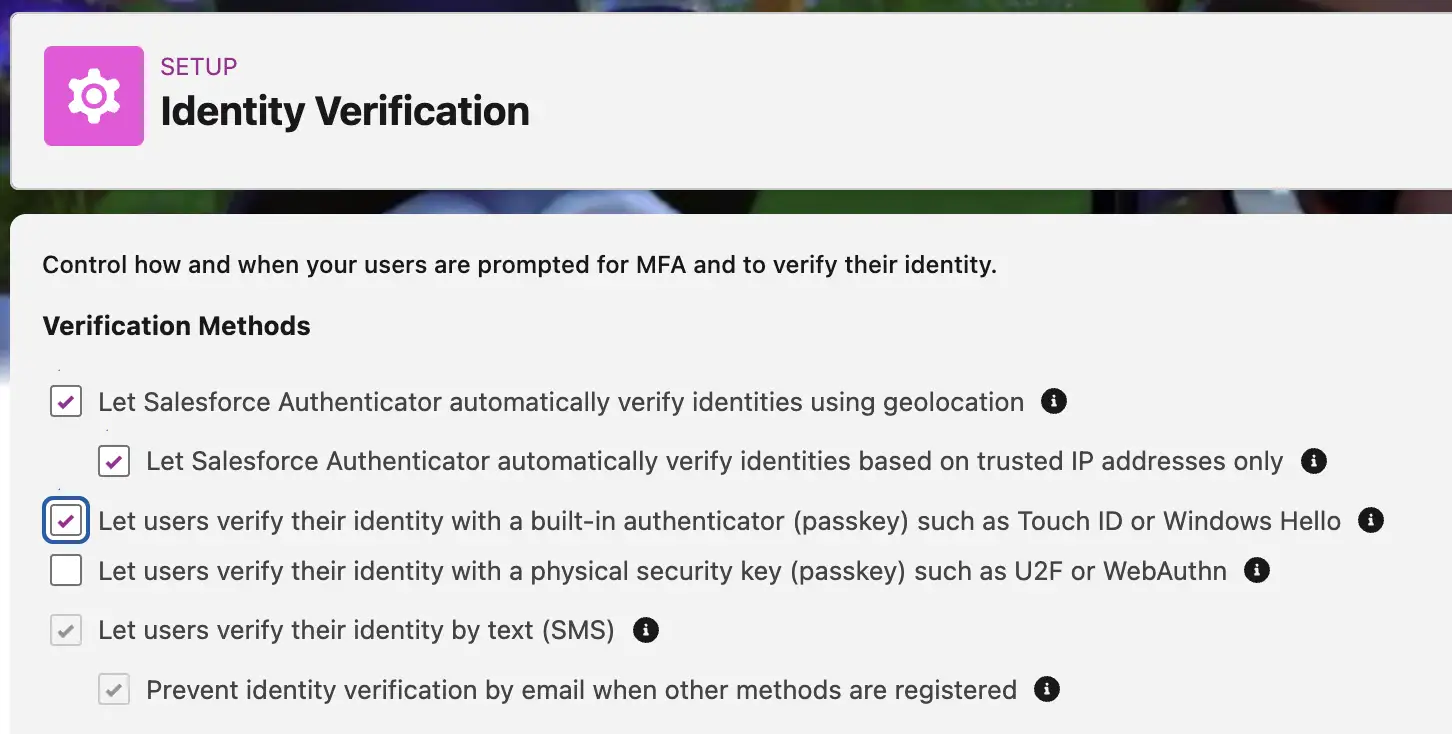
So if passkeys are being enforced in your org but you can’t find a single management control for them anywhere, check the Identity Verification setting above first. If it’s already on and the controls are still missing, it might be time to log a Support case, as one admin from the thread mentioned this issue was resolved by support in half an hour.
Another detail worth keeping for orgs still using Salesforce Classic: a commenter noted that enabling Setup → User Interface → Enable Improved Setup Interface was also necessary to get passkeys to appear in personal settings.
5. Why Can’t I Remove or Replace a User’s Passkey?
Relating to the scenario in the previous question: a passkey stored in one browser’s password manager is tied to that browser/device. It won’t just work elsewhere, and a user switching browsers or password managers needs the old one disconnected first.
Here are a few ways to deal with it:
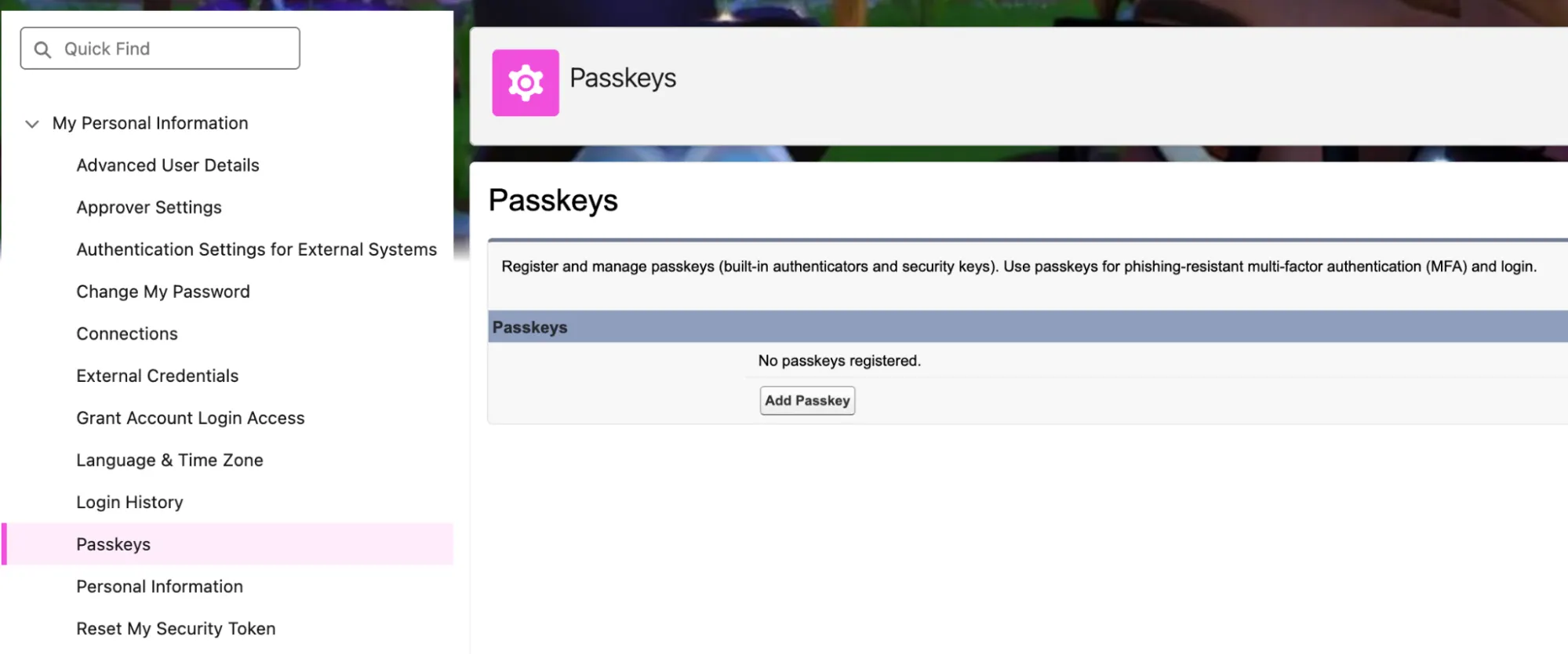
- User self-service: go to your personal settings by clicking your profile picture → My Personal Information → Passkeys.
- Admin-assisted: go to the affected user’s User Detail and find the Built-in Authenticators related list (only visible if the Identity Verification setting from Q4 is actually enabled).
- Community-reported workarounds: a couple of commenters on a related Reddit thread described an admin logging in as the user and doing the same self-service step above, or deleting the registered authentication method directly from the user detail page to force a fresh registration on their next login.
- Salesforce Support: if none of the above controls are visible at all, Salesforce Support may be able to help disconnect an existing passkey directly. Salesforce’s own passkey troubleshooting documentation confirms this is a real, supported path (especially for orgs where the sole admin is locked out of the usual controls).
6. Can We Request an MFA Extension from Salesforce?
Follow-up question: Or better yet, can we opt out of MFA/passkey enforcement entirely?
The answer is no, you cannot opt out entirely and permanently. Discussions from several Reddit threads make it seem like you can ask for a temporary extension from Salesforce Support, though, and the duration will be on a case-by-case basis. I’ve read that some have been granted a 90-day extension at most, while some hard dates include October 1, October 10, and October 20.
The “Waive Multi-Factor Authentication for Exempt Users” permission that some orgs relied on in the past no longer auto-exempts anyone. Users with that permission are now prompted to enroll in MFA like everyone else. Any other proposition requires logging a case with Salesforce Support.
7. Our Org Was Granted an MFA Extension, but Why Didn’t the Passkey Prompt Go Away?
Having an extension granted does not automatically stop the prompts. According to Salesforce, prompts are only suppressed for non-privileged users when both of these are true:
- MFA For All Employees Extension covers non-privileged users, while privileged users additionally need the Phishing-Resistant MFA (Passkeys) Extension. When requesting an extension from support, it’s worth noting which one you need specifically, and for which org(s). In this case, since we’re talking about non-privileged users, you need the former.
- The org admin has disabled “Require multi-factor authentication (MFA) for all direct UI logins to your Salesforce org” in Setup → Identity Verification.
The story’s different for privileged users, who may not bypass the Passkey prompt at all. The following must be true for them to at least get the “Choose Another Verification Method” option:
- Phishing-Resistant MFA (Passkeys) Extension.
- “Require multi-factor authentication (MFA) for all direct UI logins to your Salesforce org” in Setup → Identity Verification is enabled.
8. Why Is Salesforce Asking for a Passkey When We Already Use YubiKeys?
Having a YubiKey does not automatically solve this if the authentication is happening through SSO rather than directly against Salesforce. The underlying issue is the same AMR/ACR signal problem discussed in Question 3. YubiKey-based authentication can absolutely satisfy the phishing-resistant tier, but only if Salesforce actually receives a recognized signal confirming it happened.
9. Will MFA Enforcement Break My Integrations?
Not necessarily, as it depends entirely on how the integration authenticates.
Salesforce’s own FAQ states that “This change targets UI-based employee logins only”, which means Connected Apps or External Client Apps using JWT Bearer or Client Credentials flows are unaffected since no UI login is involved.
Apps using OAuth Web Server or Hybrid Token flows, on the other hand, do require a UI login to complete authorization, so that login is subject to MFA enforcement.
So the question to ask about any given integration is whether it ever routes through an actual Salesforce login screen. If the answer is yes, it’s in scope and will be affected. If it’s purely API-token-based, it’s safe.
10. Why Am I Suddenly Being Asked for MFA When Exporting Reports?
This is a separate change from the passkey/MFA-for-all rollout, but part of the same bunch of security updates. There are actually two distinct controls stacked on top of each other here:
1. Step-Up Authentication for report actions (mandatory). This re-verifies identity before a sensitive report action, like an extra passport check at a boarding gate. It’s governed under Setup → Identity Verification → Session Security Level Policies.
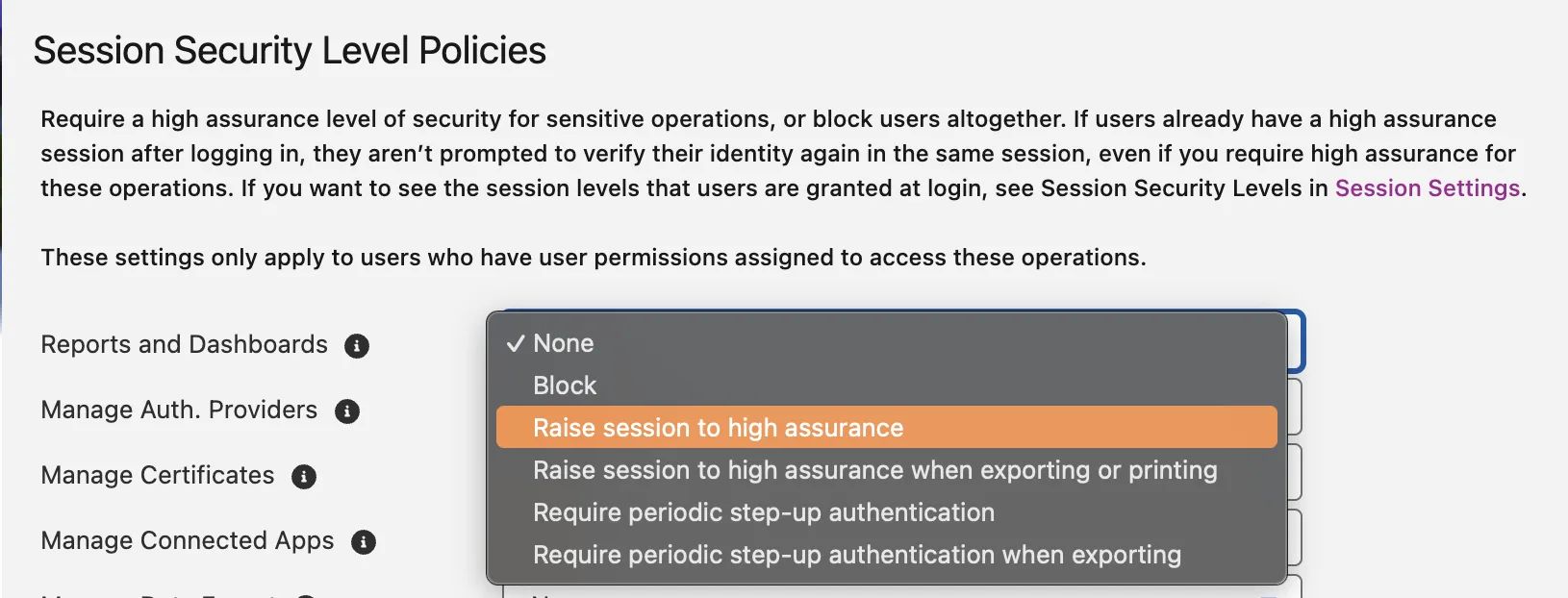
This triggers only on report export, and not on general report/dashboard viewing. Sessions with IP range restrictions configured on the org or the user’s profile are actually exempt. Orgs with “Lock sessions to the IP address from which they originated” enabled (Session Settings) are also exempt.
2. A default Transaction Security Policy (TSP) on report exports (optional). This one is actually only relevant if you have Salesforce Shield or an Event Monitoring license. If your org didn’t already have a qualifying policy, Salesforce auto-created one that triggers step-up on any UI report export over 10,000 records.
As per comments on Reddit threads from posters experiencing report issues, this is what was still catching people even after the IP-range fix above, because it’s a completely separate mechanism. Disabling it requires both the “Customize Application” and “Modify Transaction Security Policy” permissions, and the latter is not on the System Administrator profile by default, which is why some admins initially couldn’t even see it as editable.
So technically, disabling the TSP doesn’t “turn off” step-up; it just removes that specific enforcement mechanism, since the org is still protected by #1 above. If you’re still seeing step-up on exports after checking IP range settings, check whether your org has Shield/Event Monitoring and look for an auto-created Transaction Security Policy.
11. Why Did My Salesforce Health Check Score Suddenly Drop After the MFA Rollout?
Some admins have reported receiving email notifications on unexpected Health Check score drops coinciding with the MFA rollout, with no configuration changes on their end.
This seems to be a false negative, and at the time of writing, there is no confirmation of a workaround. However, if your org is affected, you can tag yourself in this Known Issue.
12. Data Loader Stopped Working After the Security Changes. Is There a Fix?
A “Verify Your Identity” pop-up that doesn’t respond when clicked may appear when logging in through the Data Loader desktop app. The quickest fix would be to upgrade Data Loader to at least version 66. Worth checking whether that’s still the current version by the time this publishes, since Data Loader gets updated periodically to keep pace with API/auth changes.
Another workaround may be to check out the Salesforce Inspector Reloaded Chrome extension, which also has Data Import and Export capabilities. This can be an easier alternative that doesn’t require a separate login step outside of Salesforce itself.
13. Why Do I Have to Clear My Cache (or Reset My Password) Every Morning Just to Log In?
Two related threads on r/salesforce point this issue to the same underlying culprit: a stale or conflicting Lightning Login session interacting badly with the new passkey/MFA flow.
If you are experiencing one or more of the following symptoms, read on:
- A login error telling the user to “contact your administrator” for access (even when the user is the administrator).
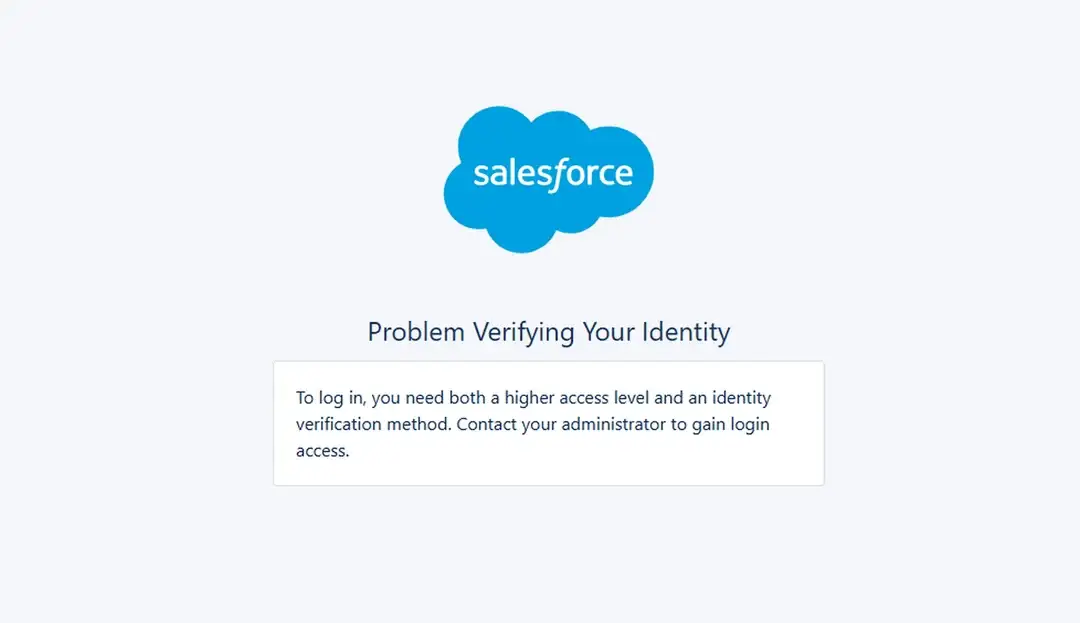
- Needing to clear browser cache or reset the account password just to be able to log in again.
- Login failure not showing up in Login History at all.
This issue was reported as especially common on Windows (Edge and Chrome), with admins on macOS in the same org not affected. At this time of writing, it’s already a Known Issue.
The fix that reportedly worked for most users (and as stated in the KI too) is to disable Lightning Login for the affected user. This can be done by logging in via a private/incognito browser window (or the password-reset flow, or the “Log In with a Different Username” link) to get past the broken prompt, then go to the user’s profile by clicking their avatar → Advanced User Details.
Note that this needs to be checked at whichever level is actually controlling it for that user, which may be a profile or a permission set with “Lightning Login User” enabled.
Here are a few more tips to consider, from solutions that worked for others:
- One admin found the fix was browser-dependent (worked in Firefox, not in others), so if the first attempt doesn’t work, trying a different browser is a reasonable next step before assuming the fix failed.
- Disabling Lightning Login removes it as a fallback login method, making it more of a tradeoff (fewer authentication options for that user) instead of a permanent fix.
- A separate commenter reported success by enabling “Allow passwordless login with passkeys” in the user’s own settings.
- Another commenter suggested switching Session Settings → MFA to “High Assurance”.
Final Thoughts
Phew! This rollout has certainly given admins plenty to troubleshoot, as many of these issues come down to various combinations of settings that aren’t immediately obvious.
The good news, though, is that most of the problems covered here have a solution once you know what Salesforce actually checks for in the background. And given how many of these solutions were surfaced more quickly by admins comparing notes on what worked for them via Reddit and community threads, it’s worth keeping an eye out for what the community is reporting.
Salesforce’s security requirements and valid authentication signals have been changing quickly too, so it’s best to bookmark those Known Issues and check back on the latest guidance as the rollout continues.