









Most orgs that run on Salesforce also run on Microsoft 365. Sales lives in the CRM, while contracts, proposals, and signed paperwork live in SharePoint. Sooner or later, the same request lands on every admin’s desk: can’t we just connect these two?
Here is the catch that teams only spot after they have bought. “Connect Salesforce and SharePoint” hides three different outcomes that all look like the same purchase.
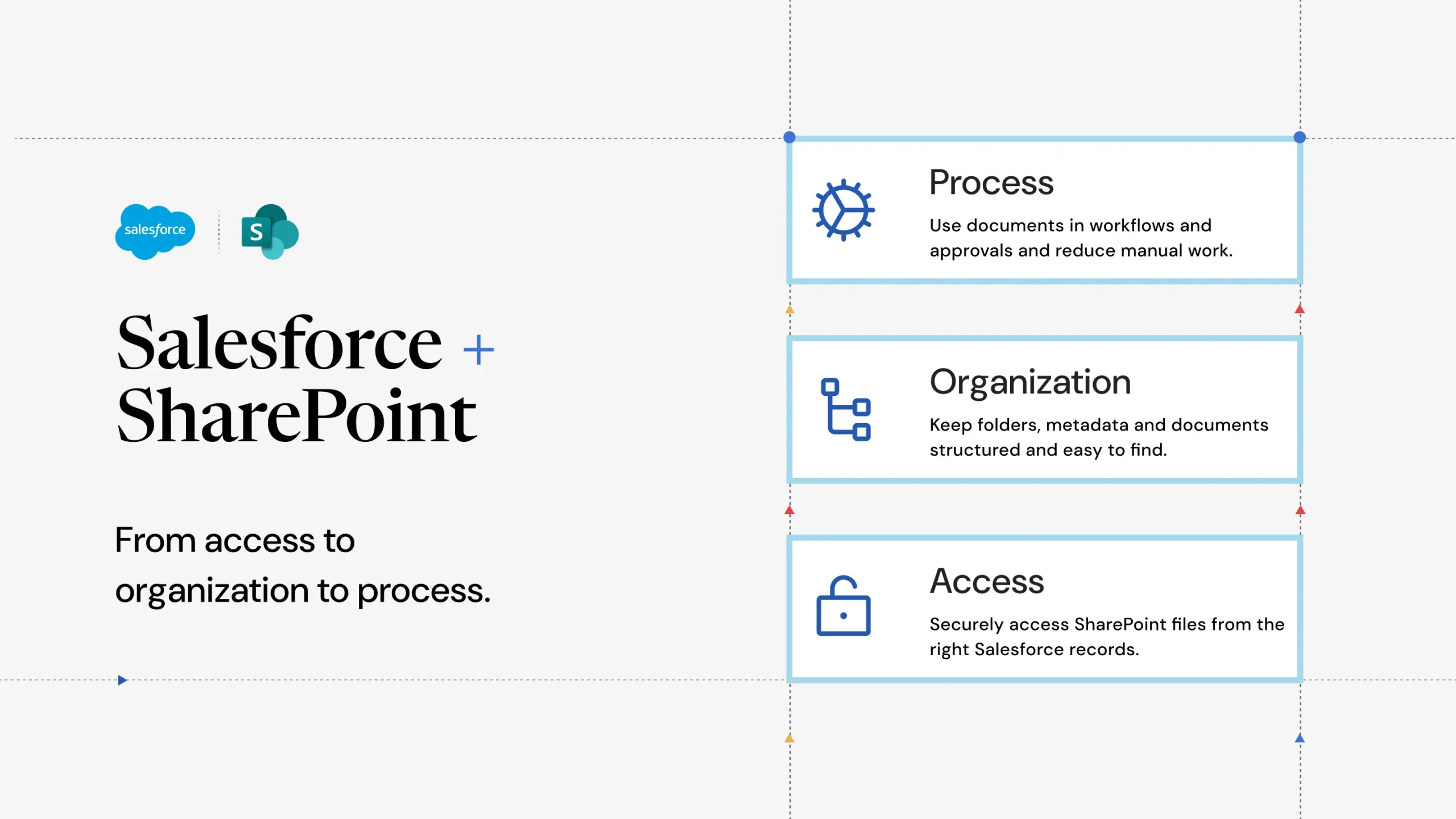
One is access: a user can open a SharePoint file from a record. One is organization: files land in the right place without anyone having to file them manually. One is process: documents move, file, generate, and share themselves when records change.
Each is a real and valid goal, but they sit at different levels, and plenty of teams buy for the wrong one because nothing on the label tells them apart. Keep that ladder in mind as you read, because every method below reaches a different rung.
1. Salesforce Files Connect (Native)
Files Connect is Salesforce’s built-in connector that surfaces external SharePoint files inside the Files tab without copying data into Salesforce. It is free and Salesforce-built, which makes it the obvious first stop. Files stay in SharePoint and open through a browser redirect, so you are not duplicating storage.
The catch is that setup runs through external data sources, authentication providers, and permission sets that take patience to configure, search and preview can be inconsistent, and it is reference-only. There is no automation layer for record-triggered document actions. It gives you access, and nothing past it.
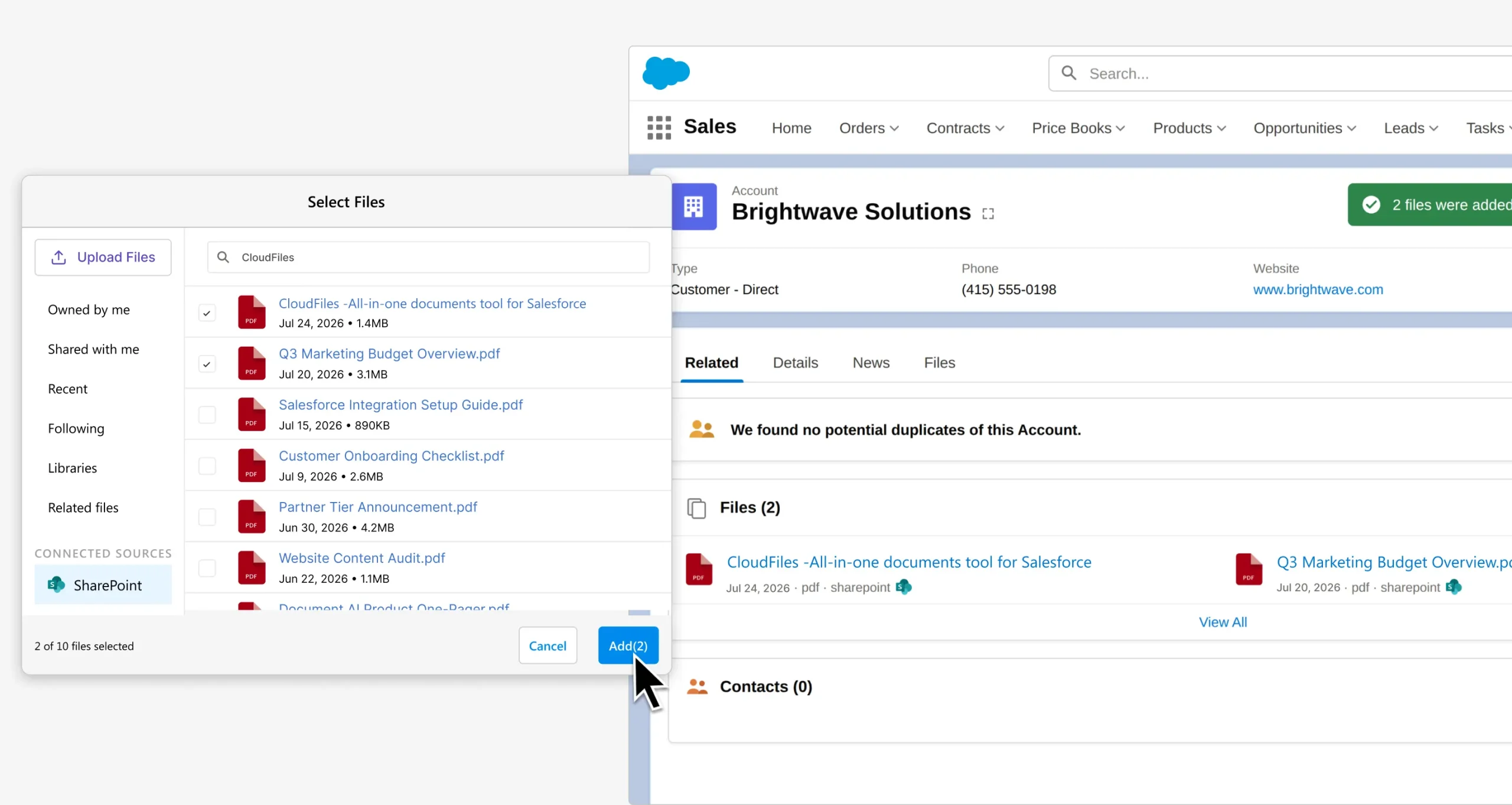
Best for: light, manual reference, where users occasionally open a SharePoint file from a record.
2. Manual Upload and Download
The method almost every org starts with. Users download from SharePoint and re-upload to Salesforce by hand, or the other way round. Zero setup, zero licensing cost, no admin overhead.
It also does not scale. You get duplicate copies, version sprawl, and human error baked into the workflow. The moment document volume grows, or two teams touch the same file, it falls apart. It technically delivers access and a crude form of organization, but only for as long as a person keeps doing the work.
Best for: very small teams with low document volume and no compliance requirements.
3. iPaaS and Middleware (MuleSoft, Zapier-Class Tools)
Integration-platform-as-a-service tools sit between Salesforce and SharePoint and move files or metadata between them based on rules you define.
They are powerful and flexible, and if you already run middleware, you can extend it to cover documents. They can reach organization, and even process, but you are building and owning every rung yourself.
The tradeoff is cost and ownership. You or a consultant build and maintain the flows, and document sync is rarely the platform’s core job, so you end up assembling the experience rather than getting one out-of-the-box.
Best for: orgs already invested in an iPaaS platform, with the expertise to maintain it.
4. Custom Apex and the Microsoft Graph API
A bespoke integration where developers call the Microsoft Graph API from Apex to read, write, and sync SharePoint files programmatically. This gives you total control, and in principle any level you can afford to build and maintain.
It is also the most expensive path to own. Graph and authentication changes break things, edge cases accumulate, and every new requirement becomes another dev ticket. What looks cheap in a proof-of-concept turns into a standing maintenance line item.
Best for: orgs with strong in-house developers and genuinely unusual requirements that no packaged tool covers.
5. A Purpose-Built Document Automation App
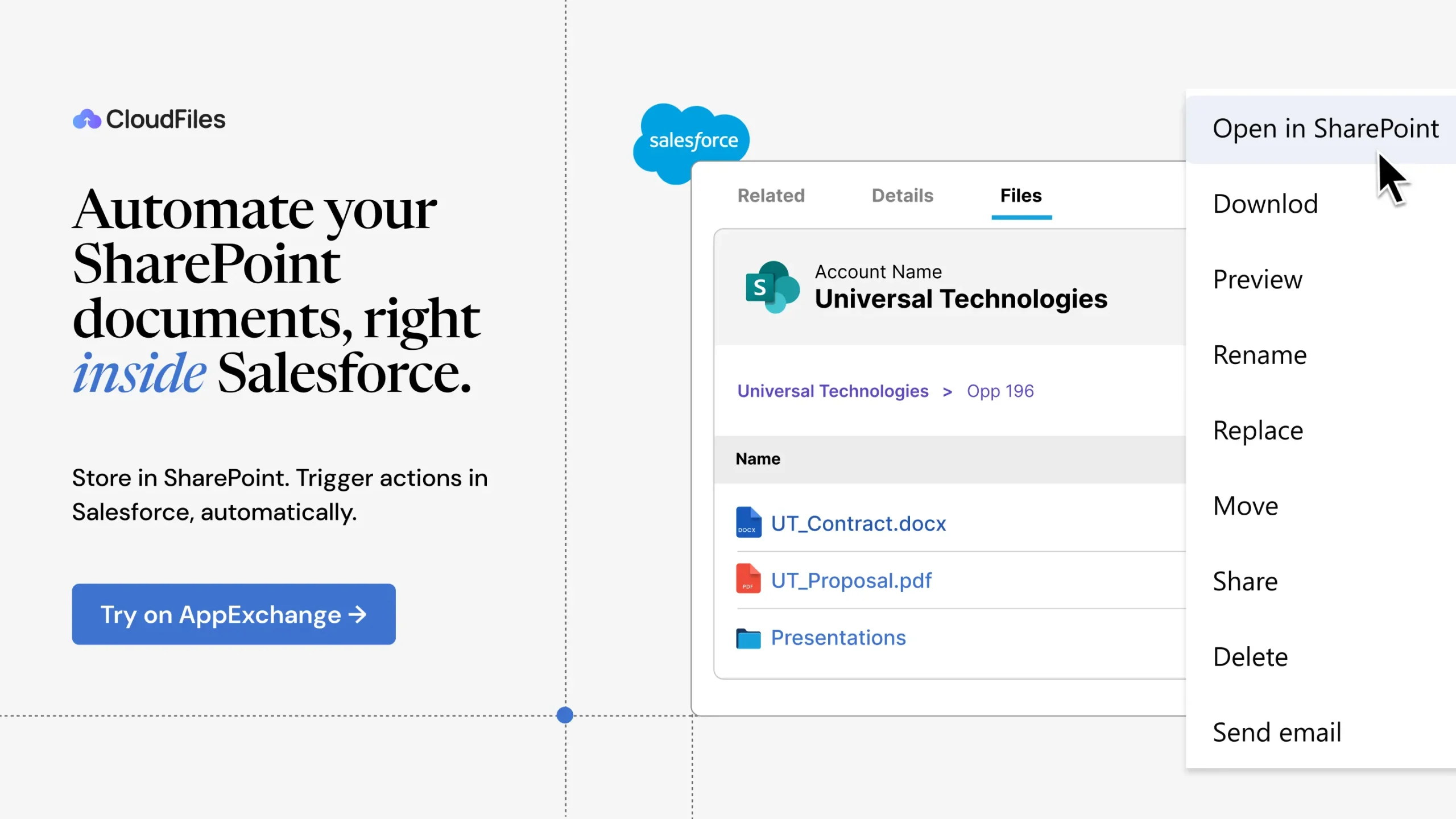
The most common shortcut is a Salesforce-native managed package built specifically for external-storage document management. This category is not one single thing, though. Apps here range from basic sync connectors, which are fine if all you want is files made visible and storage offloaded, through to document automation platforms that treat documents as steps in a workflow. CloudFiles is built as the latter.
What that buys you is the process rung, the part that stops being anyone’s job. A closed-won Opportunity files its own signed contract into a folder that already exists, because the record created it. A rep shares a proposal from a Flow screen without knowing or caring where the file physically sits. Underneath, files stay in SharePoint while CloudFiles surfaces them on the related record, with real-time bidirectional sync so a change in either system reflects in the other.
Folders are auto-created and linked to records, SharePoint’s own permissions are respected, and document actions such as sharing links, uploads, and transfers fire from standard Salesforce Flow with no code. It is storage-agnostic too, so the same setup covers Google Drive, AWS S3, or Azure Blob.
Best for: teams at the process level that need automated, record-aware document workflows live quickly, without building or maintaining custom code. (CloudFiles typically goes live in around 30 minutes.)
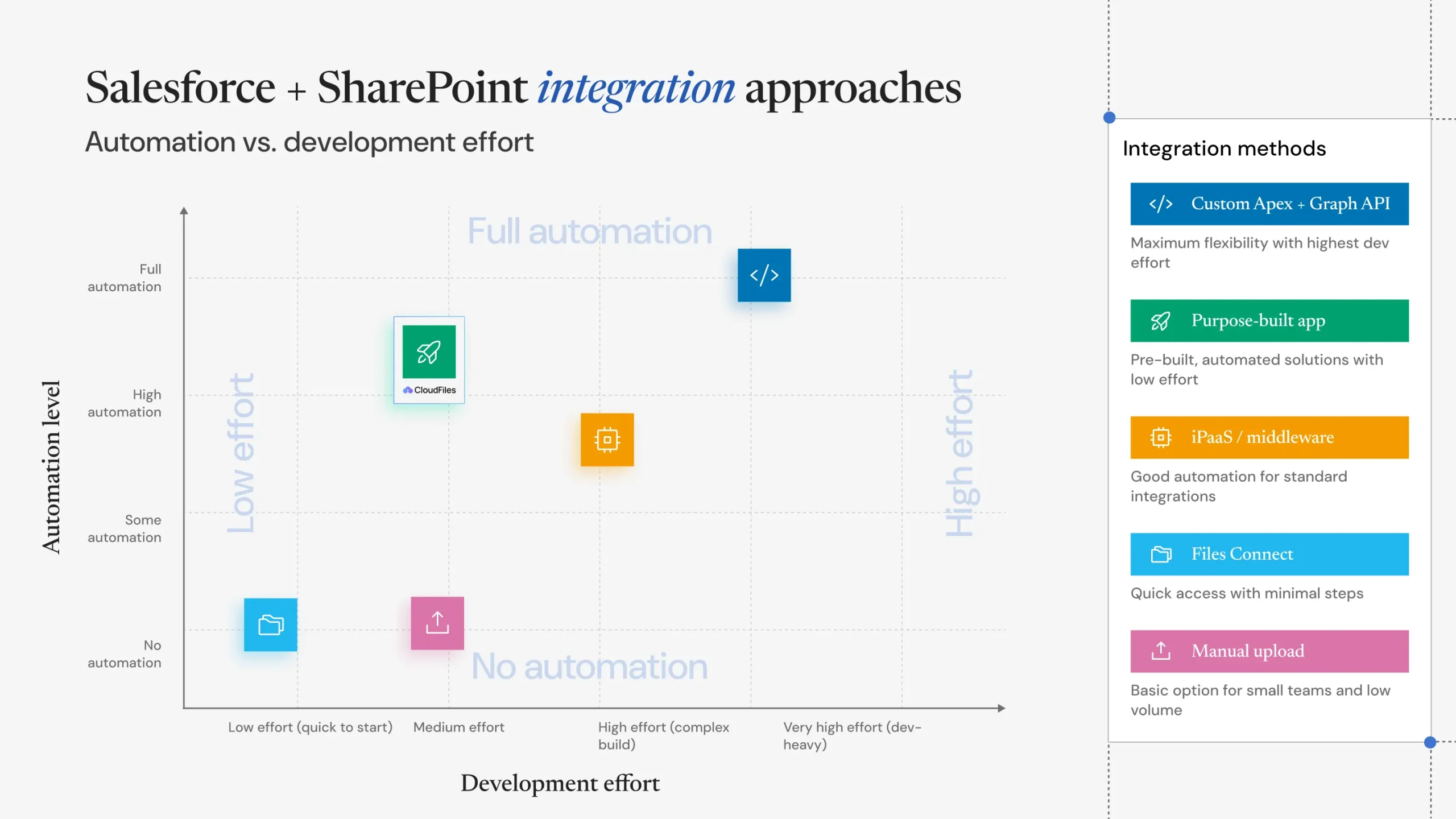
Which Salesforce to SharePoint Integration Approach Do You Need?
The real question is not which tool, but which level. Once you know that, the method picks itself.
- Access: users just need to open SharePoint files from a record. Files Connect or manual upload covers it, for free.
- Organize: files need to land and stay in the right place without manual filing. That takes automation, whether iPaaS, a custom build, or a purpose-built app.
- Process: documents need to move, generate, file, and share themselves as records change. A purpose-built automation platform, or a serious custom build, is the only thing that reaches this rung.
There is no single right method for every organization. But once you identify the level your document workflows require, choosing the right approach becomes much easier.
| Method | Level delivered | Automation | Dev effort | Best fit |
|---|---|---|---|---|
| Files Connect | Access | None | Low setup | Light manual reference |
| Manual upload | Access (plus manual organization) | None | None | Tiny teams, low volume |
| iPaaS / Middleware | Up to Process (DIY) | High | Medium to high | Existing middleware orgs |
| Custom Apex + Graph | Any (you build it) | Full | High | Dev-heavy, unusual needs |
| Purpose-built app | Process, out of the box | High, no-code | Low | Automated, record-aware workflows |
Not Sure Which Level Your Org Needs?
Book a free Document Process Audit and consultation with CloudFiles. We’ll map how documents move through your Salesforce workflows, identify manual touchpoints, and determine whether each workflow needs Access, Organization, or Process-level automation.
After the session, you’ll receive a one-page summary of your current workflow, key gaps, and practical next steps – with no pressure to purchase or commit.
Book Your Free Document Process Audit.