

Combine the best of both worlds: external document storage with native Salesforce user experience.
Highlights
- Work with SharePoint, Google Drive, AWS S3, and Azure files directly from Salesforce.
- Connect external documents to Salesforce records and business processes.
- Automate document workflows with Flow, platform events, and real-time updates.
- Share and collect files securely with customers, partners, and portal users.
No matter how mature your Salesforce implementation may be, the majority of business insights will sit outside of objects and records. Contracts, spreadsheets, and presentations remain the lifeblood of modern business, and how you manage these documents alongside structured CRM data determines how effectively your processes function.
This is why document management has become one of the most important categories in the Salesforce software vendor ecosystem. Having many options to choose from presents a challenge: How do you choose the right one? In the past, I’ve reviewed several document management apps, and the issues I always come back to are connectivity and ease of use.
Most recently, I got to explore a strong contender in the Salesforce document management space: CloudFiles. What separates CloudFiles from others in the market is that it’s completely native to the Salesforce Platform, runs asynchronously using platform events, and supports true two-way document interaction without needing to move files off the source platform, be it SharePoint, OneDrive, Google Drive, AWS S3, or Azure.
Let’s explore CloudFiles and its approach to document management in Salesforce.
Features
When I discussed the app with CloudFiles themselves, the term they used was “simple, but not simplistic”. I find that this captures the core idea of the app quite well. The approach they’ve opted for is to make document management within Salesforce as smooth as possible. How they achieve this is by reducing the number of steps needed to make documents actionable in Salesforce, and by connecting to these files as effortlessly as possible.
Work With External Files from Salesforce
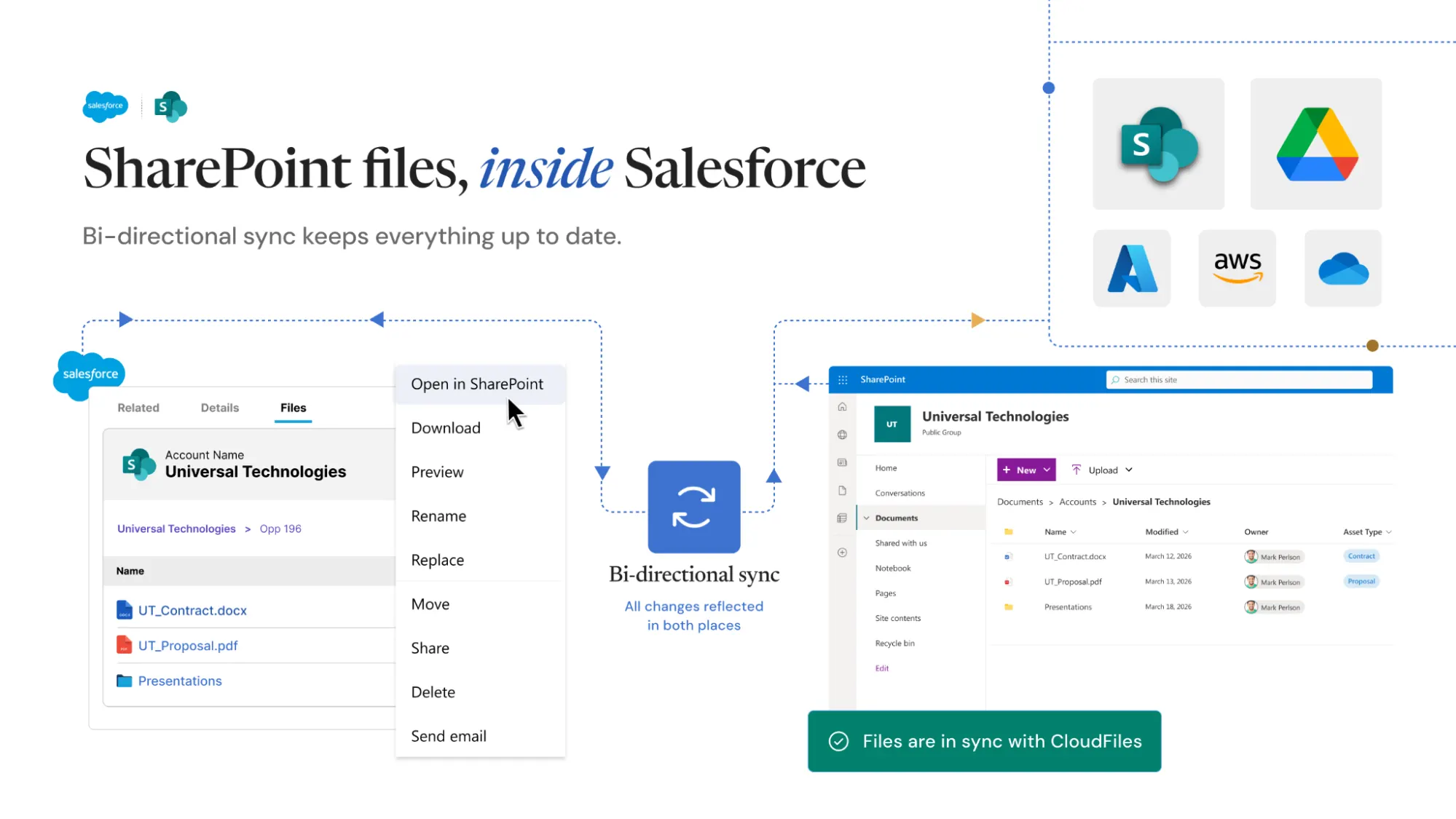
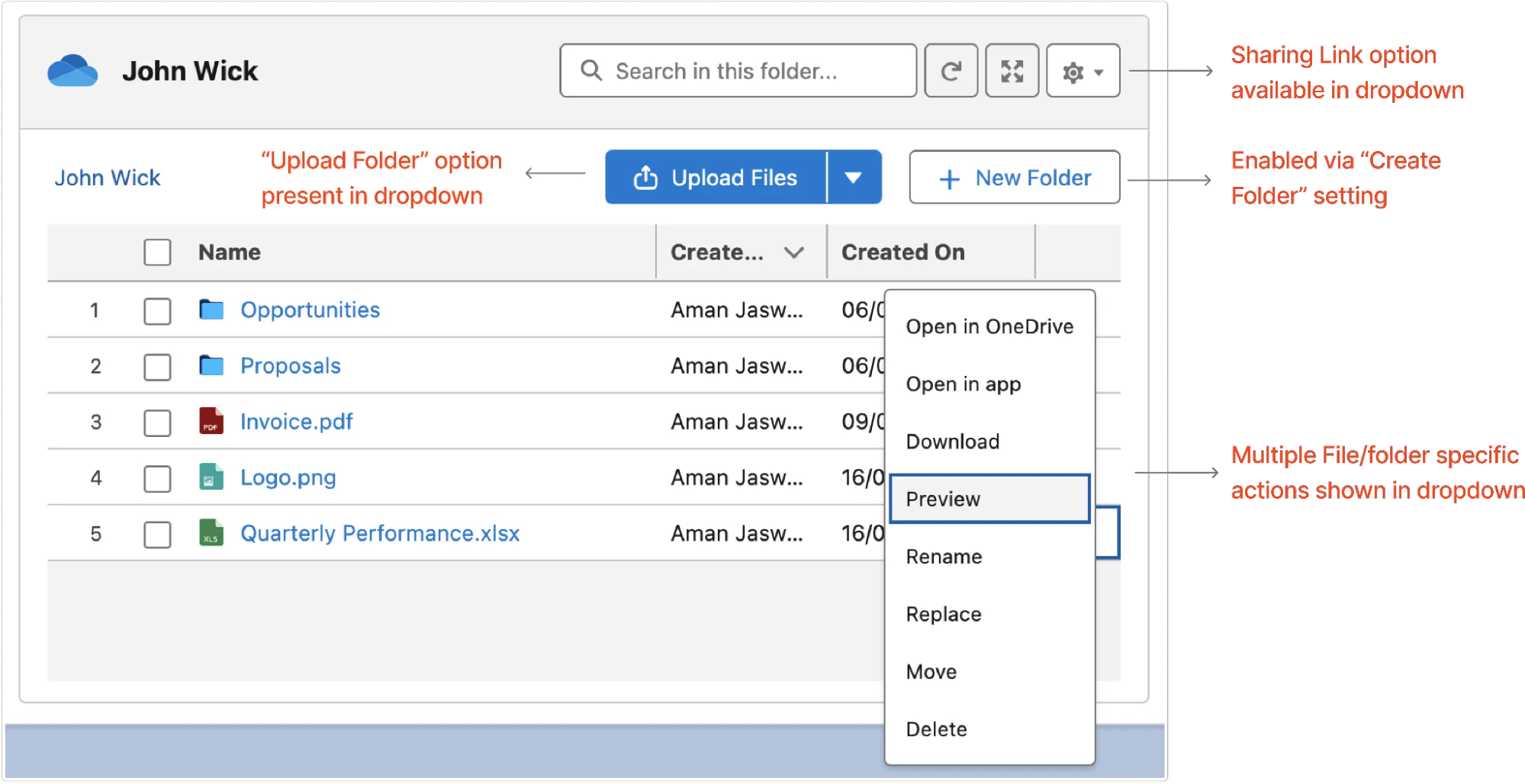
The first thing that stood out when exploring CloudFiles was that you don’t actually import anything to Salesforce. The files remain where they already are: SharePoint, OneDrive, Google Drive, AWS S3, and Azure. This is a great example of simplified user experience in practice. Instead of jumping between systems, users can browse folders, preview documents, upload new files, and manage existing ones directly from Salesforce.
CloudFiles doesn’t ask organizations to rethink their document storage strategy just because they’re using Salesforce. Documents remain in the platforms where users already collaborate and manage content, while Salesforce becomes the place where those documents are surfaced and acted upon. This creates an experience that feels intuitive without requiring businesses to move their content into yet another system.
Connect Documents to Salesforce Records
By bringing external content into the context of Accounts, Opportunities, Cases, and custom objects, CloudFiles makes document management feel like a native part of the platform rather than a bolt-on integration. The added benefit is that organizations can keep using the storage platforms they have already invested in, with their existing folder structures, permissions, and collaboration intact, and no migration project.
What I particularly liked is how naturally documents become part of the record experience. Instead of searching for files in a separate system and then trying to determine which account, opportunity, or case they belong to, users can access the relevant content directly from the Salesforce record they’re already working on.

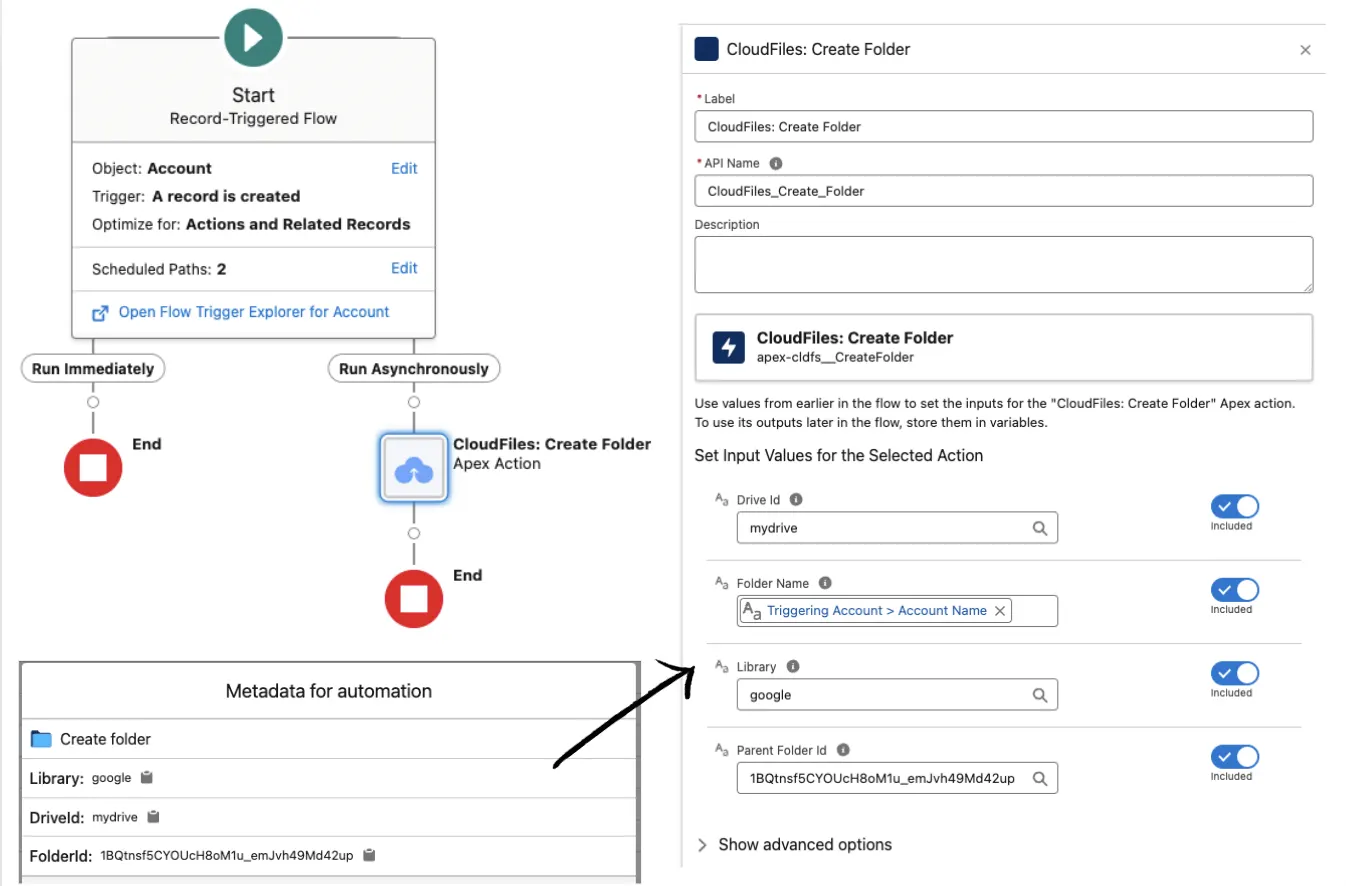
The platform goes beyond simply displaying files. Documents can be organized into automatically created folder structures, linked to Salesforce data, and incorporated into business processes through Flow and other automation tools. The result is a much stronger connection between structured CRM data and the documents that support it.
Collect and Share Files With Datarooms
One feature that deserves special mention is CloudFiles’ approach to collecting files from customers. Every onboarding, claims, or compliance team knows the pain: requests go out by email, attachments come back to one person’s inbox, and someone manually files them, if they arrive at all.
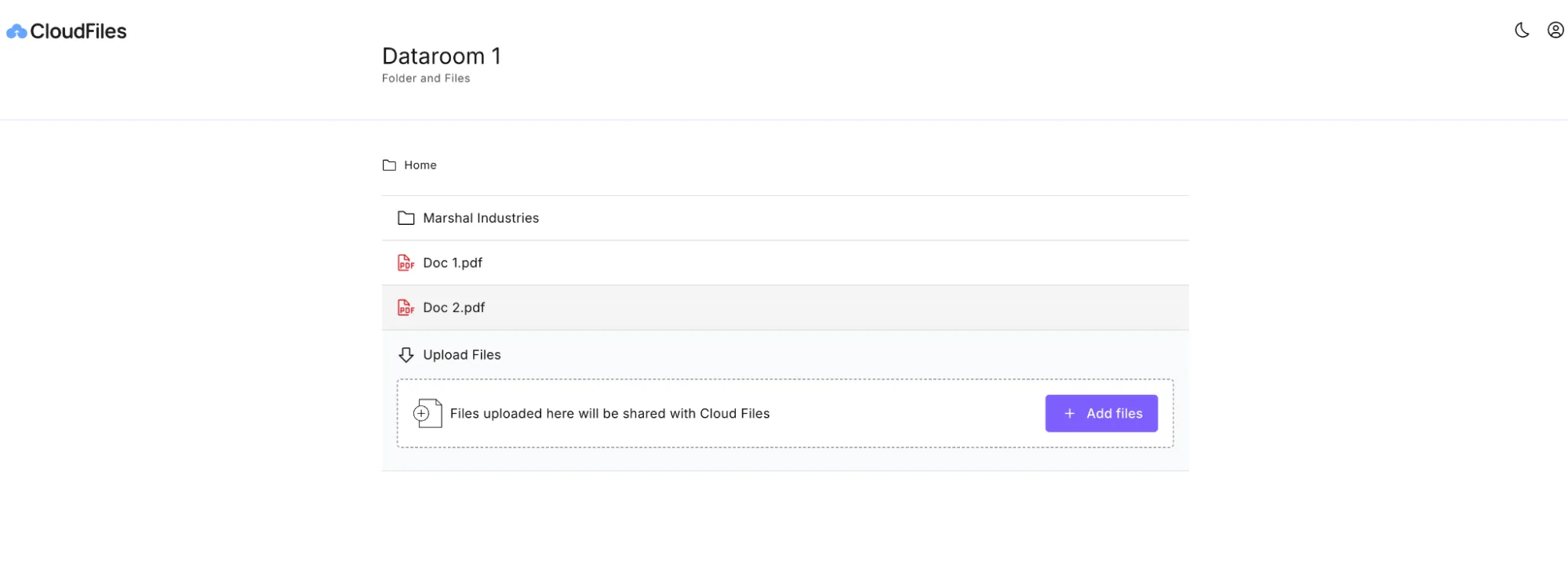
CloudFiles addresses this with datarooms: portal links that combine files and folders, even from different storage platforms, into a single, unified link. Alongside the content you share, datarooms support File Request blocks, giving customers, partners, and other stakeholders a structured place to upload the documents you need.
Whether you’re gathering signed agreements, onboarding documents, or supporting evidence for a case, every upload lands in the right folder on your storage platform, connected to the right Salesforce record, and can trigger automation the moment it arrives.
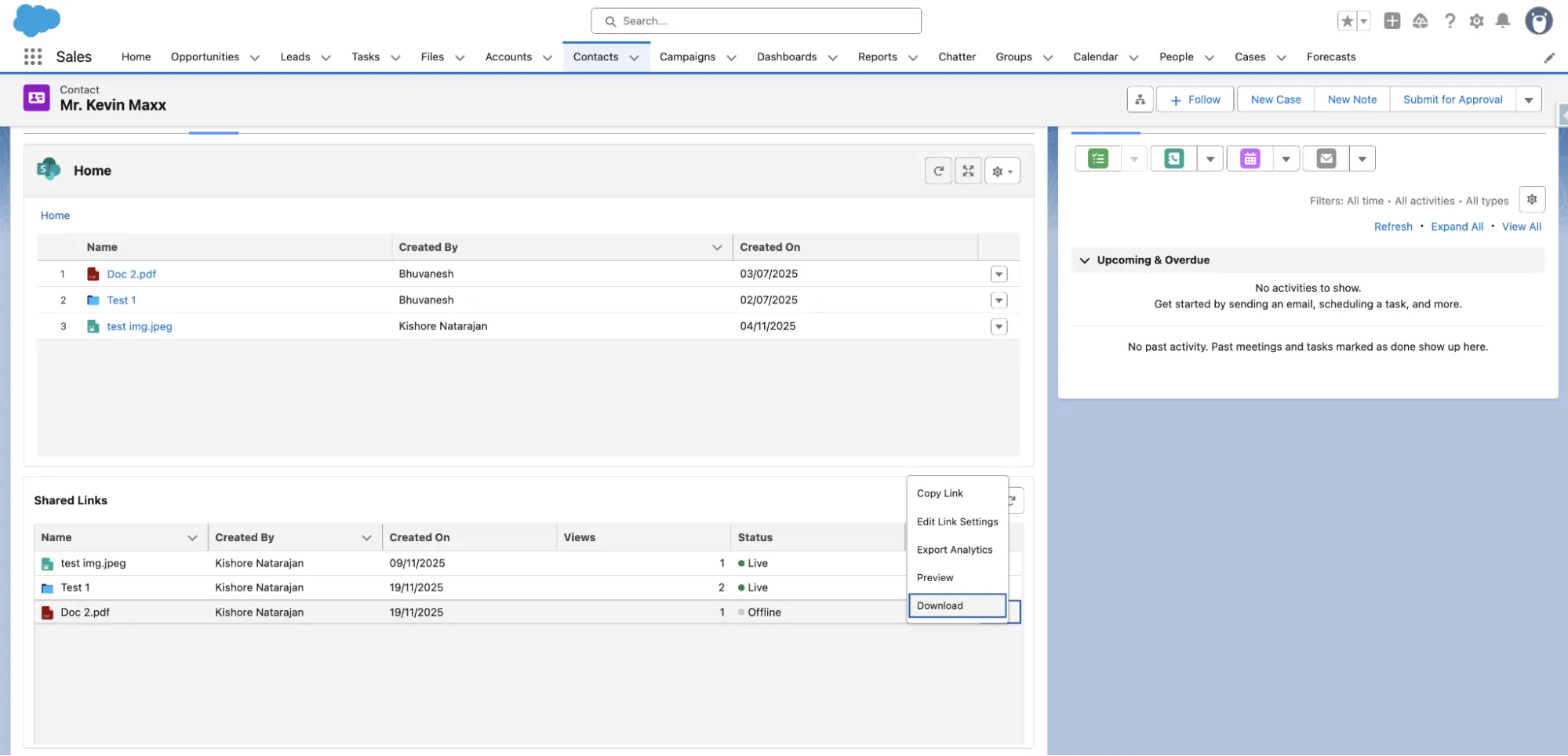
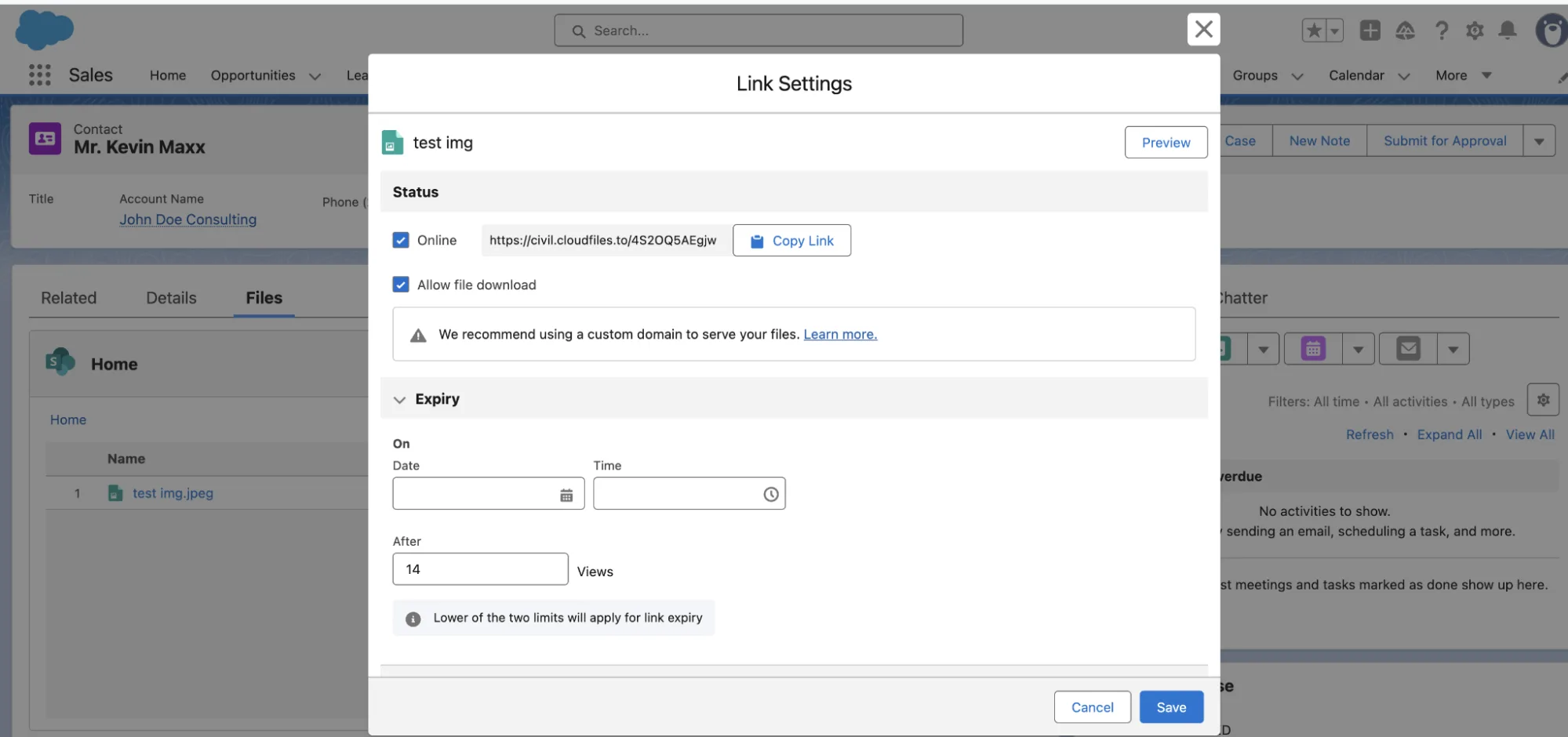
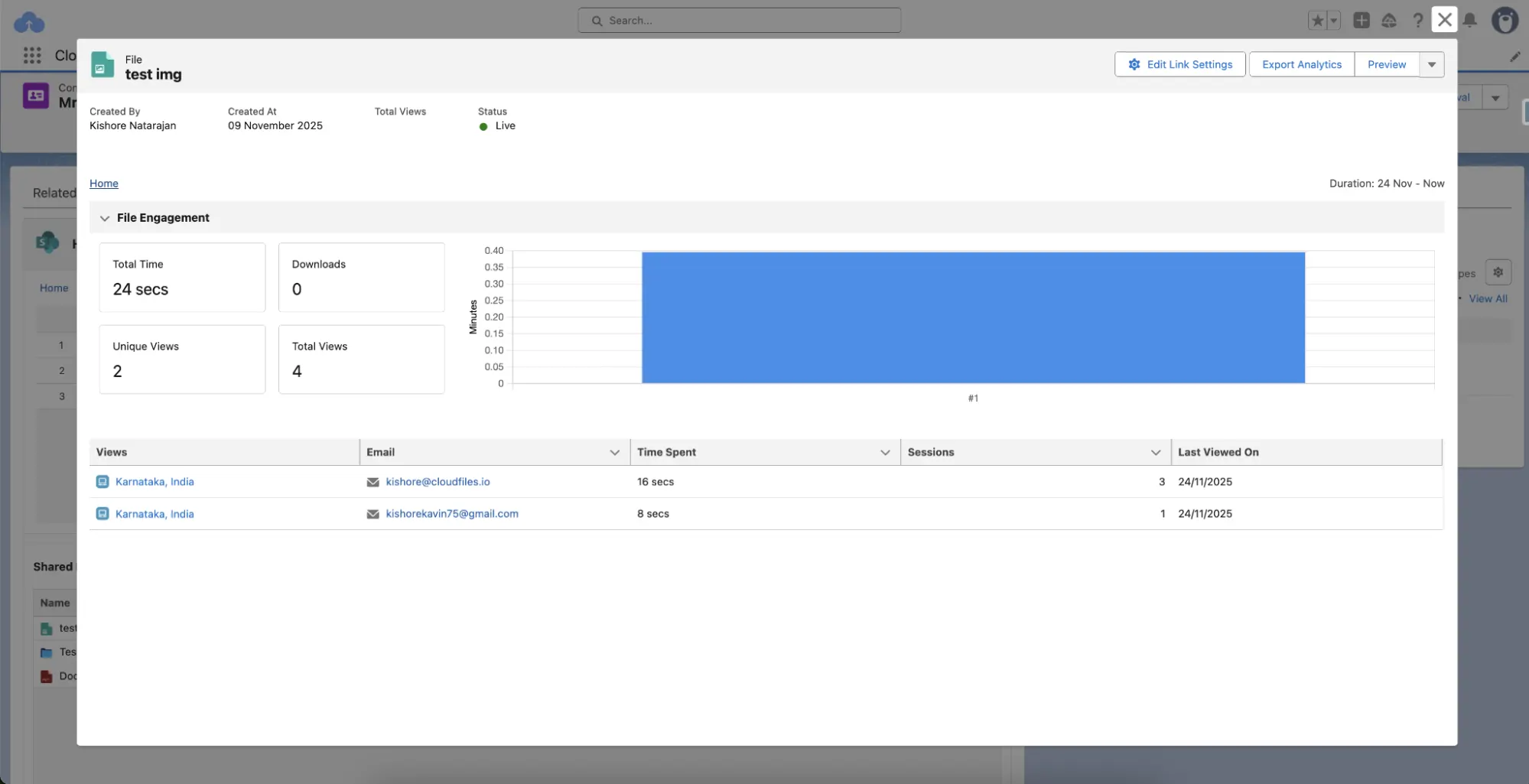
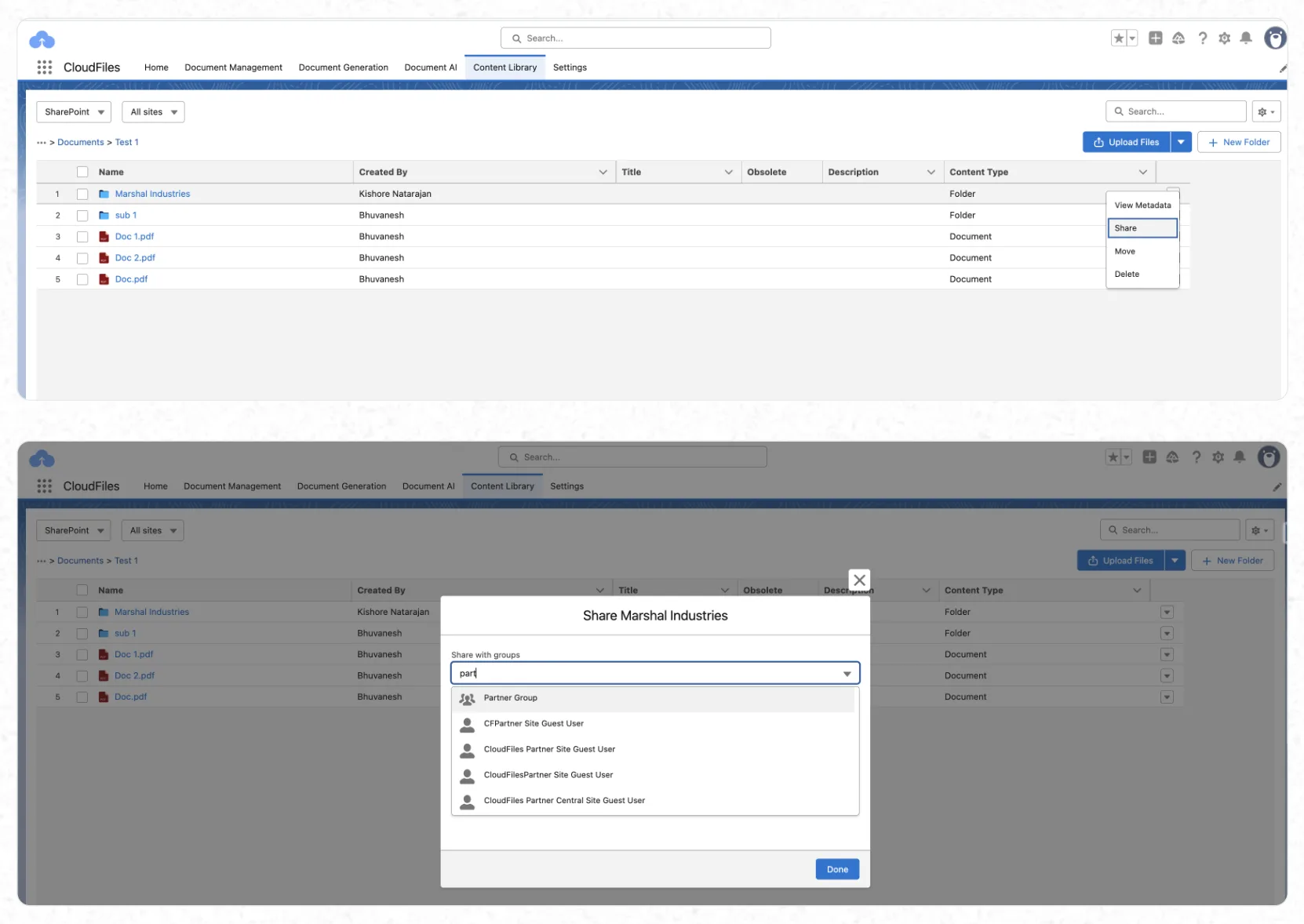
Sharing is equally controlled. Each link carries its own security settings: email verification, allowed and blocked user lists, domain restrictions, password protection, and download permissions. A Doc-Sharing widget on the record page lists every link with its status and engagement, down to page-by-page time spent on a document.
Two-Way Document Intelligence
Many document management tools incorporate document storage and sync into Salesforce directly, and in so doing, must make significant tradeoffs. Once a document is copied into Salesforce, it becomes a static snapshot. In reality, business documents are constantly evolving: they get updated, renamed, moved, and shared. Without a direct connection to the external source, keeping Salesforce aligned with those changes becomes a challenge.
CloudFiles takes a different approach by remaining connected to the source repository rather than creating a separate copy in Salesforce. Changes are reflected back into Salesforce via platform events, allowing organizations to trigger automations, update metadata, and respond to document activity in near real-time regardless of where the interaction takes place.
How This Compares to Storing Files in Salesforce
It is worth contrasting this approach with the default of uploading files into Salesforce itself. A native file upload creates a copy that is disconnected from where your team actually collaborates, consumes Salesforce file storage (among the most expensive per gigabyte in enterprise software), and goes stale the moment the source document changes. CloudFiles leaves documents in storage you already own and keeps a live, two-way connection to them, so Salesforce stays the system of engagement without becoming the system of storage.
Use Cases
Effective document management is about more than just cost-effective storage and process efficiency. Having tighter control and better visibility over business documents facilitates communication between teams, customers, and partners.
When documents are connected to the business processes they support, organizations can reduce operational friction, improve collaboration, and ensure that critical information remains accessible and actionable wherever work gets done.
Collecting Documents from Customers
Ask any onboarding, claims, or compliance team where their process stalls, and the answer is usually the same: waiting on documents. CloudFiles turns collection into a structured workflow.
A dataroom with File Request blocks gives customers a single link that works like a checklist: here is what we need, upload it here. Files land directly in the correct SharePoint, Google Drive, or S3 folder, linked to the Salesforce record, and platform events let Flow update the record, notify the owner, or advance the process the moment a document arrives. No inbox archaeology, no manual filing, no lost attachments.
Efficient Document Approval Processes
Approval processes are almost universally mission-critical, and they rarely stop at the Salesforce record itself. Contracts, proposals, compliance documents, and supporting materials often need to be reviewed, updated, and approved by multiple stakeholders across different systems. This makes approval workflows challenging to manage, and when they fail, the business impact can be severe.
CloudFiles helps address this challenge by bringing documents and approvals closer together. Because documents remain connected to their source systems while still being accessible from Salesforce, users can work with the latest version throughout the approval process. This creates a more reliable approval experience, ensuring that important decisions are made using the right information at the right time.
Smoother Cross-Team Handoffs
If there is one business process that exposes weaknesses in document management, it is the handoff between teams. Sales may have spent weeks collecting proposals, requirements, and supporting documents, but unless those assets are readily available to the delivery or service team, vital context can be lost exactly when it is needed most.
CloudFiles helps address this challenge by ensuring that documents remain connected as records evolve through the customer lifecycle. Rather than requiring teams to move files, recreate folder structures, or search across multiple systems, documents stay accessible directly from Salesforce records. The result is a smoother transition between teams and a more consistent experience for both employees and customers.
Secure File Collaboration With Experience Cloud Users
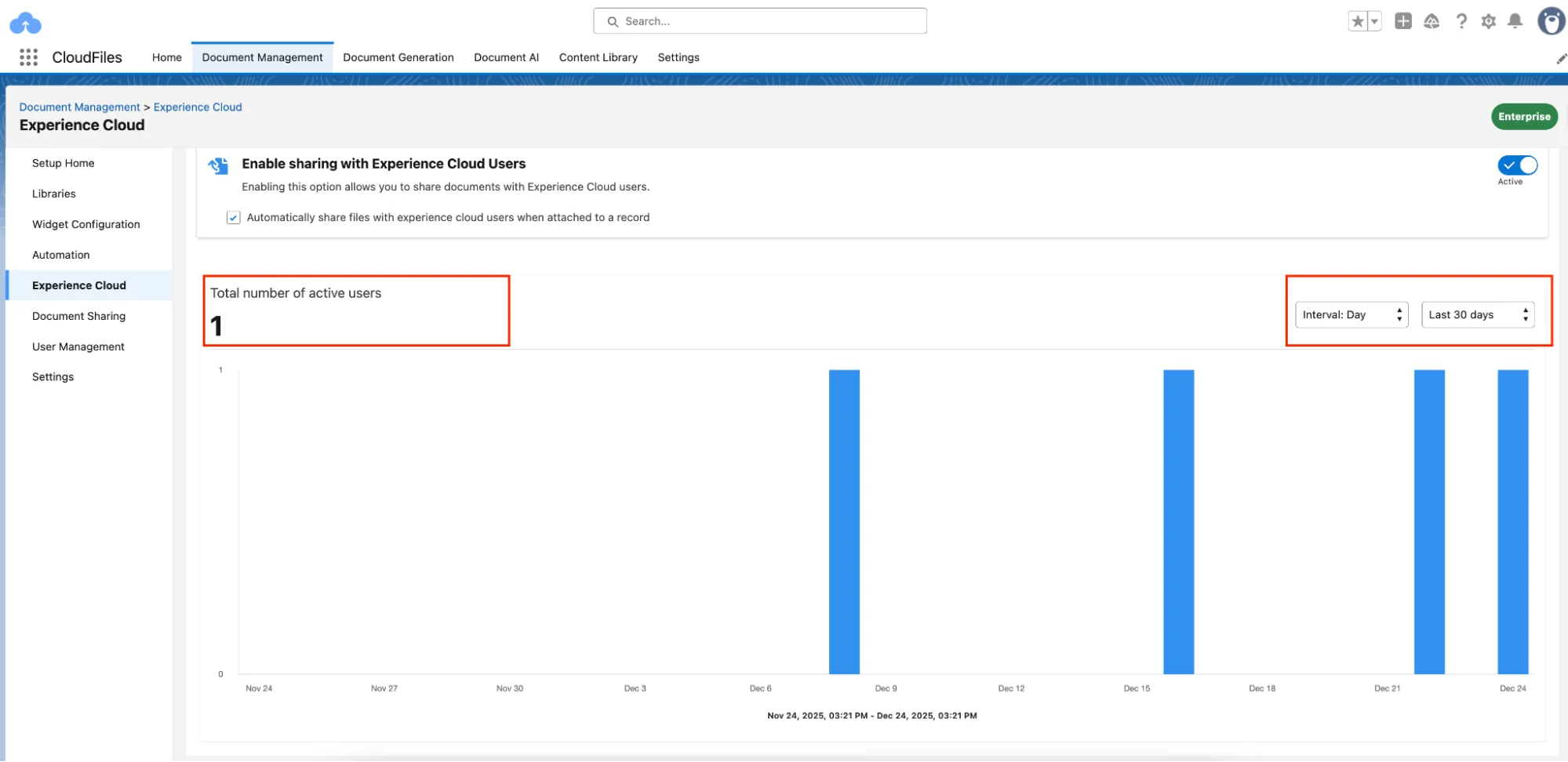
Organizations use Experience Cloud to extend business processes beyond the boundaries of their workforce, whether that means working with customers, partners, suppliers, or contractors. The challenge is that document collaboration often remains fragmented, relying on email attachments, ad hoc file-sharing links, or manual uploads. This adds administrative overhead and makes it harder to control who has access to which documents.
With CloudFiles, documents remain connected to their source repositories, so external users always work with the latest version without the need for duplicate files or manual synchronization. Combined with granular access controls and engagement tracking, this creates a more secure and scalable approach to collaborating with users outside the organization.
Setup
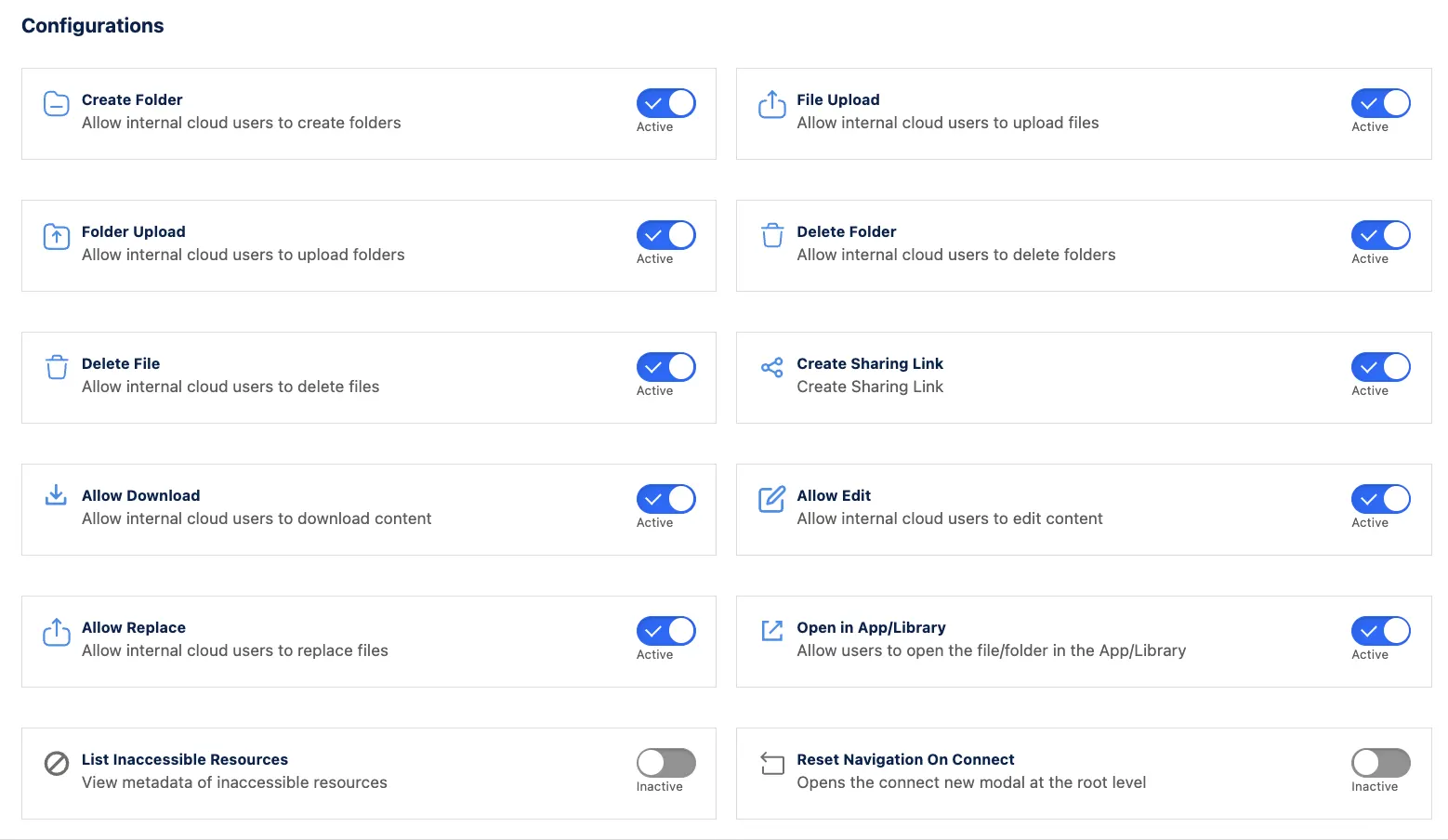
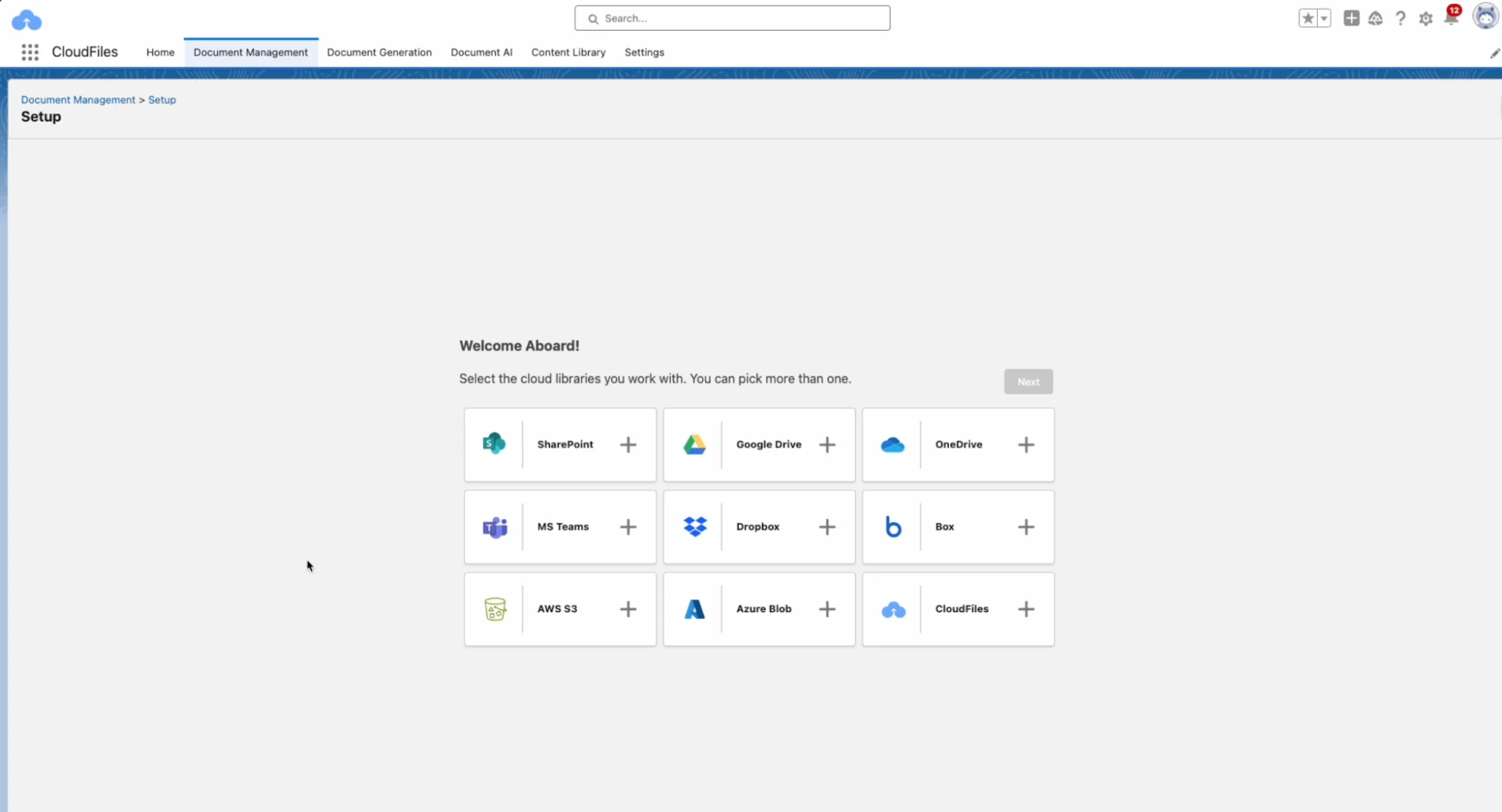
CloudFiles setup begins by installing the package from AppExchange, after which administrators configure the CloudFiles account, connect their existing storage platforms, and define an automation user for background operations such as folder creation and file management.
From there, the platform provides a set of quick-start guides covering the most common use cases, enabling teams to start delivering value quickly. The entire setup can be completed in half a day or less.
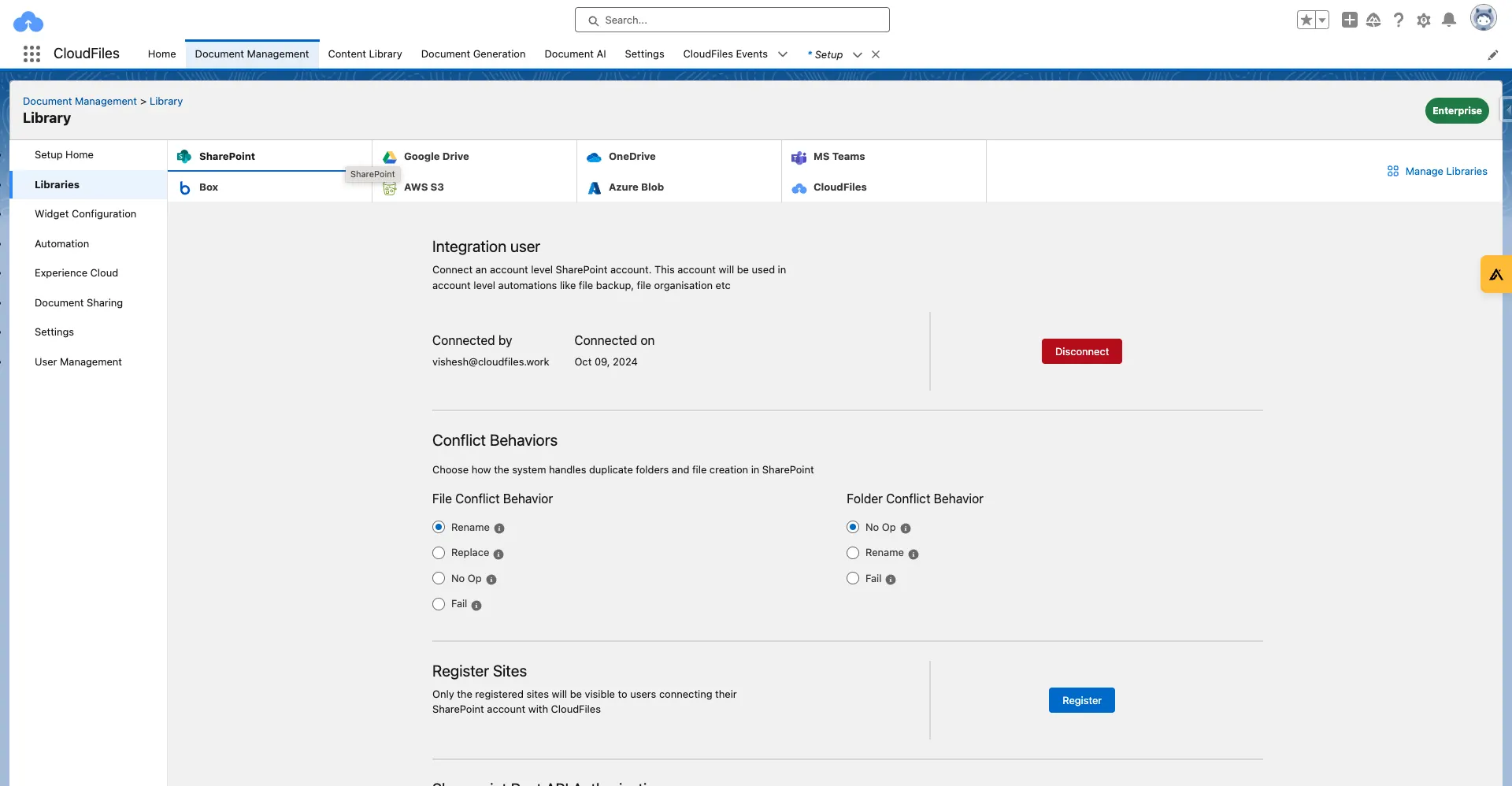
What I particularly liked is that the setup aligns well with how Salesforce Architects typically think about solutions. Everything is built around composable and reusable components. Rather than requiring extensive customization, CloudFiles provides pre-built widgets, Flow actions, and implementation patterns for connecting folders, sharing files, tracking engagement, and enabling Experience Cloud collaboration. This makes it easy to start with a simple use case and gradually expand into more advanced scenarios as business requirements evolve.
Support
CloudFiles offers a practical mix of self-service and hands-on support. Organizations can work through the Help Docs portal and quick-start guides independently, book implementation sessions with a CloudFiles solution engineer, or have the CloudFiles team assist directly with configuration by providing temporary access to their Salesforce environment. According to CloudFiles, these implementation support options are included with a paid license.
The support model is flexible enough to accommodate different levels of Salesforce expertise. Administrators and architects can rely on the documentation for straightforward implementations, while implementation calls and direct setup assistance help accelerate more complex automation and integration projects.
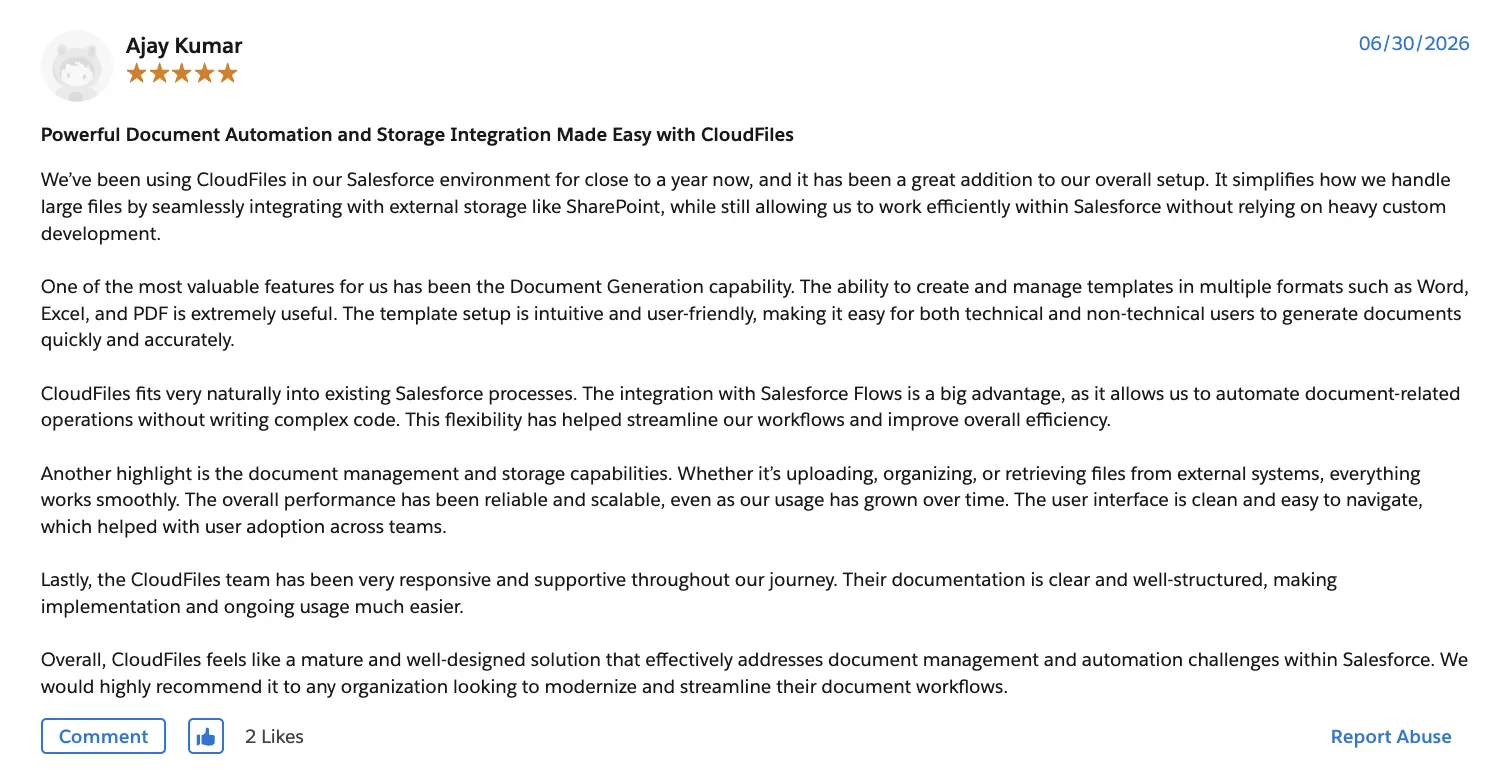
Customer feedback is unequivocally positive, with the AppExchange listing maintaining a 4.99/5 rating from more than 230 reviews and several customers specifically praising the team’s responsiveness during implementation, migration, and rollout activities.
Pricing
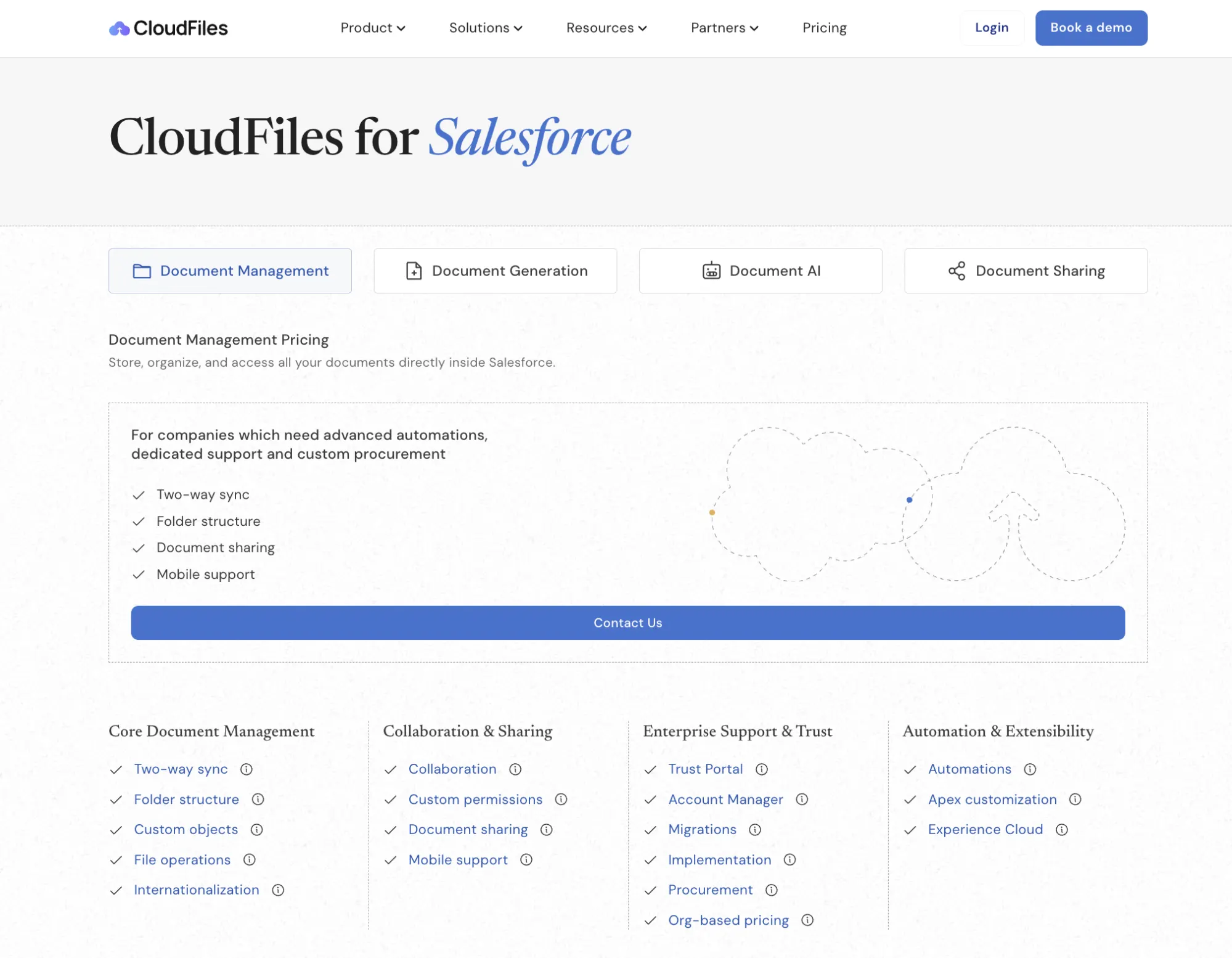
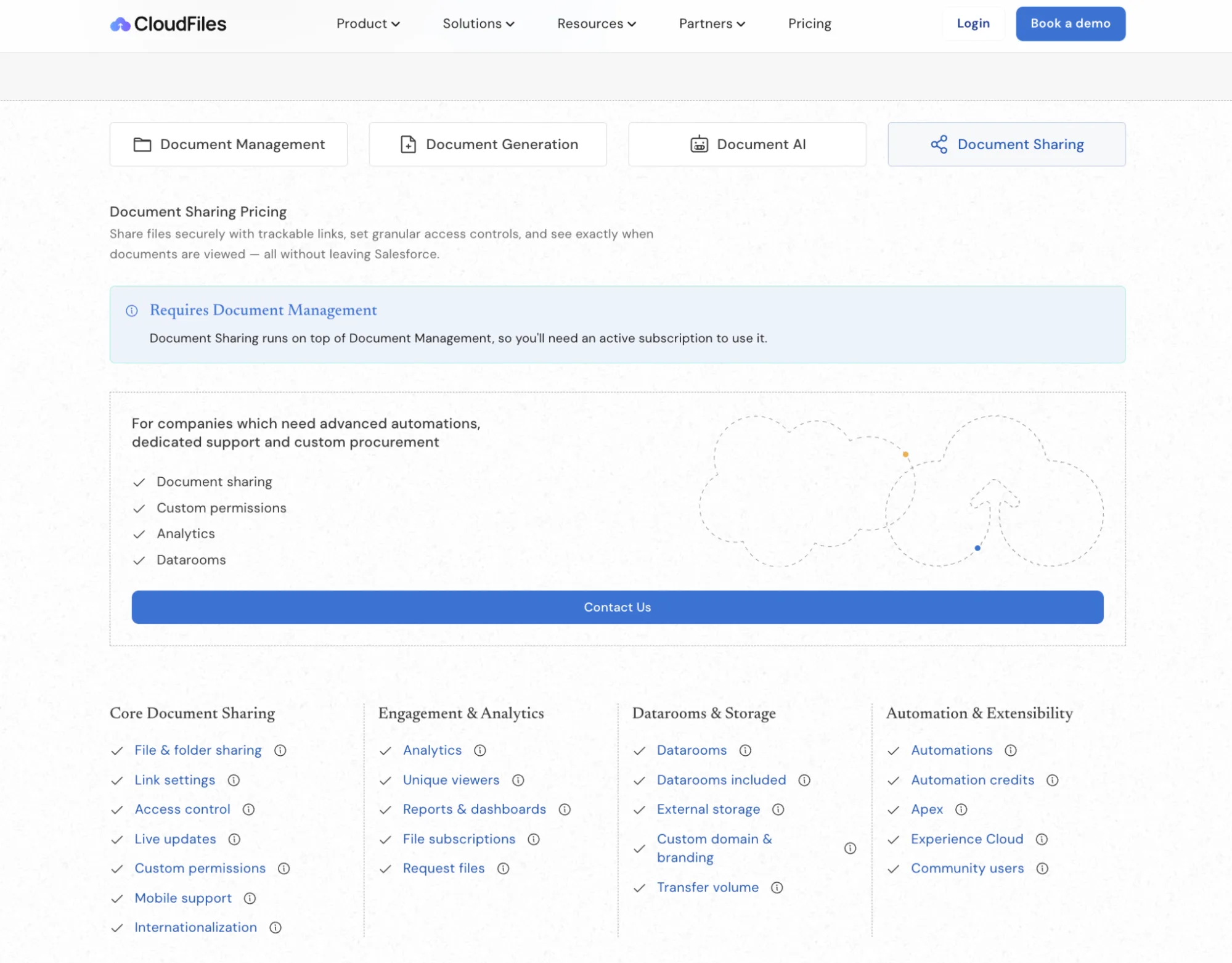
CloudFiles keeps licensing simple: a single plan, priced per user, with everything included. The plan is called Enterprise, but don’t let the name fool you; it’s the same plan whether you’re a small team or a global organization, so there is no feature matrix to decode and no edition to outgrow.
Capabilities such as document sharing and datarooms are add-ons managed under the Document Management license. Pricing is available on request, and the quickest route is booking a demo with the CloudFiles team.
Summary
Throughout my review, one theme kept recurring: document management doesn’t have to be complicated, even when the surrounding business processes are. What I appreciate most about CloudFiles is its clear separation of concerns. Documents remain in the repositories where they belong, while Salesforce becomes the place where they are accessed, shared, and acted upon. CloudFiles also manages to avoid a common pitfall of enterprise software: installing the app feels more like enabling a capability than embarking on a lengthy implementation project.
In a crowded document management market, CloudFiles succeeds by focusing on the fundamentals and executing them exceptionally well. By building on proven Salesforce technologies such as platform events, Flow, and Lightning Web Components, it delivers a solution that feels both scalable and well aligned with enterprise design principles.
Looking ahead, I expect these strengths to become even more relevant. As AI agents increasingly interact with documents alongside human users, capabilities such as interoperability, security, automation, and real-time synchronization will become foundational requirements rather than optional enhancements. With Document Management, Document Generation, and Document AI built on the same connected foundation, CloudFiles appears well positioned for that future.
Eager to see how CloudFiles could connect your external files to Salesforce? Book a free demo with CloudFiles.